At Home with Tech

Unlock the power of all your technology and learn how to master your photography, computers and smartphone.

Month: September, 2013

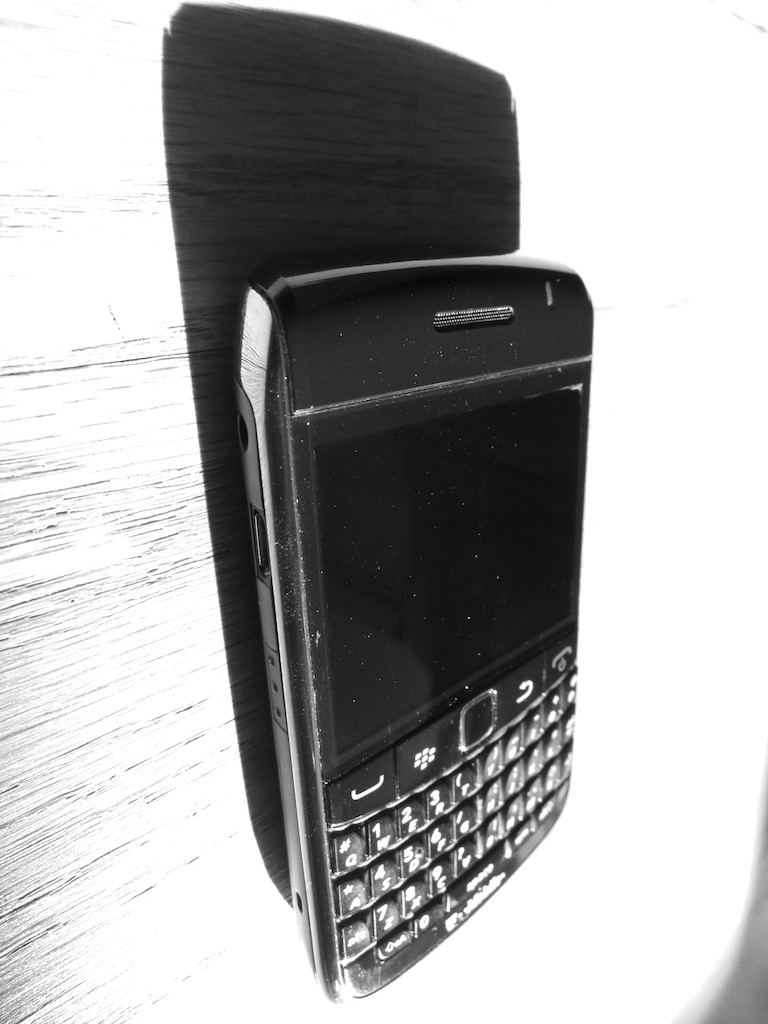
More BlackBerry Blues

Last week, BlackBerry announced an almost billion dollar quarterly loss, fueling speculation that the fat lady has already sung.  I’ve been happily using a BlackBerry at work for the past nine years, and I’m not pleased at the prospect of losing my little buddy with its old-school keyboard buttons.  But what can one do to sooth the pain of this inevitable loss?  Of course… write a poem!

Last week, BlackBerry announced an almost billion dollar quarterly loss, fueling speculation that the fat lady has already sung. I’ve been happily using a BlackBerry at work for the past nine years, and I’m not pleased at the prospect of losing my little buddy with its old-school keyboard buttons. But what can one do to sooth the pain of this inevitable loss? Of course… write a poem!


Ode to the End of BlackBerry

A billion dollar loss
Who could guess?
The mighty BlackBerry
What a mess

It’s on my belt
Wherever I go
I’m on the job
It fuels my mojo

I tap away
My message clear
It is so fast
I have no fear

My iPhone’s great
But when I try
To send a text
Quick on the fly

The auto correct
It makes a mess
It sometimes says things
I must confess

When email’s the thing
BlackBerry can’t be beat
Those tactile buttons
They’re such a treat

But a simple machine
You don’t want anymore
It really has to do all
BlackBerry hits the floor

Kicked to the ground
Others are shining
There is no hope
Cause no one’s buying

I’m still a big believer
But this is not contemporary
There’s no denying the odds
You’ll soon see the obituary

The Borg will soon provide
Workers with their new tech
Corporations shall survive
But I’ll simply say ‘bleck’

Life was glorious
BlackBerry years happy
All good things must end
Time to call my Pappy

He tells me how
In the days before time
People just talked
Then had a glass of wine

Life was simpler he says
No tech was needed
Face to face was the way
To sow what you seeded

But I attribute it
To the gloss of the past
Just like his 8-track tapes
They were quickly outcasts

Survival of the fittest
It is not that existential
Evolution transcends all
No tech is forever special

Three Websites to Create and Mail a Card from Your Computer

This photo card I created at Paper Culture represents the end of a tech quest I’ve been on for my father: Type a card. Put it in the mail. Don’t get out of your chair.

This photo card I created at Paper Culture represents the end of a tech quest I’ve been on for my father: Type a card. Put it in the mail. Don’t get out of your chair.

My father asked me a couple years ago how to send out a letter from his computer directly to the mail.

I told him that was a service called email.

He gave me an annoyed look.
(My eighty-year-old dad is quite tech savvy for his generation.)

He politely replied that an email can get lost in the deluge people receive.
Plus they don’t carry the gravity of a physical piece of mail.
(He had a point.)

Dad is still quite focused on the golden days when telegrams ruled the world of instant communication!

The idea of creating and sending out a physical piece of mail through your computer may seem more quaint than critical, but it’s not an unreasonable request.

At the time, Apple’s Cards iOS app had just launched.
The service was designed to mail out customized cards with your photos via your iPhone/iPad as opposed to using a desk-bound computer.
Cards was a great idea and a nifty time saver, since you didn’t have to schlep to the post office. Apple did all the heavy lifting.

Suddenly ‘quaint’ became ‘cool.’
But it wasn’t quite right for my father, as he didn’t have an iPhone

So Cards was a near miss.

I think I then got consumed with my life as a new parent.
And I never did come up with an answer for my dad.

Fast-forward two years…

Cards… We Hardly Knew You!
Guess what?
Cards wasn’t that cool after all.

Amidst all the recent fanfare of the iPhone 5S and 5C launch,
Apple also killed off Cards.
What?!

Yes, On September 10, Apple quietly acknowledged its Cards service had been discontinued, pushing customers towards iPhoto instead.
…And also pushing people to get off their tushies to find a mailbox!
(iPhoto won’t mail out your cards for you.)

Three Choices Take Center Stage
Apple’s Cards obit got me thinking back to the unfinished project for my dad.

Today, there are plenty of ways to send out a greeting card online, even using photos you’ve uploaded.
The problem is the massive overload of design options and targeted ‘themes’ for your card.

You’ve got hundreds… sometimes thousands of choices.

My father is looking for something simple:

  • No anniversary
  • No graduation
  • No congratulations
  • No happy retirement
  • There’s no event to celebrate!

He wants to avoid all the fanfare and just write and send out his own little notes.

So I began my research again…

And with the vacuum created by Card’s departure, the competition was happy to remind everyone they’re out there…

Sifting though them to find the ones that still stuck to the basics wasn’t easy…
But I found three choices I think my father will like….

Shutterfly

So of course, I started with Shutterfly, because it’s such a well-known brand.

That said, I realized it’s become quite the sprawling mall of photo-related products.
Believe me, finding the right page to create and mail out a singular card wasn’t easy.

Shutterfly Photo Cards
Shutterfly doesn’t offer the option to mail out old-school post cards or individual single-sided photo cards.
(They only sell single-sided photo cards in bulk.)

Shutterfly Flat Stationary Cards
But wait… you’re suddenly in luck if you morph the aforementioned photo card into a ‘flat stationery card.’
Yes, Shutterfly will mail out individual flat stationery cards that you can customize with your photos:
(5 x 7, 5 x 5, 6 x 8, and 4 x 8…but not 4 x 5!)

The price:

  • $2.47 for most of the sizes (They’ve got a sale running.)
  • $2.44 for the 6 x 8 (They’ve got a bigger sale running.)
  • Plus 99¢ to mail ($1.49 for international)

The only downside, and it’s a big one is all of these cards are tied to a theme.
So you may have trouble making your simple message fit if its not tied to some big ‘event.’

Are you getting a headache yet?

Shuddering with Shutterfly
I’ve got to tell you all my Shutterfly research was exhausting.
I could have driven back and forth to the post office five times by now.

Touchnote

Touchnote comes closer to hitting the sweet spot.
Most importantly, it’s so simple by comparison.

  • You can quickly send out a postcard or greeting card
  • They also offer a mobile app for Android and iOS, so you can do all your work with your smartphone (like Apple’s former Cards app)
  • You can send your postcard anywhere in the world

And you can’t beat Touchnote’s pricing:

  • You pay in ‘Credits.’
  • It costs 1 credit to create and send a postcard
  • 2 credits for a greeting card
  • A credit costs $1.49
  • But it’s cheaper if you buy in bulk…
  • If you buy a pack of 5 credits, you get the 6th for free
  • If you go crazy and get the 50-credit pack, they give you 25 more for free, which brings the price down to the low/low price of 99¢/credit

I picked up the 5-credit pack, which meant I would be sending out my postcards for $1.25.

Not bad…

I only encountered one problem:
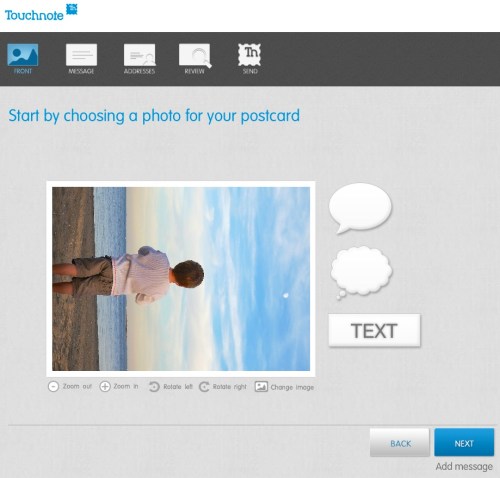
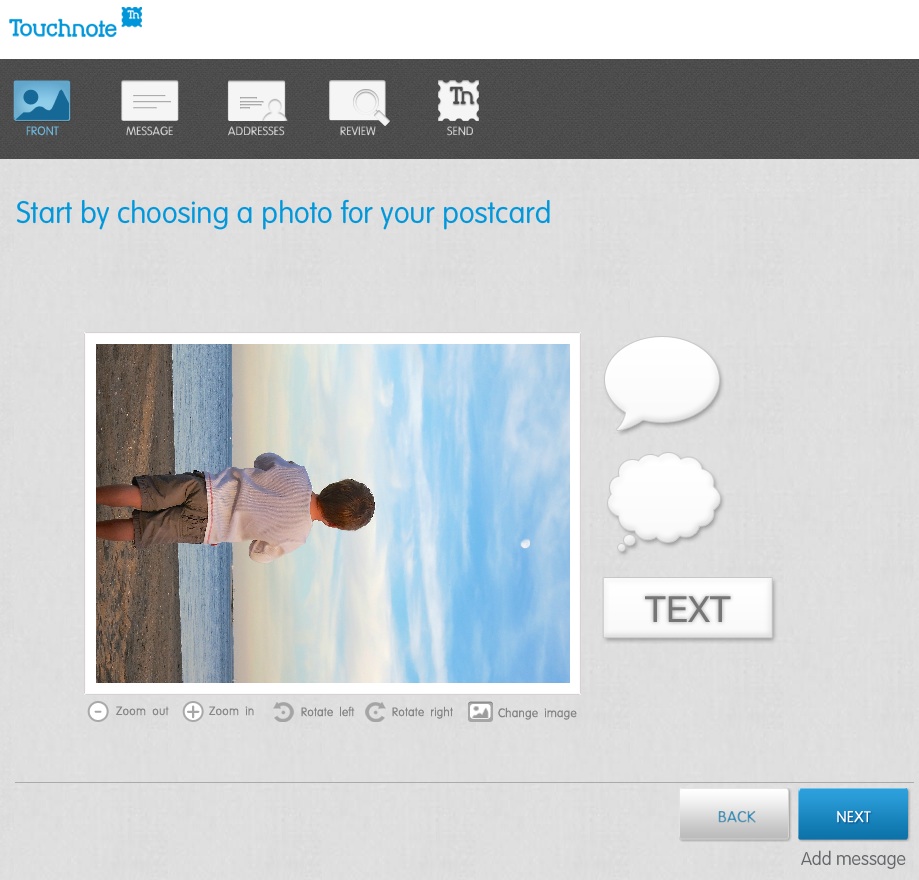
Touchnote 1
When I first loaded up my vertically oriented image, I rotated it into portrait mode from the default landscape setting.
But unfortunately, I realized you can’t use the clever text and thought bubbles they offer in portrait mode.
(disappointing)

Otherwise, it was a snap.

The postcard goes out the next working day, and they say it will arrive in 1 to 4 working days (within country).

Paper Culture

These guys are the green alternative.
They also promote the quality of their paper stock. But you’re not killing trees when you use Paper Culture.
In fact, quite the opposite…
All of their products are printed on 100% post consumer recycled paper.
Plus, a part of every order placed goes towards planting a tree.
(They’ve got a goal of planting 1 million trees, and they’re almost a third of the way there!)

Pricing:

  • $2.59 for a standard card (6 x 4.3)
  • $3.19 for a larger card

After that, they just charge the cost of the stamp to mail your card for you.

So all in, that’s $3.05.
(though I got a 15% discount on a deal that’s ending soon)

For your 3 bucks, they also provide free designer assistance and offer you up to 2 proofs for free.

And they’ve got a line of personal stationery that allows you to send out a classy-looking note (with a photo if you like), just like my father asked about!

What’s not to like?

Well I did run into one disappointing detail in the fine print on the final order page:

“If you approve your proof today, we will ship your card(s) no earlier than 6 calendar days before and no later than the date you select below.”

The earliest date I was allowed to select was a whole week out.

So that means they can take their time being all green.
And delay up to a week putting my card in the mail.

Hmmmm….

I just had a flashback to the old Orson Welles commercial.
“We will sell no wine before its time…”

Hallmark

Of course I checked out the grandfather of all greeting cards.
Hallmark offers a similar online card service that pops your card in the mail…

Their pricing structure is more complicated:

  • $1.29 for a 3.9 x 5.3 flat stationery photo card
  • $1.99 for a 3.9 x 5.3 folded stationery premium paper card
  • $3.49 for a 5 x 7 folded photo card
  • $5.99 for 5.5 x 5.8 folded song card
    Yes, the one with the little music chip and speaker
    (And yes, you can choose a song from their relatively extensive though super clichéd song library)

Like Paper Culture, they’ll mail out your card for the price of a stamp.
But they only mail to the U.S. and its territories.

I went with their simple flat stationery photo card for $1.75 all in.

Again, I ran into one little snag…

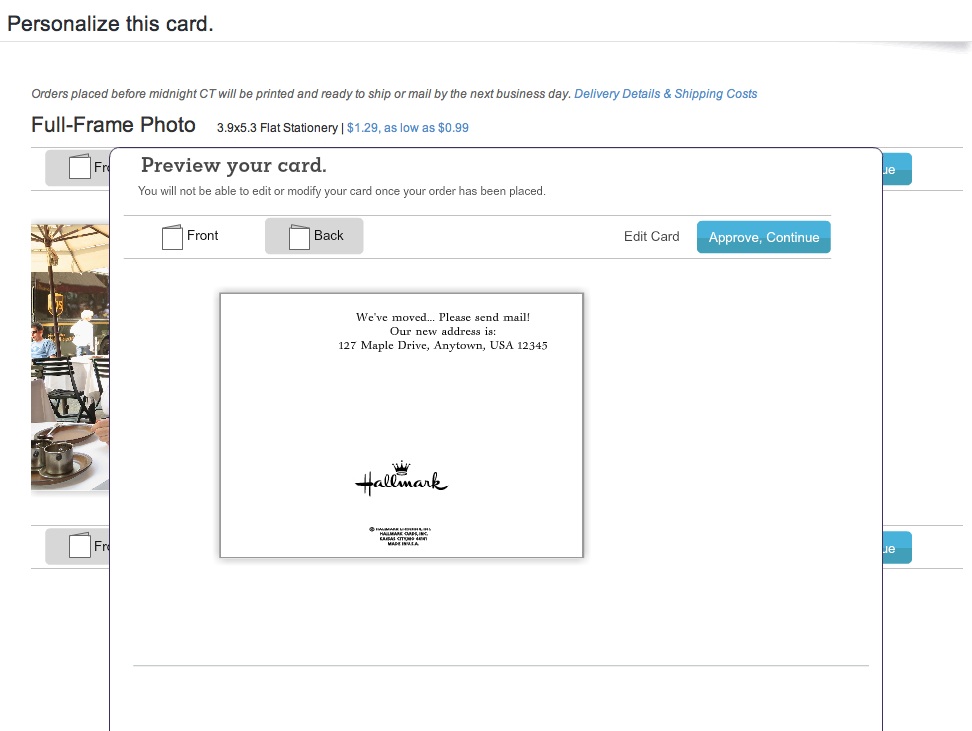
I first uploaded a photo of my father and me enjoying a Vietnamese coffee at an outside café in New York City.

Then, Hallmark’s spell check program went into Red Alert mode.
Something about ‘Anytown’ not being spelled correctly.
(That was strange, as I had not typed in any text!)

But then I realized the spell check was referring to the back of the card, which I hadn’t gotten to yet!
It had populated a default ‘Anytown’ address.

Hallmark
(How ironic Hallmark was questioning the spelling of its own default ‘Anytown’ word!)

The earliest mailing date Hallmark offered was two days off, which wasn’t bad compared to Paper Culture, but not as fast as Touchnote.

Survey Says…

So how do these competitors stack up?

I’d call it a relative draw.

All three online card services did a solid job.
Yes, they all had their own minor hiccups, but only deserving a minor ding.

Other points to consider:

Touchnote:

  • Easiest to use, but the others aren’t far behind

Paper Culture:

  • If you’re interested in helping Mother Nature

Hallmark:

  • You still can’t go wrong with a Hallmark card

Price (including stamp):

  • Touchnote: $1.25 (postcard)
  • Hallmark: $1.75 (flat stationery photo card)
  • Paper Culture: $3.05 (note card)

(Note: These aren’t entirely apples-to-apples comparisons, but they’re close.)

Dad- you really can’t go wrong with any of these services.
Just stay away from Shutterfly for this particular use.

Happy letter writing…

You’re welcome.

Follow my blog with Bloglovin

A Glitchy Drive Can Ruin Your Trip Back in Time

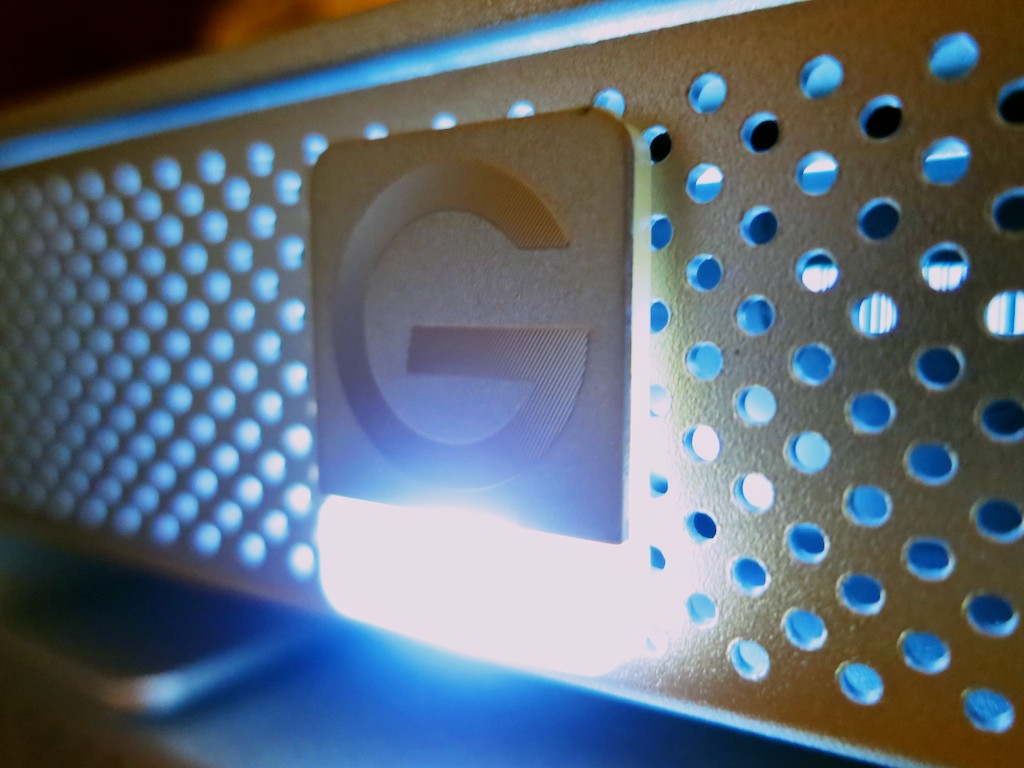
This is the steady glow of your digital life. If it starts to flicker, you’d better be paying attention! It contains Time Machine, the portal to your digital past!

This is the steady glow of your digital life. If it starts to flicker, you’d better be paying attention! It contains Time Machine, the portal to your digital past!

Face it: You can’t go back in time if your gear gets glitchy.

Time Machine is wonderful software to back up all your precious content on your Mac, but you also need healthy tech to support it.

Last month, my G-Technology external hard drive was running its regular Time Machine backup, and something very odd happened.

The 2TB G-Drive ‘quit’ unexpectedly, and of course the backup failed on my iMac.  I stared at my tech companion, unaccustomed to this kind of problem.
Hmmm….

So I rebooted the drive and tried again.
This time, the silver box behaved, and the backup completed without incident.

Was this a one-time glitch or a sign of things to come?
I tried to erase the unpleasant episode from my head.

But as we all know, little tech glitches rarely just go away…
(and eventually, they turn into “The Terminator!”)

Last week the glitch came back.
Twice.
And this time my failing G-Drive did a number on my Mac and froze it up quicker than you can say ‘Flux Capacitor.’

I couldn’t bring my stunned iMac back to life without performing a hard power shut down via a Vulcan neck pinch to the back power button.
(It doesn’t get much worse unless you yank the power cord out of the wall!)

Yes, the third time was the charm, and Time Machine completed its backup.
But it was clear I had a problem with my external back-up drive…

Countdown to Disaster
I mentioned my little story to a couple of colleagues last week, and I swear their faces turned slightly white. It was like I was holding a time bomb in my hand.

In a manner of speaking, I was.

After a few moments of uncomfortable since, one whispered, “You’d better do something about that.”

The other one simply looked away as if I was a Morlock…

I’ve talked before about the importance of backing up your data.

Yes, I’ve got both local and cloud-based backup solutions in place.
But you can never be too careful when you’re talking about your digital life.

Now it was clearly time to practice what I preach…

I’m a big fan of G-Technology drives.
(I’ve been running this particular G-Drive for over 3 years.)
But no drive lasts forever.

So let me repeat this a different way…

Every drive you own will eventually fail.
It’s just a matter of when.

And when that happens, your personal portal to your past disappears…

The fix:
Time to buy a new backup drive…
Pronto!

How Big a Backup Drive Does Your Computer Need?
So another problem with my failing G-Drive drive is its storage capacity.
I’ve got a 2TB hard drive sitting in my iMac, and my G-Drive is also 2TB.

Common logic says your Time Machine drive should be at least 1.5 to 2 times the size of your computer’s internal drive.
That’s because Time Machine is capturing more than what’s on your computer right now. The whole point is to save older versions of your existing content in case you need to go back to it…

I’ve always known that when I got through more than 50% of my iMac’s internal drive, I would start to stretch the limits of my G-Drive.

I’ve already crossed that threshold, and even though I haven’t specifically run out of space yet, that problem is waiting in the wings… ready to pounce.

I’d rather avoid that little fire drill all together…

So as I started shopping for a new Time Machine drive, I focused on 3TB and 4TB sizes.

Checking Out Glyph
Even though I’m a longtime fan of G-Technology, it’s always a good idea to review the competition when buying anything, right?

Remember those colleagues who treated me like the plague after they heard about my tech woes…?  They both suggested Glyph drives as a well-regarded (though expensive) solution.
Glyph also offers a generous warranty as well as a limited data recovery service when you buy one of their drives.

All very nice!

I took a look online, and Glyph has a new 4TB GPT50 coming out with USB 3.0.  But it’s not being released until later this month…

Sticking with G-Drive
The new Glyph GPT50 looks interesting, but I really needed to address my Time Machine crisis right now.
(It’s not wise to tempt the Fates of Tech.)

So it was back to another G-Drive for me.

Their 4TB model with USB 3.0/FireWire is listing for $320, but you can pick in up from Amazon closer to the $300 mark.
(I don’t need the pricier Thunderbolt model, since I have an older iMac without Thunderbolt.)

Yes, $300 is expensive compared to the competition… but this is your digital life we’re talking about…
(“Don’t cross the streams,” and never skimp on your drives!)

Click.

Should You Transfer Old Backups to Your New Drive?
So my new tech pal showed up on Friday via Amazon Prime, and I quickly introduced it to my computer.

Then I faced a choice.

Should I start from scratch and do a full backup with the new G-Drive or first transfer over the old backups from my failing drive?

My first instinct was to transfer all the files over from the old drive, but I ran across a dissenting opinion online from pondini.org.
(This website from James Pond is a treasure trove of Time Machine goodness.)

He suggests that first transferring the old backups would take a “very long time.”

And with my old drive in its weakened condition, perhaps an extended transfer session would be too much of a stressor…

I figured the time spent saving my precious data was better focused towards completing a brand new backup…

(Granted, I wouldn’t have access to my old backups… but I’m thinking/hoping I don’t need them…)

Let the Massive Backup Session Begin!
So I powered up my hungry 4TB protector, selected it as my new Time Machine drive, and then I went to bed.
(Initial backups also take a wicked long time.)

I quickly slipped off to sleep, because my mind was clear.
My soul was cozy, believing all my beloved personal digital content was again protected…

  • My hundreds of home movies, thousands of family photos,
    and my future blog ideas (all three of them)

Is it all a dream?
Maybe.
(I’ve only got two ideas in the cue.)

When I awoke the next morning, I checked out the progress of my backup.
My iMac glowed wearily, ‘About 19 hours’ to go.

What?!

$300 and 19 more hours?!
This part was definitely not a dream.

But if you want to keep your personal time portal to the past operational, and you don’t happen to have access to an Omega 13 device from another galaxy,
that’s the price you pay to protect your digital life.