
How to Stop your iPhone from Buzzing All Night Long
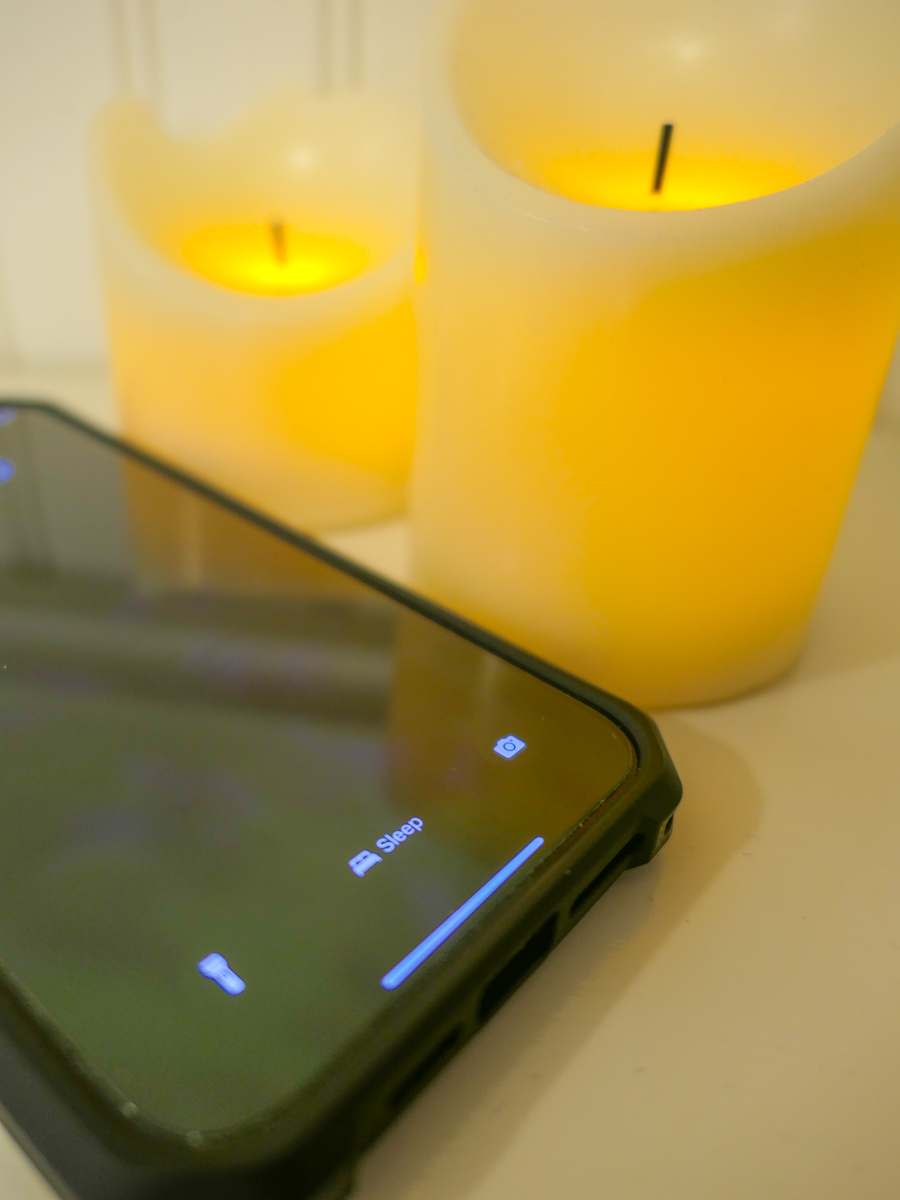
Unless you want to be kept up by your iPhone with endless updates while you’re trying to sleep, you need to give it a bedtime. Here’s how.
I am the Borg. You are the Borg. We are the Borg. Yes, humanity has already been assimilated.
Remember, those evil “Star Trek” cybernetic bad guys who kept running into Captain Picard and wanted to take over the galaxy? The Borg were all wirelessly interconnected and acted in sync like a colony of bees. Their hive mind kept them instantly updated.
Okay. Well, no… we’re not completely moving throughout our day following the constant direction of a unified data stream. But I think the scary reality is only because it’s not unified. (Well, not yet.)
Time to Put your iPhone into Sleep Mode
Our smartphones are constantly bombarding us with various updates…. from family, friends and work to various companies and organizations we’ve touched and shared our personal data with.
These ongoing texts, emails and calls can become a persistent din. It’s like the world is screaming at you. If you wear an Apple Watch with haptic feedback on your wrist, there’s a constant visceral reminder that someone or something wants your attention.
All that noise, noise, noise!
Sure, you have instant access to so much more information, but it comes at a price. (What’s a Borg drone to do?)
And the last thing you need is to have that constant drumbeat interfere with your sleep.
There’s got to be a way to turn it off.
Well, of course there is…
How to Activate Sleep Focus
I realized recently that I really needed to take some action and effectively put my iPhone 15 Pro Max to sleep while I was sleeping. Yes, it was muted, but my iPhone would wake me up with all the buzzing and screen brightening to alert me of something new in the wee hours of the morning.
I needed my REM sleep!
I knew that I could simply move my iPhone to a different room, but I like to charge it up on my nightstand. Fortunately, I can set it and forget it…if it will let me. (I usually don’t wake up in the middle of the night with the need to grab it and see how my blog’s metrics are doing.)
Instead of turning my iPhone off (whoever does that?!), I activated the sleep setting in the Focus App.
Here’s how to do that.
- Tap on Settings
- Tap Focus
- Tap Sleep
- Set a Schedule
Then you assign a lock screen for this setting. (The trick I think is not to assign it to the screen lock photo that you use throughout your day.)
You can also program exceptions to let certain contacts make it through your Do Not Disturb barrier.
Done.
Now my iPhone goes totally dark at my bedtime and does not respond to any incoming anything throughout the night.
Happiness restored.
Silence in your Sleep Chamber
It’s ironic that we now need to tame our smartphones to prevent them from overwhelming us with too much of what was supposed to be a good thing.
The simple truth is everyone and everything should not have immediate access to your attention.
Even the Borg knew that. They had those cool standing sleep chambers throughout their Borg cube ships where their drones could catch up on their sleep… uninterrupted.
And as we all know, it’s never a good idea to wake up a sleeping Borg.
 At Home with Tech