
How to Rescue Family History Locked Away in an Old DVD
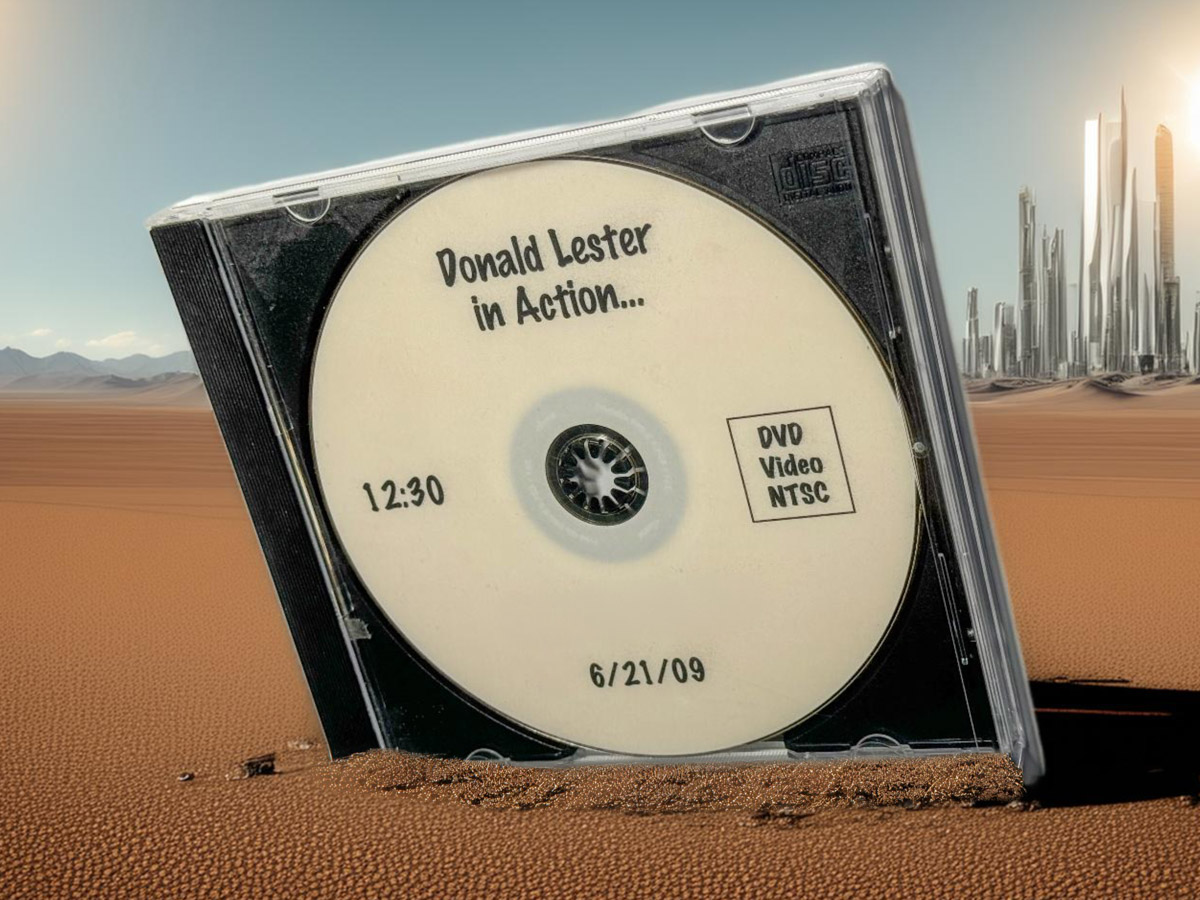
You’ll need to first extract your unusable ‘VOB’ video file that’s buried in your DVD and convert it to a file format that your computer can play. Here’s how I did that with this fifteen-year-old DVD I made for my father about his life.
You may recall that DVDs were once used to save VHS and analog video files from extinction. It was the magic ‘digital’ solution! Then technology moved on, and DVDs effectively disappeared as streaming and cloud platforms took over our lives. Physical media was history! (Well, not completely.)
All the DVDs that I had ‘authored’ containing family videos simply went to the back of my closet, forgotten for another day.
Is that your story too?
Old DVDs are Drink Coasters
Should you eventually want to play one of these DVDs again, you’ll need a working DVD player hooked up to a TV or a computer with a DVD drive. Both scenarios are increasingly unlikely. So, it’s time to face the reality that you really need to rescue your video files before it’s too late.
I recently confronted that exact moment with a DVD I had burned fifteen years ago. It was originally a gift to my dad for Father’s Day. It was a little documentary I had made for him about his life. Now, of course, it’s an irreplaceable keepsake, and it came back to me after he passed in 2022. But if I can’t access the media, it’s effectively a worthless drink coaster.
Copy the VOB File to your Desktop
The first step is to find a way to copy the video file off the DVD to a computer. And that may not be a simple process. Fortunately, I still own a portable optical Apple drive that I had purchased with an old iMac. (They still sell the Apple USB SuperDrive for $79.)
When you look at the file structure of an authored DVD from your computer screen, it’s complex. The file you’re looking for is the ‘VOB’ file (mostly likely the largest one).
Dragging the .VOB over to my Mac Studio took some time. (My old SuperDrive is a USB-A relic.)
But don’t get too excited just yet. Clicking on the VOB file on your desktop is useless. You’ve got to convert it to be able to play it. Here’s how to do that…
Rename the Extension from VOB to MPG
That’s right. All you need to do is rename it as a .mpg file. That’s because it’s really an MPEG-2 file. Once you name it that way, it should play fine on your Mac. But you’re not totally done.
That’s because .mpg is an old, bulky codec. Sure, it may play on your computer today, but it’s not that compatible anymore. So, the next time you click on it, who knows what may happen. You should take the next step and convert it to an .mp4 or .mov.
Convert the MPG to MP4 or MOV
There are any number of ways to do this. If you’ve purchased the ‘Compressor’ app for your Mac, that will do the trick.
Alternately, if you own Roxio’s ‘Toast’ software, that will also convert VOBs directly to MP4s. I had to pay to upgrade my older Toast software to Toast 20 Platinum to get it working on my Mac Studio.
And if you’re looking for a free software solution, ‘HandBrake’ is another path to take.
Where’s my Original Edit?
You may be wondering why I didn’t just find my original video edit from fifteen years ago. That way, I could have avoided my whole DVD file-conversion dance. But that assumes I still knew where that old file is.
Sadly, I’m not as digitally organized across the decades as I had hoped.
The good news is I still had my drink coaster to convert. And this message in a bottle is now found, updated and living happily in its converted form.
Rescue your Past
DVDs are history. Computer hard drives won’t live forever either. Cloud solutions offer better future-proofing comfort, but that assumes these companies stick around for the decades to come. It can make your mind spin faster than a DVD in an optical drive!
I think the only way to address this challenge is to just take it… one decade at a time. For now, focus on extracting your video files from your old DVDs.
Good luck!
 At Home with Tech