At Home with Tech

Unlock the power of all your technology and learn how to master your photography, computers and smartphone.

5 Camping Tips from a City Boy
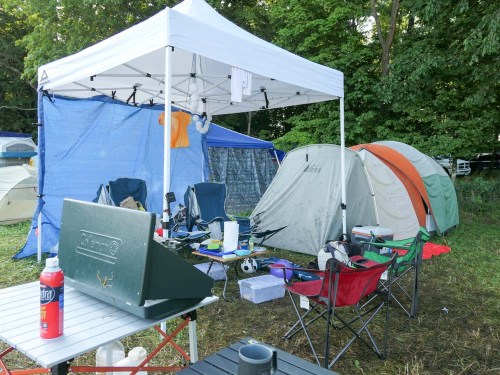
Thinking of going camping for the first time? On the fence? Here’s the good news: You don’t have to entirely ‘get away from it all’ if you don’t want to. Here’s how to keep your mobile tech alive and well…

I was a city boy growing up. I was raised on the Upper East Side of Manhattan. My only real exposure to nature was camp outside of the city. And that wasn’t camping.

My wife loves camping.
She introduced me to its allure. I gave it a shot and found it wasn’t so bad.
(Although we endured a terrible thunderstorm over our first night.)

We did a bit of camping, but it wasn’t a ‘thing’ for us. But then our son came along…

Two years ago, we tried family camping with our then five-year-old boy. Specifically, at the annual Grey Fox Bluegrass Festival in Oak Hill, New York.

I think the sweet spot for any family camping location is to go somewhere that already has built-in activities to do as a family. So, the idea of a music festival that includes a family tent for kids was perfect.

Our kid really digged it. The concept of pitching your own little ‘house.’ It was magical for him.

Now, family camping is absolutely a ‘thing’ for us.
Grey Fox has become an annual event…
(We just returned from our third Grey Fox camping adventure.)

So I think it’s fair to say that today ‘we’ love camping.

But…

My iPhone Goes Camping Too
I haven’t totally played fair. I’ve also spent the last couple of years figuring out technology tricks on how to stay ‘connected’ while on our camping excursions.
(I’m sure purists might fault me for this intention.)

My reality is I simply can’t leave my iPhone behind. My life doesn’t easily let me disappear for a few days. If my 84-year-old father needs to reach me, I’ve got to be able to answer the call.

Fortunately, the giant field we camp on at Grey Fox gets one to two bars of AT&T cell coverage.
(Other service providers are noticeably absent.)
So, my iPhone didn’t fall off the grid.

The bigger challenge was keeping my iPhone powered up.
(Plus, my wife’s iPhone)

Looking to the Sun with Goal Zero
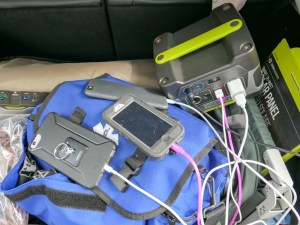
As long as the sun shines, it’s a great idea to bring a portable battery station that recharges with a solar panel to nurse multiple smartphones over the course of days. A while back, I did my research and decided to go with some nifty gear made by Goal Zero.

Goal Zero Sherpa 50 Power Pack
Capacity: 50Wh, 5,200mAH
$178.48 on Amazon

I paired it with the Goal Zero Nomad 20 Solar Panel, which has a 20W solar capacity.
$159 on Amazon

And I added in the Light-A-Life 350 LED
$32.00 on Amazon
to illuminate the inside of our REI Kingdom 400 tent.

Goal Zero Upgrade
We were camping with another family this year, and I found it especially convenient that the other dad was also at home with his tech.

My friend brought the newer and more powerful models that Goal Zero offers:

The Goal Zero Yeti 150 Portable Power Station, which provides 150Wh and 14Ah of battery power
$199 on Amazon

He paired it with the Goal Zero Nomad 28 Plus Solar Panel, which has a 28W solar capacity.

Important note: Solar-powered battery solutions are not cheap!

You’ll notice that the Sherpa 50 and Yeti 150 are essentially the same price, but the Yeti 150 gives you a much bigger bang for the buck. The only downside to the Yeti 150 compared to the Sherpa is the Yeti is much bigger. But if you’re car camping, that shouldn’t really be a consideration.

We tethered the two Nomad solar panels together and successfully created our very own solar ‘FrankenPower’ Grid.

It worked great and easily kept four iPhones going over four days with plenty of power to spare.


A Cheaper Choice
Over the course of multiple camping excursions, Goal Zero gear becomes less expensive per use. But if you want a cheaper way to power your gear on your first camping adventure, just bring a few basic (inexpensive) power sticks.
(You just need to bring enough since you won’t have a solar recharging capability.)

Last year, I picked up this beefy RAVPower battery pack as a backup option-
RAVPower 26800 Battery Pack (26800mAh)
$49.99 on Amazon
(It has three USB ports and is rated to recharge an iPhone 7 nine times!)

So, you can probably get away with spending less than fifty bucks to power your smartphones on a family camping trip. It all depends on your needs and your desire to generate additional power in the field.

Glamping
You might be thinking about now… “Maybe Barrett doesn’t really love camping if all he talks about is how to maintain his ‘normal’ life with all of his companion tech.”

And you might be right.

But I’ve decided that for me it’s not about loving the camping experience.
It’s about proving to myself that I actually can camp. And enjoying the fact that I can step out of my comfort zone and rough it for a few days.

To successfully ‘survive’ in the ‘wild’ and provide your family dry shelter… that’s a useful skill.
(Just don’t take all the credit when your more-qualified spouse is also there pitching the tent.)

And to MacGyver your mobile tech to stay connected with the world…That can make you feel a tad clever, although I guess that’s not in the spirt of true camping.

Perhaps this all falls under the category of ‘glamping.’
(Guilty as charged!)

Tips to Take with You
The truth is I’ve not really taken my family that far away from civilization.
(Our car was located a whopping fifteen feet away from our pitched tent.)

So, I’m not pretending to be some kind of Grizzly Adams.

The point of my story is you can teach a city boy some new tricks.

And for all of you out there who think they may hate camping, remember there can be a lot more to the experience than just spending a few days in a tent.

To review, here are my 5 family car-camping tips that will brighten your days in the ‘wild.’

  • As long as there’s a bar of cell phone coverage out there, you don’t have to disconnect from the world if you don’t want to.
  • Just bring battery and/or solar powered backup to keep your smartphones going.
  • Camp with someone who knows more about camping than you do.
  • Camp near a festival or event that can fill your day with baked-in activities for the family.
  • Don’t stress. Remember, you’re really only fifteen feet away from the rest of your world.
    (As long as your car’s battery doesn’t die)

Jump in… the water’s warm!

How to Save an Old RAID and Connect It to Your New Mac

Stop! Don’t retire your old RAID external drive. Though technology has moved on, and it doesn’t look like your new Mac can talk to the RAID, there could be a way to save your external drive from the trash pile.

Would you like to know how spending $27.29 can save you $650?
(I thought this might peak your interest.)

I might have mentioned that I just bought myself a new iMac. Last time, I blogged about opening up my wallet to the digital gods to bring home some extra peripherals. When it comes to external drives, I think I suggested that money was no object.

That’s up to a point.

Once upon a time, I dropped a boatload of money on a G-Technology G Speed Q 4TB 4-bay RAID storage solution to protect all of my home video files and also have enough speed to serve up those videos for editing in FCPX.

And it was great working with a FireWire cable. I haven’t cared that Apple has since moved on to Thunderbolt.

The Curse of Newer Ports with Faster Transfer Speeds
The problem was I wanted to use that same RAID drive with my new iMac, and as it turned out, there was no apparent way to hook it up. My new iMac is generations beyond FireWire technology and only uses USB 3.0 and Thunderbolt 3 ports.

My old G Speed Q does have a USB 2.0 port, which could connect to my new iMac. But USB 2.0 is slower than even rusty FireWire.
(Pass)

But upgrading to a new G-Technology product is wicked pricey:
I’d go for the G-RAID with Thunderbolt 3 8TB External Drive.
($649.95. on Amazon)

That’s a sweet unit with blazing-fast Thunderbolt 3.
But I don’t need the pricey upgrade yet. My old RAID works just fine.
(And for those of you who would remind me of my mantra to “always side with newer drives,” I will remind you that this is a multi-drive RAID, which can survive when one drive fails.)

So this time, I’d prefer to keep my credit card in my pocket.
Now, what’s a tech geek to do?

Activate your inner MacGyver and figure out a workaround!
So that’s what I did…

Don’t Try This at Home (Really)
The very concept of wanting to adapt a Thunderbolt port to a FireWire cable is an absurd idea, because FireWire is so darned slow.

But that’s where I began.
I Googled “FireWire to Thunderbolt adapter.”
Bam!
Apple makes one of those!
Sweet!
Click!

The adapter came in the mail, and I almost ripped it out of the box in anticipation. I did the Cinderella glass slipper maneuver, and
Screeeeeech….

Wait a minute…. It didn’t fit!

What?

I did a little more Googling.

I had bought myself a Thunderbolt adapter.
My new iMac has Thunderbolt 3.0 ports.
They’re physically different!

I need a Thunderbolt 3 connection.
Not Thunderbolt….
Nor Thunderbolt 2!
(D’oh!!)

This adapter is… old!!
And useless for my needs.
(Bad Barrett for messing up his research. #Don’tRushYourTechDecisions.)

Life moves pretty fast in the tech world. If you blink, you could miss it.

But wait. There’s got to be a workaround to the workaround…
And there is…

It’s Apple’s Thunderbolt 3.0 to Thunderbolt 2.0 adapter.
The Thunderbolt 2.0 side could then connect to the Thunderbolt part of the original adapter. And that creates a Thunderbolt 3.0 to Thunderbolt adapter.

But it’s an adapter, connected to another adapter, connected to a cable.
That ‘Franken-solution’ doesn’t feel so solid.
I found a few conversations online about this, and nobody supported this plan. At best, it would be glitchy solution. Some said it didn’t work at all.

Hmmmm.
Pass.

So what was left to try?

eSATA to the Rescue
My old G Speed Q also houses an eSATA port, which I’ve never touched.
Honestly, I’ve never paid attention to eSATA anything.

Turns out this is a 2nd generation eSATA port that boasts 3Gbps speed.
(Faster than FireWire, but slower than USB 3.0 or Thunderbolt.)

All right… so is there a way to get from eSATA to Thunderbolt?
I couldn’t find one.

eSATA to USB 3.0?

Yes!

It’s made by StarTech.com and costs $27.29.
3ft USB 3.0 to eSATA Adapter Cable

Their tag line is “Hard-to-Find Made Easy.”
Hope so…
The reviews on Amazon were overwhelmingly positive. So I gave it a shot.
Click.

The package came in the mail. I ripped open the… yada yada yada…
And…

It worked. My old RAID mounted on my new iMac!

Snatched from the Grip of Obsolescence
So I spent 27 bucks to keep my old G-Technology drive in business.
Now, that’s a big win!

Is my solution as beefy and speedy as a new Thunderbolt 3 drive?
Of course not.

But does it work?
Yep.
(Thank you StarTech.com.)

Did I save $650?
Affirmative.
(Technically $622.71)

Are my files safe?
I think so. It’s a RAID, right?
(Not trying to invoke the wrath of the tech gods)

Done.
(For now)

Two Devices Your New iMac Needs Now

If you’ve just purchased a new Mac, and you think you’re done… you’re not. Your computer needs some friends to play with!

So you just bought yourself a shiny new Mac to replace your old Apple machine. Congrats. Now for the bad news… You’re probably not done adding to your shopping cart. You’ve got a couple more important decisions to make…

Apple Refresh
I’ve just upgraded to a 2017 iMac and thought that as a veteran Mac owner I knew all of the ropes. Guess what? I don’t. If you’re like me and like to hold onto your Apple products for as many years as possible (versus always having the latest and greatest) you may not be entirely up to speed on current needs and best practices to properly get your new Mac up and running.

Here are a couple of items I had to consider after unboxing my new pride and joy:

New External Drive for Time Machine Back Up
Cost: $199.95

Eliminate the Weak Link
You might be wondering… “What about Barrett’s old backup drive? Can’t he use that with his new iMac?”

Well, sure I can. But the idea of a years-old drive working to back up all of your files worried me more than a little byte…
(Bad joke)

I say buy yourself a brand new backup drive, and get a good one.
I’m a big fan of G-Technology drives. They’re not the cheapest game in town, but the extra bucks are well spent when it comes to preserving your digital life.

I could have gone with either USB 3.0 or Thunderbolt 3 drives (similar pricing) but figured on reserving my two iMac Thunderbolt 3 ports for faster needs than Time Machine backups.

You’ll Always Need More Storage
Now, you must be thinking, “Wait a minute! Why get a 6TB drive to back up a 3TB machine?!”

Good question.

The answer is if you’re like me… eternally generating lots of photos and videos and plan to move into the 4K video landscape… you’re going to need plenty of storage.

Yes, a Time Machine drive can do double duty and simply store files along with Time Machine backups.

I recommend always buying a bigger drive than you think you’ll need. Trust me.
It was only another thirty bucks for an extra 2TB.
(Isn’t that crazy cheap?)

External DVD/CD Drive
Cost: $79

How Old is Too Old?
Thinking about whether I need one of these gives away how ancient my old iMac is.
(If you’ve read this far, I hope you’re a friendly tech geek or a Luddite who’s turned over a new leaf. Either way, I’m hoping you’re not going to judge me when I admit my old iMac is from mid 2010.
(Be gentle.)

Can you believe it’s seven years old! And it’s still ticking. Yes, it’s slower and glitchier, but it’s doing okay. Still, sometimes you’ve just got to call it, before the circuits just don’t fire up anymore. So when Apple announced the 2017 iMac refresh, I knew my number had come up… before my iMac’s did. I think by all reasonable considerations it was time to do the upgrade.
(Agree?)

At Home with Discs
So my iMac slid out of its packaging looking lean and mean and without a slot for discs. Actually, Apple eliminated native optical drives in iMacs a long time ago.

Your choice is to buy an Apple USB SuperDrive to plug in or utilize “DVD or CD Sharing” from another Mac.
Apple explains how to do that here.

I appreciate the work-around option, but remember that CD transfer project you started but never finished? Yeah, I’ve got one of those too. I’m not quite ready to entirely eliminate discs from my life yet.
(Maybe I’ll be disc-free in time for my next iMac upgrade!)

  • Apple’s USB SuperDrive is only $79.
    Considering how much we’ve already spent on our new Mac, I think we can give ourselves permission to take this step.
    (However backwards-thinking it may seem)

And yes, there are cheaper third-party optical drives on the market, but if you’re buying a Mac, there’s probably a part of you that doesn’t want to immediately turn it into a ‘Franken-computer’ with some no-name drive attached to it.

I give you permission to keep it all-Apple.

Click.

Sticker Shock?
Spending an extra $280 to activate your new iMac is not insignificant. On the other hand, there are always add-on devices to any all-in-one solution. The iMac is no different.

The only choice here is whether to spend a little more on better quality.
When it comes to maintaining your digital harmony over the long term, that’s always money well spent!