At Home with Tech

Unlock the power of all your technology and learn how to master your photography, computers and smartphone.

Category: AI

Master the Art of Transcribing Speech in an Audio File with Microsoft Word’s AI Magic

If you want to convert an audio file into an AI-generated text transcript for free, you could find a robot from the future to handle the task. But look no further than your Microsoft 365 subscription. Here are the quick and easy steps to upload and transcribe your file using Word on the web.

Many AI transcription tools available today convert recorded speech to text from audio and video files. AI voice-to-text conversion isn’t perfect, but it’s getting better all the time.

The easy ‘pro’ solution is to use Adobe Premiere Pro, which integrates strong transcription powers into its video-editing interface. But if you’re not in the Adobe ecosystem or looking for other solutions that don’t require video editing, you’ll need to look elsewhere.

Most standalone AI transcription tools do cost money after a limited free trial. In doing research for a personal project, I tried to identify a low-cost or free AI solution.

And I was hoping to find it with a recognizable brand I felt I could trust. Happily, I discovered that Microsoft effectively offers what I needed.

And the Microsoft solution is free (as long as you already pay for a Microsoft 365 account).

Microsoft Word on the Web via your Microsoft 365 Account
There are a few important details to take care of before getting started on your transcription journey with Microsoft:

  1. You have to use the web version of Microsoft Word via your Microsoft 365 account. (That’s the key to opening this free transcription door.)
  2. You also need to use Chrome or Edge (not Safari… which seemingly doesn’t offer the ‘Transcribe’ feature).
  3. If you’re working with a video file, you first need to convert your video to an audio file. Yes, Microsoft Word transcription only lets you upload audio files, and that creates an extra step (but it’s worth it).

To make the audio file, I use the ‘Compressor’ app on my Mac. (You can also use QuickTime.) The conversion process goes surprisingly fast. (I converted to MP3s with Compressor, but you can convert to other audio formats.)

Step-by-Step Guide to your AI Transcript

Once you’ve got your audio files created and ready to go, here’s how to create your AI transcripts:

Click on the ‘Dictate’ drop-down on the top right of Word’s ribbon. Then the ‘Transcribe’ option displays. Click it.

Click on ‘Upload audio.’

Choose your audio file to be used. The Transcribe feature activates.

The full transcription will quickly appear on the right after 30 seconds or so, depending on the length of your audio file. Click ‘Add to document.’ Click ‘With speakers and time stamps.’

Click on ‘File.’ Choose ‘Save as.’ Choose ‘Download a copy.’

Done! That’s it.

Now you’ve got your AI-driven transcript with time stamps that you can easily work with.

Perfection Not Required
If you’re planning to edit a video using these transcripts, you can select your sound bites by simply highlighting the sentences you want. From there, you can create your paper edit. (A paper edit is the roadmap you’ll follow when doing your actual video editing.)

Is the AI transcript from Microsoft perfect? Not at all! But it’s good enough to select the sound bites you need.

Not Subtitle-Ready
Warning: If you’re eventually planning on taking the next step to create subtitles/captions from these clips for a final video, you’ll still have some ‘human-powered’ proofing work ahead of you (as there are plenty of AI misspellings and misinterpreted words).

Easy and Fast Solution
In the old days, people would transcribe long audio or video files themselves. If you paid someone to do this, it could cost hundreds of dollars. Now, AI has effectively taken over this painstaking task.

Though imperfect, it gets the job done.
(And don’t forget- AI transcription technologies will only continue to improve over time.)

Plus, it’s free and already baked into your Microsoft 365 account.
(Yes, you do need to pay for Microsoft 365, but then this is a great way to maximize that necessary investment.)

They say emerging AI will continue to make our lives ‘easier.’ I’m happy to report that this is just another example.
How AI can Fix your Low-Resolution Photos

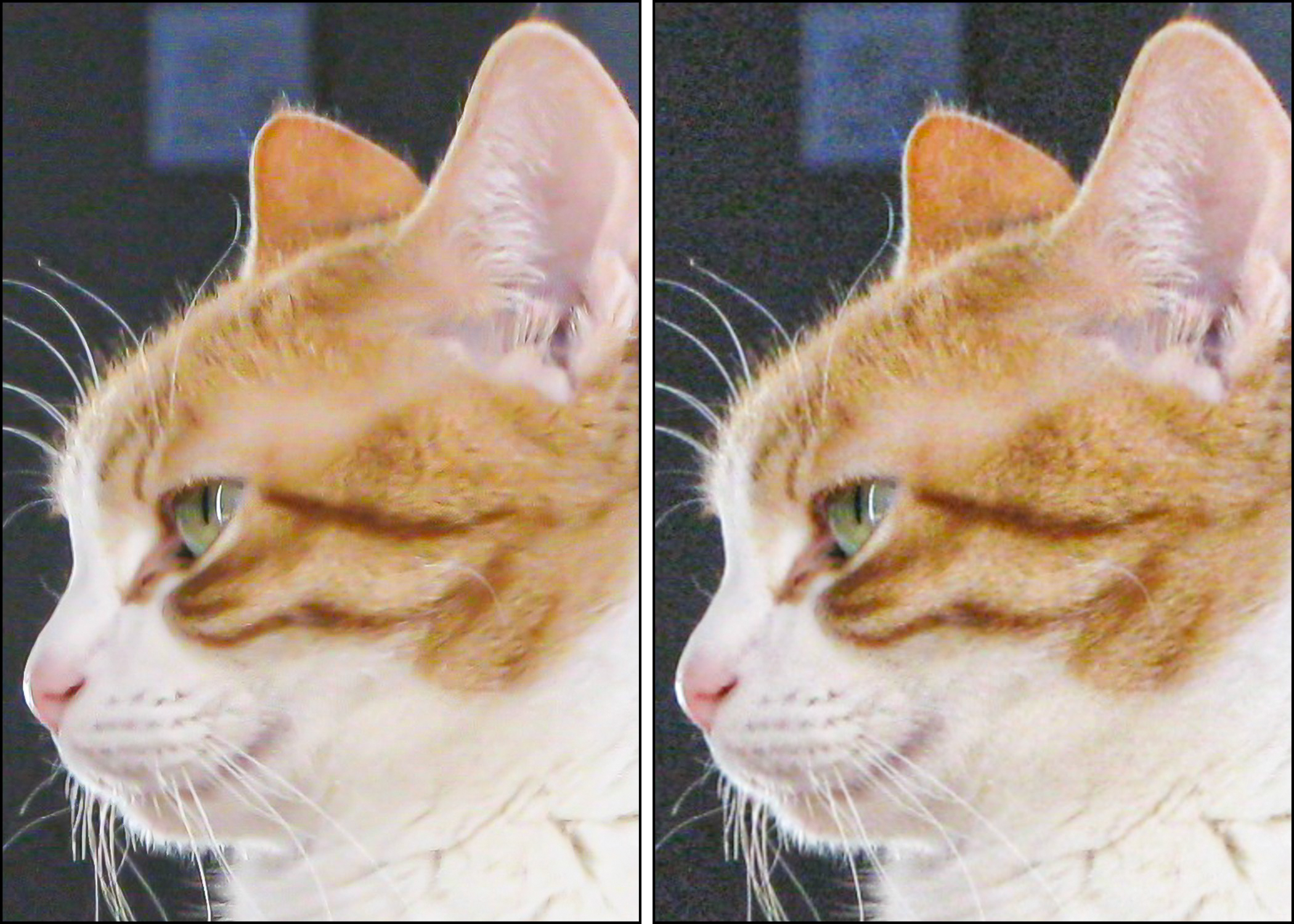
If you’ve got an old digital photo that looks grainy when you crop in, it’s time to add in more pixels with a little AI assistance. This cropped photo of our cat from 2008 benefits from 4x more pixels on the left generated by Adobe Lightroom.

We all know the famous scene in the 1982 sci-fi movie “Blade Runner” where Harrison Ford’s futuristic detective inserts a photo into a computer and tells it to zoom in and enhance the clarity of the background until he finds a person hidden in a reflection from a tiny mirror.

No, we can’t tell today’s computers to scan a photo, “track 45 left” and then “enhance 15 to 23” to find what’s there. But we’re getting closer.

That’s thanks to today’s software that can increase resolution in lower-res photos while maintaining the quality (and without adding digital artifacts). This trick can also clean up jaggy edges that become more apparent when you zoom into a low-res pic.

Often, when you crop in too tight on a photo, grainy problems show up, because you’ve deleted too many of the pixels. You’ve suddenly created a low-res photo that clearly needs pixel infusion.

Enhance Tool is Not Science Fiction
Adobe Lightroom can help. It has an AI-powered upsampling ‘Enhance’ feature called ‘Super Resolution.’ This nifty tool creates a duplicate photo with four times the pixels. And that can make a significant difference.

Here’s how to ‘enhance’ a digital photo in Lightroom:

  • Click on the Photo dropdown on the top menu
  • Click on Enhance
  • Click on Super Resolution
  • Then click Enhance
    (You can preview the effect before you proceed.)
  • Voilà! An ‘enhanced’ file is generated in a DNG format.

There are other companies that offer similar solutions, but as Adobe Lightroom Classic is my main photo-editing and organization tool, I’m very happy to keep my workflow in one place.

A Useful Tool for the Right Circumstances
I’ve used this enhance trick mostly when I work with digital photos that I took twenty years ago. That’s, of course, during the early age of digital photography when original file sizes were relatively tiny.

It’s a helpful solution, but this tool is not magic. It can’t create what’s not there or fix a blurry photo. But it does add in a bit more visual crispness, even if you’re not having a pixelization problem.

It’s also quite helpful if you want to print out the photo. A physical print is usually more unforgiving than a computer screen.

Adding Pixels into My Old Photos
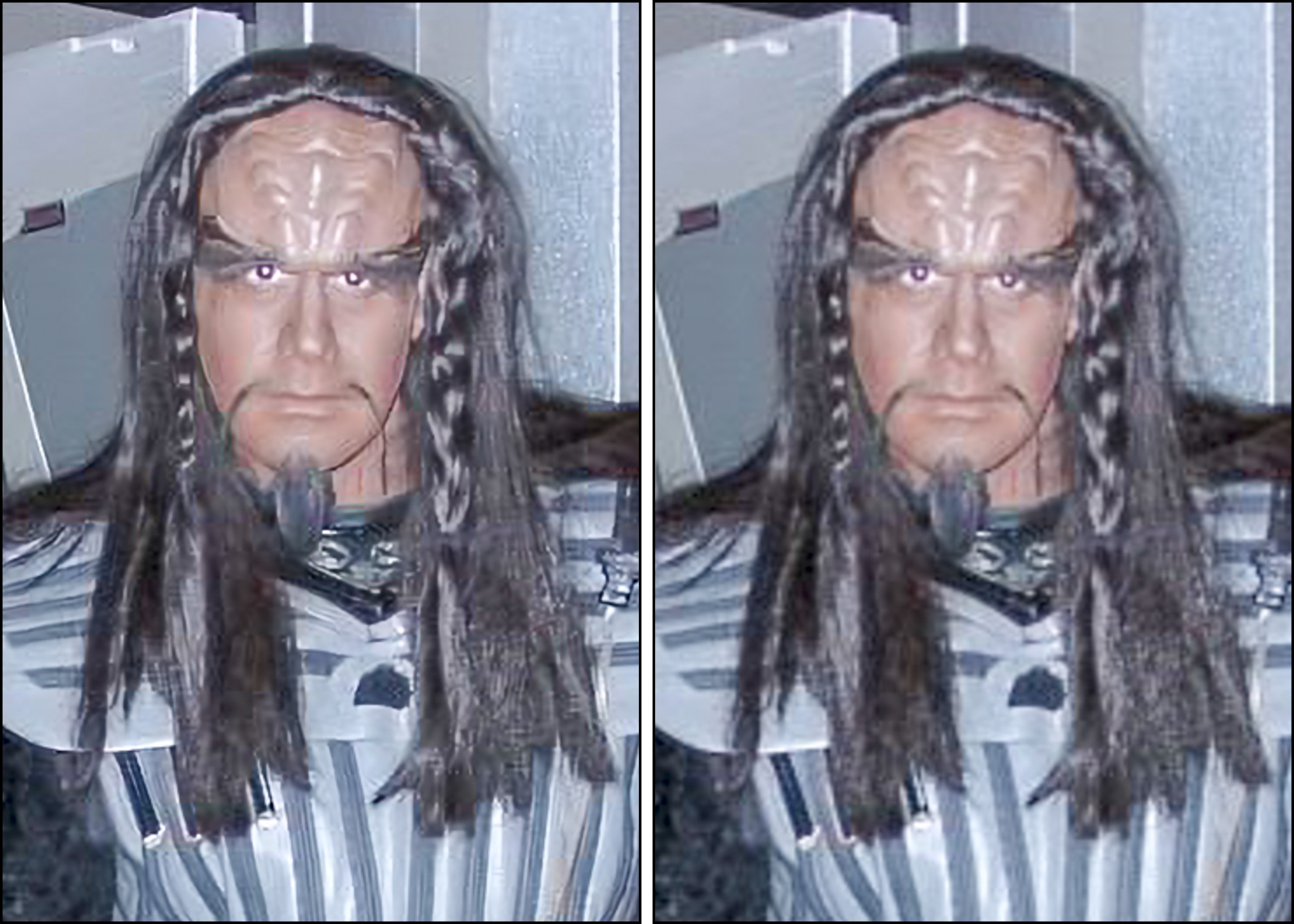
Here’s a photo I took of an actor playing a Klingon at the Star Trek Experience in Las Vegas back in 2001.
The original photo file was only 1024 x 768 pixels. I’ve cropped it in tight to just 198 x 264 pixels. The enhanced version on the left gets our friendly Klingon up to 396 x 598, which does make a difference.

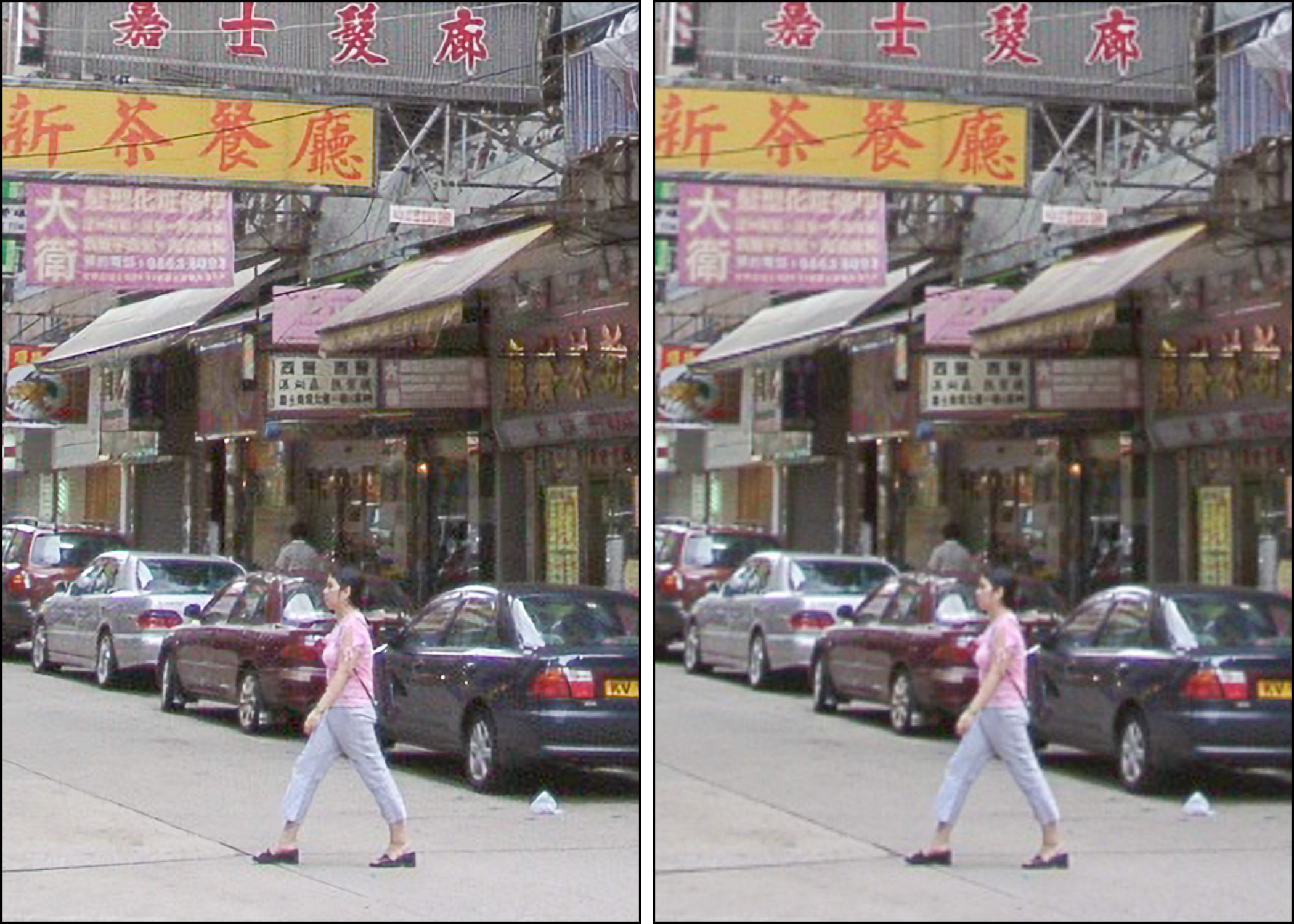
Here’s a street shot I took in Hong Kong in 2005.
The enhanced shot on the left helps to bring out the background. You can also make out some of the car’s license plate letters.

Smile for AI
If you’ve found yourself having to squint to pick out the above differences, that’s okay. They’re minor, but they’re there. I think it’s fair to say that Adobe Lightroom’s “Super Resolution” mostly gives you minor sharpening.

It’s not a magic wand, but it does give you 4x more pixels to work with out of thin air.

With AI’s text-to-image capabilities already in common use today, I’m sure this is not the last time we’ll be discussing how AI can rebuild old photos in just a few clicks.

Should You Clone your Voice to Help Preserve your Legacy?

With a little help from my recently cloned voice, I asked ChatGPT about the personal value of voice cloning. I then converted the AI response into an audio conversation between ChatGPT and my virtual self. My resulting podcast featuring the cloned me is below. 

Thanks to the rapid evolution of AI technologies, anyone can now clone their own voice and generate a reasonable duplicate through text-to-speech software.

The Benefits and Risks of Voice Cloning

If you market your voice professionally, then cloning your voice could bring certain benefits as well as inevitable risk. (Who needs to pay you for your actual voiceover work when a good AI copy will do?)

And of course, this topic also brings ethical concerns regarding unauthorized use.

But for most of the population who are hopefully not on the radar of bad actors, I think about whether there’s any value to cloning your voice. How might that help you in your journey through life… or beyond?

Preservation of your Legacy

One benefit could simply be the preservation of your own voice for legacy purposes, much like the value an old family photo for archival use.

On the other hand, wouldn’t that be a little creepy for a family member to be able to generate more of your voice after you’re gone?

Ask ChatGPT

So, I decided to interview ChatGPT to delve into this issue. For the purposes of this exercise, I first cloned my own voice using “Instant Voice Cloning” from Eleven Labs, the software company that offers natural-sounding speech synthesis. I then assigned an Eleven Labs’ virtual voice to play a fictional ChatGPT expert. 

Finally, we were ready for our little chat. Here’s our audio interview which I created from the ChatGPT-generated transcript. The under four-minute podcast features both my real voice and my cloned voice created through text-to-speech AI. (My previous podcast episode was all me.) And remember, everything about my guest was created by ChatGPT, including her name.

I think the results successfully bend reality…

Can You Find the Real Barrett?