At Home with Tech

Unlock the power of all your technology and learn how to master your photography, computers and smartphone.

Category: apple

6 Ways to Protect your Data and Tech at Home

If you’re looking to beef up the reliability of your digital resources, here’s a list of the gear behind my tech.

With so many daily norms shattered as a result of COVID-19, I’ve discovered the act of online holiday shopping to be a comforting activity. Of course, it’s no less frustrating trying to find the actual deals. But that’s always been a part of the challenge, right?

Right now though, what’s most important to me isn’t what shiny new tech to buy. It’s how to make sure the gear I own continues to work properly. And that’s often about the tech behind the tech.

I thought it could be helpful to share some detail on the support gear that helps to keep my tech going every day. This list isn’t about the coolest hardware. It’s simply about what helps maintain order with my tech at home as well as a sense of stability for my (digital) existence. 

It all about protection and reliability.

1. Backup Drive for your Computer

Cloud storage should now be a major player in your backup plan, but having dependable external drives is still a good strategy. I’m a big fan of G-Technology Drives (owned by Western Digital).

The G-Technology 4TB G-Drive USB 3.0 goes for $129.95 on Amazon.

It’s what I use for my iMac’s Time Machine backups.

2. Portable Backup Drive

Yes, I’m sticking with G-Technology for the portable choice. My go-to drive is the G-Drive Mobile USB-C.

The 4 TB version costs $139 on Amazon.

3. Wireless Mesh Router

If you’re like me, your home WiFi is now tasked with supporting multiple family members throughout the day…and in every corner of your home. To help make sure that your WiFi reaches your entire family perimeter, you need a mesh WiFi system in place.

When I replaced my old Apple AirPort Extreme WiFi router, I went with the two-unit RBK50 mesh WiFi system made by Netgear Orbi. Next to my Sonos speaker in the photo above, it costs $295.19 on Amazon.

4. Smartphone Case
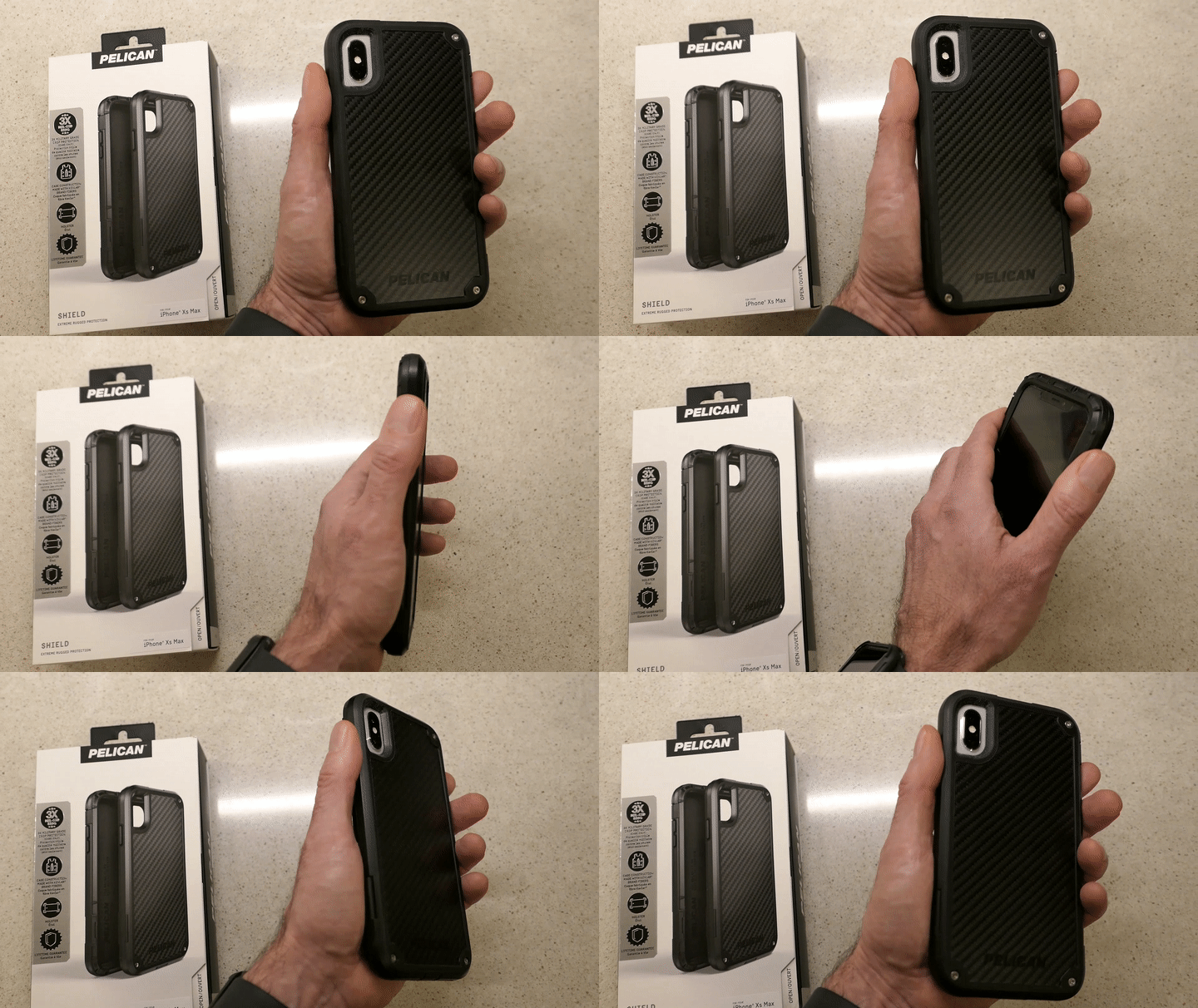
Holding Pelican Shield Case for iPhone XS Max

You really don’t want to deal with a cracked smartphone screen if you can avoid it. I’ve always felt that a solid case is critical to maintaining your smartphone’s structural integrity. 

I’m partial to Pelican cases. The company is best known for its equipment cases that protect gear worth many thousands of dollars. Its smartphone cases are also tough, and the “Shield” model looks like it comes from the alternate universe in the TV series, “Fringe.” 

5. Portable Power Bank for your Smartphone or iPad

You know what happens when one of your portable screens runs out of juice, and a power outlet is nowhere to be found. A little portable power can really save your day.

RAVPower 16,750mAh Power Bank USB External Battery Pack is
$27.99 on Amazon
(This model also comes with a built-in flashlight.)

6. Cloud Backup

I’ve been using Backblaze after CrashPlan broke up with me. So far, so good.

As I mentioned, cloud backup should always be a part of your data protection strategy.

Maintaining Comfort
As we enter this season that promotes comfort and joy, it’s always a useful reminder to have some boring supports in place for your important tech. I’m not sure that will specifically generate joy, but it certainly will maintain comfort.

That’s always on the top of my list.

Avoid these Tech Glitches Before your Next Backyard Movie Night

The cold weather could be the least of your concerns if your outdoor projector doesn’t function properly at your backyard event. Here are a few problems to look out for and how to fix them.

My family and I have returned from a little adventure across town. It was at a friend’s outdoor birthday party in his backyard for his eleven-year-old son.

My friend asked me if I could bring along my portable projector to help him create an outdoor screening of “Black Panther” via his Disney+ app on his iPad. I was more than happy to oblige. His wife put up a white sheet on the back side of their house overlooking their patio, and we were ready to provide the post-meal entertainment.

How to Set Up your Backyard Movie Night Gear
Over the summer, my new Nebula Mars II Pro projector made by Anker was the backbone of my own backyard movie night series. My iPhone served up movies through the iTunes Store and Disney+.

I connected my iPhone to my Lightning Digital AV Adapter (from Apple) and then used an HDMI cable to tether my iPhone to the Mars II Pro. Though you can connect via Bluetooth, a direct connection avoids certain content transfer restrictions.

Though my portable projection system worked great, there were two technical glitches that I needed to work through:

How to Fix Audio Sync Problems with an External Speaker
The Mars II Pro’s two onboard speakers are relatively powerful, but the outdoors can be a noisy place, especially with crickets at dusk. When I tried augmenting the audio oomph with my portable AOMAIS Go Bluetooth speaker I discovered an annoying quirk using Bluetooth.

When streaming content via the Mars II Pro’s onboard apps, the video synced up just fine to the external Bluetooth speaker. The Mars II Pro works perfectly in its own operating universe.

But once I tried extending that equation and connecting the Mars II Pro via HDMI to my iPhone, that was a step too far! It created a small but infuriating audio delay from my AOMAIS Go speaker.

The fix is to avoid the Bluetooth connection altogether and hard wire the external speaker using an audio cable with 3.5mm mini connectors. After that, my external speaker’s audio synced to the Mars II Pro’s video perfectly.

Don’t Miss this Setting when Downloading Movies from the Apple TV App
File compatibility can be a problem when using a digital AV adapter.

I found that when downloading movies onto my iPhone from the iTunes Store, the flicks wouldn’t play when I used my Lightning Digital AV Adapter. Instead, I received this message.

BUT…

When I opened my iOS 14’s settings and navigated to the Apple TV app, I spotted this critical setting under Digital AV Adapter Options:

  • Downloads for AV Adapter

And here’s the fix:

  • Slide Downloads for AV Adapter to – Green

This setting allows “Apple TV app to download titles specially-formatted to play through an AV adapter…”

Wow. Yes, it was that simple.

The Fall Challenge
Armed with my summer outdoor movie night learnings, I felt emboldened to confront any technical problem that fall outdoor movie night might throw at me. I brought my gear over to my friend’s house, eager to boot it all up.

My friend had already download the movie on his iPad’s Disney+ app to avoid the occasional but maddening video artifacts that can pop up when streaming gets bumpy. (smart)

I unpacked my Lightning digital AV Adapter and HDMI cable combo and connected his iPad to my Mars II Pro.

Docking was complete, and we were ready to go.

Great Scott!
My friend tapped the play icon, and the movie began.

Suddenly, I felt an uncontrollable impulse. I screamed, “It worked!” And I proceeded to take a victory lap around the patio. Everyone stared at me with confusion. They must have wondered if I was channeling my inner Doc Brown from “Back to the Future.” (I was.)

That’s because over the summer, I tried to project downloaded Disney+ movies using this same set up using my iPhone XS Max… and failed.

I’ve always receive this message:

So, I’ve been forced to stream my Disney+ content instead. And yes, that worked. But the Disney+ download method has continued to elude me.

Living Happily with Cold and Mystery
Of course I’ve tried to figure out why my friend’s iPad succeeded where my iPhone has stumbled. Let me simply say that the investigation… continues.

For now, the fact that my Nebula Mars II Pro was able to contribute to another successful outdoor movie night during this chilly time of year is plenty to celebrate.

Sure, it was cold out, but these are extraordinary times. If there’s a way to avoid cancelling yet another event while also being able to social distance outdoors, I think it’s worth considering.

So, break out the long underwear. Wear layers. Stir up some hot chocolate for the kids. And maintaining some glow in a fire pit doesn’t hurt either.

With that in place, it’s worth it!

Why Does my iMac Turn Itself on at Midnight?

If your Apple computer independently starts its day in the wee hours of the morning without your involvement, you should check this setting.

I was out late the other night, and when I got home around midnight, I walked into in my home office before I headed off to bed. All was quiet. Then, I heard a sudden but familiar brief whooshing sound from the direction of my desk. I instinctively turned my head.

My iMac was booting up as if Skynet had taken over.
It was pretty freaky.

I glanced over at my Marathon clock that was positioned close to my iMac, and it eerily displayed 12:00am… on the dot.

Hmmm. That was interesting.

I took a breath and looked at my clock again. I felt that this clearly wasn’t some random moment where my iMac had decided to misbehave.

Turn Off the Schedule Mode
Was there a hidden setting in my iMac’s System Preferences that was telling my iMac to independently boot up?

I took a look, and in fact… there was. My iMac was ‘scheduled’ to turn itself on at midnight.

So, here’s what I did to turn that off:

  • Click on System Preferences
  • Click on ‘Energy Saver’
  • Click on ‘Schedule’ on the bottom right
  • Unclick ‘Start up or wake’
    (which had defaulted to 12:00am)

Problem solved.

Living with your Gremlins
I suppose the lingering question is why that scheduled action was clicked in the first place.
I certainly hadn’t done it.

It’s an issue for another time.
For now, my iMac should behave…as directed.

Thank you, HAL.