At Home with Tech

Unlock the power of all your technology and learn how to master your photography, computers and smartphone.

Category: apple

Offbeat Photo Moments from our London Vacation

If you’re expecting iconic London photography, there’s nothing more to see here. If you’re hoping for something a little different, well then… I might have something for you. Unique or throwaway? You decide!

My family and I have recently returned from a week’s vacation in London, and yes, I snapped more than a few pictures along the way. As part of my little photographic exercise, I also attempted something a little different…

In addition to finding iconic shots as well as any number of family selfies, I tried to also observe our London experience using a different eye. So, I took a few photos that represented the story of our trip from an alternate perspective… imagery that you might easily miss (as well as a few that were entirely impossible to ignore).

These offbeat moments were right in front of us. I just had to open my eyes a bit wider or turn my head in a different direction to spot them…

Sunrise at Heathrow Airport

When you’re walking off the jetway at 6am after your seven-hour flight, you’re probably not taking the time look out the window towards the airport. Well, you should… a sunrise is beautiful just about anywhere!

Kensington Gardens

As I experienced a little jet lag on our first morning, I stumbled through Kensington Gardens on a cloudy day. Then, suddenly this moment presented itself. My vacation had officially begun!

The Elphin Oak

I found this delightful sculpture filled with fairies, elves and animals at the Diana Princess of Wales Memorial Playground.

British MuseumDon’t forget to look up! This skylight ceiling bathed visitors with blue-cast sunlight seemingly from an alternate reality.

The London EyeWhile everyone else was looking up and over London, this reverse view down was really cool.

Cutty Sark

For me, viewing the hull of this restored 19th century clipper ship from this angle was the true highlight.

Tower of London

Sure, everyone races to see the Crown Jewels. But the Tower of London tour also houses many other treasures, including the opportunity for my third grader to get close to chainmail armor.

Hungry Raven

My son spotted this peculiar moment as this hungry Tower of London guardian tried to figure out how to get inside an already-open Pringles can.

Tower Bridge

I got the complete view by looking up to look down.

Lock Hatters

My father visited this iconic hat store on St. James’s Street 60 years ago and recommended I stop by and ask if they remembered him. While I stopped short of asking the very proper salesman to check their records, I did FaceTime my dad while we were walking through Lock Hatters and facilitated a reunion of sorts.

The View on St. James’s Street

This view had a timeless feel. So I quickly pulled out my iPhone XS Max to capture the image.

Ceiling at King’s Cross Station

The grafting of this ceiling extension using such a modern design onto this old structure is both radical and brilliant.

Chilly Night by the Thames

A hot chocolate street vendor provided some additional heat to help this pop-up café also serve as a warming station.

Silent Disobedience

This doesn’t appear to be much of an accident…

The Tube
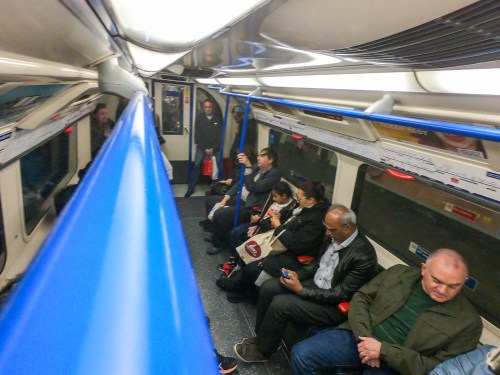
Riding the Underground was our total transportation solution. It felt more cushy than NYC’s subway cars, but the space was also a bit tighter and rounder. Mind your head!

Red Telephone Box
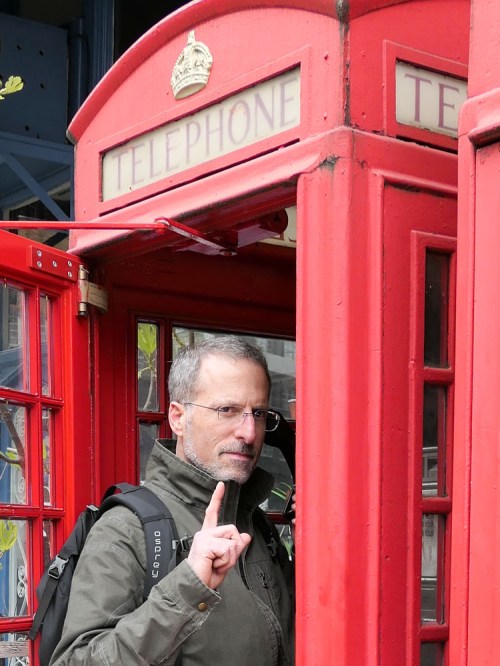
A phonebooth? Still? How quaint.

Sunset over London

Both a sunrise and a sunset during a London trip?! That’s definitely worth calling out. And a nice way to end our little photographic journey across the pond!

Why I Bought an Amazon Echo for My Aging Parent

I’ve introduced my father to Alexa. Now, I realize why a digital voice assistant in a smart speaker is a must-have device for the elderly living independently…

My father just celebrated his 86th birthday. He lives on the Upper East Side in Manhattan. Yes, he’s on his own, and he likes it that way… mostly.

To celebrate his birthday I took him out for a big dinner at TAO Uptown.

He loved his meal and especially his molten chocolate cake with birthday candles.

He’s doing okay. But he’s… 86. And he uses a walker. And he a little unsteady on his feet. And yes, I worry about him.

Fortunately, he has some help at home. Plus, I’m able to see him every week or so to check in, have a meal with him and reminisce about my mom.

And it’s really great that he’s relatively adroit using his iPhone. FaceTime calls have also been a useful way to keep in touch. Although lately, he’s fumbling a bit with his iPhone and doesn’t always answer correctly on the first try.

So, I worry about being able to reach him just to make sure he’s doing okay.

Hello, Amazon Echo
I gave my dad an Amazon Echo for his birthday. He’s always fashioned himself a user of new and cool consumer tech. (In the 1970’s, I remember him running around wearing some crazy Seiko TV watch that didn’t work very well.)

When he unwrapped his present, he looked a bit confused… He didn’t really know what a voice-controlled smart speaker was. But when I unboxed the Echo in front of him, powered up Alexa and started our first conversation, my dad was instantly hooked.
(Gifting note: I had previously set up the Echo at my house and figured out all of the interface details using the Amazon Alexa app on my iPhone. Then, all I had to do with my father was update the Echo’s Wi-Fi setting to his home Wi-Fi network.)

More than Music
Originally, I figured getting my dad a digital voice assistant would be a great way for him to stream his favorite tunes from the ‘30’s and ‘40’s. That functionality was mostly all that I was focused on. I also expected that my father would enjoy chatting with Alexa and would find her encyclopedia of knowledge charming. Perhaps her alarms and reminders would also be of use.

But after I bought the Echo and began setting it up, I quickly realized the massive opportunity it offers to help me better keep in touch with my aging father. Here’s how…

Alexa Calling
It’s so easy for him to contact my iPhone by just telling Alexa to call me by name.
(Yes, the Echo can make a phone call.)

That’s certainly a lot simpler for him than trying to find and fumble with his iPhone during a critical moment.

Drop In
Or perhaps more importantly… his Echo gives me two additional ways to reach out and contact him using the Amazon Alexa app on my iPhone.

When I call his Amazon Echo with my Alexa app…
The Echo immediately starts to glow and ring loudly. Then, all he has to do is say “Alexa… Answer.”

He also doesn’t have to get up to answer my call if his iPhone isn’t in his pocket.
(He moves pretty slowly.)

But the second way for me to connect with him is the real game changer…
It’s the “Drop In” feature, which essentially turns my iPhone and his Echo into a walkie talkie system.

A tone on the Echo announces that ‘hailing frequencies are open.’ Then, when I start talking, the Echo projects my voice throughout my dad’s apartment and I can hear his response.
(He doesn’t have to tell Alexa to do anything.)

Of course, for this to work, he needs to be at home and within earshot.

Yes, it may feel intrusive and a bit big brother-like that I can drop in at any given moment. But for an aging parent who is living on his or her own, I don’t think this is such a bad thing… at all.

In fact, it’s great.

New Connections for the Long Term
I’ve already found our new technology-infused interface quite useful, although the Echo doesn’t replace the clarity of a cell-to-cell connection. So, his iPhone isn’t going out of style any time soon.

But the fact that I suddenly have these new methods to remotely reach him is amazing.
(Whether he develops a long-term relationship with Alexa is almost beside the point.)

“Hey Siri” and “OK Google”
So, I know that Alexa isn’t the only game in town. I would be remiss if I didn’t mention Siri on the Apple HomePod or Google Assistant using Google Home. I’m sure my father would enjoy using these speakers just as much as Alexa.

Either way, introducing a digital voice assistant via a smart speaker into my father’s apartment has immediately had a positive effect on his life (and mine, as well).

The Conversation Continues
No, Alexa isn’t a real person. And my father still needs to navigate the challenges of living alone at 86 years old. But now, he has something to talk to 24/7 which responds to him using AI in a friendly, human voice.

And Alexa is only getting smarter. What will she be like in only a few more years?
(We’ll be talking with her.)

Futurists have been talking about this for a long time, and my father and I have only just entered the first chapter of the story.

Whoa.
It’s not science fiction… anymore.

If you’ve got an aging parent living alone, you should really consider introducing a new ‘friend,’ like Alexa.

How to Take an iPhone Screenshot without Pressing the Side Buttons

If you’re wondering if there’s a workaround to this occasionally glitchy iPhone maneuver, you’re in luck. Here’s a trick that involves activating a useful little dot…

A friend asked me the other day if there was an alternate way to take a screenshot on her iPhone XS instead of having to press the volume and power side buttons simultaneously. She was having a bit of a challenge with the ‘simultaneous’ action part. Without a perfect squeeze, her iPhone was more likely to just turn its screen off.
(I’ve done that too.)

Wouldn’t it be great if you could take a screenshot simply by tapping the screen?

Well, you can! You simply have to dig a little bit to activate the ‘AssistiveTouch’ menu…

How to Turn on the AssistiveTouch Menu

  • Tap ‘Settings’
  • Tap ‘General’
  • Tap ‘Accessibility’
  • Slide ‘AssistiveTouch’ to green


That activates a grayish dot in the bottom right corner. It now lives on every screen and tapping it gives you alternate access to a variety of functions on your iPhone.
(You can reposition the AssistiveTouch menu dot to any edge.)

You can now exit ‘Settings,’ and you’re ready to take screenshots via your screen…

How to Take the Screenshot

  • Tap your new friendly dot
  • Tap ‘Device’
  • Tap ‘More’
  • Tap ‘Screenshot’

That does the trick!

How to Get Rid of the Dot
Now, if you don’t like that gray dot staring at you all of the time, you can hide it and then activate it via ‘Accessibility Shortcut’ whenever you need it. You do that by squeezing the side button three times.
(Yes, you’re back to pressing buttons again, but this time it’s only on one side!)

Here’s how you add AssistiveTouch to Accessibility Shortcut…

  • Tap ‘Settings’
  • Tap ‘General’
  • Tap ‘Accessibility’
  • On the very bottom, tap ‘Accessibility Shortcut’
  • Select ‘AssistiveTouch’


Now, when you triple-click the side button, you can toggle the AssistiveTouch dot on and off.

How to Create a Shortcut Icon to Your Favorite Website
Now that you’re feeling good about MacGyvering your iPhone to do your bidding, here’s another iPhone trick to make your day…

If you visit a particular website frequently, you can create a shortcut icon that can live with all of the other apps on your iPhone or iPad. Here’s how…

When you’re viewing your webpage, look at the menu icons on the bottom of the screen….

  • Tap the square down on the bottom center with an arrow pointing straight up
  • Move through your choices on the bottom row of options until you see ‘Add to Home Screen’
  • Tap ‘Add to Home screen’
  • Then name it
  • Tap ‘Add’

Done!
You’ve created your own shortcut that looks like your own little app!

Human OS Update Not Yet Available
You’ve paid quite a lot for your iPhone. It should work hard to make your experience the best it can be. You just need to help it understand your glitchy human needs and mannerisms!