At Home with Tech

Unlock the power of all your technology and learn how to master your photography, computers and smartphone.

Category: apple

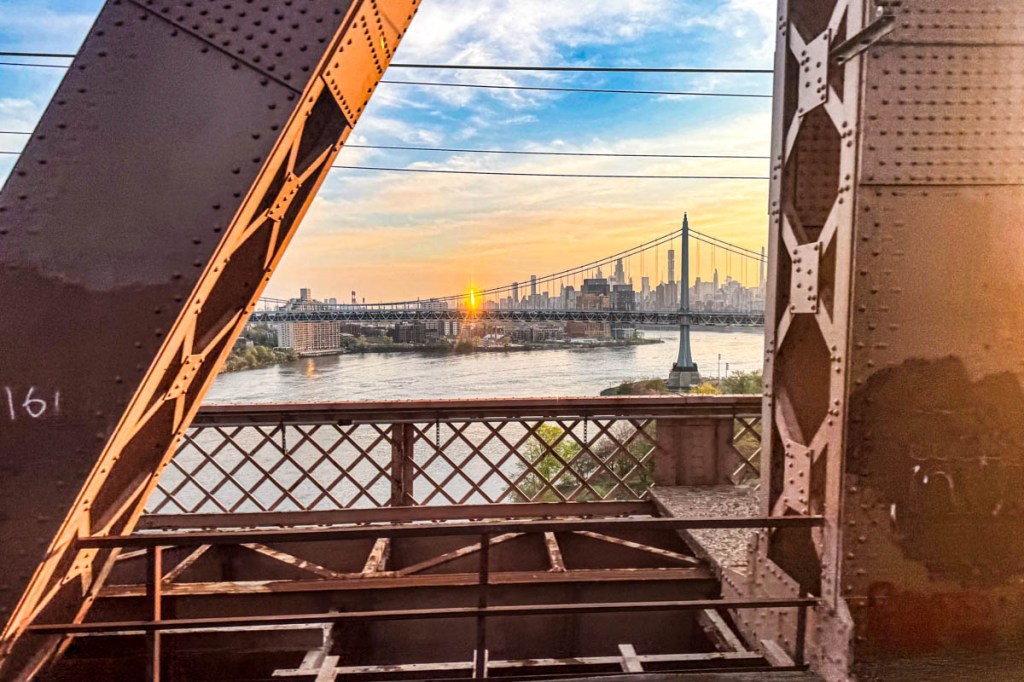
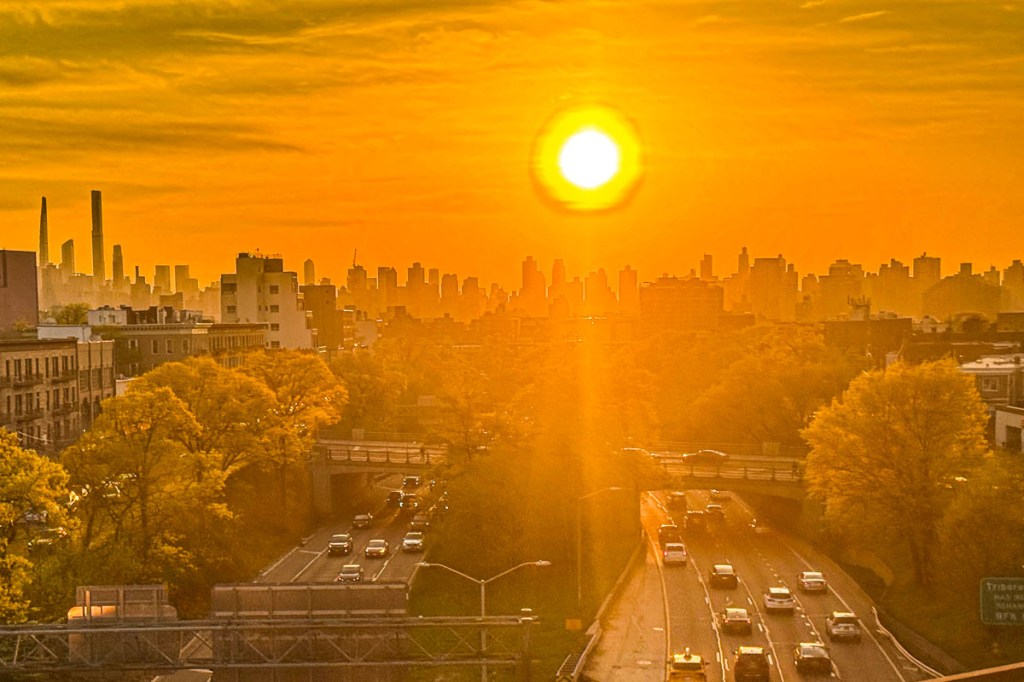
Here’s a Great Place to Snap a Photo of Manhattan’s Iconic Skyline at Sunset

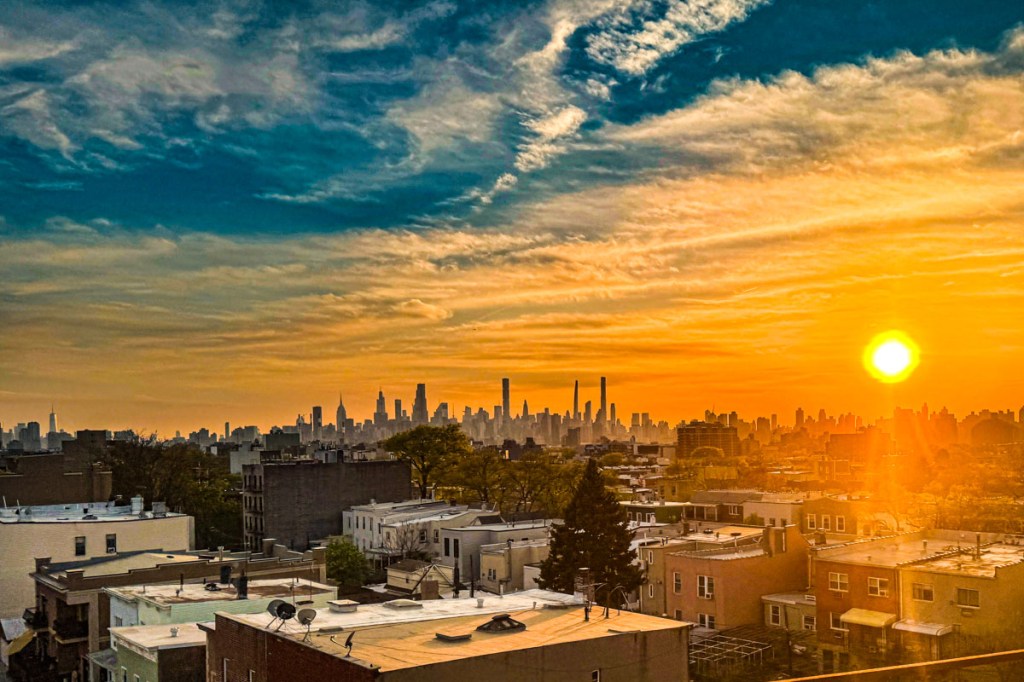
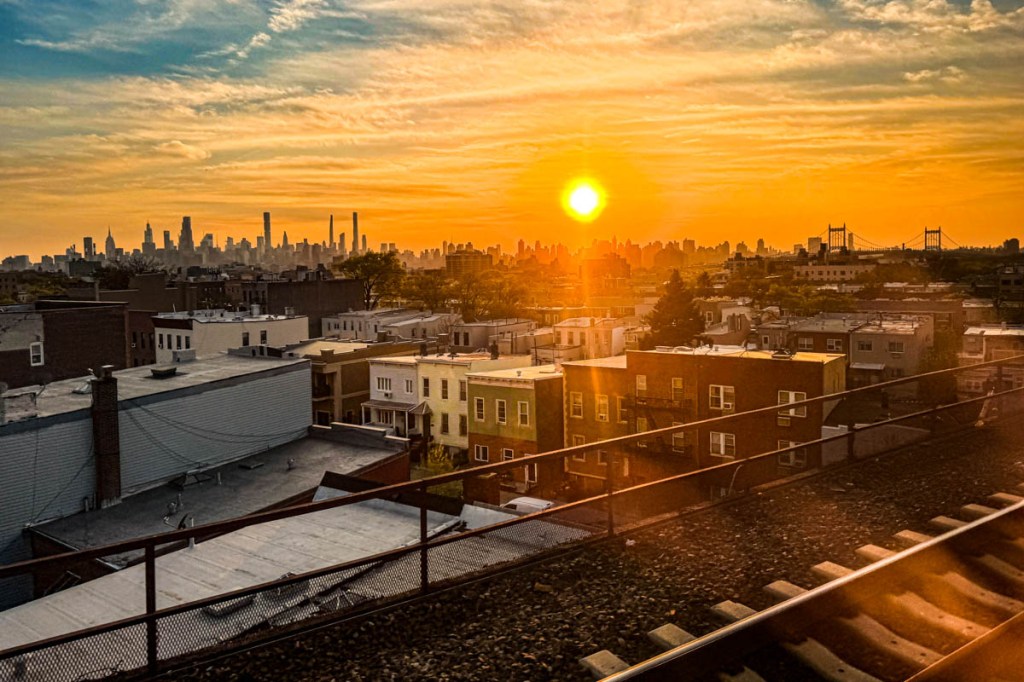
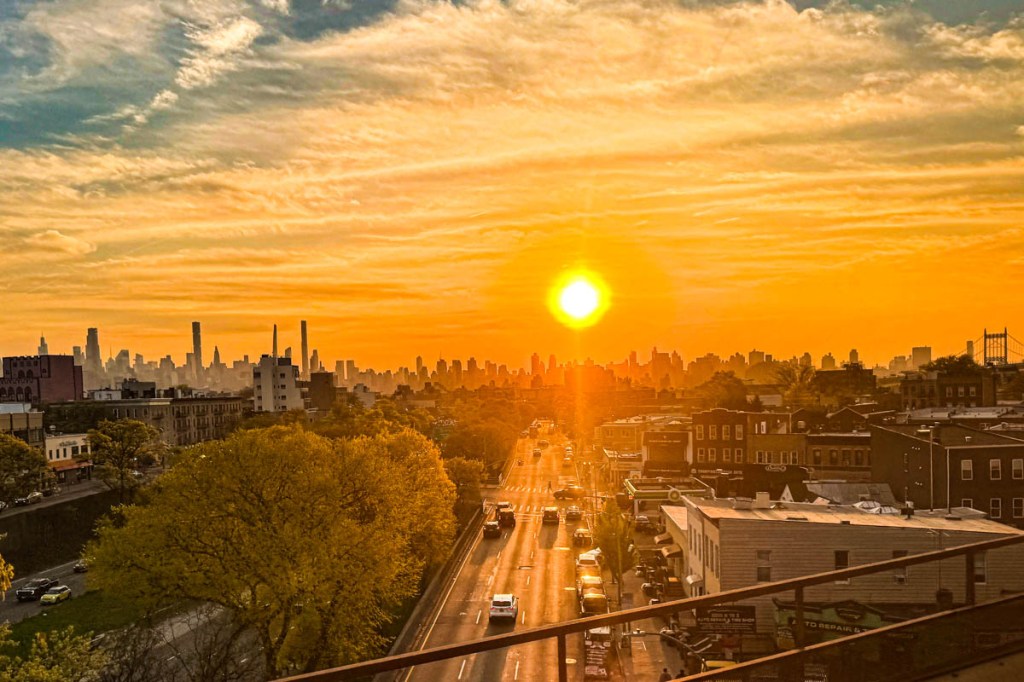
It’s hard to miss this famous skyline as your Amtrak train nears or leaves the Big Apple. And sunset is a particularly special time. So, it warrants trying to take a photo or two…

The weather conditions have to be right. Plus, there’s only a six-minute stretch when the train is close enough and oriented correctly with its windows directly facing the east side of Manhattan. 

The Best Views of New York City
Then, take out your smartphone. Press it as close to the window as possible to avoid reflections from the inside of the train. (The fact that your phone’s lens effectively lies flat with the phone’s body will protect it from accidental bumps into the glass due to your train’s jerky movements.)

And then start snapping away.

As much as I always want to zoom closer with my iPhone 15 Pro Max’s 2x or 5x lens to better frame the skyscrapers, the wider shots are better. I think you need that foreground in the shot to help tell the visual story. Plus, the train’s motion is less of a problem for your phone’s camera if you’re not zoomed in.

Just Another Bonus for Taking the Train
Yes, it’s an amazing vista to take in, but you should temper your expectations for your photos. Remember, you’re shooting through glass, and the train is moving.

Still, it’s worth a shot.

I go for it whenever I’m on Amtrak’s Northeast Regional or Acela heading back to Connecticut from Washington, D.C. (These photos are from my recent trip.)
In the old days, it would be when I was heading out of New York City back to Boston. (So, I’ve been at this for a while.)

And yes, I do prefer taking the train vs. a plane between these destinations. It’s much more convenient and relaxing. (The door-to-door time comparison is similar after you bake in the extra hours spent at the airport.) But I digress…

Enjoy the Show
Sunset isn’t the only time to try to capture these photos of New York City. (Shooting directly at the sun can really confuse a camera and isn’t especially great for its sensors. But a few brief clicks shouldn’t play too much havoc with the electronics.)

These magic sunset minutes always call out to me as the deep orange light bathes the landscape. 

It’s both unearthly and entirely natural.

And you’ve got one of the best vantage points of this city a photographer could hope for.

How to Catch Urgent Calls when your iPhone is on Mute

Occasionally, you’ll simply miss a call, because you’ve misplaced your iPhone. Otherwise, here’s how I silence calls I don’t want while also allowing the important calls in my life to get through.

I sometimes feel like the Grinch. “All the noise, noise, noise… noise!” With all the unwanted phone calls and emails, I want to scream, “Stop! Go away!” It’s disruptive, increasingly overwhelming, and I want none of it. (Sound familiar?)

The biggest source of disruption was my trusty iPhone which interrupted me throughout the day with calls from unknown numbers and people (or robocalls) I instinctively knew I didn’t want to speak with. (Sure, my iPhone is forever in vibrate-only mode, but too much of that silent-but-buzzy haptic sensation can make you twitchy.)

Contacts Only
So, I shut it down. No, not the phone. But I restricted the list of numbers that could get through to just my contacts. (If you are anyone else, you’re welcome to leave a message.)

Yes, it a was draconian step, but necessary.
Here how to set up this communication limit on your iPhone:

  • Go to ‘Settings.’
  • Tap ‘Screen Time.’
  • Tap ‘Communication Limits.’
  • Tap ‘During Screen Time.’
  • Tap ‘Contacts Only.’
  • Then ‘During Downtime’ can be restricted further if you want.

The result created more serenity in my life, and I was grateful. But there was still another problem waiting for me at the other end of the equation…

You Can Still Miss a Haptics Call
I realized that it was sometimes difficult for my family members to reach me on my iPhone. Of course, their calls and texts got through via haptics mode, but it was still easy for me to miss those important moments.

The fix would be if I could set up a ringtone bypass that would allow my wife and son’s calls/texts to gain back their audio oomph.

Well, as it turns out, Apple gives your iPhone that exact capability!

Ring and Text Tone Emergency Bypass
In your Contacts app, you can set up individual contacts to be able to reach you with the power of full audio ringing or pinging, regardless of how your iPhone is otherwise muted.

Here’s how to do that:

  • Tap ‘Edit’ for a specific contact.
  • Tap on ‘Ringtone,’ which is set to ‘Default.’
  • Then on the next page, tap on ‘Emergency Bypass’ to turn it on.
  • Repeat these steps for ‘Text Tone.’

That’s it.

Your Updated Communications Plan
When you’ve finished tweaking these iPhone settings, you will have more effectively tuned out what you don’t want while enabling the important people in your life to better connect with you.

Sanity restored.

Why iPhone’s Camera Burst Mode is Better than Live Photos

If you think you’ll miss the moment when snapping an iPhone photo, using Burst mode instead of Live Photo mode can save the day. Here’s why.

If you like the Live Photo feature on your iPhone so you can later choose a better ‘Key Photo’, you might want to reconsider your preference. Why? Well, it houses a huge limitation that can really ruin your shot.

Sure, it all seems so magical that you can take your 3-second mini-movie that’s behind a Live Photo and then, after the fact, scrub through all of video frames to select a better still frame. It’s a wonderful technique to use when shooting a group pic when someone’s eyes are inevitably mid blink. The ability to later choose a better freeze a fraction earlier (or later) can make all the difference between the perfect photo and one that goes in the digital trash.

I’ve been shooting Live Photos this way for a long time. But when choosing a different Key Photo, I’ve sometimes not been satisfied with the final results. Here’s the problem…

Choosing a New Key Photo will Crop It!
The ‘prime’ image your iPhone snaps is higher quality than other frames from a Live Photo. And as soon as you choose an alternate frame, the entire picture frustratingly crops in a bit (not a lot… but enough).

That can be a deal breaker if you’ve taken a group shot and someone is close to the edge of your framing. After choosing a different Key Photo, that person will likely get cropped out, and there’s nothing you can do about it.

This picture-killing crop just happened to me at a family gathering, and the cropped-out person was me! (Yes, thankfully, the group allowed me to take another shot.)

Even if you overlook that limitation and tell yourself you’ll give your shots enough ‘safe space,’ it’s also hard to ignore the overall quality difference. The new Key Photo doesn’t look as crisp.

Under well-lit and well-framed circumstances, this isn’t an issue. And to be fair, it took me a while to discover these drawbacks.

And while a Live Photo with a different Key Photo can be better than nothing at all, there’s a more effective way to capture additional visual frames around a particular photo moment.

10 Burst Photos are Better than 1 Live Photo
iPhones offer Burst mode, which captures 10 photos a second. (That’s likely going to get you what you need!) Instead of tapping the shutter button on your iPhone, you simply slide it to the left and hold it there until you’re done ‘bursting.’ (Then release.)

For a more tactile experience, you can also squeeze your ‘Volume Up’ button.
To activate that feature, go to:

  • Settings
  • Camera
  • Turn on “Use Volume Up for Burst”

While primarily designed for action moments like sports photography, it’s also ideal for posed group shots when you’re trying to get everyone’s eyes open at the same time.

Each of these high-speed photos will be the same quality. No compromises.

Burst Mode with Countdown
You can also use Burst mode for your iPhone shots using a countdown timer. It’s a perfect way to set up a group shot that you also want to be in.

  • Pro tip:
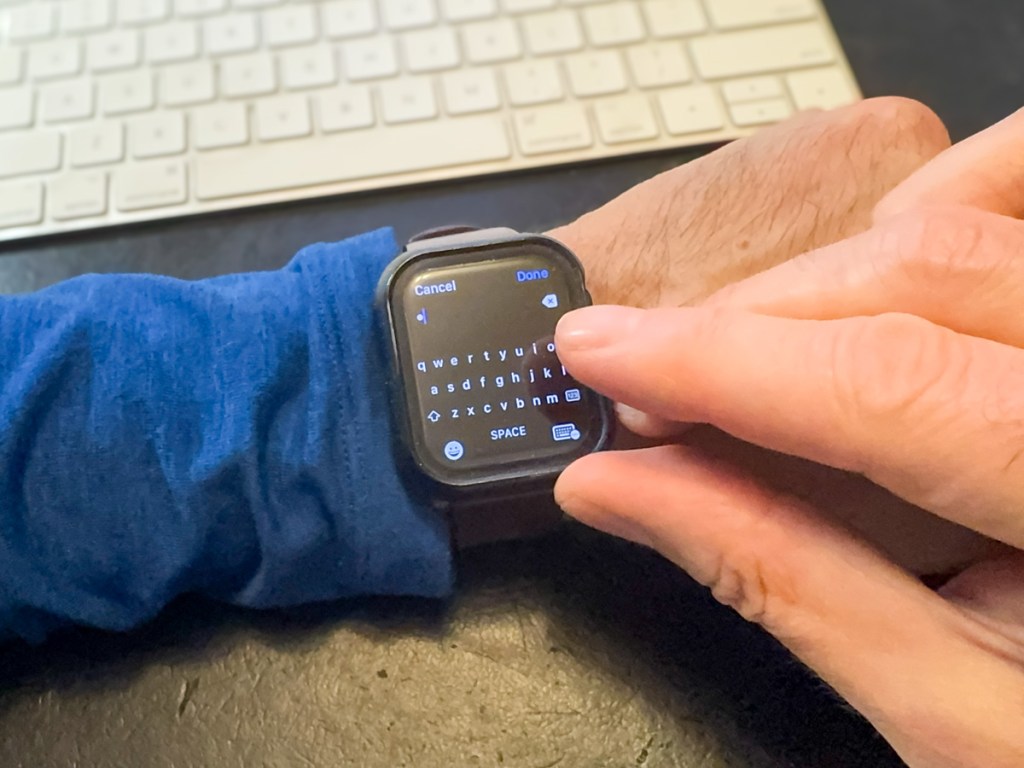
    If you’re wearing an Apple Watch, use its Camera Remote app to control your iPhone. (Just be sure to first turn off Live Photo mode. Otherwise, you’ll snap a Live Photo instead of the 10 standard burst shots.)

I like to prop my iPhone on a window ledge and have the group face the window. Not only does the window ledge double as a tripod surface (be careful), but the light from the window will nicely illuminate your subjects.

Delete your Unwanted Bursts
You do need to do a bit more work afterwords with your Burst photos to manage the 20 or 30 shots you’ve generated from a particular moment (instead of 2 or 3 Live Photos).

Just review your Bursts and select the images you want to keep. The rest are deleted. (If you don’t follow this organizational task, you could quickly get overwhelmed with too many photos on your iPhone.)

Not Mutually Exclusive
Too much work? Well, you can leave it to the automated but limited structure of Live Photos. That’s a set-it-and-forget it solution. It’s easy, but it won’t always give you best-quality pictures. On the other hand, Burst mode will.

Can you use both? Absolutely (though not simultaneously).

Burst Away
Moving forward, I’ll think of a Live Photo as a backup plan. But if I’m really being planful in framing the moment, then using Burst mode is the way to go.