At Home with Tech

Unlock the power of all your technology and learn how to master your photography, computers and smartphone.

Category: apple

Why iPhone’s Camera Burst Mode is Better than Live Photos

If you think you’ll miss the moment when snapping an iPhone photo, using Burst mode instead of Live Photo mode can save the day. Here’s why.

If you like the Live Photo feature on your iPhone so you can later choose a better ‘Key Photo’, you might want to reconsider your preference. Why? Well, it houses a huge limitation that can really ruin your shot.

Sure, it all seems so magical that you can take your 3-second mini-movie that’s behind a Live Photo and then, after the fact, scrub through all of video frames to select a better still frame. It’s a wonderful technique to use when shooting a group pic when someone’s eyes are inevitably mid blink. The ability to later choose a better freeze a fraction earlier (or later) can make all the difference between the perfect photo and one that goes in the digital trash.

I’ve been shooting Live Photos this way for a long time. But when choosing a different Key Photo, I’ve sometimes not been satisfied with the final results. Here’s the problem…

Choosing a New Key Photo will Crop It!
The ‘prime’ image your iPhone snaps is higher quality than other frames from a Live Photo. And as soon as you choose an alternate frame, the entire picture frustratingly crops in a bit (not a lot… but enough).

That can be a deal breaker if you’ve taken a group shot and someone is close to the edge of your framing. After choosing a different Key Photo, that person will likely get cropped out, and there’s nothing you can do about it.

This picture-killing crop just happened to me at a family gathering, and the cropped-out person was me! (Yes, thankfully, the group allowed me to take another shot.)

Even if you overlook that limitation and tell yourself you’ll give your shots enough ‘safe space,’ it’s also hard to ignore the overall quality difference. The new Key Photo doesn’t look as crisp.

Under well-lit and well-framed circumstances, this isn’t an issue. And to be fair, it took me a while to discover these drawbacks.

And while a Live Photo with a different Key Photo can be better than nothing at all, there’s a more effective way to capture additional visual frames around a particular photo moment.

10 Burst Photos are Better than 1 Live Photo
iPhones offer Burst mode, which captures 10 photos a second. (That’s likely going to get you what you need!) Instead of tapping the shutter button on your iPhone, you simply slide it to the left and hold it there until you’re done ‘bursting.’ (Then release.)

For a more tactile experience, you can also squeeze your ‘Volume Up’ button.
To activate that feature, go to:

  • Settings
  • Camera
  • Turn on “Use Volume Up for Burst”

While primarily designed for action moments like sports photography, it’s also ideal for posed group shots when you’re trying to get everyone’s eyes open at the same time.

Each of these high-speed photos will be the same quality. No compromises.

Burst Mode with Countdown
You can also use Burst mode for your iPhone shots using a countdown timer. It’s a perfect way to set up a group shot that you also want to be in.

  • Pro tip:
    If you’re wearing an Apple Watch, use its Camera Remote app to control your iPhone. (Just be sure to first turn off Live Photo mode. Otherwise, you’ll snap a Live Photo instead of the 10 standard burst shots.)

I like to prop my iPhone on a window ledge and have the group face the window. Not only does the window ledge double as a tripod surface (be careful), but the light from the window will nicely illuminate your subjects.

Delete your Unwanted Bursts
You do need to do a bit more work afterwords with your Burst photos to manage the 20 or 30 shots you’ve generated from a particular moment (instead of 2 or 3 Live Photos).

Just review your Bursts and select the images you want to keep. The rest are deleted. (If you don’t follow this organizational task, you could quickly get overwhelmed with too many photos on your iPhone.)

Not Mutually Exclusive
Too much work? Well, you can leave it to the automated but limited structure of Live Photos. That’s a set-it-and-forget it solution. It’s easy, but it won’t always give you best-quality pictures. On the other hand, Burst mode will.

Can you use both? Absolutely (though not simultaneously).

Burst Away
Moving forward, I’ll think of a Live Photo as a backup plan. But if I’m really being planful in framing the moment, then using Burst mode is the way to go.

Why Silo is Still the Best Dystopian Future Series on Apple TV+

The drip/drip goodness of “Silo” is what has made this science fiction series so gripping. But the remaining coffee in season’s 2 has grown a bit cold. Here’s why I don’t think that matters.

Season 1 of “Silo” on Apple TV+ was riveting. The element of mystery headlined its success more than its science fiction or action genre. Based on Hugh Howey’s trilogy of novels, this series has moved slowly and shares the details of its crushing underground future for humanity with a timed precision that keeps you guessing what’s really going on in this dystopian society.

Underground Confusion
As the viewer, you’re almost as clueless as the population of 10,000 living underground, protected from a supposedly toxic and dead world up top.

The series stars Rebecca Ferguson as an engineer who tries to uncover the truth and Tim Robbins as one of the ‘elites’ who will do anything to maintain order for their fragile existence. Deception? Yes. Betrayal? Absolutely. (Just another day at the Silo offices.)

“Silo” also benefits from a great ensemble cast, a few of whom (spoiler alert) I wouldn’t get too attached to.

This Apple TV+ series’ first season was filled with surprising twists up until the very last shot of the final scene.

Season 2
As I write this, I’m seven episodes through season 2’s ten. Beyond the first episode where the mind-blowing payoff happens after last season’s cliffhanger, the series settles into more expected patterns of a story about controlling a mini society with limited resources. Now that the map of this reality’s facts is much clearer, the story of rebellion and the search for the truth has been somewhat less interesting.

Yes, there’s a new mysterious character played by Steve Zahn. And we’ve still got a few lingering questions plus a couple new ones, but they all hardly seem as significant as the ones already answered. (I could be wrong.)

The Truth is Out There
“Silo” has been strongest when it’s doled out its key details in small but meaty portions much like the groundbreaking “Lost” and “The X-Files” series. Though they’re all action shows, what make them special is their mystery.

Often the answers don’t live up to the hype surrounding the questions. That was certainly the case with “Lost” and “The X-Files.” Happily, “Silo” hasn’t suffered the same fate, ironically because it’s seemingly gone through many of its twists during its freshman season. And the uncomfortable answers have been entirely satisfying.

But now what?

Slow but Sure
It’s just been reported that “Silo” has been renewed for two more seasons with its fourth being its last.

So, we’re not even halfway through yet? Clearly, I’ve been unnecessarily impatient during this sophomore season. I imagine there must be more freaky goodness to come.

Still, that doesn’t change the fact that season two has been slower. Sure, there’s been plenty of action, but it feels like the middle episodes with split storylines have been biding their time.

But I’m not going anywhere.

What’s Around the Corner?
“Silo” is worth waiting for. Both Ferguson and Robbins are so great. And though the story would seem to be currently following a predictable path, I have a hunch that will change in the not-too-distant future.

I think I smell a fresh pot of coffee ready to be served up.

How to Rescue Family History Locked Away in an Old DVD

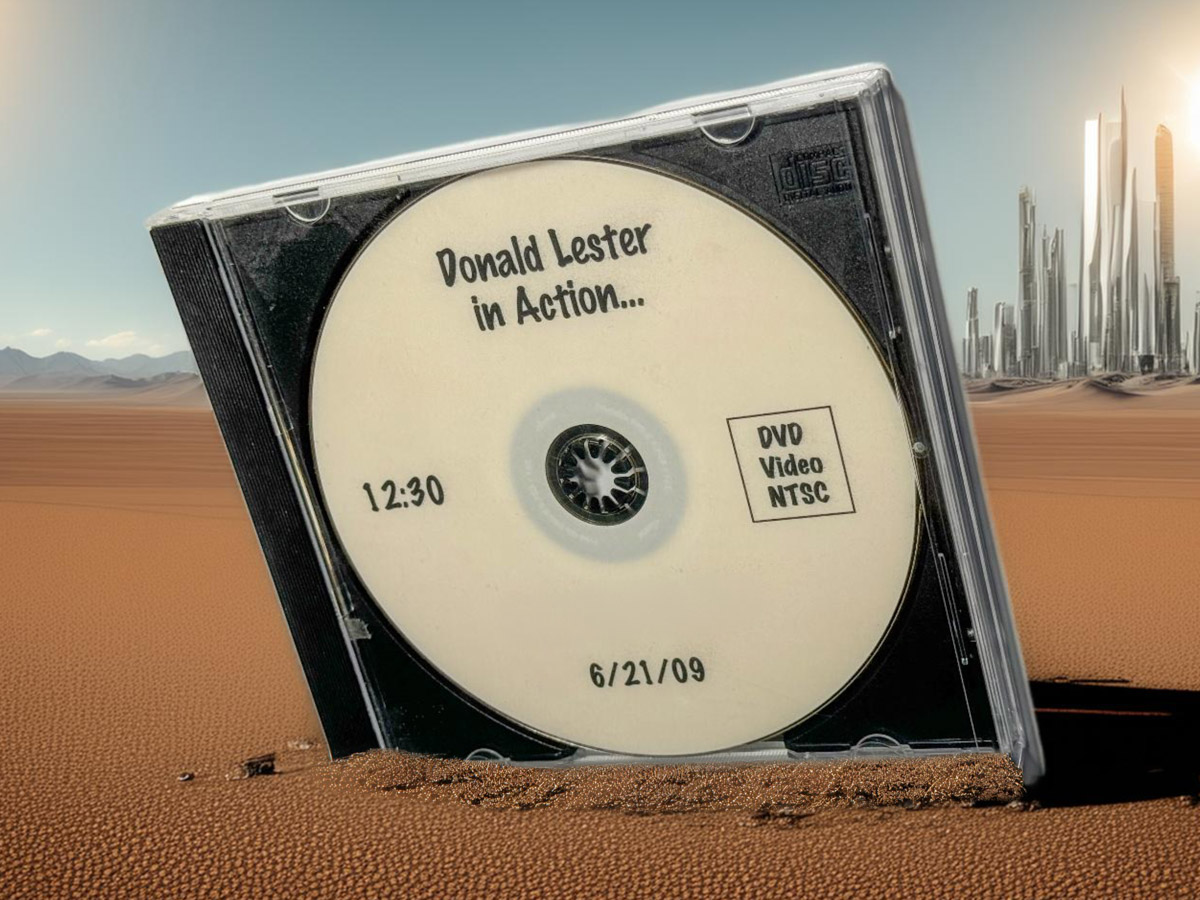
You’ll need to first extract your unusable ‘VOB’ video file that’s buried in your DVD and convert it to a file format that your computer can play. Here’s how I did that with this fifteen-year-old DVD I made for my father about his life.

You may recall that DVDs were once used to save VHS and analog video files from extinction. It was the magic ‘digital’ solution! Then technology moved on, and DVDs effectively disappeared as streaming and cloud platforms took over our lives. Physical media was history! (Well, not completely.)

All the DVDs that I had ‘authored’ containing family videos simply went to the back of my closet, forgotten for another day.

Is that your story too?

Old DVDs are Drink Coasters
Should you eventually want to play one of these DVDs again, you’ll need a working DVD player hooked up to a TV or a computer with a DVD drive. Both scenarios are increasingly unlikely. So, it’s time to face the reality that you really need to rescue your video files before it’s too late.

I recently confronted that exact moment with a DVD I had burned fifteen years ago. It was originally a gift to my dad for Father’s Day. It was a little documentary I had made for him about his life. Now, of course, it’s an irreplaceable keepsake, and it came back to me after he passed in 2022. But if I can’t access the media, it’s effectively a worthless drink coaster.

Copy the VOB File to your Desktop
The first step is to find a way to copy the video file off the DVD to a computer. And that may not be a simple process. Fortunately, I still own a portable optical Apple drive that I had purchased with an old iMac. (They still sell the Apple USB SuperDrive for $79.)

When you look at the file structure of an authored DVD from your computer screen, it’s complex. The file you’re looking for is the ‘VOB’ file (mostly likely the largest one).

Dragging the .VOB over to my Mac Studio took some time. (My old SuperDrive is a USB-A relic.)

But don’t get too excited just yet. Clicking on the VOB file on your desktop is useless. You’ve got to convert it to be able to play it. Here’s how to do that…

Rename the Extension from VOB to MPG
That’s right. All you need to do is rename it as a .mpg file. That’s because it’s really an MPEG-2 file. Once you name it that way, it should play fine on your Mac. But you’re not totally done.

That’s because .mpg is an old, bulky codec. Sure, it may play on your computer today, but it’s not that compatible anymore. So, the next time you click on it, who knows what may happen. You should take the next step and convert it to an .mp4 or .mov.

Convert the MPG to MP4 or MOV
There are any number of ways to do this. If you’ve purchased the ‘Compressor’ app for your Mac, that will do the trick.

Alternately, if you own Roxio’s ‘Toast’ software, that will also convert VOBs directly to MP4s. I had to pay to upgrade my older Toast software to Toast 20 Platinum to get it working on my Mac Studio.

And if you’re looking for a free software solution, ‘HandBrake’ is another path to take.

Where’s my Original Edit?
You may be wondering why I didn’t just find my original video edit from fifteen years ago. That way, I could have avoided my whole DVD file-conversion dance. But that assumes I still knew where that old file is.

Sadly, I’m not as digitally organized across the decades as I had hoped.

The good news is I still had my drink coaster to convert. And this message in a bottle is now found, updated and living happily in its converted form.

Rescue your Past
DVDs are history. Computer hard drives won’t live forever either. Cloud solutions offer better future-proofing comfort, but that assumes these companies stick around for the decades to come. It can make your mind spin faster than a DVD in an optical drive!

I think the only way to address this challenge is to just take it… one decade at a time. For now, focus on extracting your video files from your old DVDs.

Good luck!