At Home with Tech

Unlock the power of all your technology and learn how to master your photography, computers and smartphone.

Category: family

Barrett’s Birthday Photo Project

If you’ve been considering the value of maintaining a folder containing all of your birthday photos across the years, here’s what I’ve experienced with this practice.

Since I can remember, I’ve been a bit obsessed with taking a picture of myself on my birthday. No, not just an action shot during my party or next to my cake. But an image that would be ‘that photo’ to represent this little milestone moment as I begin the next year of my life. I would add it to the other photos that came before it, and this group of pictures would somehow illustrate the totality of my life.

Of course, that’s an impossibly high bar to meet. In fact, this growing batch of photos merely consists of sometimes average pictures on the same day each year. That said, as I review them annually, the images do represent a journey of sorts.

For many of the photos, I tried to show off my age with my fingers, but I eventually ran out of digits. So I gave up that practice.

Take More Control of your Moment
In more recent years, I’ve tried taking self-portraits using the timers on my cameras. This technique essentially allowed me to plan for more advanced selfies.

And now with the smartphone LUMIX Sync app for my Panasonic Lumix GH5 II, I’m able to control my camera with my iPhone. That eliminates the need to sprint in front of my camera before the camera’s countdown runs out.

Find your Photo Early in the Day
This year, I brought my Lumix and little Joby tripod to the front steps of our house at dawn to find my official birthday shot. And I captured the quiet moment as part of my morning magic hour.

This is the time for me when all things are possible. The weight of age melts away.

These are typically the sixty minutes when my creative self is strong, the thoughts flow and I write.

Being Present is the Present
The sun rises behind me. It’s an unseasonably warm 45 degrees, and I wear no coat.

I have my iPhone in my hand just below the frame controlling my GH5 II. I’ve got a little bokeh in my background. It feels like time momentarily slows down. I take the picture.

This moment I create is itself a gift.

And then I walk back into my house moments before my eleven-year-old son wakes up and comes downstairs. He gives me a hug, and we do a little happy-birthday dance together. I walk into the kitchen, and my wife is preparing a special breakfast.

It’s an amazing start to my birthday.

Happy Birthday Barrett
Then, the day unfolded, leading to a small dinner gathering with friends who have been part of our pandemic pod over the past two years.

My morning photo project was no longer the headline for my birthday, but I’m happy that I took care of my little ritual the way that I did.

Later, I added my 2022 birthday picture to the others in my Adobe Lightroom folder. Then, I moved on to create the above photo collage for this blog post. Finally, I closed up my photo project for another year… feeling quite satisfied.

I’ve found this practice is a rewarding way across the years to simply celebrate that the journey continues. I highly recommend it.

Happy birthday to me.
Grogu’s Choice

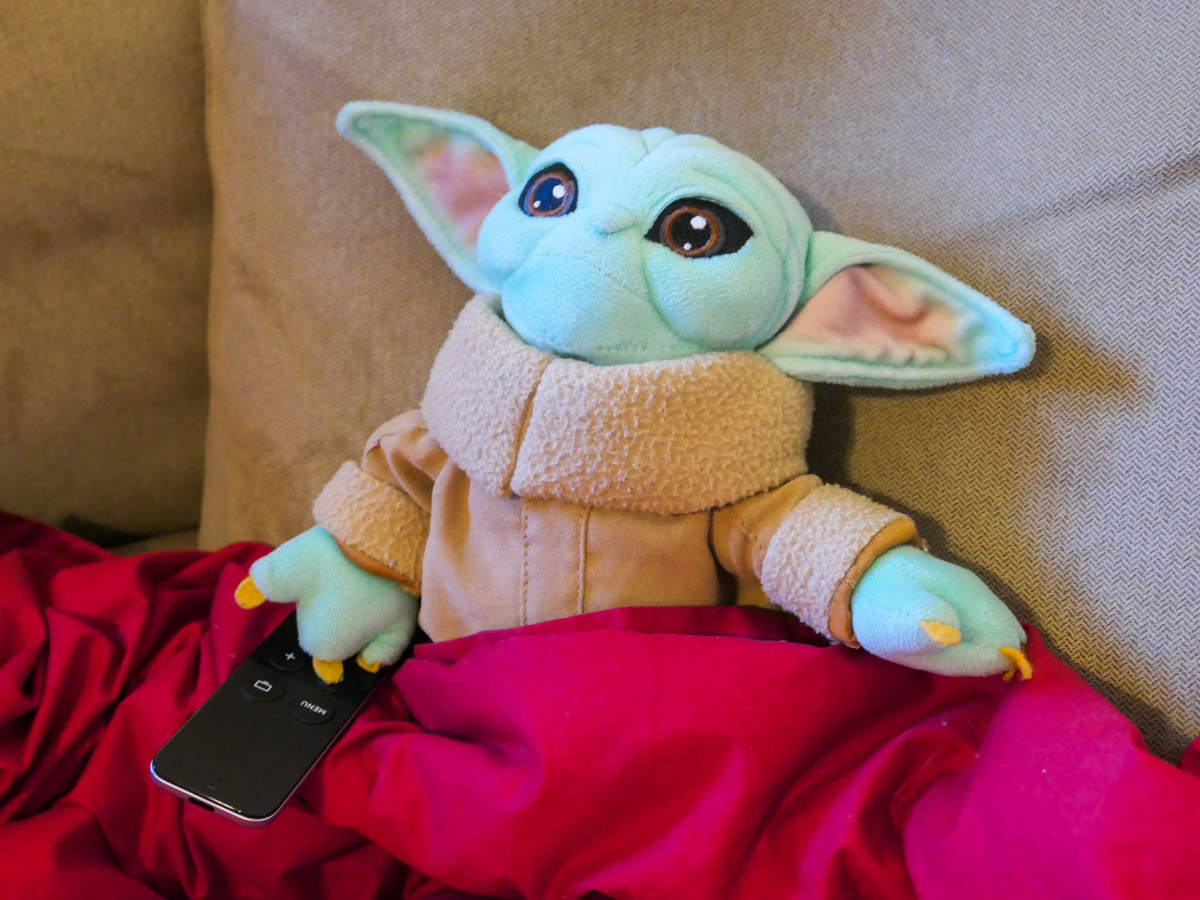
When Baby Yoda shows up in the middle of “The Book of Boba Fett,” you know the writers have a few more tricks up their sleeves.

“The Book of Boba Fett” has become really interesting. That’s because it’s suddenly drawing heavily on a growing number of beloved characters from a galaxy far, far away.

First, Mando’s back in Chapter 5. And if you’re not paying close attention, you would think that you’re inexplicably watching season 3 of “The Mandalorian.” (Talk about crossover storylines.)

It’s been a real treat to see Din Djarin (played by Pedro Pascal) back in action. The producers don’t stop there. They give us a healthy dose of Grogu-ness too.

But the “Boba Fett” folks aren’t done yet. Oh no.

The Return of Luke Skywalker
Remember the big reveal at the end of “The Mandalorian” season 2? (spoiler alert)

A young Luke Skywalker shows up to save the day. Sure, his face is computer-generated. But he looks okay for a CGI human. Plus we’ve got the voice of the real Mark Hamill.

Many have debated whether digital-Luke was real enough, but that’s not really important if you’re focusing on the big picture.

It was an amazing reveal, and it was perfect for the story. Thank you, Jon Favreau.

But clearly, the writers weren’t done with CGI Luke. They wanted another shot and gathered all of the computer-rendering power this side of the solar system.

And with that force, they now gave us a full episode of “The Mandalorian” (I mean “The Book of Boba Fett”) largely led by young Luke Skywalker!

And it worked! How crazy is that??

The Luke scenes in Chapter 6 were amazingly real. In some of the action sequences, it felt like the Lucasfilm animators were really having fun with their achievement.

Our New Padawan
We also see Luke training Grogu. What a pair! I love that the episode takes its time with this. (That’s an advantage a series can offer.)

And then the big cliffhanger comes….
(Yes, spoiler alert)

Luke gives Grogu the choice of accepting one of two gifts… Yoda’s light saber or the little beskar-armored shirt the Madalorian dropped off. Of course Grogu’s choice will define his destiny.

Cut to black… roll credits.

Wow.

Much Strength this Series Reveals
The first few episodes of “The Book of Boba Fett” are slower by comparison. I think it’s partially because of so much time spent on the back story (which is arguably needed).

And Boba Fett’s character (played by Temuera Morrison) still feels a bit two dimensional. (It doesn’t help that he’s barely been in the past couple episodes.) But we’ll see how he evolves as his story pushes forward.

“The Book of Boba Fett” is getting stronger as it benefits from a growing and integrated Star Wars’ universe that draws from the best of the original core as well as crossover characters from “The Mandalorian.”

Beyond Mando, we’ve had the pleasure of reuniting with Jedi Ahsoka, sheriff Cobb Vanth, the Mandalorian Armorer and mechanic Peli Motto.

Streaming Joy
Sure, we can discuss the strengths and weaknesses of “The Book of Boba Fett.” That said, I am not disappointed. Not one bit.

As a life-long “Star Wars” fan who remembers being blown away when I saw Episode IV in in the movie theater and also as a father of an eleven-year-old son who enjoys “The Mandalorian” and “The Book of Boba Fett” as much as I do, I am psyched that “Star Wars” is alive and well on Disney+.

Watching these episodes with my family has been a peak experience.

More please.

How to Hear Zoom Audio when Screen Mirroring to your TV

If you use a MacBook laptop and Apple TV, there’s one important setting to change if you want to hear your Zoom audio on your HDTV.

The Zoom app is mostly designed to be used on smartphones and computer screens as an interactive experience. But with Zoom having grown as a performance/presentation platform, sometimes it’s preferable to watch Zoom as a one-way experience. Then, it’s more enjoyable if you can experience it on your big-screen TV.

So how exactly do you get your Zoom feed to show up there? There are multiple ways to do it, but the gateway to my older (non-smart) HDTV is via my little (but mighty) Apple TV box.

Once I’m screen sharing in the Apple ecosystem to my Apple TV, it’s immediately available on my HDTV.

Apple makes screen mirroring (AirPlay) to its devices a snap. But getting Zoom’s audio to stream to your HDTV can be more tricky. Here are the ways to do it.

Use an iPhone and Zoom App
As long as you first activate screen mirroring from your iPhone to your Apple TV before joining your Zoom, you’ll be fine.

On your iPhone’s Control Center (open by swiping down from top-right corner of your screen), you’ll see the two layered rectangles icon for screen mirroring.

  • Tap it and select your Apple TV
  • Then join your Zoom presentation

Both video and audio will follow to your TV.

Use a MacBook’s Web Browser or Zoom App
Turn on Screen Mirroring via the Control Center icon on your laptop’s Menu Bar. Then choose the Apple TV.

Or a faster way to share your screen is just click on the Screen Mirroring icon on the Menu Bar. But you’ve first got to make sure that icon shows up on the top right. Here’s how to activate it.

  • Go to ‘System Preferences’
  • Click on ‘Screen Mirroring’ on the left panel
  • Click ‘Dock and Menu Bar’
  • Click Show in Menu Bar… ‘always’ (as opposed to ‘when active’)


Then proceed to your Zoom presentation.

What Happened to the Audio?
But I’ve found that one big problem can crop up when screen mirroring Zoom from my wife’s MacBook Air to our Apple TV…

The Zoom video projects fine onto the TV screen, but the audio doesn’t naturally follow. The Zoom audio remains tethered to the laptop’s speakers.

To fix that frustrating problem, there’s one additional step you’ve got to take.

Change your Zoom Audio Settings
By default, the Zoom audio output is the laptop’s speakers, even if you’re mirroring your screen. (Zoom doesn’t know that you’re practicing screen-mirroring magic.)

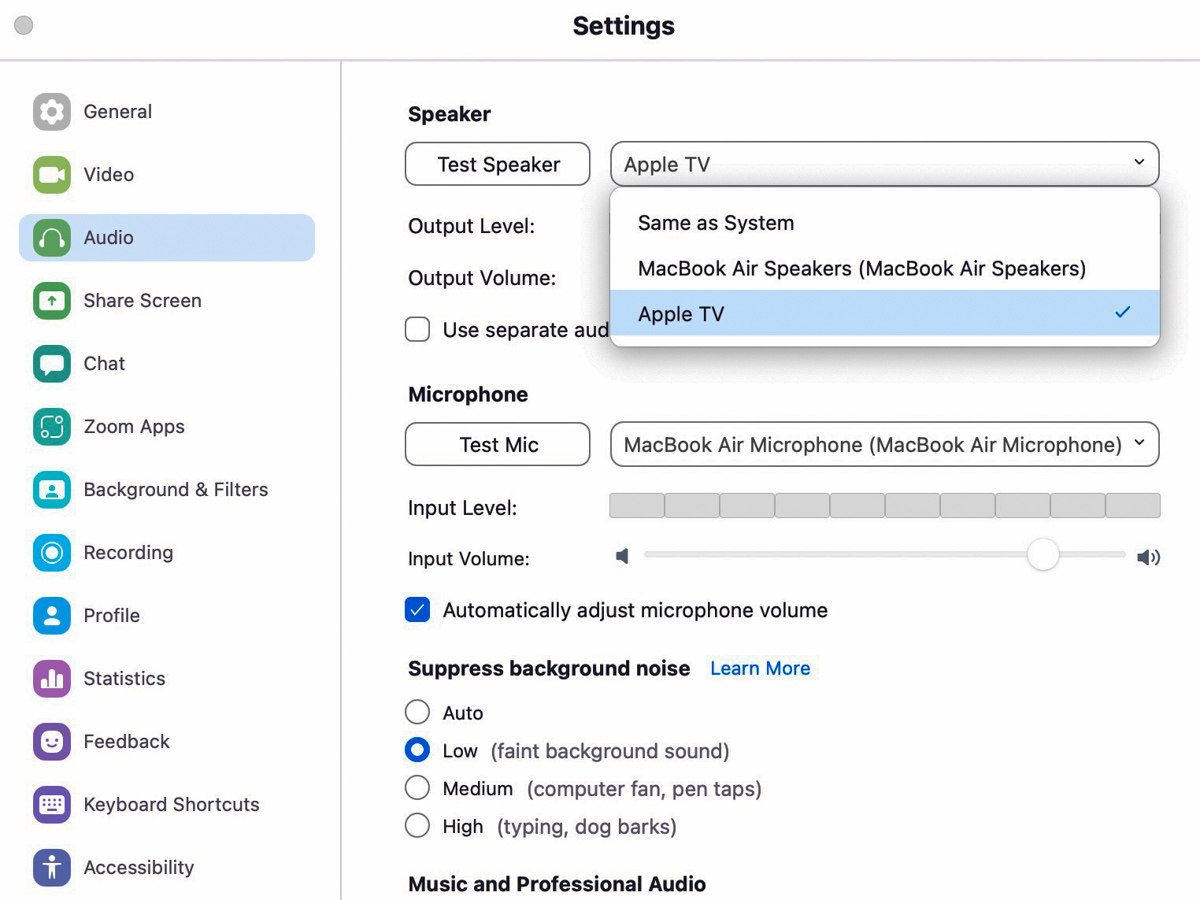
You’ve got to go into your Zoom settings and manually change the audio output to your Apple TV. Only then will the Zoom audio follow from your computer to your Apple TV.

In the Zoom app:

  • Click on ‘Home’
  • Click the Settings gear icon on the right
  • Click on ‘Audio’
  • Click on ‘Speaker’ drop down
  • Select ‘Apple TV’

And to be sure you’ve got it right, click on ‘Test Speaker’ and you should hear a happy melody coming from your TV’s speakers.

And voilà!

Turn Up the Volume
Zoom has proven to be a really powerful app over these past couple of years during the pandemic. But you’ve got to make sure the audio settings are right.

Once you do, you can finally sit back and enjoy the Zoom show on your TV!