
I Found these Silent Truths from My Father’s Old Home Movies

There’s that movie scene from “Iron Man 2,” where Tony Stark reviews old film outtakes of his deceased father Howard Stark. The raw film clips show Howard making a promotional film decades earlier. First, Howard is annoyed by child Tony, who plays in the background and ruins the scene. There’s no fatherly love expressed here.
But at the back end of the reel, Howard unexpectedly turns to the camera and seemingly breaks through time, talking directly to future Tony. Howard shares his love for his son, knowing at some point, Tony would receive his heartfelt message at the moment Tony needed it most.
On the one hand, this all seems a bit contrived, though not entirely implausible. But the scene really spoke to me. I’ve watched it many times. I’m drawn to it. And now, I finally understand why.
My Father was a Filmmaker
I’ve just finished converting my father’s old 8mm family movies to digital files. He began shooting them before I was born and then continued throughout my early years.
But he gradually stopped his hobby, focusing more on his photography. My dad’s old film reels simply sat in a white box forgotten in the back of my family’s hallway closet.

These films reappeared many years later when I was an adult visiting my parents for the holidays. My father felt inspired to set up his aging movie projector for me and my mom, and he ran some of these old 8mm films for us. It was remarkable to watch them for the first time.

I brought along my camcorder, and I recorded his presentation displayed on a pull-up screen that he had also lugged along with his projector out of the closet. But we didn’t get through all the films. More than half remained unwatched.
Fast forward a few more decades, and that white box of family memories eventually found its way to my house. (My father passed away in 2022.)
Rescuing Our Family Films
A few months back, I decided it was finally time to try to properly convert all these time capsules, which had deteriorated somewhat, but were still viewable.
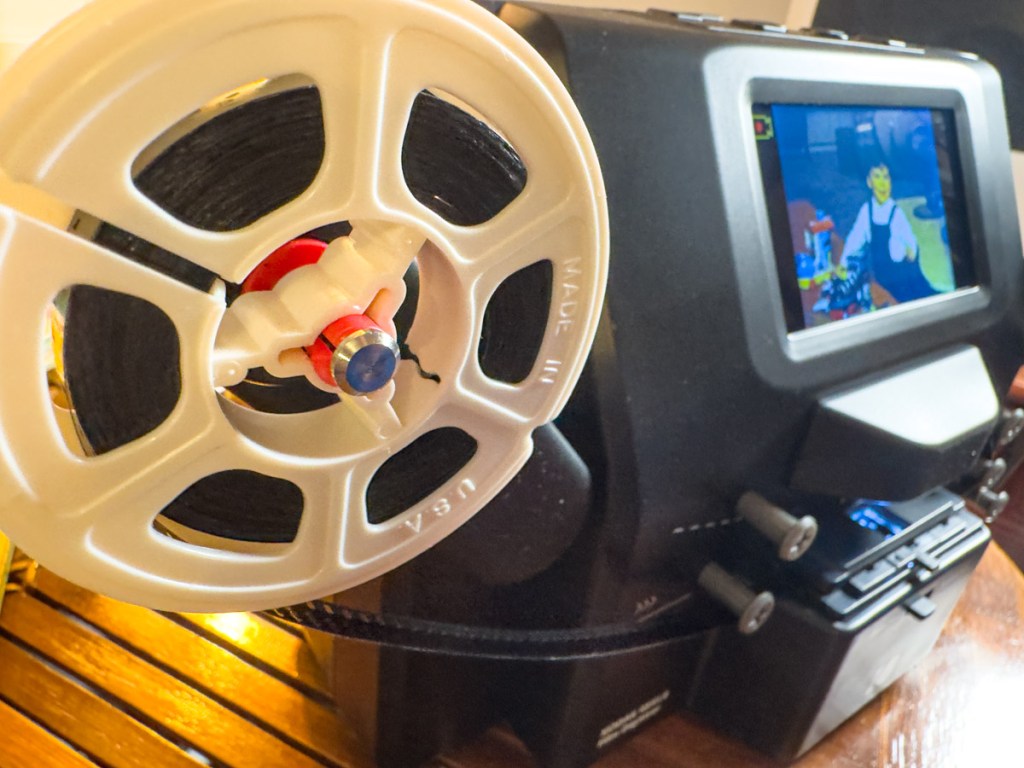
So, I purchased a Kodak REELS Film Digitizer for the job, which was a far cry from a professional film conversion plan.
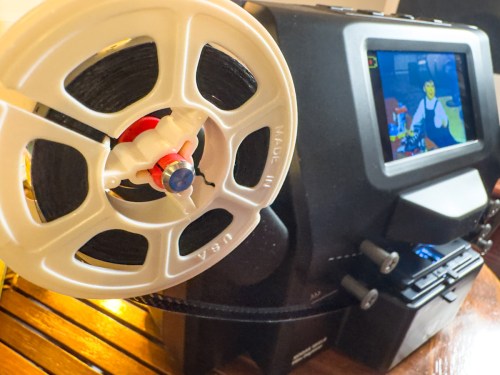
But the film-to-digital converter worked well enough to bring these silent moments back to life. And the quality was fine for my needs.
The conversion process was wicked slow, and I also found much of the content not worth saving. On the other hand, certain reels contained priceless moments of my parents and my paternal grandfather. And of course, I had to go through what seemed like miles of film to find them.
And then I stumbled upon one huge surprise buried in a strangely unlabeled reel. It was the day my parents’ families first met at my maternal grandparents’ house. It was shot like an old news reel covering some massive public event.
(Of course, this was a big event for the two families.)
After I first watched it, it felt like I had jumped through a time portal to witness history. It’s a true gem. And now I’ve got it properly archived.
A Baby Surrounded by History
I also converted numerous clips of young Barrett, from baby and toddler to little kid. Sure, I was cute, but I think the greater value in these scenes comes from looking at everything around me- the people, the styles and the environment. Here’s my grandfather with me and my mother on a sunny 20th century afternoon in New York City’s Central Park.

This is such a cool moment from another era.
Was the Payoff Worth the Grind?
I mentioned the digital conversion process takes time. Yes, lots of time!
Each 3-minute reel took me 33 minutes or so to convert, as the digitizer snaps a photo of each frame and then stitches it all together into an MP4 file on an SD card (slick but slow). And I also had some larger reels to deal with… those took hours!
And it’s also not a ‘set it and forget it’ process. You can’t totally walk away. That’s because the film can easily jam in the converter. It’s not so much the unit’s fault. It has more to do with the condition of your film and quality of the splices. Any aberration, and the converter will jam. So, I needed to stay in the room to be able to see what was going on.
Plus, I found on several occasions that the film had broken mid-reel. This happened at some point decades back, and my father had never rejoined the pieces. Rather, he simply wrapped the rest of the film on top of the reel, leaving this booby trap for the future to figure out.
Give the Job to the Pros?
You might say that my experience clearly points to the value of simply shipping your box of misbehaving film reels to a company to do the work for you. They’ll deal with the mess and create better-quality conversions. And think about all the time you’ll save.
The only big downside is accepting that you’ll also be paying to convert footage that you otherwise wouldn’t want to save. Plus, depending on the number of reels you’re converting, it eventually becomes more cost effective to do it yourself.
There’s no right answer here. It’s whatever makes more sense for you.
Silent Truths and Manufactured Moments
I don’t think my father ever considered that I would attempt this project. Our family history is sufficiently documented in photos. I imagine as far as he was concerned, these films were simply his own hobby for him to enjoy during those years. Nothing more.
But of course, I was searching for something more. I wanted to understand more about my past.
As I reviewed the converted films, I looked for glimpses of certain ‘truths.’ I thought people in motion would reveal more than a posed photo. But I quickly realized there was plenty of posing going on here as well.In many of the scenes, my family acted like movie stars in front of the camera, exaggerating their movements and constantly smiling.

Those mannerisms may also have to do with the silent movie nature of 8mm film.
Without audio on these 8mm film reels, of course my father couldn’t talk to me. So, I never got my Tony Stark moment.
First Steps
But watching my parents interact during their early years together helped me fill out this optimistic first chapter in my own mind. Every story has a beginning, and I was watching theirs, however manufactured.
I got to see a bit more of my paternal grandfather. I have fond memories of him, and it was nice to see Grandpa in action again.

There was also a lot of footage of my mother, who loved the camera in those early days. She was my foundation as I grew up, and the film clips of us together warmly displayed those beginnings.

I can’t believe she’s been gone for twenty years. I’m so happy I now have these additional recorded moments of her.
But this project eventually leads me back to my father.
Look, we had a complicated relationship. Suffice to say, my father was a master storyteller, and I spent a lot of my adult life with him trying to figure out any number of little truths… and some bigger ones.
No, these old films didn’t answer any of them. But they did provide a bright view of my family’s life at the beginning. And I’d say that’s a real gift.
So, thank you, Dad. You were a pretty good filmmaker.
“I Built This for You”
My 8mm family film conversion project is complete. No, my father never sent me a secret message like Howard Stark to fundamentally change my understanding of my past. But he did show me some things, and he captured a few priceless family moments along the way. There are even a few scenes of my father with boy Barrett having fun.

These clips are important reminders, as memories have a way of blurring the past. So, mission accomplished.
My cinematic journey back in time has wrapped. And now it’s time to move on.
The present and future beckon.








 At Home with Tech