At Home with Tech

Unlock the power of all your technology and learn how to master your photography, computers and smartphone.

Category: Homemade Videos

Our Computers aren’t Built to Handle so Many Videos and Photos

It’s really simple to create media with our smartphones, and we’ve all become home filmmakers. But it’s becoming increasingly hard to store all the media files. If you’re not worried that you’ll eventually run out of SSD storage space in your Mac, think again. Here’s what you can do about it. (And it won’t take up a lot of desk space.)

A year back, I upgraded from my older 4TB iMac to my new 2TB Mac Studio. My decision to go with only 50% of the internal storage was based on Apple’s more expensive internal SSD drive pricing. (My old iMac had a larger, but slower, spinning hard drive, which is no longer part of the line up.)

I always thought that Apple would forever offer increased internal storage without charging more. (Aren’t we all needing more storage as we document our lives with photos and videos?)

But once Apple moved from HDD spinning drives to next-generation SSD drives, that equation imploded.

  • An Apple Studio with a 4TB SSD costs $1,200 more!
  • You can’t even buy an iMac today with more than 2TB of storage. And that will set you back $600-$800.

Something’s very wrong. We’ve got less to work with and paying more for it.

Still, pricing aside, I successfully deluded myself that didn’t actually need 4TB. (Ha!)

Better Digital Housekeeping?
Sure, I had filled up my old iMac’s 4TB drive, but I told myself that maintaining and transferring all that content from computer to computer was unreasonable. I didn’t need all of it within my internal drive. instead, I would offload much of it to external drives and my G-Technology RAID for long-term storage.

I brainwashed myself that the new 2TB SSD in my Mac Studio should be more than enough once I performed some long-overdue digital housekeeping.

That was just wishful thinking.

Face the Inevitable
Sure, I’ve done some media management, but my goal of a 50% reduction was unobtainable. Within a year, my 2TB internal drive was bursting at the seams. (And we all know that Macs aren’t built to allow you to later upgrade internal storage.)

And Apple hasn’t helped any by continuing to improve its iPhone’s capabilities to generate RAW photos and advanced video codecs (including ProRes files). All this means larger media files.

We’re all filmmakers now with the critical need to house our content libraries somewhere. What did they think was going to happen when we moved these huge files over to our Macs?

iCloud Storage?
Sure, I could export terabytes of my media into Apple’s iCloud ecosystem. But come on… that’s not really a good value proposition.

  • 2TB costs $9.99/month
  • 6TB is $29.99/month

Let’s do the math:
I would have to go with the 6TB plan, which comes out to $360/year. While that is surprisingly competitive with external hard drive pricing, across multiple years… it gets too expensive.

Certainly, $360 x multiple years is more than the one-time cost of buying a companion external drive. I know physical drives won’t last forever, and you’re supposed to upgrade them every few years. So perhaps a future iCloud storage plan could be a reasonable solution… if the pricing comes down.

SSD Drives
But what is today’s answer when your internal drive gets filled up?

Well, that’s simple: You’ve got to buy an external drive and plug it in. (I know I didn’t have to tell you that.)

The real question is what kind of drive?

To match the speed of your internal drive, you’ll want to buy a similar technology. If you’ve got an internal SSD, you should look at getting an external SSD.

So, that’s what I did.

Video Editing
Another question is what you want to do with the drive.

My most demanding task is editing my family videos and personal creative projects, which are all shot in 4K. Many of my video files are generated by my iPhone 15 Pro Max.

Plus, I’ve got:

So, perhaps my video editing needs are more advanced than the average user.

4TB OWC Express 1M2 SSD
All this said, I decided to go with a fast NVMe M.2 SSD. And I wanted to take advantage of the Thunderbolt 4 interface my Mac Studio offers. While there are many Thunderbolt 3 drives on the market, only OWC appears to offer a USB4 drive (same as Thunderbolt 4).

Now, some of you will immediately question my need for such a fast drive, and others will point out that thunderbolt 3 drives are fast enough for my media workflow. I know.

But this is a dizzying choice. So, I figured it’s best to go with a little more oomph than not enough.

So, I landed on the bus-powered 4TB OWC Express 1M2 SSD. (It’s an enclosure with the 4TB NVMe prepopulated.)
This Express 1M2 is blazing-fast, boasting 3200MB/s. It gets positive reviews, it’s compact and so far… it’s working great for me.

The Price for Performance and Peace of Mind
No, it’s not exactly cheap. (Remember, SSD technology is pricy.)

Yes, I could have saved more and bought a less expensive NVMe separately and popped it in an empty OWC 1M2 enclosure. But… I’m a baby.

Really, I just want this thing to work out of the box. Sure, plenty of you may chide me for being so ‘tech-timid.’ But hey… I’m not ‘Mr. At Home with IT.’ I know my limits. I’m not building my drives. I’ll buy them pre-built, thank you very much.

I just want some peace of mind. (Sure, I back up my files, but that’s also a complex equation.)

So, yes, I’m willing to pay a little more.

Build a Big Enough Home for your Files
Let’s review:

  • I bought a new Mac that had 50% of the internal storage of my old Mac
  • I inevitably ran out of space
  • A year later, I spent more money to buy a companion OWC drive for my Mac
  • I plugged it into my Mac Studio via a Thunderbolt 4 port, and I’m back in business

Yes, my story has a happy ending, but I’m not that happy.

Sure, maybe I have more media storage needs than the average bear, but not by that much.

I think today’s new computers simply need more internal storage. The fact that Apple sells its base-level computers with only a 256GB SSD is absolutely silly. (I could choose a stronger word.)

The lesson here is over the years, you’re going to need a bigger hard drive for your computer. And you’re going to pay for it one way or another.

So, plan for the future.

How We Scheduled our Alaskan Vacation out of Anchorage

When you’re trying to figure out how to vacation in Alaska, be realistic on how much you can see. Here’s our 10-day itinerary.

When I first told my friends that my family and I were going to Alaska, they usually asked, “Are you taking a cruise?” If you’ve checked out my past few posts on our Alaskan adventure, you know that we followed a different vacation path. We took a Backroads’ family tour out of Anchorage that transported us throughout the Kenai Peninsula. Though we spent a day cruising through parts of Prince William Sound exploring glaciers and sea kayaked on Kachemak Bay, we spent the rest of our time on land, hiking and biking. It was all simply spectacular.

The Need to Narrow our Itinerary’s Scope
When we first thought about taking an Alaskan vacation, the big challenge was figuring out where to go and how to maximize our geographical coverage during our 10-day trip.

That was the wrong question to ask, and we quickly realized that, because Alaska is so huge. Any attempt to drive between the key sections would take up too many days and doom the trip to endless road time.

Even taking a train to Mount Denali was a complete day right there, and then that choice would set up extended travel days from point to point in that part of Alaska.

It’s ridiculous to even try to cover Alaska in one trip, unless you’re hopping on a plane every other day.

The only solution to our itinerary, of course, was to pick one ‘small’ area, and then stick to it. (And that’s what Backroads provided us.) Even doing that required two to four hours of driving on almost every day. (Fortunately, we were comfortably driven around in our Backroads’ van.)

Hello, Kenai Peninsula!
So, we explored the Kenai Peninsula south of Anchorage, and believe me, it felt like just that small sliver of the state was a separate massive planet. We covered plenty of miles, even though it’s just a fraction of Alaska.
If you’re planning for your own Alaskan vacation, and you’re trying to figure out your own itinerary, here’s what we did:

Our Alaskan Vacation Itinerary

Day 1
Fly to Anchorage
Settle into your hotel. Unless you’re starting from the west coast of the United States, it’ll be a full travel day.

Day 2
Unscheduled
Go through your jet lag (as needed).
We visited the Anchorage Museum and took a trolly tour (very touristy but fun). The key to this day is to make it a buffer day. There would have been no way for us to easily turn it around and begin our Backroads’ tour that morning. Not as a family.

Plus, what if your fight gets delayed or canceled the day before? (It actually took three hours for our plane to get out of Newark, New Jersey due to weather restrictions and the need to find a new flight plan!)

Day 3
Travel to Girdwood
Stay at the Alyeska Resort
This was our first Backroads’ day, and it began big with a cycling adventure. We biked along the amazing Turnagain Arm.

We eventually ended up at the Alyeska Resort midafternoon. We didn’t have a whole lot of time to enjoy its immersive salt-water pool, but we did squeeze in a late-afternoon dip. (If you can spend an extra day here, I’d recommend it.)

Day 4
Travel to Whittier
Take Prince William Sound Glacier Cruise
Getting to Whittier required driving through the 2.5 mile portage tunnel through a mountain. That, by itself, was an experience. As for our glacier cruise, it was as dazzling as it sounds.

After our cruise, we jumped back in our van and headed to Seward.

Day 5
In Seward, Drive into Kenai Fjords National Park
Hike the 8-Mile Harding Icefield Trail next to Exit Glacier
We hiked up this trail right next to the glacier. (We were on solid earth the entire way.) The summit of the trail is 3,512 feet.
Yes, it was a wicked-challenging hike with a steep incline, which reminded me of my family’s New Hampshire mountain hikes that topped 4,000 feet.

For the record, I was the last one up and the last one down the Harding Icefield Trail. Yes, I was slow, but I did it!

Day 6
Drive to Homer
Bike the Spit
This was our second cycling day, and we biked into Homer (after our van took us most of the way from Seward) and through the Homer “Spit” that extends out into Kachemak Bay. Our hotel (Land’s End Resort) was perfectly located at the end of the Spit. You could also reverse engineer this idea and bike the spit after you settle into Homer.

After dinner, we enjoyed a brilliant sunset over Kachemak Bay. (In the summer, the sun doesn’t go down until around 10pm.)

Day 7

Stay in Homer
Go Sea Kayaking in Kachemak Bay
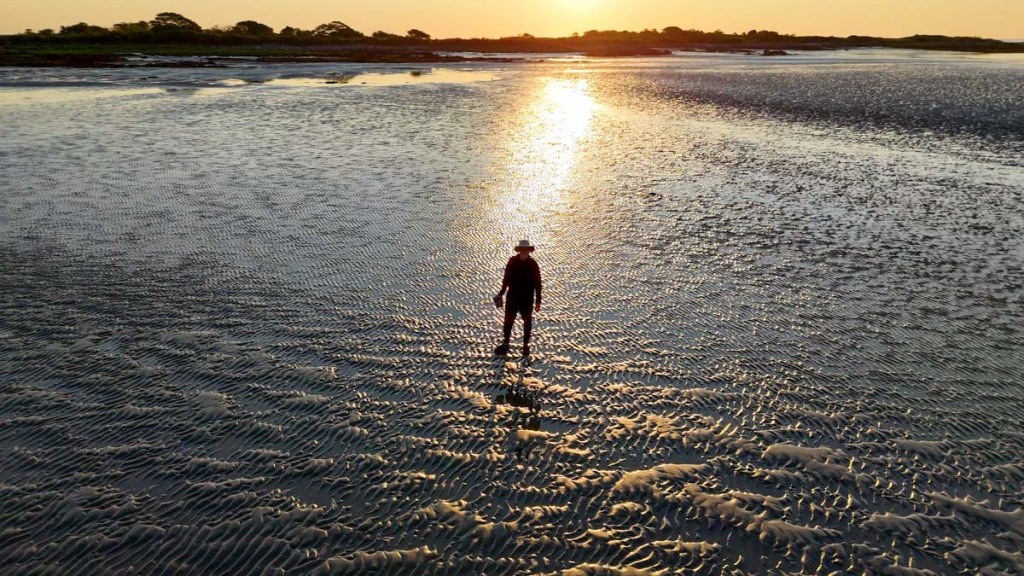
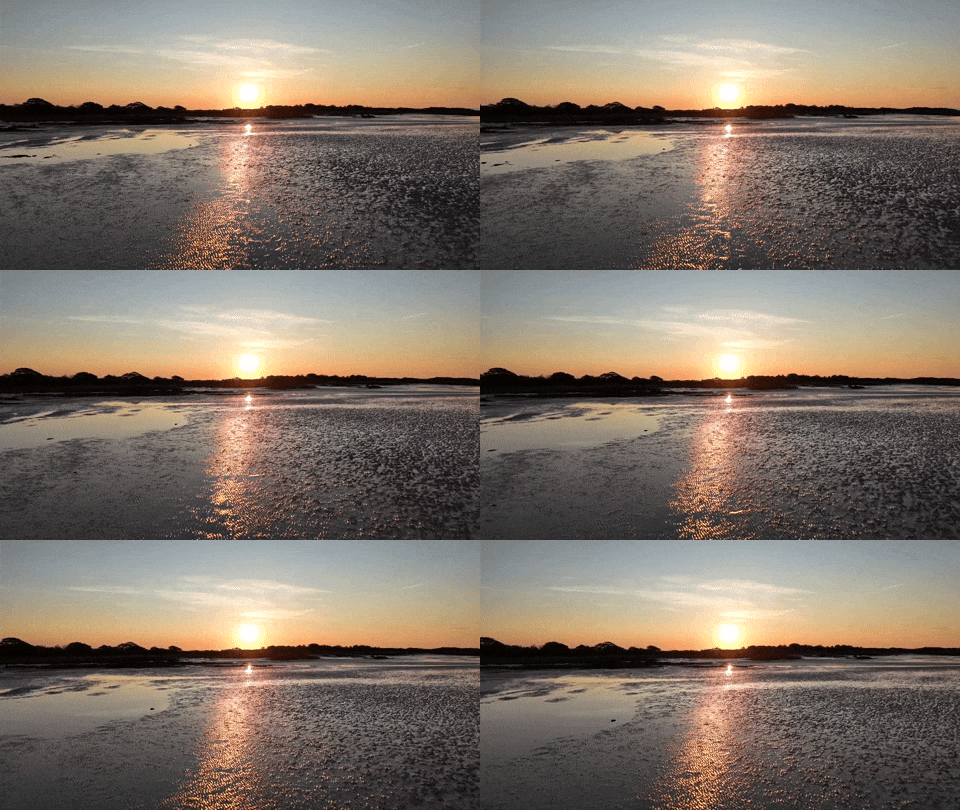
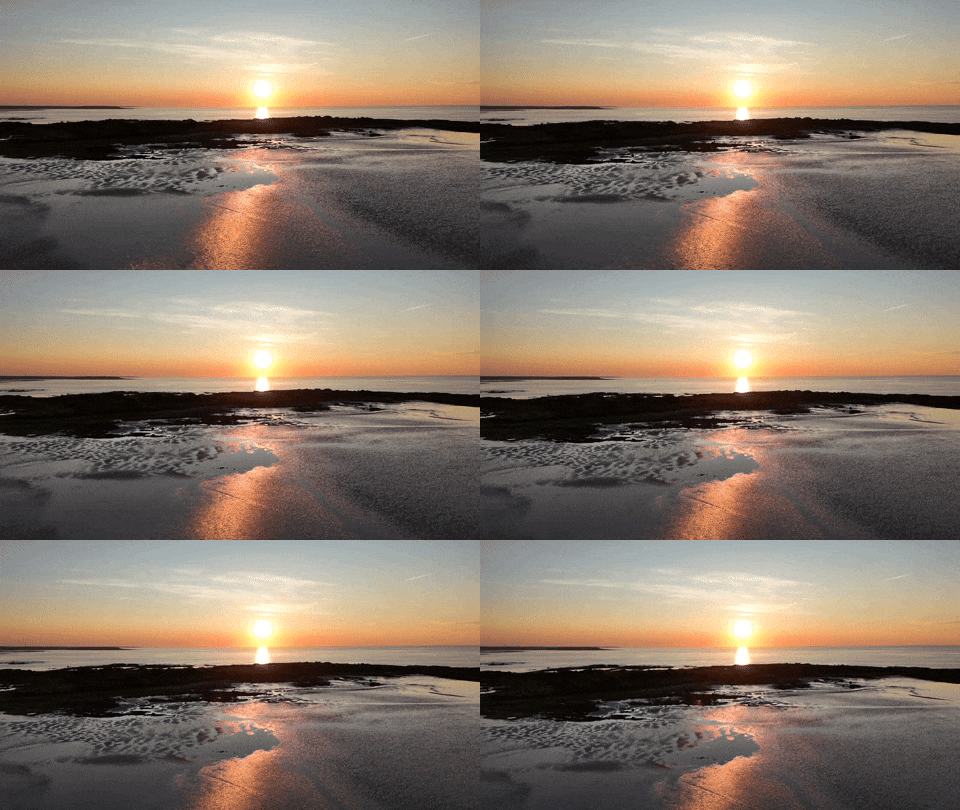
As soon as I woke up and got dressed to get my morning cup of Joe, I took a peek outside and saw the opportunity to capture a striking sunrise over the water. So, I stumbled out of our room with my DJI Osmo Pocket and GoPro to begin some timelapse recordings as dawn was breaking.

After breakfast, we took a water taxi to Yukon Island and suited up for our all-day kayaking exploration.

Again… stunning. Even our time on Yukon Island offered breathtaking views of Kachemak Bay.

Day 8
Explore Homer
Drive back to Anchorage
In the morning, we visited the inspirational Dean family farm and art studios. After lunch, our group headed back to Anchorage. This last leg of our Backroads’ tour took five hours, the longest driving stretch of our vacation.

And that was the end of our exceptional Backroads’ tour. But our Alaskan vacation wasn’t over quite yet!

Day 9
Stay in Anchorage
Take a Glacier Flightseeing Tour in a Cessna
We started our day with a little more bike riding, this time around Anchorage. (We rented from Downtown Bicycle.) Along the way on the Tony Knowles Coastal Trail, we ran into a few moose. (Well, they almost ran into us!)

In the afternoon, we took our Knik and Colony Glacier Flightseeing Tour (by Regal Air) from Lake Hood. This two-hour roundtrip flight through Chugach State Park in a tiny Cessna was the perfect way to wrap up what was already an unforgettable vacation.

And as if our flying over glaciers wasn’t thrilling enough, we also landed on a strip of dirt in the middle of it all to ‘stretch our legs’ before embarking on the second half of the flight. (Cessnas are amazing little planes.)

Day 10
Hang Out in Anchorage
Fly Home
Our flight back to Newark wasn’t until 8pm (a red eye and the only non-stop). So, we had much of the day to still spend in Anchorage. As it was raining, we focused on indoor activities. We visited Alaska Escape Rooms and then headed to the Alaska Aviation Museum before taking a free shuttle to Ted Stevens Anchorage International Airport, only ten minutes away.

A Few Final Travel Tips

Bring your Raincoat
It rains a fair amount in this part of Alaska during August. So, you should expect some. The fact that we experienced perfect weather throughout our entire Backroads’ tour was unusual (and certainly enhanced our overall experience).

Make Dinner Reservations in Anchorage
Yes, Alaska has a total population of only 732,000 people, and Anchorage feels accordingly empty by comparison to other cities. But there are tons of tourists moving through to take their cruises. And the restaurants totally fill up by 6pm. So, plan ahead for your evening meals.

Focus your Photography Wide
Of course, everyone wants to spot some wildlife, and yes, we ran across our fair share: some moose, black bears, mountain goats, seals, sea otters and one giant sea lion. And I got off a few good tight shots. But the majority of photo opportunities on this kind of trip is to capture the vast and incredible landscape. That’s where you’ll find your visual magic moments.

Go!
Visiting Alaska was certainly a bucket-list trip. And to fully experience our 49th state, you really need to see it from both the water and land. And if you can swing it, get in some flightseeing time in too!

It all makes for a trip of a lifetime.

How to Make a Bar Mitzvah Video

Here’s an outtake from the video I created to celebrate our son’s bar mitzvah. I followed a process that prioritized keeping it simple. Here’s how I did that.

Over the years, I think I’ve recorded hundreds (thousands?) of little family video clips. So if you’re wondering, yes, of course I created a video to celebrate our son’s bar mitzvah.

It was a highlights reel of sorts, containing some of his greatest hits to date… at least the ones that I happened to capture on video.

Fortunately, I’ve been diligent over these past thirteen years to label each of my family video clips and organize them into folders by month and year. (That’s a lot of folders!)

Over time, I’ve also created a variety of little ‘finished’ family videos that reflected different moments in our family’s story (birthday parties, vacation trips). These particular videos were especially useful to identify the clips I needed for the bar mitzvah video.

Not a Documentary
So years of good digital organization set me up nicely to begin my project. (I’ve got all of my video files stored in an external G-RAID drive.)

But really, any way I looked at my task, it was still absolutely overwhelming. (And I wasn’t even considering using any photos.)

So instead of trying to accomplish the impossible and somehow jam in every perfect clip to tell the ‘total’ story, I decided instead to enjoy my trip into the past and simply use what I uncovered in my digital archives over the course of several hours during three separate research sessions.

Capture the Spirit
Sure, there were a few video moments that I had specifically remembered and searched for. (My wife also had a few clip requests.) But for the most part, my process of rediscovery organically led me to the clips I used. If I had repeated my exercise the following month, I could have easily collected an entirely different grouping of clips that were just as delightful.

I realized as I went along that the video would mostly reflect these three factors:

  • Our son’s growth across the years
  • His family and friends
  • Some fun moments

It would never be a complete reflection on his life to date. And that was fine.

Keep a Simple Structure
This understanding freed me to focus on creating a video that was simply enjoyable to watch. And it was ‘relatively’ simple to make.

It ran seven and a half minutes. Each clip was 10 to 15 seconds long. And I organized them chronologically (using Final Cut Pro on my iMac) with a date stamp graphic in the bottom of the frame. I think the dates were useful to show the passage of time. I used a couple of his favorite pieces of music to support sections that were more visually oriented. And I popped in a title at the top and a ‘congratulations’ graphic at the back.

Finally, my wife and I recorded a short video message to our son that I included towards the end of the video.

Make a Few Drafts
That was it. I made three drafts before locking the final cut.

The first draft was a just a long string of clips in the right order. The second draft was a shorter version. (Everything can’t make it in. Always remember that less is more.) The third draft added a few more clips that my wife had remembered. (Don’t forget to collaborate!) And the final cut was where I polished it all up.

There are any number of ways to make a bar mitzvah video. This was the path I took.

A Video for the Past and the Future
We showed my finished video to our son, and I think he enjoyed it. He did smile a few times. To be fair, I can understand how he may not be as excited to see his toddler clips as we were. (My wife and I were delighted with the trip down memory lane.)

But beyond celebrating an important milestone for our son, I also see this video as a piece of family history that reflects our son’s first thirteen years. And I hope it’s something he can return to years into the future and enjoy.

My wife and I certainly will!