At Home with Tech

Unlock the power of all your technology and learn how to master your photography, computers and smartphone.

Category: photography

How Found Memories from Forgotten Media Can Affect your Own Story

Today’s tech easily enables you to meet your younger self through countless photo and video moments, many of which you may have forgotten about. How does that awareness change your personal history, and what are you supposed to do with all your media files in the decades to come?

What would it be like to time travel and experience your younger self? This is not an impossible dream. Today, we all leave multimedia breadcrumbs for our future selves. Our thousands of user-generated photos and videos is the resulting digital wake in the virtual ocean of our lives.

Your past will always be there for you to see and hear. It’s never further away than your smartphone’s media library.

This clear view into so many moments from your own history will likely anchor many of your memories that would have otherwise evaporated or organically shifted across time.

Is that a good thing? Well, it certainly isn’t ‘natural.’ Our minds aren’t built to maintain a photographic memory.

But thanks to digital tech and cloud storage, we now effectively have that superpower.

It didn’t always used to be so easy.

Digitizing my Parents’ Photo Albums
I grew up straddling the technology transition between analog and digital. When I was a kid, it was all analog. Today, trying to access any of my family’s 20th remaining century media is almost impossible.
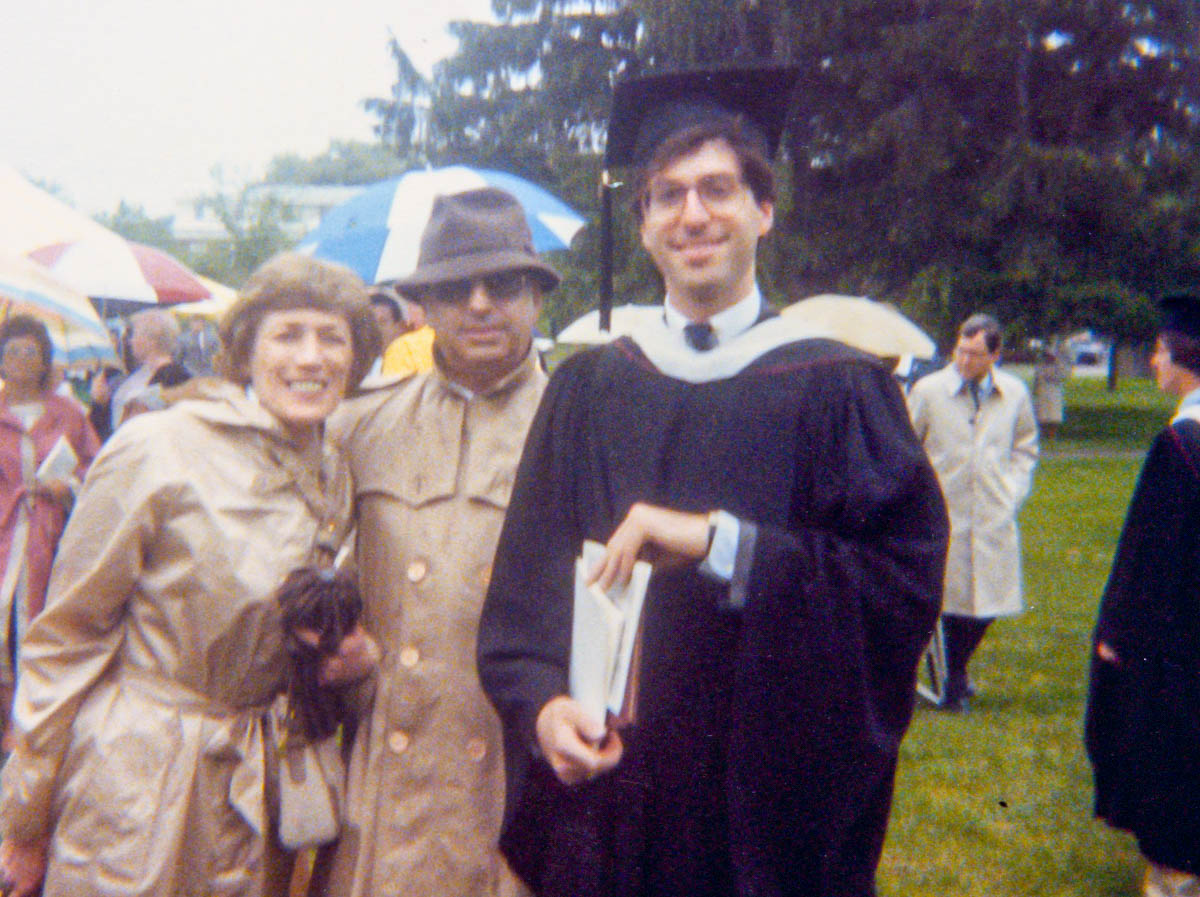
Thankfully, our collection of physical photos, including this college graduation photo with me and my parents, is an exception. (A pile of disorganized photos in a lost shoe box in the back of a closet can serve as a great time machine.)

Of course, old photo prints are easy to scan and convert over to digital duplicates.

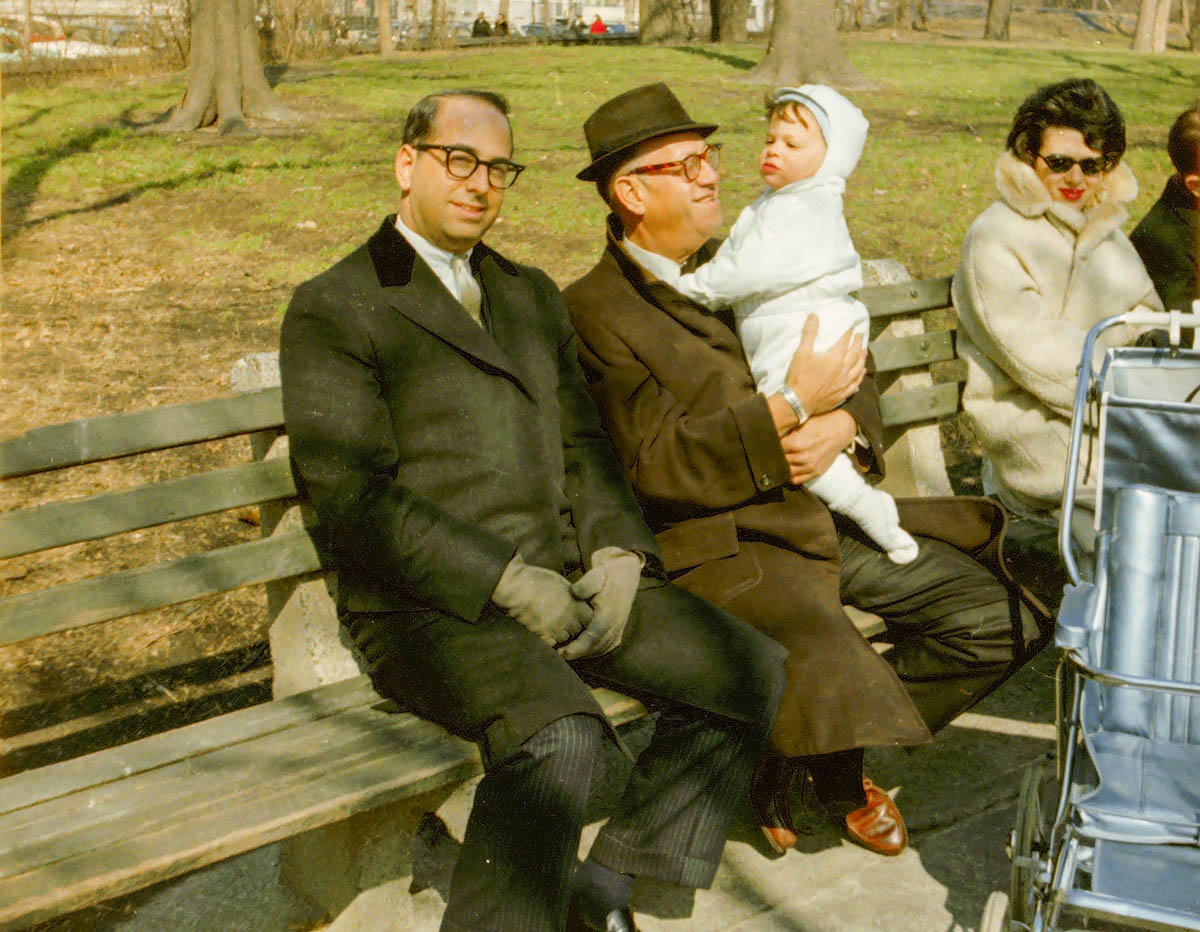
For the past couple of years since my father passed away, I’ve been digitizing parts of his old photo collection, which includes some of my grandfather’s pictures. (This multi-generational project has been complex and time consuming. So, I’ve been chipping away at it.)
Yes, that’s baby Barrett with my dad and grandfather in Central Park.

When I brought home all my dad’s photos, they included albums that my mother had originally curated. And those collections contained my own history from birth through college.

Yes, I knew these albums existed, but I had never taken the time to digitize most of the photos. I figured I could do it ‘next time.’ But my mom passed in 2006 and then my father in 2022.

So now I’m finally dealing with it.
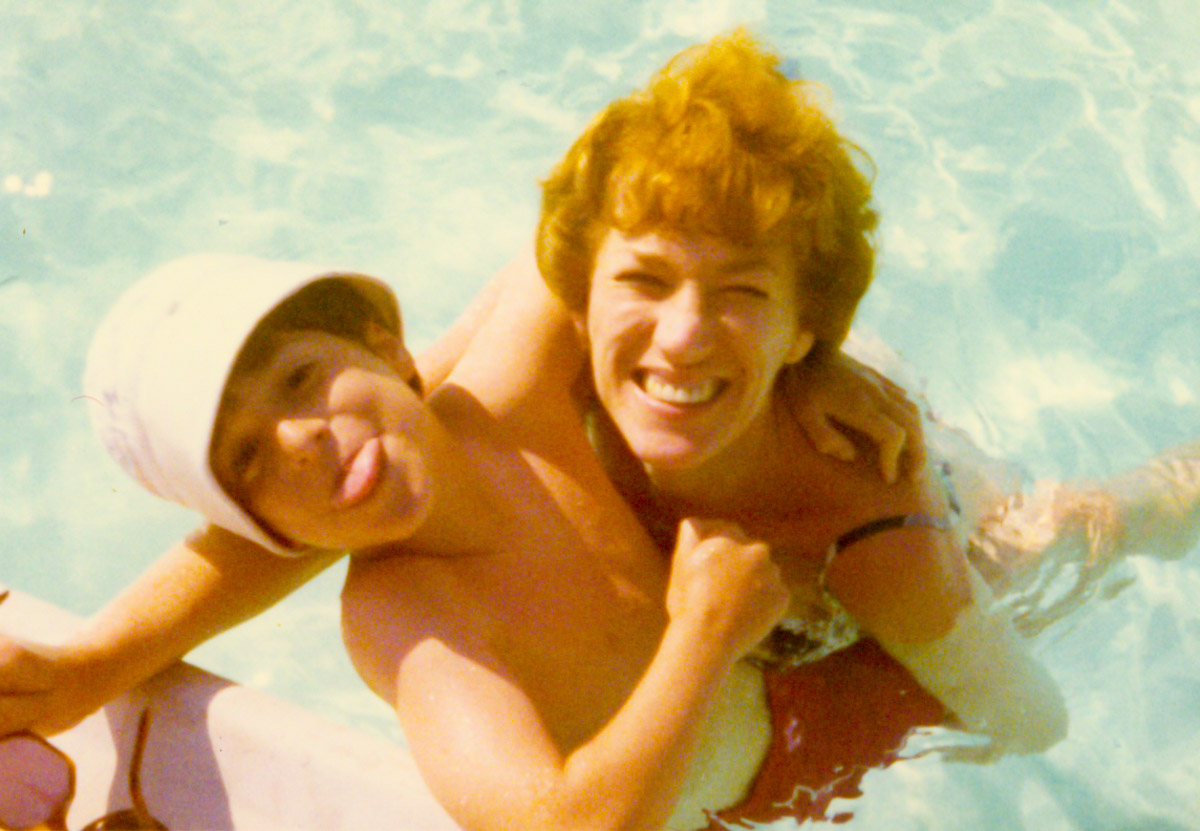
I’ve realized there is no next time. No next time to save this cool photo of my mom and me. If I put these pictures in boxes on a basement shelf, that will likely be their final resting place.

Or perhaps they’d be uncovered by ‘Lester: The Next Generation.’
And I absolutely don’t want that for our son.

The good news is every photo doesn’t need to be converted. It’s just the ones that help fill out the story I’m curating for my family’s history… as well as my own. What was important then, may no longer have relevance.

So, you have to put a critical eye to what’s digitized and what gets discarded.

Finding Forgotten Audio Moments from the Past
An old photo can tell you a lot. But it can’t compare to experiencing a piece of old audio or video. Now, that can really bring the past to life.

While going through my father’s things, I uncovered an audio cassette tape my parents had recorded when I was in high school to document their vacation to Turkey and Greece. (I was away at boarding school.) These recordings were designed to accompany the photos my dad had shot (and displayed on his massive slide projector).

I don’t know that I ever listened to this tape. Of course, I wondered what it contained.

So, I pulled out an ancient cassette player I had stashed in our basement and my long-retired MacBook Pro with an analog input. I tethered them together with an audio cable with mini connectors and completed my popup sound conversion station.

I crossed my fingers, and happily, my Macgyvered solution worked. And as I clicked on ‘play’ and the still-functioning cassette began to turn, I heard my parents’ voices as they went through their travel log. It was as if I were sitting right there with them again at our dining room table. It was remarkable.

I successfully digitized my parents’ conversation… and I felt a bit like Doctor Frankenstein.

Hearing Myself as a Kid Again
As I celebrated my time machine, I knew this tenuous technical tether to my past wouldn’t hold. (Either my cassette player or ancient Mac would conk out.) I knew I had other deteriorating cassette tapes representing early Barrett history in our basement. They contained nothing earth shattering, but I had felt their mere existence with my younger voice was worth holding onto. (Yes, I know my logic is debatable.)

I started generating audio recordings when I was a kid. It all began when my mom bought me a Sound Design cassette recorder when I was seven years old. That gift was life changing. And it put me on a path that eventually led to my career in video production.

So, I finally saved my old audio recordings from oblivion.

I listened to myself as a silly kid. I heard my teen self in high school, and then college. I even had audio as a young adult.

Whoa. Hearing myself throughout these decades was a huge head trip.

Facing your Younger Self
We know that life experience affects us all.

I’ve always thought of myself as essentially the same person across my life. And I believe that largely holds true, but each version of Barrett I listened to was slightly different. And I’m not just talking about age. There were subtle differences that only I would be able to pick up on.

My phrasing. My energy. My attitude. Yes, of course, we change over time, and I was witnessing this firsthand through my popup time machine.

I felt like I was listening to multiple Barretts from different multiverses. Many of the moments I heard I don’t even remember. (It was all a bit freaky.)

Do You Want to Remember Everything?
Which leads me back to the slingshot effect your archival media can have on your brain. For better or worse, your memories will get jolted with an instant upgrade. It certainly happened to me.

So, if you uncover and revive long lost audio and video files from your past, you should proceed understanding that you may not find what you remember. That should be a good thing. But you never know…

As we all travel into the future, we will remain tethered to countless digital memories and moments from our past. It’s all there. Nothing to forget.

But it’s really too much to remember, and why would you want to?

Sure, the many access points to your past via your ever-expanding media library have some value for occasional reference.

And experiencing a deep-dive ‘review’ like I did helps to offer perspective and center yourself.

Anchor your Memories that Matter Most
Otherwise, the opportunity is not to swim in a sea of disorganized digital memories. Instead, it’s to mindfully select which pieces belong in your story and then put them in their rightful place as you travel through life.

It’s just like building any valuable album of memories, which is to anchor the ones that really matter.

The trick is not to wait for years or longer to do this. You are the author of your own story. And you can best curate it as you experience it.

Actively Curate your Own Story
Imagine being able to reference all the personal media highlights from your past. Consider how many of the smaller moments are the sweetest ones. Think about how many might have been lost if you didn’t curate them along the way.

This takes a lifetime of ongoing attention and some work. But it’s your story.

Yes, it can feel overwhelming. But doing a little at a time will help.

And it’s never too late to get started.

Why iPhone’s Camera Burst Mode is Better than Live Photos

If you think you’ll miss the moment when snapping an iPhone photo, using Burst mode instead of Live Photo mode can save the day. Here’s why.

If you like the Live Photo feature on your iPhone so you can later choose a better ‘Key Photo’, you might want to reconsider your preference. Why? Well, it houses a huge limitation that can really ruin your shot.

Sure, it all seems so magical that you can take your 3-second mini-movie that’s behind a Live Photo and then, after the fact, scrub through all of video frames to select a better still frame. It’s a wonderful technique to use when shooting a group pic when someone’s eyes are inevitably mid blink. The ability to later choose a better freeze a fraction earlier (or later) can make all the difference between the perfect photo and one that goes in the digital trash.

I’ve been shooting Live Photos this way for a long time. But when choosing a different Key Photo, I’ve sometimes not been satisfied with the final results. Here’s the problem…

Choosing a New Key Photo will Crop It!
The ‘prime’ image your iPhone snaps is higher quality than other frames from a Live Photo. And as soon as you choose an alternate frame, the entire picture frustratingly crops in a bit (not a lot… but enough).

That can be a deal breaker if you’ve taken a group shot and someone is close to the edge of your framing. After choosing a different Key Photo, that person will likely get cropped out, and there’s nothing you can do about it.

This picture-killing crop just happened to me at a family gathering, and the cropped-out person was me! (Yes, thankfully, the group allowed me to take another shot.)

Even if you overlook that limitation and tell yourself you’ll give your shots enough ‘safe space,’ it’s also hard to ignore the overall quality difference. The new Key Photo doesn’t look as crisp.

Under well-lit and well-framed circumstances, this isn’t an issue. And to be fair, it took me a while to discover these drawbacks.

And while a Live Photo with a different Key Photo can be better than nothing at all, there’s a more effective way to capture additional visual frames around a particular photo moment.

10 Burst Photos are Better than 1 Live Photo
iPhones offer Burst mode, which captures 10 photos a second. (That’s likely going to get you what you need!) Instead of tapping the shutter button on your iPhone, you simply slide it to the left and hold it there until you’re done ‘bursting.’ (Then release.)

For a more tactile experience, you can also squeeze your ‘Volume Up’ button.
To activate that feature, go to:

  • Settings
  • Camera
  • Turn on “Use Volume Up for Burst”

While primarily designed for action moments like sports photography, it’s also ideal for posed group shots when you’re trying to get everyone’s eyes open at the same time.

Each of these high-speed photos will be the same quality. No compromises.

Burst Mode with Countdown
You can also use Burst mode for your iPhone shots using a countdown timer. It’s a perfect way to set up a group shot that you also want to be in.

  • Pro tip:
    If you’re wearing an Apple Watch, use its Camera Remote app to control your iPhone. (Just be sure to first turn off Live Photo mode. Otherwise, you’ll snap a Live Photo instead of the 10 standard burst shots.)

I like to prop my iPhone on a window ledge and have the group face the window. Not only does the window ledge double as a tripod surface (be careful), but the light from the window will nicely illuminate your subjects.

Delete your Unwanted Bursts
You do need to do a bit more work afterwords with your Burst photos to manage the 20 or 30 shots you’ve generated from a particular moment (instead of 2 or 3 Live Photos).

Just review your Bursts and select the images you want to keep. The rest are deleted. (If you don’t follow this organizational task, you could quickly get overwhelmed with too many photos on your iPhone.)

Not Mutually Exclusive
Too much work? Well, you can leave it to the automated but limited structure of Live Photos. That’s a set-it-and-forget it solution. It’s easy, but it won’t always give you best-quality pictures. On the other hand, Burst mode will.

Can you use both? Absolutely (though not simultaneously).

Burst Away
Moving forward, I’ll think of a Live Photo as a backup plan. But if I’m really being planful in framing the moment, then using Burst mode is the way to go.

Placing a Google Nest Cam in the Wild May Not be that Smart

Here’s my cautionary tale when I tried to add a battery-powered Google Nest Cam into my existing Nest ecosystem and then position it in my backyard.

I maintain several Nests in our home. These different smart home devices have worked great together across the years with my Nest iPhone app.

  • I can peer in from afar using my Nest Cam.
  • I control the temperature with my Nest Learning Thermostat.
  • And my Nest Protect monitors my home and updates me with any smoke or carbon monoxide detection. (Fortunately, it’s my least-used device.)

Google bought the Nest product line a decade ago and began integrating it into the Google Home ecosystem. Yes, all my Wi-Fi Nest gear still worked fine with my old Nest app. But every so often my app nudged me to migrate to the Google Home app. I’d be stalling, simply because I didn’t want to mess with a good thing.

Then, a new variable entered the equation.

Adding a Google Nest Cam to my Nest
I decided to add an outdoor, battery-powered Google Nest Cam into my Nest world. I wanted to put it in my backyard to track occasional wildlife that meanders by.

Buying a battery-driven device is both a blessing and a curse. You can’t quite set it and forget it, as it will need to occasionally be recharged. But you also don’t have to run an electrical line into your backyard.

So, there’s amazing flexibility with a wire-free, battery-powered security camera that you can pop most anywhere (indoor or out). What’s not to like?

Mandatory Upgrade to Google Home
So, I bought my Google Nest Cam, opened the box and eagerly pulled out the gleaming white orb. I then plugged it in to juice it up. But when I started the installation process using my Nest app, I immediately ran into trouble. A message popped up that said this Nest Cam will only work with the Google Home app.

Okay. Sorry Nest app. It was great working with you. Now, I finally had to download Google Home onto my iPhone and migrate my Nest account over to Google.

The process went smoothly, and I was welcomed into the Google Smart Home world. I scanned a QR code with my iPhone, and the app did the rest.

So, I was quickly back on track.

Two Apps Instead of One
Yes, my new Google Nest Cam was ready for action. But what about the rest of my Nest ecosystem? Everything showed up on my Google Home app except my Nest Protect. Where did that go?!

I did a bit of online research and found the unfortunate answer. The Nest Protect hasn’t yet been integrated into Google Home.

What?

I would still have to use my old Nest app to stay connected with my Nest Protect. (I’m not saying goodbye to my Nest app after all.) So now, I’ve got two apps to use instead of one.

  • The Google Home app for my two Nest Cams and my Nest Learning Thermostat
  • My old Nest app for my Nest Protect

I don’t think that’s fabulous integration.

But it’s a minor inconvenience. You can’t get distracted by the little things. I’m sure it’ll eventually get sorted. Time to move on.

Installation Fantasy
You may consider my installation plan a bit outside of normal parameters. I planned to attach it to a tree pointed at our deck to better observe the occasional wildlife that passes through our backyard.

I’ve spotted deer a few times as well as a red fox. I sometimes observe the neighborhood hedgehog, and I even saw a racoon once peering at me from the edge of our deck at night.

I know this can be normal stuff in the burbs. But remember, I’m a city boy from Manhattan. I’m not wired for this.

But I figured with a little more surveillance, I’d feel somehow happier.
(Please don’t push my theory too hard.)

A Tree is Not a Wall
I tried my tree installation plan several times, until I realized it was half-baked. The circular mount wasn’t going to sit properly on the uneven bark surface. And I wasn’t keen to wait to eventually find a dead Nest Cam cracked open on the deck or ground below.

On the other hand, I knew there were likely other solutions for a backyard installation… There must be something else I could attach it to.

But first there was another problem to consider.

How Waterproof is Water Resistant?
According to Google, “the Nest Cam is water resistant in accordance with its IP54 rating, but it is not waterproof.”

What does that mean? Can it be outdoors and uncovered, or can’t it? Does it require some sort of overhang for protection, like a porch ceiling?

I originally didn’t even consider the issue… it’s an outdoor camera, right? On the front of the Nest Cam box, there’s a photo of the camera dripping with rain while attached to the side of a house. And the words printed next to the picture… “Security, rain or shine.”

Well, maybe not too much rain.

I found some questions online about this, and yes there are stories from owners with malfunctioning Nest Cams after one too many rainstorms.

Hmmm… another rabbit hole to dig out from.

Another House For my Camera to Live In?
So back to my installation quandary. I had been thinking about screwing my Nest Cam onto a tree. Well, what about screwing it into something instead? Like a bird house.

That would offer some protection from the rain. I Googled “Nest Cam bird house,” and happily, yes, I saw some solutions out there.

But now, my project had morphed from a tech installation challenge into a backyard decoration project that will require a little more thought and my better half’s involvement. And that’s going to take a bit more time.

This is where my Google Nest Cam story pauses for now.

The Animals are Laughing at Me
I’m confident I’ll find a good installation solution. But it’ll probably require a bit more DIY thinking.

My uneven experience so far has taught me that a smart home is not the same as a smart backyard. And a Nest is not exactly the same as a Google Nest.

If you’re considering a similar expansion into the wild using a Google Nest Cam, it’s probably a good idea to think this all through first.