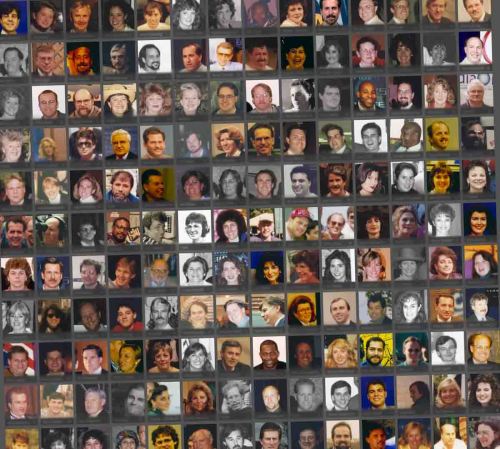
If you want to retrieve lost details in some of your memories, here’s a technique I used with photos from my days in Massachusetts that can help fill the gaps in your own history.
Maybe you’re fortunate enough to have an amazing knack for remembering all the details from your life. Names, places and all the people spanning back decades. Me… well, not exactly.
Sure, I’ve retained the important headlines, but there are a variety of supporting details that I may not often think about (especially from years past) that can be a problem.
It can happen when I look at an old photo and can’t remember a name. A former friend…an old work colleague.
Maybe I shouldn’t be so bothered by this data loss in my head, especially if these people are not part of my life anymore. But I can’t let it go. If they were important to me then, they’re worth remembering… any time I want.
But it can feel maddening when you struggle to pull a name from the distant reaches of your mind.
Fortunately, I’ve found something of a cure for this problem.
The Ongoing Challenge
As you may recall, I’ve been organizing and digitizing my father’s photo collection since I took ownership of it after he passed away over a year ago. And that collection also includes my mother’s old photos and my grandparents’ photos.
It’s not like I had never seen and digitized some of these pictures before, but the totality of it is an overwhelming process. As far as I can tell, multiple generations before me never accomplished this goal and left behind a mostly disorganized mess of photos. (Apologies to my ancestors if this is incorrect.)
All that I can do now is slowly do the work. Reconstructing some of the details is necessarily imperfect, but I’m making progress.
My Own Story
I also have my parents’ photo albums from when I was a child. So, I’m digitizing some of those pictures too to fill out the visual story from my early years.
No, I don’t recall all the details from those photos either. Hey… I was a kid. I remember enough.
The Boxes in the Back of my Closet
But I can’t blame my family for all my missing photographic metadata. I must own part of the problem…
I had photos stashed in boxes from my early adult years that I never digitized. Yep. I neglected them just like I said you shouldn’t.
So, I finally decided to properly integrate some into my digital photo archive, and guess what… I waited too long. I couldn’t remember all the names.
These well-preserved photos date back to when I lived up in Massachusetts (when the winters were still wicked cold).
My Massachusetts Days
Yes, I’m a born-and-bred New Yorker. I returned to my home orbit two decades back. But before that, I spent a chunk of my life orbiting Boston. That early New England chapter of my life is mostly a distant memory that barely connects to my life today. So maybe it’s no surprise that I couldn’t remember some details.
But it made me sad. There were so many people… work colleagues and friends who filled my younger life with fun and adventure. And I lost touch with so many. Maybe there’s still a way to repair some of that. But that’s a conversation for another day.
Are Memories Lost Forever?
It was a harsh realization when I first faced the gaps in my memory as I looked at the imagery from my Massachusetts days. What’s gone is gone (or so I thought). I felt I had no choice but to soldier on as best I could.
But then something crazy happened during one weekend.
Magic Memory Repair through Photo Cues
As I kept looking at certain photos repeatedly, I could vaguely sense the names bouncing about in my head. I just couldn’t access them. I tried to concentrate, but nothing came.
So, I had to let it go. And that’s when my mind’s magic-memory-repair-process began.
Later in the day… or the next, a missing name would just pop into my head randomly. I wasn’t thinking about it… it just happened. And this sudden recall occurred over and over, until I realized it was part of a pattern.
I had tapped into some type of memory reconstruction that was clearly juiced by the visual cues of the photos. And my mind continued to subconsciously process the challenge in the background, even after I had stopped thinking about it.
Over the next few days, most of the names flowed back like a gentle stream filling up a warm pond.
Problem solved.
Time to Hack into your Brain
Your actual mileage may vary by using this memory-enhancing technique. But what have you got to lose?
So, go find that box of old photos in the back of your closet and get to work!
The mind is amazing.
Why Reconstruct the Details from your Past?
Beyond the factors of your own memory, the truth is the past is never entirely behind you. It’s never really gone. Your experiences and former relationships live with you every day. These memories help guide you and are a part you… always.
Everything from your past ultimately contributes to who you are today. So, I say it’s always best to remember as many details as possible.
And the visual cues from a well-curated digital photo collection can help you to do exactly that!





 At Home with Tech