At Home with Tech

Unlock the power of all your technology and learn how to master your photography, computers and smartphone.

Category: photography

How to Turn your Zoom Recording into a TV Talk Show

If you’re looking to improve the look of your recorded Zooms, you don’t have to invest in expensive equipment or hunt down mothballed gear. Here are a few simple ways to simulate the structure of professional television production.

Recording a Zoom conversation is easy. It’s a one-click process. But if you’re looking to create a more controlled visual product that follows the traditional structure of a professional video interview or TV talk show, you’ll need to put on your MacGyver hat and use the Zoom interface a little differently.

It’s all about finding the best way to control which webcam feed is being recorded at any given moment.

Active Speaker View Mode is Faster than Pinning Each Shot
I originally thought it would be better to manually choose shots by ‘pinning’ the appropriate video frame, instead of letting Zoom’s default Active Speaker View follow the voices.

I was wrong.

Frequently pinning different shots ends up being a clunky process that’s slow and can also generate unexplained two-frame video glitches in the recording.

Instead, allowing Active Speaker View to automatically switch back and forth between your shots is faster and yields better results. (another example of the superiority of software over humans)

Use Gallery View as your Wide Shot
Then, all that’s manually left to do is occasionally click back and forth from Active Speaker View to Gallery View to show all of the video frames at once. That simulates what viewers are used to seeing in the wide shot of a TV talk show.

Just be sure to activate ‘Hide Self View’ if you’re not a part of the conversation and simply acting as a behind-the scenes director. You’ll find this option to make your image disappear in the drop-down menu after hovering over your own video box. Then click on the three-little-periods icon in the upper right corner.

Keep it Simple
No, Zoom isn’t really designed to give you the same technical control when recording a multicamera conversation as a traditional video switcher in a TV control room.

And no, you can’t record the individual shots separately to edit together later.

That said, if you simply let Zoom automatically follow the conversation and then occasionally sprinkle in the Gallery View, you’ll get a remarkably decent result.

And that’s all from the comfort of your home, and free for anyone to do.

Don’t worry about the video thumbnails you’ll see on the top of your screen during Active Speaker View. They aren’t recorded. Neither are the names on the bottom of the video frames.

Imperfect but Good Enough
Of course, the overall visual result pales in comparison to shooting a multicamera interview in a professional TV studio, mostly due to the limited quality of webcams, imperfect lighting conditions and cluttered home backgrounds.

But today and for the foreseeable future, webcam video is our new normal. Most everyone has embraced it during this COVID reality show we’ve all been cast in. Of course, I crave the beautiful imagery that professional cinema cameras can generate. We’ll get back to that… one day.

For now, if you want to record a webcam conversation that follows the structure of a studio-based TV talk show, Zoom will easily do that using limited assistance from the human brain and a few important clicks.

It works.

And it’s just another example of why Zoom became a household name overnight.

How to Take 10 Minutes on Vacation to Create a Brilliant Timelapse

I captured a timelapse video of Barred Island in Maine while the tide lowered, revealing a narrow strip of sand and an entry point.

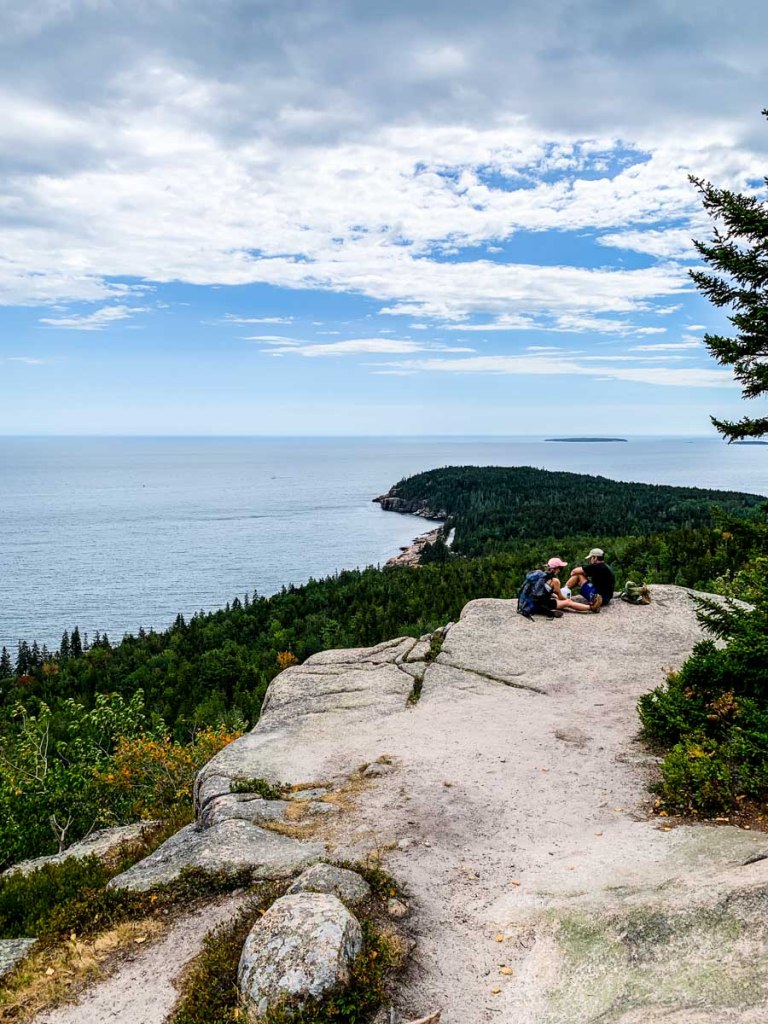
Look, I knew I wasn’t fooling my family. Not when we went on vacation to Maine, experienced an incredible hike in Acadia National Park, and took a break for lunch. Because then, I unzipped my backpack and didn’t take out my sandwich. That sight is an easy tell by now.

Instead, I pulled out a compact tripod and my DJI Osmo Pocket camera which I’ve been using to create timelapse videos for the better part of the past year.

My wife and ten-year-old son have come to expect that I’m going to try to quickly capture a timelapse shot in moments like this.

Ten Minutes on Top of your World
Lunch on the top of a hiking summit a thousand feet up usually happens pretty fast. There isn’t time to capture hours of a changing landscape. Not when I’m primarily there to enjoy it with my family.

But carving out ten minutes? Yes, my family can handle that.

Capturing a video frame at two-second intervals for ten minutes creates a nifty ten-second timelapse.

It’s enough.

Enough to allow me to feed my creative spirit, but not too much to be disruptive to the larger goals of our day.

Chasing Nature’s Relationship with Time
Snapping a photo isn’t a problem. We’re all used to pausing for someone who needs to take a few seconds to get a quick picture.

But timelapse shots are a different game, and those ten minutes can feel like an hour when it’s really time to resume a hiking trek. I actually take closer to fifteen minutes, because I also need to set up and break down my little tripod. (It’s a Manfrotto Element Small Aluminum Traveler Tripod. $93.84 on Amazon.)

I really appreciate my family’s flexibility as I’ve explored my little hobby capturing nature timelapses.

My Timelapse Videos from Maine
Last week, I shared my favorite photos from our Maine hiking trip.

And now, here are my timelapse clips from our fun adventure in Maine.

Thank you, DJI Osmo Pocket, Manfrotto tripod and my family for helping me to capture these beautiful moments.

My Favorite Photos from our Maine Vacation

I used a couple of guidelines to help me spot my favorite images during our road trip to Acadia National Park. And here’s the result…

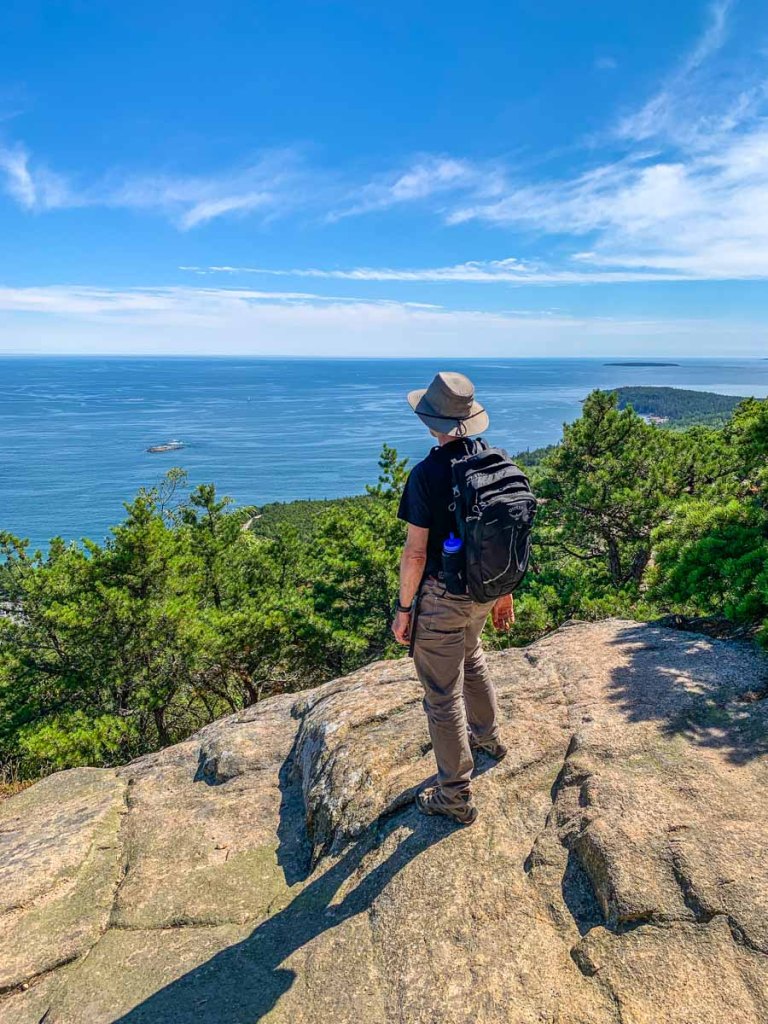
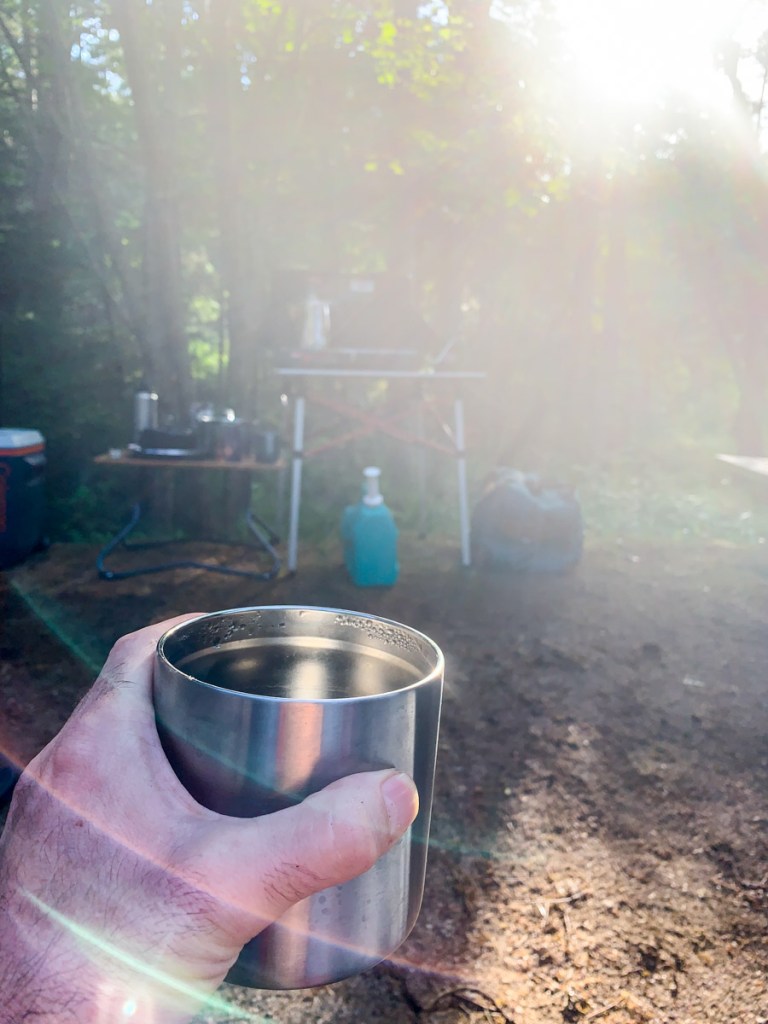
What did my family and I do this year for a pandemic-influenced summer vacation? We drove to Maine, camped in Deer Isle and hiked in Acadia National Park. It was a spectacular experience.

Bringing the right tech to complement our camping gear was an important step to keep us on the grid. Here’s my checklist to make sure you bring enough portable power.

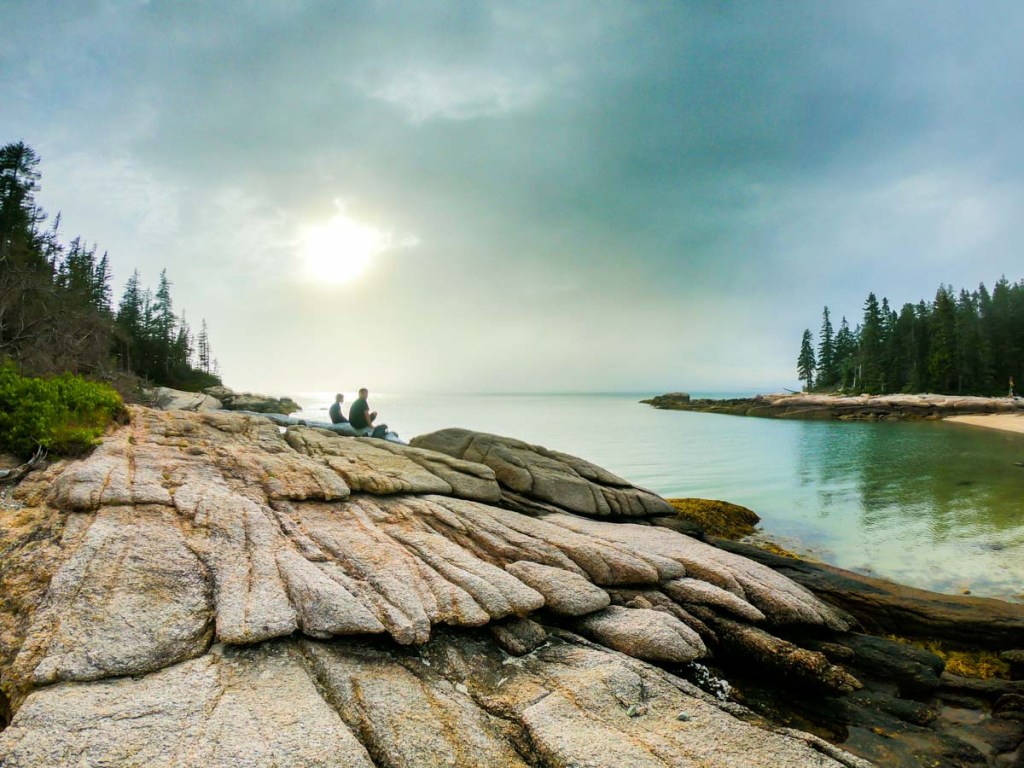
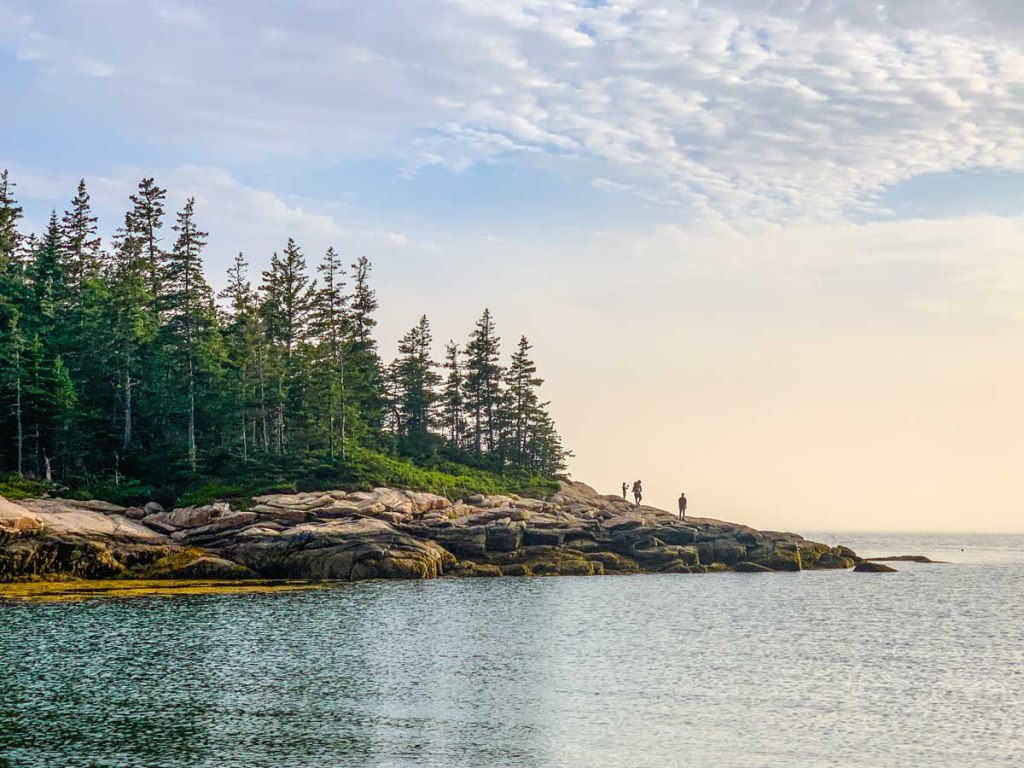
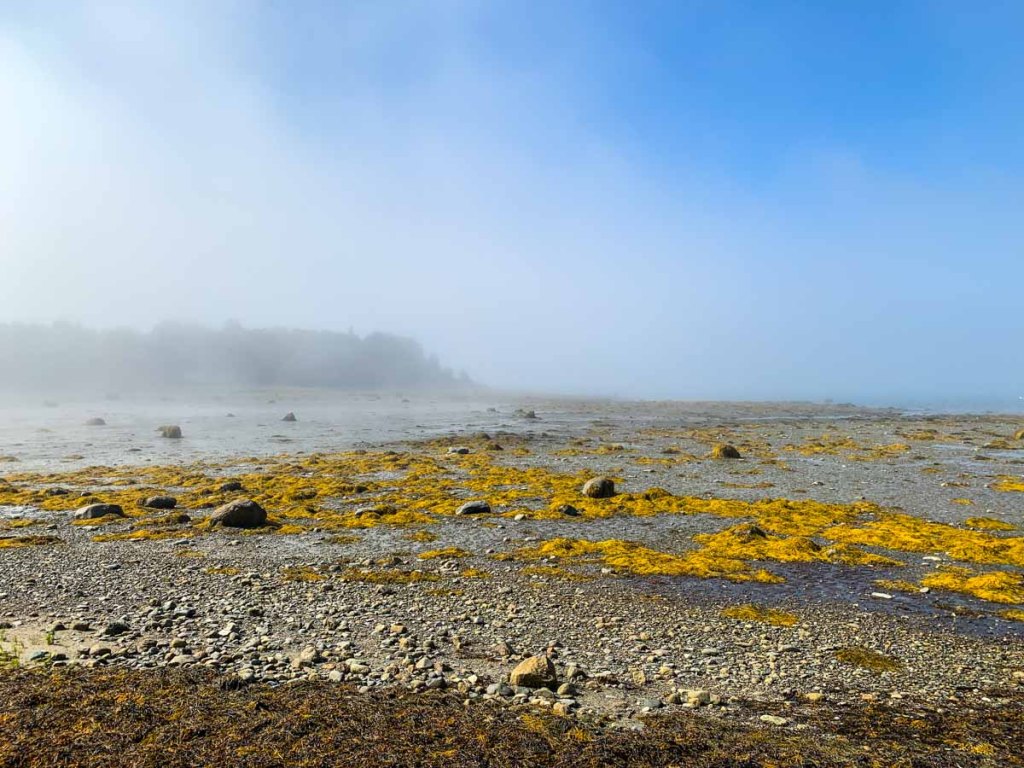
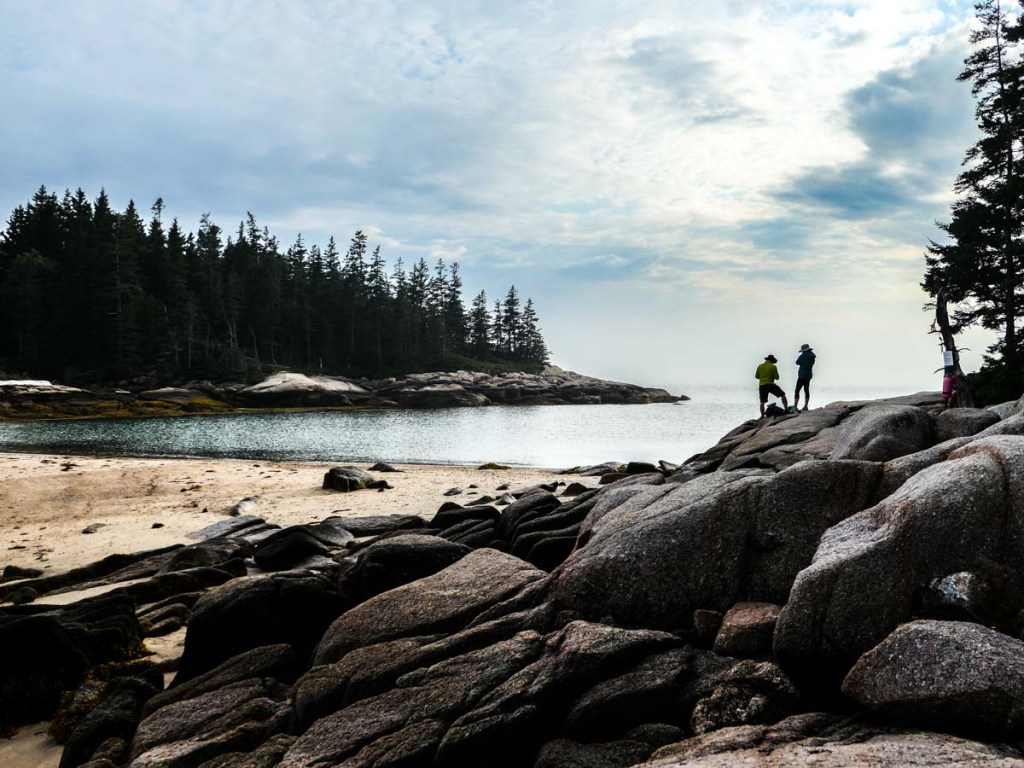
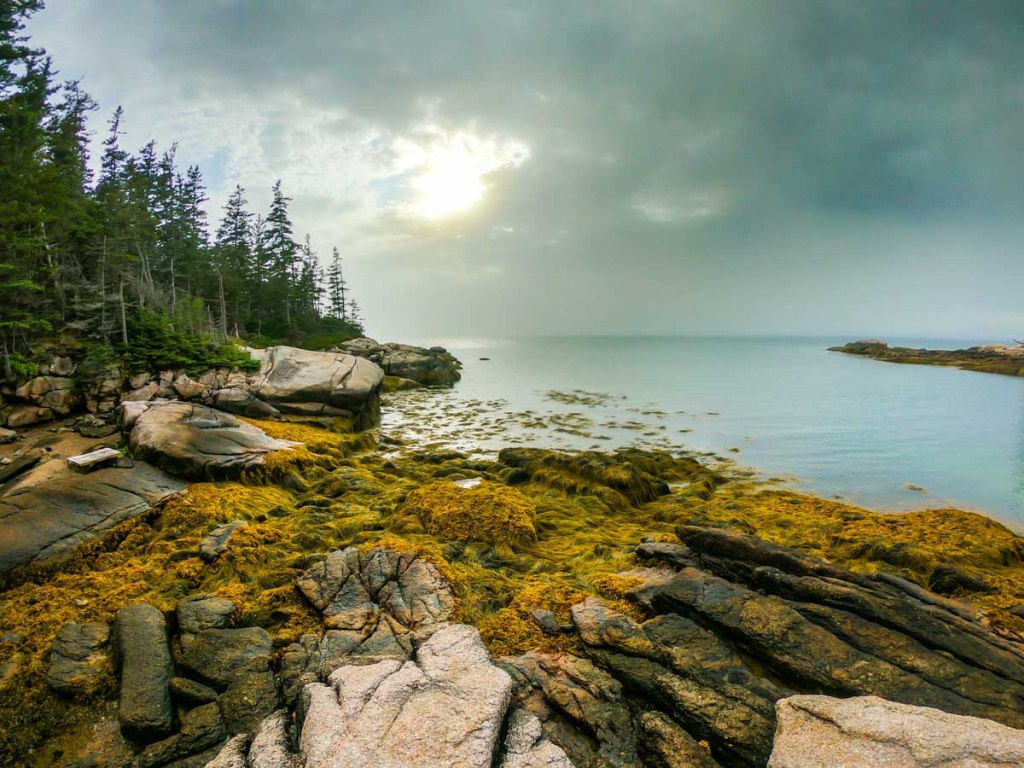
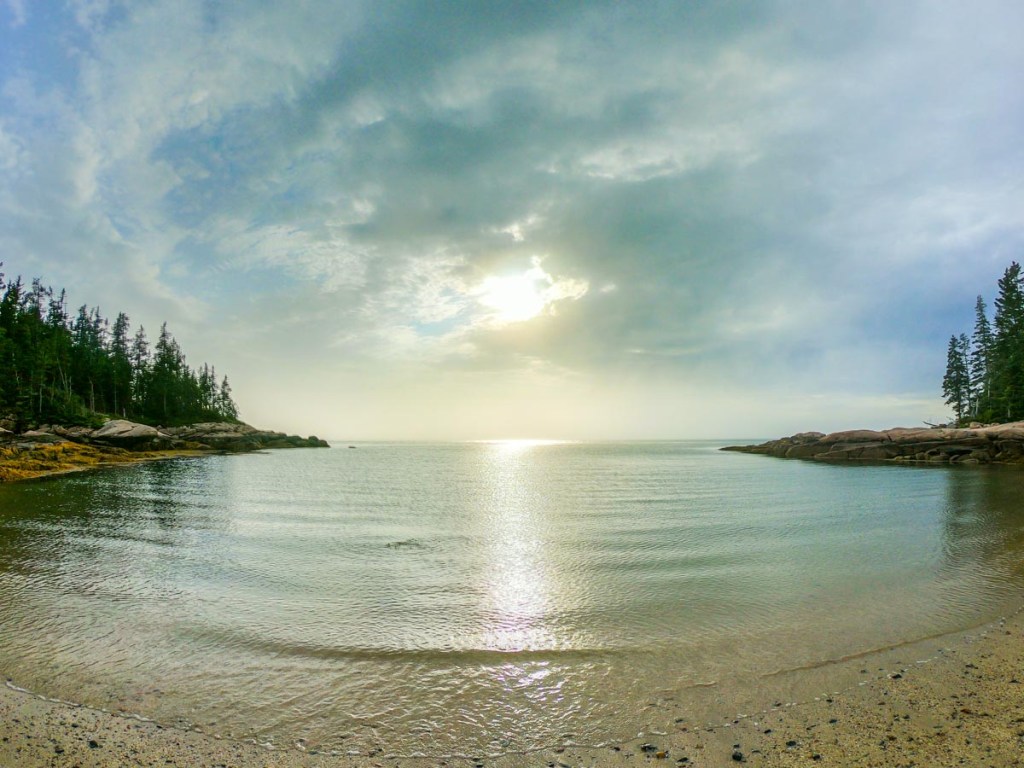
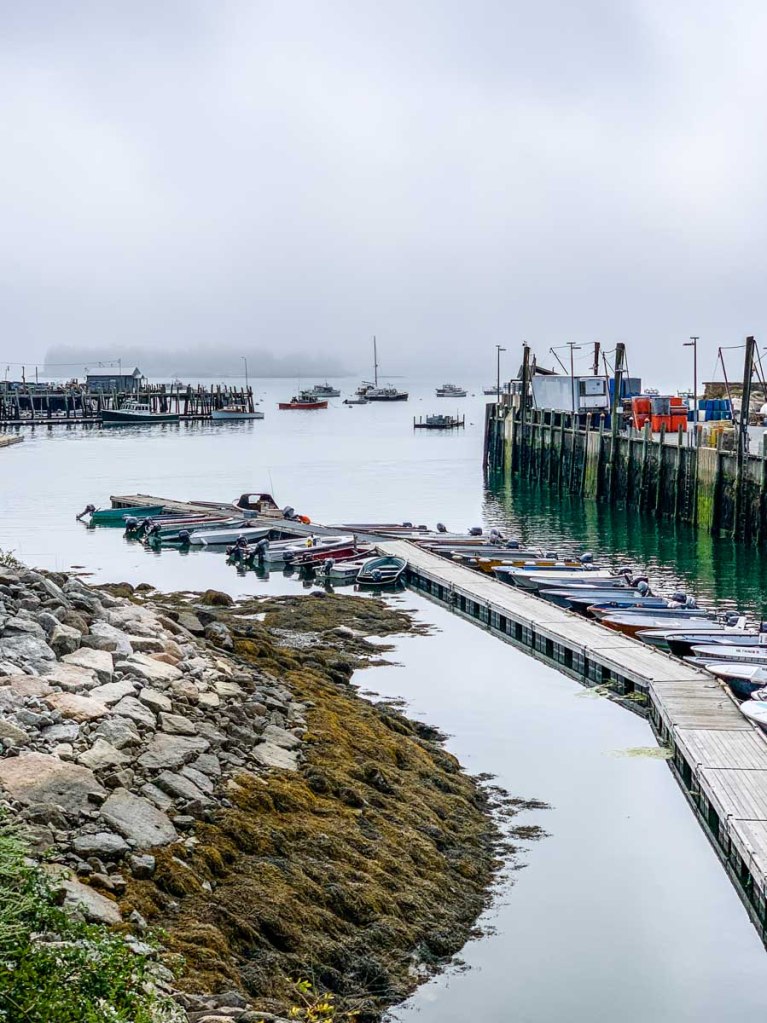
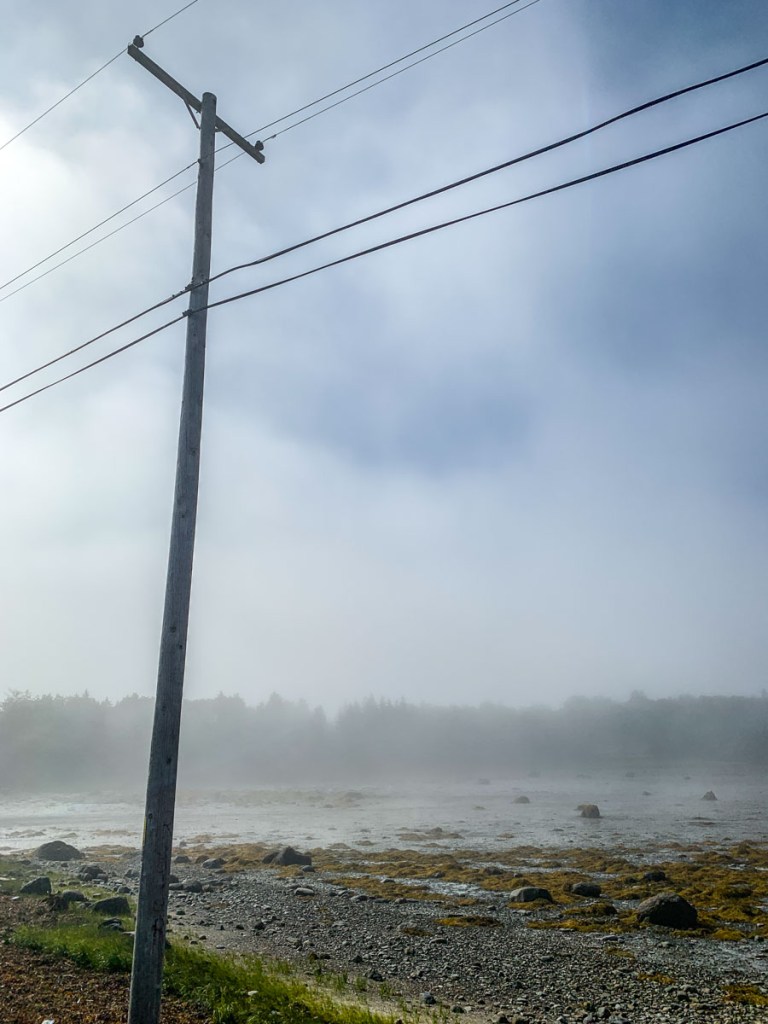
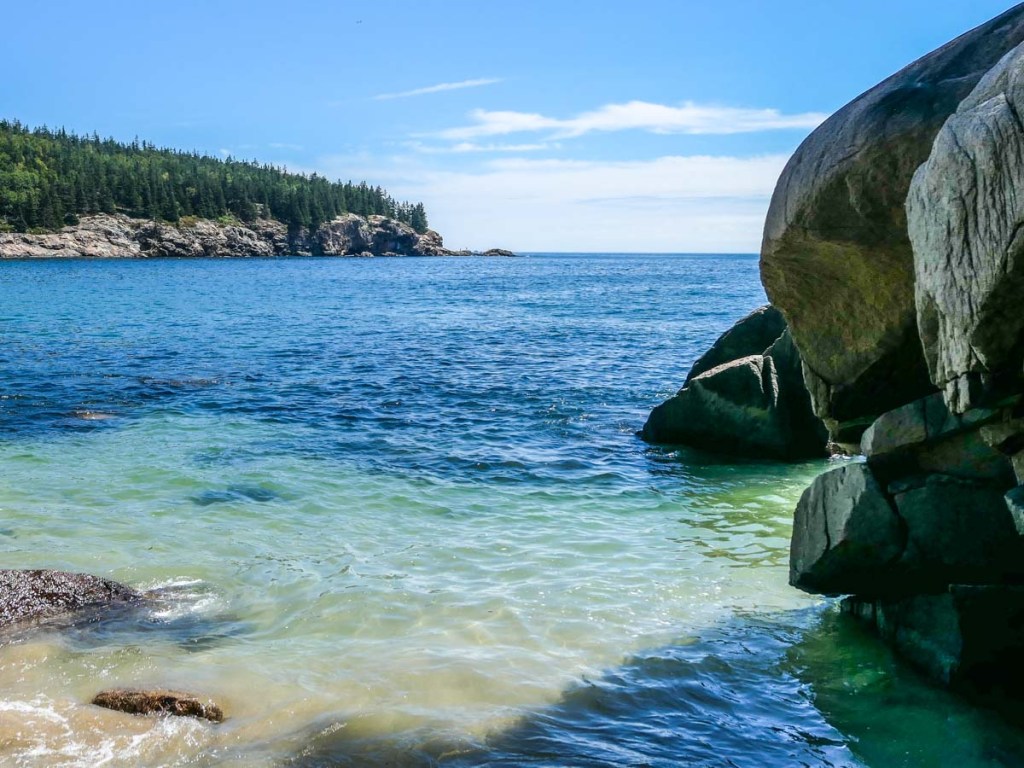
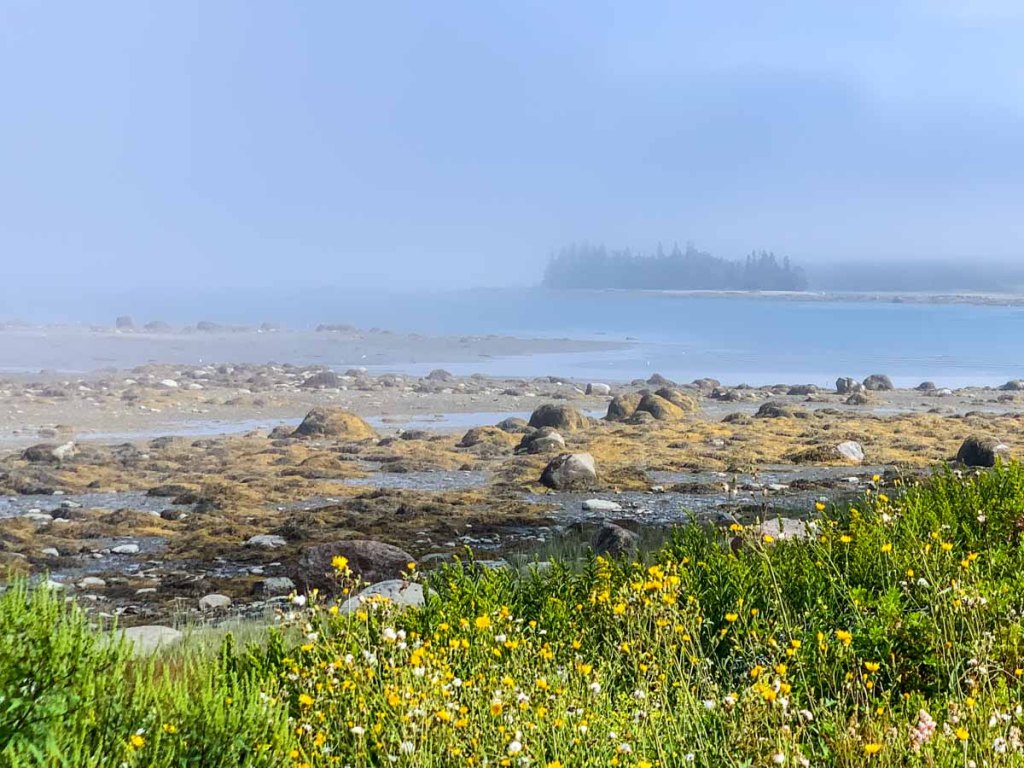
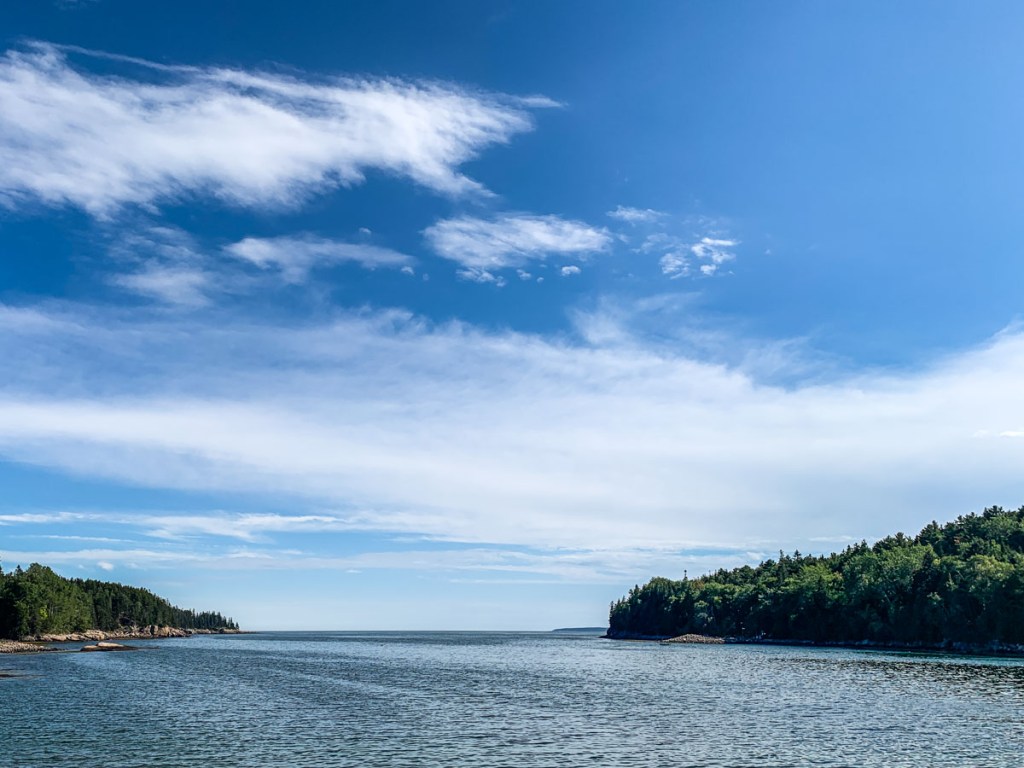
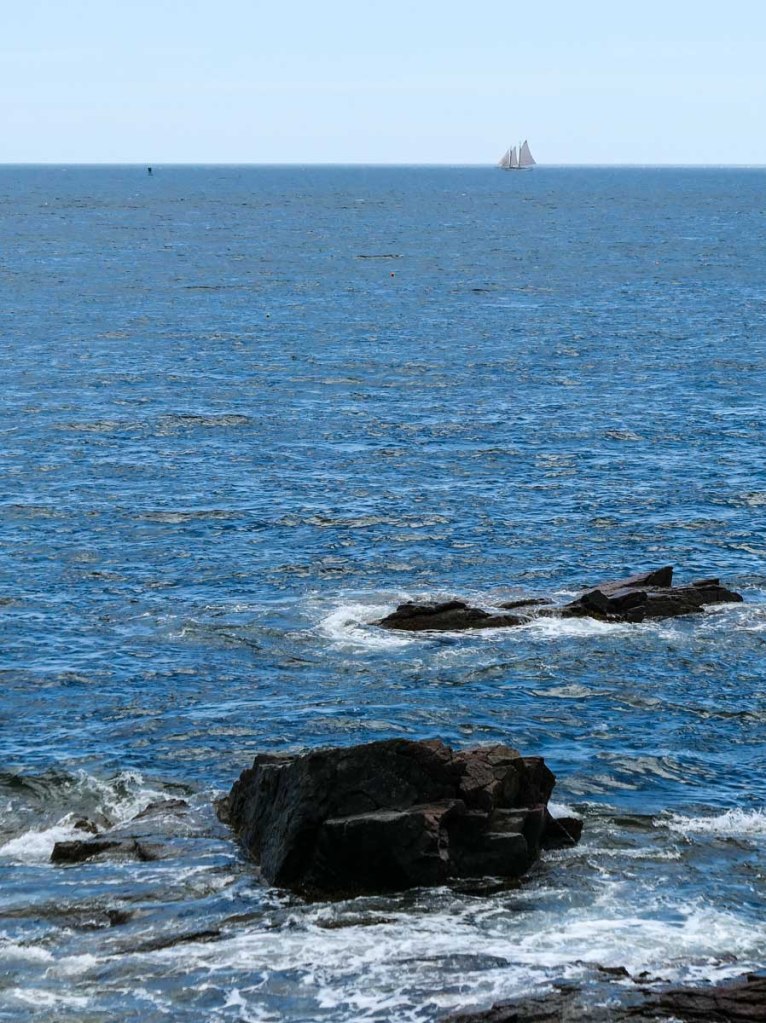
Of course I snapped a number of photos along the way. I was really struck by Maine’s rocky topography. (That created some really cool contrast in my shots.) And depending on the weather, Maine’s shoreline imagery vacillated between bright beauty and eerie fog.

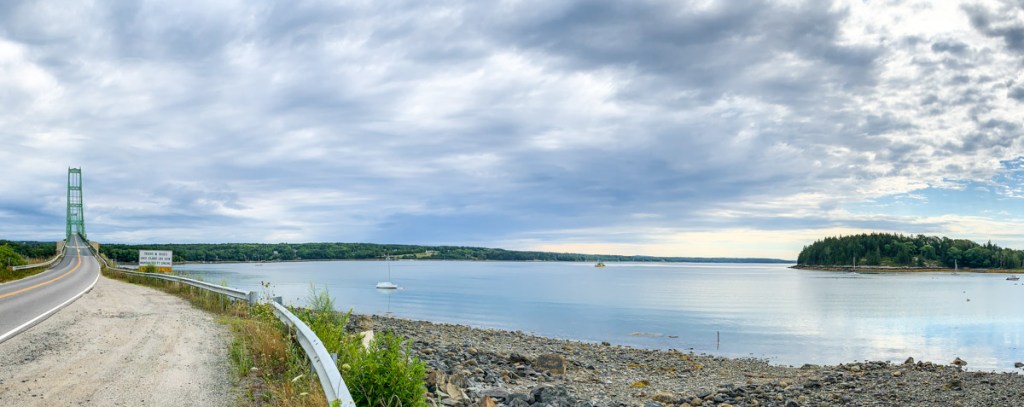
We happened to spend a fair amount of time driving during low tide. And those moments revealed a damp, almost alien-like, brown and green rocky landscape… begging to be photographed.

Keep your Shots Wide

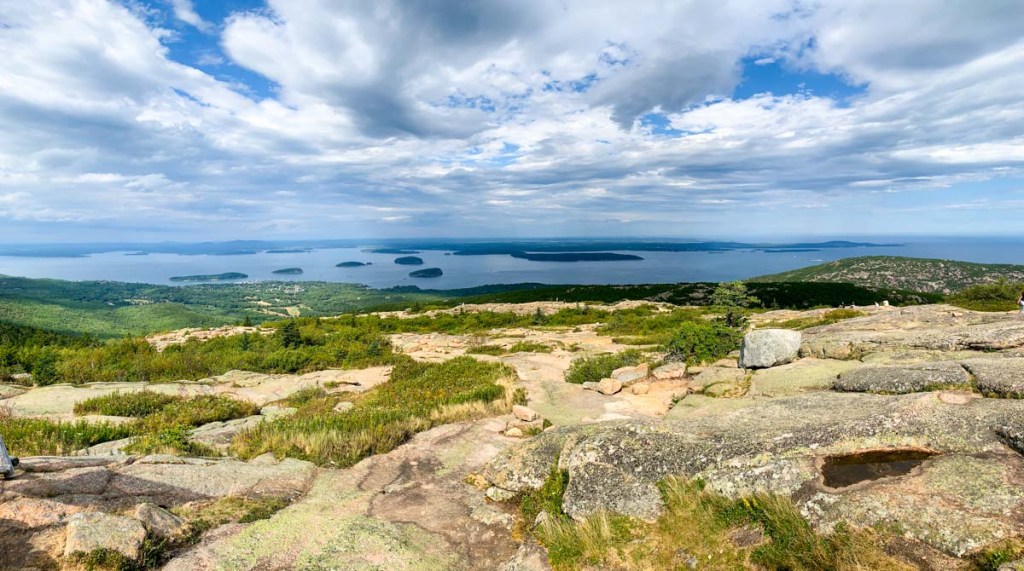
I quickly found that using a camera or a smartphone with a wide-angle lens is critical, especially if you like to take family selfies at the summit of a hike. That’s because you’ll want to capture enough of the environment around you in the shot to show where you are. (I used my GoPro for that.)

Tight shots can be great, but I feel this type of vacation photography is all about the wide. If you hope to capture a fraction of that feeling you get when you look around after you’ve climbed a thousand feet up, you’ll want to focus your camera wide. (And the same goes even if you’re walking on a beach.)

Let the Natural Beauty Tell the Story

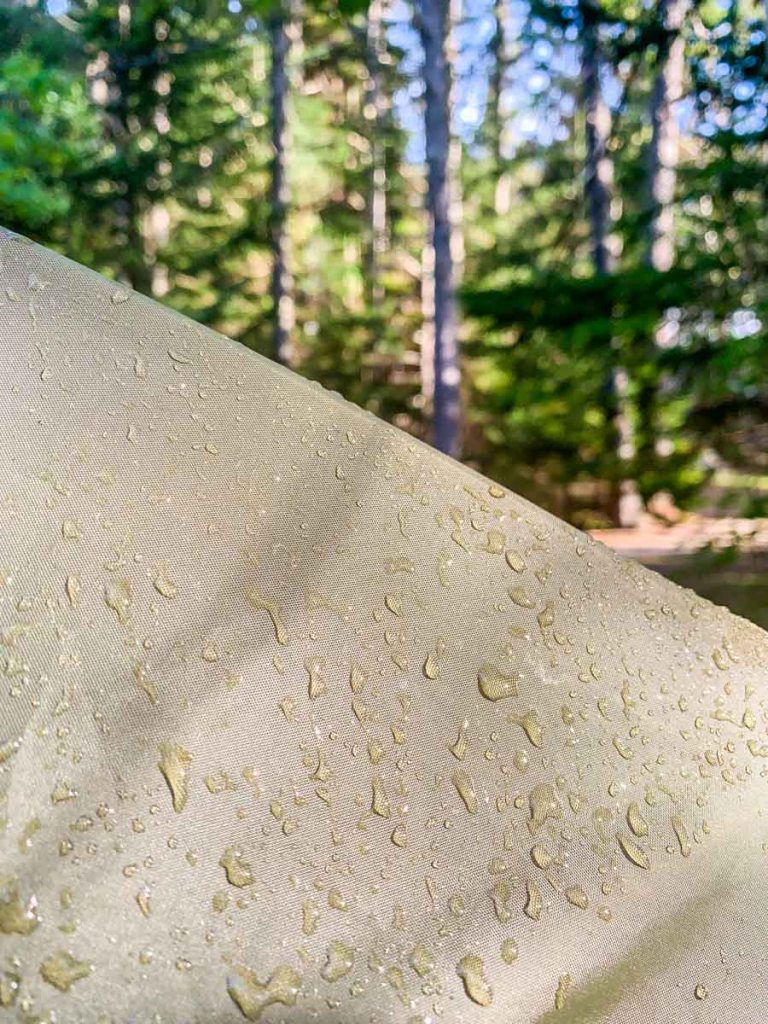
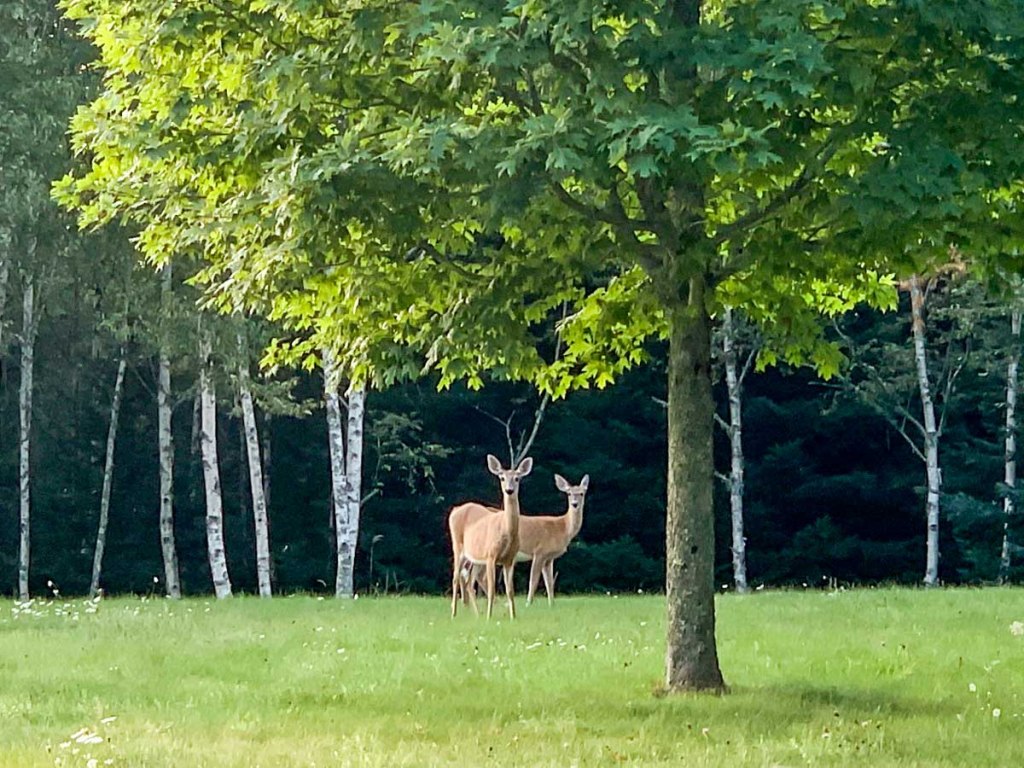
So, here are some of my favorite shots from our trip to Acadia National Park and Deer Isle. I hope you like them!