At Home with Tech

Unlock the power of all your technology and learn how to master your photography, computers and smartphone.

Category: Tech Diary

Master the Art of Transcribing Speech in an Audio File with Microsoft Word’s AI Magic

If you want to convert an audio file into an AI-generated text transcript for free, you could find a robot from the future to handle the task. But look no further than your Microsoft 365 subscription. Here are the quick and easy steps to upload and transcribe your file using Word on the web.

Many AI transcription tools available today convert recorded speech to text from audio and video files. AI voice-to-text conversion isn’t perfect, but it’s getting better all the time.

The easy ‘pro’ solution is to use Adobe Premiere Pro, which integrates strong transcription powers into its video-editing interface. But if you’re not in the Adobe ecosystem or looking for other solutions that don’t require video editing, you’ll need to look elsewhere.

Most standalone AI transcription tools do cost money after a limited free trial. In doing research for a personal project, I tried to identify a low-cost or free AI solution.

And I was hoping to find it with a recognizable brand I felt I could trust. Happily, I discovered that Microsoft effectively offers what I needed.

And the Microsoft solution is free (as long as you already pay for a Microsoft 365 account).

Microsoft Word on the Web via your Microsoft 365 Account
There are a few important details to take care of before getting started on your transcription journey with Microsoft:

  1. You have to use the web version of Microsoft Word via your Microsoft 365 account. (That’s the key to opening this free transcription door.)
  2. You also need to use Chrome or Edge (not Safari… which seemingly doesn’t offer the ‘Transcribe’ feature).
  3. If you’re working with a video file, you first need to convert your video to an audio file. Yes, Microsoft Word transcription only lets you upload audio files, and that creates an extra step (but it’s worth it).

To make the audio file, I use the ‘Compressor’ app on my Mac. (You can also use QuickTime.) The conversion process goes surprisingly fast. (I converted to MP3s with Compressor, but you can convert to other audio formats.)

Step-by-Step Guide to your AI Transcript

Once you’ve got your audio files created and ready to go, here’s how to create your AI transcripts:

Click on the ‘Dictate’ drop-down on the top right of Word’s ribbon. Then the ‘Transcribe’ option displays. Click it.

Click on ‘Upload audio.’

Choose your audio file to be used. The Transcribe feature activates.

The full transcription will quickly appear on the right after 30 seconds or so, depending on the length of your audio file. Click ‘Add to document.’ Click ‘With speakers and time stamps.’

Click on ‘File.’ Choose ‘Save as.’ Choose ‘Download a copy.’

Done! That’s it.

Now you’ve got your AI-driven transcript with time stamps that you can easily work with.

Perfection Not Required
If you’re planning to edit a video using these transcripts, you can select your sound bites by simply highlighting the sentences you want. From there, you can create your paper edit. (A paper edit is the roadmap you’ll follow when doing your actual video editing.)

Is the AI transcript from Microsoft perfect? Not at all! But it’s good enough to select the sound bites you need.

Not Subtitle-Ready
Warning: If you’re eventually planning on taking the next step to create subtitles/captions from these clips for a final video, you’ll still have some ‘human-powered’ proofing work ahead of you (as there are plenty of AI misspellings and misinterpreted words).

Easy and Fast Solution
In the old days, people would transcribe long audio or video files themselves. If you paid someone to do this, it could cost hundreds of dollars. Now, AI has effectively taken over this painstaking task.

Though imperfect, it gets the job done.
(And don’t forget- AI transcription technologies will only continue to improve over time.)

Plus, it’s free and already baked into your Microsoft 365 account.
(Yes, you do need to pay for Microsoft 365, but then this is a great way to maximize that necessary investment.)

They say emerging AI will continue to make our lives ‘easier.’ I’m happy to report that this is just another example.

Where can You Recycle Old Batteries?

Do you have a battery-disposal problem too? It’s time to stop stashing your spent batteries in old coffee mugs. Here’s what I did.

Old batteries are a problem. You can’t just throw them out in the trash. That’s killing the planet. You’ve got to properly recycle them. (More on that in a moment.)

One way to minimize the problem is to reduce the number of batteries you actually need to dispose of each year. You can do that by converting over to rechargeable batteries.

Time to Buy Rechargeable Batteries
I’ve been slowly traveling this conversion journey to rechargeable power, and I’ve been going with the Eneloop Pro rechargeable battery brand made by Panasonic.

It’s not been an inexpensive initiative.

Plus, you need a dedicated charger.

So, it’s something of an investment to get started.

But it’s the right thing to do, and eventually, the battery conversion process will be complete. The stress on your wallet will end, though you do need to eventually replace a recyclable battery.
(This process is not unlike the incandescent/LED lightbulb conversion exercise from a decade back.)

So, when it’s time to recycle a spent battery, where should you go to properly get rid of it? (recyclable or not)

Recycle at the Town Dump
I think most cities and towns have recycling stations or events for this need. For me, this has not been an effortless experience. Whenever I drive over to my city’s DPW dump, I feel like I’ve been transported to a post-apocalyptic Road Warrior market.

Everyone is always very nice, but I’m overwhelmed by the overall experience of mass disposal that’s often accompanied by piercing sounds of crushed metals being hauled away by hulking machines.

Sure, you can drop off your batteries there for recycling, but the process always seems to be a bit different every time I go. Often, I hand my bag of old batteries over to the Overlord of the Dump who’s there to ensure compliance (or doom you to Thunderdome if you don’t follow the rules).

He’s been great, but I do feel like if there’s ever a power struggle in ‘Bartertown,’ the new Overlord may be less obliging. (Years ago, I brought batteries over to a different Overlord. He picked through them, found 3 tiny lithium-ion batteries, and promptly charged me ten bucks for them.

Yep, visiting the dump is always something of an experience.

Bring your Batteries to Staples
Last week, I was reviewing emails at my desk over my morning cup of Joe, and a marketing message from Staples caught my eye.

It said, “New! Recycle your old batteries.”

Really?

Apparently, Staples is in the recycling business and gladly takes your batteries (including Lithium-ion) and lots of old tech. Here’s the list.

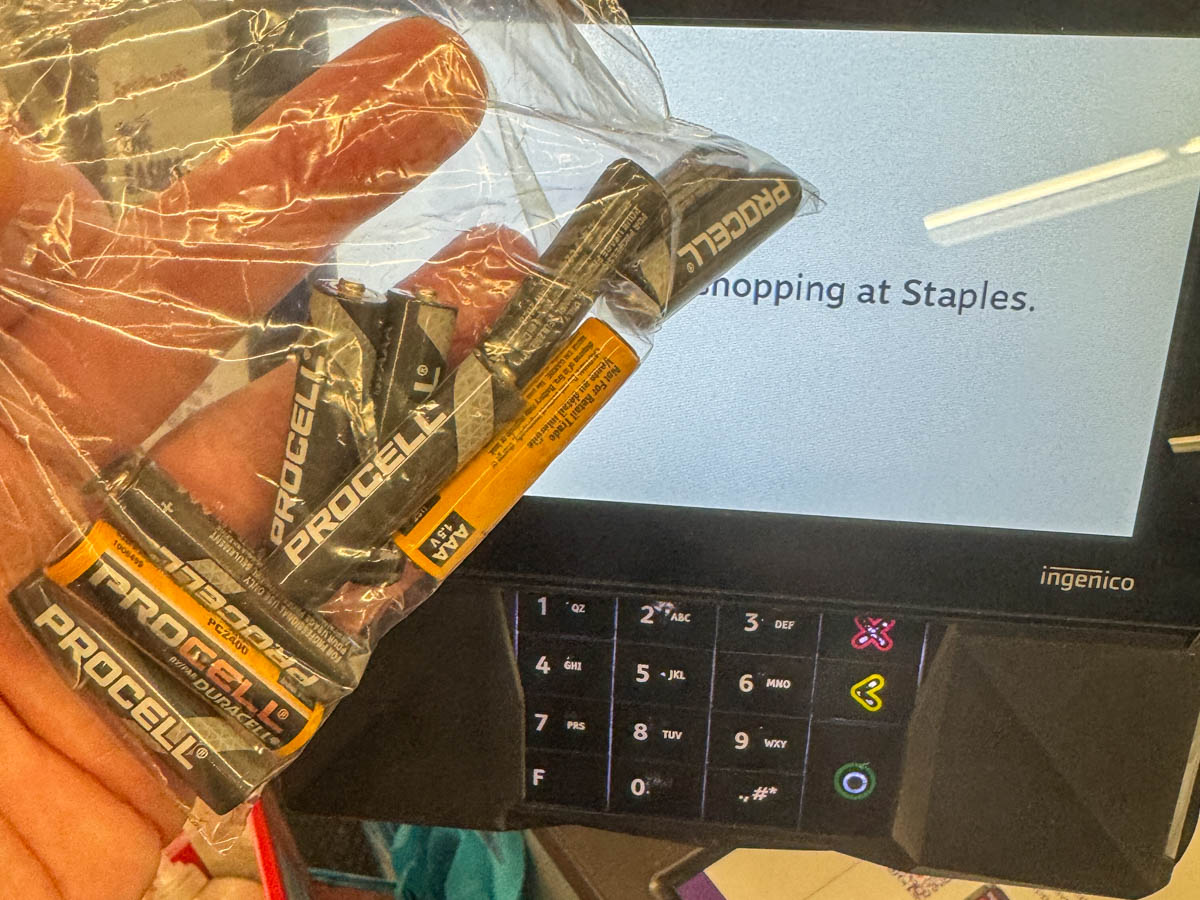
There’s a Staples store right down the street from our house. So, I grabbed my current pile of old batteries I stash in an old coffee mug and headed over to test drive this new battery recycling solution.

That was Easy
Not to steal their branded-marketing phrase, but yes, that was easy.

I walked into Staples, headed over to the register counter and asked how I could recycle my bag of old batteries. The woman at the register asked me to hand over the bag and treated the transaction like I was buying an item. I even received points on my Staples account.
Remarkable.

So, in the words of the Mandalorian, “This is the way.”

Every Day should be Earth Day
If we’re to lead more responsible lives in collectively caring for our planet, it’s important that there are some clear (and hopefully easy) ways to accomplish that.

I’m pleased to report that Eneloop and Staples have helped me solve my battery-recycling challenge.

How to be More Effective during your Next Zoom Meeting 

Do you hate having to join virtual meetings? No need. Here are five ways to make your next online meeting your best yet.

Webcam meetings are here to stay. That’s clearly our new normal. If you want to be more effective and nail your next virtual group interaction, you should pay attention to these five important factors.

#1
Be Seen and Heard
This is not a choice. It’s essential. If your microphone doesn’t work, you can’t communicate. Full stop.

If you keep your webcam off, because you’re still in your pajamas, you’ve given up the opportunity to use the massive power of visual communication. You’re just a distant voice.

Remember in the old days, when you’d sit with a group of colleagues in a conference room, and someone else would be piped in as a tinny voice via a speaker phone? Yeah, it’s just like that.

I’ve said it before, and I’ll say it again: You’ve got to show up for your close-up!

#2
Make Sure your Technology Works
Look, I get it. It’s not your fault if there’s a gremlin in the system. But it doesn’t matter. It’s still your responsibility.

I can’t tell you how to fix every problem. The only general guidance I can offer is older tech is going to eventually act wonky. And paying for a faster internet connection at home is always helpful, even if you think you shouldn’t need the extra speed.

Both factors point to the reality that you’ve got spend more money than you want to ensure your home tech provides you a stable ongoing connection to the outside world.

So, you should budget for it.

#3
Maximize your Webcam Shot
Once you’ve got the basics under control, then it’s time to focus on the experience you’re providing your viewers.

Simply turning on your webcam isn’t enough. You’ve got to present yourself in a visually pleasing way.

If you think that’s absurd, and you shouldn’t have to worry about such superficial variables, then good luck to you.

I expect you know the webcam rules by now. (We’ve all become filmmakers.) You just have to put in the effort:

  • Make sure you’re well-lit from the front.
  • Raise your webcam or laptop so your shot isn’t looking up your nose towards the ceiling.
  • Tidy up your background or use a virtual background.
  • Get close enough to the webcam so your head is not a little speck in the shot.
  • And don’t forget to smile a bit. Acting friendly is usually a good thing.

#4
Stand Up!
This is optional, but I’m a big fan of standing during certain online meetings. It can really open up your body language and provide you with the opportunity to be more engaging. If you feel like you’re on stage when you’re standing in front of your webcam… yes, that’s whole the point. For me, standing up always gives me a boost of energy!

If you have a standing desk (like I do), then this is a no brainer. Otherwise, setting up your webcam for a standing shot takes a little extra work.

Buying a laptop desk stand or a portable equipment floor tripod (like many musicians use) are great ways to create a tall enough surface to elevate your laptop or place it wherever you want.

I’ve got both, and though I use them only occasionally since I’ve got my standing desk, these tools have proven invaluable.

#5
Pay Attention
Don’t multitask. People can tell when you’re not paying attention during an online meeting. If you think your webcam shot only matters when you’re talking, think again.

Just like an in-person meeting, you’re ‘on’ all the time. I think that’s why so many people like to turn off their webcams if they’re not talking. It’s so much easier. Then, they can multitask unseen.

Easier isn’t better. If you leave your webcam on, and you don’t multitask, and you pay attention, people will see that you’re engaged. You’re in the moment. That’s so important to a team dynamic. You can have a big impact even when you’re not talking.

Positive Energy Matters
All of this essentially boils down to being ‘present.’ Technology can connect us across great distances, but you’ve got to want to be there. When you cut corners during Zoom or Microsoft Teams meetings, people will notice.

Intention is everything. Your energy is everything. And your technology has to work.

Now, go make your next online meeting the best yet!