At Home with Tech

Unlock the power of all your technology and learn how to master your photography, computers and smartphone.

Category: Tech Diary

5 Easy Ways to Upgrade your Zoom Video
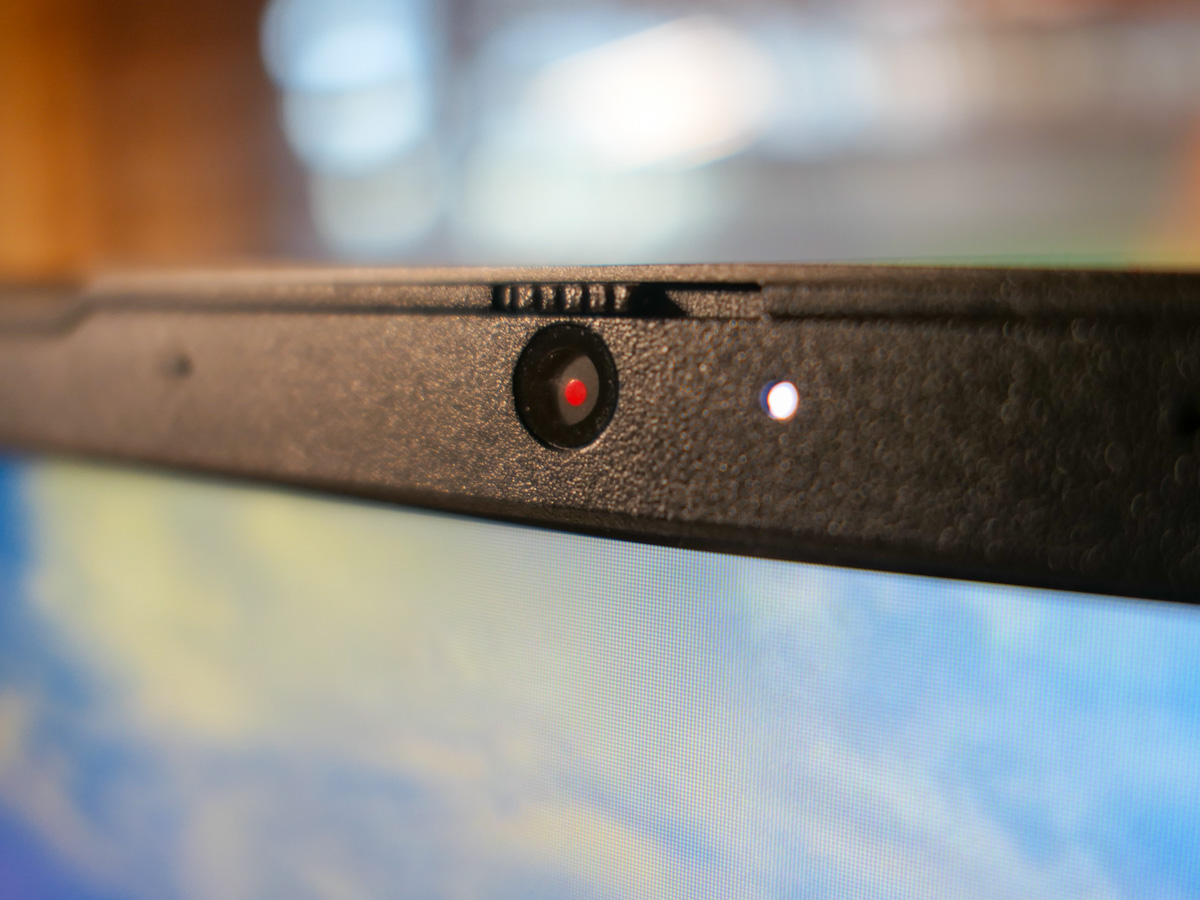
If you want to look and sound better during your next Zoom meeting, don’t forget these simple best practices to present yourself in the best possible light.

It’s been over two years since Zoom saved us from pandemic isolation. Sort of. Yes, Zoom and other video conferencing platforms have been lifelines to our outside world over these many months. As life is evolving to a new normal, ‘hybrid’ is now clearly a part of that equation. That means the need to Zoom isn’t going away.

As remarkable as Zoom has been, I think everyone is exhausted. We’re cranky. We may know how to do a good Zoom. But we don’t want to. No. We don’t want to make that extra effort. Not anymore.

If you can hear my voice on Zoom, that’s enough. You don’t need to see me. And if for some reason I forget to turn off my camera, don’t expect much. If only half of my head is in the shot, that’s more than enough. If my bright window is dominating the image and obscuring my face, get used to it. It’s still me. Besides what I have to say is all that matters.

Is this perspective resonating right now? If so, I get it. You’re sick of having to show up for your close up. You didn’t sign up for this.

I know.

But let me offer this gentle reminder…

Zoom can Help You Stay Connected
Practicing good Zoom etiquette is worth it. If you want to show up in your life, then you do want to show up for your close up. It matters. If you want a seat at the table, then you’ve got to show up at the virtual table.

Turn on your webcam and follow these five best practices:

1.
Illuminate your Face
You should be facing the window… not the other way around. Please want to actually see you. Not your silhouette.

2.
Turn Off your Ceiling Light
You may think your ceiling light fixture is helping. It probably isn’t. Not if it’s directly over your head. That’s because it’s shining light down on top of you instead of in front of your face. That creates incredibly unflattering shadows. I don’t think you’re trying to audition for the next zombie movie. So turn off that ceiling light and flick on your desk lamp instead.

3.
Elevate your Webcam
Your webcam should never look up at your chin. If your shot features your ceiling, you need to raise your camera to a more perpendicular angle with your face. Simply elevate your laptop with a few books.

4.
Reduce the Headroom in your Shot
Headroom is the amount of space between the top of your head and the top of your Zoom box. I can almost guarantee that you’ve got too much headroom. There should only be a little gap. Please, tilt down your webcam. Your viewers want to see more of you, not more of your wall.

5.
Wear your Headset or Earbuds
Sure, your computer’s onboard microphone will work, but it’s too far away from your mouth to provide crisp audio. Instead, the audio has that far-away feel. That’s because the microphone is far away. Your headset mic sounds so much better. Please wear it. If you’re concerned about how your headset looks on you, then wear your earbuds or AirPods. The audio sounds that much better. Really.

Don’t Forget to Smile
Life presents unexpected twists and turns. It can be really rough. The headlines are getting any easier to consume. I know it’s sometimes hard to pull it together. But your Zooms don’t have to reflect the imbalance you may feel.

If you take a little extra effort to follow these video-conference best practices, you can better present your best self.

And if you’re doing that, I expect you’ll feel better too.

How to Organize your Life Using Microsoft OneNote

If you suffer from ‘yellow-stickie-syndrome,’ I’ve got the perfect digital solution to help eliminate your analog clutter.

I have a problem with paper. It’s those little yellow stickies, to be precise. Whenever I have an idea or need to remember a detail, I quickly jot it down and stick my thought onto my home office desk. Needless to say, it’s not a strategy for organization. That said, whenever I complete a task, I take great pleasure in crumpling up the little stickie and throwing it in the basket behind me. Swish!

I know there are better ways to organize your personal to-do notes, and I do have digital solutions in place (Apple’s ‘Notes’).

I Love my Yellow Stickies
But my yellow stickie fix still remains in my personal preferences.

I must admit I like having those little reminders facing me when I sit down with my cup of Joe in the morning. The visual cues keep my home headlines at the forefront of my consciousness.

It’s messy, but effective.

Digital File Cabinet
On the work front, I’ve had more success preventing message clutter. I never suffered from ‘yellow-stickie syndrome’ in the office, mostly because I used a notebook, which I brought with me to meetings. When laptops became a common work tool, I would carry mine about and type up my notes into the computer. Easy. Right?

But the question remains how to best organize that flow of digital information.

If you maintain a Microsoft Word document that houses your ongoing meetings, that will mimic a paper notebook and eventually generate an overflow of details. If you create a Word doc for each meeting or project, then you’ve got to maintain dozens or hundreds of files. That’s too many. Plus, if you forget the name of your file or the date you created it, you may not have a sufficient bread-crumb trail to easily get back to it.

Sure, you can create folders for all of these docs, but it’s a clunky and ever expanding process to maintain.

The goal is to create and easily maintain a virtual version of the perfectly organized file cabinet. There’s got to be software that does this for you.

Well, of course there is.

Microsoft OneNote
My app of choice is Microsoft OneNote. (There are others, but OneNote is baked into Microsoft Office… so it’s right there for you.)

Plus, it’s exceptionally intuitive to use.

I first create ‘Sections,’ which are my broader categories, and then ‘Pages’ which live in each Section. My Pages represent individual projects, meetings or topics.

Yes, you’ll eventually create a massive number of individual Pages, but because they’re organized into dedicated Sections, it’s much easier to keep track of them.

Finally, after I’ve completed a project on a Page, I move that Page into a ‘completed’ Section. This little trick goes a long way to keeping my digital clutter to a minimum.

I think once you set up your own OneNote file, you’ll never want to use a physical notebook again. Just be sure to back it up or sync it to the Cloud.

Happiness is a Completed Chore
I’ve also set up Microsoft OneNote on my home iMac in the attempt to replace my yellow stickie notes. It’s the perfect cure for my touch of yellow madness.

OneNote initially cleaned up my desk in no time. But I eventually slid back into my old stickie patterns.

I think many of us have certain analog crutches that are difficult to part with. That’s okay. If I want to feel the crumple and swish of a completed chore, is that so wrong?

Alternately, when you need some serious help organizing your brain, chances are Microsoft OneNote is already right there for you. Just click on the program icon!

Satisfaction across time can be elusive. So I recommend you employ every tool available to regularly hit that pleasure center in your brain.

Crunch.

How to Pack your Streaming Apps for your Next Vacation Movie Night

After a fun vacation day on the slopes, my family settled in for a movie on our hotel room TV. Here’s how we did that using my existing Apple ecosystem.

I recently returned from a little skiing vacation with my family at Mount Bousquet in Pittsfield, Massachusetts. We hadn’t been on the slopes for a couple years due to the pandemic, so it felt great to practice some downhill again. (That’s our son having fun on a snowboard in my above photo.)

Pack your Apple TV for your Next Vacation
During our time in the hotel room, I tried using a particularly useful vacation tech trick I’d learned a while back. I had brought our Apple TV puck with us with the intent to jack it into the hotel’s WiFi network. This would allow me to access our entire arsenal of streaming apps and create movie nights using the room’s big TV screen. (Doing this effectively sidesteps having to purchase anything additional from a hotel as long as the base-level WiFi can handle streaming.)

Sadly, the streaming apps on my Apple TV didn’t work this time, because the hotel’s WiFi required a multiple-step login process, which the Apple TV couldn’t access beyond the password step.

Fortunately, I had also packed a lightning to HDMI adapter for my iPhone. (It’s always good to have a backup plan, when vacation movie night hangs in the balance.)

Using this dongle, I was able to substitute in my iPhone as the streaming source and connect it directly to our hotel room’s HDTV via its HDMI cable. Then, my iPhone effortlessly served up the Disney movies we wanted via its Disney+ app.

Tech Ethics
You could say my streaming strategy unfairly took advantage of the hotel’s WiFi network, possibly slowing down WiFi speeds for others. But my iPhone ended up tethering to its cellular connection using its AT&T wireless data plan. So I don’t have to debate tech ethics here (not this time).

I pay for unlimited data on my AT&T account. So, in a sense, I’m already paying full price for my movie tickets while streaming. That said, I’m very happy not to be concerned about blowing through any data limits while on vacation!

Ensuring that Screen Time = Family Time
And why all my effort to project a movie onto a hotel room’s TV? Can’t an iPad or iPhone screen suffice during vacation? Not for me and my family. If you’re also a parent with kids, I imagine you might agree that screen time is a complicated topic.

The last thing I want to do is generate more opportunity for little eyeballs to stare at little screens, separate from the larger family focus.

If there is to be movie screen time on vacation, it’s great when it’s part of a larger family activity…experienced together.

Vacation Tech Joy
When bringing extra tech with you to create your family movie nights on vacation, please don’t forget to pack up all of the pieces before you leave. (Adapters have a way of disappearing if you’re not careful.)

And do put the hotel TV cabling back together. The next family may just want to turn on the TV without ‘Frankensteining’ together their own mini movie theater.

Nevertheless, I do enjoy screaming “It’s alive!” whenever I get my vacation TVs to work. A little tech joy always adds to my overall vacation experience.

In fact, I highly recommend it.