At Home with Tech

Unlock the power of all your technology and learn how to master your photography, computers and smartphone.

Category: Tech Diary

Let your Hands Do the Talking on your Next Zoom
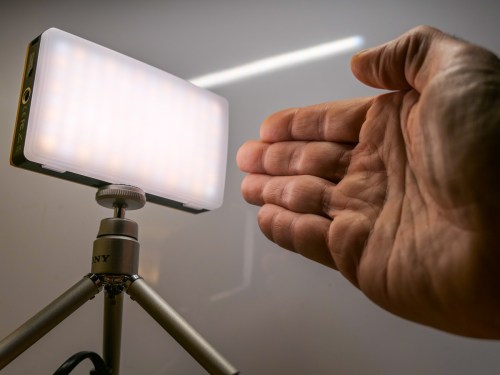
Now’s the ideal time to add your hands into your Zoom conversations. Here’s why.

If you like using your hands when you talk, communicating on Zoom and other video conferencing platforms is the perfect place to apply your style. In fact, this digital ecosystem is an ideal space to apply your non-verbal communications techniques.

I’ve talked before about the importance of using non-verbal face cues during Zoom meetings to generate maximum engagement, but your hands can also play a powerful role in effective Zoom communications.

Unleash the Power of your Hands
Any number of gestures that might feel forced or unnatural during an in-person meeting can work really nicely in the Zoom universe.

  • Giving a thumbs up
  • Raising your index finger to make a point
  • Using one hand to represent an idea or thing
  • Holding up both hands to punctuate an “either/or” explanation
  • Moving a stretched hand diagonally upward to demonstrate success
  • Waving goodbye to make a solid Zoom exit instead of just disappearing

Welcome to the Stage
Your hand gestures can either stand alone or join your spoken words to provide emphasis. You’re essentially following the same rule book as when presenting on a stage.

You may not feel like you’re walking on stage every time you join a Zoom, and many people don’t. But you shouldn’t make the same mistake.

If all the world’s a stage, then so is every Zoom.

And Zoom can be such a hands-friendly place because the medium effectively makes you a presenter every time you talk.

We are Children of TV News
This may seem counterintuitive. You’re probably more focused on Zoom draining your mojo, because you’re feeling unnaturally cramped into a tiny on-screen box.

But that box is a not-so-distant cousin to the all-mighty television screen. And for decades, we’ve been conditioned to apply significance to a singular face that’s talking at you based on the norms of TV news.

Sure, today the market is clearly oversaturated with countless YouTubers in little boxes. And your own circle of contacts might curate an additional few dozen mini faces to regularly stare at.

Open Hailing Frequencies
You may end up feeling like an anonymous face projecting yourself to an often faceless audience. How much of an impact can you really have on a pandemic-numbed and Zoom-fatigued population?

It may be difficult to believe, but for every second that you’re visible on a Zoom, you have the power to move the needle.

Using your hands properly will make you even more effective.

Amplify your Moment
To take advantage of this opportunity, you don’t need to be the official ‘presenter’ who owns the digital floor for an extended period. If you say just one sentence, your viewers will see you as the presenter in that particular moment.

The floor is yours. Use it!

And it doesn’t matter if you’re a little thumbnail image in Gallery View. Then, the movement of your hands can carry even more weight. That’s because your small image makes you more difficult to read. Your non-verbal face cues might be invisible. But a solid hand gesture is hard to miss.

Get your Hands in the Shot
I’m sure you know the importance of setting up your webcam shot to properly display your face. Now you’ve got to make sure there’s room in your Zoom box for your hands to show up.

The trick here is to reduce all of the extra headroom space you probably have in your shot. (That’s the extra area between the top of your head and the top of your shot.) Instead, you want your webcam to show off more of your midsection. That’s the area where your hands live as they rest on your desk.

This technical adjustment is usually easy to make by simply tilting your webcam. That redirects your shot down to just above your desk. Just be sure your shot is wide enough. You don’t want your webcam to cut off your head!

Practice Assertive Communications
After spending so much time on Zoom meetings, everyone should feel like they’re able to successfully contribute to the conversation. And as in any environment, you’ve got to effectively assert yourself.

Yes, that can be especially difficult to do when restricted to a Zoom box. So it’s important to use every technique at your disposal.

Sometimes the answer is to just let your hands do the talking!

How to Text your iPhone’s Video Clip if the File is Too Big

Your only hope to successfully share your video via text is to compress it into a smaller version. Here’s how I did that to a video of my son practicing the piano.

If you shoot a 4K video on your iPhone and then attempt to text it to someone, you’ll likely run into the problem of a file-size limit. That happened to me recently when I was asked to capture my fifth-grade son practicing a piece of music for his piano teacher to review.

Fortunately, my son’s piano lessons have been proceeding just fine over the past year of Covid as a virtual learning experience, courtesy of FaceTime and two iPhones. Unfortunately, this recording ended up running six-minutes long, and I had forgotten to reset my iPhone to shoot video at a lower quality. The result was the creation of a massive 2 GB file.

That’s way bigger than what you can text or email from an iPhone. And as it turned out, my clip would still have been too large to send even if it was recorded at my iPhone’s lowest quality setting of 720p.

Compression Required
Sure, there are ways to upload a large video file to the cloud and then create a download link to send to your recipient. Apple offers iCloud Mail Drop (5 GB file-size limit). And of course, there are other cloud solutions.

But you’re still sending over a massive file for someone else to download. I would suggest that’s not good digital etiquette. Unless your recipient specifically needs your video at its original quality, the decent thing for you to do is to first compress the file into a smaller version for viewing.

Unless you trim your video’s length, you’ve got to find a way to shrink your file before sending it along.

AirDrop
So, my solution was to use Apple’s AirDrop tool to wirelessly send my video from my iPhone to my iMac (There’s no file-size limit.)

Then, I opened up the video clip on my iMac in QuickTime and simply exported a copy in a smaller size from the drop-down menu (480p).

Finally, I dragged the new, compact file into the Messages app on my iMac and ‘texted’ the video to my son’s piano teacher. This kept our video sharing in the same digital ecosystem as we’ve previously been using.

There are other video compression tools available for a Mac (such as the Compressor app), but QuickTime will usually do the trick.

iMovie
If you don’t want to move your file over to a computer and instead prefer to do the compression work on your iPhone, you can easily use iMovie.

Just bring your original video into the iMovie app and then immediately move to export a new file (unless you first want to perform some editing tweaks).

  • Click the blue “Options” tab and select either 360p or 540p resolution.

And then, voilà! You can send your smaller file along.

There are also third-party video compression apps for an iPhone in the App Store, but I suggest you simply stick with iMovie for your basic compression needs.

Less is More
None of this guarantees that your new file will be small enough to text or email. But if the length of your original video is just a couple of minutes, you should be in good shape.

Unless you’re using a cloud-sharing solution, a best practice for any video recording plan that requires sharing your clip is to limit the length. Everyone has space limitations on their smartphones and nobody will enjoy having to manage a huge video file.

Keep it short. Keep it small. And don’t forget to compress it!

How to Turn AirPods into a Wireless Microphone for iPhone Videos

Looking for better sound on your next iPhone video project using one of Apple’s Bluetooth earbuds? You’ll first need this workaround.

If you own a pair of AirPods or AirPods Pro, you may come up with the bright idea to use them as a wireless microphone when you record selfie videos on your iPhone. The problem is you can’t do that using the iPhone’s native camera app. Apple didn’t build its app to support Bluetooth microphones.
(Strange, but true.)

Perhaps the visual of wearing little white sticks in your ears while shooting selfie videos originally seemed silly to Apple’s designers. But the pandemic has changed countless norms over the past year.

So many of us have been living our lives recently glued to our computer screens wearing geeky headsets, bulky headphones or slick little earbuds. If you don’t have a Borg-like audio device attached to your face, you clearly haven’t been assimilated into our new norm of daily video communications.

I Can’t Hear You
Recently, I produced a video with a colleague who needed to record an on-camera introduction using his iPhone. I suggested that he use his AirPods as his microphone so he could easily step back into his shot, unhindered by cables.

As I coached him from afar using the Microsoft Teams app, everything sounded fine. But when I listened to his test recording file, the AirPods clearly weren’t capturing his voice track. The iPhone’s onboard microphone was doing the work instead.

Third-Party App to the Rescue
Of course, we weren’t the first ones to uncover this problem. After doing some online research, I discovered that a variety of people have been complaining about this incompatibility for years.

The good news is there are two popular workaround solutions. Both involve downloading a video recording app to your iPhone that does allow you to use a Bluetooth microphone, including AirPods and AirPods Pro.

Both of these apps are primarily designed to give you a massive increase in control over your iPhone’s camera settings for video shoots, but they also provide the additional Bluetooth audio support for AirPods or AirPods Pro.

Problem solved.

What’s That in your Ear?
Even before the pandemic, I saw so many folks running around the streets of New York City with little wireless earphones protruding from their heads. That laid the foundation for an acceptable new look in public. And that metamorphosis has now been truly cemented. (We’ve stared at each other over the past year on countless video conferences wearing any number of audio devices.)

It’s ironic that once upon a time, hiding your microphone while recording an on-camera video was considered a sign of professionalism. Now, most anything growing out of your ears is acceptable.

And if you want to put your AirPods to work for your next iPhone video recording, just don’t forget you’ll also need to spend a few bucks for a third-party app to secure the connection.