At Home with Tech

Unlock the power of all your technology and learn how to master your photography, computers and smartphone.

Category: Tech Diary

The Best Video Recording Setting for your Smartphone

There isn’t a one-size-fits-all solution on how to set up your iPhone’s video recording menu. But here’s a great default setting that should handle many of your needs.

If you’ve found yourself suddenly thrust into the spotlight of having to record occasional videos of yourself for work-related projects, you’re not alone.

So many of us have been relying on Zoom and other video conference platforms to stay in touch during the pandemic. Yes, these live virtual meetings are carrying much of the load for video communications, but not every moment can be live. Sometimes, you’ve got to prerecord your message and send it in for editing.

Your Smartphone’s Movie-Making Power
And while you can certainly record a video message using your computer (assuming your webcam is working), you should really consider using your smartphone, which can typically generate a much better image. Plus, you’ll probably have a lot more flexibility finding the right spot at home to shoot in.

Before you activate your inner Francis Ford Coppola, you need to choose your smartphone’s best setting for your video message.

Go with 4K Video at 30 FPS
4K video is usually best, because it’s the highest quality that smartphones can generate. (Plus, 4K will give your video editor some flexibility to reposition you in your shot if that’s needed. It’s possible that the final edit won’t be in 4K. So, your editor will be able to crop your shot without losing image quality.)

But I’d recommend recording 4K video at 30 frames per second instead of 60 fps.

Creating 4K video on an iPhone at 60 fps uses a newer video compression format that Apple has coined High Efficiency. It may be more efficient from a file size/image quality perspective, but the highly compressed codec is harder to edit. In fact, there’s potential for audio syncing problems and dropped video frames. What that means is some computers are more prone to creating editing errors due to the heavier technical lift of handling this video format.

So, unless you’re going for slow motion in the video edit or you’re shooting action footage, which benefits from a higher frame rate, you really don’t need 60 fps. (Plus, 60 fps takes up more storage.)

How to Find your iPhone’s Video Recording Menu
To confirm your video recording setting, tap on:

  • Settings
  • Camera
  • Record Video

And this is what you’ll see.

4K at 30 fps is the way to go!*

It’s Time for your Close Up
*Of course there are exceptions. 60 fps recording might be specifically required or 1080p HD video could be good enough for an existing 1080p edit. Plus, older iPhones can’t shoot 4K at 60 fps. (That trick started with iPhone 8 and iPhone X.)

But If you’re just recording video of yourself talking, and you don’t have other technical guidance, it’s hard to go wrong using the 4K 30 fps video setting.

Just don’t forget to keep your main light source in front of you, your smartphone horizontal and any visual distractions off to the side.

Good luck!

How to Use Microsoft Word as a Teleprompter for your Next Zoom

This easy reformatting trick in Microsoft Word will help you present better when reading your notes during your next Zoom meeting.

It’s always important to establish eye contact with your audience if you want to create a strong connection. The same is especially true when talking via Zoom and other video conferencing platforms. And the only way to do that is to stare directly at your little webcam. That can be difficult when you’re also trying to pay attention to all of those little boxes of faces on your screen.

There’s also the reality that many of us have had to Frankenstein together more advanced work stations at home with multiple monitors, creating even more eyeline complexities.

In short, a lot of people aren’t following the best practice of looking directly at their webcams these days. If you’re even close, I think most folks on the receiving end are relatively forgiving.

Now, I’m not saying that’s okay. I’m saying that’s what I’ve seen happening. And because it’s generally become acceptable to look slightly off camera while Zooming, there’s a huge opportunity to exploit in that little space between where you should look and where your eyes are likely focusing .

Create your own Teleprompter
If you’re presenting to your Zoom audience, and you’ve got notes or perhaps a full script to read, you should position them on your screen right under your webcam to reduce the effect that you’re reading. A physical page of notes taped under your webcam can work, but I’m not talking about an analog solution. Move that Microsoft Word window up. Keep it all digital.

The closer you can get your Word doc to your webcam the better. It’s like activating your own little teleprompter. The result will be remarkably close to the appearance that you’re effortlessly talking to your audience and not reading your script. And because your audience has been conditioned to seeing others look off screen, they likely won’t notice your visual trick.

Don’t Let your Eyes Ruin your Illusion
That said, they will see you reading your notes if your Word window is still at its normal width. Your eyes will clearly be moving left to right and from line to line. (Then, the jig will be up!)

You need to make your Word window thinner… only 8-10 words across to correct the problem.

But then how are you supposed to see a complete line of your script if only part of it is now visible?

Here’s the fix:

Use Web Layout
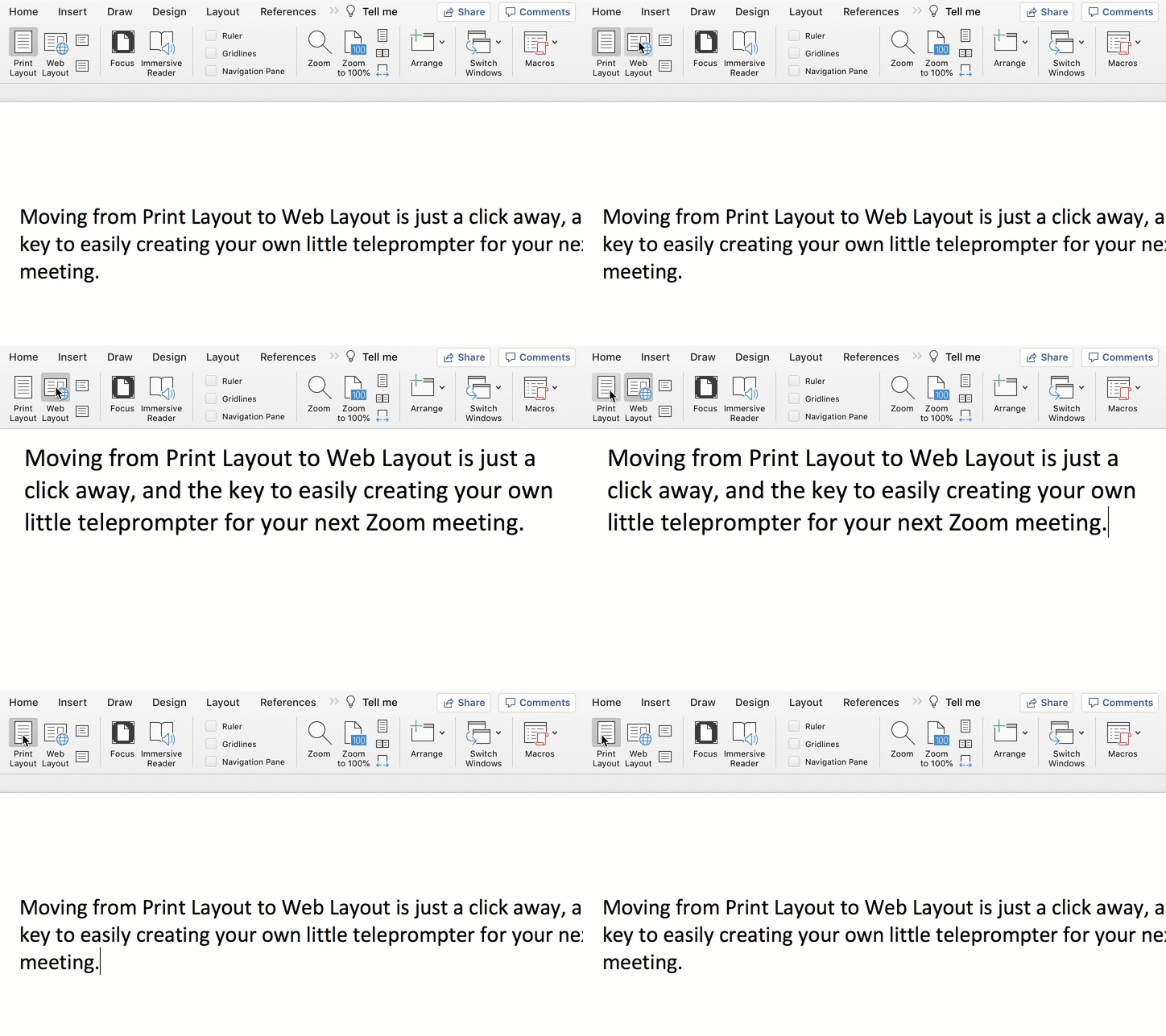
Change the view in Word from Print Layout to Web Layout.

Once you do that, you can shrink the width of your page, and the text will automatically wrap to fit your thinner Word window.

Then, all you need to do is scroll down the page using your mouse or trackpad as you’re reading.

Congratulations, you’ve effectively created your personal teleprompter!

How to Adjust the Default Settings
Here are the easy steps to make the change to your Word doc:


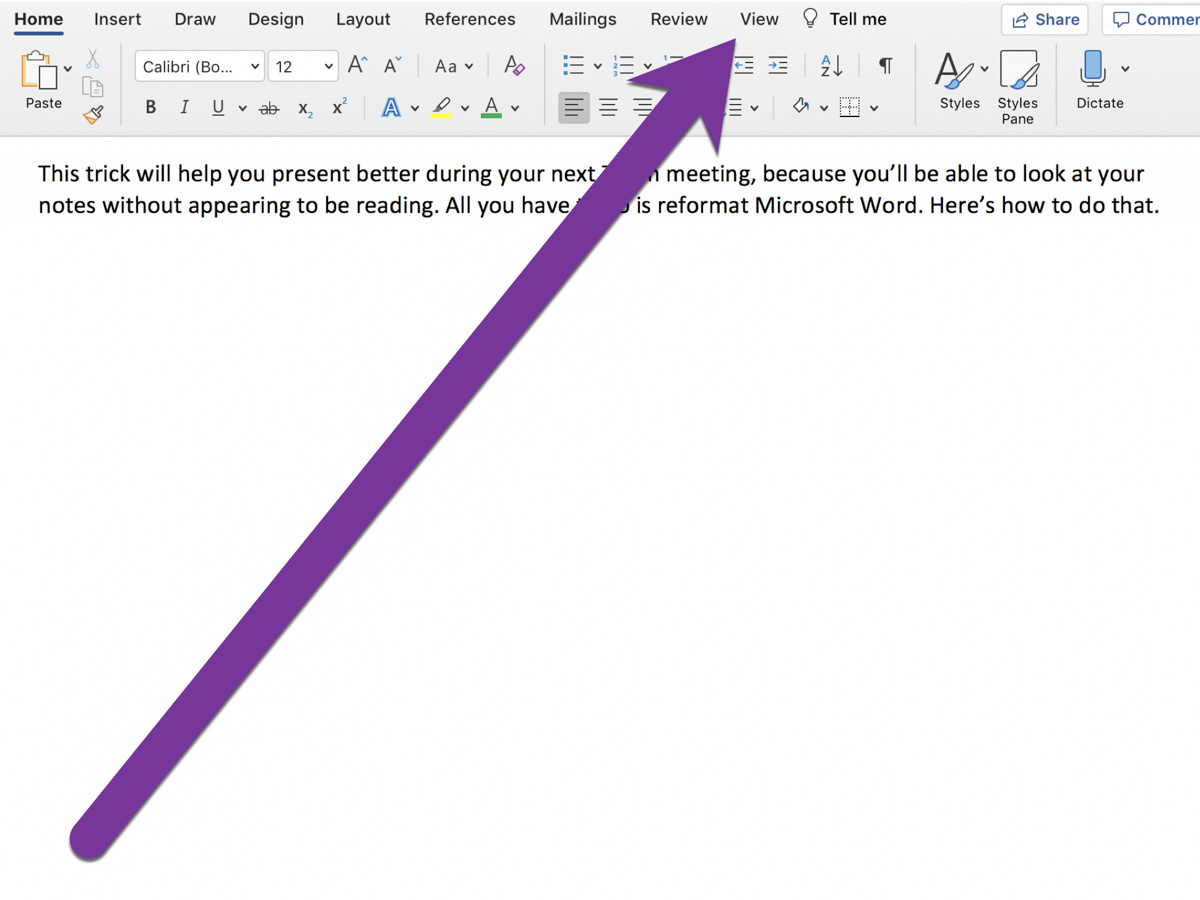
On Word’s top menu bar, click on View from the Home menu.


On the left, you’ll see Print Layout and Web Layout. Click Web Layout.


Then, click on Zoom to adjust the size of your text so you can easily read it.

That’s it!


Advanced Tip: Minimize the Ribbon
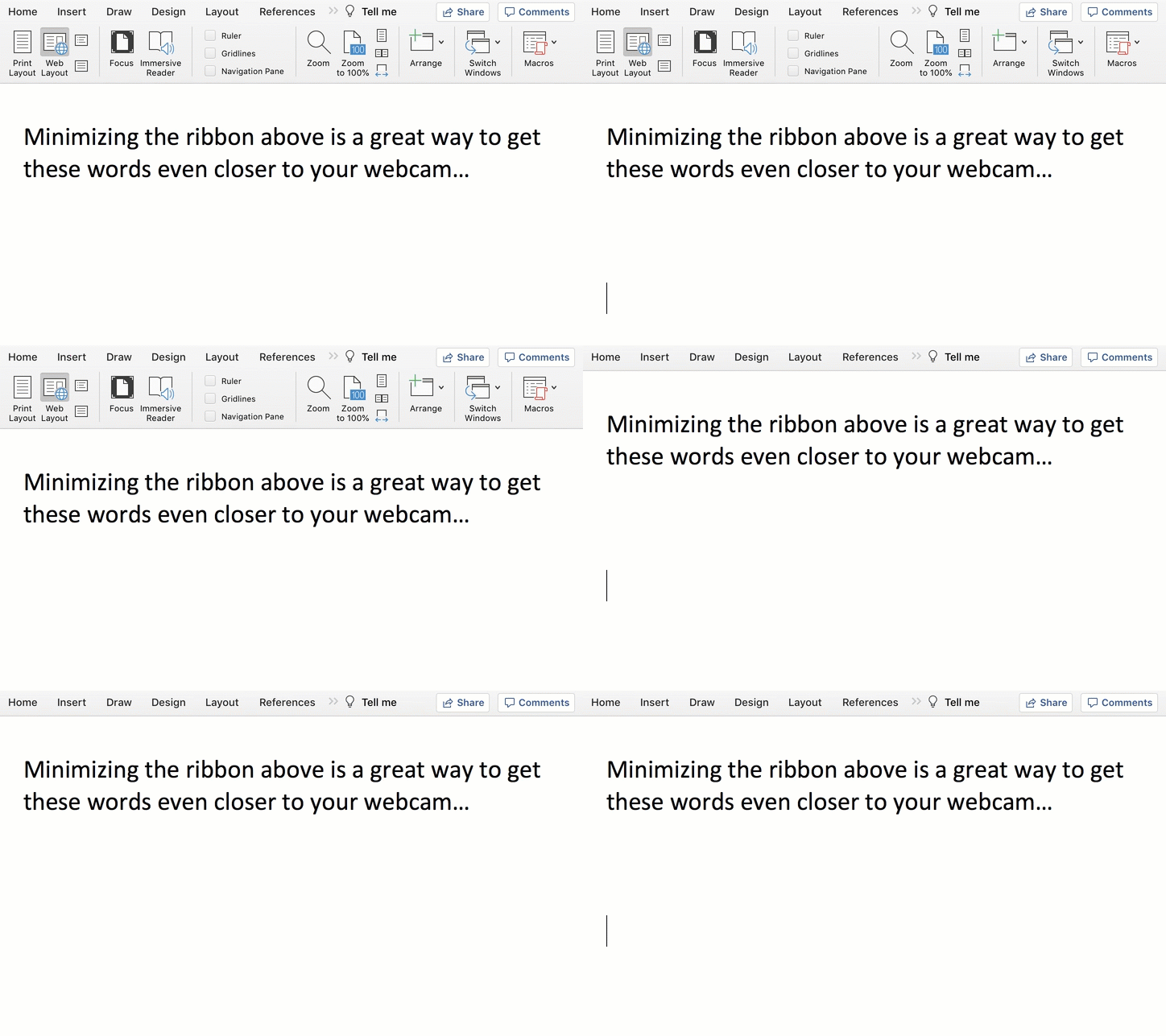
To get your notes even closer to your webcam, collapse Word’s top ribbon.

On a Mac, press Command + Option + R.
On a PC, press Control + F1.

Another Tool for your Virtual World
Living life on Zoom during these many pandemic months has been draining for all of us. Reformatting Microsoft Word to serve as your pseudo-teleprompter is one way to make your Zoom presentations a lot easier.


4 Ways Tech Helps Me Adapt During the Pandemic

The pandemic has forced me to reevaluate my relationship with my technology. Here’s how I’ve adjusted my focus.

I’m so happy there’s light at the end of the tunnel now that Covid-19 vaccines are being rolled out. And while there’s still a long road ahead, I can begin to think about how some of my technological adaptations during the pandemic might continue into the future.

I Rewired my Hunting and Gathering Instincts
I used to think that spending extra money for online grocery delivery was an unnecessary luxury. We’re genetically encoded to hunt and gather. So spending decades going to supermarkets had seemed like the natural way to acquire food.

But since the pandemic began, I’ve relied on FreshDirect for the bulk of our weekly grocery needs. I know folks go to the grocery store wearing masks and practicing responsible social distancing. I simply went in a different direction.

Sure, there are other online options for grocery delivery, but when times were especially tough at the beginning, and open delivery slots were hard to find, FreshDirect came through for me more often than the others.

And even when the pandemic is over, I plan to continue using FreshDirect. I’ve already signed up for the $129 annual membership (DeliveryPass), which unlocks free delivery.

Whole Foods technically offers a better deal, because free delivery is already bundled into my Amazon Prime membership. That said, finding an opening in the limited two-day delivery windows can still feel like you’re playing the slots in Vegas.

No, it’s not like I’ll never walk into a grocery store again, but there’s real value to having the bulk of your groceries regularly delivered to your doorstep. (I’ve also appreciated the time saved from not having to shop and wait on line at checkout.)

I Learned to Live without Two-Day Shipping
Once upon a time, it felt so empowering being able to shop online and receive purchases within one or two days, often for no additional shipping costs. How convenient was that?!

But there was a hidden tradeoff. I no longer had to be especially organized. Whenever I ran out of something, I could almost magically have a replacement quickly show up.

But when the mail slowed down and two-day delivery became ‘you’ll get it when you get it,’ it created a shock to my system. I realized that I suddenly needed to plan more… like I once had to.

So, I built back that muscle of self-reliance and tracking my own supply chain. It’s felt good being more conscious of the specific resources that my family requires and when.

Blurting out to a Siri or an Alexa that I need more milk when I’m holding the empty carton maybe isn’t so empowering after all. Not when you’re already out of milk.

Free two-day delivery is great. Two-hour delivery is incredible. Drones dropping boxes from the sky at my every shopping whim feels like a future shopping nirvana. Who needs to worry about what you need if you can have more of it within hours?

Well, remember that now, maybe you can’t have it for a couple of weeks or months. And you’d better not forget how to live that way. 2020 was a cautionary tale in so many ways.

I Forced Myself to Keep my Webcam On
I don’t have to tell you about the isolation. The loneliness. The feeling of being cut off. In many ways we’ve been living in our own little bubbles.

Of course, that’s not how it’s supposed to be.

Our little webcams are one of the few safe ways we are able to break out and communicate face-to-face, if only virtually. My iMac’s webcam is my lifeline to my outside world.

Sure, it takes effort to be ‘on camera.’ And you should always put those Zoom best-practices to use, no matter who you’re Zooming with.

Yes, it’s easier to turn off your webcam and communicate via audio only. But I say it’s a bad tradeoff. You’re losing so much without sharing your face and your visual cues.

So, if you’re concerned about really staying connected with those who matter, use that webcam and let them see you!

I Paid for More Bandwidth
Did you also face a barrage of complaints from family members that your home Wi-Fi network couldn’t handle the increased load of endless Zoom meetings, online learning and Netflix streaming?

The culprit is probably not your home Wi-Fi network. It’s your Internet service plan. So, go check it and then upgrade your bandwidth to the next level. That should do the trick.

I was paying for the base plan of 100 Mbps. So I spent $10 more a month to double it. That stabilized the Lester family really quickly. (There are faster plans, but I say that you should buy only what you need.)

I Focused on the Essentials
If there’s a lesson here, it’s realizing the true value of technology when life gets turned upside down.

It’s not so much about the conveniences. It’s about how technology can support the essentials like food and communication.

If your technology is supporting your fundamentals, you’re on track! The rest is just a distraction.