Extended warrantees are often wasted money, until you need them. The question is should you buy them for your next camera?
With the exception of my Apple gear, I’ve not been a big fan of extended warranties for my tech. I take good care of my gear, and just haven’t seen the value of spending more money to protect against an improbable scenario.
That said, based on recent events, my perspective requires an update.
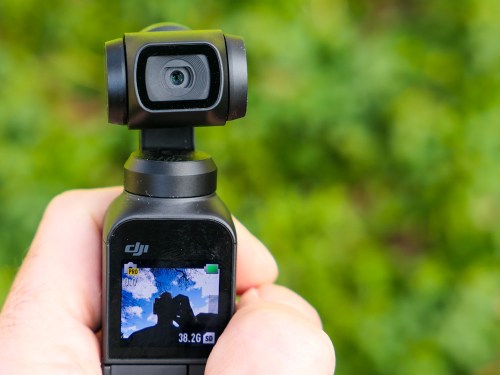
I recently picked up a DJI Osmo Pocket Gimbal, which is a small camera fused to a 3-axis gimbal stabilizer that I’ll be using to improve the smoothness of my action family videos. If I’m moving during a shot, I don’t want the framing to bounce about. And no matter how hard anyone tries to keep a camera in motion steady, there’s going to be some jitter. Gimbals effectively eliminate that. Sure, digital stabilization can help, but gimbals are the real deal.
The Osmo Pocket is tiny… It’s no taller than a pen. So you can easily carry it around with you.
And no, I didn’t buy the extended warranty called “Osmo Shield” when I purchased my Osmo Pocket.
Danger at the Piano Recital
In one of my first tests of my new camera, I took it to a children’s piano recital that my son was participating in. I also brought along my Panasonic Lumix DMC-LX10 which offers a 3x zoom. (The Osmo Pocket has a fixed lens.)
Fortunately, I found an open audience aisle seat, which would allow for a clear shot down the center aisle without head interference.
And then I had this crazy idea…
What if I recorded my son’s performance with both of my cameras? I would position my Osmo Pocket on the floor right next to me to get a great wide shot right down the aisle. And I would also capture a tighter shot with the Lumix in my hand while sitting in my seat. (Then, I would later edit the two clips together on my iMac using Final Cut Pro X.)
The look of a two-camera recording! How cool is that in a family video?!
Yes, it was a solid idea, but I also needed to test out the shot. Fortunately, my son was scheduled to perform in the middle of the recital. So I had a window of opportunity to prep the my Osmo Pocket shot. I moved quickly as the first performance began.
I paired the Osmo Pocket with my iPhone which allowed me to remotely view and control the shot. (Yes, very impressive.) I leaned over and carefully placed my Osmo Pocket on the floor and set up the shot. It was perfect.
But I missed one important detail.
The Center Aisle
I had forgotten that I wasn’t the only parent to see the value of the center aisle. And as I was the only parent to show up with a stealth multi-camera recording solution, the other parents would use a much more intrusive, but apparently acceptable camera-framing solution.
Simply walk down the center aisle with your smartphone and stand there in front of the rest of the audience to get the shot of your own kid playing the piano. (Apparently, that’s how it’s done.)
So, the piece of music ended that I was floor testing. The applause began. And then I sensed motion right behind me as a parent rushed down the center aisle to take her position before her child walked up to the piano. She was moving quickly and not looking down at what might be on the floor in front of her.
Time slowed down for me as I realized in horror what was happening. (There had been no parental intrusion for my test shot, so I had been oblivious to my massive error.)
I glanced down at my tiny, helpless Osmo Pocket.
(There was no rescue opportunity.)
For a split second, I thought her right foot might miss my camera. But no. It was like the perfect football field goal.
Her shoe hit my Osmo Pocket, and my camera went flying down the center aisle. It struck the back of one the front chairs and lay there.
I panicked.
Without thinking and as the applause still continued, I lunged out of my chair and ran to rescue my lifeless gimbal. I scooped it up and quickly walked back to my seat in front of everyone.
I sat down and the recital continued without skipping a beat.
If at First You Don’t Succeed…
I looked down in my hands and saw no heartbeat. The multiple impacts had shut down my Osmo Pocket. The lens looked undamaged and the body and gimbal seemed intact. But would it boot up and actually work?
So I pressed the power button…
And power up it did. The gimbal still functioned. And shot looked okay.
My new Osmo Pocket was remarkably… still working.
I waited for a few moments to allow my own heart beat to stabilize and then considered my next steps. Should I call it a day for my Osmo Pocket or keep going with my clearly dangerous plan?
What do you think?
(Silly Barrett)
So, I waited for the aisle to clear before my boy’s turn. And instead of jumping up and recording the shot from the aisle as I was clearly allowed to do, I returned my Osmo Pocket to the floor and then held my hand high holding my Lumix to get the tighter shot from my seat.
And most importantly, I snatched up my Osmo Pocket in time to avoid the next parental dash down the aisle.
A Second Chance to Make the Right Decision
I brought my footage home and edited the two shots together. Yes, the final edit looked really nice, but I considered the potential cost and all of that drama I had put myself through.
Would I do it again? Absolutely not.
But I realized I did have a second chance at one part of this equation…
Osmo Shield to the Rescue
DJI gives you 30 days to buy the extended 12-month Osmo Shield for the Osmo Pocket, which includes a one-time only ‘Accidental Hardware Damage Coverage.’
Clearly I need that!
As I was still within the 30-day window, I quickly resolved to spend another $33 to protect my shaken DJI device. (You don’t want to tempt fate after dodging that kind of bullet.)
Click.
The Power of Protection
The $33 bought me immediate peace of mind.
No, I’m not suddenly worry-free when using my Osmo Pocket. (Instead, I’m much more aware of any number of potential dangers that threaten the delicate gimbal mechanism when I move about with it.)
And a one-time get-out-of-jail-free card won’t get me very far over the course of the next two years if I cash it in next week.
But it does reverse the strong temptation to protect the Osmo Pocket in my pocket instead of using it in my hand.
History Does Repeat Itself
The next day, I experienced something of a déjà vu. I remembered that this was not the first time I’ve damaged a camera.
There was the “incident” when I was riding my bike, shooting video of my son riding his bike a few years back. I was holding my old Canon S100 pocket camera in one hand and steering with the other. I was following along a little too close, and he braked hard. Before I knew it, I was on the ground.
My right elbow took half of the impact and the camera received the rest of the blunt force against the cement road.
And before that, there was the time I was sitting down and holding that same doomed Canon pocket camera on my lap. And somehow, I accidentally dropped it. (A butterfingers moment)
It couldn’t have been more than a two-foot drop against the wooden floor of the outdoor mini-train ride at the Stepping Stones Museum for Children. But the camera’s articulating lens took the impact, and the lens motor mechanism jammed.
The two-foot drop sent me on a colorful journey to a repair store in New York City. The repair cost over $100. (My bike crash killed the camera.)
There Will be Future Damage
So, this is actually the third time my flawed human actions have threatened my cameras. I know I’ve contemplated this before, but it’s finally time to take action.
So, I’ve bought the Osmo Shield plan, and now my Osmo Pocket is a camera with two paid-for lives.
Moving forward, I think it’s safe to say that any new camera should absolutely get the extended warranty… if it includes damage protection.
Because… life happens.


 At Home with Tech