At Home with Tech

Unlock the power of all your technology and learn how to master your photography, computers and smartphone.

Category: Tech Fixes

How a Roku will Make Your Old TV Shine Again

If you need an inexpensive way to upgrade your HDTV to be able to stream YouTube TV, I’ve got just the thing. And it’s hiding in plain sight…

So, as you may have heard… I’ve cancelled my cable service from my longtime cable TV provider. Instead, I’m now streaming my cable channels via the YouTube TV app for $40/month using my Apple TV in the family room.

That’s right…
I’ve joined the Dark Side.
Or perhaps I’ve finally left the Dark Side.

Either way, I loved this disruptive tech moment in my life.

I told my story to a work colleague, and he congratulated me and then commented how ‘freeing’ it must feel.

It certainly does.

Next, it was time to bring the freedom back to my older HDTV in my home office….

My Bat TV will Rise Again
Once designed as a compact media screen on the left side of my Batcave-like IKEA desk console, this little Sony TV has sat mostly dark over the past couple of years. It lost its cable box companion in the Lester Cable-Plan Purge of ’16.
(Yes, I’ve been on this path for a while now.)

In an attempt to keep feeding my Bat-TV a signal, I attached a Roku streaming puck to bring in a few streaming cable channel apps that I could still access via the existing cable subscription.

But it was a limited solution…

Find the Right Streaming Solution for You
Now, with the glow of YouTube TV permeating the Lester household… I was eager to activate another streaming device with no additional Google charge and no extra cable box to rent.
(You can actually run three simultaneous YouTube TV streams!)

So, it was time to get my home-office TV back in the game!

Unfortunately, my old Roku wasn’t built to run the YouTube TV app… so I needed to buy a newer streaming box.

Another Apple TV would certainly fit the bill, but the price tag is close to two hundred bucks. What about a new Roku?

Excellent idea….!

Roku Ultra
You can debate the larger issue of the value of an Apple TV vs. a Roku.
But all of the Roku streaming players are so much cheaper than an Apple TV!

For this little secondary TV, a new Roku was the easy choice. The final question was which one…

I decided on the Roku Ultra and picked up one on Black Friday for 50% off at Amazon for $49.99. I saw on Facebook that my old school friend Matt also took advantage of the same offer for some holiday gifts!
(Well done, Matt!)

I connected my new Roku Ultra to my Sony TV using its HDMI cable. Then, I used the Roku remote to guide my Roku towards my home Wi-Fi network. Finally, I downloaded the YouTube TV app… signed in… and BAM!

All done.

Future-Proof Where Possible
No, I didn’t need the top-of-the-line Roku model for my barely-HD HDTV. But I figured it will help to future-proof my purchase if I want to attach this Roku to a 4K TV one day.

Even without a discount, you can still pick up one of the other Roku models for $50 or less.
(The base 1080 HD-only “Roku Express” is thirty bucks!)

The Cost to Stream
I know Roku isn’t the only low-cost streaming solution out there, but for me it’s that darn brand-loyalty thing again.
(My old Roku puck got me hooked.)

Whichever brand you choose, the fact remains that adding streaming capability to your TV costs almost nothing. And if you own a smart TV that can stream all by itself, then this conversation gets even easier!

Easy Access Matters
Now, I’ve got YouTube TV on my…

  • Apple TV in the family room
  • Roku Ultra in my home-office Batcave
  • and the iPhone in my pocket

Now, that feels like real freedom to me!

YouTube TV Made Me Cut the Cord

If you’ve yearned to cut the cord with your cable provider, but feared the complexities of hobbling together your own streaming TV solution, Google has an offer I believe you can’t refuse…

I’d been waiting for this moment for years… The day I would actually “cut the cord.” And I’m here to report that… I’ve finally done it. I returned my hulking cable box and remote to the cable company and drove away. When I got home, there was a big, gaping hole in my television cabinet.

And I felt something of an unexpected hole inside of me…

I’ve Changed
It’s odd…
I’ve been a part of the cable TV universe for so long that it had become an integrated piece of my life.
(Talk about ongoing brand loyalty)

Leaving it all behind definitely felt like a significant break up.

I know that makes absolutely no sense, but when a relationship (even a business one) is ingrained into your daily patterns, and you suddenly excise it.. that change will likely be emotionally startling.
(Imagine if you suddenly stopped frequenting your favorite coffee house.)

It’s a Streaming World Now
The irony is my live cable viewing habits have shifted significantly over the past few years. The same goes for my on-demand cable consumption. More and more… I’ve followed the Netflix and Apple TV streaming trend.

The only times I’d certainly turn to my cable box was for live programming… news… Super Bowl… Academy Awards.

I was paying more for my cable service than I knew I really needed to.

I really… really… wanted another option…
(And I know that I’m not alone here.)

Hello, YouTube TV
Then, two moments intersected to create my path forward…

First, I looked at my calendar and realized that my monthly cable pricing plan was about to go up… again.
(A promotion from last year was expiring.)

And yes, I called to see if Cablevision would extend the deal… No luck.

Then, I happened to be visiting a friend, and he proudly showed me his new wall-mounted HDTV. I asked him where the cable box was, and he looked at me with a twinkle in his eye.

He proclaimed that he had cancelled his cable service.
Instead, he now had…
YouTube TV.

“YouTube TV? What’s that?!”

Cable Killer
Quite simply, it’s a TV steaming app that serves up your local broadcast stations and over 60 of the main cable TV channels. Such as…

  • CNN and FOX News
  • ESPN and ESPN 2
  • FOX Sports
  • SYFI
  • TBS
  • And yes… even Cartoon Network (My 8-year-old loves LEGO Ninjago.)

No, this one-size-only package may not have all of the same channels as Cablevision offers, but for me, it’s perfect.

There are also premium channel options like Showtime and STARZ.

$40 a month. That’s it.

  • No contract
  • And no cable box, DVR and remote rental

Whoa.
Forty bucks.
(I was paying over $100!)

Plus, one membership gives you six accounts and up to three simultaneous streams.

That’s a cable killer.

And so I made my decision right there to cancel my cable service from Cablevision and switch to Google.

My Breakup Call with the Cable Company
I drove home and rushed to join YouTube TV online. Then, I loaded the YouTube TV app on my Apple TV.

I took a look around my new TV universe, and all of my channels were ready for action.
(Sweet!)

My next step was to make the breakup call…


I was surprised that there wasn’t some attempt on the other end of the line to reverse my resolve. And unfortunately my new monthly Optimum bill with my remaining phone and internet service wasn’t going to fully recoup the cancelled cable price tag.
(My multiproduct ‘Triple Play’ discount would also be ending.)

But I was still saving money.

The Value of YouTube TV
Ultimately though, this wasn’t really about saving a specific amount of cash.
It’s about value.

Anyone can complain about a price point. But if you believe you’re getting value for the cost, then it’s usually okay.

If you’re not, then you should make a change…

  • YouTube TV
  • $40/month
  • Done!

As a subscriber to YouTube TV, I also have access to an unlimited DVR in the Cloud. Plus, I can watch YouTube TV on multiple platforms including my iPhone an iPad from anywhere in the United States.
(So useful!)

Still Watching
No… I haven’t entirely cut the cord with Cablevision. I still need my Optimum service for Internet and phone.
(But I think we’ll be talking about my home phone line again in the near future.)

And no, I haven’t really divorced myself from the cable TV experience.
I’ve just changed cable television providers.
(My emotional reaction to perceived loss was short lived.)

Yet Another Google Disruption
YouTube TV is just another example of technology, progress, innovation, disruption… and someone else figuring out how to take a piece of the pie.

It was just a matter of time.
(YouTube TV launched in 2017.)

I’d been waiting… It just took a friend to point me in the right direction.
(Plus, it didn’t hurt to see a live demonstration.)

The Google switch was easy…

Is YouTube TV a lethal blow to traditional cable companies? I know their past evolution to ‘broadband’ foretold this eventuality.

That said…

  • Cable networks are competitively served up elsewhere.
  • Home landline phones are quickly becoming a vestige of another century.
  • So, that just leaves Internet service….

I expect we’re still a ways away from the closing credits to this story.

For now, I’m a happy subscriber to cable television… again.

Thank you, Google!

iPhone Fix: When Videos Won’t Rotate to Play in Landscape Mode

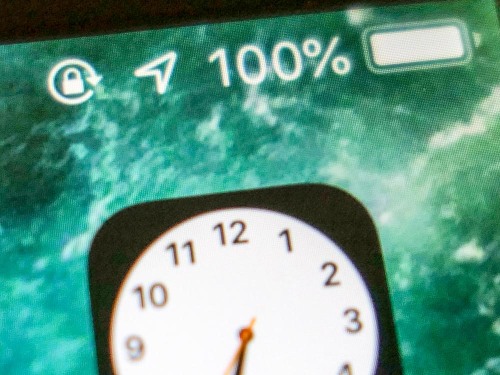
Can you identify every status icon in this image? If not, you may find yourself in trouble the next time you play a video on your iPhone…

How do you encourage videos on your iPhone to play horizontally? Well, that’s easy… you simply rotate your device on its side to cue the video to rotate and play full screen in landscape mode. Right?
(Barrett’s being a little silly.)

And to be clear, I’m not talking about vertical videos. I’m referring to horizontal videos that first pop up at a fraction of their size to fit in your vertically oriented iPhone as you typically palm it.

But what do you do when your gravity-driven iPhone reflex stops working, and your video remains locked in its portrait orientation after you’ve turned your phone?

Well, that’s exactly what happened to me!

The Icon Holds the Answer
So, I figured some setting had gone awry. It was just a matter of figuring out exactly which one it was…

The irony was my iPhone was trying to tell me the answer all along, but I didn’t recognize the hint…

In the status bar at the top of its screen, my iPhone had been displaying a little ‘lock icon’ with a curved arrow around it.


I had noticed the icon before. I just didn’t know what it meant!
(lazy Barrett)

Portrait Orientation Lock
After a little Googling, I discovered the answer. It means… ‘Portrait Orientation Lock.’ And when it’s on, that mode disables the phone’s ability to play videos horizontally.

So, here’s how you turn it off…

  • From your iPhone’s home screen, open the Control Center
  • Find the lock and arrow icon on the left side in the middle
  • Tap it to deselect it
  • Close the Control Center

It’s embarrassingly simple.

Cautionary Tale
There’s just one final unexplained piece to my original mystery… How did Portrait Orientation Lock get turned on in the first place?

Perhaps I accidentally tapped it when I was trying to use my iPhone as a flashlight. Beyond that, I’ll just chalk it up to a practical joke from the video gods.

The lesson, of course is to always pay attention to every new icon that mysteriously pops up on your smartphone. You can ignore it for a while. But eventually, its purpose will reveal itself, and not always in a positive way.

Mobile devices are constantly evolving. You’d better keep up or your digital life is going to get squeezed… just like a video that refuses to rotate properly on your smartphone.