Do you need a ‘smart’ watering system to run your lawn sprinklers the next time you’re away on vacation? Let’s take a look at what I did…
I’ve always dreaded one part of going away for a week on a summer vacation. It’s coming back to see if my lawn has survived all of those days without being watered. For years, my outdoor water faucet that fuels my lawn and garden sprinkler via a non-toxic hose was always shut tight as my family frolicked at some faraway beach. And all my outdoor green suffered the consequences…
The Risks of a Simple Solution…
Sure, I considered buying a battery-operated programmable hose faucet timer. You pop one of them on between your faucet and your hose, program the timer, turn on the faucet… and then walk away. What’s wrong with that?
Well, there’s an image in my head that I could never shake…
Remember… the batteries control the open/close valve. What happens if the battery dies when the valve is open?
Right.
Your sprinkler will run non-stop until you return home. That’s a nightmare that I just didn’t want to carry around with me while trying to relax during my time away.
Of course, the odds of that happening aren’t huge. If you put in fresh batteries right before you head out, you’d probably be fine.
But still…
Human Intervention
A neighbor could certainly help you out by simply turning off the faucet.
I actually ran into one of our neighbors when I was shopping for my lawn solution at Home Depot. It was so weird… I was standing in the aisle talking with one of the specialists, and I was literally at the point where I was saying that a neighbor could help out if my HAL-sprinkler was flooding the street.
And then my neighbor actually walked by!
He chuckled at my scenario.
The Home Depot specialist laughed too.
Then, I felt obliged to laugh at my absurd scenario.
Ha ha ha ha.
And it was right then that I realized what I needed…
Smart Sprinkler
I wanted a ‘smart’ sprinkler that could reach out to me wherever I was via my iPhone to let me know that my lawn was happy.
The system would need to connect to my home Wi-Fi and then communicate via a smartphone app while I was away on vacation.
And guess what…
That technology exists!
Hello, Orbit B-hyve
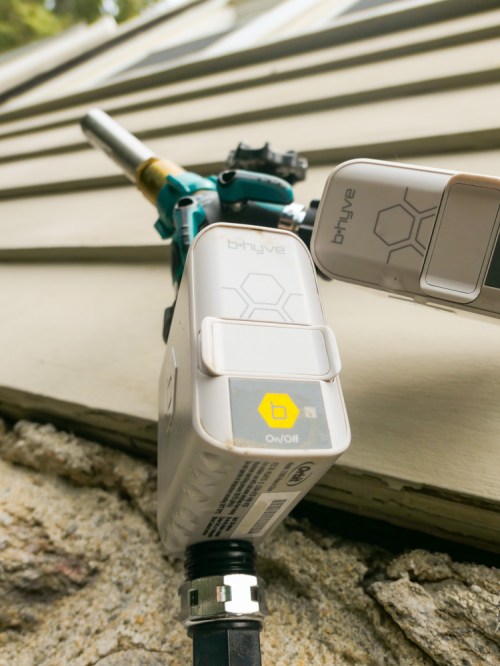
I decided to go with a solution made by Orbit called the “B-hyve Smart Hose Faucet Timer with Wi-Fi Hub.”
Admittedly, part of my B-hyve decision was based on the reality that I was leaving for vacation in less than a week, and my local Lowe’s carried it.
(Of course, I wanted to test out my $70 investment for a few days to ensure it would operate properly.)
If you’re not in such a rush, the B-hyve costs slightly less on Amazon Prime at $67.79.
My disclaimer aside, I really didn’t find a lot of other Wi-Fi watering choices out there for systems that aren’t permanently installed.
So, I opened up my B-hyve box and got to work…
The Set Up
The first step was to download the B-hyve app to my iPhone. As with many IoT devices today, you control this smart timer via the app.
Next, I plugged in and paired the little Wi-Fi hub to my home Wi-Fi network.
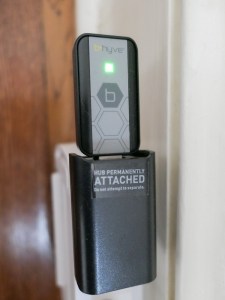
The hub needed to be positioned relatively close to where the on/off timer would be located outside, because the timer and hub communicate via Bluetooth.
The final step was to power the timer with 2 AA batteries, screw it onto my outdoor faucet and pair it to the hub via the app.
I wouldn’t say the final step was exactly seamless, and it took me a few tries to figure the whole configuration out.
I think part of my problem was the app wasn’t entirely intuitive… but it eventually worked for me.
Exploring Manual Override
Once everything was connected, I eagerly set up my watering schedule on the app.
You can also manually activate the timer by holding down its one little button for a few seconds. Tap it again to turn it off. Alternately… using the app, you’re able to schedule a specific number of minutes for the water to flow.
(Nice)
There’s also the option to manually activate the timer via the app.
(Even nicer!)
Look Out for Water Hammer
The one plumbing challenge I encountered was a loud ‘bang’ in my water pipes every time the B-hyve turned off. That stress effect is called ‘water hammer,’ and it’s the result of the flow of water suddenly hitting the little wall of the timer in off mode.
The solution is to add in a screw-on water hammer arrestor between the faucet and timer to absorb the water hammer effect.
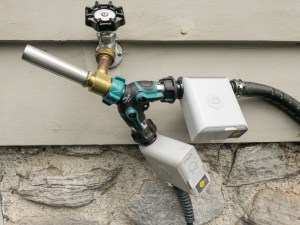
That’s what I did, and it made a big difference.
Message Received!
My Orbit B-hyve system passed my pre-vacation tests, and I’m happy to report it operated flawlessly while my family and I were away.
One of app’s best features was how it reminded me that it was actually operating… It sent me notifications that confirmed when scheduled watering has completed.
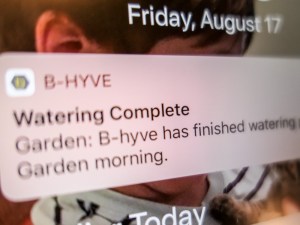
How’s that for vacation peace of mind?!
Water-Saving Option
The B-hyve app has other more advanced features that I didn’t activate… like a 24-hour rain delay mode that will cancel a scheduled watering session when there’s bad weather in the forecast.
That’s nifty, but I just wanted to use the basics for this first-time use.
Fail-Safe Mode
So, you might be thinking that the B-hyve’s Achilles heel is if your home Wi-Fi goes down when you’re away on vacation. The good news is the timer keeps operating on its last-known schedule.
I ran into this scenario a week after we got back from vacation…
I think the Wi-Fi hub got knocked askew during one of our son’s playdates, and it lost power.
The app actually notified me the next day that it had lost the connection. I didn’t pay attention, because my sprinkler was still hitting its schedule.
(Silly human)
I finally noticed the problem by accident when I was picking up a piece of LEGO on the floor near the Wi-Fi hub and didn’t see the blue glow of the hub.
So Helpful… Even When You’re Home!
My Orbit B-hyve is a welcome addition to our growing smart home and has solved my lawn watering dilemma while we’re away. Plus, it’s also added a certain ‘regularity’ to my lawn watering when I’m home.
(Not that I’ve ever forgotten to water the lawn in the morning, before I head out to work…)
Happy lawn.
Happy homeowner.
Thank you, B-hyve.


 At Home with Tech