At Home with Tech

Unlock the power of all your technology and learn how to master your photography, computers and smartphone.

Category: Tech Fixes

How to Ensure a UPS will Protect your Computer during the Next Blackout

Do you know how old the support systems are that power your tech? Sometimes your backup plan needs an update. Here’s what happened to me.

Do I protect my home office computer from power surges? Well, of course I do. But I go further than a simple surge protector. I bathe the power flow through a UPS (Uninterruptible Power Supply) to provide a cleaner AC feed than my wall outlet can. Plus, my UPS offers some battery back-up juice to smooth over any brownouts or brief blackouts.

Think of it as ‘conditioning’ your power. Because no computer likes a dirty power feed.

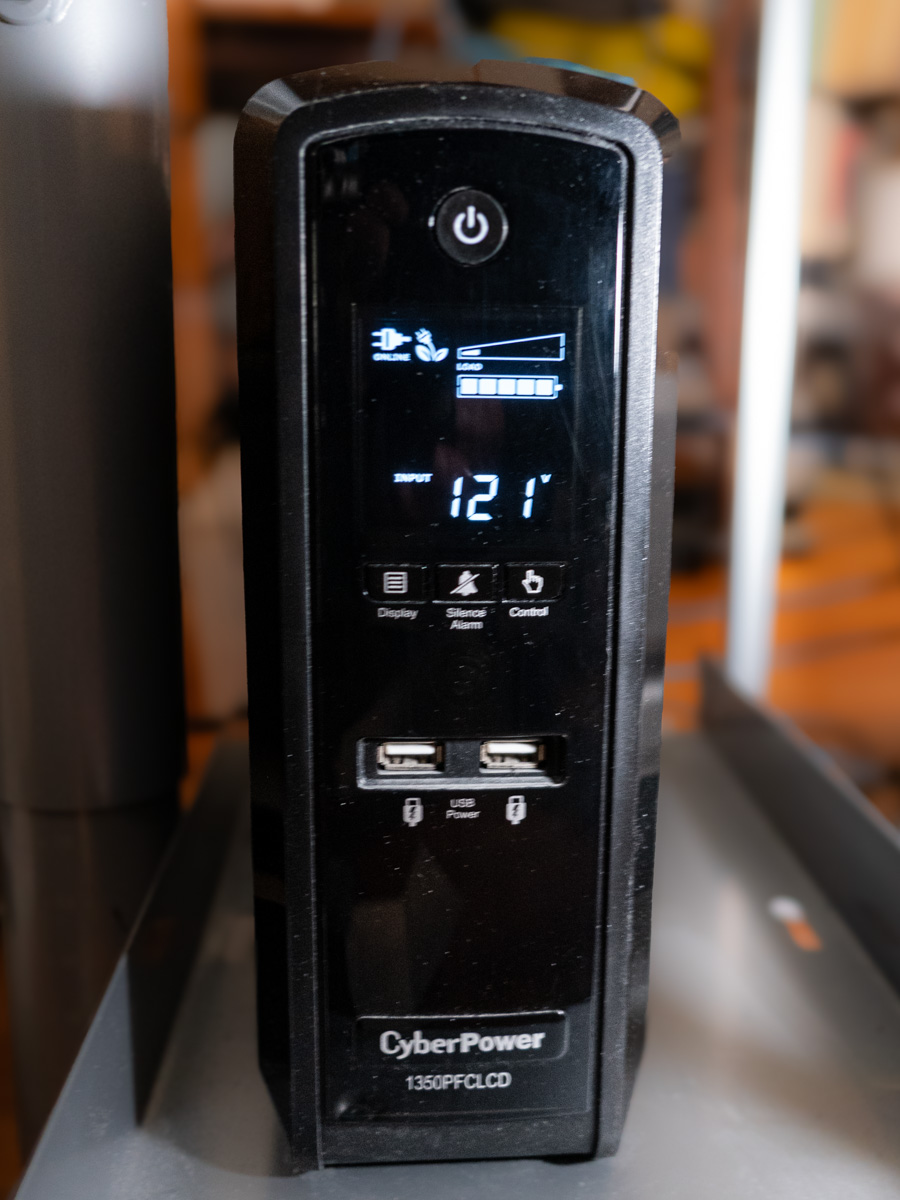
I have a CyberPower UPS.
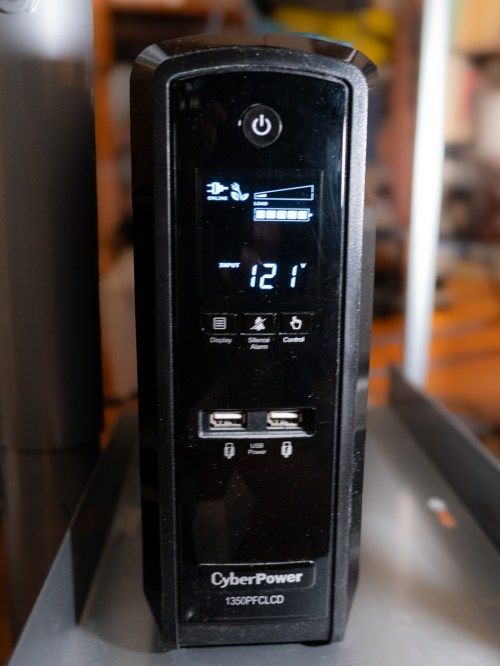
It’s the CyberPower PFC Sinewave Series CP1350PFCLCD, 1350VA/810W Pure Sine Wave UPS ($229.95).

Previously on At Home with Tech
I set up my CyberPower UPS years ago and then mostly forgot about it. Sure, there are ways to monitor the health of a UPS through a USB cable connection, but I stopped doing it after I upgraded to newer Macs (reasons unclear).

Across the years, my CyberPower UPS would occasionally kick into a self-check mode. So, I figured everything was okay.

But I’ve realized that wasn’t the case. In fact, after two recent ‘incidents,’ my UPS was clearly in trouble. And that meant my Mac Studio was flying with no net.

When your World Goes Dark
The first situation was a power outage on my street that coincidentally happened while my wife and I were out on a Sunday walk in our neighborhood. When we returned a half hour later, my Mac Studio was dark, and all signs of power on my desk had evaporated.

I turned to my UPS. It too was dark, though it projected a sickly clicking sound.

Huh… Well, maybe it just drained out after 15 minutes or so… That’s all it’s really rated for. Still, I had concerns. Fortunately, my Mac was not damaged by the incident.

Then, a week later, for no apparent reason my sleeping Mac Studio suddenly lost all power. (The comforting white dot had just disappeared.)

I was right there at my desk working on something else when I noticed my Mac’s condition. The lights in my office hadn’t flickered. Nothing else suggested a power brownout. And then I heard that eerie clicking sound coming from the UPS again.

Okay… something was definitely wrong.

I rebooted the UPS and then considered the facts. I took a moment to research when I had originally bought my CyberPower UPS.
(That was easy, because I wrote a blog post about it.)

Could my UPS really be a decade old? In fact… it was. Clearly, no battery lasts forever. Ten years is really pushing it.

I’m no engineer, but it seemed clear my UPS had simply reached its end of life.

Time to Replace the Battery
My first thought was to replace the whole unit, but it’s a higher-end model, providing a cleaner ‘pure’ Sine-wave power feed.

Perhaps I could just replace the massive battery for a fraction of the cost. It’s actually constructed that way. And in fact, Amazon sells the CyberPower replacement battery for 81 bucks.

That seemed like the better move, but it was going to take some installation work. I figured… how hard could it be?

So, I went for it… Click.

Mission Possible
The eight-pound package arrived.

Clunk.

I unpacked it and then unplugged the UPS to prep it for surgery. I felt like I was working in a Jefferies Tube on the Starship Enterprise. So, I embodied my inner Scotty and got to work.

With some force, I slid off the front cover of the UPS, revealing a nest of wires covering the battery in the back. As I tried to carefully move all the wires to the side, the main wire connector dislodged and popped away. D’oh! Now, I was in a scene from “Mission Impossible.” (Fortunately, a countdown timer did not activate.)

I pulled out the old battery and slid in the new one. Then I tried to reattach the wire connector. Yes, it felt a bit like a ‘cut-the-red-or-black-cable’ choice. That’s because I didn’t know whether ‘up’ or ‘down’ was the correct orientation. But it all clicked in. (I heard that satisfying ‘snap.’)

Then, I slid on the front cover, screwed it in, and put the UPS back in place. I powered it up and let it charge. I brought my computer and monitor back online, and everything seemed to be… okay.

Tether Your Mac via a USB Cable
I also connected a USB cable from the CyberPower’s USB port to my Mac Studio. (I’d never done it for this particular Mac.)

This important data tether enables your Mac to share the status of a connected UPS. (Brilliant!)

Plus, once a UPS is connected this way, you can then instruct your Mac to safely power down in the early moments of a blackout while your UPS is still capable of feeding backup power. Here’s how to do that:

Go to:

  • Go to System Settings
  • Click on Energy Saver

If your UPS is connected via USB, the ‘UPS Options’ button will suddenly appear. From there, you can select from several choices on when to safely shut down your Mac.

I instructed my Mac to automatically power down when my UPS reached 25% capacity. (There’s also the option for battery-time remaining and UPS-time used.)

For more advanced control, you can also download CyberPower software, but this simplified data feed was enough for me.

Returning to Warp Speed
Now, I can also see a power icon on the right top bar on my Mac’s desktop. It reports that the UPS is connected and I’m at 100%.

Warp power has been restored, and this episode has a happy ending.

It’s also a cautionary reminder that a set-it-and-forget-it mentality is never the best strategy for maintaining your home tech’s health.

Replacing the battery may seem like an obvious solve. You just need to remember where they all live and how old they are.

Do you?

How to Catch Urgent Calls when your iPhone is on Mute

Occasionally, you’ll simply miss a call, because you’ve misplaced your iPhone. Otherwise, here’s how I silence calls I don’t want while also allowing the important calls in my life to get through.

I sometimes feel like the Grinch. “All the noise, noise, noise… noise!” With all the unwanted phone calls and emails, I want to scream, “Stop! Go away!” It’s disruptive, increasingly overwhelming, and I want none of it. (Sound familiar?)

The biggest source of disruption was my trusty iPhone which interrupted me throughout the day with calls from unknown numbers and people (or robocalls) I instinctively knew I didn’t want to speak with. (Sure, my iPhone is forever in vibrate-only mode, but too much of that silent-but-buzzy haptic sensation can make you twitchy.)

Contacts Only
So, I shut it down. No, not the phone. But I restricted the list of numbers that could get through to just my contacts. (If you are anyone else, you’re welcome to leave a message.)

Yes, it a was draconian step, but necessary.
Here how to set up this communication limit on your iPhone:

  • Go to ‘Settings.’
  • Tap ‘Screen Time.’
  • Tap ‘Communication Limits.’
  • Tap ‘During Screen Time.’
  • Tap ‘Contacts Only.’
  • Then ‘During Downtime’ can be restricted further if you want.

The result created more serenity in my life, and I was grateful. But there was still another problem waiting for me at the other end of the equation…

You Can Still Miss a Haptics Call
I realized that it was sometimes difficult for my family members to reach me on my iPhone. Of course, their calls and texts got through via haptics mode, but it was still easy for me to miss those important moments.

The fix would be if I could set up a ringtone bypass that would allow my wife and son’s calls/texts to gain back their audio oomph.

Well, as it turns out, Apple gives your iPhone that exact capability!

Ring and Text Tone Emergency Bypass
In your Contacts app, you can set up individual contacts to be able to reach you with the power of full audio ringing or pinging, regardless of how your iPhone is otherwise muted.

Here’s how to do that:

  • Tap ‘Edit’ for a specific contact.
  • Tap on ‘Ringtone,’ which is set to ‘Default.’
  • Then on the next page, tap on ‘Emergency Bypass’ to turn it on.
  • Repeat these steps for ‘Text Tone.’

That’s it.

Your Updated Communications Plan
When you’ve finished tweaking these iPhone settings, you will have more effectively tuned out what you don’t want while enabling the important people in your life to better connect with you.

Sanity restored.

How 3 Computer Screens can Enhance your Work at Home

If you’re struggling to manage multiple windows on your computer screen while working from home, then it’s time to get yourself more screen real estate. It’s okay to admit it. Six monitors might be too many, but here’s what I did to get to three.

How many programs or apps do you juggle on your computer screen during your work day? Several Microsoft Word docs? Perhaps a Google Slides deck? Emails? Multiple web pages? Texting program? If you’re a creative, maybe you’ve also got Adobe Premiere or After Effects running. Where can you possibly put all that? Sure, you can minimize and hide windows, but you know… out of sight… out of mind.

It’s a constant struggle to keep your desktop organized and quickly find what you need. And you can never see everything simultaneously. You’d need a massive screen for that.

Well, of course they make larger screens for your computer. And if paired with a laptop, you also get the extra benefit of having a second screen. But some people keep their laptop closed and just use their external monitor. I think that’s a missed opportunity.

Stop Looking through a Pinhole
I know. Lots of folks do just fine using their tiny 13” laptop screen. Heck, 15” laptop screens are considered massive by comparison. But I know I’m not alone in feeling even that’s not enough room to do your work if you spend most of your day on a computer.

An office environment can often accommodate for this need with multi-screen stations you can easily plug into. But if you’re working from home, you’re usually on your own to figure it out.

Well, I’ve got a bold message to share: It’s really time to stop struggling.

Stop ‘making do’ with your tiny laptop uncomfortably crammed in the corner of your home. Why not reprioritize your existence and acknowledge your reality? It’s not temporary anymore.

So go ahead and redesign your space to set up a larger monitor for your laptop. If you’ve already got one monitor, consider buying a second one!

Yes, you really need it! It’s okay to admit that you do.

And let me tell you, when you allow your field of computer-screen vision to spread out more, it’s like putting on glasses for the first time…. Simply glorious.

Adding a 24” Screen to a 27” Monitor on my Standing Desk
I’ve been using a 27” LG monitor for the past few years with my laptop. They sit on my 42” wide standing desk in my home office. But I finally decided it just wasn’t enough. I really wanted a three-screen setup.

My standing desk is positioned in front of a window across from a separate V-shaped desk that houses my personal Mac Studio and a 32” HP ‘Z’ monitor.

Years ago, I chose to separate my work and play spaces in my home office. Perhaps that’s unnecessary, but it feels right for me. So, on the days when I work from home, my commute is a simple 150° swivel of my chair, and I’ve arrived.

No, I didn’t have a ton of extra room on my standing desk, certainly not enough for another 27” monitor. But I believed I could squeeze in a 24” monitor to help me gain additional screen real estate.

I knew it wouldn’t look pretty. I wouldn’t win any home-office feng shui awards. It would be a “Matrix”- like clutter vs. an airy starship design. And that’s okay. You go with what you’ve got.

So, with holiday sales swirling about, I finally allowed myself the freedom to buy a second additional screen for my laptop.

My New 24” Dell Monitor
I went with a 24” Dell UltraSharp USB-C Hub Monitor (U2424HE). The ‘hub’ functionality made it easier to tether to my existing set up without having to buy a separate hub device.

The USB-C connection to my laptop also feeds power to my laptop, which is a nice bonus, reducing cable clutter.

The IT Guy Finds a Challenge
The setup mostly was plug and play, but you really must know where to plug everything in. There were no directions in the box. (The quick setup sheet didn’t talk about multi-screens.)

I eventually found the 116-page manual online. The PDF was crammed with every possible detail. It described 14 connection options, each pin designation for the RJ45 plug and the emergency steps to take if you have to quickly dump the warp core (Trekkie joke). I scoured though this manual nobody ever wants to read and finally found page 55.

MST on Page 55
It’s titled, “Connecting the Monitor for USB Type-C Multi-Stream Transport (MST) Function.” (MST? Are we supposed to know that acronym?)

In short, page 55 told me to connect the Dell to my laptop with the USB-C cable and then tether the two monitors with the DisplayPort (DP) cable. (easy)

And then it simply worked. All my screens began to glow, and so did I. But please take note that you really do need to bring your inner IT Guy for this.

The Power of 3 Monitors
I think the irony and the truth behind this story is my secret desire to ultimately surround myself with 360° screens. Well, I’m on my way…

For now, I’ve got my laptop screen, my 27” LG and my adorably mismatched 24” Dell. Everything fits. And the extra monitor really makes a big difference. (Barrett is happy.)
Here’s my upgraded standing desk setup with my personal laptop displaying Adobe Firefly images I’ve created for my blog.

Maybe one day, a less expensive next-generation Apple Vision Pro will transport me into a more evolved virtual workspace environment and better serve my needs.

For now, all that matters is I’ve successfully expanded my access and visual connection to the many details constantly flowing through my computer.

More clarity through working smarter. I highly recommend it.