At Home with Tech

Unlock the power of all your technology and learn how to master your photography, computers and smartphone.

Category: Tech Fixes

Five Ways to Help Make Your Tech Behave
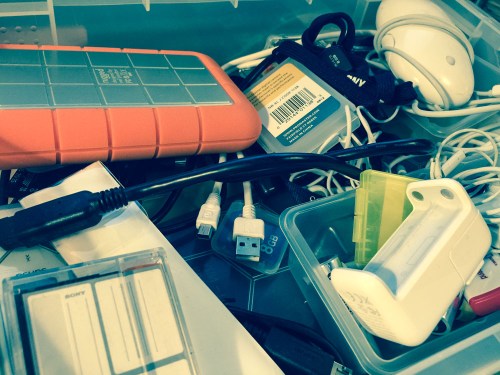
I am embarrassed to reveal what is supposed to be a box of ‘organization’ for my tech. And believe me, this is not the end of it. The good news is there are ways to beat back your digital mess. I’ve got some tips to keep your zeroes and ones in order…

Don’t let the cold spring rain dampen your intentions to get your tech better organized. It’s a perfect time to tidy up. Just because your digital files don’t take up a lot of physical space doesn’t mean they’re not cluttering up your life!

Here are my five tips to help you fight the battle…

1.
Delete Half of Your Email
Have you lost an important email recently? If so, I bet you’ve got too much hanging around.

Let’s face it… you don’t need to hold onto most of your personal email. Much of it is probably unwanted marketing messages anyway.
(Usually from companies you naively gave your email address to in the first place)

And if you’ve got thousands of unread emails stacked up, that’s also a sign it’s time to thin out your in-box.

My favorite way to keep the job manageable is to simply sort by sender, select huge email chunks, and then delete away.
Don’t be shy…
(And it feels so good!)

2.
Organize Your New Family Photo Files at Least Once a Week
There’s really only one way manage the hundreds of photos you’re likely snapping a month:

  • You’ve got to regularly go through them on your computer and organize them into content buckets.
  • And to be really effective, you’ve got to delete the mediocre pics.
    (They’re never going to get any better!)

I think rolling up your sleeves once a week should do it.
Here are a few tips on getting the task done.

3.
Buy a New Memory Card for Your Camera
Have you realized that SD cards have become so inexpensive?

Case in point:
On Amazon, I found this
SanDisk 32GB Ultra Class 10 SDHC UHS-1 memory card for $6.79.

Originally, the magic of digital photography was the mind-blowing concept that it didn’t cost you anything to snap a photo. You’d just delete the older photos on the card and your camera could keep on going… forever.

But no matter how much memory your card’s got, it does eventually run out of space.
(Especially if you like recording videos)
Because who’s really got the time to pay attention to how many MBs are left?

It takes some ongoing effort to delete the hundreds and sometimes thousands of photo and video files… unless you want to simply clear the whole card and start over.

I don’t know about you, but time is always something I need more of…

Have you ever found yourself struggling to quickly delete the old photos off your camera’s SD card right before you want to capture a priceless moment?
(It’s maddening.)

So here’s a radical concept…

  • Don’t try to keep up with your nearly filled memory card. When it’s time, just replace it.

It’s okay to buy new SD cards every so often to make sure your camera is ready for action. Sure, that’s a bit wasteful, but it’s not like having a tiny stack of old SD cards lying around is going to mess up the house.

Plus, SD cards don’t last forever. So it’s probably a good idea to recycle out the older ones every couple of years.
(You really don’t want to wait until a card with priceless photos turns into an unreadable plastic square.)

4.
Update the Software on Your Computer
Pop Quiz:
How often have you dropped what you’re doing to comply with this message on your screen: “Updates Ready to Install.”

Exactly.

Nobody wants to take the time to update your software. But you’ve got to do it!

I’m not saying you should be the first to install an update.
(That can also lead to problems…)

But if you wish to keep your computer healthy, updated software should be part of your plan…

5.
Get Rid of Your Old VHS Tapes
If you haven’t yet converted all that old content off your dusty tapes into digital files, it can’t be that important.
VHS is dead tech. Let it all go…

Enough said.

Bonus Tip!
Remember that new piece of tech you recently bought?
Register it online now, while you still know where the receipt is!
You don’t want to lose out on the manufacturer’s warrantee…

The Endless List
If you’ve got all of these digital projects already handled, congratulations.
(You must not be the parent of young children.)

So let me throw one more task onto your ‘to do’ list.
Are you caught up on making all those photo albums you’ve been meaning to create online?

Uh huh.

Get to work…!

How to Create Videos with Ken Burns Photo Zooms in 10 Steps

If you don’t know what to do with all of those photos you snap, why not make some videos out of them with cool zooms. Don’t know how? Well, today is your lucky day!

In the spirit of April Fools’ Day, I’ve decided to play a little hide and seek with a few of my photos and the Ken Burns effect in Final Cut Pro X. Can you figure out what the photo is before it zooms out?

I’ve got seven pictures to share in a little over 30 seconds…
Go!


Quickly Create a Photo Montage Video with Ken Burns Effect in FCP X

Here’s how I pulled it all together…

1.
Find a few unusual horizontal photos in your Lightroom collection.
(What? You don’t use Lightroom? Here’s how to switch.)

2.
Export your photos into a separate folder.

3.
Open Final Cut Pro X.
(You can also use Adobe Premiere Pro… although these steps are for FCP X.)

4.
Import the photos into a new timeline.

5.
Use the Ken Burns zoom effect, which you can access by first clicking ‘Crop’ on the bottom left drop down located next to the right video window.


6.
And then click on ‘Ken Burns.’


7.
Add a brief freeze frame to the top of each zoom to help set up the tight shot by clicking on the ‘Edit’ drop down menu and then clicking on ‘Add Freeze Frame.’


8.
Then, just freeze the very first frame of each zoom and add it to the timeline.


9.
Go to freemusicarchive.org to find some music.

10.
Export and voilà!

How to Quickly Delete Multiple Photos from Your iPhone

If your iPhone is running out of space, one way to find more room is to delete photos. But that can take a lot of time if you haven’t been regularly doing it. Here are tips to help you speed through this digital chore.

You really don’t need all of those photos in your iPhone’s ‘Camera Roll.’  Especially if you always download them to your computer or up to the cloud where they ‘officially’ live and are safely backed up. But manually deleting one photo at a time using the Photos app on your iPhone is a losing battle when you’ve built up thousands of photos.

And eventually, you start to run out of space on your iPhone, and then it becomes a real problem.
(Sound familiar?)

There needs to be a faster way to thin out your photos in bulk.
Well, of course there is…

Time for some digital spring cleaning!

Bulk Delete Pics on your iPhone
First, go to ‘Camera Roll’ in Photos…

  • You’ll see the ‘Select’ icon in the top right corner that allows you to tap and highlight multiple photos at the same time. Tap that.
  • Then, tap the trash icon on the bottom right.
  • Finally, touch the delete tab that pops up and you’re done!

But for me, that simple process still feels somewhat limited when you’re trying to move through so many photos. Plus, I’d prefer a larger canvas to work with than the surface of an iPhone.

Ideally, I’d like to be able to manage this process on my iMac so I can see more photos all at once.

Well, guess what?
You can do exactly that using the ‘Preview’ app on your Mac.

Bulk Delete those iPhone Photos Using Your Mac
First, you connect your iPhone to you iMac or MacBook….

  • Then, open up Preview.
  • Select ‘Import from’ your iPhone’s name.
  • Then click on the photos to delete.
  • And finally, click on the little red delete circle icon on the bottom left.

BAM!

So the truth is both methods are extremely similar. Again, the big difference is you’re working on a larger screen, which makes me much happier.

And if Preview isn’t right for you, the ‘Image Capture’ app on your Mac pretty much duplicates the same process as Preview.

Simple Isn’t Always Easy
To be perfectly transparent, this topic squarely falls right under the
“How Did I Not Know That?” category.

Apple designers have done perfectly fine in setting this up for us.

But sometimes the obvious solution that’s staring right in your face requires a little more thinking on your part.
(Chalk it up to your brain power focusing on more universally pressing issues.)

I must admit… not so long ago, it wasn’t so ‘obvious’ to me either.
Or I’ve never taken the time to want to delete multiple photos from my iPhone.
(I’m not sure which one I should admit to!)

And the fact that you’re still reading this suggests that you also might need a little ‘refresher’ too.

I won’t tell anyone… as long as you don’t!

#ThingsYouShouldKnow