At Home with Tech

Unlock the power of all your technology and learn how to master your photography, computers and smartphone.

Category: Tech Fixes

Like It or Not, You Need the Photos App to Share Your Pics

Adobe’s Lightroom is great… Until you realize it can’t do everything for you. Apple still holds the keys to using your shared photo albums in your iCloud account. If you don’t want to leave those behind, you’re going to need a Lightroom workaround to get your pics back into Apple’s Photos app…

Adobe’s Lightroom is great… Until you realize it can’t do everything for you. Apple still holds the keys to using your shared photo albums in your iCloud account. If you don’t want to leave those behind, you’re going to need a Lightroom workaround to get your pics back into Apple’s Photos app…

I was free! Free of Aperture, Apple’s expired photo-editing software. Last week, I successfully moved from Aperture to Adobe Photoshop Lightroom 6. I passed on upgrading to Apple’s newer Photos app for OS X, because it isn’t as powerful as its predecessor. I felt I had no choice but to jump ship and go over to the enemy.

Lot’s of folks love Lightroom. Plus, I knew I was joining an established and healthy photo-management ecosystem.

It was a brand new day, and I looked for the sunrise…
But it never came. I had left the Apple universe, and the benefits it provides.

Suddenly, I realized…
How was I going to share my photos with my family and friends?
Holy frak…!

No More iCloud Shared Albums?
Sure, I was newly empowered to edit and manage my family photos using Adobe’s advanced and robust Lightroom.
(Though I’m still trying to figure out how to export my edited photo ‘versions’ out of Aperture with their creation dates intact)

But I quickly realized my photo-sharing process had been cut off. Adobe software doesn’t have access to iCloud where I used to effortlessly create my shared photo albums for the rest of my iPhone-carrying community. All that took was a simple drag and drop in Aperture.
(Remember, I’m currently choosing not to use Apple’s Photos app, which of course would easily do the trick.)

Sure, Lightroom can share photos directly with Facebook and Flickr. But I really didn’t want to pain my peeps to visit a new place to view my pics. That could get complicated for some, and I’d lose them…

iCloud sharing was already so simple…

Spanked!
Deep down, I always knew I’d be punished for using a product that was better than Apple’s. Punished for my lack of faith…

Apple, please take me back!
I know there’s got to be a way to find the path back to my iCloud account…

And in fact… there is.
But there’s a catch.
It’s going to take an extra ‘few’ steps.

How to Move Your Lightroom Photos into iCloud’s Shared Albums
Here’s the strategy for the workaround…

You’ve just got to export your photos from Lightroom to a place where one of your Apple devices can open and save them via the Photos iOS app. Once ingested into Photos, you can then immediately add your pics to your shared albums.

Because I’ve left behind my old iPhoto and Aperture programs, and since I’m not using the Photos app on my iMac, I can’t do any of this using my Mac. Instead, I need to export my Lightroom pics to my iPhone or iPad. And then they can take my photos to the finish line!

There are several ways to do that…

The easiest path for your photos to travel from an iMac to an iPhone/iPad is via AirDrop.

Alternately, you can export your photos from Lightroom to a different cloud account that your iPhone/iPad can also connect to. Then, you would save the photos and quickly add them to your photo streams.

For example, let’s use Dropbox:

  • Export your photos from Lightroom to your Dropbox folder on your Mac
  • Open your Dropbox app in your iPhone/iPad to see the photos
  • Save the photos to your iPhone/iPad
    (Which brings them back into the Apple ecosystem)
  • Open the Photos app on your iPhone/iPad and tap the share icon
  • Tap iCloud Photo Sharing
  • Choose your “Shared Album”
  • Tap “Post”

Let Me Count the Ways
Okay… so that takes eight steps to accomplish what used to take two.
Not exactly quick and easy.

That’s why it’s called a workaround.
…But it gets the job done.

And it’s somewhat ironic that as much as I’m shunning Photos for OSX, the iOS version is absolutely essentially to continue using my Apple shared albums.

There’s also some collateral damage… you ending up storing these shared photos locally on your iPhone/iPad as a result of the process. Sure, you can delete these pics later to free up some storage, but that takes even more steps!

I suppose the silver lining is you’ve got a complete local backup of some of your best photos to use if you don’t have cloud connectivity on your iPhone/iPad.

That isn’t so bad… is it?

It would be a whole lot easier if Adobe and Apple played better together.

One can dream…

How to Switch from Aperture to Lightroom 6

If you’re not happy with Apple’s current Photos app, join the club. But if you’re starting to hyperventilate, because you know you can’t use Apple’s Aperture for very much longer… join my club. It’s time to take the journey to Lightroom.

If you’re not happy with Apple’s current Photos app, join the club. But if you’re starting to hyperventilate, because you know you can’t use Apple’s Aperture for very much longer… join my club. It’s time to take the journey to Lightroom.

I’ve been dreading this day. I knew it was coming, and I avoided it as long as possible. But if you’ve been procrastinating, like me… then you’re going to be in trouble. And you even run the risk of erasing your past…

We’re talking about my delayed response to Apple’s abandonment of both iPhoto and Aperture. I’ve been using Aperture as my photo editing/management software since 2012. But now, it’s finally just a matter of time until Aperture won’t work on future OS upgrades.

So it’s kind of critical that I escape from my beached behemoth, which contains tens of thousands of photos, documenting my family’s history.

I believe it’s an imminent crisis I will wake up to one day soon, and my personal deadline was last week to take action. Here’s what happened…

No Thank You, Photos
I decided that Apple’s relatively new Photos app for OS X wasn’t my solution…
(Easy as that could be)
…Because its functionality is a downgrade from Aperture.

I’m sure Photos is fine for many folks, who just want to organize and share their pics with some minor image adjustments. And the price is right as Apple just bakes it into the OS. But I’ve been trying to teach myself the art of creating the better picture.
(Granted… a work in progress)

To find the right software to help me in my ongoing quest, I had to look elsewhere…

Hello, Lightroom
As I considered the competition, Adobe Photoshop Lightroom 6 quickly rose to the top.

I was partial to buying the standalone Lightroom 6 license for $149.
($142.99 for the DVD or $142.00 for the download at B&H Photo)

But you can also get Lightroom as part of the Creative Cloud package, which is bundled with other Adobe products like Photoshop. That choice is going to cost you $9.99/month. You get a whole lot more with the CC package, but you have to keep paying for it. So you’ve got to decide what’s right for you…

I actually bought the Lightroom standalone DVD a couple months back…
(Trying to stay ahead of my personal upgrade schedule)

But I was just too nervous to open the box. Not because I didn’t want to learn a new photo-management interface, but because I didn’t really know how to rescue all of my photos out of Aperture and safely get them into Lightroom.

And my online research on the migration process suggested it was not a pretty picture.

Importer Vs. Exporter
Sure, there’s a ‘simple’ Aperture Importer located in Lightroom’s Plug-in Extras.

Or alternately, you could buy the Aperture Exporter app for $19.99.

But the devil is in the details.
(We’ll come back to this…)

Install Lightroom Correctly
First things first… You need to get Lightroom 6 properly installed and optimized.

After completing your install, don’t forget to run Updates, which is located in the Help drop down.

As Lightroom is considered more of a ‘professional app,’ there are a number of settings in Preferences and Catalogue Settings you can tweak to make Lightroom work best for you. So spend some time there first, before you begin to import your first photos.

I am just an aspiring Jedi in this new galaxy. So here are two more videos to help you get started and properly organized using Lightroom.

And a few more helpful hints about how Lightroom is set up compared to Aperture:

  • Aperture Adjustments = Lightroom Develop
  • Aperture Projects = Lightroom Folders
  • Aperture Albums = Lightroom Collections
  • Aperture Folders = Light Collection Sets

Also, if you want to move photos around from one folder to another in Lightroom, drag from the center of the photo!
(I first tried dragging from the pic’s corner, and Lightroom entirely ignored me.)

The Golden Rule
One huge change from Aperture to Lightroom is Lightroom doesn’t hoard and hide your photo folders within the program itself.

Aperture did this by ‘managing’ your image files.
(Admittedly, Aperture also offered the option just to look at your ‘referenced’ image files located elsewhere, but unfortunately I never set up Aperture that way.)

As a result, my photos are all locked up in Aperture.
(We’ll come back to this.)

Lightroom respectfully references your separate photo folder structure. And then it organizes and adjusts the images only its own database. Your original photos remain in their easy-to-find folders… untouched.

That said, the one Lightroom golden rule I’ve run across numerous times is to move your photos and photo folders around only in Lightroom.
(After first creating or connecting your photo folder structure to Lightroom)

Apparently, since standard photo folders on your hard drive are so easy to see, amateur Lightroom users sometimes move their photo folders around outside of the Lightroom program. When that happens, Lightroom can’t find the photos anymore.
(Makes sense, right?)

The fix is to reconnect Lightroom to your ‘missing’ photos.
(That’s not necessarily a problem… as long as you don’t forget where your photos are.)

Where are the Keys to Your Photo Kingdom?
Riddle me this:
So how are you supposed to export the archive of all of your adjusted images from Aperture to Lightroom?

The short answer is I’m not quite sure…

Both the Aperture Importer plug in and the third-party Aperture Exporter app can’t get your photo library into Lightroom with all the tweaks, improvements and changes you’ve made to your photos. Apparently Lightroom can’t read that kind of Aperture metadata.

You can only transfer the original photos, folder structure and other metadata.

WHAT?!

You can’t migrate your photos with all of your applied changes?!

Other than maintaining the actual photos and providing organization, isn’t holding onto your adjustments a critical need?!!
(I’ve probably spent the equivalent of months tweaking my photos over the past ten years.)

Again… I’m not absolutely certain, but all of my research points to this distressing reality.
(If anyone out there knows another answer, please add your two cents!)

Plan B
Let me know when you’re done hyperventilating.

Okay… so…
(Too soon?)

Now?
All right. Let’s continue…

So what the frak are we supposed to do now?!

We’ll, here’s a homegrown plan I’m considering…

Instead of trying to accomplish a complete Aperture library transfer of my original photos without all the tweaks I’ve made, I will instead manually export groups of adjusted photo ‘versions’ (not original photos) from individual Aperture projects. These photo versions will go into new photo folders I’ll create for Lightroom to access.

  • But I’ll only transfer over the best photos (the ones I’ve rated ‘5 stars’) and leave the rest behind.
    (I know that may seem harsh, but my plan has always been just to use my 5-star photos for photo book creation and long-term archiving.)
  • That means I’ll also be leaving my original photo files behind in Aperture, but I created all of those tweaked ‘versions’ for a reason, right?
    (Do I really think I’m going to go back the originals to tinker with a shot from 2009?)

Plan C?
But there are two problems with Plan B:

  1. It’s probably going to take me weeks (months?) to complete.
    The silver lining is this workaround will force me to do the spring-cleaning on my photo library I’ve been meaning to do for years. At the end of the process, I’ll have a leaner and meaner group of photos to take forward that really matter.
    (What would I do with tens of thousands of photos anyway?)
  2. (Prepare yourself…)
    All of these adjusted photo versions I’ll be moving forward won’t retain their original creation date. They’ll only display the day and date they’re exported out of Aperture into their new file folder.

Is that a big deal?
I think it is..!

Sure, all of these rescued photos can live in properly dated folders that Lightroom will manage. But what if I have to rescue these pictures again in the future? The fact that they will no longer have a date of origin could really be a huge gap.

Help!!
So the good news is I’ve officially stopped adding photos to my Aperture library as of the New Year. Lightroom 6 has been successfully installed in the Lester home and has taken over all of my new pics moving forward.

The bad news is I’ve still got to migrate half a lifetime’s worth of photos into Lightroom.
(I think I’m starting to hyperventilate again…)

Any suggestions beyond what I’m contemplating?

Next week, I’ll report on my progress in crystallizing a transfer plan.

Don’t forget:
Baby steps…

Build a Time Machine with Filament LED Bulbs

Filament LED bulbs have brought us full circle to the day Thomas Edison invented his light bulb. These vintage-looking, LED bulbs can bring you back to the future. But it can also cost you…

Filament LED bulbs have taken us full circle to the day Thomas Edison invented his light bulb. These vintage-looking, LED bulbs can bring you back to the future. But it can also cost you…

Recently, I started noticing a proliferation of really cool vintage light bulbs prominently displayed in certain restaurants. I thought it was really impressive being bathed in light by these Edison-style throwbacks. The secret I didn’t realize was these weren’t incandescent replicas. Not at all…

They were actually LED bulbs designed to mimic an illuminated filament thread.

How exactly was that possible? It seemed like only yesterday that the basic replacement LED bulb was born. And what an ugly duckling that was. But soon after, technology upgrades improved its form factor.

But this was something entirely different! An LED bulb that glowed exactly like an old-time bulb.

And guess what? You can buy these “filament LED” bulbs for your home. They’ve been spreading throughout Europe over the past few years, and now they’re becoming more readily available here…

Filament LED Bulbs are Cool
Okay, so let’s review how light bulbs used to work… Since the days of Thomas Edison, incandescent bulbs harnessed electricity to heat a metal filament to make it “white hot,” or incandescent.”

Now, filament LED bulbs incorporate thin LED strands shaped to look like vintage traditional tungsten filaments. That’s done by mounting many tiny LED chips onto a transparent substrate. And all of these low power LED chips don’t require a heat sink, which previously contributed to that alien-like construction of early LED bulbs.

Finally, the many, mini LEDs, which are often colored blue and red are then coated in a silicone resin and phosphor to create white light.

Kind of genius. Right?

Unfortunately, these filament LEDs have a shorter life than traditional LED bulbs, but we’re still talking about years.

There is however, another problem…

Not All Filament LEDs are Created Equal
When you Google “Filament LED,” seemingly dozens of websites pop up wanting to take you back to the future. And for very reasonable price, too.

It seems almost too good to be true…
As it turns out, the old adage – “You get what you pay for” still applies.

Cheaper bulbs are… well… Cheap.

They use a lower-grade silicone coating, which has a shorter life span. But there’s a more important risk that goes beyond premature bulb failure…

Bad Filament LED Bulbs Can Damage Your Eyes
Improper LED coating can create leakage of blue light from the blue LEDs. And not to alarm you… but apparently this kind of blue light exposure can cause macular degeneration over time.

Yes, I was a little non-plussed to discover the negative effects of blue LED light exposure, especially when there are plenty of electronic devices regularly glowing at you with various levels of blue LED light.

The other problem with over exposure to blue light is it can mess with your serotonin levels, which affects your sleep.

Wow.
So theoretically, a cheap LED filament bulb can really wreck your life.

But I’d imagine you’d really have to outfit your whole house with leaky filament LEDs to put your eyes and sleep cycle at real risk. And then there’s the cumulative amount of exposure it would take to be dangerous…
(Which, of course, nobody knows for sure how long that is)

My next step after absorbing all of this scary, blue knowledge was to take three deep breaths…
(And stop worrying so much)

I was only interested in purchasing three filament LEDs for one ceiling light fixture next to our kitchen. It’s a light we pop on occasionally. Certainly not a central light source that we often use. So I figured as long as I exercised sufficient due diligence to find a decently constructed bulb, I would not be putting my family’s health at risk…

In Search of the Right Filament LED Bulb
As I began my search, I first realized that I needed to remember the naming conventions of non-traditional shaped bulbs. This chart on bulbs.com is a great resource and told me that my broken bulb was an F15. So I wanted a form factor close to that in my new filament LED…

I also recalled that my ceiling light fixture was on a dimmer switch. So my new bulb had to be dimmable.
(Not all filament LEDs are)

I also looked at a few more factors in narrowing my search…

Energy Star certified is a great clue you’re getting a good bulb. Unfortunately, there aren’t a lot of filament LED makers that have earned that rating yet.

I started looking at name brands, hoping that would lead to a reasonable option. Westinghouse has a presence via Amazon. So I focused my search in that direction.

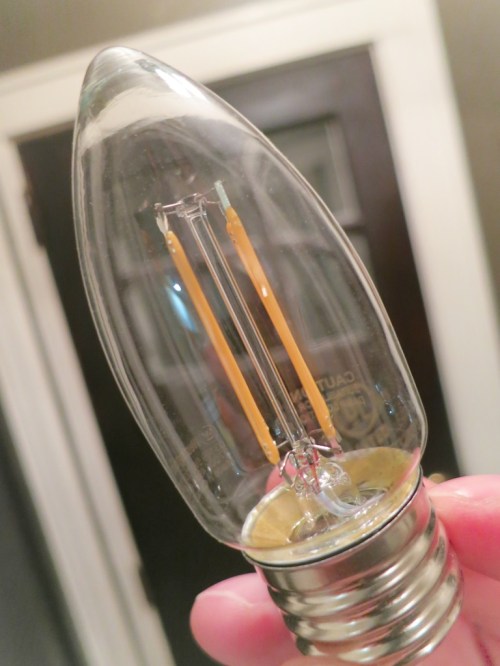
I zeroed in on this Westinghouse dimmable 5 watt filament LED ‘decorative’ bulb. (470 lumens with a color temperature of 2700 K)

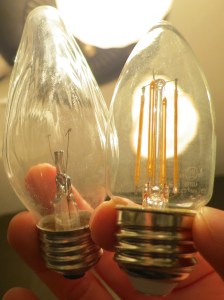
It’s actually a B11 shape, which is a bit smaller and not Christmas tree light-shaped like the F15, but I couldn’t find an F15 option anywhere…

Incandescent F15 Vs B11 Filament LED


The Westinghouse bulb costs $11.88, which isn’t cheap, but seemingly the going rate for many filament LED bulbs today.
(Happily, basic LED bulbs have come down in pricing.)

But remember… the value proposition is compelling:

  • It only draws 5 watts (as opposed to 40 watts)
  • It’s designed to last for 15,000 hours
  • So hopefully, I won’t have change the bulb again until I own an iPhone 12!

Click.

My Fascination with Light Bulbs
I dream of the day I won’t have to ever replace a light bulb. Wouldn’t that be nice?

We’re still not going to exactly get there with current LED bulb tech, but as I’ve gradually weaned my home away from incandescent bulbs, I’ve noticed a clear shift away from what seemingly used to be a weekly practice of replacing a light bulb somewhere around the house.

And who knows… one day I may actually lose my interest in writing about light bulbs.
(Don’t count on it…)