At Home with Tech

Unlock the power of all your technology and learn how to master your photography, computers and smartphone.

Category: Tech Fixes

The Best Way to Compress a PDF
Have you had the time to figure out how to squeeze your PDF to the perfect size in OS X? Here’s the good news… Now, you can check this nagging challenge off your ‘boring-tech-fix’ to-do list!

Have you had the time to figure out how to squeeze your PDF to the perfect size in OS X? Here’s the good news… Now, you can check this nagging challenge off your ‘boring-tech-fix’ to-do list!

Pop quiz: When was the last time you scanned a multipage document into a PDF on your home printer/scanner and then realized the file size was too large to use? It happens to me at least once a month… I find it’s often a problem when you want to upload the PDF online, and there are upload file limits.

Okay… so you just have to compress the file. No problem… right?
Right…..
(Please note touch of sarcasm.)

How to Compress a PDF in ‘Preview’

In the Apple ecosystem, I’ve found the native PDF compression solution remarkably… unintuitive.

That said, here’s how you do it:

Typically, when you click on your PDF, it opens up in ‘Preview.’ From there, you’ve got two choices:

Export
Go to ‘File’ on the top menu bar and look for ‘Export.’

  • Click on ‘Export.’
  • Make sure ‘Format’ is set to ‘PDF.’
  • Then under ‘Quartz Filter,’ choose ‘Reduce File Size.’
  • And then save as you normally would.

Easy… right?
Yes… but the new file that gets created looks… terrible… barely readable. Sure the file is certainly compressed, but if there’s any small text to read, it’s mostly unrecognizable.

The good news is Apple offers a second method…

Print
That’s right… you’re going to ‘print’ your PDF into a compressed file.
(Don’t ask questions!)

Go to ‘File’ on the top bar and look for ‘Print.’

  • Click on ‘Print.’
  • On the bottom left of the ‘Print’ menu, you’ll see a PDF drop-down box.
  • Click on ‘Compress PDF.’
  • Then save as you normally would.

This method creates a larger compressed file than the ‘Export’ route, and as it turns out… the resulting file looks really good.

So if the new PDF is small enough for your needs… you’re done.

For the record, this ‘Print’ method took a 5.7MB five-page PDF down to 1.5MB.
(The ‘Export’ method crunched my file all the way down to a mushy 451KB.)

But what if you want something in between the massive compression of ‘Export/Reduce File Size’ and the heftier PDFs created by ‘Print/Compress PDF?’

Use Adobe Only as a Paid Solution
If you think using Adobe Reader can help you, don’t bother. You’ve got to pay Adobe to help you with compression.
(Adobe Acrobat)

As it turns out, there are other third-party solutions… and some are free. But I’m not interested in MacGyvering this problem. I’m intentionally limiting today’s exercise to the native software that’s already living on my otherwise wonderful Mac.
(There’s got to be a way!)

ColorSync Utility to the Rescue
And, in fact, there is…

The trick is to create a new compression profile using your native ‘ColorSync’ utility. You can duplicate Apple’s standard ‘Reduce File Size’ filter there and easily tinker with the settings of your new filter.

Here’s how:

  • Open ‘ColorSync Utility,’ which typically lives in Applications/Utilities.
  • Click on ‘Reduce File Size.’
  • When you open up ‘Image Sampling’ and ‘Image Compression,’ you’ll see the main profile is all locked up.
  • So click on little upside-down triangle to the right and then click on ‘Duplicate Filter.’
  • This is the step that creates your own personal filter copy. Now you can monkey around to your heart’s content!

Here are the tweaks I added:
(Although there are an almost infinite number of variations you can apply)

  • I increased ‘Scale’ from 50% to 75%.
  • Then, I increased ‘Max Pixels’ from 512 to 1280.
    (I borrowed these setting suggestions from meyerweb.com.)

Voilà… you’ve just created your own custom Quartz filter!

  • Next, simply open up your original PDF with ColorSync.
    (Use the ‘Open With’ drop down.)
  • Go to the bottom left drop-down ‘Filter’ menu.
  • Select your new custom filter.
  • Click ‘Apply.’
  • Save as you normally would.

Bam!

This new ‘Barrett Compression Setting’ got my 5.7MB PDF down to 900KB…right in the sweet spot between the other two. And the compressed file looked almost as good as the 1.5MB compression…

And that’s all I really needed!

Don’t Forget
So there you have it… two prefab methods and a hidden path to cook up your own compression settings in the OS X environment.

It’s worth noting that much of the online chatter on this topic is years old… so I’m a little late to the party… But on the other hand, what average person is supposed to have this kind of detail readily accessible at their fingertips?
(I hope this post helps.)

In an age where your computer is getting smarter by the minute, shouldn’t a simple compress command with several size settings be readily accessible?

…Just saying.

One Stamp or Two?

Wouldn’t it be great to hold the power of postage decisions in the palm of your hand? And I’m not talking about using your hand as a scale. That’s so 1847…

Wouldn’t it be great to hold the power of postage decisions in the palm of your hand? And I’m not talking about using your hand as a scale. That’s so 1847…

The question has been plaguing me for years… One Forever stamp or two? If you fold more than two letter-sized sheets of paper into a standard envelope with only one stamp, I’ve always felt that all bets are off. Three sheets… you’re pushing it. Four sheets… definitely not.

But I’m not a human scale! How is a person really supposed to lift a letter, raise it up and down in the palm of your hand a few times and somehow figure out if it’s under one ounce?

So inevitably I’d just throw on the extra stamp, just to be sure.

And what happens to your letter if it’s a smidgen over the weight limit? It’s supposed to get returned to you, right? The next day? The next week? The next month?!

It’s like a kindergarten-style ‘time out’ for your letter. That’s a big-time punishment you really want to avoid!

Stop the Madness
And it all feels like such a business model holdover from 1847 when U.S. postage stamps were first issued.
Punishment for trying to mail an extra sheet of paper?!

If you ask me, the United States Postal Service should come up with its own Amazon Prime-style shipping model, where you pay a fee to the government once a year to simplify your letters’ mailing costs. Wouldn’t that be so much easier? But for now, we’re on our own to find a solution.

Technology to the Rescue?
I’ve finally decided this should not continue to be one of the many mysteries in my personal universe…

In an age where technology has made our lives easier on so many fronts,
(and more frustrating on just as many others)
…can’t a little tech help us out here?

Well, thankfully, I’ve already solved the conundrum of keeping up my stock of stamps at home.
(I just order them online…)

Scale Up
I think the obvious next step would be to acquire a scale…

And granted, I know anyone can set themselves up as a mini personal post office, complete with postage printer and large scale. But I don’t need to start my own package delivery company… I just need a tiny scale to handle the occasional letter.

Sure… scales have been around for years…nothing cutting edge about that, but I only require a really small digital one. Something thin that can be stashed away like a book on a shelf.
(I’m not giving up any real estate for permanent desk placement.)

Possible?

The Price is Right
I took a look on Amazon, and of course, there’s a whole selection of postal scales waiting for you to click on them.

The next question is price… Sure, the nagging ‘one or two stamp’ question can end up wasting a 49-cent Forever stamp every now and again. But is it really worth the cost of investing in your own scale?

Well, the good news is you can get a small scale for under twenty bucks.

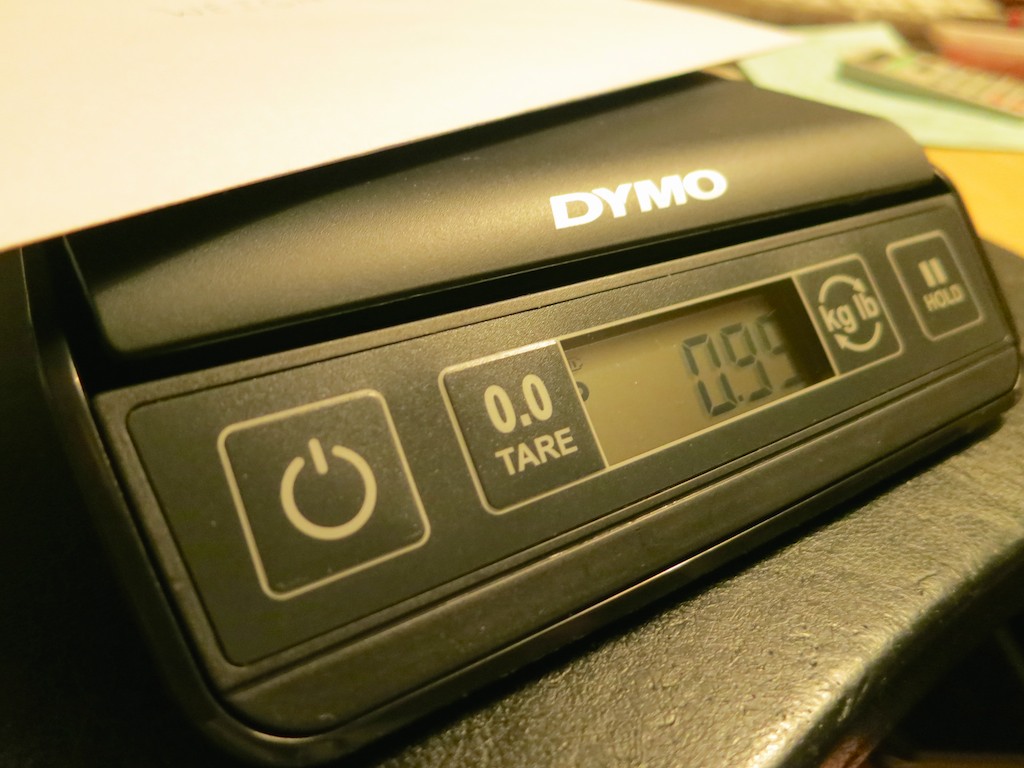
I found this DYMO 3-pound Digital Postal Scale for $18.44.
Its weight is just over a pound, with the svelte dimensions of 9” x 7.8”.

DYMO Digital Postal Scale


…Not bad!

Granted I don’t need it to weigh an object upwards of 3 pounds.
(A couple ounces is all I require.)
Nevertheless…

At this footprint and price point, I think everyone should have a little scale at home. Why not?!

Click.

How Many Sheets Can One Forever Stamp Handle?
Here are a few Forever stamp guidelines I immediately discovered after using my new DYMO scale:

  • 3 sheets of 20 lb 8.5” x 11” paper weighed only .65 oz in a standard envelope and a Forever stamp.
  • 4 sheets were .80 oz.
  • Even 5 sheets made the 1 oz cutoff at only .95 oz.

Who knew all of this can be handled by one Forever stamp?!
(All of those double-stamped envelopes I’ve wasted over the decades!)

I’m sure individual performance might vary… depending on the weight of your envelope and paper stock…

Check It Off Your Bucket List?
People have their own bucket lists. This really shouldn’t be on anyone’s.

That said, there are those nagging day-to-day nuisances that can follow you around your entire life. They’re usually not important enough to spend the time fixing. But when you do, it actually feels unexpectedly sweet.

Case in point:
Now, I’ll have to save a stamp with my new DYMO scale at least 38 times just to break even on the deal…

But the satisfaction I’ll get along the way…

The Best UPS for Your iMac

"Uninterruptable Power Supply Interrupted." My APC UPS failed its own self-diagnostic… and my iMac began operating without a net. A power net, that is… Time to buy a replacement!

“Uninterruptable Power Supply Interrupted.” My APC UPS failed its own self-diagnostic… and my iMac began operating without a net. A power net, that is… Time to buy a replacement!

A moment of Tech Zen is often a fleeting one… Last week, my Home Zen was shattered by a piercing series of beeps coming from under my desk.

It was my lowly UPS unit… I mean to say my uninterruptable power supply… You know… that big, heavy battery backup box that my iMac plugs into for protection against a power outage.

Computers hate unstable power or the sudden loss of power mid sente

(…just kidding)

Time to Replace My Uninterruptable Power Supply
But seriously, unless you have complete faith in both your electrical grid and Mother Nature, you should expect the occasional brown out or total black out. Providing stable, emergency power for a few minutes, a UPS battery system can really save your computer heartache.

But any battery only lasts for so long, even if you’re not using it. My five-year-old APC UPS (XS 1200) decided it was no longer fit for duty while I was enjoying my morning cup of Joe.

It performed a self-diagnostic and apparently failed the test. That activated a red light in the front and the irritating 30 seconds of its beeping red alert.

Yes, the APC had my attention…

#33
So I jumped onto Amazon to see how much the replacement battery would be.
I tracked down the right model, which was named ‘Battery Cartridge #33.’

#33 was selling for over eighty bucks!

That’s already half the cost of a band new UPS, but many of you would probably still say, “Click” and be done with it.

Not me…
I decided I didn’t want to mess around with tech that’s already a few generations old.
(You know how I get when it comes to reliable power.)

So I began my search for a new UPS.

APC Vs. CyberPower
APC appears to still be the dominant manufacturer of consumer UPS units today, but after a little online research, I found lots of folks talking about how much they liked their CyberPower UPS systems.

So for no rock-solid reason, I decided to go with ‘the other guy.’
(And now all the APC marketing folks are throwing their hands up in disgust with my fickle positioning.)

True Sine Wave Vs. Modified Square Wave
If you’re still reading this paragraph, I congratulate you for your insatiable search for knowledge… or you have my condolences for being such a massive geek…

Either way, you should know, the ‘Sine Wave’ conversation is apparently a controversy in certain tech circles. And it could point to a huge risk in the health of your computer when running off the ‘wrong UPS unit.’

It would be best if you found an electrical engineer to explain,
(Because I barely understand it)
…But here are the basics…

It has to do with the quality of electricity a UPS generates.

Most consumer UPS systems don’t give you a ‘true’ or ‘pure’ sine wave electrical current. They give you something called a simulated sine wave… or a modified square wave… or a stepped-approximation sine wave.
(My body is starting to shudder uncontrollably just trying to type all these words.)

And yes, simulated sine wave UPS systems cost less than the ‘pure’ ones.
(Think of it like organic juice vs. a GMO liquid.)

And that’s fine for lots of computers. Apparently, they can handle the cheaper juice.

However, certain computers use ‘Active Power Factor Correction’ power supplies (Active PFC). And those units are designed to work with true sine wave current.

Active PFC power supplies don’t like the cheap stuff.

Some say those computers audibly buzz as they struggle with the wrong kind of power.
(And that can’t be good.)

Others insist an Active PFC computer won’t run off of a simulated sine wave at all.

But there’s another camp that says not to worry…
Unless you’re planning on running your computer for extended periods on a simulated sine wave UPS, (like with a home media server) there’s no problem. For those few minutes it takes to power down your computer, you’ll be just fine.

So which side should you believe?

Looking for a Sign for the Right Sine
Well, the next question I had was whether my iMac has an Active PFC power supply…

It does.
(gulp)

So I decided to head down to my local Apple Store and speak to the Apple Geniuses. Surely they would have a point of view…

First off, there were no UPS units on sale anywhere in the Apple Store.
(That would have been an easy clue.)

Then, I found an available Apple Genius and posed the question…
A perplexed look slowly spread across his face as if I had asked him about Windows 10.

Can the Apple Genius Save my Sanity?
He did not respond to the words, ‘Active PFC.’ He didn’t chuckle when I mentioned ‘sine wave.’ However, he did act like I might have just teleported over from a different timeline.

Finally, he acknowledged that he didn’t know what I was talking about, but he warned me that some UPS manufacturers have been known to use bad batteries that can expand. So I should be careful…

I looked around for someone to recognize the irony of that comment.
(By the way, my old MacBook Pro’s replacement battery is still behaving and hasn’t grossly expanded like my first one did.)

Am I the only nerd in the universe who wants to buy the proper battery back-up solution for his computer?!
(This shouldn’t be so difficult…)

Pure Sine Wave Creation isn’t Actually that Costly
My original web research suggested that pure sine wave UPS systems cost ‘significantly’ more. But when I came home and sat back down to check out the CyberPower models, the Pure Sinewave Series wasn’t that expensive. Only about $35 more…

Really?

I’d say throwing away thirty-five bucks is worth the peace of mind that I’m feeding my iMac ‘quality’ backup power!

From there, this annoying tech rabbit hole began to quickly disappear…

Choosing my CyberPower
I zeroed in on-

  • CyberPower PFC Sinewave Series CP1350PFCLCD
    1350VA/810W Pure Sine Wave UPS
    $189.95 on Amazon

It’s slightly beefier than my old APC UPS, and it sports 5 battery back-up plugs and 5 surge protection plugs without the back-up power.
(Yes, UPS units are great for surge protection too.)

Depending on how much power you need, there are less expensive choices-

And there are also a couple more models in between these two.

But remember… Reduced power is going to give you less time to maintain and shut down your computer equipment during a blackout…

How Much Power Do You Need?
Of course, the next question is how much juice do you really need…?

I admit that even with a few extra external hard drives and my iMac, I’m supersizing it with the 1350VA/810W model, but you never know what kind of hungry tech might come home in the next five years…
(Plus UPS batteries do lose capacity over time.)

Click.
(I actually did the deal with B&H with the free ‘expedited’ shipping…which is usually next day for me!)

A Smart UPS
I unboxed the UPS, slid it under by desk, plugged it in, and tethered my iMac to it. All done?

Not quite…

When you plug in the included USB cable to your iMac, the CyberPower’s status is automatically recognized by the computer. You can find it in your Energy Saver’s settings in the System Preferences icon on your bottom menu bar.

Without installing any extra software whatsoever, you can schedule when your Mac should sleep or power down while running off of the CyberPower unit.

And if you want, you can choose to show the UPS’s battery status in your top menu bar.

Sweet!

Suddenly this UPS had become more than a soon-to-be forgotten troglodyte battery gathering dust by my feet. Now, it had become an integrated member of my desk’s tech team.

Drum Roll Please
So it was time to do a test. I unplugged my new UPS… and as soon as I di

.

.

(…kidding again)

iMac UPS Alerrt


Everything was fine.

  • My iMac warned me that it was running on battery back up.
  • The remaining battery time popped up on the UPS’s front LED panel.
  • And the battery percentage indicator on my iMac’s top menu gave me oodles of confidence that my digital companion was in good hands with its new CyberPower friend.

CyberPower in Action


The Sound of Silence
I plugged my CyberPower UPS back in, sat in my chair, and took a deep breath…

  • I looked around
  • Listened for any unusual sounds
  • I cleared my mind…

Tech Zen restored.

…And then my printer ran out of ink.

D’oh!