At Home with Tech

Unlock the power of all your technology and learn how to master your photography, computers and smartphone.

Category: Tech Fixes

How to Bypass a Frozen Ticket Touchscreen
What should you do when ‘Touch to Start’ doesn’t work?  You can either pay the premium ticket price on the train or figure out a workaround…

What should you do when ‘Touch to Start’ doesn’t work? You can either pay the premium ticket price on the train or figure out a workaround…

Commuting to work during a snowstorm on the train has certain advantages. Primarily, you don’t have to drive your car around like you’re on the
ice planet Hoth.
Any Road Warrior will tell you that.

But you’d better arrive at the train station prepared to step right on the train…

Ticket HAL Hates the Cold
As I carefully traversed the icy platform last week, I realized I needed to buy a ticket. The eight M8 rail cars were due in less than five minutes, and so I shuffled quickly over to the glowing ticket machine and accessed its condition.

There were numerous ice pellets clinging to its metal frame, but the automated stationmaster appeared impervious, standing silent, ready to serve.

I pulled off my glove, exposing flesh to the hungry elements. I quickly jabbed at the touchscreen to buy a ticket.
Nothing happened.
I touched a different part of the screen to generate a response.
Zippo…

This supposedly weatherproof HAL was apparently iced over from the inside.
I would have to buy my ticket on the train and pay the premium.
(Metro North charges a huge convenience fee on board.)

In defeat, I slowly backed up into the swirling ice storm.
Then I heard a wispy voice through the howling wind.

“Use the keypad.”

“What?”

“Use the KEYPAD!”

My Obi-Wan Moment
I turned around and realized the mysterious voice was coming from a fellow commuter. I could barely make out his face, which was hidden by a huge scarf.

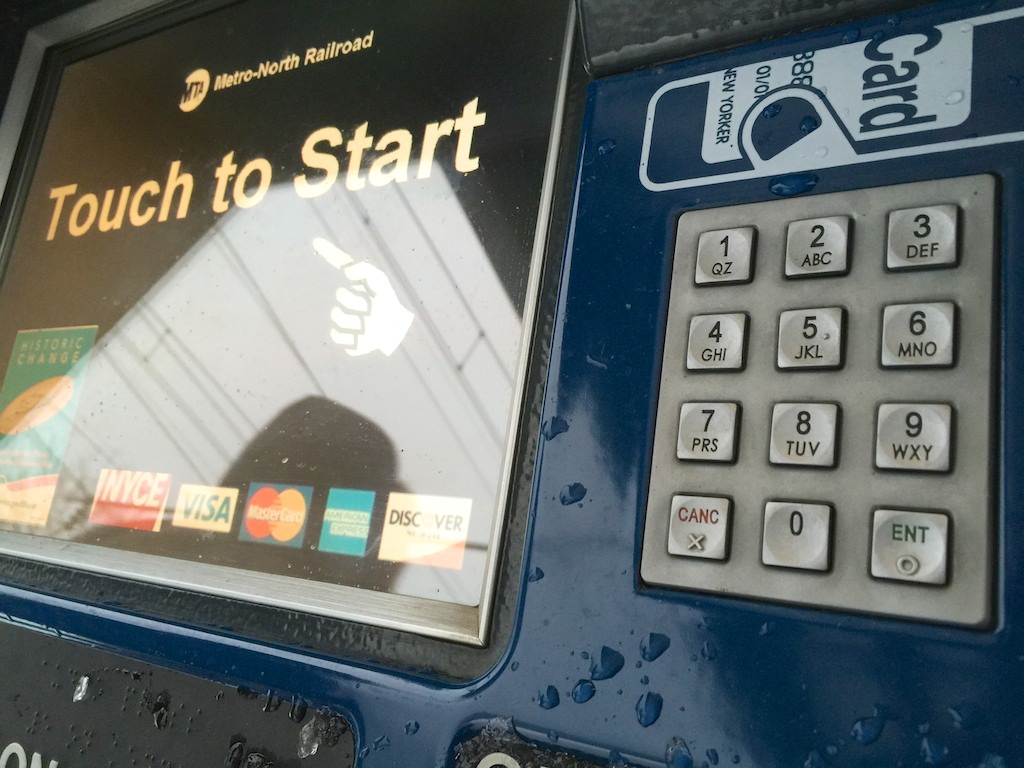
So I inspected the physical keypad to the right of the touchscreen. Over all my commuting years, I had only used this credit-card keypad to type in my zip code after executing the traditional ‘swipe.’

Apparently, I still looked a little confused.
How was I supposed to bridge these two very different tactile interfaces? The touchscreen layout did not translate to the numeric 3 x 4 keypad.

Then, Ben’s voice focused my attention…
“Type in the number option.”

“Huh?”

“If you want the first choice, press 1. If you want the second choice, press 2. Then press the enter key.”

“Ohhhhhh.”

Suddenly, it seemed so easy. I pressed away at the antiquated numeric keys and within seconds, I had my ticket.

In Case of Touchscreen Emergency, Break Glass
I turned back to face my Jedi Tech Master, but he was gone!
(just kidding)
Actually, I thanked him and then quickly looked to see if the train was coming.
(Not quite yet….)

So I had a moment to further access this malfunctioning ticket robot and my inability to work it without a little intervention from the commuting ‘Force.’ I looked for any posted instructions.
Indeed, there were none….

I carefully walked over to my usual boarding position on the platform and considered my experience with this faulty tech.

Use the Keypad, Silly!
Are you simply supposed to know to use the keypad as an obvious backup to any touchscreen?

Or is this a secret ‘Jedi Tech Trick’ I’ve stumbled upon?

Either way, I figured it was worth mentioning…

I don’t know if this technical bypass is going to work with every malfunctioning touchscreen you encounter.
(Assuming it has a matching credit-card keypad)

But it’s worth a try.
Even though there is no ‘try.’

So summon your inner Yoda and DO!
Yikes! Vimeo Says I’m Wasting My Time with 60 FPS

Shooting action videos at 60 frames per second with your iPhone 6 can generate great shots.  But there’s a price to pay…

Shooting action videos at 60 frames per second with your iPhone 6 can generate great shots. But there’s a price to pay…

I was expecting three feet of snow outside my front door last week during our ‘almost-snowmageddon.’ If we lost power, I planned to blog about the wonders (…or failures) of my still-unused Generac LP5500 portable generator.  Instead, the predicted snowpocalypse was just an average half-foot snow event.
(Our Boston neighbors up north got the full serving.)

So I had the opportunity to record a few magical moments of my son playing in the barely-adequate snowdrifts. Using my iPhone 6 Plus, I captured some great action shots in our sloped back yard of my four year old sliding down on his dark blue snow saucer.
(Fortunately not at rocket speeds…there’s a wooden fence abruptly positioned right at the end of our ‘sled run.’)

Later, we enjoyed some hot cocoa, and then I stitched together my four snow clips in iMovie on my iMac.
(Yes, I could also have done the job using iMovie on my iPhone…)

And then I uploaded my two-minute flick to my Vimeo page to share with family and friends.

Case closed.

Uh Oh. I’m Almost Out of Storage.
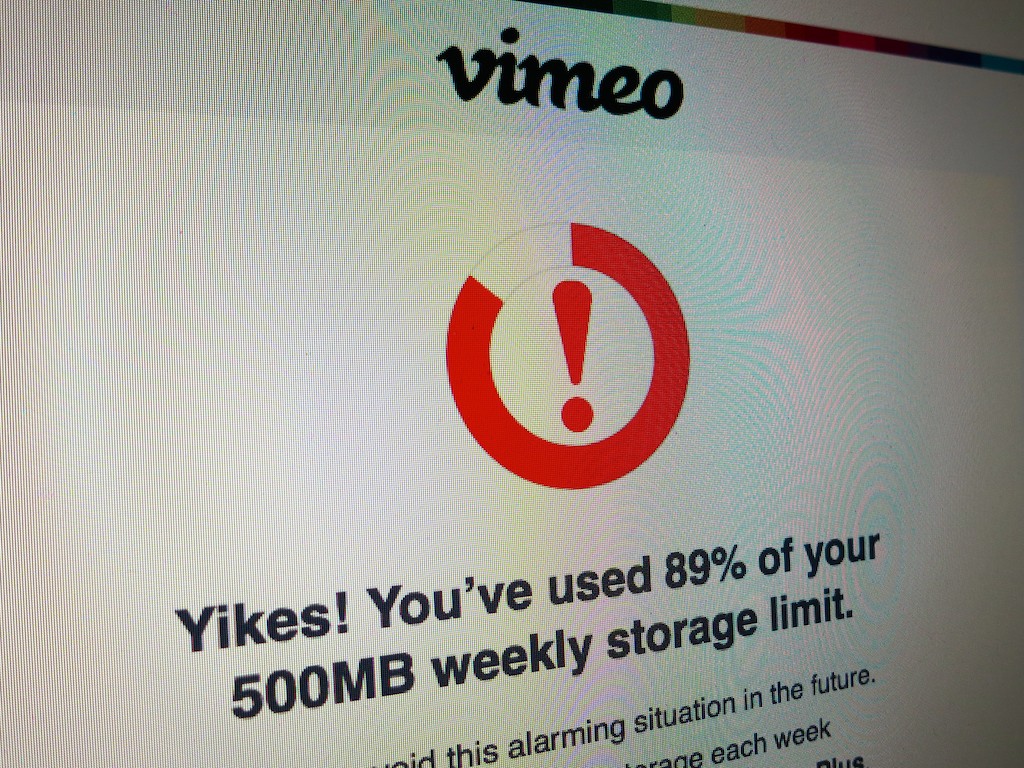
The next day, I received a worrisome email from Vimeo warning me that my weekly upload limit of 500MB for my ‘basic’ account had almost been gobbled up.
(And, of course, I could upgrade to a higher Vimeo tier if I wanted.)

What?

This was a tiny 120-second video. Why was it so huge?
And then I looked more closely at the file size.

In fact, it was a whopping 477MB!

What?!

Alarming Situation
That’s right. I almost blew through my half-gigabyte Vimeo limit on my free account with one little upload.

So I went back to my original video clips and took a closer look at their specs via QuickTime Player on my iMac:

  • I opened up the .mov file
  • Then, I went to the ‘Window’ drop down on the menu bar
  • Next, I clicked on ‘Show Movie Inspector’

Movie Inspector is a little black box that pops up and includes a bunch of geeky technical info about your video clip.

Within a few seconds, I honed in on the culprit…
The problem was the frame rate.

I had unknowingly shot my snow videos at 60 frames per second… as opposed to the standard 30 fps.

And remember, these are glorious 1080 high definition iPhone videos we’re talking about.

So it’s the 60 fps that created the significantly larger files.

How to Get Back to 30 FPS
I think I had left my iPhone on 60 fps quite by accident from an earlier experiment to see how 60 fps would handle action shots.
(And in fact, 60 fps is a wondrous feature to capture crisper action and prevent your moving subjects from looking blurry.)

I quickly pulled my iPhone 6 Plus out of my pocket (yes, it fits) and touched the Camera icon. I swiped the shoot setting to ‘Video’ and spotted the ’60 fps’ noted on the bottom right. I tapped it assuming it would toggle back to 30 fps. But it didn’t.

Instead I had to go back to the ‘Settings’ icon and drill down to adjust the video frame rate back to 30 fps:

  • General
  • Photos & Camera
  • Record Video at 60 FPS – On/Off (swipe)

30 FPS Vs. 60 FPS
In the moment, when you need to capture a priceless video, it’s not the easiest of settings to adjust. So you should decide which will be your ‘standard’ frame rate.

Typically, I don’t think you need all those extra frames and the massive files 60 fps generates. Plus, you should remember that 60 fps creates that ‘hyper’ clear look, which may not be what you want.
(Especially if you’re a fan of the softer ‘film’ look)

30 frames per second is often just fine, and its motion usually feels ‘normal.’

Is 60 FPS a Drag?
But is it such a huge problem to always leave the 60 fps mode on?
(Apparently Apple doesn’t think so…)
Well, not immediately, and not if you don’t shoot lots of videos on your iPhone 6.

But I wouldn’t simply set it and forget it.
Yes, 60 fps has its place, but I’d use this feature sparingly and only when the moment calls for it…

Otherwise, you’re going to find yourself running out of space on your iPhone pretty quickly.

Just do the math…

Let’s say you’ve got the entry-level 16GB iPhone 6, and you shoot just a few minutes of family videos every weekend at 60 fps. That means you’re probably creating about 2 GB of content a month. At that rate, unless you transfer/delete the files from your iPhone, you’re not going make it to the summer before your iPhone runs out of memory.

Generating huge video files is simply a drag. It’s a burden on your technology and by association an extra load on your life to keep your tech happy.

Vimeo Says No
And get this…
If you’re a basic account Vimeo user, you’re allowed to create one HD video per week… and only at 720p. Trying to upload a 1080p file at 60 fps still just gets you a 720p video at 30 fps. Any extra quality is wasted.

Even a Vimeo Plus membership (costing $60/year) doesn’t play your videos back at any higher frame rates than 30 fps.

Yes, you can certainly compress your advanced video files to something more digestible for Vimeo, but that’s an extra step for a busy parent of a four year old.

I should also freely admit that the iMovie app for iPhones/iPads can send your videos directly to Vimeo and compresses them as part of the export. Yes, it’s an easier process, but it assumes all your video clips are being generated by your iPhone.
(Don’t forget… I also like to take videos with my Canon PowerShot camera.)

Don’t Let 60 Frames Destroy Your Digital Life
60 frames per second is like warp drive…
Use it only when you need it.
Otherwise, one day soon… your universe may start to unravel.

Can You Afford to Give Your Smart Thermostat a Second Chance?

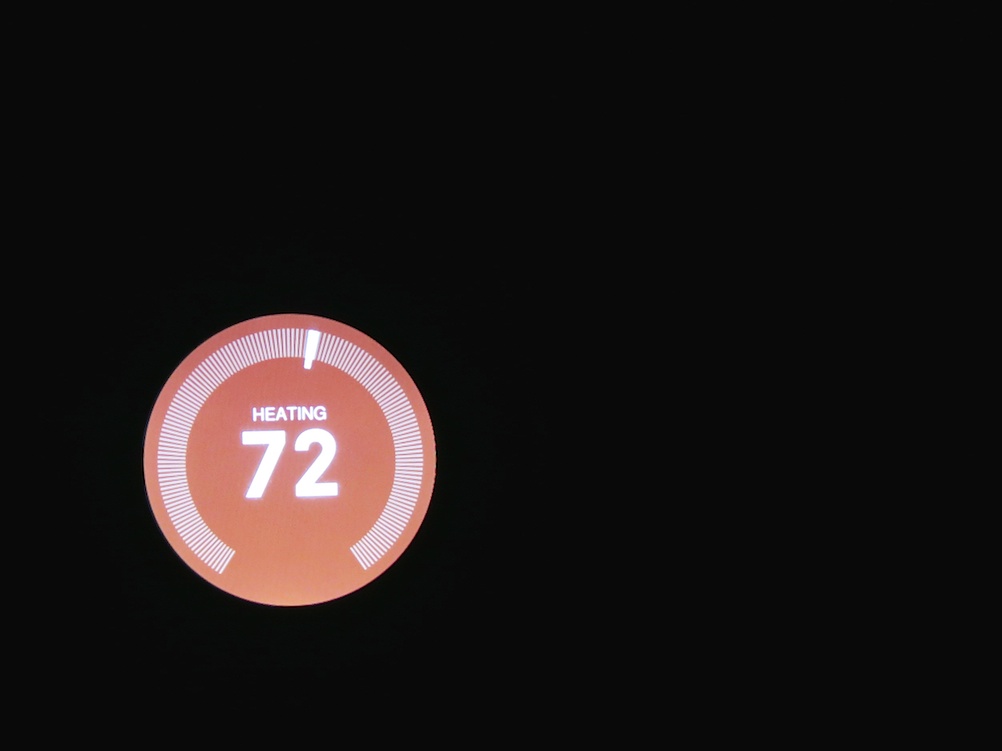
It’s impossible to completely hedge against all technical meltdowns that might afflict your home and by association… you. By the way, have you double-checked your Nest Thermostat lately?

It’s impossible to completely hedge against all technical meltdowns that might afflict your home and by association… you. By the way, have you double-checked your Nest Thermostat lately?

I woke up in a panic at 6:01 a.m. on New Year’s Day.
My body sensed something was not right. (No, not a hangover)
I pulled off the comforter and quickly sat up in bed. It felt cold. Very cold…

I ran downstairs to check out the temperature and approached my
fabulous Nest Learning Thermostat. But my ‘smart’ thermostat failed to recognize my presence with its motion sensor, and it remained dark.

I then pushed in its circular face to manually activate it. Instead of happily popping on with a bright reading of the temperature, it simply displayed the cold message that I had to take it off its base and reattach it.

I think that’s code for there’s a problem somewhere…

Emergency Nest Surgery?
I thought about how to actually take my Nest off its base on the wall, never having done that. (You’re just supposed to pull.)

Then, fifteen seconds later… I heard the heat rumble on. I turned my gaze back to my ‘intelligent’ circle, which now looked completely normal. It glowed a chilly 62 degrees and its immediate plan to get the temperature back up to 72.

I never had the chance to yank my Nest off the wall to reboot it.
It just started working again.

I ran over to my iMac, which had recently had its own trip into the ‘Tech Netherworld.’ I furiously started Googling, looking for an explanation for this disturbing Nest anomaly. It quickly became apparent that there’s a small army of folks out there with their own Nest issues.
(But I found no smoking guns for my Nest’s troubles…)

I was able to confirm that my Nest’s message suggested some connection problem, though my experience pointed to its self-repair without human intervention.
(other than the touch of my finger)

I wondered if there had been some automatic software update that night, which was the culprit. In fact, this all going down in the early hours on the first calendar day of 2015 didn’t feel like a coincidence.
(Anyone else out there wake up cold on New Year’s Day?)

I walked back to my Nest and looked at my former champ.
I was a little heartbroken.
It stared back at me.

It had been intuitively managing my home’s temperature for almost eighteen months.
I trusted it.
Now, it was just another piece of glitchy tech for me to worry about.

I started thinking about what would happen if this kind of meltdown happened again when the family was away for a few days.
My house would become an Ice Station Zebra!

The only sure way to prevent this disaster would be to kill off my circular HAL before it happens.

“Daisy… Daisy…” my Nest would flicker in its final moments as I disconnected the last wire.

Have a Cup of Joe
I pondered this future, and then I walked into the kitchen to make some coffee and cool down.
(I mean warm up.)

At least the coffee maker still worked…
But even an innocent cup of coffee can become dangerous Tech Kryptonite.
(Your tech is never really safe…)

And I went about the rest of my day, which did not include replacing my Nest with a $20 dumb thermostat from 1955.

Smart Human?
Now, it’s almost three weeks later, and my Nest is still solidly in place. It has demonstrated zero defects since the little ‘incident.’
And I have still taken no action against it.

And you know what…?
I’ve decided to give my little Nest a second chance.

Not because I have such a blind commitment to my tech, but because it would be a pain to replace.
And it’s been working just fine…

You’re welcome to point to this moment of human error when I blog in a few months that my house froze up, but that is only one of many possible futures.

Is It Smart to Trust Smart Tech?
No, I don’t know what happened to my ‘mostly-smart’ Nest. And that’s really frustrating. But an analog thermostat can fail too. Or my heating system can go on the fritz all by itself…

I thought about whether I should blog about my Nest blip and initially considered running silent, because I don’t really know what had happened.
And I don’t really have any solutions.
(How embarrassing is that?)

But now with a little distance and an ongoing toasty house, I’ve discovered my conclusion…
Sometimes there are no answers.
And that’s okay.
(really)

Yes, there are steps you should take to minimize your home tech problems.
But if you want to completely hedge against all tech failure, then you really can’t risk using any technology.

And what kind of fun is that?!

So take a deep breath.
(I did.)

Help your tech stay healthy.
(where you can)

And go on and live your life…
(Just keep a sweater handy!)