At Home with Tech

Unlock the power of all your technology and learn how to master your photography, computers and smartphone.

Category: Tech Fixes

My Biggest Discoveries I Blogged About over the Past Year

Here’s my At Home with Tech year in review. Below are the links to my key learnings and tech discoveries.

So yes, these next few weeks can all be about looking forward. The fresh start. The resolutions. The turning over a new leaf. But I like to think of this time of year as the next chapter that builds on the past. It’s not so much ‘the new’… as ‘the next.’

I try to carry it forward. That way, I can greet these annual cycles with the perspective of my past years’ experiences. Said another way, it’s important to look back as you look forward. Otherwise, a lot can get lost across the years.

That’s why I think it’s critical to package up the story of your past year in an organized photo collection (digital or book) or perhaps an edited video-clips overview.

You might also want to perform a mental review and acknowledgement of your other notable actions and learnings.

Take it in. Then lock it in, or let it go if need be.

At Home with Tech Year in Review

As you know, I document my thoughts on technology and family life each week. So, I’ll follow my own advice and offer this summary of my blog posts that reflect my big learnings across the past year. Please check out the links below that most interest you!

My Growth as a Parent
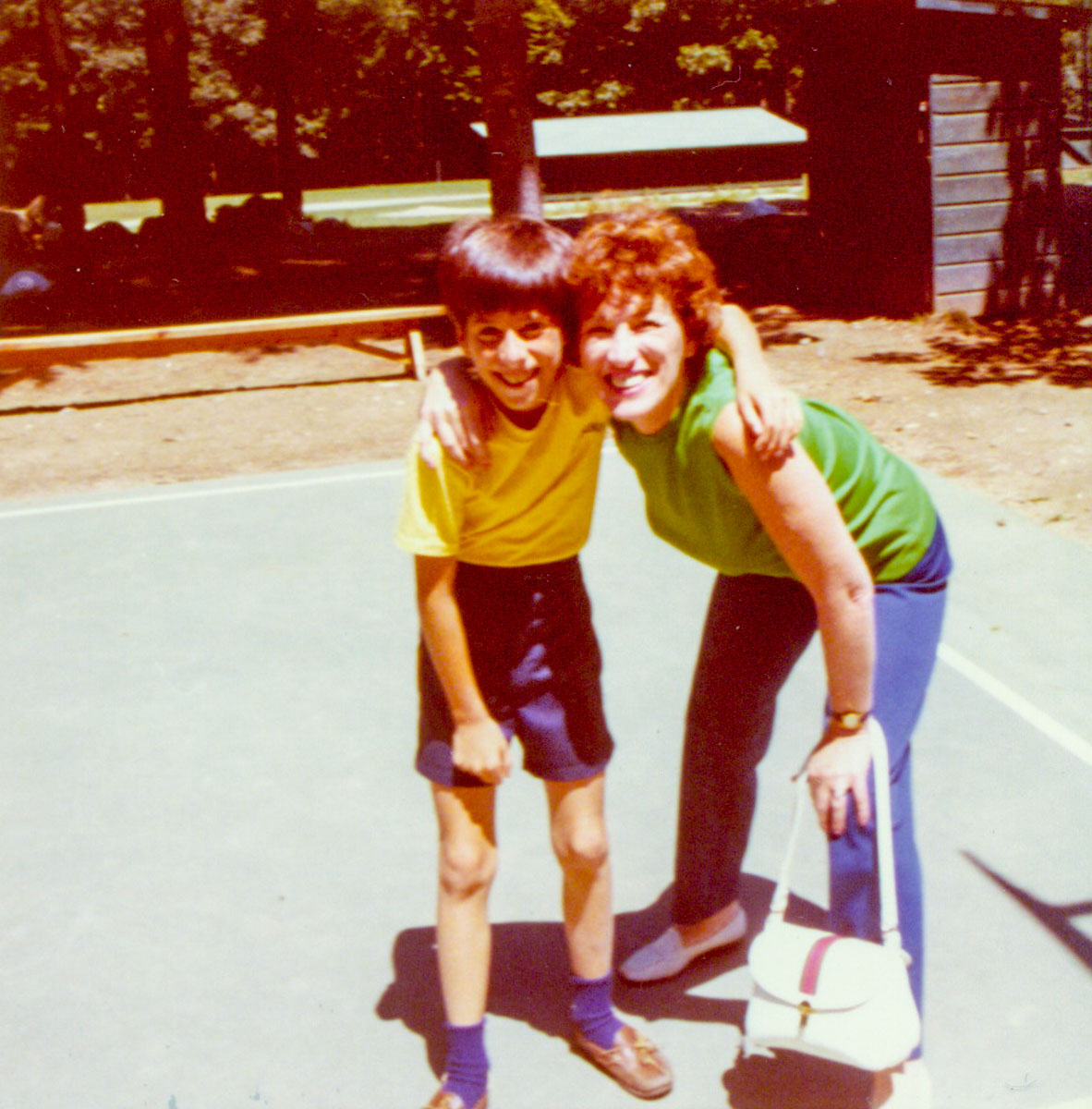
Working in our Post-Pandemic World

My Journey as the Family Photographer

My Role as the Family Archivist

How a tiny film-to-digital converter brought new life to my father’s old analog slides
How to quickly turn a scanned negative into a positive image on a Mac
How to use SmugMug as a family photo archiving tool
How to prevent your family’s identity from being washed away by time

Maximizing your Family Video Clips
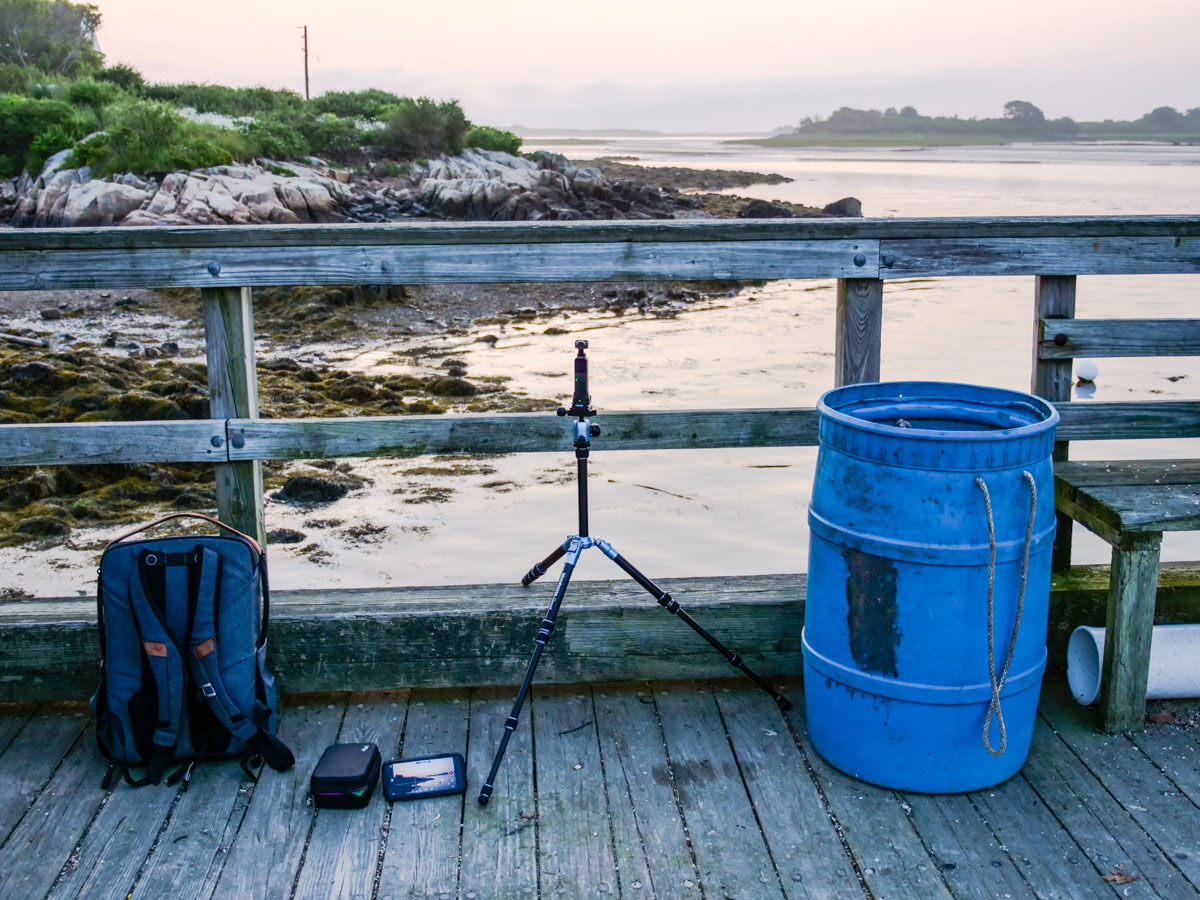
My Family Vacation Tips

Best Practices for your iPhone

My Evolving Understanding of Apple Computers
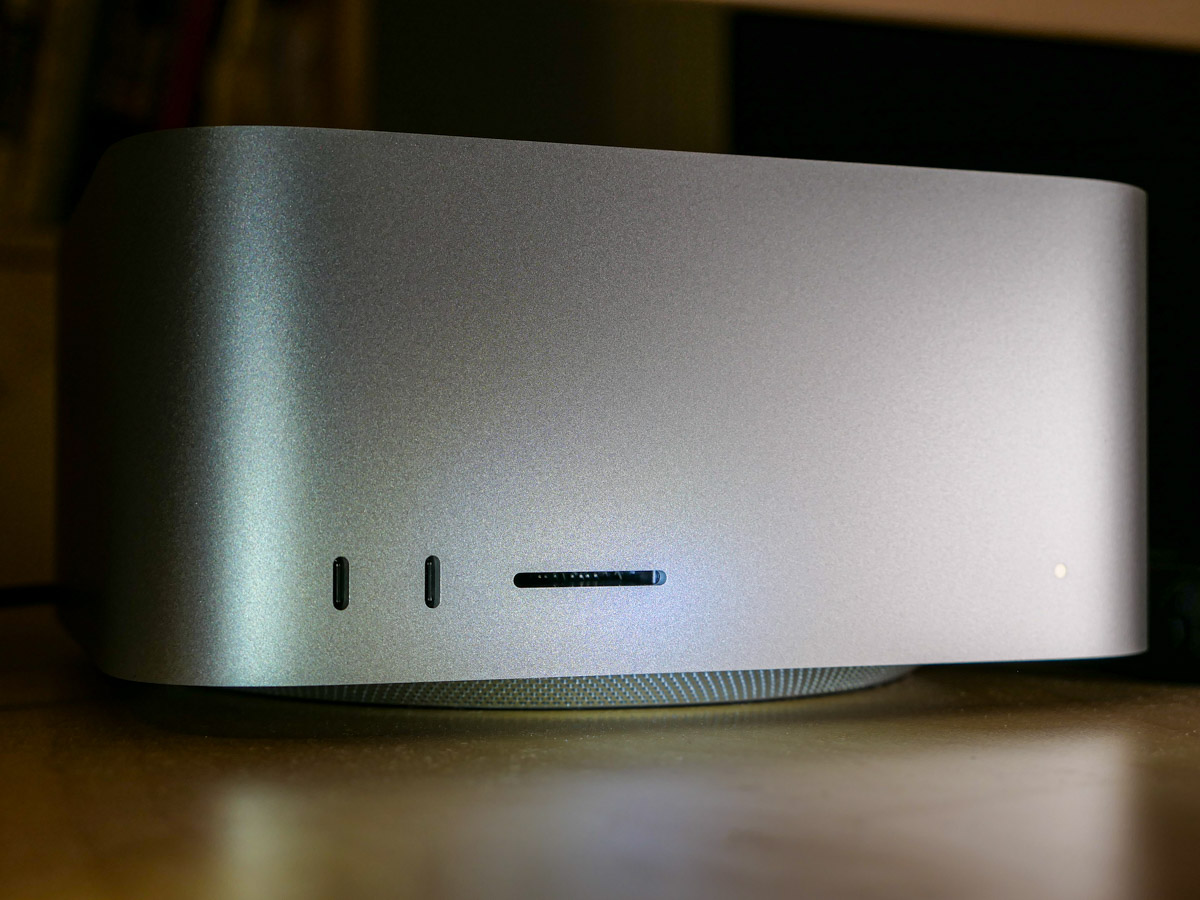
Here’s to a Prosperous 2024
As always, thank you for reading my blog. I’m looking forward to sharing more with you in the year to come.

Happy New Year!
How to Protect the Camera Lenses on the Back of your iPhone

If you worry about destroying your iPhone’s three camera lenses, you might want to consider buying a case with a lens cover.

In many ways, the most prominent feature of an iPhone is its camera system. Being able to make a phone call these days is almost an afterthought. And those three camera lenses on recent iPhones are fairly large. Long gone are the little lens dots on the back of smartphones.

As I began to consider my daily life with my brand-new iPhone 15 Pro Max, I thought about how to best protect its three lenses from damage. Of course, I know I’ll be constantly placing my new iPhone on various surfaces facing up to maximize its ‘always on’ trick. (Love that!) And in practicing this technique, my iPhone will always rest on its camera lenses.

That doesn’t feel quite right.

A Standard Case Won’t Cover Every Danger
Sure, many iPhone cases have a lip surrounding the lenses that prevent direct contact. Other cases can even out the back side of an iPhone, so it becomes one flat surface without the lens bump. Then, they won’t protrude at all.

But those three lenses are still unprotected and exposed to the grimy elements.

You wouldn’t mistreat any other camera lens that way. You’d have a lens cap for it, right?

What happens to those three iPhone lenses after daily contact with any number of surfaces? Wouldn’t that eventually smudge and scratch them, affecting the optics of all your photos and videos?

Sure, the little camera lenses are natively constructed with sapphire crystal lens covers. Does that make them impervious?

A Genius Perspective
So, I brought my concern to a couple Apple Genius’s when I picked up my iPhone 15 Pro Max at the Apple Store.

One mostly brushed off my question as irrelevant. He said that he simply wipes off his iPhone’s lenses for smudges and they’re ready to go. He said otherwise, he “doesn’t think much about it.”

Whenever I visit an Apple Store looking for answers, I often quiz multiple Geniuses. So, I kept going…

I found another Apple Genius who appeared more analytical. (Maybe it was the glasses.) He told me that all flat clean surfaces were safe to rest an iPhone on. I should just be mindful of avoiding gritty surfaces. Those “might” scratch the camera lenses.

I felt a bit better with that answer. But life isn’t flat and clen. Life is gritty, especially when you least expect it.

An iPhone Case with a Lens Cover
The standard solution of simply wiping off my three little lenses with a microfiber cloth (or my sleeve) just wasn’t going to cut it. I knew I wanted a more comprehensive plan.

Question: Had any iPhone case manufacturers yet designed their cases with a dedicated lens protection solution? After a little quick Googling, I realized that in fact, yes… some of them had.

Though I may be in the minority for wanting this extra protection, I decided to buy an iPhone case that offered a protective lens cover.

Cases for new iPhone models take time to enter the market. So, I looked for a quick and dirty solution to help my iPhone’s lenses avoid the grit.

I found two types of cases built with little plastic covers that shielded the camera lenses. They moved one of two ways:

  • Sliding over and away (left to right)
  • Folding over and back (like a little door)

SUPCASE Closed-Door Solution
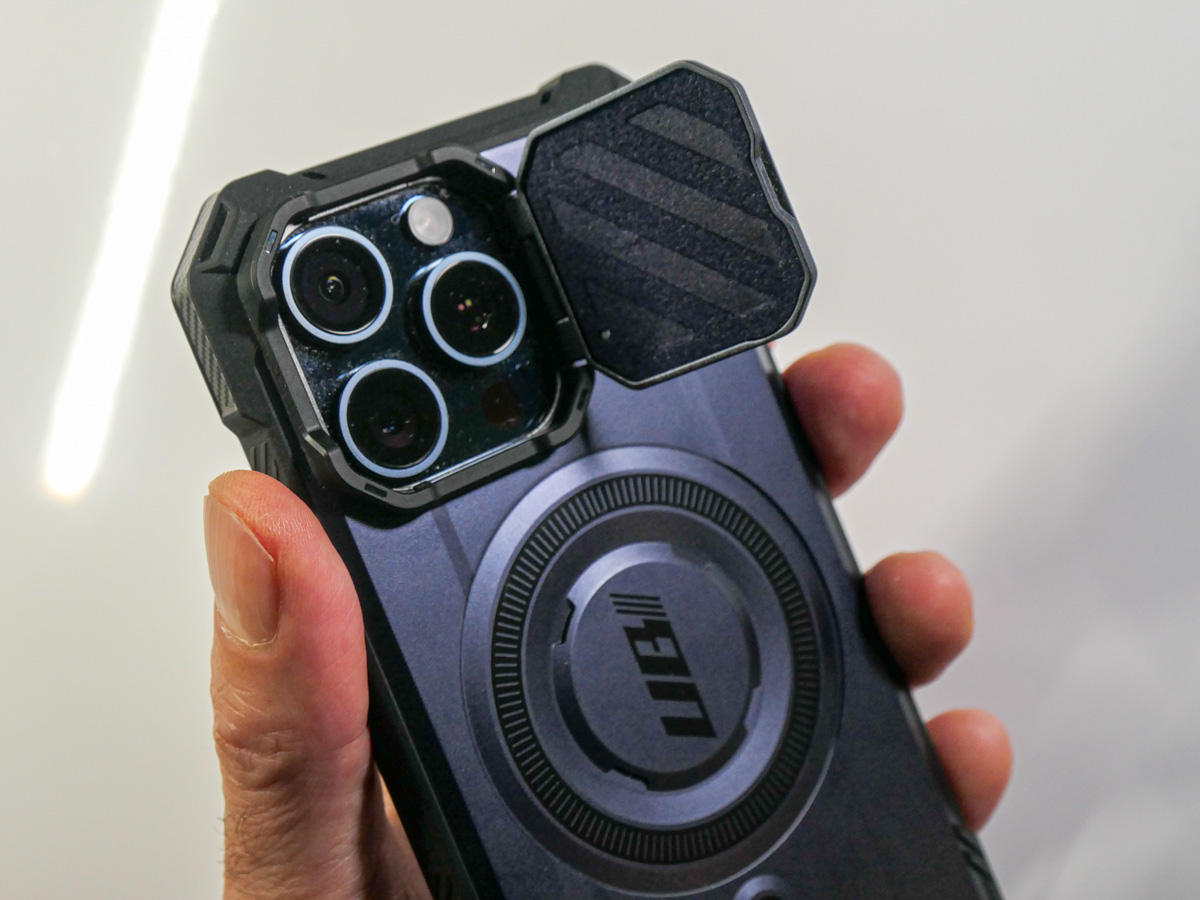
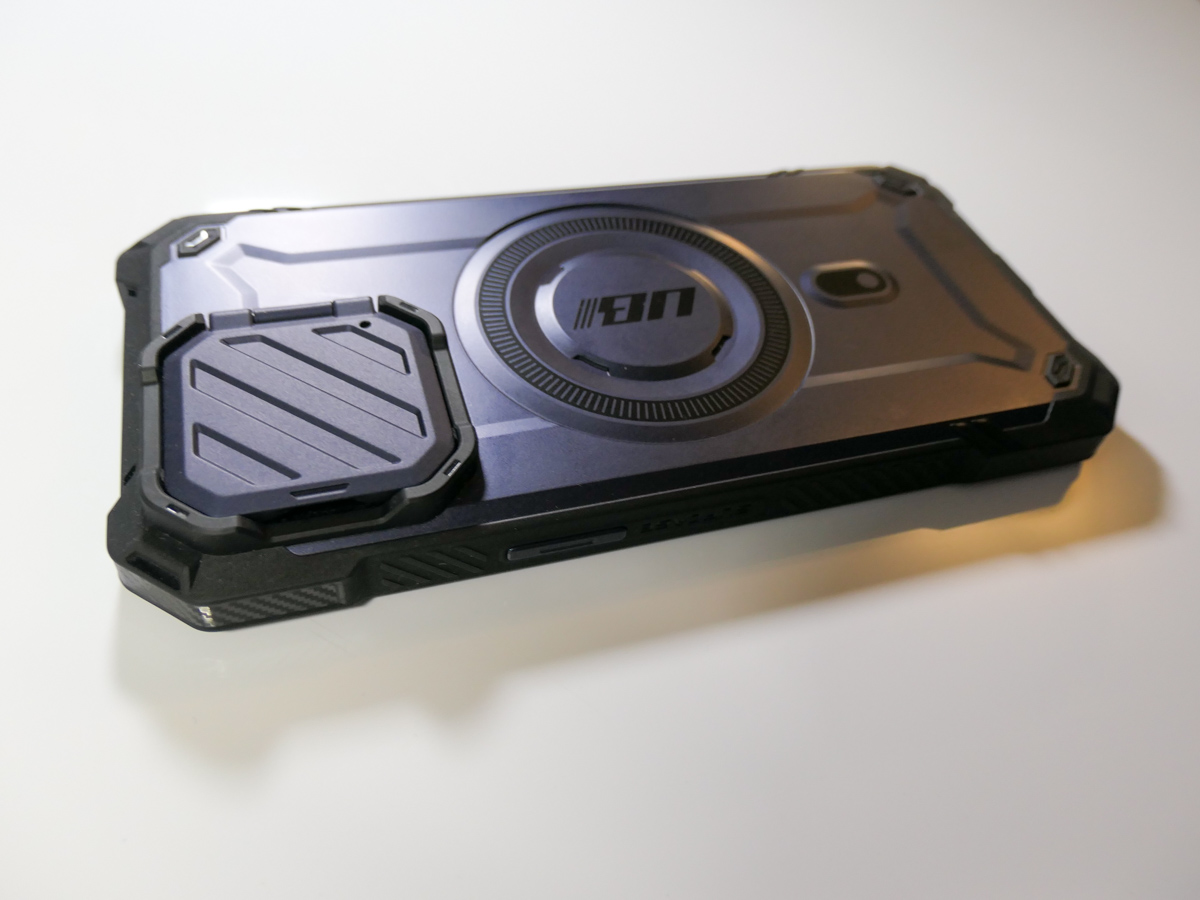
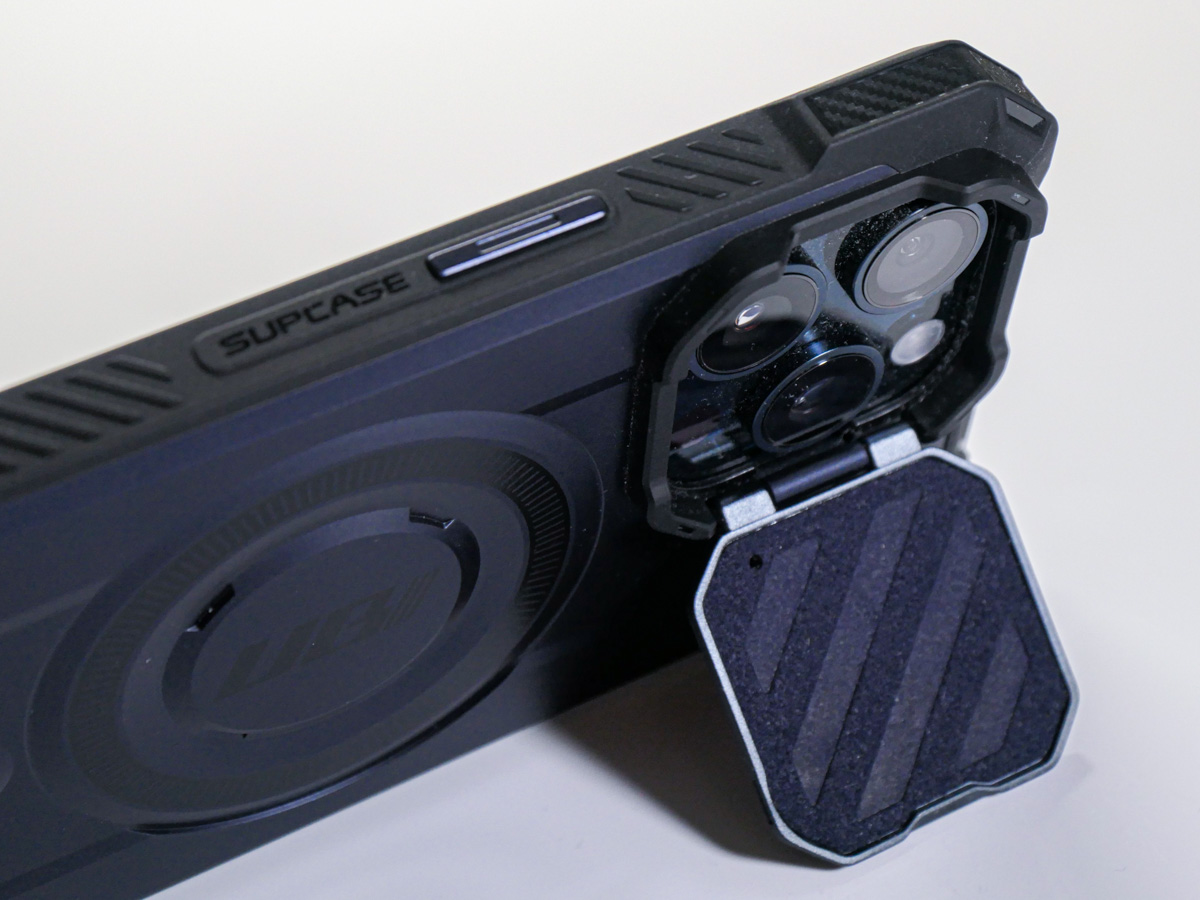
I ended up trying out the tiny door concept with the SUPCASE UBMag XT Case.
Amazon has it for $26.99.
The little lens door locks in place when it’s closed and is appropriately stiff as you move it. (The plastic flap doesn’t swing around when it’s open.) The door can also double as a kickstand for your iPhone.

The SUPCASE allows for MagSafe charging and magnetic grip, and functionally works just fine.

Most importantly, the “closed door” gives me peace of mind as I move my iPhone and its three camera lenses around.
All this said, the lens cover does require the extra step of opening it before taking a photo. So, in those spontaneous moments, you’ll inevitably lose a second or two before getting off your first shot.

Cautious Optimism
I wanted immediate protection for my new iPhone, and for a case in the sub $30 category, this was a solid choice. It’s a good way to begin ahead of other iPhone 15 Pro Max case options entering the market.

Does that mean I’ll eventually upgrade to another case? Perhaps. No case will last through your iPhone’s expected lifetime. My iPhone cases have all shown wear and tear long before that. But isn’t that the whole point?

The case takes the licking, and your iPhone keeps on ticking.
(Wait…that’s another brand.)

Bottom line: My three new camera lenses now have their extra layer of protection. Do they actually need a cover? Who really knows for sure…

But the idea of it certainly makes sense to me.

Case closed.

You Can’t Save your iPhone’s Soul if You don’t Activate this Setting

If you ever need to clone your iPhone should your device meet an untimely end, a simple setting buried in your old device is the key to success.

You may not realize it, but across the years, you’ve been building and nurturing a look and feel for your iPhone. It comes in the form of all the apps you’ve downloaded and how they’re organized on your screen. It creates an experience that’s unique to you and feels perfect, because it is. You’ve made it that way.

When you want to upgrade to a new iPhone or need to because of less-than-optimal circumstances, Apple has a process to perfectly restore all your settings and apps in your new device (passwords too). That is if you follow all of the iCloud rules.

But if you miss a step and disaster strikes, you can never transfer your iPhone’s unique personality that you’ve lovingly crafted into a new phone model. You’ll effectively lose its ‘soul.’ Sure, you can manually put all the pieces back together into a new iPhone, but the clone will never be exactly the same.

That’s what happened to me.

R.I.P. My Dear iPhone
Last time, I shared how I effectively killed my iPhone after a little kayaking mishap that submerged it in ocean water.

Thankfully, I had backed up all my Apple apps in iCloud, and when I activated my replacement iPhone at The Apple Store, those apps were already in place, loading in my important data.

But when I searched for all my other apps, they were nowhere to be found.

I was still grieving the loss of my former iPhone. (It had been less than an hour.)

Now, the pain started to pile on.

iCloud 101
Yes, I’d previously been following good iCloud back-up protocols and had properly saved everything of importance to iCloud:

  • Photos
  • iCloud Mail
  • Notes
  • Messages
  • Contacts
  • Calendars
  • Music

It was all safely stored for me.

So, restoring all of that in my new iPhone was easy. (Plus, I pay for 2 TB of Apple cloud storage to cover all my family’s devices and related files.)

I thought I had it all covered. But I didn’t.

My non-Apple apps had vanished. Here’s why…

We Can (Mostly) Rebuild It
Apparently, my old iPhone didn’t have the little iCloud backup switch in ‘Settings’ activated to its green state. I had somehow missed that.

And without that critical piece of back up flicked on, I had forever lost the snapshot of my old iPhone’s set up. All the settings, the home screen layout and all my non-Apple apps.

Now, I needed to download all my non-native Apple apps again (they were readily available in my ‘Purchased’ section in the App Store app), reorganize them and then (the worst part) re-sign into every one of them again.

That was a big project and a massive pain.

It took me the better part of a week to get my apps back in order and running properly. (You don’t realize how heavily you’ve become reliant on your phone for your day-to-day needs until you don’t have access.)

And then when I was done, I still didn’t have my old iPhone’s exact layout back. It was inevitably a bit different. (You’d otherwise need a photographic memory to restructure it perfectly.)

How to Turn On iCloud Backup to Save your iPhone’s Settings
So, if you want to avoid my Humpty-Dumpty fate, be sure to have the specific iCloud Backup switch turned on in ‘Settings.’ It’s embarrassingly simple. Go to:

  • Settings
  • Your Name (on the very top)
  • Your Name’s iPhone (in the third section from the top)
  • iCloud Backup
  • Flick the virtual switch to green
  • That’s it

Silver Lining?
The only upside to my rookie iPhone mistake is I had the chance to slim down the apps on my new phone to the apps that I actually use today. (I didn’t download the ones that I haven’t opened in years.) So, I was able to create a better-organized layout for myself.

No, it’s not my old iPhone. That’s gone. I’ve permanently lost that comfy layout.

However familiar, that’s not necessarily the best layout for me today. It was created organically across many years and through previous iPhone models.

Creating a fresh app structure from the ground up has its advantages. It certainly better represents my current needs. It’s more efficient. It makes sense.

Now I just need to train myself to remember where everything is!

Everyone Risks a Kayaking Kerplunk
Sure, we can all regularly update and reorganize the app structure on our phones. But who really takes the time to do that?

I should be thankful that I was given the opportunity to properly refresh and optimize my own iPhone experience. Right?

On the other hand, just flicking the green iCloud switch is a whole lot easier.

And better yet, think twice about bringing your iPhone on your next kayaking trip without a waterproof bag.

But as careful as you may be with your tech, there’s always some kind of kayaking kerplunk just around the corner for everyone.

So, plan ahead and make sure that the iCloud Backup switch is on!