At Home with Tech

Unlock the power of all your technology and learn how to master your photography, computers and smartphone.

Category: Tech Fixes

Where’s My Remote Control?!

Pop Quiz: Is this a photo of a alien sculpture on Mars or the power button on my useless Blue-ray player?  It seems if you lose the Blu-ray player’s remote with its magical ‘Enter’ button, you can’t run movies anymore.  Now what are you supposed to do…?

Pop Quiz: Is this a photo of a alien sculpture on Mars or the power button on my useless Blue-ray player? It seems if you lose the Blu-ray player’s remote with its magical ‘Enter’ button, you can’t run movies anymore. Now what are you supposed to do…?

It’s Saturday night.

Our three-year-old son has gone to sleep early, cozied up with his favorite Octonauts toys.

Downstairs, my wife looks at the clock, turns to me,, and she smiles.
She suggests… we may just have enough time to watch a Netflix movie.

We usually don’t get this opportunity, because we don’t want to risk going to bed too late…
Our little lad’s internal clock does not yet recognize the weekend, and his morning wake-up schedule is almost as dependable as an atomic clock.

I expect other parents will appreciate the difficulty finding enough time to consume an entire movie together without planning a formal ‘date night’ out.
(Let’s just say it’s been a while for us since we’ve tried this trick at home.)

Activate Movie Night
I rush over to the dormant media center, my pride and joy.
I swiftly open up the cabinet in the TV stand housing my four-year-old Samsung Blu-ray player (BD-P3600).

It’s quite dark inside, but there’s clearly a noticeable layer of dust accumulated on top of the Blu-ray unit.

Moon dust on Blu-ray player

Actual photo of my Blu-ray player’s surface

The shrouded device patiently awaits like Star Trek’s Guardian of Forever.

I luckily have a Netflix Blu-ray disk on hand that I think both of us will enjoy.
(Beasts of the Southern Wild)

Netflix Streaming isn’t an option, as it simply takes too much time to sift through to quickly find a good movie.

My wife sits down on the couch, and I pop the disk into the player.

Hollywood, We Have a Problem!
I reach up, and my hand misses its target.

Where’s the remote?

I quickly survey all the surfaces in the immediate vicinity.
The remote for the Blu-ray player is nowhere in site.

That’s really annoying…

I assure my wife it’s just an inconvenience.
Surely, the player will operate sufficiently from its onboard controls.

I get through the obligatory movie previews on the Blu-ray disk, and finally get to the “Play Movie” icon on the main menu screen.

I press the play button on the top of the device to begin our little Cinema Paradiso.

Nothing.

Then, I tap the ‘Next’ button.
Nada.

I frantically press all the available onboard buttons.
But there’s no matching ‘Enter’ button, which the missing remote possesses.

Nothing can kick our movie into gear…

I turn to my wife.

Uh… I think movie night is cancelled.

But she is not so easily deterred.
She suggests we do some catch-up ‘Mad Men’ viewing on our always-ready cable DVR.

And so we successfully switch to Plan B…

Eating Humble Tech Pie
So, hanging with Don Draper really wasn’t such a bad back-up plan, but I’ve got to admit I felt like a mad man for the rest of the night.

The IT Guy had failed at the most basic of tech tasks.
How embarrassing.
(Sure, I could blame the disappearance on my little adventurer asleep upstairs, but it really doesn’t matter how the remote vanished…)

I was also rather annoyed with the stunning realization that my missing remote could completely hobble the ongoing functionality of my Blu-ray player.
(Whose genius engineering idea was that?)

Why even have a play button on the unit, if it can’t get you past the main menu?!

Brain Replacement, STAT!
So now what?

I had a giant hockey puck under my TV that wouldn’t function without its missing remote brain.

And I don’t often get the opportunity to enjoy a joint movie night at home while my three-year-old snores upstairs.

So I pledged right there that next time, I’d better be prepared!

I had four choices to consider:

  • Find the missing remote
  • Replace the Samsung remote
  • Buy a universal remote
  • Purchase a brand new Blu-ray player

1.  Send Out the Rescue Party
I’ve gradually faced a new reality over the past year living with my son:

Things disappear.

  • Sometimes we find them.
  • Sometimes we don’t, and I chalk up the missing items to the mysteries of the universe.
  • Occasionally, the objects suddenly reappear, but often months later.

I carefully considered the odds,
and then I called off the full-house search…

2.  Replace the Remote
Fat chance, right?

Where would you even you go to buy a replacement remote for a discontinued model?
(more on this in a moment….)

3.  Go Universal
Universal remotes have been around forever.
I’ve owned my fair share over the years.
But they eventually get old and have trouble playing with the newer gear you eventually buy.

Fact Check: Currently, the Lester household is without a universal remote.

I am not proud to admit this, but I use five remotes to control the TV, cable box, Roku, Apple TV, and my formerly functioning Blu-ray player.

For some strange reason, my wife says this set up is a tad confusing.
I’m not sure I understand why.
(kidding)

I suppose the upside is whenever we lose a remote, my entire media display zone isn’t completely crippled…

I admit we’re due for a new universal remote.
I just haven’t gotten around to it…

So you might conclude this would be the perfect time for me to pick up a universal remote and regain control of our lobotomized Blu-ray player.

4.  Go Crazy and Start Over
Our disposable tech culture would say-
Just throw the problem in the trash and buy a shiny new one…

So let’s consider the option of picking up a new Blu-ray player…

Remember how much Blu-ray players cost just a few years ago?
This technology has really matured…
Now, it’s relative chump change!
(Too bad, Blu-ray disks are still so expensive…)

All this said, we’re still talking about replacing an old top-of-the-line model with a new bargain-basement afterthought. While it functionally meets my need, it’s not quite an apples-to-apples replacement option.

Is It my Birthday?!
So remember the ‘crazy’ option of simply replacing the remote?
What are the odds I’d find an exact duplicate of my four-year-old remote?

  • 1 in 100?
  • 1 in 5 trillion?

Guess what…?
Take the odds.

Amazon indeed has the replacement remote!
It’s the ‘Samsung Remote Control AK59-00104K’
for only $12.10 plus $4.95 shipping.
(No Amazon Prime is offered, but the vast majority of reviews were wicked positive…)

$17.05 to put my next movie night back on track?

Click.
(Amazon to the rescue!)

The Conundrum of Blu-ray’s Future
Sure, there’s nothing wrong with taking advantage of a little bad luck and upgrading your Blu-ray player for far less than your original investment.

But the fact that my current unit sports that unsightly layer of moon dusk is a clue to how much I’ve actually used it over the past couple of years.

You can blame this trend on my new-daddy schedule, but it probably also points to the stiff competition offered today from streaming technologies..
Plus, you know I’ve been consuming much of my media as a Road Warrior.

It all points to the basic question:
Do you even need a Blu-ray player anymore?
(That’s an especially painful question considering the prices I’ve been paying for my Blu-ray movies.)

So if 17 bucks can buy me a reprieve on an answer, I say that’s money well spent!

The Power of ‘Enter’
My ‘rescue’ remote arrived in the mail last week and its powerful ‘Enter’ button immediately reactivated my sidelined Blu-ray player.

The rescue remote arrives

Then I looked around the room to see if I was alone. There were no prying eyes lurking in the corner to observe my next little precaution…

I hid my new remote control away from my little Ethan Hunt.
(and where I hopefully won’t forget where its located)

Movie night at the Lester household is again open for business!

Popcorn for all!
A Glitchy Drive Can Ruin Your Trip Back in Time

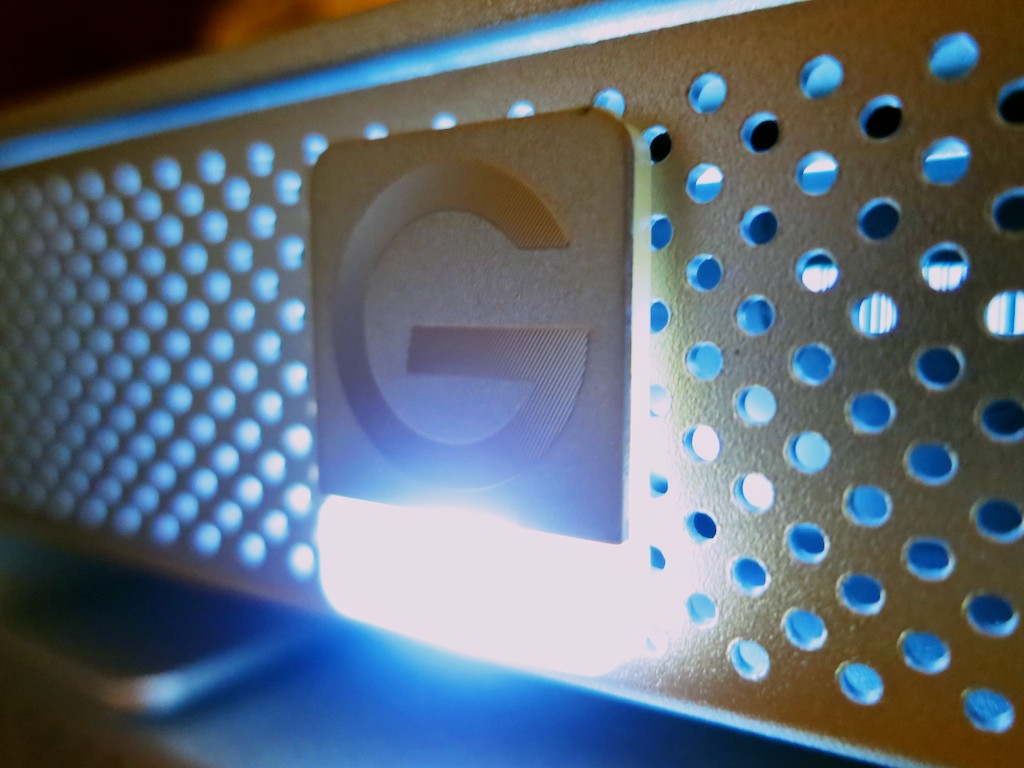
This is the steady glow of your digital life. If it starts to flicker, you’d better be paying attention! It contains Time Machine, the portal to your digital past!

This is the steady glow of your digital life. If it starts to flicker, you’d better be paying attention! It contains Time Machine, the portal to your digital past!

Face it: You can’t go back in time if your gear gets glitchy.

Time Machine is wonderful software to back up all your precious content on your Mac, but you also need healthy tech to support it.

Last month, my G-Technology external hard drive was running its regular Time Machine backup, and something very odd happened.

The 2TB G-Drive ‘quit’ unexpectedly, and of course the backup failed on my iMac.  I stared at my tech companion, unaccustomed to this kind of problem.
Hmmm….

So I rebooted the drive and tried again.
This time, the silver box behaved, and the backup completed without incident.

Was this a one-time glitch or a sign of things to come?
I tried to erase the unpleasant episode from my head.

But as we all know, little tech glitches rarely just go away…
(and eventually, they turn into “The Terminator!”)

Last week the glitch came back.
Twice.
And this time my failing G-Drive did a number on my Mac and froze it up quicker than you can say ‘Flux Capacitor.’

I couldn’t bring my stunned iMac back to life without performing a hard power shut down via a Vulcan neck pinch to the back power button.
(It doesn’t get much worse unless you yank the power cord out of the wall!)

Yes, the third time was the charm, and Time Machine completed its backup.
But it was clear I had a problem with my external back-up drive…

Countdown to Disaster
I mentioned my little story to a couple of colleagues last week, and I swear their faces turned slightly white. It was like I was holding a time bomb in my hand.

In a manner of speaking, I was.

After a few moments of uncomfortable since, one whispered, “You’d better do something about that.”

The other one simply looked away as if I was a Morlock…

I’ve talked before about the importance of backing up your data.

Yes, I’ve got both local and cloud-based backup solutions in place.
But you can never be too careful when you’re talking about your digital life.

Now it was clearly time to practice what I preach…

I’m a big fan of G-Technology drives.
(I’ve been running this particular G-Drive for over 3 years.)
But no drive lasts forever.

So let me repeat this a different way…

Every drive you own will eventually fail.
It’s just a matter of when.

And when that happens, your personal portal to your past disappears…

The fix:
Time to buy a new backup drive…
Pronto!

How Big a Backup Drive Does Your Computer Need?
So another problem with my failing G-Drive drive is its storage capacity.
I’ve got a 2TB hard drive sitting in my iMac, and my G-Drive is also 2TB.

Common logic says your Time Machine drive should be at least 1.5 to 2 times the size of your computer’s internal drive.
That’s because Time Machine is capturing more than what’s on your computer right now. The whole point is to save older versions of your existing content in case you need to go back to it…

I’ve always known that when I got through more than 50% of my iMac’s internal drive, I would start to stretch the limits of my G-Drive.

I’ve already crossed that threshold, and even though I haven’t specifically run out of space yet, that problem is waiting in the wings… ready to pounce.

I’d rather avoid that little fire drill all together…

So as I started shopping for a new Time Machine drive, I focused on 3TB and 4TB sizes.

Checking Out Glyph
Even though I’m a longtime fan of G-Technology, it’s always a good idea to review the competition when buying anything, right?

Remember those colleagues who treated me like the plague after they heard about my tech woes…?  They both suggested Glyph drives as a well-regarded (though expensive) solution.
Glyph also offers a generous warranty as well as a limited data recovery service when you buy one of their drives.

All very nice!

I took a look online, and Glyph has a new 4TB GPT50 coming out with USB 3.0.  But it’s not being released until later this month…

Sticking with G-Drive
The new Glyph GPT50 looks interesting, but I really needed to address my Time Machine crisis right now.
(It’s not wise to tempt the Fates of Tech.)

So it was back to another G-Drive for me.

Their 4TB model with USB 3.0/FireWire is listing for $320, but you can pick in up from Amazon closer to the $300 mark.
(I don’t need the pricier Thunderbolt model, since I have an older iMac without Thunderbolt.)

Yes, $300 is expensive compared to the competition… but this is your digital life we’re talking about…
(“Don’t cross the streams,” and never skimp on your drives!)

Click.

Should You Transfer Old Backups to Your New Drive?
So my new tech pal showed up on Friday via Amazon Prime, and I quickly introduced it to my computer.

Then I faced a choice.

Should I start from scratch and do a full backup with the new G-Drive or first transfer over the old backups from my failing drive?

My first instinct was to transfer all the files over from the old drive, but I ran across a dissenting opinion online from pondini.org.
(This website from James Pond is a treasure trove of Time Machine goodness.)

He suggests that first transferring the old backups would take a “very long time.”

And with my old drive in its weakened condition, perhaps an extended transfer session would be too much of a stressor…

I figured the time spent saving my precious data was better focused towards completing a brand new backup…

(Granted, I wouldn’t have access to my old backups… but I’m thinking/hoping I don’t need them…)

Let the Massive Backup Session Begin!
So I powered up my hungry 4TB protector, selected it as my new Time Machine drive, and then I went to bed.
(Initial backups also take a wicked long time.)

I quickly slipped off to sleep, because my mind was clear.
My soul was cozy, believing all my beloved personal digital content was again protected…

  • My hundreds of home movies, thousands of family photos,
    and my future blog ideas (all three of them)

Is it all a dream?
Maybe.
(I’ve only got two ideas in the cue.)

When I awoke the next morning, I checked out the progress of my backup.
My iMac glowed wearily, ‘About 19 hours’ to go.

What?!

$300 and 19 more hours?!
This part was definitely not a dream.

But if you want to keep your personal time portal to the past operational, and you don’t happen to have access to an Omega 13 device from another galaxy,
that’s the price you pay to protect your digital life.

How to Find Your Free SD Movie Download in iTunes

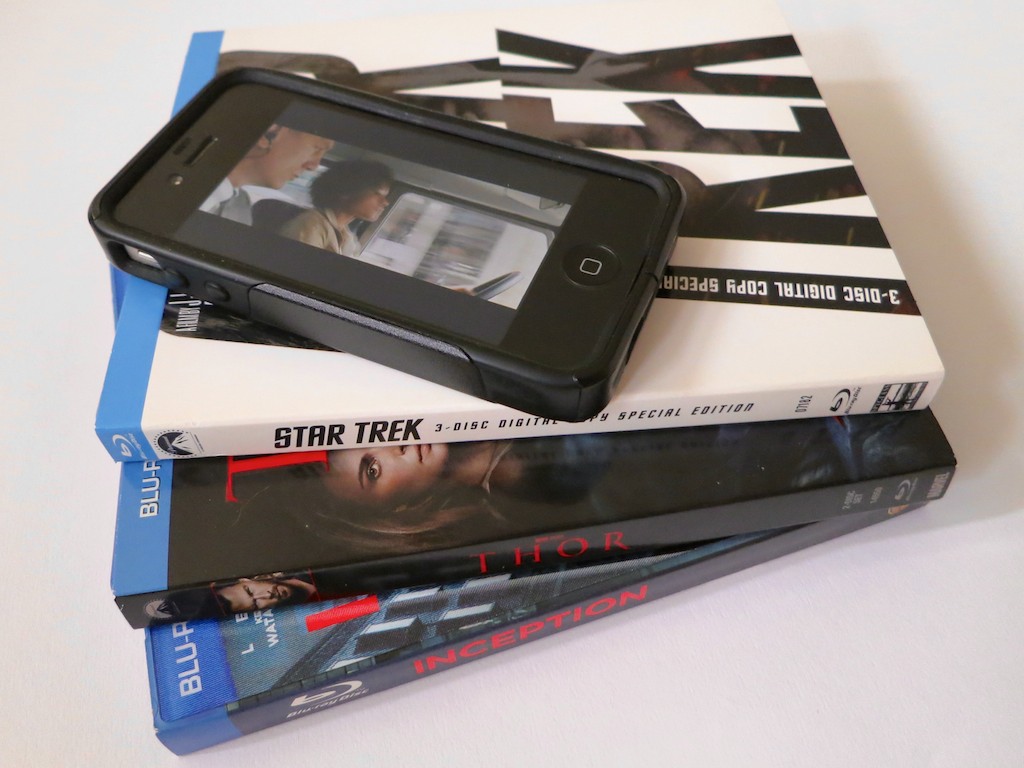
When you buy an HD movie in iTunes, did you know you can also receive the SD version for free?  And why would you need the SD version?  Ask your iPhone.

When you buy an HD movie in iTunes, did you know you can also receive the SD version for free? And why would you need the SD version? Ask your iPhone.

I’d like to point out three universal truths:

  • You can never have too much knowledge,
  • Too much joy,
  • Or too much digital memory for your multimedia needs!

As a Road Warrior, I happen to like having a few movies at any given moment in my iPhone.

I really haven’t had any media management concerns on my iPhone 4S over the past couple of years, because I’ve got the full boat… 64 GB of memory.

So I feel I can live a little large and jam some extra cinema into my iPhone’s playlist if I prefer.

And I don’t mind admitting I’ve downloaded a few flicks lately.
The last one was “Skyfall,” the latest James Bond and arguably one of the best.

The Evil Secret of High-Definition Video
Then last weekend while uploading some fun photos of my three year old, I realized my iPhone barely had enough memory for Siri to blurt out one of her snarky retorts.

By Grabthar’s Hammer, what happened?!

So I checked out my iTunes library and realized Mr. Craig’s high-definition Bond adventure had targeted almost 6 GB of precious flash media on my iPhone.

One movie… 6 gigabytes?!

Well that didn’t seem right.
I know HD content can create large files, but I thought with compression technologies, the movie studios wouldn’t be offering up digital files quite so big.

I reviewed a few of the other movies I owned in iTunes:

“Star Trek” – 1.96 GB
“Inception” – 2.19 GB
“Thor”- 1.73 GB
“Apollo 13” – 2.22 GB
(Yes, you may notice a genre pattern here.)

So why were all these films so much smaller than “Skyfall?”

The only difference was the other movies were downloaded via an iTunes code packaged with the Blu-ray Discs I had bought.

And “Skyfall” was purchased directly from iTunes.
Apple had been running it at a special price.
(Sweet.)

The Blu-ray Disc Dream is Not All in High Definition
I sprinted over to my Blu-ray Disc shelf and studied the cases.
As I looked more closely at the packaging, I came to the uncomfortable realization that my bonus ‘digital copies’ via iTunes had not been downloaded in HD after all.
The iTunes movie codes inserted in the Blu-ray Disc cases only unlocked the standard definition files.

What?!

Well, in fact, the fine print does only say, ‘Digital Copy.’
(not HD Digital Copy)

Hmmmm.
Well, I guess that explains the size discrepancy.
They’re just SD movies.

So… iTunes SD movie downloads provided by glorious Blu-ray Discs in HD?
That doesn’t feel quite right.

But it’s a discussion for another day…
And a new data point for my ongoing struggle to decide
whether I should stick with buying physical Blu-ray Discs or give in and go all in with iTunes movie purchases.

There’s No Room for HD in Your Smartphone
As much as I prefer to own HD movie files for use on my larger displays, I don’t believe smartphone screens really show a significant difference between HD and SD.

But more importantly, my iPhone (or any smartphone for that matter) can’t handle more than a few HD movies at a time.

It’s simple math.
If you only own a 16 GB smartphone, it’s toast after you feed it two movies.

Using an SD file would appear to be the only reasonable option when loading up your movie collection to your smartphone…

Time to find the ‘Mini-Me’ version of 007.

SD Still Has its Place
So your simple media management solution is to own two files for each movie you buy.

  • HD for your HDTV or computer
  • SD for your smartphone

But how do you locate the SD peer file, once you’ve bought and downloaded the HD movie master?

Sure, you can easily find the SD version in the iTunes Store.
But you don’t want to pay again to download the SD sibling, once you’ve already had to pony up for the HD version.

Don’t do that…!

Where’s Your Free SD File?
The location was not entirely obvious to me even after some online research and a quick review of iTunes itself.

But buried in an Apple support page, I found a cryptic answer….

“To download the SD version, you need to download the video again from your Purchased page.”

Well that seemed simple enough.

So I took at look at my ‘Purchased page’ in iTunes and observed all my movie icons happily waiting for their next screening.
But there was nothing to indicate an additional free SD download of my HD Bond.
Hmmm…

Then I saw it!

Here’s the trick:

  • Go to your ‘Purchased’ page in the iTunes Store
  • Click on ‘Movies’
  • On the bottom right there’s a box that say, “Download HD When Available”
  • Unclick that!

Suddenly the SD versions appeared as available for download!

It was like having the keys to the candy store.
I clicked, and before you could say, “shaken but not stirred,” I downloaded my SD movie file.

2.45 GB.
Thank you.

One final step…

Then in the ‘Summary’ tab of your iPhone (in iTunes):

  • Go to ‘Options’
  • Click on “Prefer standard definition videos”

Et voilà!
The SD files finally show up for syncing to your iPhone…

Load Up on Your Mobile SD Content
So to access your SD content, you simply have to tell iTunes you don’t ‘prefer’ HD… twice.
(which kind of goes against everything you believe in)

You just don’t want HD… right now.
(Don’t forget to switch that setting back when you go to buy your next HD movie.)

It’s just not that intuitive…
And all this from a tech empire that designs products my three year old could operate well over a year ago.

Anyway, that’s how you do it.

Your iPhone can now experience some Hollywood Zen.
…and still have some room left to answer your next phone call!