At Home with Tech

Unlock the power of all your technology and learn how to master your photography, computers and smartphone.

Category: Tech Fixes

All I Want is to Have my Peace of Mind and Cloud Storage

It’s time to fly your data to the Cloud. Now boarding at Gate B9… all your precious files selected for Cloud storage!

Okay, Cloud.
Show me your stuff.

I need a bulletproof digital storage solution.
Why?
I’ve got a wonderful two-year-old son.
And he’s proudly running about the house like a Tasmanian devil.

My home tech is afraid.
He took down my sturdy Epson printer in 3.7 seconds with a shiny penny.

And he loves to climb.
(Anyone know of a good indoor rock-climbing program for toddlers?)

Nothing is safe.
I worry about my iMac.

Yes, I back it up with Apple’s Time Machine and an external drive,
but really… So what?
Nothing is totally safe…especially in close proximity to a toddler.

These days, everyone is opining about the magic of the Cloud, and how you can safely and cheaply store all your digital files there.

So, problem solved?

This is what I have to say to the Cloud-
Put up or shut up.
Bring it on!

Archive the Family Photos and Videos
I began this project with the singular goal of simply backing up two massive sets of files on my iMac:

  • My always-growing home video archive
  • And my bulging photo collection, which lives in Apple’s Aperture (the beefier cousin to iPhoto)

I figured in the unlikely scenario of total calamity, I would at least have these precious memories safely backed up to the Cloud.
(Where nothing could ever go wrong.)

Who Gets to Go in the Life Boat?
But when you consider what digital content you absolutely can’t lose, the issue gets cloudier.

My life merged with my home computer sometime around Y2K.
Since then, most everything that’s happened to me has some digital footprint on my computer. Unless you’re a Luddite, you’re probably in the same boat.

Think about it.
Remnants of the past decade of your life live all over your computer’s hard drive.
Talk about baggage.

Pop quiz:
If you woke up one morning, and a voice said you had to leave home forever, and you had one hour to take only what you could carry, would you be ready?

Well, if you’d been dutifully doing your annual spring-cleaning, you might be up to the task.

Well, have you?

I think the same story goes for many personal computers out there
…and their flawed users.
How organized is all the data on your computer?
If you had to immediately select just 10% of your content to save, would you know where to start?

I certainly wouldn’t.

Now is every megabyte of my digital life absolutely critical to save for posterity?
I don’t think so.

Remember, my plan was just to back up my videos, photos and home movies.
All the unused footage I left on the cutting room floor could go, right?

The problem is, I’ve fallen a tad behind in my home editing.
My boy is almost two-and-a-half, and I’m still working on some of his precious video moments from last year.

Now that’s an entirely separate problem, but you can see where I’m going.

Forget the spring-cleaning analogy.
Life is messy.
Your computer follows your life.
Get used to it.

So where does that leave you?
You’re gonna need a bigger boat.

Mind-Numbing Number of Cloud Solutions
There are plenty of companies out there in the cloud storage business.
You even can even pick up some free storage from some of them, but you’ll hit a cap quickly.

Free Cloud Storage:

The best free deal out there I’ve found is 50 gigs from MediaFire.
The only catch is the per file limit is 200 megs, which severely limits video archiving.

But none of these free choices will handle the storage needs of a long-term media file archiving plan.

Fifty Bucks Can Save Your Digital World
At the $50/year price point though, things start to get interesting-

$50 – $100 Plans:

For the uber-organized individual, this could be enough storage to do the job.

Affordable Unlimited Storage Plans?!
There are also a few companies out there offering unlimited Cloud storage at similar price points.

What?! Unlimited? That sounds crazy!
Yes, it seems counter intuitive, but the all-you-can-eat plans are far more economical.

These loss leader deals are baked into full service back-up strategies as opposed to a simple Cloud rental. They work much like Time Machine.
Set it and forget it, and they’re automatically updating your files in the background to Cloud servers.

Here are some popular ones I uncovered for both Macs and PCs:

Unlimited Storage Plans:

I’m not sure how these companies pull a profit with this pricing, but they must know what they’re doing.

Unlimited Storage is Hard to Beat
So for me, it really came down to two choices:

  • Rent 50 GB or 100 GB for long term archiving for something under $100/year
  • Or buy an unlimited back up Cloud plan for the same amount or less

You do the math.

But as wonderful as these unlimited plans appeared, I didn’t really want the complication of downloading some third-party software and then have it running in the background, syncing files 24/7 on my computer for the next…
Well, forever.

Forced to Choose
But, I realized if I chose a limited Cloud storage plan,
I’d find myself with sort of a digital Sophie’s Choice.

With that scenario, I’d be forced to take the time to select which precious files get rescued.

And that process would require me to undertake the dreaded decade’s worth of digital spring-cleaning. And how much time does that take?

I don’t know.
Because I pressed the button that says,
“Don’t worry about it. You’ve got unlimited back up.”

Yep, it’s all going up to the Cloud.

CrashPlan+ Unlimited or Bust
So I made my move and pulled the trigger with a company called Code 42 Software.
I chose their CrashPlan+ Unlimited one-year plan with downloadable software and a convenient desktop interface.

In addition to receiving universally good reviews, CrashPlan’s value proposition was really compelling.

Plus, a recent CNET post pointed me to a particularly good CrashPlan promotion.
When you read it, you’ll notice you may not meet the one requirement to get the deal, but CNET recommends you still go for it.

So do I.

(The key word I’m not mentioning here rhymes with tree.
We’ll speak no more of this.)

The Cloud’s Achilles’ Heel
CrashPlan’s software download and set-up were super simple.
(My concerns were unfounded.)
I was ready to begin backing up in ten minutes.

But as I sat staring at CrashPlan’s control panel to confirm the selection of my files to encrypt and send to the Cloud, I remembered one problem inherent with using the Cloud:

It’s the limitation of your own network’s upload/download speeds.
You’re never going to come close to the speed of transferring your files to a physical drive via a FireWire or USB cable.

And then I viewed CrashPlan’s time prediction to complete the job.
It said, “Time to backup – 39 days.”
(I’m not kidding.)
I have close to a terabyte of data, because of all the video I’ve collected over the years.
And this assumes my computer is awake 24/7.

I opened my movies folder and realized I had 519 gigs of video waiting to blast off.
And that month-long estimate is at a 2.1Mbps upload speed.
(Individual mileage may vary.)

Good Things Come to Those Who Wait
So my brilliant plan had one big hiccup.
My data isn’t getting to the Cloud until sometime next month.

I hope Mr. Disaster isn’t waiting around the corner.

For those who don’t have the patience, there’s a shortcut.
CrashPlan offers a service called “Seeding.”
For $125, they’ll send you a one-terabyte hard drive in the mail. You put your massive files on it and mail it back. Then, they’ll load it up to your Cloud account within five to ten days.

Snail mail beating the speed of the Internet?
How wonderfully analog.

I considered the seeding solution but decided I should probably attack the real problem and finally face some digital spring-cleaning.

So I committed a precious hour of my free time.
(Parenthood and work consume much of the rest.)
I organized a portion of my video and photo files and brought my digital mountain down to 572 GB and only 25 days of uploading.
Not a bad return on a one-hour investment.
(Maybe there is something to this quaint custom called ‘organization.’)

Unlimited Peace of Mind?
I wanted peace of mind, and I got a ‘set it and forget it’ solution.
That fits the bill, right?

But you can never just set it and forget it.
You can’t just pack up your digital mess and ship it to the Cloud every year.
No matter how much the cost of digital storage continues to drop, any attic is only so big.

I think I’ll try to extend my “Digi-Org” to keep my Cloud files in check.

So today, I got a really good deal. But that’s only for the next 365 days.
What’s my future cost to maintain a personal terabyte in the Cloud?
How about ten terabytes?
Sure the sky’s the limit, but it’s going to cost you!

I originally imagined I would simply rent some Cloud space for years to come and create my little digital archive, kind of like a safety deposit box.

It would seem that’s still an idea slightly ahead of its time.

Plus, you’ve got to wonder which companies are going to be around in the upcoming decades. (no disrespect intended)
But the expectation that you’ll never have to move your archive to a different provider is probably unrealistic.

28 Days Later
So how do I like CrashPlan?
I’ll let you know next month.
(As I write this, I’m only 29.6 GB into the upload. 542.3 GB to go…)
For now, I’ve got Time Machine and my external G-Tech backup drive watching my digital back.

As if my own fears surrounding the safety of my home media files aren’t enough, don’t forget the world apocalypse is just around the corner.
(The Mayan Calendar Ends on December 21st.)

Well, look on the bright side.
The planet may be gone, but all my critical data will be living safely in the Cloud.
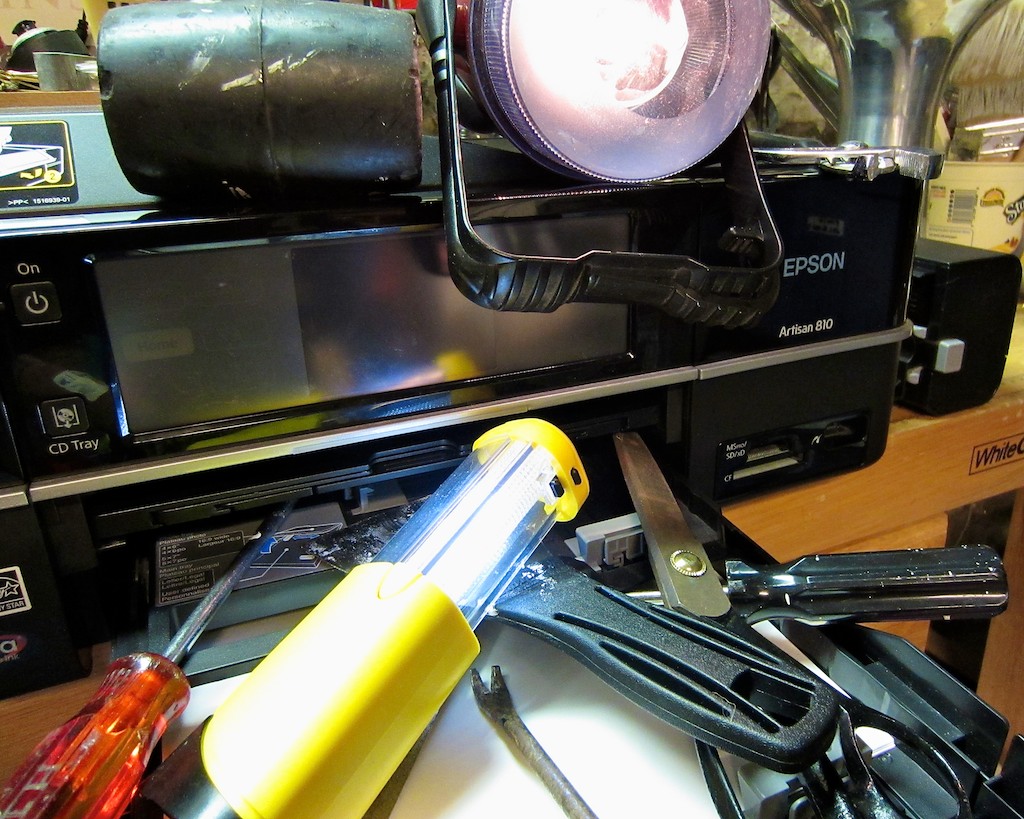

Epson Multifunction Printer vs. Multi-Talented Toddler

My two-year-old son with a shiny penny approached my two-year-old Epson printer and said, “Gagel Flagel!” Translation: “Time to meet your doom!”

If you think a penny is worthless these days, here’s a cautionary tech tale.
Yet another example that demonstrates how fragile your Tech Zen can be…

Today’s Target: My Epson Artisan Printer
So my wonderful toddler likes to press buttons. All buttons.

They call out to him.
“Please press me.”

He’s especially obliging when the buttons are attached to my home tech.
“On” and “off’ are very persuasive commands.
He’s become quite adept at finding these buttons.

Last week, my toddler mastered the functionality of my 2010 Epson multifunction printer/scanner/fax machine. (Artisan 810). I bought it right after he was born, and it’s proven to be a great workhorse for handling my photos, faxes, and copies.

For months, Baby McGyver had been happily turning the Artisan on and off, taking about the amount of time it takes me to run over and applaud his achievement before he does any real damage.
He once had a bit more time at his disposal and quickly reset the Artisan’s language mode to French. For weeks, I had to rely on all my remaining grade school French (Je ne comprends pas) until I had the time to dig into the machine’s menu and return it to our home language.

The Power of the Penny
By now, he’d graduated into the AP class and was working on understanding the Epson’s more advanced functionality. Plus, he brought some tools to the job.

He secretly had a penny he’d found.

He walked up to the printer, while I was happily at my desk, working on my blog.
I wanted to finish up a thought and felt I easily had another five seconds.

Then, he successfully ejected the CD/DVD tray. (Yes, it can print DVD labels.)
At that point, I decided it actually wouldn’t be a bad idea to forget the thought and rescue my printer.

The Epson is located behind my desk and requires a five second journey from my chair. Maybe three seconds at top warp.

I made my move.
But he was quicker.

He had already placed the penny in the tray. And then he pressed the close button.
My Epson ate the penny.
Crunch.

The Artisan began grinding away, attempting to avoid the little intruder. Every illuminated element on the machine blinked in unison to protest.
Finally, my Epson declared that it could proceed no further and needed to be shut down.

My son looked up at me and gleamed with his amazing accomplishment.
(How can you really be mad in that kind of moment?)

Fix or No Fix
But repeated reboots failed to eject the poison, as the penny was securely jammed deep inside my Epson.

After a quick diagnostic, I realized I would need to take much of the printer apart to even locate the area of distress. I decided my odds of successfully repairing my Epson were not promising.

Prognosis: Cancel the surgery; my Epson is a goner.

And paying someone else to repair it was a “no-go” option. Too expensive.

The Easy Button
I am not proud admitting this, but my next move was to open the Staples circular (my favorite place to buy a lot of my home tech).
As if it were waiting for me, there it was… the next generation of my very printer, (the Artisan 837) and it was on sale!

I decided to take the hit and pressed the easy button.

Even though I would have preferred to do the fix myself, I took the easy way out and supported our disposable culture.
Not a good day for the green movement, but I hoped the planet would forgive me this one time.

Warp Drive Restored
I was quickly back in business.
With the exception of a few minor enhancements and menu layout differences, you wouldn’t even know the new unit had taken over.

I even reduced the financial sting by using a few Staples gift cards I had through my Discover credit card rewards program.
For every $20 dollars I earn in cash back, I receive a $25 Staples gift card.
(A very nifty deal!)

So the $199 Epson (originally $299) ended up costing me only $15 out of pocket.
And this included an extra $25 for a year-long product protection plan.
(Sweet)
Though I usually don’t buy extended protection plans, I figured in this particular case, a future assault against my new Epson was not out of the question.

Bad Luck Comes in Threes?
So a puny penny literally felled my mighty all-in-one printer.
And it got me thinking…

What could be next?
Not to be paranoid, but this year, I’ve already had the Cup of Joe scare.
Now, the evil power of the penny.

This near tech-death experience dredged back up a longstanding concern I’ve had about the safety and proper long-term storage of my digital files.
(And this goes beyond the normal risk of damage from any child’s curiosity.)

Sure, I have a back up G-Tech external drive using Apple’s Time Machine. Sure, I’ve got other portable drives where I store other backups of my family’s photo and video history.

But is it enough? (Is it ever enough?)
Still, everything is here at home.
Common tech wisdom suggests I’m supposed to spread the risk around.
But I don’t think I’m about to stash drives around the countryside in friends’ and relatives’ closets.
That seems a bit absurd. (though not entirely illogical)

The Cloud to the Rescue
Hey, what about Cloud storage?
Yes… I could see it now.
All my precious media files sitting safely out of harms way in the Cloud.

So I did a little research.
And of course, the more I read, the more confusing it got.

But I slowly came to the realization that for only about $50/year, you could conceivably safeguard your priceless files offsite in the Cloud.

That’s a $1,000 investment over the next twenty years.
On the other hand, that also works out to less than fourteen cents a day.

Can you think of a better use for your spare change over the next twenty years?

Yes, the power of the penny.
Think about it.

Next time on At Home with Tech-
We’re putting our pennies to work and blasting our big media files off to the Cloud!

I Don’t Know How to Install my Wireless IP Camera, Part 2

Call it what you like – Tech Death Match or IT Smack Down. This Foscam BabyCam will be operating in our nursury by the end of this post or else! Need
“How-To” directions? You’ve come to the right place.

Previously on At Home with Tech,
Barrett decides to replace his old-school BabyCam system, and hooks up a cutting-edge Foscam Wireless IP Camera (Model F18910W). He plans on using the powerful conduit of his Apple Airport Extreme’s Wi-Fi home network to carry the video and audio signal of his sleeping toddler.

But the installation manual is gobbly gook.
And Barrett is flummoxed on how to do the install.

Will he find his answers online?
Will he be able to navigate conflicting suggestions by other Home IT Guys?
Or will failure jeopardize his very “Tech-Dentity?”

One thing’s for sure.
There’s no turning back now…

Foscam Installation or Bust!
First, I need to offer up a little disclaimer.
My friend who gave me the evil black eye (camera) recommended I call Foscam tech support if I had any problems hooking up the sleek but confusing IP device.
And did I do that?
No.
Why? Let’s just say I wanted to be able to figure it out for myself.
Maybe it’s a guy thing. Like asking for directions.
(It’s a discussion for another day.)

Web Wandering
Let me ruin my cliffhanger and joyfully report that my little tech project does have a happy ending. It just took me the better part of a week to get there.

I had to piece together the puzzle with bits of information from a variety of websites to get the whole kit and kaboodle to work. I found no central source.

Hopefully my experience will be of value to other Foscam owners wandering the web looking for answers.

Yes, I was right about how crazy hard it is to set this kind of tech up.
And two years ago wasn’t the time to crack this code.
Preparing for parenthood wouldn’t have allowed me the necessary discretionary focus. I can see that now.

Hey, what’s that sparkly feeling I feel rushing over my face?
It’s all that Tech Guilt…
Evaporating.
(nice)

My Manual Begins
The remainder of this post is the manual I feel should have been in the box.
But beware. I’m going to be throwing about a lot of acronyms.
And this how-to post is only designed for an Apple ecosystem using a current edition Apple Airport Extreme wireless router.

Are you still there?
(Cue the “Jeopardy!” music.)

Great!
For those of you who are left, thanks for taking this rigorous journey with me.
Let’s get started!

The Glossary
First, you should familiarize yourself with some acronyms.
Please tell your agitated neurons not to explode.
(You can also refer to this later. I won’t tell.)

• IP Address = Internet Protocol Address
It a unique location identifier that works like a mailing address for computers and other devices to find each other on the web.

• DNS = Domain Name System
This service manages and translates impossible-to-remember IP addresses into normal URL names.

• DDNS = Dynamic DNS
Similar to DNS, but this system handles dynamic IP addresses that change from time to time. To address this problem, you can download DDNS software to your computer to update the correct DNS mapping to your URL.

• DHCP = Dynamic Host Configuration Protocol
This network protocol is used by your Apple Airport Extreme router to assign a range of private IP address numbers to different devices running on your network.

• MAC Address = Media Access Control Address (not an Apple term!)
Like your social security number, each of your web-connected devices has a MAC Address hard-wired into it. One way to identify your Foscam MAC address is to download LanScan onto your computer. It’s a free program you’ll find in Apple’s App Store.

Chapter 1: Get your Foscam Camera Working in Wireless Mode
When you first log your camera into your home Wi-Fi network, you’ll have to hardwire it to your router to log it in. (like a temporary umbilical cord)
The trick is to activate its wireless mode to work with your Wi-Fi home network.

TIP:
When you reboot your Foscam to activate its wireless mode, you must quickly unplug the Ethernet cable before the camera completes its reboot. Otherwise it will incorrectly reestablish its connection via the cable and WILL NOT FIND your Wi-Fi signal when you pull out the cable later.

Chapter 2: Lock Your Home Network’s Dynamic IP Address Assigned to the Foscam
Once I had my Foscam up and running in the nursery and viewable on my iMac’s Safari browser, I quickly realized my Foscam viewer software asked me to keep re-logging in every day or so.

What was up with that?!

My Airport Extreme (like all routers) is given only one external IP address to work with. That IP address is provided by my internet service provider (ISP) and has to be shared with all my web-enabled devices when connecting up my army of tech.

But remember, each device needs its own unique web location identifier.
So the Apple router ends up assigning its own series of internal dynamic IP addresses to my web-connected tech.

The problem was the router-assigned internal dynamic IP address for my Foscam kept changing, forcing me to re-log back into it.

TIP:
Create a Static DHCP Reservation for the Foscam in your internal home network that won’t keep changing on you.

The Mac Observer has a great story on how to do this.
I found it especially valuable, because there’s not a lot out there on how to get Apple’s current Airport Utility (V6.1) to work with an IP camera.

That said, I did have one problem with this article. I couldn’t change the default DCHP Range as per the instructions. So I picked a number, reserved it, and hoped my router will know not use try to reuse it. (Isn’t that what a “reservation” means?)

Chapter 3: Don’t Stress over your ISP’s Dynamic IP Address
As I mentioned above, home internet users are assigned one dynamic IP address by their ISP. For me, it’s provided by Optimum (Cablevision). And yes, static IP addresses are available, but cost more.

So the external dynamic IP address Optimum assigned to my service changes from time to time.

We’ve just addressed the similar problem when accessing the Foscam on a home Wi-Fi network. But when you’re elsewhere and want to take a peek at your toddler, you’ll need to ping the Foscam via your external dynamic IP address. And that number is always changing.

That problem makes it hard for my Foscam Pro iPhone app ($3.99 in Apple’s App Store) to find my baby cam when I’m out and about.

The solution is to use a free DDNS service to assign a static host name to your dynamic IP address that won’t keep changing on you.

I signed up for an account with no-ip.com.
(My Foscam manual suggested using dyndns.com, but DynDNS no longer offers free accounts! D’oh!!)

You might think it’s great to have a static name instead of an ever-changing series of IP numbers for your Foscam.
But how does the host name know to keep up with the changing numbers?

Good question.

You’ve also got to download and install software that’s designed to track the changing numbers.
No-IP calls it the Dynamic DNS Update Client or Mac DUC for short.
(That’s much easier to remember!)
And as long as the software is running on your computer, it will sense your IP address change and update the current DNS address associated with your new static name.

Ugh.
Another program to run on my computer. I’m never a big fan of introducing software that always has to run the background.

Throughout my agonizing week of Foscam-Palooza, I noticed my dynamic IP address from Optimum only changed once.
So I’ve decided to delay this step, and I have not yet created a new host name for my IP address with No-IP. I will deal with this pesky problem at some point down the line.
For now, I will keep checking for changes to my IP address, which I do by going to-
www.whatismyip.com

I will then have to manually update the new IP addresses into Foscam Pro on our family’s two iPhones.

Not a perfect solution, but it works for now.

TIP:
Don’t bother with the whole DDNS thing. Do the DNS updates manually. You can always set up the auto-checking software later.

Chapter 4: Port Forwarding or Bust
No choice here.
This step you have to do to get Foscam Pro working without the safety net of Wi-Fi.

So what is port forwarding?
It’s when one internet device communicates directly with another, using a specific port number. The Foscam’s default is port 80, a commonly used port.
All of my research says you should change it to a less travelled port number to avoid conflicts with other devices also using port 80. And sometimes ISPs block port 80; another reason not to use it.

Finally, my Foscam Pro iPhone App says point blank: “Don’t use Port 80!”

TIP: Assign a port number other than 80 for your Foscam to use.

Show Me the Money!
Okay. If you’ve gotten this far, you must be serious.
Here’s my bonus ‘quick start’ guide.
(You’re welcome.)

It’s step-by-step detail on how to get your almost-awesome Foscam IP Camera up and running once it’s happily humming on your home network using Apple’s Airport Extreme router and Airport Utility V6.1.

STEP 1:
Log in to your Foscam’s Device Management Page in Safari.

  1. Go to the “Basic Network Settings” field
  2. Change “Http Port” from 80 to another number
    (Foscam Pro recommends 8502-8599.)
  3. Press “Submit” and allow your Foscam to reboot

STEP 2:
Open Airport Utility on your Apple Computer.
(It’s in your Utilities folder, which is in your Applications folder)

  1. Click the “Network” tab
  2. Click “Network Options” at the bottom
  3. Make sure “Enable NAT Port Mapping Protocol” is checked
  4. Click “Save” which takes you back to where you were…
  5. Click the “+” under “DHCP Reservations”
  6. In the “Description” field-
    Type in the name you want to call your device
  7. In the “Reserve Address By” dropdown-
    Select – “Choose MAC Address”
  8. In the MAC Address field-
    Type in your MAC address, which you can find with LanScan (see glossery)
  9. In “IPv4 Address” field-
    Type the DHCP number you’d like to reserve as a static address for your Airport Extreme to use
  10. Click “Save”
  11. Then click the “+” “under “Port Settings”
  12. In “Description,” select FTP access from the drop down
    (I know this may not be technically correct, but there isn’t a camera-related option.
    And it did work!)
  13. In the “Private IP Address” field-
    Type in the same DHCP number you used in the DHCP Reservations section
  14. In the four other fields that list private and public port options-
    Type in your new port number that you earlier gave to your Foscam to use
    (I punted here by filling in all the port fields, but the “throw spaghetti at the wall” approach seemed to cover me.)
  15. Click “Save”

That’s it.

STEP 3:
Purchase and Download Foscam Pro onto your iPhone or iPad.

  1. Launch the app.
  2. On the bottom left of the app, click the “+” to add a new camera
  3. In the “Name” field-
    Type in the name of your choice
  4. In the “Remote Camera Address” fields-
    Type in your computer’s external IP address and your new port number you assigned to your Foscam
    Again, you can find your IP address by going to-
    http://www.whatismyip.com
  5. In the “Local Camera Address” fields-
    Type in your static internal IP address your reserved in Airport Utility and your new port number
  6. In the “User Name” and “Password” fields-
    Type in your Foscam sign-in info
  7. Then choose your camera model

Then…. VOILA!
You should now be able to view your Foscam feed on your iPhone from anywhere, day or night! (Don’t forget to use the camera’s infrared nighttime mode.)

Anyone Still There?
Easy-breezy stuff, right?
I know. Not so much.

So I hope I’ve been of some assistance.
(If there are other/better solutions out there, please share!)

I publicly admit I’m outside my tech comfort zone, and my solutions are only one guy’s humble opinion. (I bow my head in deference to more proficient tech heads out there whose domain this type of conversation normally belongs.)

But sometimes you’ve to figure things out for yourself!
Especially when you’ve got no choice but to write the manual yourself.

Face Your Darth
All in all, it’s not been a totally horrible experience.
(though it did take me two years to attempt it)

So get off the barcalounger and go run around in the wild a bit.
(I highly recommend it.)
Confront the Dark Side, and tickle it until it gives up its secrets!

I’m happy to report my Tech-Dentity has remained intact.

My solutions may not be bulletproof, but they work! (for now)
And that, my friends, is all that matters.