At Home with Tech

Unlock the power of all your technology and learn how to master your photography, computers and smartphone.

Category: Tech Fixes

Five Tips to Rescue your Best Summer Family Photos

Your family vacation is over. Now, you’ve got hundreds of photos to organize after you track in sand to your bedroom. Still feeling relaxed? Don’t burst your vacation bubble. It’s time to rescue your best photo memories!

Remember the Star Trek episode titled “The Trouble with Tribbles” where those cute furballs kept replicating like rabbits? Everyone loved them, but those darn tribbles quickly clogged up the Enterprise. At the end of the episode, the tribbles find their way into a poisoned storage bin of quadrotriticale (grain) destined for a hungry human colony. All the tribbles have a big feast and then get a huge stomach ache. (A lot of them actually starve surrounded by all that food, but I guess the AHA wasn’t on the set that day.)

What does this have to do with your digital photo collection from your summer fun?

Here’s today’s cautionary warning:
You too can starve with a computer full of amazing family photos.

The Quadrotriticale Paradox
We all want to share our best vacation moments with family and friends. But I’ve discovered an ironic phenomenon, which I’ll coin the
“Quadrotriticale Paradox.”

It suggests the more vacation pictures you bring home that clog up your computer, the smaller the chance you’ll actually share your best photos.
There is a clear inverse probability.

I just got back from a weeklong family beach vacation.
And I’ve been known to snap a photo or two. This time, it was more like 522.
We shared a beach house with another family. And they had their own ‘photoholic’ who took really great pictures. At the end of the trip, we swapped our respective photos through Dropbox.

Now, I was blessed with 692 photos!
That’s a whole lot of tribbles to manage, even for me.

Where do you start?
Well, many folks just upload their snapshots someplace where people can take a look.

I often watch with envy as some of my friends regularly share their photos on Facebook and other social platforms.
But, honestly, some of the photos seem a little half-baked. Not quite ready for prime time.

But who really cares?!
They’re not submitting their photos to an amateur photo competition.
My friends are successfully sharing their lives in the moment.
That’s the only point, and they’re getting the job done!

But if you’re a photoholic like me, you can’t do that.
Nobody wants to look at hundreds of your vacation photos (especially my dad).

And what about your best photos… your little magic gems?
You know, the ones where people say, “Wow, how did you get that?!”

The Curse of the DSLR
Capturing magic shots of your toddler requires the fine art of snapping away and waiting to get lucky. This is especially true using a DSLR. But you’re inevitably creating an excess of mediocre shots in search of the perfect photo.

So maybe you get fifty gems (not a bad catch).
But they’re all buried under hundreds of inferior versions.

Now what?

Tip #1 – You Must Sift through all your Photos to Find the Gems

There’s No Magic Bullet
You have to go through each photo to choose the best ones. Sorry.
I use a numbering system. 1 through 5.
Both iPhoto and Apple’s Aperture allow you to do this.

Here are my rating rules-

1- Total failure. Give it an immediate appointment with the trash bin.
2- Really bad photo. Trash it unless it’s the only shot of something special.
3- Just okay. Decide whether to trash it another time.
4- Good photo, but there’s a better version of it.
5- The better version or simply a great picture.

Once I’m done with this evaluation, I adjust the photo album to display in an ascending order based on the ratings I’ve just assigned the pictures.

Then, I review the 2’s again just to make sure I wasn’t too harsh before I delete them. Sometimes a few of them get a reprieve and get bumped up to a 3.

Then I move the 1’s and 2’s into the trash, and DELETE!
Your worst photos are now gone forever.
Now it’s time to focus on the pictures you want to show off.
And those are your 5’s.

Tip #2 – You Can’t Share Your Photos if You Lose Them

Preparing for the End of the Mayan Calendar
I occasionally take the 5’s and put them in a folder called “Best of 2012.” That folder is what I use for my end of year photo books as well as my “end of world” photo back-up strategy.

Sure, I’ve got Time Machine on an external Lacie hard drive for my iMac. But when you’re on vacation, does anyone else have nightmares about coming home to some disaster?

So to start my vacation with peace of mind on the photo archiving front, I do a second back up of all the 5’s to another portable hard drive, which I then pop into a small SentrySafe firebox.

I’m not sure if that will protect against an invasion of angry mutant tribbles.
But I always sleep a little sounder my first night away on vacation.
Don’t judge.

Tip #3 – Share Your Photos Quickly

Your Family Photos have an Expiration Date
I’ve learned a painful lesson capturing photos of my toddler over the past two years. Children grow up fast. No one is interested in last month’s photo. They want to see what he did yesterday!

Case in point…

On the Monday after I returned from vacation, I hadn’t yet had time to take the hour needed to do the prep I describe above.
All I could do was quickly choose three pictures that jumped out and print them to show off at the office. (Colleagues want to see!) I figured a few hard copies should cover it. I also downloaded the complete mass (mess) to my iPhone as part of my normal data syncing process.

So I almost got through the day…
But before I headed home, I went to get a haircut.
(I had gotten a little shaggy over vacation.)

As soon as I mentioned the beach trip to my hair stylist, she immediately demanded to see pictures. I warily pulled out my iPhone and flipped to the middle of the 692 where I knew there were a few good shots back to back. I thumbed through them and swiftly made my move to put my iPhone away, hoping I had satisfied her.

Not quite.

Instead, she took the phone out of my hand and kept flipping through what seemed like hundreds of number 3 photos. I was mortified.
These photos weren’t supposed to be seen! They were 3’s!!
Holy frak… that one was a 2!! Stop!!!
Time crawled to a halt.

Finally, she had her fill, and handed back my phone.
She was beaming. “You have such a beautiful family,” she said.
And my haircut continued. Perhaps I had overreacted.

But I decided I wasn’t going to get cornered unprepared again.

Tip #4 – Perfection of Process is Overrated

Throw Out the Handbook
Sometimes, when time is working against you, you’ve got to just get it done.
That means forget about Tip #1.

So that night, still without the requisite hour to whip my photos into shape, I quickly browsed again, found ten more photos, threw them into a folder, and synced them to my iPhone with the original three I had printed out.

The next day, I got pressed twice to give up the goods, but now I was ready. Having the hastily prepped photos ready to display on my iPhone was all it took to satisfy my paparazzi.

The lucky thirteen weren’t necessarily the best of my 692.
But in the moment, they did the job.

I suddenly feel the urge to offer a relevant quote from a movie-
“Fate rarely calls upon us at a moment of our choosing.”
(Transformers: Revenge of the Fallen)

You’re welcome.

I know I’m not saving the universe here, but in my little world…
Mission accomplished!

Tip #5 – Finish the Job and Tame the Beast

Show off your Photo Bling
After the firestorm of immediacy subsides, you may return to your regularly scheduled programming.
(And don’t forget to quickly share the baker’s dozen online or via email.)

So you’ve got your all your 5’s.
Time to buff out the gems to perfection. (color balance, brightness, crop, etc.)
This will take some time. But it’s worth it, because these are the pictures you’ll print and distribute, and use to create your photo books.

Remember, don’t wait too long to share or suffer the consequences of an indifferent audience.

The other downside to delaying this part of your photo organization is you’ll eventually develop such a backlog of pictures you’ll never catch up.
You’re always taking new shots, and the wild of your disorganized photo jungle will continue its creep!

Over the course of time, you’re easily managing many thousands of pictures.
It’s a beast that needs to be kept under control.

Or else.

Now go tame your jungle and hunt down your best summer pictures!

And if you come across a wild tribble or discover a way to stretch the fabric of time, please let me know!
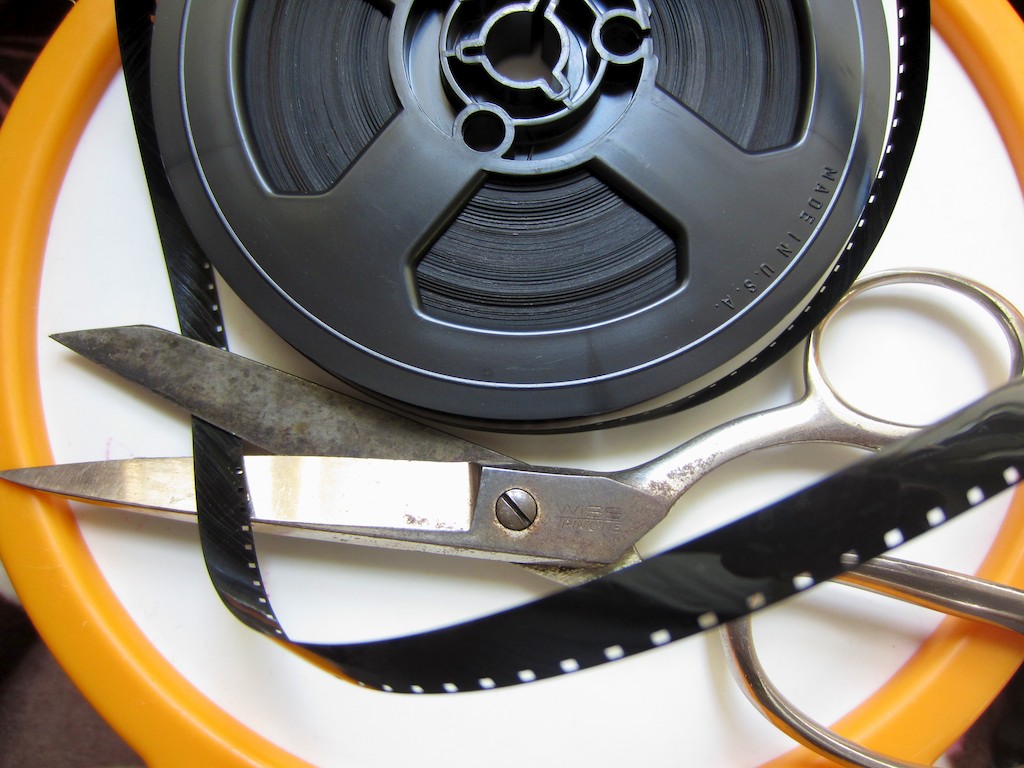
I Sold My Soul to the Digital Devil

Is Final Cut Pro X sharp enough to erase that evil deal you made to shoot movies on your camera?

If a stranger with a wicked sun burn walked up to you and said you never needed to use your camcorder ever again to record your home movies, you’d take the deal, right?

We all did this a few years back.

The last tape-based camcorder I ever bought was a Sony Mini DV unit back in 2002.

I edited the content by sucking it onto my iMac via FireWire. My editing software was iMovie and then later, Final Cut Pro.
Everything worked just fine, and I was rather chuffed with my little home media studio of the early 21st century.

Then one day, digital cameras started showing up with little red movie record buttons, and everyone suddenly realized you didn’t need tape-based camcorders anymore. Heck, you didn’t even need a camcorder. Cameras could do double duty.

Sure, the video quality wasn’t as good. There were file size limits that restricted how long you could record. And to edit your digital movie files, you had to buy external hard drives to handle the massive movie clip sizes. And the file size problem really exploded when HD recording came into fashion.

You theoretically could save the files forever. But you also had to worry about your hard drives going belly up with all your precious family memories.
(This has occurred to you, hasn’t it?)

But storage, backup, and file corruption concerns aside, I have to admit it’s pretty cool to plug your camera’s little SD card into your computer and watch your movie files quickly transfer over.

So yes, it was a time saver.
Yes, it was easier.
Yes, I liked it way better.
(really)

…BUT
(You knew that was coming.)

There is one problem that nobody ever talked about-

TRANSCODING.
No, not transwarp.
TRANSCODING!

The Deal with the Digital Devil
You must have wondered somewhere along the way how a tiny four gig SD card in a camera could record so much video. Well, it’s called file compression, and that’s your camera’s secret voodoo.

There are a few types of movie recording codecs that perform this tricky task to squeeze your movies small enough to allow them fit onto your camera’s memory card. A few of the more common codecs are H.264, Motion JPEG, and AVCHD.

These highly compressed movie formats create video files that look great when you play them back on your camera or your computer, but you couldn’t edit with them. (That’s buried on page 17 of the contract.)

So what good were these movie files if you couldn’t do anything other than look at them?

The fix here was to reprocess or “transcode” the files into a different video codec that your editing software could actually handle. This meant creating a larger and less compressed duplicate of each movie file that would play nice with your editing software.

Got that?
Just nod your head, and let’s move on.

The Devil is in the Details
As a new daddy, I went about my business editing little movies of my son’s early days by first transcoding every frickin video clip I wanted to edit with.

You can imagine the organization that kind of workflow required.
-Duplicate files.
-External hard drives filling up at triple speed.
-Archiving hell.

I’ll just say my desk at home, let alone my computer’s desktop, does not quite live up to the clean and simple aesthetic of our almost all-digital world.

But you do what you gotta do.
Right?

Was I the only father out there who had a deal with Mephistopheles to make home movies? Nobody else seemed to be talking about it.
(Maybe it’s in the contract. I really never got around to reading mine.)

The Phoenix of Final Cut Pro
A year ago, Apple shocked the digital editing world and killed off its wildly successful Final Cut Pro editing platform. Almost a decade earlier, Final Cut had brought professional non-linear editing to the masses for a fraction of the cost of competing systems.

Then Apple pulled the plug by reinventing Final Cut Pro all over again. The problem is the new version, Final Cut Pro X, is an entirely new program, “built from the ground up.”
It’s not compatible with the old version, Final Cut Pro 7.
(There is no version 8 or 9.)
So you can’t move your old or ongoing editing projects to this new editing platform. Sorry.

I got stuck in the eye of this hurricane, and for the past year I’ve been struggling to decide when to make the transition.

First off, Final Cut Pro X only works on Lion, Apple’s current operating system (and soon to be released Mountain Lion). So I first had to make the Lion upgrade.

Then, there was sooooo much bad press about how inferior this new version of FCP was. Angry editors called it iMovie on steroids. There was a consensus in the professional and semi-professional editing communities that they felt abandoned by this more limited editing platform.

So I wasn’t too eager to jump into the mess.
I’ve got plenty of my own digital messes to clean up!
(plus a few analog ones too)

But Apple kept banging their drum about how much better FCP X really was. They said you simply had to invest a little time to learn the new interface.

But there was one particular FCP X feature that caught my eye.
Apple said you didn’t need to transcode your files anymore.
You could throw just about any video codec at FCP X, and it could work with it.

Bold words.
But still I held off.

Fast forward to our current timeline, and Apple, never standing still, has been busy improving FCP X through multiple software updates.
And there’s a rumor out there that the old FCP 7 platform will cease working with the Mountain Lion OS, coming out later this month.

So I figured it was finally time.

Final Cut Pro X to the Rescue
Last week, I went to Apple’s App Store, which always has a friendly icon waiting eagerly on my iMac’s dock.

I clicked on it and downloaded Apple’s most controversial product since the iPhone 4 ‘Antenna-gate.’ (Remember all that hoopla with the antenna reception problem?)

The time had come to face my digital gauntlet.
I watched my finger make its move to launch Final Cut Pro X.

FCP X quickly sprung to life.
Would the continuity of the Lester family record on video be ensured for eons to come?
(or at least the next couple of years?)
Drum roll please…

Well, of course it worked.
But as I’ve said, the devil is always in the details.

While this is not a product review, let me confirm that FCP X is better and faster in a whole host of ways. It’s also still missing some functionality that was standard with the older version. One example is it takes three steps to blend a transition between two audio tracks instead of the old way, which took one.

I’ll live.

The Big Answer
And what about TRANSCODING?
Remember, Barrett’s holy grail?
Have we forgotten about that already?!

Can Final Cut Pro X edit my native H.264 .MOV files fresh from my Canon SX230 (standard-issue toddler cam) or Canon Elph 300 (in-a-pinch pocket cam)?

Perhaps the question should be,
“Does FCP X WANT to edit with my camera’s native H.264 movie files?”

I don’t think it really does, but it grudgingly will when told to.

FCP X quickly gave me a few opportunities to transcode my imported movies.
Pro Res 422 (a beefy codec) is now FCP X’s default transcoding option.
It was almost like, “Would you like fries with that?”

Clearly Apple’s declaration that ENDS THE ERA OF TRANSCODING has been somewhat exaggerated.

Look, I understand that better ingredients create a tastier pie.
And the same holds true in the digital world. Non-optimized movie files will make FCP X and your Mac work harder. And maybe not all Macs (especially older ones) are up for the task.

But my 2010 iMac is a 2.93 GHz Intel Core i7 with 4 gigs of RAM,
(I’m not bragging) and should be ready for the challenge. Yes?

So I refused all requests to transcode and hit the proverbial red button.
Cue another drum roll…

EUREKA!! It worked!
(And there was much rejoicing in Barrett’s brain.)

Let me proclaim this again loud and clear throughout the land!

I DO NOT NEED TO TRANSCODE MY H.264 .MOV FILES TO EDIT IN FINAL CUT PRO X!

I am free!!

Wait, did I just cut another deal with Beelzebub?
Hmmm. I don’t think so.

So today’s story has a happy ending.
Technology has made my life a little easier.
(Savoring the moment…)

Digital Zen restored.
I am At Home with Tech.

Now please excuse me while I get to work editing my five-month backlog of family videos. I think I’ll be needing to move at transwarp speed to catch up!

Are You at Home without Tech?

Imagine if I were still figuring out a way to use my old Palm Pilot (shudder). Don’t try too hard….

A while back, I had a great catch-up coffee with a friend and former colleague. We reminisced about the good old days and compared some parenting notes. Then, I told him about this little blog. And how I was so focused lately about how to keep all the technology in my home life just working from one day to the next.

He said, “Oh, so it’s really “At Home without Tech.”

I sat there for a moment, dumbfounded.
Come to think of it, I’m talking precisely about that.
The fear of my tech not operating properly.
The frustration when I can’t figure it all out.
The embarrassment when my modest home of the future doesn’t have the latest and greatest.

While I sat there pondering the veracity of his suggestion, he started plotting his own theoretical counter blog with its suddenly very clever and relevant name.

At Home without Tech
How did I miss this?
“At Home without Tech” is really catchy.

It strikes both an ominous cord in your soul as well as a rebellious one. It taunts you every so often to throw your smartphone into the pond and hook up the horse and buggy lurking deep in your soul’s garage.

I could be writing about how I had failed to maintain my PalmOne Tungsten E2 organizer from the late ‘90s, forcing me to use my old pocket address book from the previous century.
(My father still swears by his.)

And then I realized I was still okay.

This blog isn’t for luddites. It’s for everyone who knows they can’t do without tech.
If you’re at home without tech, it’s a bad scene.
You need tech! You want tech!!

I write about everything it takes to NOT be at home without tech.
My blog ‘s branding is still on target.
Phew…

But I think my friend was actually on to something.
Deep down, we all have fears.
Fear of the unknown. Fear of death. Fear of bad sushi. Fear of no tech.

Whatever.

Digital Sisyphus
These fears are great motivators. They force us to take action to avoid bad juju.
And that’s oh-so-true when technology you rely on goes kerflooey.
Or when you’re too darn lazy to perform a software update on your wife’s computer.

Progress waits for no tech blogger.
I’d better keep up.

Because what would there be to write about if you’re at home without tech?