At Home with Tech

Unlock the power of all your technology and learn how to master your photography, computers and smartphone.

Category: Tech Fixes

How to Improve your Zoom Background at Home
Making sure you’re properly lit in your Zoom shot isn’t always enough. What about the supporting cast in your webcam’s view?

It’s clear we’re at a point where participating in Zoom meetings is a permanent part of home life and a necessary tool to communicate with our world. So, it’s important to create a ‘remote video communications’ home set-up that really works for you and your viewers.

I hope most of us are beyond the chaotic experience of working from home and participating in meetings all day. During those early pandemic months, simply finding a quiet spot to open up your laptop for a Zoom, Skype or Teams meeting was a challenge.

How your shot looked understandably may not have been your priority.

Keeping it Real
But as we’ve settled into our new routines, many of us have improved our Zoom look.

I’m sure you know the basics by now:

  • Make sure you’ve got enough light on your face.
  • Don’t sit with a window behind you.
  • Position your webcam perpendicular to your eyes, not looking up your nose.
  • Declutter your background.

I know many folks are fond of using virtual backgrounds. While that’s okay, I like to keep my shot as authentic as possible.

I’ve tried digital and blurred backgrounds, but I always felt like I was in a science fiction movie.

Can you See my Robots?
So, even though my home office is hardly an ideal space to create the perfect video shot for my Zoom meetings, I’ve continued to tinker with my background throughout these many months.

Recently, I moved the furniture around in my home office, and to a certain extent I’ve created something of a blank canvas to work with.

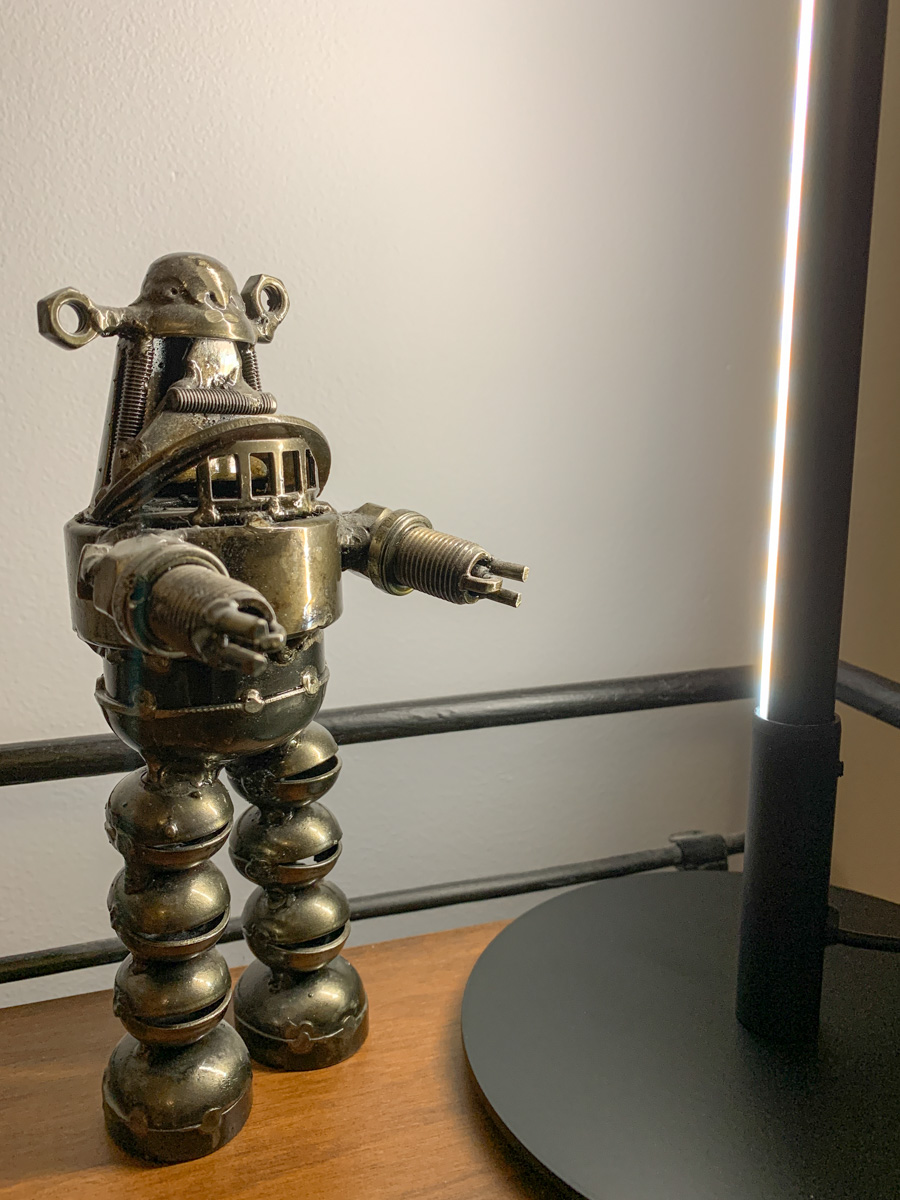
I repositioned a short bookshelf into my Zoom background, and I used the top shelf to display a few robot statues I’ve collected over the years. (R2D2, C3PO, Robby the Robot and Robot from the original “Lost in Space”)

They’re also nice ice breakers as people sometimes ask about them when they spot my metal robots in my Zoom shot.

The only problem is my robots looked like shadows in my background. That’s because my back wall didn’t have a lot of light hitting it.

Time to Add More Light
Like any professional studio TV set, you’ve got to properly light your entire space, and that includes the background. Otherwise your environment will look drab, no matter what it contains.

And webcams are usually happier if your lighting is more even throughout the entire shot. That means you’ll look better and not over exposed.

So, I needed to figure out how to throw more light on that back wall and my little robot display.

Vertical LED Table Lamp
There are any number of ways to do that. A floor lamp next to the bookshelf would be an easy solution. That said, I didn’t want to clutter my background (or my home office). Instead, I looked for a lighting solution with a smaller footprint: some sort of lamp that could sit on the end of the book shelf just outside of my Zoom frame.

I found a small vertical LED table lamp made by Edishine on Amazon.

It was the perfect solution. It added the background fill light I needed without overwhelming my shelf. The lamp’s cold, minimalistic look also blended nicely with my little metal companions.

Think of it more like an under-cabinet lighting solution, but designed as a self-standing vertical glow.

Now, my robots are easy to spot in my Zoom background. Plus the extra light also helps my back wall pop.

Zoom-Optimized Rooms
If you want to really show up for your close up during Zoom meetings from home, you’ve got to do more than light your face and wear a nice shirt. Your environment is an extension of you, and it’s important to give it the same attention as you set up your webcam shot.

That means your whole room (or at least the part people see) needs enough light.

I know we don’t live in TV studios (well, most of us don’t). But I think it’s fair to say that when you think about how to decorate your living spaces moving forward, it’s not crazy to plan for the creation of Zoom-optimized rooms.

It’s not science fiction. Yes, reality has caught up.
How to Save your iPhone when It Runs out of Storage

Don’t panic! Take these steps when you see that your iPhone’s storage is almost full.

I once pondered why anyone would ever need an iPhone with 512GB of storage. Now, three years later, I know that answer. My 256GB iPhone is packed, and I want more space. Sure, my media files can (and do) live in any number of clouds or hard drives, but of course there’s a cost with maintaining that solution.

If you’re in the same situation and considering upgrading to a device with 512GB or a whopping terabyte of storage, you probably should look at the other side of the same equation and ask yourself why do you really need to carry around that much data on your smartphone.

Let me answer that one… You don’t.

I don’t. (That said, my next iPhone will have more storage. But honestly, that’s a band-aid solution.)

The real problem and solution has to do with media management.

This is not about having enough space to maintain your media library on your smartphone. It’s about not having enough time over the years to thin out the files you don’t need. You wake up one day to realize you’ve got tens of thousands of disorganized photos and hundreds of home videos dancing about.

They’re clogging up your phone, and the irony is many of them are throwaways, minor variants of better versions. You just never found the time to go back and delete them.

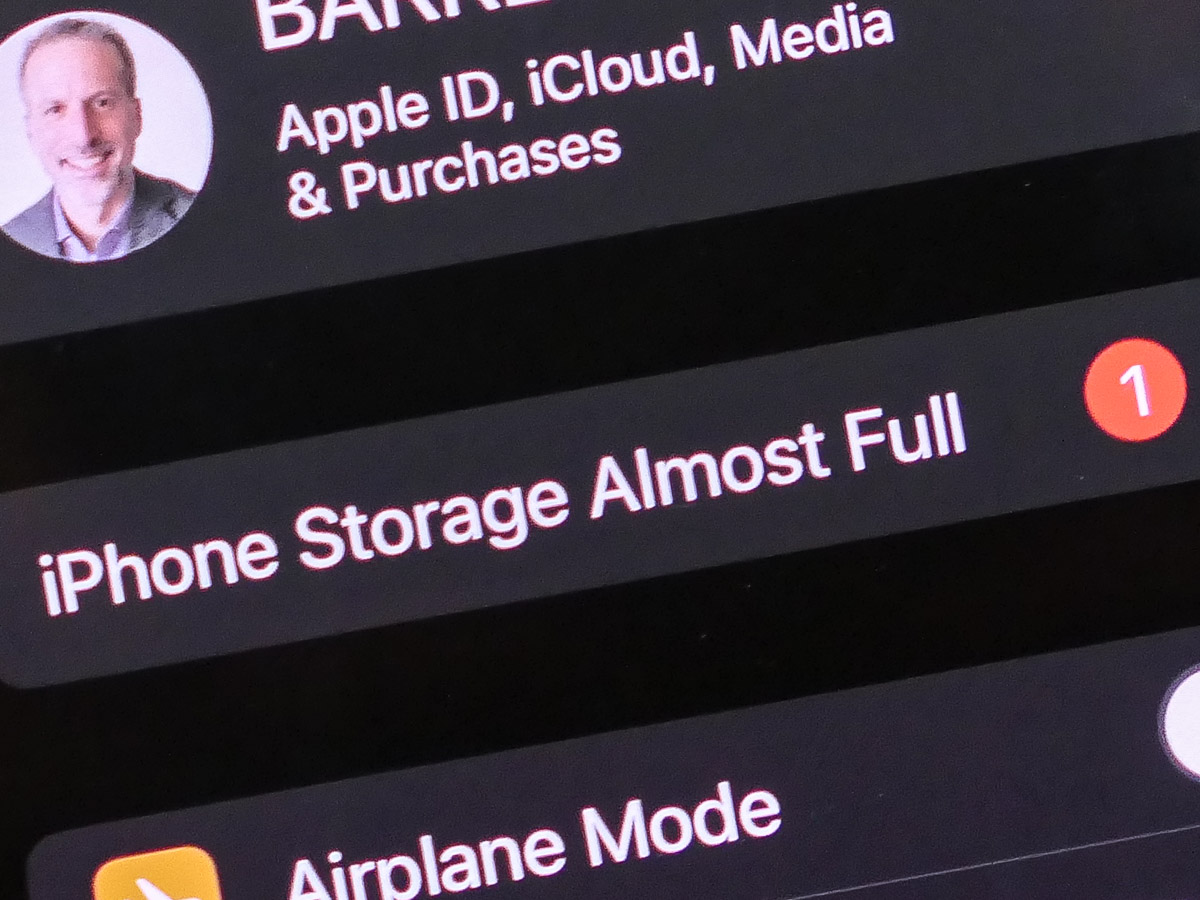
iPhone Storage Almost Full
You can ignore this reality for only so long. Eventually, your device will force you to respond. You have to go through all of your media files and hack away at them.

I’ll go out on a limb and say that nobody really needs tens of thousands of photos to represent their day-to-day lives. So it’s time to roll up your sleeves and put on your media management hat.

The Good News
In the process, you might come across some unexpected fast lanes to free up space.

To do that, first review your iPhone’s storage report:

  • Click on iPhone Storage in Settings.

You’ll see a graph illustrating what types of files are sucking up your phone’s memory. You might spot a category that can be easily cleaned up. I did…

Delete All of your Downloaded Podcasts!
I found that I had 40GB in old downloaded podcasts that I could quickly eliminate. (That was a huge surprise.) I hadn’t realized when I started ‘following’ certain podcasts a couple years back that all of the new episodes would continue to download, regardless whether I ever listened to another one.

40GB gone! Whoa!

So, if you’re a podcast listener, you should definitely check that category.

And don’t forget to change the settings to stop your iPhone from automatically downloading new podcast episodes.

  • Go to the Podcasts Settings on your iPhone
  • Turn off Automatic Downloads: Enable When Following

Your iPhone’s storage report also offers a few quick and easy methods to free up memory, such as offloading unused apps. So don’t miss those opportunities.

But sooner or later you’ll need to face all of those photos and videos. It’s time to do the hard work.

Reversing Course Takes Time
You’ve slowly brought yourself to this precipice. And it may feel like death from a thousand nicks. It’s overwhelming.

So give yourself some time to dig out. Five minutes a day can do wonders. As long as you’re deleting more media files each day than your creating, you’ve found the right path.

Take control. Your smartphone will thank you.

How to Hear Zoom Audio when Screen Mirroring to your TV

If you use a MacBook laptop and Apple TV, there’s one important setting to change if you want to hear your Zoom audio on your HDTV.

The Zoom app is mostly designed to be used on smartphones and computer screens as an interactive experience. But with Zoom having grown as a performance/presentation platform, sometimes it’s preferable to watch Zoom as a one-way experience. Then, it’s more enjoyable if you can experience it on your big-screen TV.

So how exactly do you get your Zoom feed to show up there? There are multiple ways to do it, but the gateway to my older (non-smart) HDTV is via my little (but mighty) Apple TV box.

Once I’m screen sharing in the Apple ecosystem to my Apple TV, it’s immediately available on my HDTV.

Apple makes screen mirroring (AirPlay) to its devices a snap. But getting Zoom’s audio to stream to your HDTV can be more tricky. Here are the ways to do it.

Use an iPhone and Zoom App
As long as you first activate screen mirroring from your iPhone to your Apple TV before joining your Zoom, you’ll be fine.

On your iPhone’s Control Center (open by swiping down from top-right corner of your screen), you’ll see the two layered rectangles icon for screen mirroring.

  • Tap it and select your Apple TV
  • Then join your Zoom presentation

Both video and audio will follow to your TV.

Use a MacBook’s Web Browser or Zoom App
Turn on Screen Mirroring via the Control Center icon on your laptop’s Menu Bar. Then choose the Apple TV.

Or a faster way to share your screen is just click on the Screen Mirroring icon on the Menu Bar. But you’ve first got to make sure that icon shows up on the top right. Here’s how to activate it.

  • Go to ‘System Preferences’
  • Click on ‘Screen Mirroring’ on the left panel
  • Click ‘Dock and Menu Bar’
  • Click Show in Menu Bar… ‘always’ (as opposed to ‘when active’)


Then proceed to your Zoom presentation.

What Happened to the Audio?
But I’ve found that one big problem can crop up when screen mirroring Zoom from my wife’s MacBook Air to our Apple TV…

The Zoom video projects fine onto the TV screen, but the audio doesn’t naturally follow. The Zoom audio remains tethered to the laptop’s speakers.

To fix that frustrating problem, there’s one additional step you’ve got to take.

Change your Zoom Audio Settings
By default, the Zoom audio output is the laptop’s speakers, even if you’re mirroring your screen. (Zoom doesn’t know that you’re practicing screen-mirroring magic.)

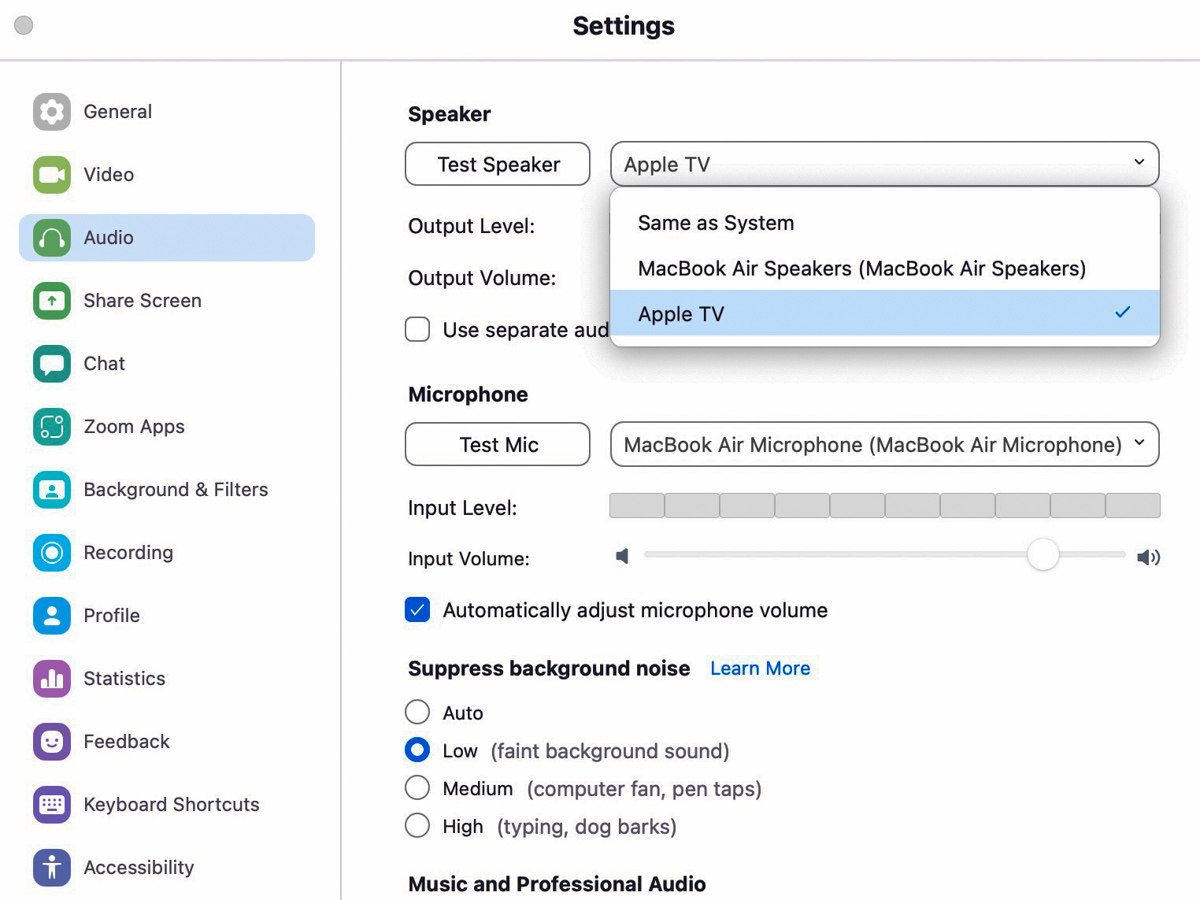
You’ve got to go into your Zoom settings and manually change the audio output to your Apple TV. Only then will the Zoom audio follow from your computer to your Apple TV.

In the Zoom app:

  • Click on ‘Home’
  • Click the Settings gear icon on the right
  • Click on ‘Audio’
  • Click on ‘Speaker’ drop down
  • Select ‘Apple TV’

And to be sure you’ve got it right, click on ‘Test Speaker’ and you should hear a happy melody coming from your TV’s speakers.

And voilà!

Turn Up the Volume
Zoom has proven to be a really powerful app over these past couple of years during the pandemic. But you’ve got to make sure the audio settings are right.

Once you do, you can finally sit back and enjoy the Zoom show on your TV!