At Home with Tech

Unlock the power of all your technology and learn how to master your photography, computers and smartphone.

Category: Tech How To

Why iPhone’s Camera Burst Mode is Better than Live Photos

If you think you’ll miss the moment when snapping an iPhone photo, using Burst mode instead of Live Photo mode can save the day. Here’s why.

If you like the Live Photo feature on your iPhone so you can later choose a better ‘Key Photo’, you might want to reconsider your preference. Why? Well, it houses a huge limitation that can really ruin your shot.

Sure, it all seems so magical that you can take your 3-second mini-movie that’s behind a Live Photo and then, after the fact, scrub through all of video frames to select a better still frame. It’s a wonderful technique to use when shooting a group pic when someone’s eyes are inevitably mid blink. The ability to later choose a better freeze a fraction earlier (or later) can make all the difference between the perfect photo and one that goes in the digital trash.

I’ve been shooting Live Photos this way for a long time. But when choosing a different Key Photo, I’ve sometimes not been satisfied with the final results. Here’s the problem…

Choosing a New Key Photo will Crop It!
The ‘prime’ image your iPhone snaps is higher quality than other frames from a Live Photo. And as soon as you choose an alternate frame, the entire picture frustratingly crops in a bit (not a lot… but enough).

That can be a deal breaker if you’ve taken a group shot and someone is close to the edge of your framing. After choosing a different Key Photo, that person will likely get cropped out, and there’s nothing you can do about it.

This picture-killing crop just happened to me at a family gathering, and the cropped-out person was me! (Yes, thankfully, the group allowed me to take another shot.)

Even if you overlook that limitation and tell yourself you’ll give your shots enough ‘safe space,’ it’s also hard to ignore the overall quality difference. The new Key Photo doesn’t look as crisp.

Under well-lit and well-framed circumstances, this isn’t an issue. And to be fair, it took me a while to discover these drawbacks.

And while a Live Photo with a different Key Photo can be better than nothing at all, there’s a more effective way to capture additional visual frames around a particular photo moment.

10 Burst Photos are Better than 1 Live Photo
iPhones offer Burst mode, which captures 10 photos a second. (That’s likely going to get you what you need!) Instead of tapping the shutter button on your iPhone, you simply slide it to the left and hold it there until you’re done ‘bursting.’ (Then release.)

For a more tactile experience, you can also squeeze your ‘Volume Up’ button.
To activate that feature, go to:

  • Settings
  • Camera
  • Turn on “Use Volume Up for Burst”

While primarily designed for action moments like sports photography, it’s also ideal for posed group shots when you’re trying to get everyone’s eyes open at the same time.

Each of these high-speed photos will be the same quality. No compromises.

Burst Mode with Countdown
You can also use Burst mode for your iPhone shots using a countdown timer. It’s a perfect way to set up a group shot that you also want to be in.

  • Pro tip:
    If you’re wearing an Apple Watch, use its Camera Remote app to control your iPhone. (Just be sure to first turn off Live Photo mode. Otherwise, you’ll snap a Live Photo instead of the 10 standard burst shots.)

I like to prop my iPhone on a window ledge and have the group face the window. Not only does the window ledge double as a tripod surface (be careful), but the light from the window will nicely illuminate your subjects.

Delete your Unwanted Bursts
You do need to do a bit more work afterwords with your Burst photos to manage the 20 or 30 shots you’ve generated from a particular moment (instead of 2 or 3 Live Photos).

Just review your Bursts and select the images you want to keep. The rest are deleted. (If you don’t follow this organizational task, you could quickly get overwhelmed with too many photos on your iPhone.)

Not Mutually Exclusive
Too much work? Well, you can leave it to the automated but limited structure of Live Photos. That’s a set-it-and-forget it solution. It’s easy, but it won’t always give you best-quality pictures. On the other hand, Burst mode will.

Can you use both? Absolutely (though not simultaneously).

Burst Away
Moving forward, I’ll think of a Live Photo as a backup plan. But if I’m really being planful in framing the moment, then using Burst mode is the way to go.


How to Create a Holiday Card with a Photo Collage at the Last Minute 

If stores are closed, and you need to buy a holiday card before the party, why not print out one of your own? And if you add in a few of your own pictures, you’ve got the makings of a great card. Here are three ways I do it.

When I was a kid, my mother would spend hours shopping in different stores for the perfect holiday or birthday card for me. I think she equated all that effort to demonstrating her love (or she just enjoyed shopping for cards). For a time, I followed in my mom’s footsteps, but that eventually changed.

I stopped shopping for ‘greeting cards’ at pharmacies years ago. It’s so analog. Those generic cards are expensive, and the professionally written sentiments are hardly delightful. Sure, they’re adequate and serve a purpose, but there’s a better way…

Make your Cards Yourself
I’ve been generating my own holiday and birthday cards on my computer. Plus, I typically do it using my family pictures.

It just takes:

  • a home printer
  • some photo paper
  • and access to a card-design program

What Design Program Should You Use?
The key for me is to use a card-design program or app that allows you to quickly pop in your pictures and type your message into a photo template. Speed is everything, because I’m often creating the cards (cough) at the last minute. (And if you realize you need a card after the stores are closed, a digital DIY solution is really all you’ve got.)

I usually prefer to use a photo-collage template. The multiple pictures help to represent a body of time that I’m celebrating.

The bespoke nature of these cards makes them more personal, and I find them more impactful than choosing the generic-card-from-a-store route.

My recipients really like them! But believe it or not, there aren’t that many online options out there that will do the card-creation trick for you quickly and free.

That said, here are three options I’ve tried that are relatively easy to use.

Shutterfly
Like many websites, Shutterfly wants to sell you physical cards. The design piece is there to help complete your purchase. But before I click to ‘buy’ the designed card, I simply capture a screenshot of the card and use that file for my printer. Yes, it’s a MacGyver move, but it works. (You don’t need a high-res file for a 5″ x 7″ card housing a photo collage.)

The templates are easy to use, and yes, I do occasionally buy something from them.

Adobe Express
This Adobe software has a free version you can use, though many templates are unavailable. Still, it’s a good choice to consider. Even though this is a simplified ‘express’ solution, it requires a little more Adobe design/interface knowledge.

Its ‘Collage Maker’ has a 9-photo limit. Once you import your pictures, you then click through some preset layout options, which often don’t fit the photos. So, you’ve got some work to do. But then I found its photo-resizing function was surprisingly glitchy. Happily, with a little more effort, the interface eventually behaved.

And with practice, I’m sure Adobe Express would be easier to work with. (You’re using an Adobe product. So, I’d say that’s a good investment of your time.)

Canva
I’ve been using Canva for years. Its interface is easy to navigate, and its photo-grid templates are quite flexible and intuitive to move around.

Just like Adobe, the free Canva version shuts you out from many designs, but there are still plenty of options.

I must repeat that Canva is super simple to use, and it gives you solid results.

One more time… Easy.

It’s Never too Late
No, printing out a photo-collage card onto photo stock is nothing new. But it’s always a good reminder to occasionally flex the skills needed to spit one of these out.

Yes, there are any number of other solutions online to do this kind of creative work, but I prefer going with a brand or website I know and already have a relationship with.

Just set aside a little time (especially to compose a few heartfelt words), and I bet you’ll quickly create a beautiful card that will totally impress your recipient.

How 3 Computer Screens can Enhance your Work at Home

If you’re struggling to manage multiple windows on your computer screen while working from home, then it’s time to get yourself more screen real estate. It’s okay to admit it. Six monitors might be too many, but here’s what I did to get to three.

How many programs or apps do you juggle on your computer screen during your work day? Several Microsoft Word docs? Perhaps a Google Slides deck? Emails? Multiple web pages? Texting program? If you’re a creative, maybe you’ve also got Adobe Premiere or After Effects running. Where can you possibly put all that? Sure, you can minimize and hide windows, but you know… out of sight… out of mind.

It’s a constant struggle to keep your desktop organized and quickly find what you need. And you can never see everything simultaneously. You’d need a massive screen for that.

Well, of course they make larger screens for your computer. And if paired with a laptop, you also get the extra benefit of having a second screen. But some people keep their laptop closed and just use their external monitor. I think that’s a missed opportunity.

Stop Looking through a Pinhole
I know. Lots of folks do just fine using their tiny 13” laptop screen. Heck, 15” laptop screens are considered massive by comparison. But I know I’m not alone in feeling even that’s not enough room to do your work if you spend most of your day on a computer.

An office environment can often accommodate for this need with multi-screen stations you can easily plug into. But if you’re working from home, you’re usually on your own to figure it out.

Well, I’ve got a bold message to share: It’s really time to stop struggling.

Stop ‘making do’ with your tiny laptop uncomfortably crammed in the corner of your home. Why not reprioritize your existence and acknowledge your reality? It’s not temporary anymore.

So go ahead and redesign your space to set up a larger monitor for your laptop. If you’ve already got one monitor, consider buying a second one!

Yes, you really need it! It’s okay to admit that you do.

And let me tell you, when you allow your field of computer-screen vision to spread out more, it’s like putting on glasses for the first time…. Simply glorious.

Adding a 24” Screen to a 27” Monitor on my Standing Desk
I’ve been using a 27” LG monitor for the past few years with my laptop. They sit on my 42” wide standing desk in my home office. But I finally decided it just wasn’t enough. I really wanted a three-screen setup.

My standing desk is positioned in front of a window across from a separate V-shaped desk that houses my personal Mac Studio and a 32” HP ‘Z’ monitor.

Years ago, I chose to separate my work and play spaces in my home office. Perhaps that’s unnecessary, but it feels right for me. So, on the days when I work from home, my commute is a simple 150° swivel of my chair, and I’ve arrived.

No, I didn’t have a ton of extra room on my standing desk, certainly not enough for another 27” monitor. But I believed I could squeeze in a 24” monitor to help me gain additional screen real estate.

I knew it wouldn’t look pretty. I wouldn’t win any home-office feng shui awards. It would be a “Matrix”- like clutter vs. an airy starship design. And that’s okay. You go with what you’ve got.

So, with holiday sales swirling about, I finally allowed myself the freedom to buy a second additional screen for my laptop.

My New 24” Dell Monitor
I went with a 24” Dell UltraSharp USB-C Hub Monitor (U2424HE). The ‘hub’ functionality made it easier to tether to my existing set up without having to buy a separate hub device.

The USB-C connection to my laptop also feeds power to my laptop, which is a nice bonus, reducing cable clutter.

The IT Guy Finds a Challenge
The setup mostly was plug and play, but you really must know where to plug everything in. There were no directions in the box. (The quick setup sheet didn’t talk about multi-screens.)

I eventually found the 116-page manual online. The PDF was crammed with every possible detail. It described 14 connection options, each pin designation for the RJ45 plug and the emergency steps to take if you have to quickly dump the warp core (Trekkie joke). I scoured though this manual nobody ever wants to read and finally found page 55.

MST on Page 55
It’s titled, “Connecting the Monitor for USB Type-C Multi-Stream Transport (MST) Function.” (MST? Are we supposed to know that acronym?)

In short, page 55 told me to connect the Dell to my laptop with the USB-C cable and then tether the two monitors with the DisplayPort (DP) cable. (easy)

And then it simply worked. All my screens began to glow, and so did I. But please take note that you really do need to bring your inner IT Guy for this.

The Power of 3 Monitors
I think the irony and the truth behind this story is my secret desire to ultimately surround myself with 360° screens. Well, I’m on my way…

For now, I’ve got my laptop screen, my 27” LG and my adorably mismatched 24” Dell. Everything fits. And the extra monitor really makes a big difference. (Barrett is happy.)
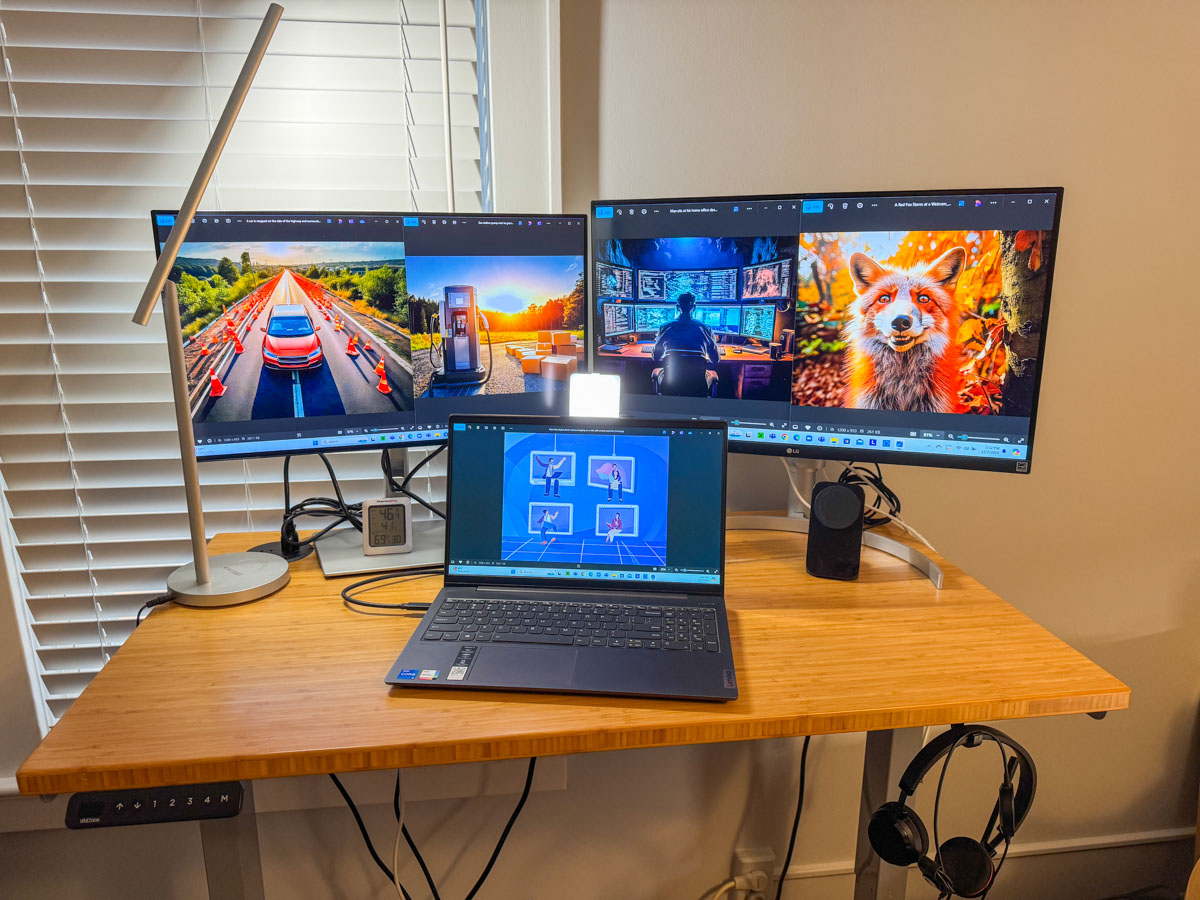
Here’s my upgraded standing desk setup with my personal laptop displaying Adobe Firefly images I’ve created for my blog.

Maybe one day, a less expensive next-generation Apple Vision Pro will transport me into a more evolved virtual workspace environment and better serve my needs.

For now, all that matters is I’ve successfully expanded my access and visual connection to the many details constantly flowing through my computer.

More clarity through working smarter. I highly recommend it.