At Home with Tech

Unlock the power of all your technology and learn how to master your photography, computers and smartphone.

Category: Tech How To

How to be More Effective during your Next Zoom Meeting 

Do you hate having to join virtual meetings? No need. Here are five ways to make your next online meeting your best yet.

Webcam meetings are here to stay. That’s clearly our new normal. If you want to be more effective and nail your next virtual group interaction, you should pay attention to these five important factors.

#1
Be Seen and Heard
This is not a choice. It’s essential. If your microphone doesn’t work, you can’t communicate. Full stop.

If you keep your webcam off, because you’re still in your pajamas, you’ve given up the opportunity to use the massive power of visual communication. You’re just a distant voice.

Remember in the old days, when you’d sit with a group of colleagues in a conference room, and someone else would be piped in as a tinny voice via a speaker phone? Yeah, it’s just like that.

I’ve said it before, and I’ll say it again: You’ve got to show up for your close-up!

#2
Make Sure your Technology Works
Look, I get it. It’s not your fault if there’s a gremlin in the system. But it doesn’t matter. It’s still your responsibility.

I can’t tell you how to fix every problem. The only general guidance I can offer is older tech is going to eventually act wonky. And paying for a faster internet connection at home is always helpful, even if you think you shouldn’t need the extra speed.

Both factors point to the reality that you’ve got spend more money than you want to ensure your home tech provides you a stable ongoing connection to the outside world.

So, you should budget for it.

#3
Maximize your Webcam Shot
Once you’ve got the basics under control, then it’s time to focus on the experience you’re providing your viewers.

Simply turning on your webcam isn’t enough. You’ve got to present yourself in a visually pleasing way.

If you think that’s absurd, and you shouldn’t have to worry about such superficial variables, then good luck to you.

I expect you know the webcam rules by now. (We’ve all become filmmakers.) You just have to put in the effort:

  • Make sure you’re well-lit from the front.
  • Raise your webcam or laptop so your shot isn’t looking up your nose towards the ceiling.
  • Tidy up your background or use a virtual background.
  • Get close enough to the webcam so your head is not a little speck in the shot.
  • And don’t forget to smile a bit. Acting friendly is usually a good thing.

#4
Stand Up!
This is optional, but I’m a big fan of standing during certain online meetings. It can really open up your body language and provide you with the opportunity to be more engaging. If you feel like you’re on stage when you’re standing in front of your webcam… yes, that’s whole the point. For me, standing up always gives me a boost of energy!

If you have a standing desk (like I do), then this is a no brainer. Otherwise, setting up your webcam for a standing shot takes a little extra work.

Buying a laptop desk stand or a portable equipment floor tripod (like many musicians use) are great ways to create a tall enough surface to elevate your laptop or place it wherever you want.

I’ve got both, and though I use them only occasionally since I’ve got my standing desk, these tools have proven invaluable.

#5
Pay Attention
Don’t multitask. People can tell when you’re not paying attention during an online meeting. If you think your webcam shot only matters when you’re talking, think again.

Just like an in-person meeting, you’re ‘on’ all the time. I think that’s why so many people like to turn off their webcams if they’re not talking. It’s so much easier. Then, they can multitask unseen.

Easier isn’t better. If you leave your webcam on, and you don’t multitask, and you pay attention, people will see that you’re engaged. You’re in the moment. That’s so important to a team dynamic. You can have a big impact even when you’re not talking.

Positive Energy Matters
All of this essentially boils down to being ‘present.’ Technology can connect us across great distances, but you’ve got to want to be there. When you cut corners during Zoom or Microsoft Teams meetings, people will notice.

Intention is everything. Your energy is everything. And your technology has to work.

Now, go make your next online meeting the best yet!

How to Slow Down the Inevitable End for your Beautiful Tech

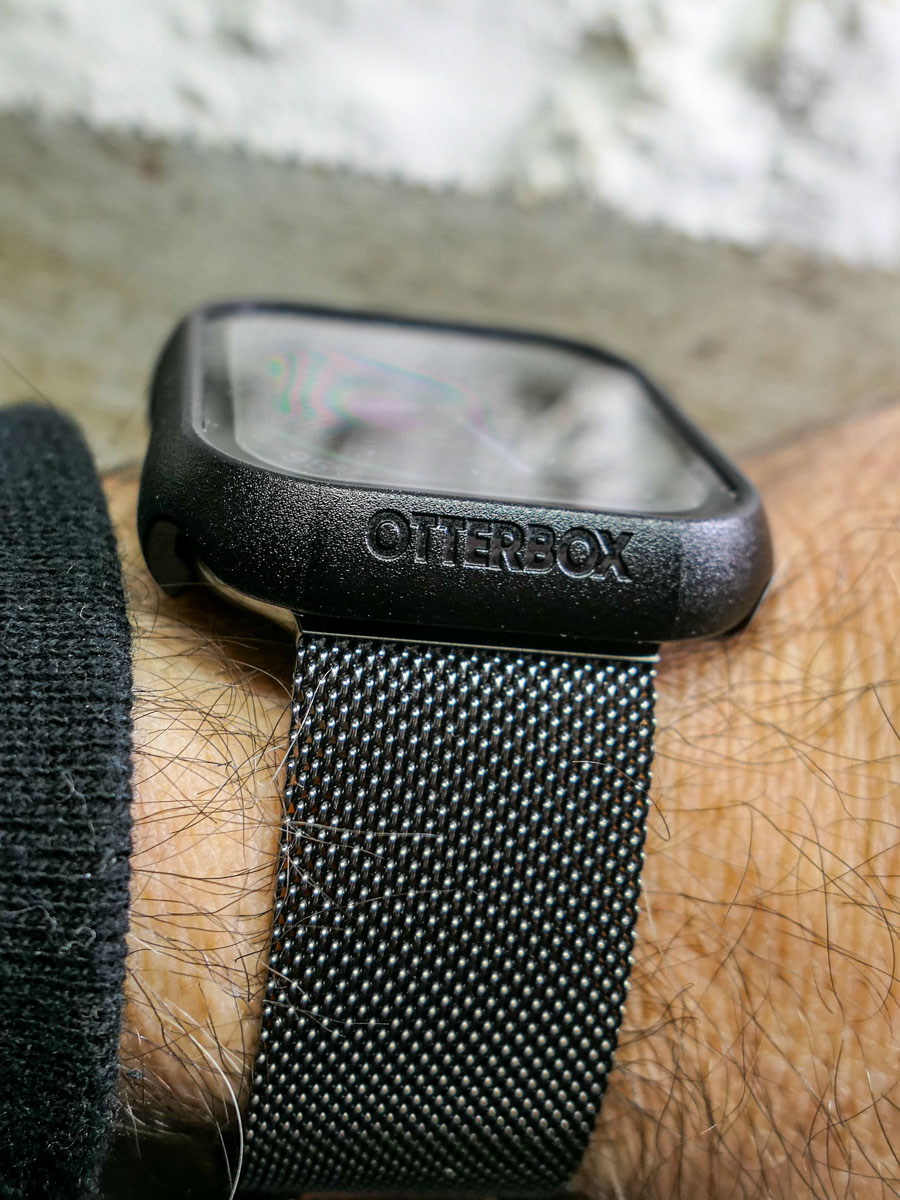
Yes, I immediately ruined the sleek beauty of my new Apple Watch by strapping a protective bumper over it. Was that necessary? Here’s what happened the very next day…

Design is a key element for the look of your personal tech. Sure, how your gear works is important, but it sometimes feels like style supersedes function.

So, if a piece of technology is designed to look beautiful, covering it up can be viewed as something of an insult. Or at the very least, you’re certainly not cool.

But the reality we move through every day doesn’t usually contain smooth edges and gleaming surfaces, unmarred by the brutality of existence. Wearing expensive and beautiful personal tech in an unpredictable and messy world creates inevitable danger for your devices.

Let me count the ways I’ve put my tech in harm’s way.

Projectile AirPod
During the latter part of the pandemic, I was walking to work from Grand Central Terminal wearing my Apple AirPods. When I stepped into the crowded office elevator ten minutes later, I temporarily popped on a face mask.

As I exited the elevator onto my floor, I quickly pulled off my mask. That was a mistake.

One of the mask’s ear loops caught the left AirPod, and a rubber-band effect propelled it forward into the elevator-bank hallway.

My AirPod flew towards the wall and hit it hard (with a horrible ‘ping’ impact). It ricocheted onto the floor and then skidded about like a glass marble. I chased after it in horror.

Somehow, my tiny AirPod seemed undamaged.

Apple Watch Scarface
Five years ago, I bought my first Apple Watch. Of course, I immediately bought a plastic bumper for it, which provided a protective raised edge.

I had to ruin my Apple Watch’s sleek beauty in the name of common sense. I often whack my wrist on objects. I felt the watch would simply never survive.

And for years, the bumper worked just fine. Then one day, I looked at my watch to check the time, and I saw a diagonal scratch on its face. There had been no impact that I could recall. The silent attack obviously came head on and avoided the bumper.

It would have been a more crushing moment had it occurred earlier in my Apple Watch’s life, but it was still annoying.

That said, I often spot people living with mutilated smartphones, the spider-cracks spanning entire screens. And these people act oblivious to the damage, since the screens somehow continue to function. (But I know they must be crying inside.)

My Apple Watch’s singular scratch was a laughable inconvenience by comparison.

OtterBox Bumper
I finally said goodbye to that scratch when I recently upgraded to my new Apple Watch Series 9.

And this time, I not only bought a bumper to protect my new Apple Watch’s edges, I found a model with a built-in screen protector. Yes, please!

While not exactly inexpensive, I think the OtterBox Eclipse is well worth its cost for the added screen protection.
So, I popped on the Eclipse. A warm feeling of invincibility washed over me (silly human).

A Danger at Every Corner
The very next day, I walked up to my closet to pull out my sneakers. I used my left hand, which was sporting my new Apple Watch. My hand almost imperceptibly brushed against the door frame’s edge as it moved in for my sneaks, which were jammed in the left corner.

An hour later, my heart skipped a beat when I realized there was a long horizontal scratch by the OtterBox’s lower edge.

What?! This is day 2 for my new Apple Watch! And I’ve ruined it already?!

I looked closer…

Phew. The scratch was actually on the OtterBox case… not the Apple Watch. (Yay OtterBox!)

And it wasn’t a scratch. It was a whisper-thin line of paint that had rubbed onto the case from my painted door frame as my wrist brushed by.

Was my brand-new OtterBox case now permanently scarred? Not necessarily.

Scrub Up
I quickly set up a mobile tech repair station on my dining room table with a bottle of rubbing alcohol and a folded strip of paper towel. I dabbed an edge of the paper towel into the rubbing alcohol and then very gently ran it over the line of paint on my OtterBox case.

It was critical not to overexpose the OtterBox case to the rubbing alcohol as it could ruin the case’s finish. And of course, I knew not to touch the screen protector with the rubbing alcohol. (I’m not a chemist, but I didn’t want to discover how quickly I could do even more damage.)

My light-touch strategy worked. The paint disappeared, and my OtterBox case looked like new. Life was good again.

Have a Repair Plan
One more word: AppleCare.

You can cover up your tech all you like. Sometimes that’s not going to be enough to protect it. You might say that damage is inevitable. It’s just a matter of when and how.

You can’t control everything, and that’s okay.

No, it’s not a good idea to catapult your AirPod onto a marble wall. Try not to drop your smartphone on a cement sidewalk or whack your Apple Watch onto what feels like a diamond-edged wall corner.

But when you do, having paid a little more for a repair plan certainly helps.

Bumpers for Bumps
After AI takes over the world, I expect personal tech design will no longer focus on physical beauty. I imagine the iPhone 45 may be a gruesome-looking device with sharp wires fused to our skin like a Star Trek Borg interface.

Until then, we must endure the limits of sleek and delicate design for our personal tech and do our best to protect against the bumps of daily existence.

Otherwise, your gear’s ‘End of Life’ may come sooner than you’d prefer.

How AI can Fix your Low-Resolution Photos

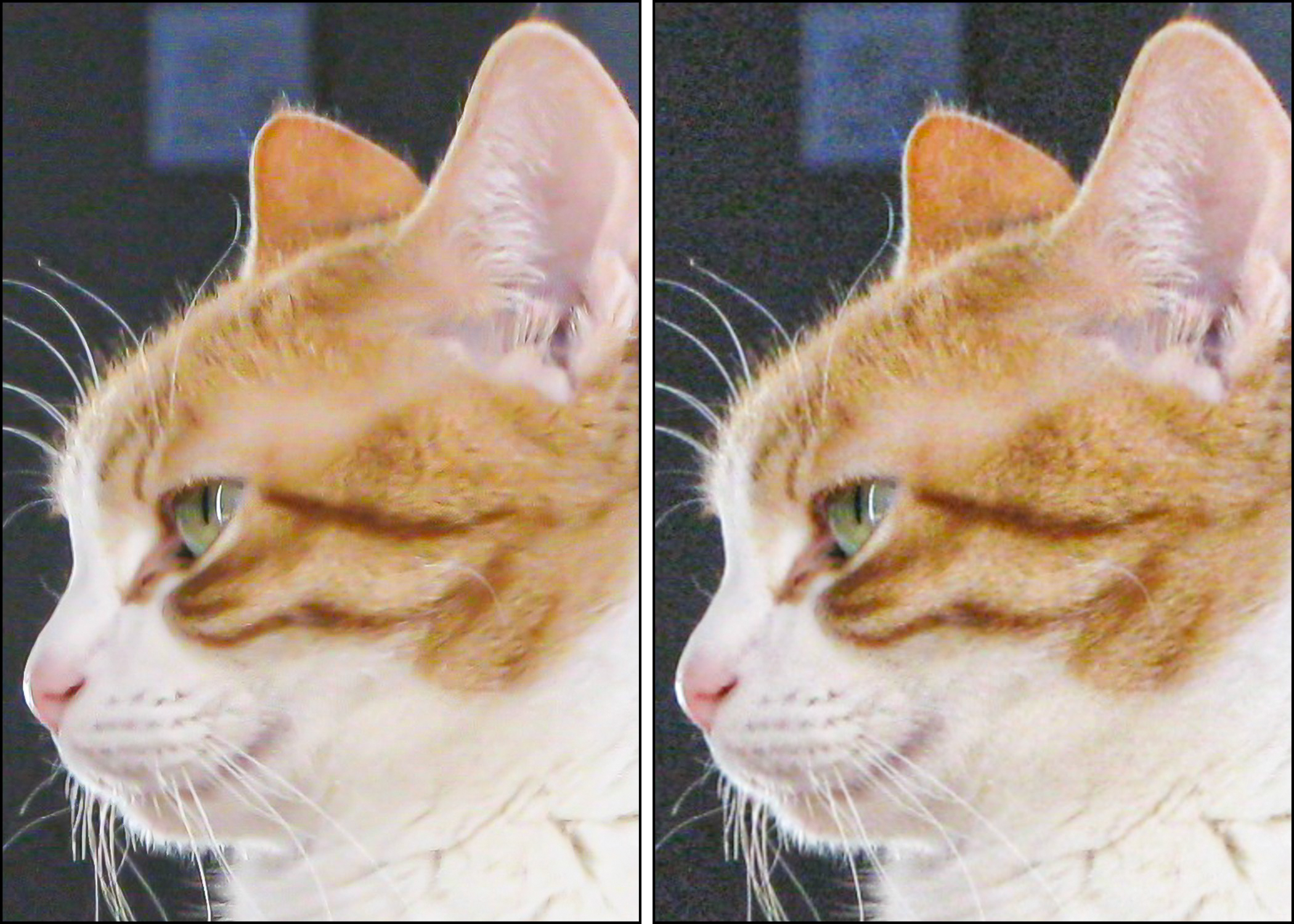
If you’ve got an old digital photo that looks grainy when you crop in, it’s time to add in more pixels with a little AI assistance. This cropped photo of our cat from 2008 benefits from 4x more pixels on the left generated by Adobe Lightroom.

We all know the famous scene in the 1982 sci-fi movie “Blade Runner” where Harrison Ford’s futuristic detective inserts a photo into a computer and tells it to zoom in and enhance the clarity of the background until he finds a person hidden in a reflection from a tiny mirror.

No, we can’t tell today’s computers to scan a photo, “track 45 left” and then “enhance 15 to 23” to find what’s there. But we’re getting closer.

That’s thanks to today’s software that can increase resolution in lower-res photos while maintaining the quality (and without adding digital artifacts). This trick can also clean up jaggy edges that become more apparent when you zoom into a low-res pic.

Often, when you crop in too tight on a photo, grainy problems show up, because you’ve deleted too many of the pixels. You’ve suddenly created a low-res photo that clearly needs pixel infusion.

Enhance Tool is Not Science Fiction
Adobe Lightroom can help. It has an AI-powered upsampling ‘Enhance’ feature called ‘Super Resolution.’ This nifty tool creates a duplicate photo with four times the pixels. And that can make a significant difference.

Here’s how to ‘enhance’ a digital photo in Lightroom:

  • Click on the Photo dropdown on the top menu
  • Click on Enhance
  • Click on Super Resolution
  • Then click Enhance
    (You can preview the effect before you proceed.)
  • Voilà! An ‘enhanced’ file is generated in a DNG format.

There are other companies that offer similar solutions, but as Adobe Lightroom Classic is my main photo-editing and organization tool, I’m very happy to keep my workflow in one place.

A Useful Tool for the Right Circumstances
I’ve used this enhance trick mostly when I work with digital photos that I took twenty years ago. That’s, of course, during the early age of digital photography when original file sizes were relatively tiny.

It’s a helpful solution, but this tool is not magic. It can’t create what’s not there or fix a blurry photo. But it does add in a bit more visual crispness, even if you’re not having a pixelization problem.

It’s also quite helpful if you want to print out the photo. A physical print is usually more unforgiving than a computer screen.

Adding Pixels into My Old Photos
Here’s a photo I took of an actor playing a Klingon at the Star Trek Experience in Las Vegas back in 2001.
The original photo file was only 1024 x 768 pixels. I’ve cropped it in tight to just 198 x 264 pixels. The enhanced version on the left gets our friendly Klingon up to 396 x 598, which does make a difference.

Here’s a street shot I took in Hong Kong in 2005.
The enhanced shot on the left helps to bring out the background. You can also make out some of the car’s license plate letters.

Smile for AI
If you’ve found yourself having to squint to pick out the above differences, that’s okay. They’re minor, but they’re there. I think it’s fair to say that Adobe Lightroom’s “Super Resolution” mostly gives you minor sharpening.

It’s not a magic wand, but it does give you 4x more pixels to work with out of thin air.

With AI’s text-to-image capabilities already in common use today, I’m sure this is not the last time we’ll be discussing how AI can rebuild old photos in just a few clicks.