At Home with Tech

Unlock the power of all your technology and learn how to master your photography, computers and smartphone.

Category: Tech How To

How to Use Apple’s Photos App to Quickly Create a Memory Movie

If you need a way to display a group of photos in a movie-like presentation, Apple’s Photos app can do this trick for you. Here’s how.

Apple’s Photos app on a Mac contains the powerful functionality to organize your pictures into collections and then display them as “Memory Movies,” complete with photo zooms and transitions. The app does this on its own to generate unexpected and often delightful photo-montage movies from your photo archive.

But you can also put the Photos app to work to create a Memory Movie using your own (human-directed) collection of pictures.

It’s simple to do, and with a couple of clicks, you can also add music and a title graphic.

How to Make a Memory Movie
The trick to quickly creating a Memory Movie is choosing one of your existing albums of photos. But it’s also not hard to create a new album for this use. The bottom line is the album feeds your movie structure.

Once you’re in your album, you’ll see the option on top to click on “Show as Memory” or “Slideshow.” (The difference is Slideshow doesn’t contain the photo moves and zooms.)

On the next page that appears, you’ll see your Movie Memory ready to start.
Click the play icon.

That’s it!

To adjust your music choices, click on the tools icon on the right side of the playback controls.

Fast and Good Enough
Once you understand the easy steps to creating a Memory Movie, you can pull one together in minutes by using one of your existing albums.

It’s a much faster process than importing your photos into a video editing program and then manually setting up all of the photo transitions before exporting your video file.

Sure, a manually-edited version would be more creatively precise. (AI-directed photo moves and transitions can sometimes be a bit off balance.) But I’d say for most uses, letting your computer do the work is just fine.

A Memory Movie is also an especially simple way to quickly pull together and share a collection of photos for a Zoom meeting.

A couple caveats: You can’t create a Memory Movie using a shared album. It needs to be one that lives locally on your Mac. And you can’t actually export your Memory Movie into a separate file. The movie experience is generated and remains within the Photos app.

Display your Memories
There are any number of ways to display digital photos these days. But if you’re already using the Photos app for your photo management, this quick and easy presentation trick is a no-brainer.

Why Cropping into your Photos can Save your Shots

When editing your camera’s photos, you might need to look for the shot within the shot. Here are some examples.

After you snap a photo, you may have a good sense whether you’ve captured the image you want. Instant digital review certainly is a wonderful thing. But I would recommend not immediately deleting a photo that didn’t catch the moment or missed its intended focus point. Perhaps there’s a different element in the shot you’re not aware of that is in focus.

If you take a little time to study these photos, it’s amazing what you might find hidden in plain sight. And thanks to those many millions of pixels that are crammed into photos, you can usually crop deep into the image to pull out a detail with clarity.

No, it’s not quite like that scene from “Blade Runner” where Harrison Ford’s Deckard closely examines a digital photo and tells the computer to “move in and enhance.” But it’s amazingly close. You may not be able to print a large poster of your super-cropped photo, but it’ll likely still look great on your smartphone or computer screen.

Follow the Focus
I enjoy snapping flower shots with my Panasonic Lumix LX10. I prefer using manual focus in the attempt to make the flower pop out of its blurred background (bokeh).

But since the area of focus is especially narrow, it’s easy to miss the mark.

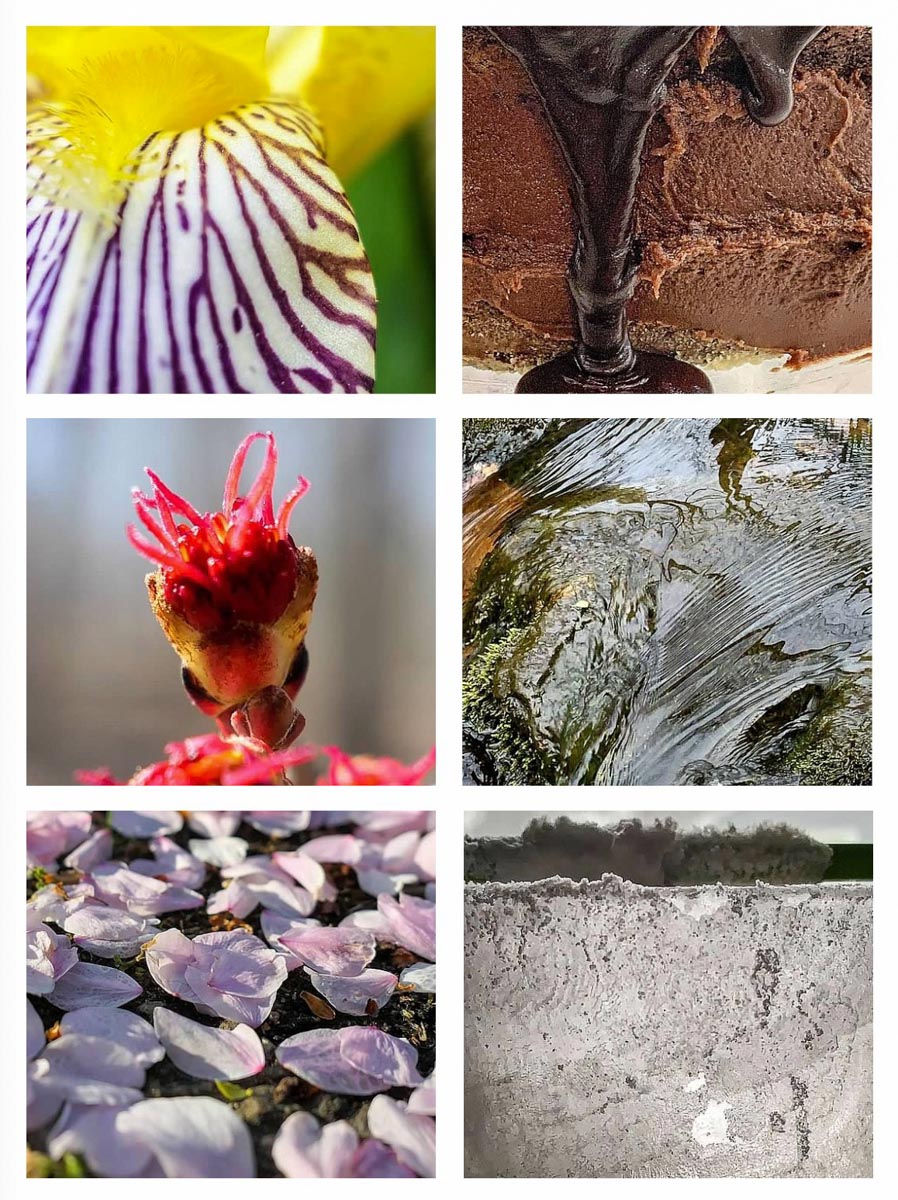
Instead of discarding these three pics that missed their focus targets, I followed the camera’s focus and then cropped in to save the shots.
(I use Adobe Lightroom.)
Yes, I missed the center of this flower, but the crisp edge of the petal is still interesting.

Much of this alien-like plant looked blurry, except for the tip of the back blooming stem. So, I zoomed in super tight to center on those crazy red sprouts.

Most of these fallen tree blossoms on my driveway ended up out of focus, but I cropped in tight enough to locate a few that weren’t caught in the blur.

Find your Needle in the Haystack
Even if focus isn’t a problem, you may still want to crop into a portion of a photo to give it some punch. If the entire shot isn’t that special, perhaps there’s a strong section to highlight.

I’ve been doing a lot of hiking with family and friends over the past year, and I’ve discovered that stunning views in nature don’t always translate into a quickly snapped photo. That usually happens to me when I try to take shots of a bubbly stream in a forest. It’s difficult to capture that sparkly view. So, when editing those pics, I sometimes explore the motion in the water.
In this cropped image I snapped with my iPhone, I was drawn to the linear patterns in the water created by the stream’s rush over rocks.

Show a Piece of the Puzzle
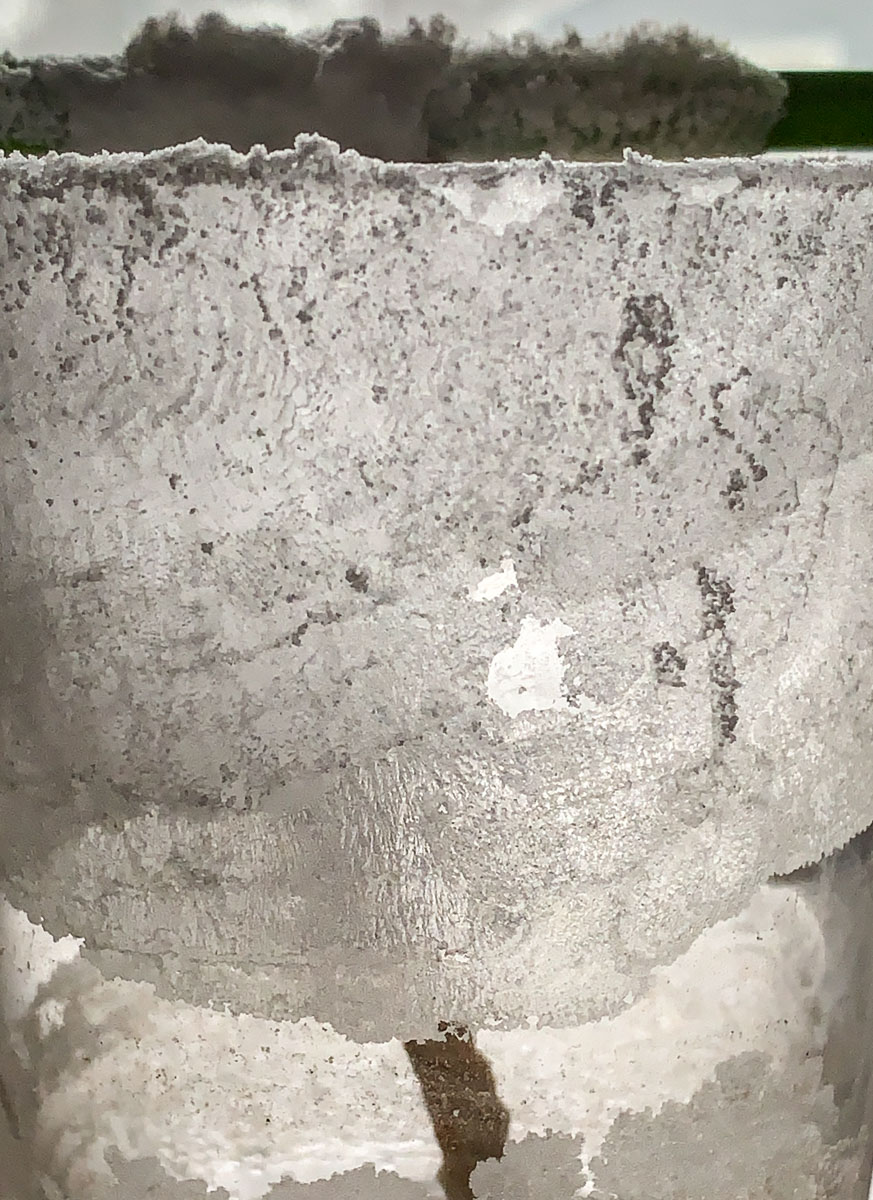
Beyond using this photo-cropping technique as a fix, you may find ongoing enjoyment in intentionally creating cropped shots that represent a piece of a larger story. (I certainly have.)

Sometimes a taste is all you need to fill in the rest.

I’ll give you a hint: My 5th grader’s science experiment using salt, hot water and a piece of string

If you’re still left with a mystery, is that so bad?

Less is More
I often like to say that “less is more” in visual storytelling. This perspective comes from my professional experience in video content creation and has certainly held up throughout my personal photography work.

Enjoy your own exploration of all of those smaller spaces in your photos.

Desk-Friendly Gear to Create Better Zoom Shots

If you’d like to improve your look during Zoom meetings, here’s my list of support gear I’ve added to my home office during the past year.

I’ve blogged frequently throughout the pandemic about Zoom meetings from home. I’ve found that applying my knowledge of video production best practices has been useful in maximizing my own Zoom shots. However, miniaturizing the standard gear of a TV studio to use in a home office environment can be tricky proposition.

That said, there’s plenty of compact consumer gear out there that can help improve the look of your video conferencing feeds without overwhelming your desk.

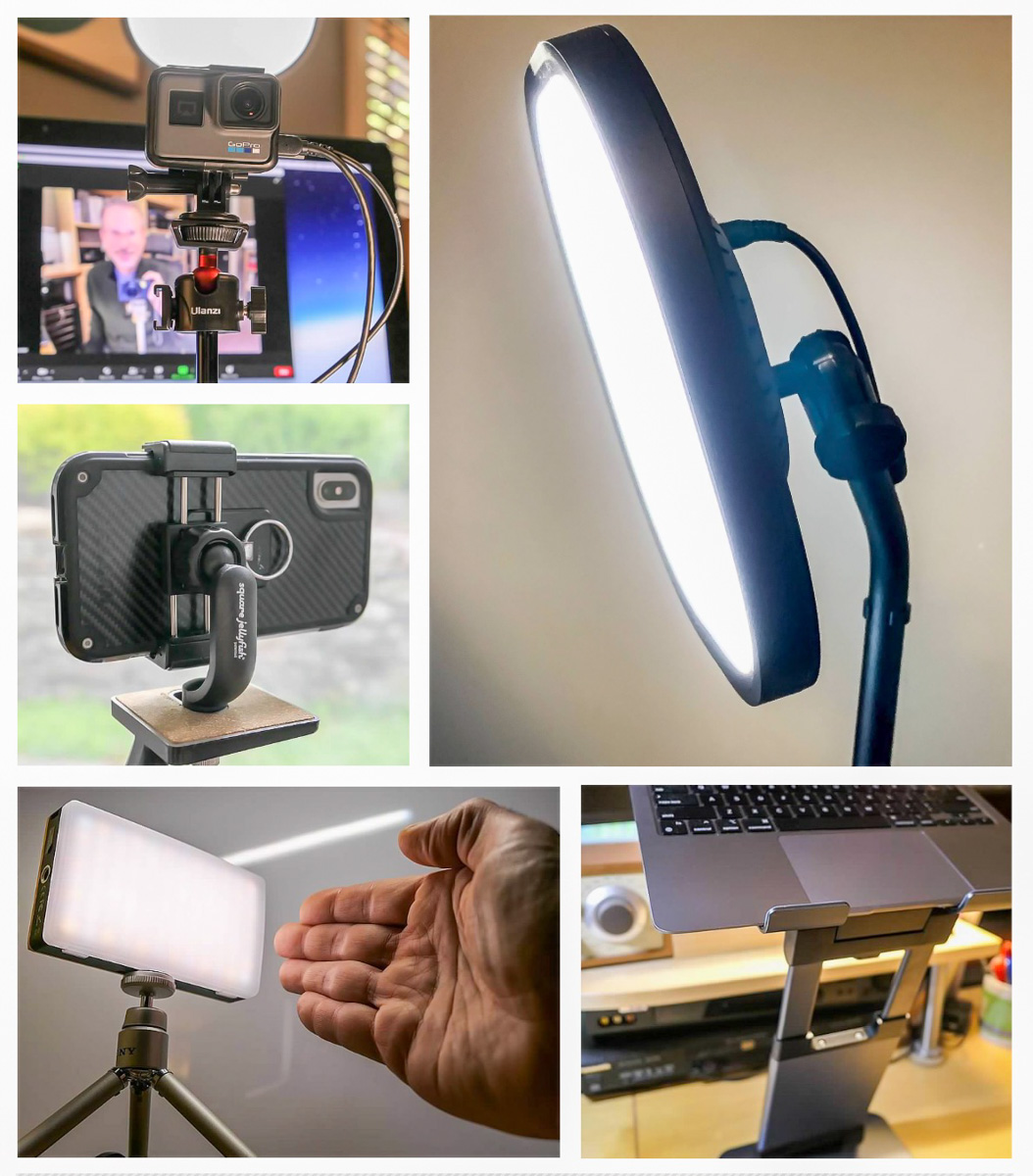
Here are five key pieces of relatively affordable gear I’ve put in place to help with my own Zoom shots:

1.
Key Light

Sometimes, there’s not a window nearby to offer illumination for your face. Instead, you need to provide your own front-facing light.

I use this soft LED as my main lighting positioned behind my iMac. It’s been performing great for over a year now.

2.
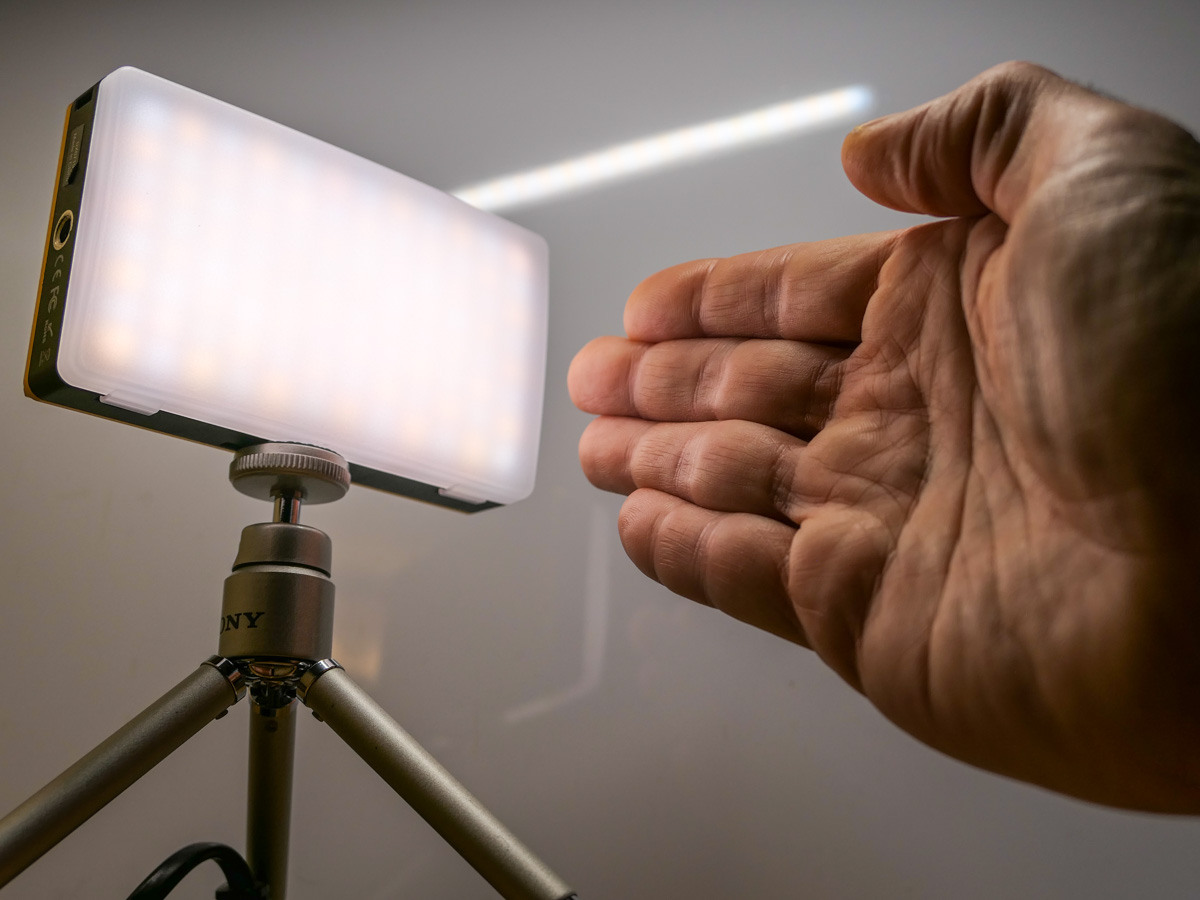
Fill Light

This battery-driven LED is perfect as a side light or for a more portable lighting solution.

It’s more expensive than other pocket LEDs, but it’s powerful and the light output levels are adjustable.

3.
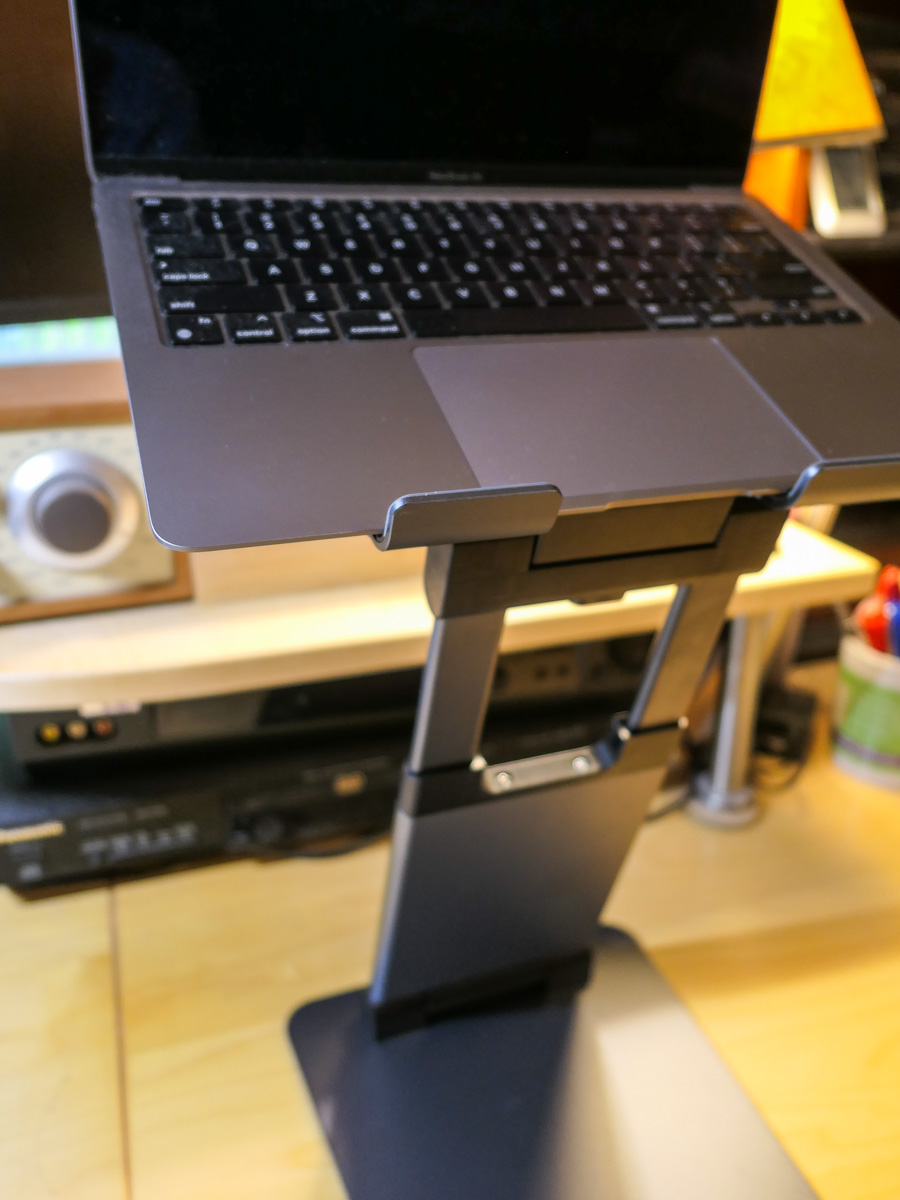
Desk Stand to Elevate Laptop Webcam

This stand almost magically levitates your laptop, bringing the computer’s webcam closer to eye level.

The resulting height adjustment for your laptop will prevent the dreaded Zoom ceiling shot that looks up your nose!

4.
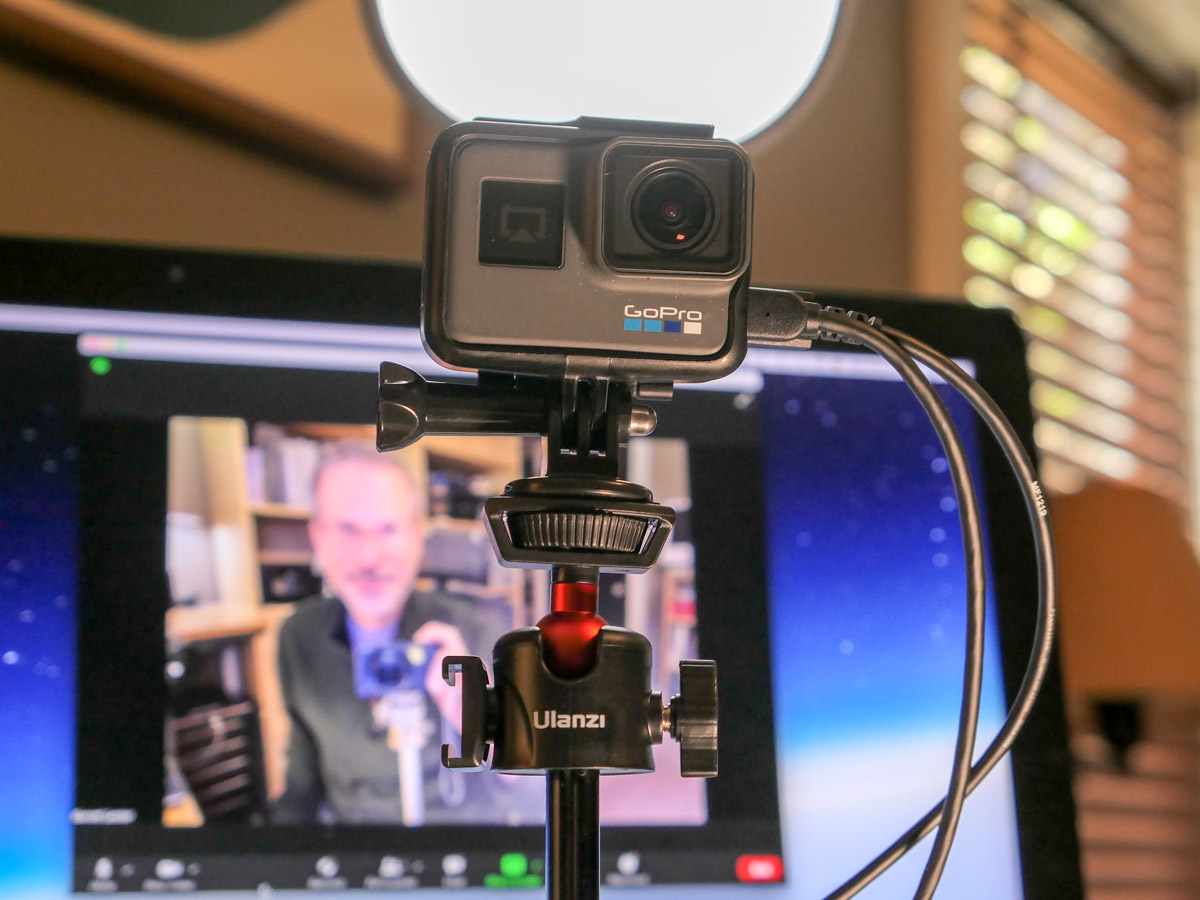
Tabletop Tripod for your External Webcam

It’s sturdy, but small enough to not take over your desk!

You can pop any webcam onto this baby tripod as long as it uses a standard 1/4” screw mount or GoPro mount.

5.
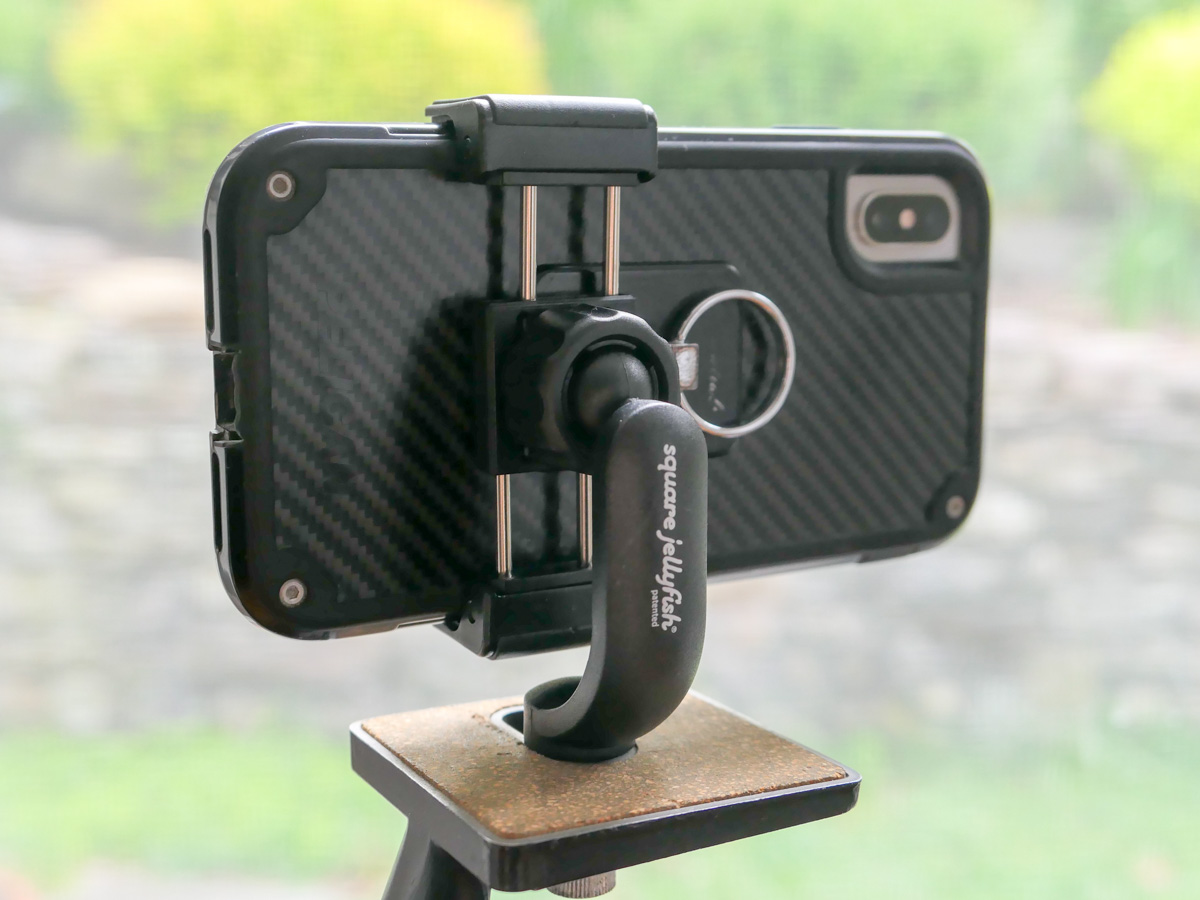
Smartphone Tripod Adapter

Sometimes, you may have to unexpectedly take your Zoom meeting to another room. A simple way to accomplish that is by using your smartphone.

Mounting your device to a tripod using this grip adaptor will negate the need to hold your phone throughout your meeting.

Zoom Away
Putting in place a few pieces of valuable support gear will go a long way to help improve your image for your next Zoom meeting.

It’s worth the effort.