At Home with Tech

Unlock the power of all your technology and learn how to master your photography, computers and smartphone.

Category: Tech How To

How Parents Can Take Control of Notifications on the Family iPad
If your children are starting to read iMessages on your iPad or iPhone that aren’t meant for them, it’s probably time to change the settings in your device. Here’s how…

So, my almost eight-year-old is playing Minecraft on my iPad in the living room, and he turns to me and says, “Mommy is writing me a message!”

“What?!”

I’m a little alarmed, because even though my wife wasn’t at home, she never uses electronic communications with our son and certainly not using something like Minecraft.
(You can probably guess that I’ve been thinking a lot lately about who he will be interacting with when he eventually engages in multiplayer video games online.)

I jump over to take a look.

Phew.

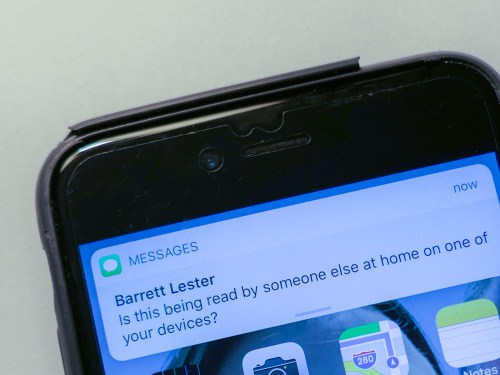
It’s a simple text message banner that popped up at the top of the iPad screen from my wife to me about camp plans for our second grader this summer.

It has absolutely nothing to do with the Minecraft platform.

The Early Taste of a Texting Stream
My wife referenced our son’s name in the text, which is why he mistakenly thought it was written to him.

Yes, he can read now, but he got confused by the style of my wife’s texting banter with me.
(Plus, it’s probably one of the first texts that he’s encountered.)

So, this wasn’t really a problem other than an iMessage to my iPhone also showing up on my linked iPad that my son happened to be using.

Ironically that feature is supposed to be a nice iOS bonus provided by Apple.
But it was clearly time to turn the option off on my iPad.

Our son doesn’t need to be privy to the Lester family texting stream…
(Well, at least… not yet!)

How to Turn Off Pop-Up Text Banners
Using iOS 11.3 –

  • Tap the ‘Settings’ gear icon
  • Tap ‘Notifications’
  • Tap ‘Show Previews’
    You’ll probably find that it’s defaulted to ‘Always’
  • Tap and change to ‘Never’

But that’s not all you have to do…

There is No Global ‘Off’ Switch
I decided to visit the Apple Store in Grand Central Terminal to gather a little more advice.

An Apple Genius told me that you also have to individually turn off each app from proactively trying to send you banner notifications on your device.
(He mentioned that detail to me several times. I imagine I’m not the only one who might be confused by the extra step.)

To ‘completely’ halt your iMessage banners…
While in Notifications, go down your list of apps until you find ‘Messages.’

  • Tap ‘Messages’
  • In ‘Allow Notifications,’ slide the little circle to the ‘off’ position

And that will finally get the job done!

Now, you’ve got to repeat this step for your other apps…

There are a few other settings to consider if you want to be a little less draconian about muffling your iPad or iPhone, but I was satisfied with hobbling my iPad to keep my young Padawan away from the constant buzz of the Net. My iPhone was providing that Borg-like public service to me quite sufficiently, thank you very much.
(I know I’m mixing my science fiction metaphors.)

But then I began to think about my own experience with my iPhone’s many chatty apps…

Less is More
After considering the issue for a moment, I decided that I was, in fact, being interrupted by way too many banners from apps wanting to share ‘critical’ news.

Perhaps I should take a few minutes to review all of them and silence the ones I didn’t want to hear from all of the time.

And that’s exactly what I did!

Of course, I kept ‘Messages’ fully activated, but I did turn off ‘Repeat Alerts’ from ‘Once’ to ‘Never.’
(I usually get it the first time.)

You Can’t Hide Your Child from the Connected World Forever
Now, I find that my iPhone is a little less ‘disruptive.’

My iPad shares nothing from the outside world with my son.

And I fully acknowledge that this is only the beginning.
It’s a long journey ahead for me and my boy.
(I know that as a parent, I can’t keep the ‘off switch’ activated forever…)

My son has asked for multiplayer mode in Minecraft for his 8th birthday… so he can play remotely with his friends.

To be continued…

How to Prep the Shot for your Next Video Call

Your smartphone suddenly comes to life. It’s an incoming FaceTime request! Are you really ready for your close up?

Remember that innovative ‘PicturePhone’ room on Space Station V from “2001: A Space Odyssey?” Well, it wasn’t long until that crazy sci-fi videophone idea actually became a reality, but you certainly didn’t see many landline videophones in homes over the following decades.

The concept took it’s time gaining wide acceptance. And it required now mainstream computer and mobile apps like FaceTime and Skype to help the general population break through the video barrier on phone calls.

It’s such an obvious ‘upgrade’ to be able to see someone too, and where the bandwidth allows, it feels like many people today freely use their video-calling apps.
(If they’re not texting each other instead)

But let’s face it… lots of other folks still aren’t that excited to be surprised by a sudden video chat request.

And why is that?

The Power of Video
There’s always been a certain anonymity to voice-only calls. Nobody knows where you are, what you’re doing or what you’re wearing… or not wearing.

You can also multitask while on a voice-only call.
…or so I’m told.
😉

Now, you add video into the equation, and BAM… you’re right there in front of someone!

On the upside, mobile video calls can bring the caller right into your surroundings… If you’re walking in a parade or waiting on line at a ski lift, those types of environments can provide rich texture to what you’re up to in that moment. It’s the ‘location’ bonus that makes your video chat that much more interesting.

A Video Chat Isn’t Always a Random Moment
But when you’re at home and those FaceTime tones chime, you may have to scramble to put together an acceptable ‘visual presentation.’

So I think you need a plan for how to appropriately prepare, especially if it’s for business…

No, you don’t need to build a little TV studio set in your living room that you’d run to.
(Like Kramer did on “Seinfeld”)

But it wouldn’t hurt to take a few ‘reasonable’ steps in that direction…

Choose Your Shot
You should definitely decide and test what your ‘shot’ is going to be.
You don’t want to look like you’re in your own hostage video. Nor do you want to reveal that basket of unfolded underwear and socks waiting for your attention.

Think about your background. You may have to stage a few of the items and remove some of the clutter.

Using a desktop computer or even a laptop for your camera probably won’t give you the flexibility you’ll need to create your desired shot. That’s why a more portable device is the way to go, if you have that choice.

But holding a smartphone or tablet in front of your face for a half hour or more is logistically challenging.
(Plus, your unstable shot will likely make the viewer seasick!)

To create a more stable shot, you can certainly pile up a bunch of books for a good height and position for your propped-up device.
(I’ve done it.)

However, that definitely falls into the category of ‘wonky,’ and it’s never perfect.

There’s got to be a better way to more easily mount your smartphone or tablet into an exact position to get the ‘perfect’ shot.

Well, of course there is…

Lock Your Shot with a Flexible Mount
There are a variety of gooseneck smartphone/tablet mounts on the market which will solve the problem. You simply grip and tighten the gooseneck’s base to the edge of your table or desk. And then you move the gooseneck into the exact height and position you need.
(A little higher is usually better for the angle towards your face)

And… voilà! Your hands-free solution is in place!

I decided to go with the Mingo Gooseneck Tablet Holder and Desk Mount for $26.99 on Amazon.

It provides three different mounts that screw onto the end of the gooseneck. Those options will keep you covered for both smartphone and tablet use.


The Mingo is a little more expensive than the competition, but the reviews suggest it’s more durable over time. I also like that its 28.7” gooseneck is longer than most of the choices. That makes it easier to pull it into the perfect position on your desk.

Give Your Face Some Light
You’ll also want to find a little soft lighting to help remove any harsh shadows on your face. One option is to simply position yourself in front of a window.
(As long as you’re not in direct sunlight)

If that doesn’t work with the angle of your planned shot, you can hang a portable light in front of your face. A really inexpensive solution is to use a round, hanging paper lantern.

This 17 ¾” diameter shade made by Ikea is a good choice.
It sells on Amazon for $16.99.

Then, you attach the shade to a bulb mount and power cord.
This one on Amazon costs $9.99. It’s 20 feet long and sports an on/off switch.

It’s a really simple solution, and it’s actually used as a remarkable lighting hack by some professional TV and video lighting gaffers I’ve worked with.

Look at the Camera!
And now that we’ve come this far to create a professional-looking shot, there’s one more thing…

Always focus your eyes on your device’s camera dot… not at your own image. Otherwise, you’ll always appear to be looking somewhere else as opposed to the person you’re video chatting with!

And that just becomes annoying.

Your Smartphone Should Give You the Best Shot Possible
So, the next time you need to do an important FaceTime or Skype session with someone on the Kubrickian ‘Space Station V’ or perhaps with a business contact in a more terrestrial location, now you’ll be prepared to look your best…
Hands-free!

What To Do When Adobe Lightroom 6 Randomly Crashes

When your tenuous photo management process hits a wall, because your software gets glitchy, sometimes an obvious solution actually works. Let’s begin…

I’ll be honest… digital photo management has been a challenge for me since my 7-year-old son was born. I’m the kind of parent who takes way too many family photos and then struggles to organize them, quickly share the best ones and eventually create photo books.
(Sound familiar?)

But I’m trying.

The truth is you’ve just got to put in the time, have an organized plan, and use photo management software that’s right for you.

I switched to Adobe Photoshop Lightroom 6 from Apple’s Aperture a couple years back after Apple retired Aperture and launched the Photos app.

I wanted software that was more powerful than Photos, and Lightroom has indeed proven itself to be a rock star.

At the time, I made the choice to buy a standalone Lightroom 6 license for $149, instead of Lightroom CC, which requires you to pay into a $10/month Adobe Creative Cloud ecosystem.

I figured my one-time DVD purchase would be more economical than the pay-as-you-go model, as long as I used Lightroom for more than 15 months. That was the plan, and I’ve already passed the two year mark. So, yay Barrett.

But I know it’s just a matter of time until I’ll be joining Adobe’s Creative Cloud. It will eventually become unavoidable. For now though, I’ve been enjoying my Lightroom 6.

Until something went very wrong…

Random Crash Alert!
A few weeks back, my Lightroom began randomly crashing. It happened mostly when I wasn’t actually working with it. Lightroom would be open in the background, and then ‘pop,’ it would suddenly disappear. My iMac rushed to create a report to send to both Apple and Adobe, but I didn’t expect any engineers to be calling anytime soon.

I ignored the problem for a while. (Silly me.) But then, it began happening when I was actively using the program. And finally, it crashed while I was importing photos.

So, it was clearly time to do some troubleshooting…

The only recent change to my iMac’s ecosystem was an update to my iMac’s OS High Sierra. (And you know, that seemed to be about the time my troubles began.)

I did some Googling and ran across an insanely obvious question…
Was I running the most up-to-date version of Lightroom 6?

Uhhh…
What?

Huh.

Well, actually… No.
I hadn’t been receiving any notices about updates.
(I’m so used to Apple’s incessant reminders to update my software.)

So, no… I haven’t (ever) updated Lightroom 6.
(Maybe I did right after I installed it.)

Please don’t expel me from the Island of Misfit Toys.

All right…. So guess what I decided to do?

How to Update Adobe Lightroom
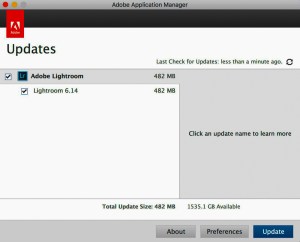
If you too are trying to figure this out, you’ll find your Lightroom software updates in the Adobe Application Manager program.
And here’s how to get there…

Go to the ‘Help’ drop down and click on ‘Updates…’
The Adobe Application Manager will open, and this is what you will see…


If you’ve got an update waiting, it’s time to take the blue pill.
From here, it’s straight forward!

Always Backup First
Updating Lightroom is a painless process, although it’s always good to do a backup before you update any important software.

For me, I simply ran Time Machine on my external G-Drive. And I also saved a backup Lightroom catalog file to the G-Drive.
(The catalog houses all the work you do to your photos.)

And guess what? Now that I’m running Lightroom 6.14… everything is…
Just… fine… again.

Yup.
Updating Lightroom did the trick.

Software Conundrum
I know my report ultimately falls under the category of “DUH!”

But can you tell me you’ve never dragged your feet on doing software updates, because you feared unexpected glitches and compatibility issues?

Well, if you wait long enough and do nothing, that’s clearly a problem too.
(And I’m not even talking about security patches.)

Choose your poison.

Lightroom stability: Restored!

#LovingMyDigitalLife