At Home with Tech

Unlock the power of all your technology and learn how to master your photography, computers and smartphone.

Category: Tech How To

How to Check the Ocean Temperature on your Phone Before You Hit the Beach
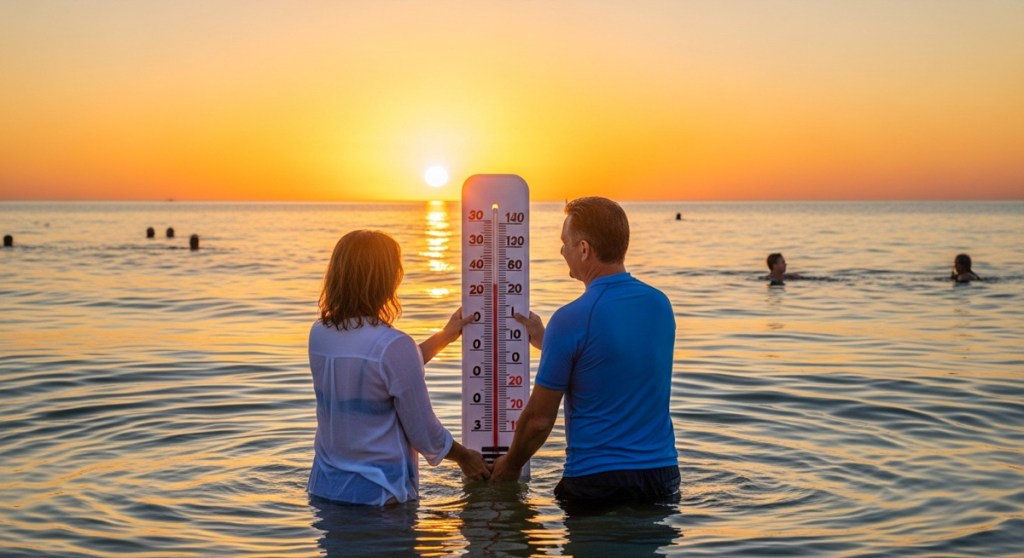
My wife and I decided to take a quick dip at our town beach last week after work. It’s not something we typically do, even though we live just a short drive from the Connecticut shore. We enjoyed our 90-minute vacation so much, we repeated this refreshing early-evening experience over the next two days (and hoped to do it more in the upcoming weeks).

As much as we enjoyed our pre-dinner excursion, we were surprised that the ocean temperature varied from day to day. The water felt warm on day one. The second afternoon’s ocean temperature was colder. And day three’s surf seemed downright icy.

I suspected the differing air temperature and humidity between the days affected our experience, but I didn’t think the ocean could get noticeably colder that quickly.

I decided to fact check my opinion and find a way to confirm the actual water temperature by my beach on those particular days.

NOAA Data Buoys
The National Oceanic and Atmospheric Administration maintains numerous data buoys off the coastline. These NOAA buoys track the weather including ocean conditions.

So, I went to the NOAA’s National Data Buoy Center website and identified the closest ocean data buoy to our beach. I found a nearby buoy in Bridgeport, CT and took a look at its historical data.

And in fact, there was a variance of five degrees in the sea water temperature across those three days. (between 70-75.5° Fahrenheit).

Wind Direction Affects Ocean Temperature
This was a surprise, as I’ve always thought the water by our Connecticut beach remained a steady temperature that simply inched up over the summer. And as such, it was a non-factor on which days were the better beach days.

So, I did a little Googling on this topic and realized that the wind plays a huge role in determining how your beach’s water feels from day to day. 

I discovered that wind blowing towards a beach will keep the ocean warmer. That’s because the surface water that’s been warmed by the sun gets pushed towards the beach. The opposite is true for offshore winds which will suck the top ocean layer away and make your beach’s waves colder.

Wow. 

So, in fact, if you want to go for a swim at the beach and hope for warmer water, some days are actually better for that than others.

I immediately started to think about my iPhone and how nice it would be to easily check out the ocean temperature on my phone before I jump in next time.

Is there an app for that? Well, of course there is…

Mobile Apps that Display NOAA Data Buoy Info
There are a variety of mobile apps that collect and present the data from the NOAA’s data buoys. You just tap in your buoy’s number, and the water temperature pops up along with the weather conditions. (Some apps automatically use your location to find the nearest buoy.) Either way, it’s easy.

Here are the apps that I tested on my iPhone:

  • Buoycast: NOAA Marine Weather
  • Marine Weather Forecast Pro 
  • NOAA Buoy Reports

I’m more partial to the design interface of Buoycast, but they all provide the same data.

All three apps are free, though they offer premium features (such as historical data) for a price. But if you just need to know the real-time water temperature, the free versions are all you need.

Don’t Forget to Check your Data Buoy Before Grabbing your Swimsuit and Towel
I used to think a warm, sunny day is all that determined a good beach day. But if you’re looking to swim, warmer water is always nice. And the right wind conditions can heat it up for you.

With an app on your phone that tracks the nearest NOAA data buoy, you can now quickly check the water temperature before deciding to head out to the beach.

Real-time data means no more chilly surprises!

How to Magically Turn your Photo into a Video Using Generative AI

The creative realm is no longer inhabited exclusively by human minds. Generative AI tools have revolutionized how you and I can develop our own creativity. Yes, AI may still require our inspiration, but then it magically does most of the work.

One way to quickly immerse yourself in this new creative workflow is through a simple shortcut. Just start with a real photograph/image that you’ve already created as a reference point. Then, it’s much easier for an AI app to develop it further as opposed to having to start the process from scratch through extensive prompts.

For me, that’s been the key to easily unlock AI’s visual powers.

AI Follows the Creative Direction from your Photography
After uploading your own photo, you can create an AI-generated clone in one click that looks remarkably similar. The AI takes certain creative liberties, but it nails the framing and essential visual elements.

And then, with just a few more prompts and a click, you can generate short video clips that bring your photos to life.

So yes, we can now create videos out of thin air based on our photography. 

Here are a few examples I generated after feeding my photos through Google’s Whisk and Veo generative AI models. (Other companies offer similar fast-developing technologies.)

Maine Sunrise
I snapped this sunrise photo during our Maine vacation:

Here’s the Google Whisk version:

And here’s the Google Veo video:


Alaska Sunrise
Here’s my sunrise shot from Homer, Alaska during our 2023 trip.

Whisk photo:

Veo video:


Baltimore Sunrise
Here’s my photo of people walking by the water in Baltimore, Maryland.

Whisk photo:

Veo video:


Two Paddleboarders on the Ocean
I photographed these two paddleboarders in Maine last year.

Whisk photo:

Veo video:


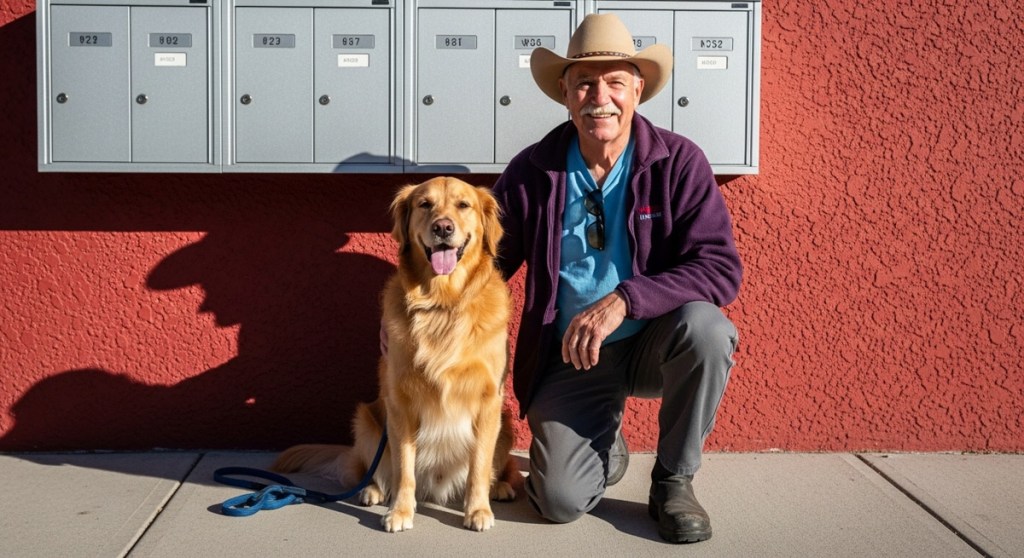
A Man and his Dog
During our vacation in Alaska, I took a photo of a man with his beautiful golden retriever. I processed it through Google Whisk and Veo and generated this:

Whisk photo:

Veo video:


Generative AI Provides the Paint and Canvas
I find these examples remarkable and clearly disruptive. I’m still adjusting to the massive implications to all this. 

Generative AI tools have quickly become our new paint and canvas to bring our creative ideas to life. And the results will only get better.

So, it’s time for all of us to relearn how to paint, even as photographers.

My Camera Drone Misadventures: A Cautionary Tale for Beginners

You can only watch so many drone tutorials on YouTube before you simply go for it and put your new camera drone in the air. And let me tell you, it’s completely nerve wracking. It’s not a video game to simply reset when you crash. You’re flying with no net.

There are any number of worse case scenarios to guard against. After you fly a drone for the first time, you immediately understand why the promise of flying cars never materialized.

QuickShots are a Joy
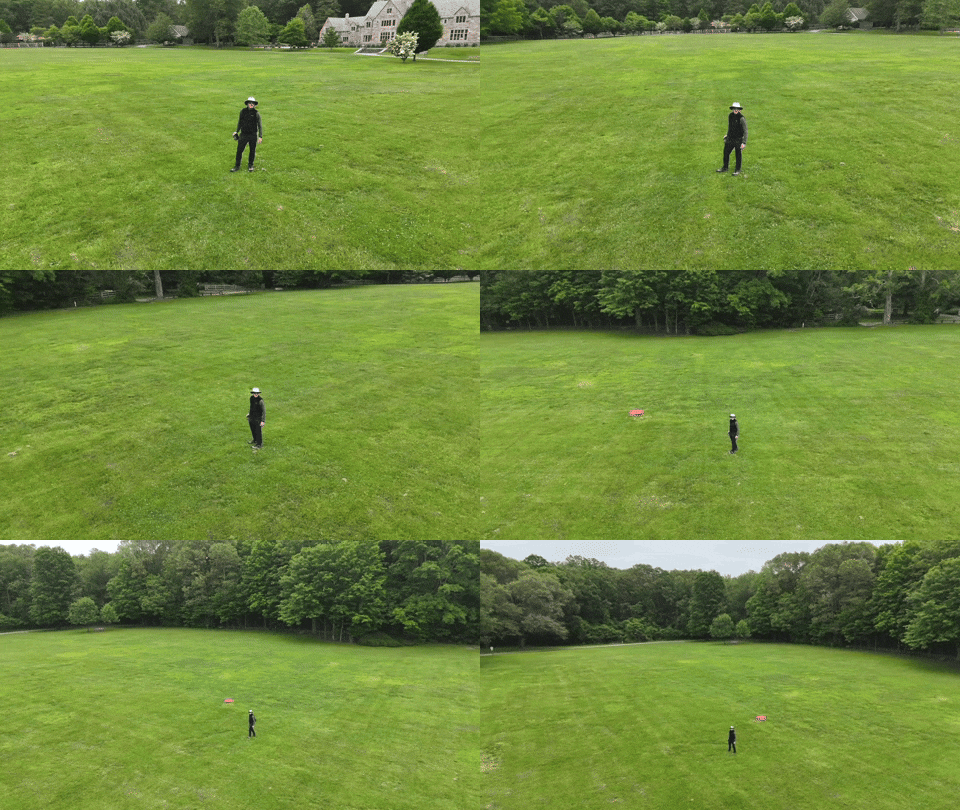
For my DJI Flip’s first test flights, I stuck to the simpler automated QuickShot maneuvers. These are the auto settings where the drone records preset flying sequences using ‘subject tracking.’I took my Flip to a nearby park with plenty of open space, crossed my fingers and hit the fly button. Happily, these tests were a success, and I brought home some impressive footage.

DJI’s QuickShots’ mode was indeed simple to use, as advertised. But I really wasn’t controlling the drone yet. My DJI Flip was effectively flying itself.

The next step was to attempt manual control.

Then, I Crashed my Drone into a Tree
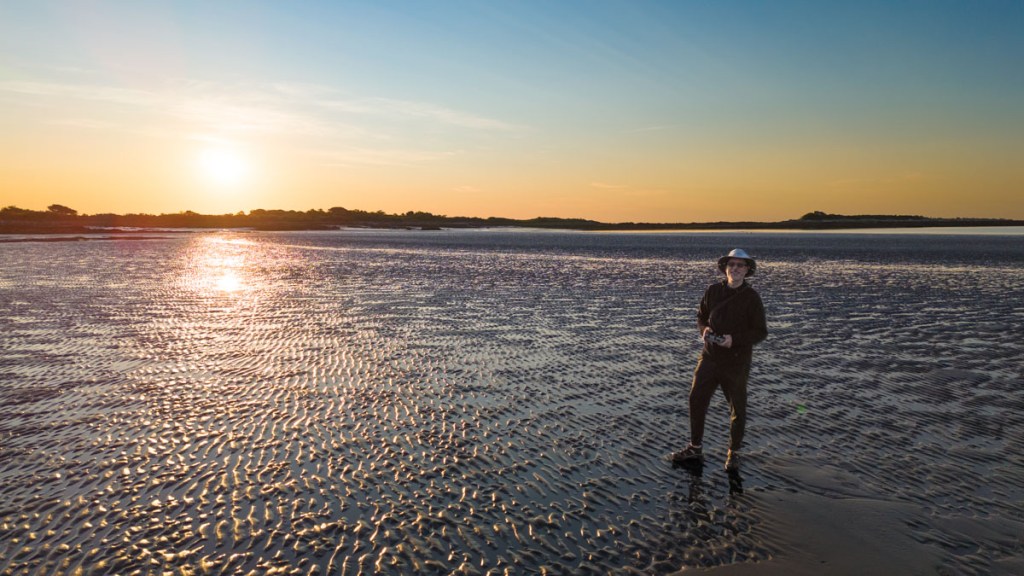
So, I packed my little Flip for our vacation to the coast of Maine in Cape Porpoise. My plan was to use the nearby, vast mud flats as my new training ground. 

But before trudging onto the mud flats, I wanted to practice a few more QuickShots in the yard next to where we were staying. And that was a mistake. That’s because the distance limits I had set for my previous park flying tests were still in place, and I had forgotten to reset them.Then, when I executed an automated ‘Dronie’ QuickShot with my friend standing next to me, my Flip shot up and quickly began backing up in the air as it auto-tracked us… and it kept backing up… until it rammed into a tree.

The battery catapulted off the drone’s body, and both pieces collapsed to the ground.

No, the DJI Flip doesn’t have rear-sensing capability. No, I didn’t have enough sense to cancel the auto maneuver before it was too late. It all happened so fast.

The crushing sounds of the tree crash and then ground impact were horrifying.

I stood there, frozen. Staring ahead. 

The whole incident took mere seconds, and my flying career was over before it really started. Or so I thought.

My Drone has Nine Lives?
I hurried over to the wreckage. There was the battery, and then a few feet away…the drone. Both appeared to still be intact. Huh.

I picked them up and inspected each for damage, but I couldn’t find any.

So, I snapped the battery back in and returned to the launch zone. I looked at my friend. Would this thing still fly? I pressed the button.

My DJI Flip effortlessly lifted into the air as if the past few minutes had been magically erased.

Huh.

The best I can figure, the battery’s ejection had lightened the drone’s weight, thus reducing the effect of ground impact. And the drone’s four propellor guards had protected it from the tree.

I turned to my friend, and I said, “Well that’s nine lives right there.”

A Drone’s Weakest Element is the Human Factor
It was painfully clear that even in auto pilot mode, my drone required correct human inputs. I thought the tree was far enough away. I was wrong.

Sure, I’m new to drone flying. And the DJI Flip’s intelligent flying modes are designed to help with this limitation, but it’s not fool proof.

And as I later attempted other vacation flight trials, I was painfully aware how often I felt outside my comfort zone.

I Accidentally Sent my Drone into ‘Orbit’ 
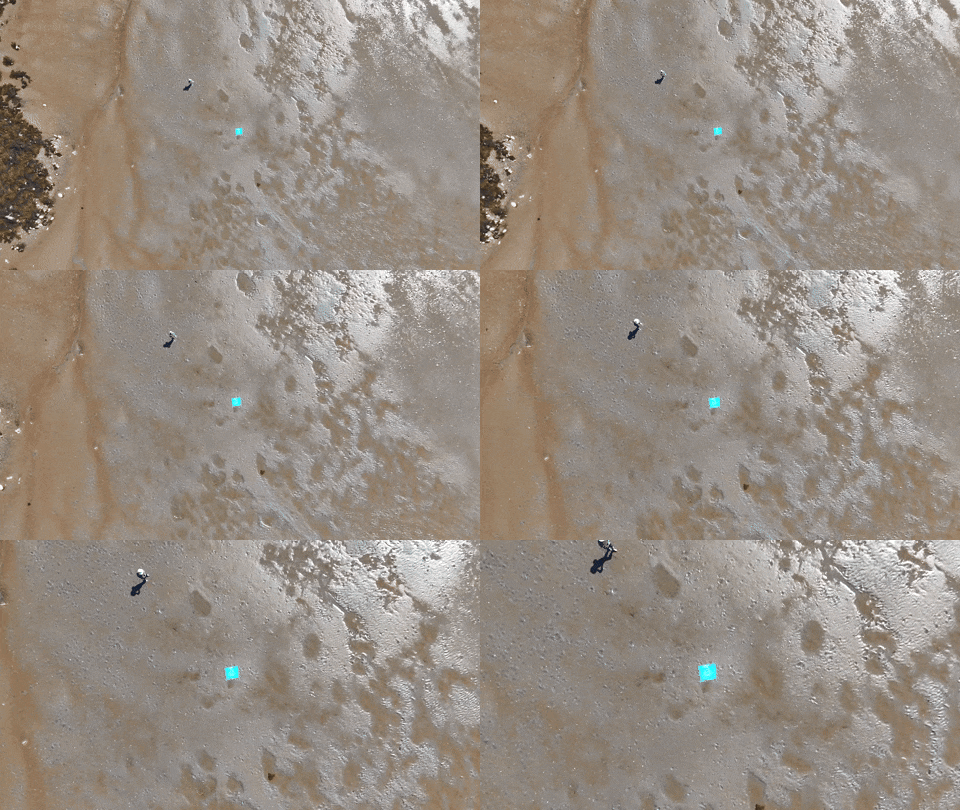
I shouldn’t take credit for this amazing shot above the mud flats, because it was a complete fluke.

I was simply testing the auto ‘Return-to-Home’ function after I manually flew my drone (very cautiously) a couple hundred feet away down the beach line at a twenty-foot altitude. 

Return-to-Home or ‘RTF’ is where the drone automatically flies back to its takeoff point. It’s a handy feature. But I forgot to check the height settings for the return flight. This is an important detail to ensure your drone doesn’t hit any trees on the way back. 

Happily, there are no trees to avoid on mud flats. Unfortunately, I had accidentally left the ‘RTH’ height setting unnecessarily high. 

My Flip suddenly shot up into the sky to reach the preset altitude for its return across the beach. Then, I quickly lost track of it. 

I couldn’t see my Flip anymore. I scanned the sky. My little drone was gone. I began to panic.

But I could still hear its distant whine. I looked down at the screen of my RC 2 remote controller. I was stunned and terrified by what I saw. My drone appeared to be in orbit, and it was beaming back this spectacular view of the coastline. 

In hindsight, I recognize this is what the Flip is designed to do. But this wasn’t my plan. It was a bit windy out, and my intention was to keep my drone relatively close.

Searching the Heavens for my Intrepid Companion
And then, as if on cue, the wind began to pick up. I could hear my Flip’s overhead whine fluctuate as it struggled to maintain its flight control. A gust hit. Then another. 

My adrenaline really began to flow. (I swear I could hear Hans Zimmer music playing in the distance.) What should I do?

I felt the urge to grab back control and to gently lower the drone and fly it back manually. But I wasn’t ready. I didn’t have the skills yet. This was supposed to be just an easy test flight!

I would have to trust the code to bring my drone safely home. And that it did.

I stared at the controller’s screen for what seemed like hours, but the return trip lasted barely two minutes. And the wind was less of a concern than I had feared.Soon, I could see my little flying machine descending from the heavens over me.

Phew.

Everything was just fine. But for those few minutes, I felt totally out of control, though the Flip was in complete control (silly human).

We Still Have a Role in a Camera Drone’s Cockpit
The good news is I performed my unintended orbit test at a time when nobody else was out on the mud flats. I wanted to plan for the unexpected. And that’s exactly what I got. 

The RTH trip was in fact, not that high in the sky. (The DJI Flip is designed to reach a much higher altitude.) I just wasn’t prepared for this moment. And when I couldn’t see the drone, I freaked out.

It’s worth noting that both of my above mistakes (the tree crash and the orbit maneuver) involved incorrectly setting the boundaries of the auto flight modes.

I thought flying my drone manually would be the toughest part of my Jedi flight training. As it turned out, giving up control to the DJI Force too quickly carried its own risks.

I just didn’t know what I didn’t know. Maybe was time to watch a few more YouTube drone flying tutorials.

I was determined to be better prepared for my next all-manual flight tests on the empty mud flats…