At Home with Tech

Unlock the power of all your technology and learn how to master your photography, computers and smartphone.

Category: Tech Trends

How to Turn your Digital Photo Frame into a Memory Portal with Motion
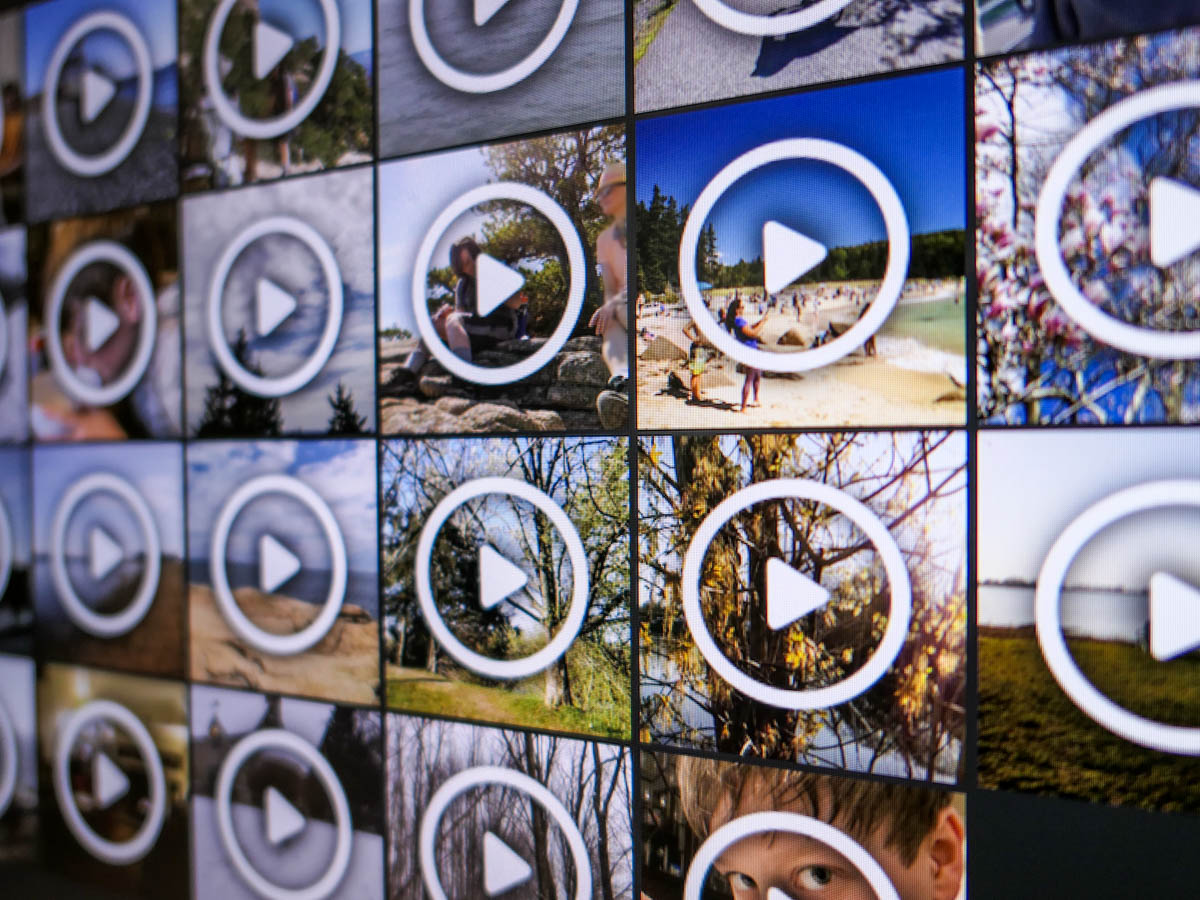
In the same way that an iPhone’s Live Photos functionality can add motion to a frozen photograph, digital photo frames can perform an even better trick if you load them up with short videos. Here’s how I do that.

I’ve never completely understood the value of the ‘Live Photos’ mode on iPhones. These moving photos are tiny videos that represent 1.5 seconds of action before and after you snap your ‘photo.’ So that expanded capture range gives you the flexibility to later select your perfect frame (Key Photo) during those 3 seconds.

Of course, I want to improve my iPhone’s pictures, but working through every Live Photo to identify that one ‘perfect frame’ takes some patience. By the time you do all that, the person next to you can snap the same picture the old-fashioned way by tapping their screen a couple times, quickly select the best (non-Live) one and then share it on social media. (And all this while you’re still carefully identifying your new Key Photo from the original Live Photo.)

The Live Photos feature is a nifty trick but working to maximize each one is not a speedy process.

The Limitation of 3 Seconds
If you just want to enjoy the magic of a Live Photo that contains some action, I suppose that’s fine. But I don’t think three seconds is necessarily long enough. It can be frustrating to only get three seconds to capture a moment. But of course, any longer would make it… a video… which it really is to begin with.

And after taking thousands of Live Photos, you’re going to inevitably eat into your iPhone’s memory reserves.

So, I generally try to leave the Live Photos feature turned off unless I really want to use it.

Still, I think Apple is onto something here.

Creating Extended Live Photos is Even Better
When the Live Photos feature was first introduced, it felt like magic… like the wizardry of the live paintings represented in the “Harry Potter” movies. The only real difference is these live-action framed images lasted for a bit longer… maybe five or six seconds.

These extra few seconds can be important, because they allow for enough time to let the story of a particular moment play out.

And if you didn’t know it, this little magic trick isn’t that fantastical anymore. You can do it today on digital photo frames which have the capability to play videos.

I’ve tried this feature on my home digital picture frames made by Nixplay. They allow for up to 15-second video clips. Their ‘Plus’ subscription plan lets you play up to 2-minute clips. But I think 15 seconds is more than enough.

I’ve purchased a few Nixplay digital frames across the years. I think their current Nixplay 10.1” Wi-Fi Photo Frame is a good place to start.

As for the audio part of the video files, I’m not interested in hearing the sound. (That turns the digital frame into a TV.) I just want to watch the action of a moving photo. And 5-10 seconds is usually plenty of time to properly capture the action of a scene.

I experimented with this extended Live Photo idea a few years back, and the results were eerily cool. That said, getting my short videos onto my Nixplay frames wasn’t exactly straight forward. It took a few steps and required Nixplay’s mobile app. I’ve documented the process in this blog post here.

A New Way to Capture the Moment
Recently, I expanded my practice of intentionally shooting short videos for my Nixplay frames to display alongside regular stills.

I’ve begun shooting 10-15 second videos during family events. These videos are designed to capture what you might think of as “B-Roll” in a documentary. During these moments, ideally no one will look at my camera. But if someone wants to playfully pose, that’s okay too.

And after trimming and adding these new short videos into my frame’s playlist, these clips have immediately transformed my digital photo frames into little time machines that seemingly allow you to peer back into more realistic reflections of the past.

It’s wild.

Turn your Digital Frames into True Memory Portals
In the same way that Apple has evolved the definition of a photo into a Live Photo, why can’t digital photo frames more fully evolve into memory portals that better connect you to the past through 5-10 second video clips?

I’m certainly going to maximize this opportunity on my own digital frames moving forward.

And I’m happy to offer this uncommon pictorial presentation strategy for your consideration.
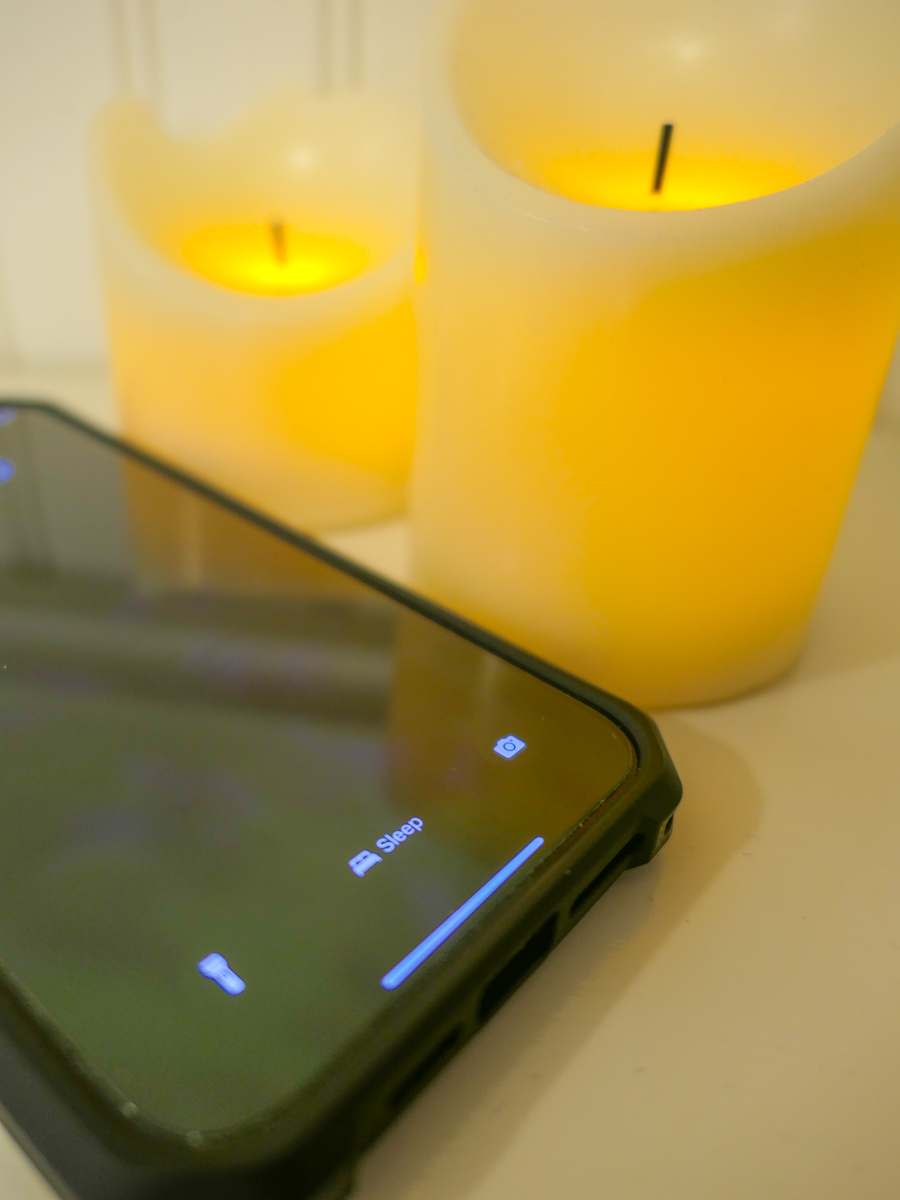
How to Stop your iPhone from Buzzing All Night Long

Unless you want to be kept up by your iPhone with endless updates while you’re trying to sleep, you need to give it a bedtime. Here’s how.

I am the Borg. You are the Borg. We are the Borg. Yes, humanity has already been assimilated.

Remember, those evil “Star Trek” cybernetic bad guys who kept running into Captain Picard and wanted to take over the galaxy? The Borg were all wirelessly interconnected and acted in sync like a colony of bees. Their hive mind kept them instantly updated.

Okay. Well, no… we’re not completely moving throughout our day following the constant direction of a unified data stream. But I think the scary reality is only because it’s not unified. (Well, not yet.)

Time to Put your iPhone into Sleep Mode
Our smartphones are constantly bombarding us with various updates…. from family, friends and work to various companies and organizations we’ve touched and shared our personal data with.

These ongoing texts, emails and calls can become a persistent din. It’s like the world is screaming at you. If you wear an Apple Watch with haptic feedback on your wrist, there’s a constant visceral reminder that someone or something wants your attention.

All that noise, noise, noise!

Sure, you have instant access to so much more information, but it comes at a price. (What’s a Borg drone to do?)

And the last thing you need is to have that constant drumbeat interfere with your sleep.

There’s got to be a way to turn it off.

Well, of course there is…

How to Activate Sleep Focus
I realized recently that I really needed to take some action and effectively put my iPhone 15 Pro Max to sleep while I was sleeping. Yes, it was muted, but my iPhone would wake me up with all the buzzing and screen brightening to alert me of something new in the wee hours of the morning.

I needed my REM sleep!

I knew that I could simply move my iPhone to a different room, but I like to charge it up on my nightstand. Fortunately, I can set it and forget it…if it will let me. (I usually don’t wake up in the middle of the night with the need to grab it and see how my blog’s metrics are doing.)

Instead of turning my iPhone off (whoever does that?!), I activated the sleep setting in the Focus App.

Here’s how to do that.

  • Tap on Settings
  • Tap Focus
  • Tap Sleep
  • Set a Schedule

Then you assign a lock screen for this setting. (The trick I think is not to assign it to the screen lock photo that you use throughout your day.)

You can also program exceptions to let certain contacts make it through your Do Not Disturb barrier.

Done.

Now my iPhone goes totally dark at my bedtime and does not respond to any incoming anything throughout the night.

Happiness restored.

Silence in your Sleep Chamber
It’s ironic that we now need to tame our smartphones to prevent them from overwhelming us with too much of what was supposed to be a good thing.

The simple truth is everyone and everything should not have immediate access to your attention.

Even the Borg knew that. They had those cool standing sleep chambers throughout their Borg cube ships where their drones could catch up on their sleep… uninterrupted.

And as we all know, it’s never a good idea to wake up a sleeping Borg.

How to Protect the Camera Lenses on the Back of your iPhone

If you worry about destroying your iPhone’s three camera lenses, you might want to consider buying a case with a lens cover.

In many ways, the most prominent feature of an iPhone is its camera system. Being able to make a phone call these days is almost an afterthought. And those three camera lenses on recent iPhones are fairly large. Long gone are the little lens dots on the back of smartphones.

As I began to consider my daily life with my brand-new iPhone 15 Pro Max, I thought about how to best protect its three lenses from damage. Of course, I know I’ll be constantly placing my new iPhone on various surfaces facing up to maximize its ‘always on’ trick. (Love that!) And in practicing this technique, my iPhone will always rest on its camera lenses.

That doesn’t feel quite right.

A Standard Case Won’t Cover Every Danger
Sure, many iPhone cases have a lip surrounding the lenses that prevent direct contact. Other cases can even out the back side of an iPhone, so it becomes one flat surface without the lens bump. Then, they won’t protrude at all.

But those three lenses are still unprotected and exposed to the grimy elements.

You wouldn’t mistreat any other camera lens that way. You’d have a lens cap for it, right?

What happens to those three iPhone lenses after daily contact with any number of surfaces? Wouldn’t that eventually smudge and scratch them, affecting the optics of all your photos and videos?

Sure, the little camera lenses are natively constructed with sapphire crystal lens covers. Does that make them impervious?

A Genius Perspective
So, I brought my concern to a couple Apple Genius’s when I picked up my iPhone 15 Pro Max at the Apple Store.

One mostly brushed off my question as irrelevant. He said that he simply wipes off his iPhone’s lenses for smudges and they’re ready to go. He said otherwise, he “doesn’t think much about it.”

Whenever I visit an Apple Store looking for answers, I often quiz multiple Geniuses. So, I kept going…

I found another Apple Genius who appeared more analytical. (Maybe it was the glasses.) He told me that all flat clean surfaces were safe to rest an iPhone on. I should just be mindful of avoiding gritty surfaces. Those “might” scratch the camera lenses.

I felt a bit better with that answer. But life isn’t flat and clen. Life is gritty, especially when you least expect it.

An iPhone Case with a Lens Cover
The standard solution of simply wiping off my three little lenses with a microfiber cloth (or my sleeve) just wasn’t going to cut it. I knew I wanted a more comprehensive plan.

Question: Had any iPhone case manufacturers yet designed their cases with a dedicated lens protection solution? After a little quick Googling, I realized that in fact, yes… some of them had.

Though I may be in the minority for wanting this extra protection, I decided to buy an iPhone case that offered a protective lens cover.

Cases for new iPhone models take time to enter the market. So, I looked for a quick and dirty solution to help my iPhone’s lenses avoid the grit.

I found two types of cases built with little plastic covers that shielded the camera lenses. They moved one of two ways:

  • Sliding over and away (left to right)
  • Folding over and back (like a little door)

SUPCASE Closed-Door Solution
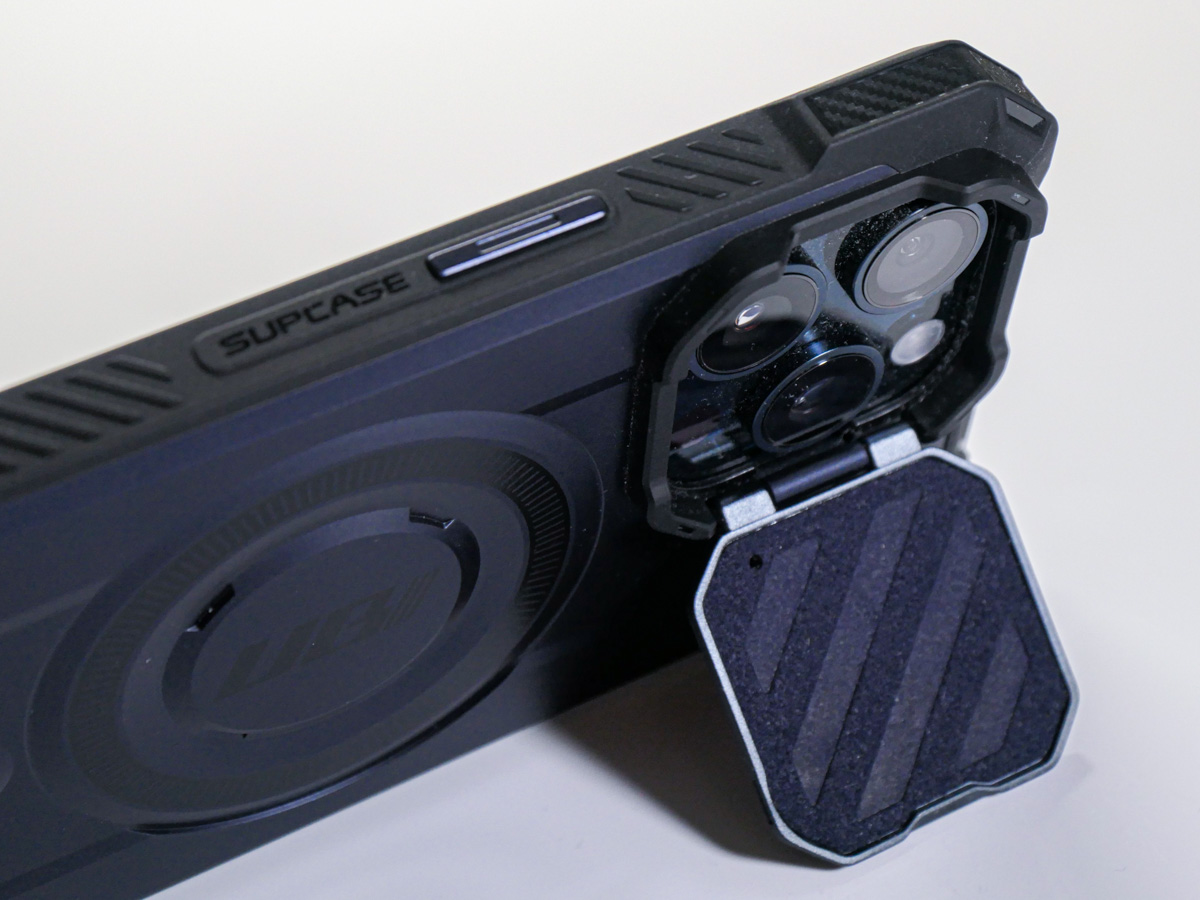
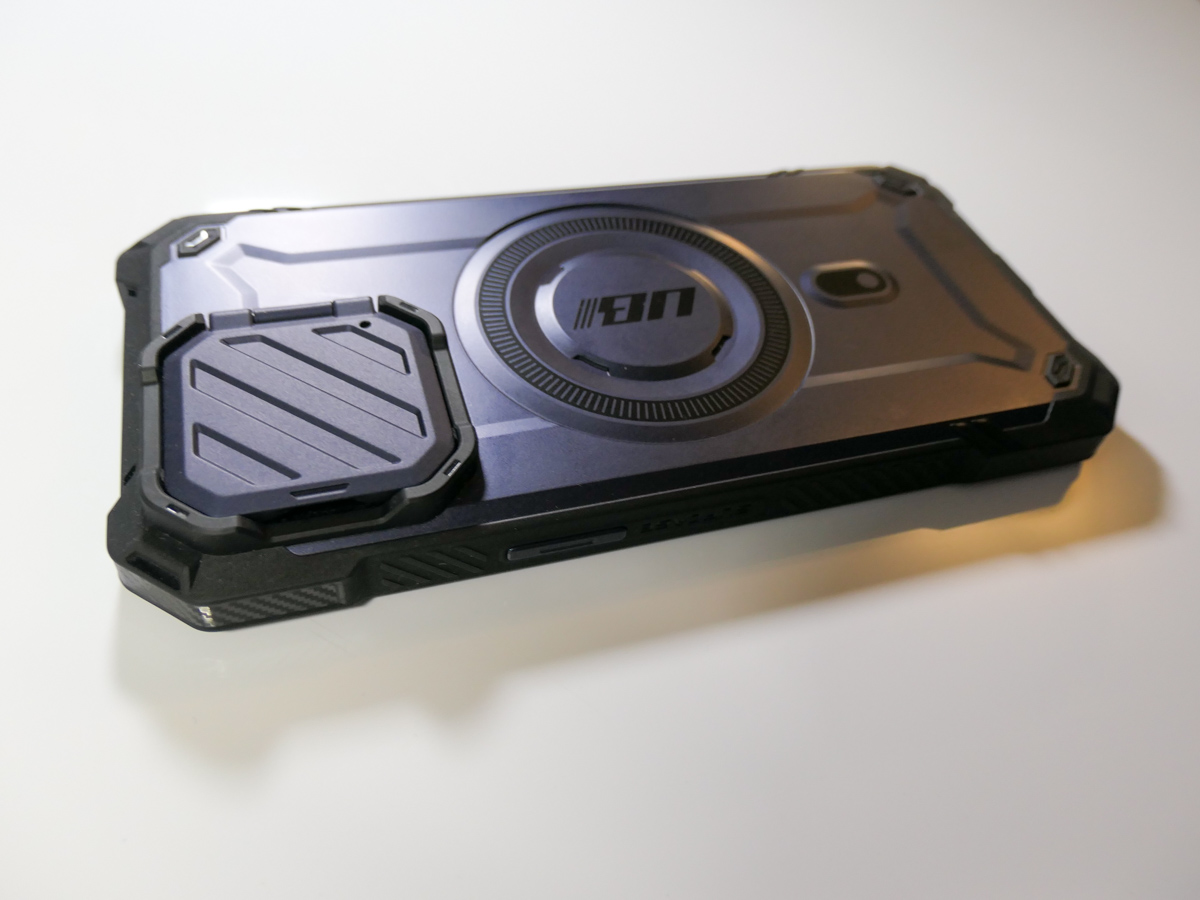
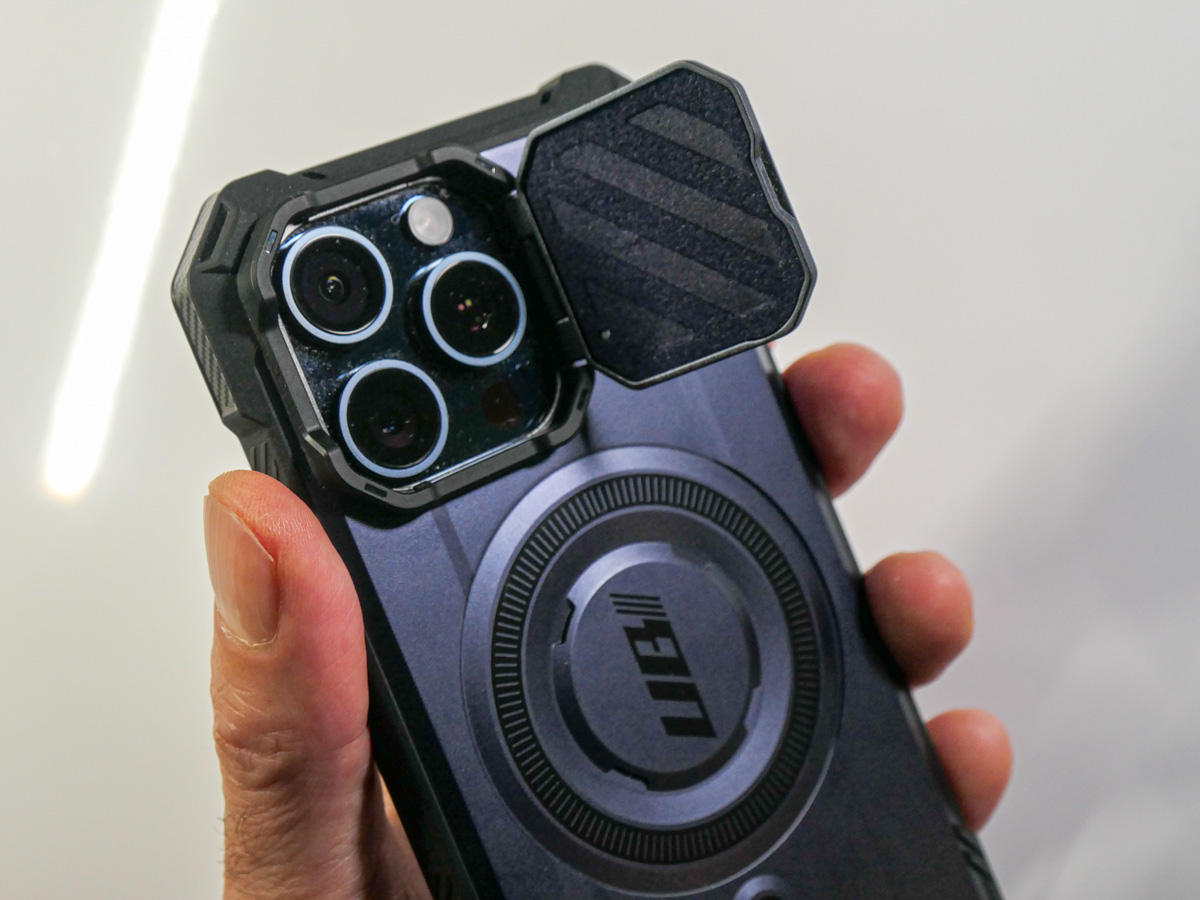
I ended up trying out the tiny door concept with the SUPCASE UBMag XT Case.
Amazon has it for $26.99.
The little lens door locks in place when it’s closed and is appropriately stiff as you move it. (The plastic flap doesn’t swing around when it’s open.) The door can also double as a kickstand for your iPhone.

The SUPCASE allows for MagSafe charging and magnetic grip, and functionally works just fine.

Most importantly, the “closed door” gives me peace of mind as I move my iPhone and its three camera lenses around.
All this said, the lens cover does require the extra step of opening it before taking a photo. So, in those spontaneous moments, you’ll inevitably lose a second or two before getting off your first shot.

Cautious Optimism
I wanted immediate protection for my new iPhone, and for a case in the sub $30 category, this was a solid choice. It’s a good way to begin ahead of other iPhone 15 Pro Max case options entering the market.

Does that mean I’ll eventually upgrade to another case? Perhaps. No case will last through your iPhone’s expected lifetime. My iPhone cases have all shown wear and tear long before that. But isn’t that the whole point?

The case takes the licking, and your iPhone keeps on ticking.
(Wait…that’s another brand.)

Bottom line: My three new camera lenses now have their extra layer of protection. Do they actually need a cover? Who really knows for sure…

But the idea of it certainly makes sense to me.

Case closed.