At Home with Tech

Unlock the power of all your technology and learn how to master your photography, computers and smartphone.

Category: Tech Trends

It May be Time to Say Goodbye to your Nest Protect
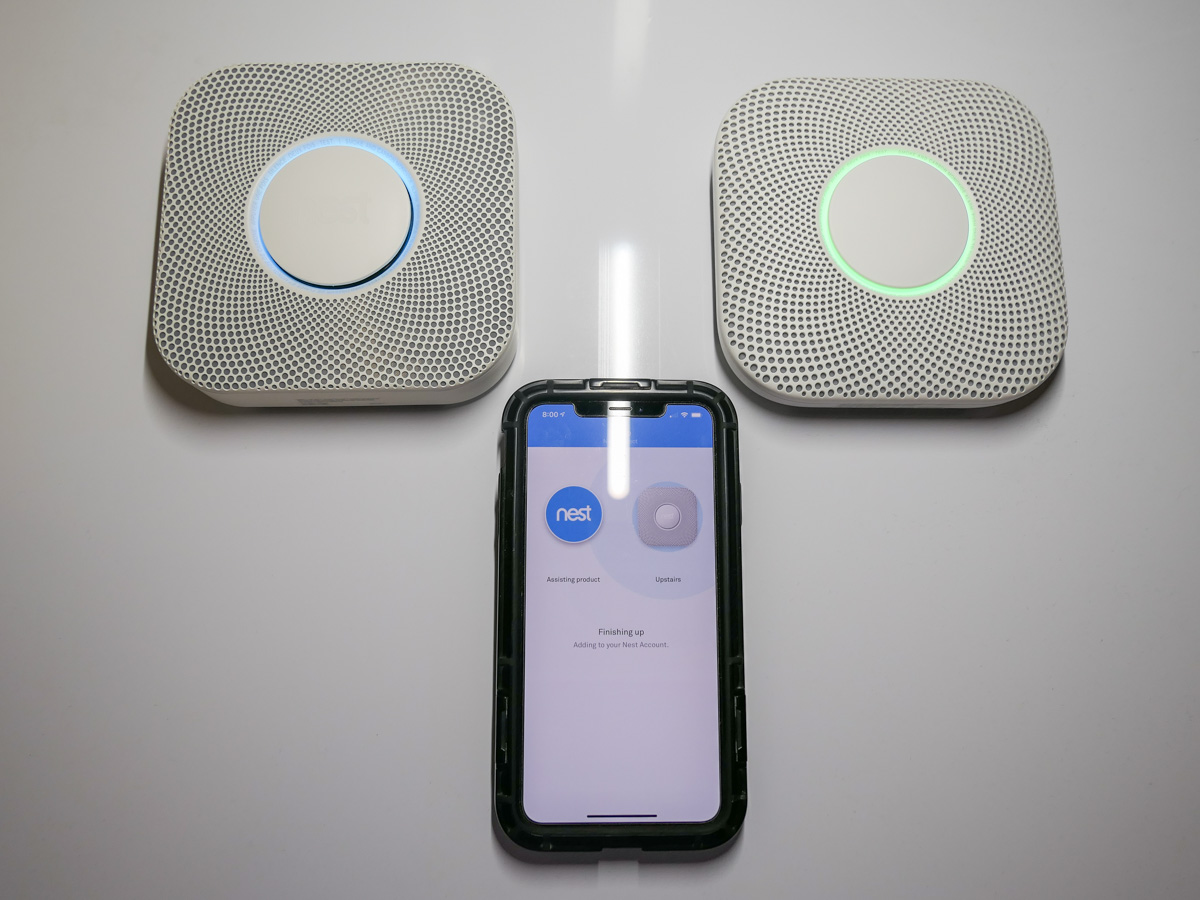
No tech lasts forever. Here’s what I did when my Nest Protect let me know that its ‘life’ was ending.

My Nest Protect Smoke and Carbon Monoxide Alarm recently informed me that it was about to reach the end of its life and cease all operations. I received the sad message via the Nest smartphone app that communicates with it. My Nest Protect has been stationed on the ceiling outside our bedroom for the past six years.

It has glowed reassuringly green as I passed by it every night on the way to bed. (A yellow color ring would suggest that all was not well.)

Feeling like You’re in a Movie
When I got the news, I felt like I was in a slick sci-fi flick, and my trusted AI bot had informed me that it was time to say goodbye. Its makers had programmed its end, and there was nothing I could do.

Wait. Scratch that.

The year is 2048. It’s my grandson’s bot. They’ve been inseparable over the years, while my son was away for long stretches conducting critical science experiments on Moonbase Alpha. The bot walks up to the eight year old and presents the bad news. There are tears and a huge hug. But my grandson can’t accept it. There must be a way to save his life-long friend!

Cue the opening credits…

My Next Protect Experience
Costing $99, my battery-powered Nest Protect was an expensive investment as far as smoke detectors go, but it has provided peace of mind over the years. And the fact I could check its status on my iPhone was pretty cool.

It would also talk to me in a friendly voice as opposed to projecting angry chirps like most smoke and carbon monoxide detectors. Of course, it did possess the important capability to project a mind-melting alarm if needed. (Thankfully, I’ve only been exposed to that dimension-ending sound during tests.)

One of its big selling points, that it wouldn’t chirp when it was time to replace its batteries, didn’t quite work out for me. My Nest Protect was simply supposed to tell me that. Maybe I wasn’t paying attention, but over the years, I still got that blasted chirp… more than once.

And you should know that the Nest Protect is picky regarding what kind of batteries you feed it. It requires six Energizer Ultimate Lithium AA batteries, which are super powerful and can keep the Nest Protect happy for long stretches.

So the Nest Protect does need a little extra love. You can’t just treat it like a cheap, throwaway detector. And yes, eventually it will be time to say goodbye.

But not for long.
I’ve decided to re-up my commitment to this tech relationship.

Time for a New Google Nest Protect
I just bought the second generation model. And it’s now part of the Google product line.
So, it’s the Google Nest Protect.
$119 on Amazon

  • It has a split-spectrum sensor. (I think that’s like a warp drive upgrade for smoke detectors.)
  • You can turn off a false alarm from the smartphone app.
  • Its ‘pathlight’ is brighter.
  • This model is supposed to last for up to a decade.

Return to the Happy Green Glow
I’ve got my new Google Nest Protect in place, and tech balance has been restored in the Lester home (for now).

If all goes well, our home’s new guardian will be around past 2030.

That said, something tells me a newer model will show up before the decade is out to attract my attention. We’ll talk more then!


Why Cropping into your Photos can Save your Shots

When editing your camera’s photos, you might need to look for the shot within the shot. Here are some examples.

After you snap a photo, you may have a good sense whether you’ve captured the image you want. Instant digital review certainly is a wonderful thing. But I would recommend not immediately deleting a photo that didn’t catch the moment or missed its intended focus point. Perhaps there’s a different element in the shot you’re not aware of that is in focus.

If you take a little time to study these photos, it’s amazing what you might find hidden in plain sight. And thanks to those many millions of pixels that are crammed into photos, you can usually crop deep into the image to pull out a detail with clarity.

No, it’s not quite like that scene from “Blade Runner” where Harrison Ford’s Deckard closely examines a digital photo and tells the computer to “move in and enhance.” But it’s amazingly close. You may not be able to print a large poster of your super-cropped photo, but it’ll likely still look great on your smartphone or computer screen.

Follow the Focus
I enjoy snapping flower shots with my Panasonic Lumix LX10. I prefer using manual focus in the attempt to make the flower pop out of its blurred background (bokeh).

But since the area of focus is especially narrow, it’s easy to miss the mark.

Instead of discarding these three pics that missed their focus targets, I followed the camera’s focus and then cropped in to save the shots.
(I use Adobe Lightroom.)
Yes, I missed the center of this flower, but the crisp edge of the petal is still interesting.

Much of this alien-like plant looked blurry, except for the tip of the back blooming stem. So, I zoomed in super tight to center on those crazy red sprouts.

Most of these fallen tree blossoms on my driveway ended up out of focus, but I cropped in tight enough to locate a few that weren’t caught in the blur.

Find your Needle in the Haystack
Even if focus isn’t a problem, you may still want to crop into a portion of a photo to give it some punch. If the entire shot isn’t that special, perhaps there’s a strong section to highlight.

I’ve been doing a lot of hiking with family and friends over the past year, and I’ve discovered that stunning views in nature don’t always translate into a quickly snapped photo. That usually happens to me when I try to take shots of a bubbly stream in a forest. It’s difficult to capture that sparkly view. So, when editing those pics, I sometimes explore the motion in the water.
In this cropped image I snapped with my iPhone, I was drawn to the linear patterns in the water created by the stream’s rush over rocks.

Show a Piece of the Puzzle
Beyond using this photo-cropping technique as a fix, you may find ongoing enjoyment in intentionally creating cropped shots that represent a piece of a larger story. (I certainly have.)

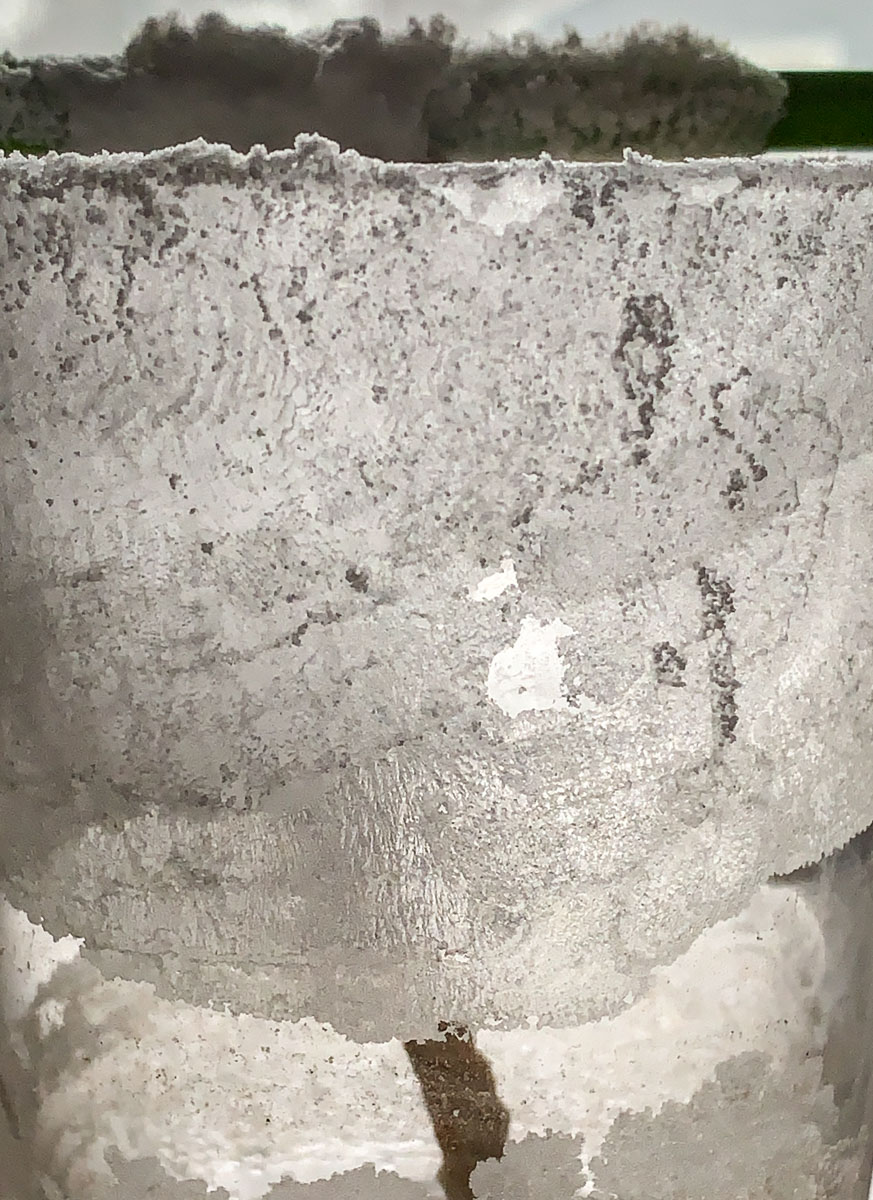
Sometimes a taste is all you need to fill in the rest.

I’ll give you a hint: My 5th grader’s science experiment using salt, hot water and a piece of string

If you’re still left with a mystery, is that so bad?

Less is More
I often like to say that “less is more” in visual storytelling. This perspective comes from my professional experience in video content creation and has certainly held up throughout my personal photography work.

Enjoy your own exploration of all of those smaller spaces in your photos.

Desk-Friendly Gear to Create Better Zoom Shots

If you’d like to improve your look during Zoom meetings, here’s my list of support gear I’ve added to my home office during the past year.

I’ve blogged frequently throughout the pandemic about Zoom meetings from home. I’ve found that applying my knowledge of video production best practices has been useful in maximizing my own Zoom shots. However, miniaturizing the standard gear of a TV studio to use in a home office environment can be tricky proposition.

That said, there’s plenty of compact consumer gear out there that can help improve the look of your video conferencing feeds without overwhelming your desk.

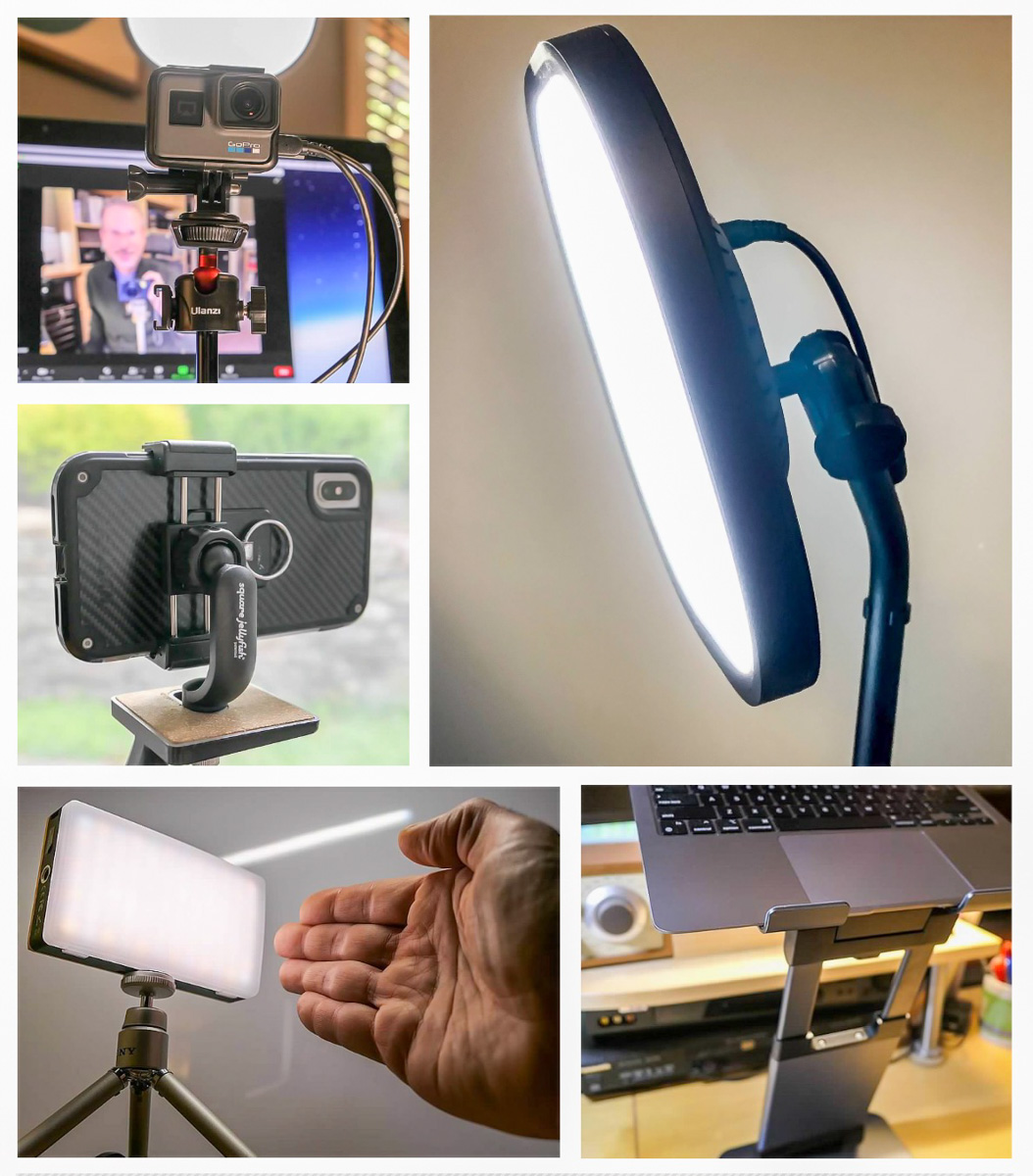
Here are five key pieces of relatively affordable gear I’ve put in place to help with my own Zoom shots:

1.
Key Light

Sometimes, there’s not a window nearby to offer illumination for your face. Instead, you need to provide your own front-facing light.

I use this soft LED as my main lighting positioned behind my iMac. It’s been performing great for over a year now.

2.
Fill Light

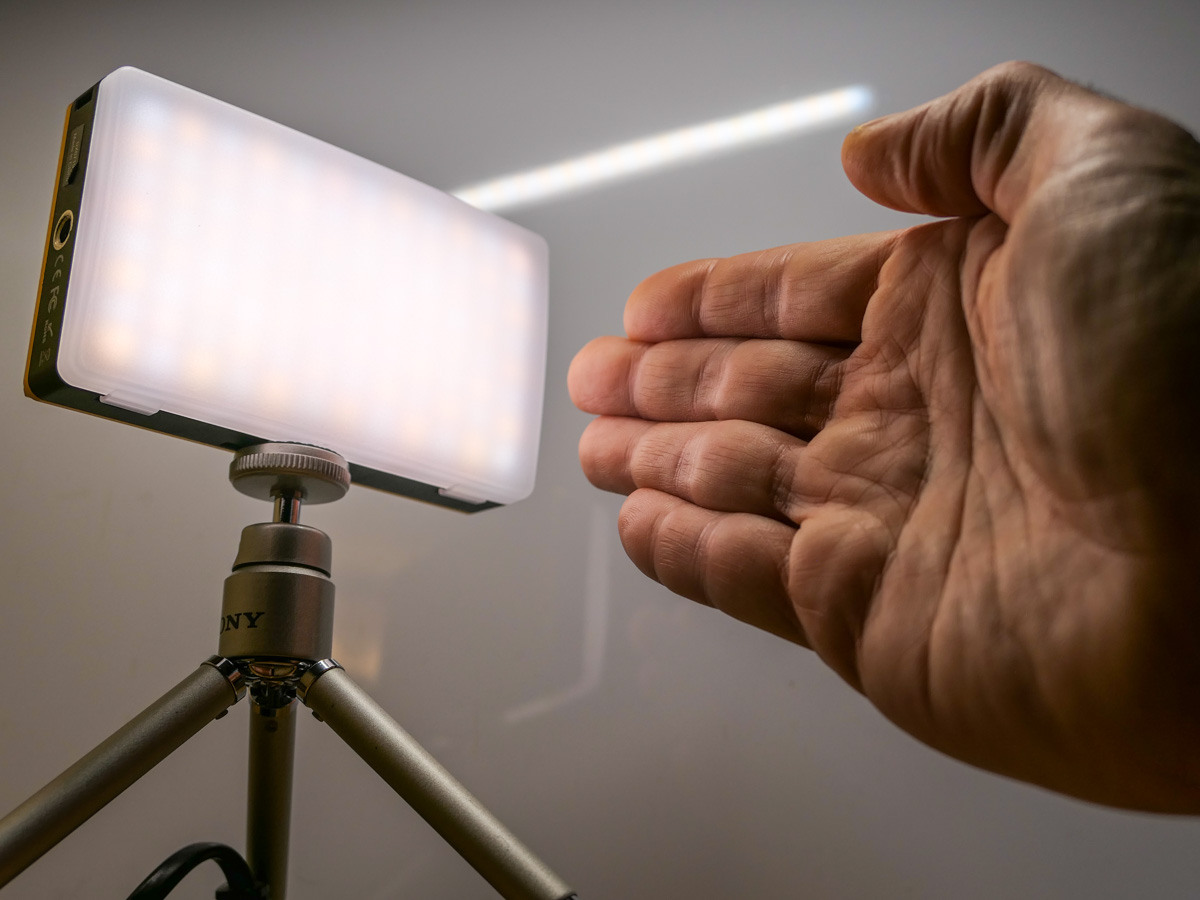
This battery-driven LED is perfect as a side light or for a more portable lighting solution.

It’s more expensive than other pocket LEDs, but it’s powerful and the light output levels are adjustable.

3.
Desk Stand to Elevate Laptop Webcam

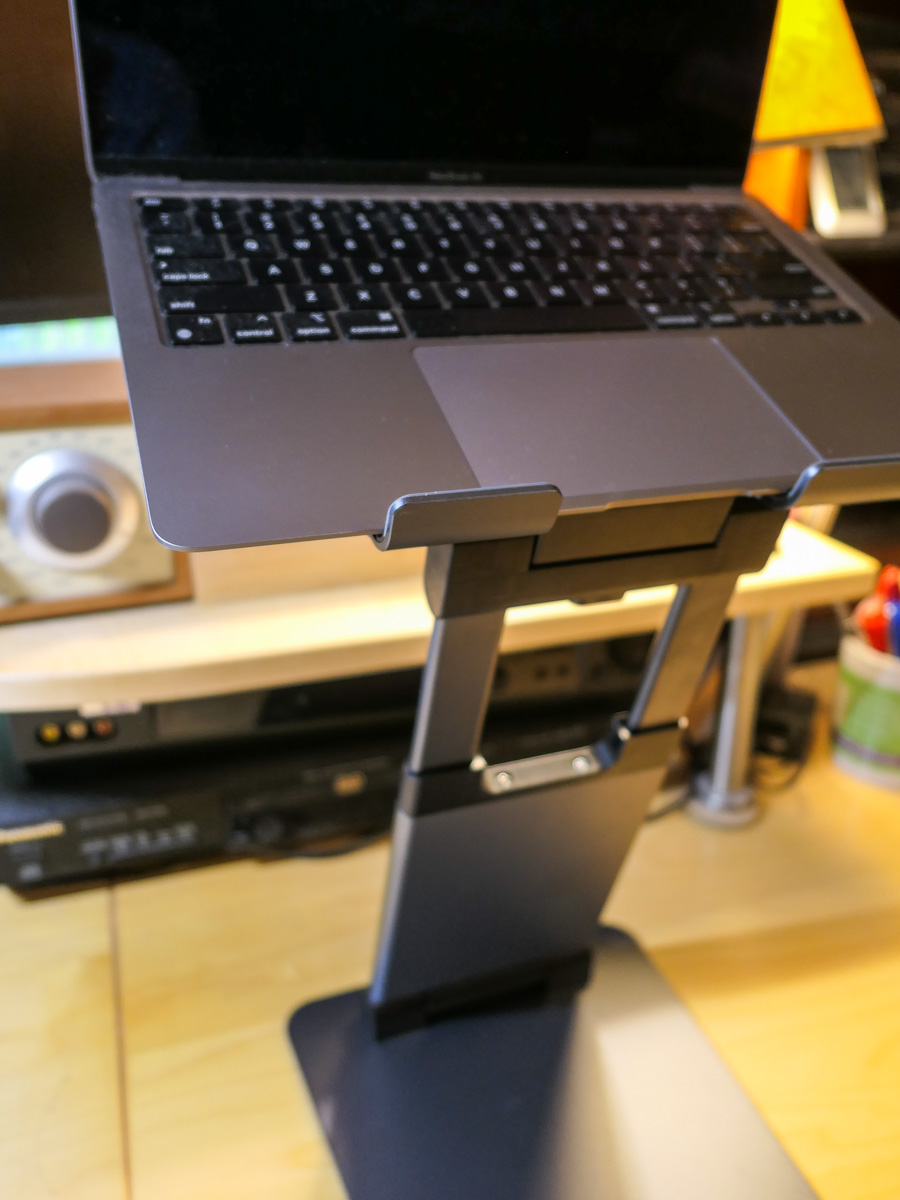
This stand almost magically levitates your laptop, bringing the computer’s webcam closer to eye level.

The resulting height adjustment for your laptop will prevent the dreaded Zoom ceiling shot that looks up your nose!

4.
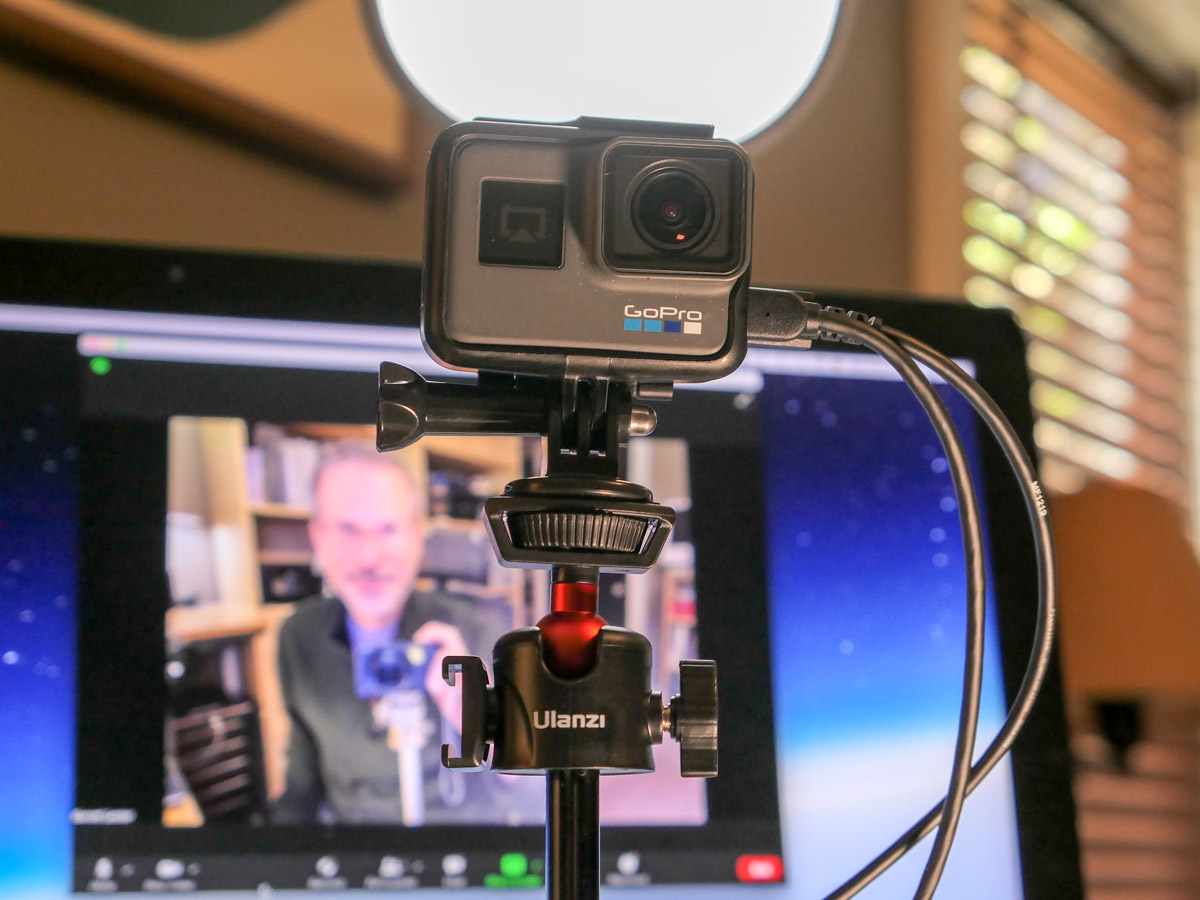
Tabletop Tripod for your External Webcam

It’s sturdy, but small enough to not take over your desk!

You can pop any webcam onto this baby tripod as long as it uses a standard 1/4” screw mount or GoPro mount.

5.
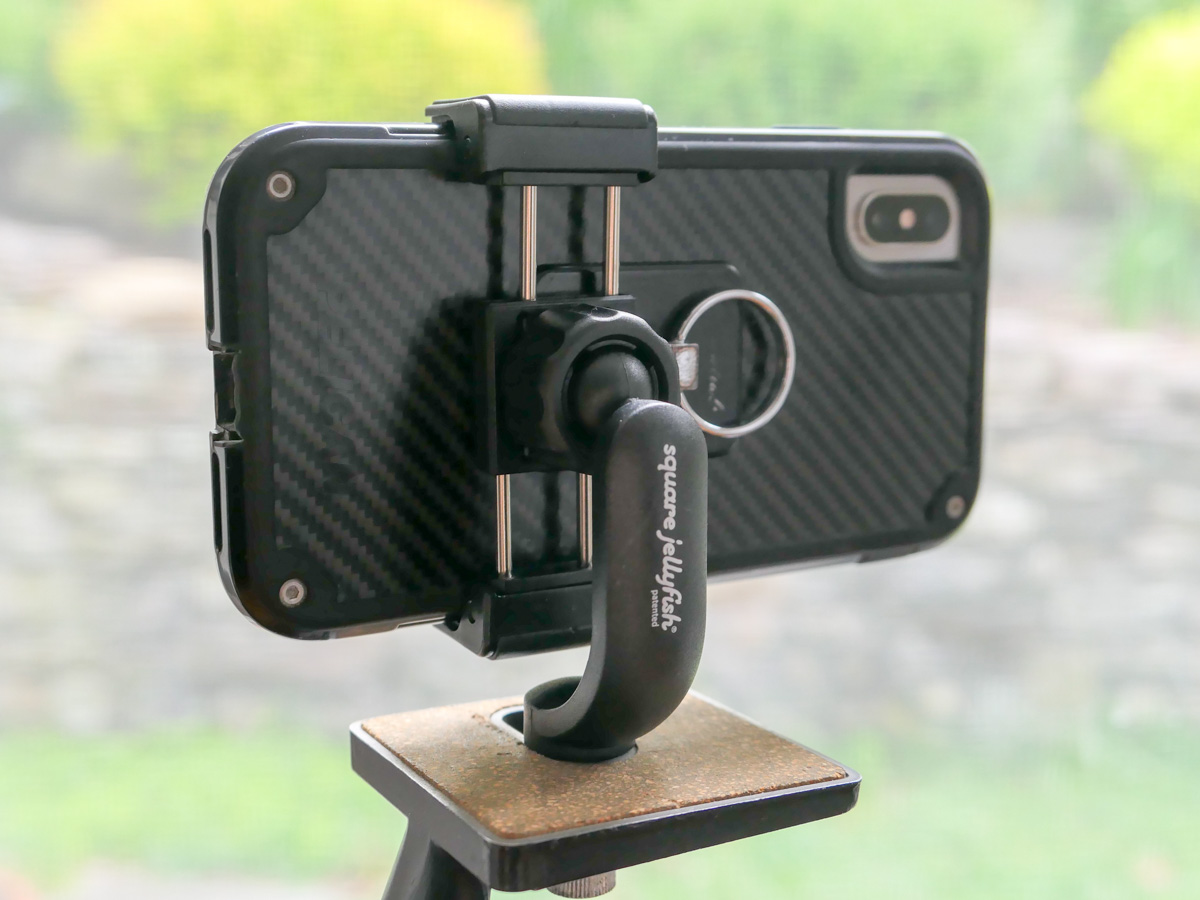
Smartphone Tripod Adapter

Sometimes, you may have to unexpectedly take your Zoom meeting to another room. A simple way to accomplish that is by using your smartphone.

Mounting your device to a tripod using this grip adaptor will negate the need to hold your phone throughout your meeting.

Zoom Away
Putting in place a few pieces of valuable support gear will go a long way to help improve your image for your next Zoom meeting.

It’s worth the effort.