At Home with Tech

Unlock the power of all your technology and learn how to master your photography, computers and smartphone.

Category: Technology

It May be Time to Say Goodbye to your Nest Protect
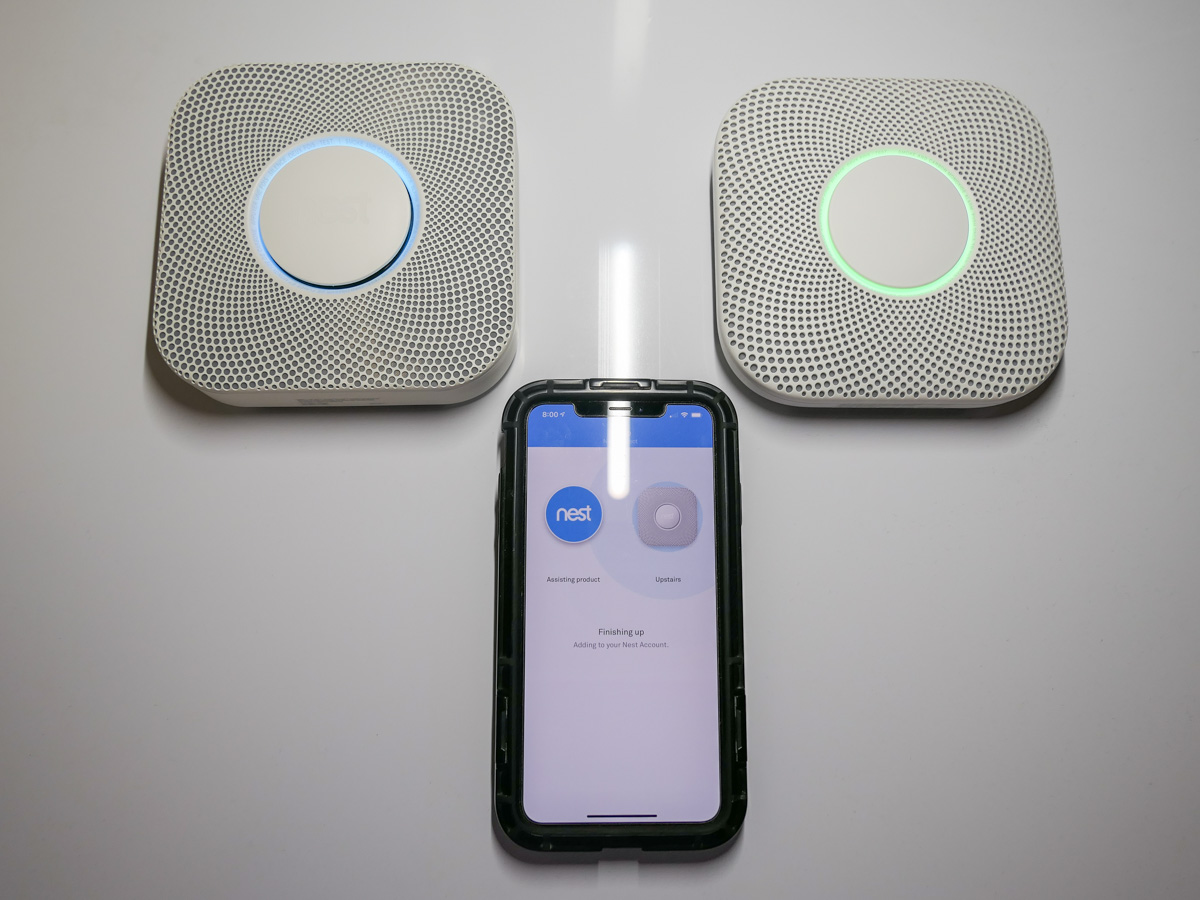
No tech lasts forever. Here’s what I did when my Nest Protect let me know that its ‘life’ was ending.

My Nest Protect Smoke and Carbon Monoxide Alarm recently informed me that it was about to reach the end of its life and cease all operations. I received the sad message via the Nest smartphone app that communicates with it. My Nest Protect has been stationed on the ceiling outside our bedroom for the past six years.

It has glowed reassuringly green as I passed by it every night on the way to bed. (A yellow color ring would suggest that all was not well.)

Feeling like You’re in a Movie
When I got the news, I felt like I was in a slick sci-fi flick, and my trusted AI bot had informed me that it was time to say goodbye. Its makers had programmed its end, and there was nothing I could do.

Wait. Scratch that.

The year is 2048. It’s my grandson’s bot. They’ve been inseparable over the years, while my son was away for long stretches conducting critical science experiments on Moonbase Alpha. The bot walks up to the eight year old and presents the bad news. There are tears and a huge hug. But my grandson can’t accept it. There must be a way to save his life-long friend!

Cue the opening credits…

My Next Protect Experience
Costing $99, my battery-powered Nest Protect was an expensive investment as far as smoke detectors go, but it has provided peace of mind over the years. And the fact I could check its status on my iPhone was pretty cool.

It would also talk to me in a friendly voice as opposed to projecting angry chirps like most smoke and carbon monoxide detectors. Of course, it did possess the important capability to project a mind-melting alarm if needed. (Thankfully, I’ve only been exposed to that dimension-ending sound during tests.)

One of its big selling points, that it wouldn’t chirp when it was time to replace its batteries, didn’t quite work out for me. My Nest Protect was simply supposed to tell me that. Maybe I wasn’t paying attention, but over the years, I still got that blasted chirp… more than once.

And you should know that the Nest Protect is picky regarding what kind of batteries you feed it. It requires six Energizer Ultimate Lithium AA batteries, which are super powerful and can keep the Nest Protect happy for long stretches.

So the Nest Protect does need a little extra love. You can’t just treat it like a cheap, throwaway detector. And yes, eventually it will be time to say goodbye.

But not for long.
I’ve decided to re-up my commitment to this tech relationship.

Time for a New Google Nest Protect
I just bought the second generation model. And it’s now part of the Google product line.
So, it’s the Google Nest Protect.
$119 on Amazon

  • It has a split-spectrum sensor. (I think that’s like a warp drive upgrade for smoke detectors.)
  • You can turn off a false alarm from the smartphone app.
  • Its ‘pathlight’ is brighter.
  • This model is supposed to last for up to a decade.

Return to the Happy Green Glow
I’ve got my new Google Nest Protect in place, and tech balance has been restored in the Lester home (for now).

If all goes well, our home’s new guardian will be around past 2030.

That said, something tells me a newer model will show up before the decade is out to attract my attention. We’ll talk more then!

Why “Loki” is my New TV Series for Father and Son Streaming

If you’ve been looking forward to watching “Loki” on Disney+ with your kids, you won’t be disappointed. Here’s my review.

I always enjoyed watching Tom Hiddleston’s Loki throughout the Marvel movies. His god of mischief was especially interesting because of the flaws and tragic elements of his early story that made him who he was.

The end of his story in “Avengers: Endgame” was tough to watch, not only because it was so brutal, but because he would never get his chance to redeem himself.

At the end of the day, even though Loki always caused problems, we were still rooting for him…at least I was. All that pain and anger that was just under the surface and rarely revealed by the talented Hiddleston was plenty reason to forgive his naughtiness.

It was hard to say goodbye. And I’m really glad his departure was short-lived.

It’s All Part of the Plan
As I expect you already know, Disney+ has resurrected Loki and given him his own series. It picks up after that time-altering glitch during “Avengers: Endgame” when the Avengers go back in time to get the Tesseract as part of their Infinity Stone collection project. They mess up this part of their mission and Loki escapes his custody via the Tesseract, which isn’t what happened the first time around.

Beyond a momentary setback for the Avengers, it’s an amusing scene in the movie. And the consequences for Loki aren’t addressed. He’s still (spoiler alert) dead at the end of the story, but when you mess with time, there are always unexpected consequences.

It’s a fantastic bread crumb, and I applaud the architects of the larger MCU for dropping it in this way.

Loki Variant
I watched the series premiere of “Loki,” and I couldn’t be happier. Yes, Loki gets another chance to get it right, but this clever and snappy series is much more than that. It introduces so many new elements into the MCU that you’ve got to pay attention…Time Variance Authority/Multiverse/Time Keepers/Variant People/Sacred Timeline. You need a training film to keep it all straight. (Yep, they’ve got that!)

It’s fresh. It’s retro. It’s trippy.
It’s really fun.

The writers also quickly get to the heart of Loki’s flawed character and make him face his past and future choices. It’s essentially a breakthrough therapy session managed by Mobius (Owen Wilson’s TVA character). It feels quite cathartic.

I can’t wait for the next episodes where Loki and Mobius try to fix the timeline and confront the big threat. Plus, you’ve got the god of mischief being asked to follow the new rules and prevent multiverses. What could possibly go wrong?

Family Friendly?
Across the pandemic, my eleven-year-old son and I effectively consumed all the Marvel movies on Disney+. We also massively enjoyed “The Mandalorian” series.

Sure, the Marvel movies have some bad language and plenty of intense action, but it’s been okay for our kid at his particular stage of development.

My wife and I did watch the first episode of “The Falcon and the Winter Soldier” with our young Padawan. (Apologies for mixing universes.) We felt the increased level of bad language and violence was a step too far for our boy. (The whole series is pretty dark.)

So, I did not suggest that we watch the next episode, and my son didn’t complain. (Instead, we moved on to “Agents of Shield” on Netflix. That series also got too dark for him.)

I enjoyed “WandaVision,” and will eventually introduce that Disney+ series to my boy. I haven’t done that yet, because it moved so slowly in those first few episodes. Plus, you’ve really got to be a child of ‘60s and ‘70s television to appreciate them.

Granted, I’ve only seen the first episode of “Loki,” but I feel this series is perfect for my son. Like me, he’s especially enjoying the humor and mind-bending quirkiness.

Plus, there’s minimal bad language (so far) and the violence is relatively tame. That’s not to say there’s no action… there’s plenty!

Yes, I did prescreen the first episode, (after being burned by “The Falcon and the Winter Soldier”) but now, I’m planning to watch the rest of the “Loki” series alongside my son.

Wednesday is the New Friday
I’m not sure why new episodes of “Loki” are dropping on Wednesdays as opposed to Fridays. Perhaps it’s a summer scheduling strategy. I’ll still plan on making it a Lester Friday night family event.

So please don’t give anything away while I time shift our viewing. We’ll be just a bit behind everyone else’s timeline.

Looking forward to a summer of Loki-goodness!

How to Use Apple’s Photos App to Quickly Create a Memory Movie

If you need a way to display a group of photos in a movie-like presentation, Apple’s Photos app can do this trick for you. Here’s how.

Apple’s Photos app on a Mac contains the powerful functionality to organize your pictures into collections and then display them as “Memory Movies,” complete with photo zooms and transitions. The app does this on its own to generate unexpected and often delightful photo-montage movies from your photo archive.

But you can also put the Photos app to work to create a Memory Movie using your own (human-directed) collection of pictures.

It’s simple to do, and with a couple of clicks, you can also add music and a title graphic.

How to Make a Memory Movie
The trick to quickly creating a Memory Movie is choosing one of your existing albums of photos. But it’s also not hard to create a new album for this use. The bottom line is the album feeds your movie structure.

Once you’re in your album, you’ll see the option on top to click on “Show as Memory” or “Slideshow.” (The difference is Slideshow doesn’t contain the photo moves and zooms.)

On the next page that appears, you’ll see your Movie Memory ready to start.
Click the play icon.

That’s it!

To adjust your music choices, click on the tools icon on the right side of the playback controls.

Fast and Good Enough
Once you understand the easy steps to creating a Memory Movie, you can pull one together in minutes by using one of your existing albums.

It’s a much faster process than importing your photos into a video editing program and then manually setting up all of the photo transitions before exporting your video file.

Sure, a manually-edited version would be more creatively precise. (AI-directed photo moves and transitions can sometimes be a bit off balance.) But I’d say for most uses, letting your computer do the work is just fine.

A Memory Movie is also an especially simple way to quickly pull together and share a collection of photos for a Zoom meeting.

A couple caveats: You can’t create a Memory Movie using a shared album. It needs to be one that lives locally on your Mac. And you can’t actually export your Memory Movie into a separate file. The movie experience is generated and remains within the Photos app.

Display your Memories
There are any number of ways to display digital photos these days. But if you’re already using the Photos app for your photo management, this quick and easy presentation trick is a no-brainer.