At Home with Tech

Unlock the power of all your technology and learn how to master your photography, computers and smartphone.

Category: video

Drones for Dummies: I Bought this DJI Model with Zero Flying Experience
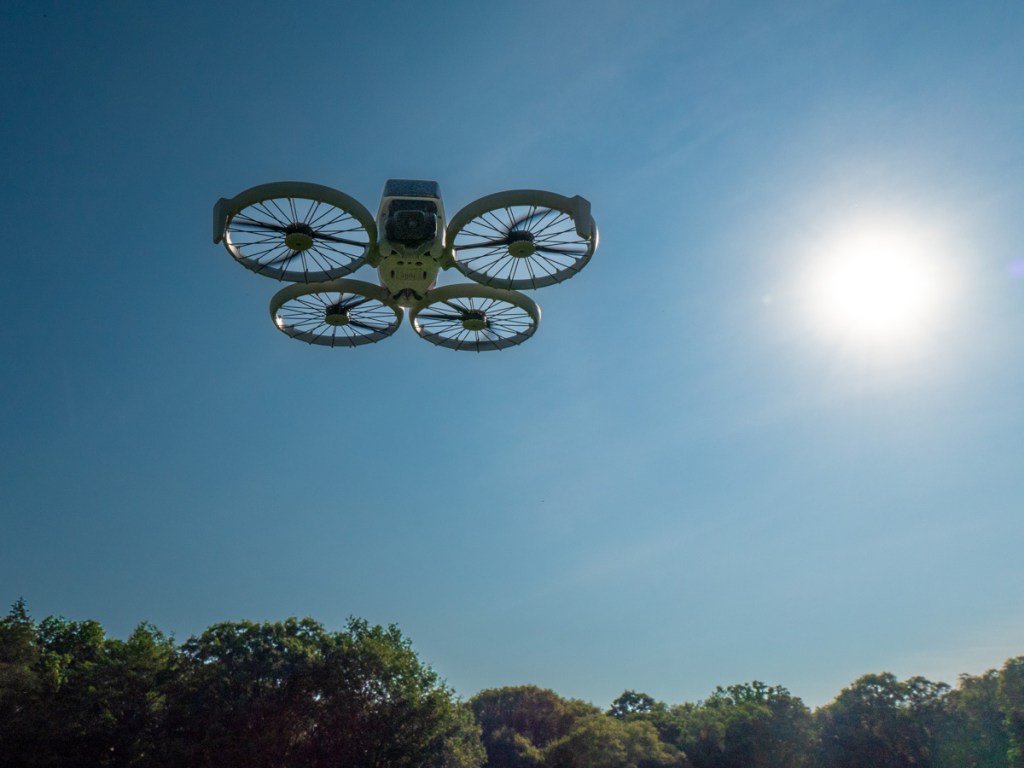
I’ve always been fascinated with drone videography. Over the years, I’ve watched the technology mature away from the professional video market and extend into prosumer and then squarely into the consumer market. And all along, I’ve wanted to buy a video drone for my personal projects. But I’m not a drone pilot. I knew the flying part would be a challenge.

I felt that way, because years back, I tried flying a couple toy drones around the house, with disastrous results. I couldn’t imagine buying a more expensive camera drone to crash in the great outdoors.

Still, I wanted one.

The ability to generate cinematic shots from the sky is a compelling proposition for anyone who has a passion for photography and videography. 

Your Drone Can Fly Itself
Then DJI began building “subject tracking” autonomous flying skills into entry-level drones. First with the DJI Neo (135 grams) and then with the DJI Flip (under 249 grams). With this auto-pilot superpower (called QuickShots), these drones can visually lock onto you and record a variety of programmed flying maneuvers around your body. No human flying skills required. 

So, you can leave the flying part entirely to the drone? Interesting.

Granted, these intelligent shooting modes are limited ways to fly any drone, but it’s certainly a start. Sure, you’ve got to know your preflight steps and provide your drone enough empty space to maneuver in without obstacles. Otherwise, crashes are still possible (more on this later). 

Of course you can still fly these ‘smart’ drones manually, but the QuickShots feature offers an enticing onramp for any drone novice.

Look Ma, No Hands!
Is this cheating? Not actually flying a drone, but giving up the stick to code?

Well, my primary goal is to get the shot I envision. The flying part is more of a means to an end. I see a drone as a gimbal-stabilized camera that flies…not a flying drone with a camera. But of course, I know the two are entirely connected.If DJI can give me training wheels to help get me started, I say that’s a great idea.
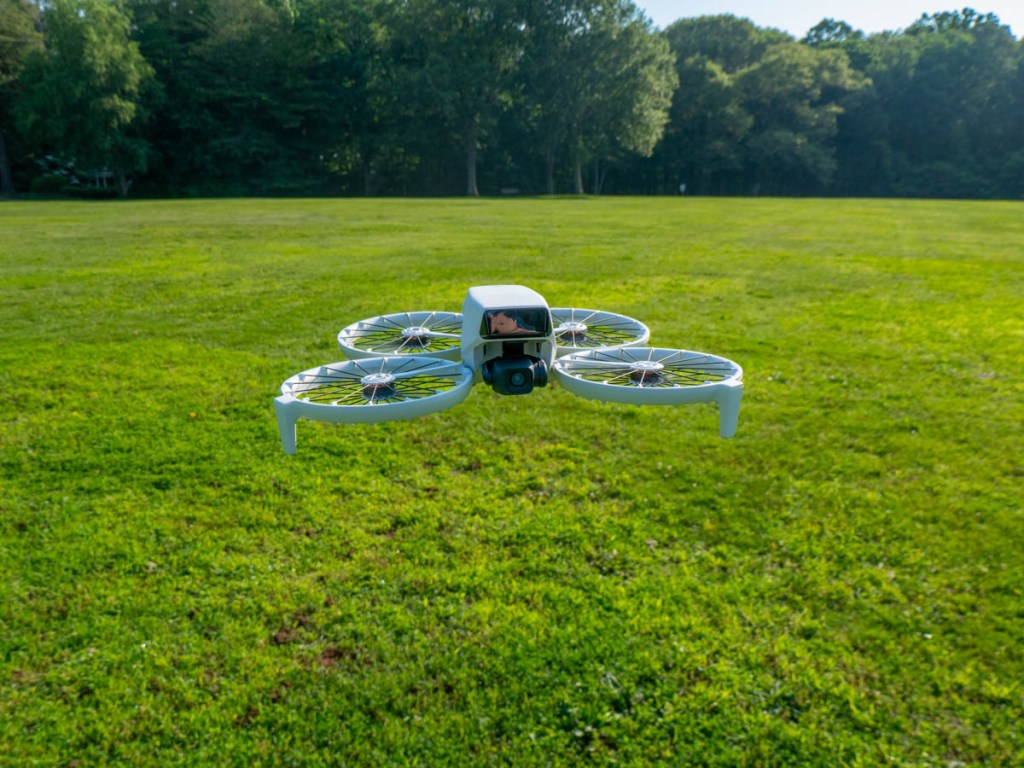
So, I took the leap and bought myself a DJI Flip. I chose the upgraded ‘Fly More Combo’ package with 2 extra batteries and the nicer remote controller (RC 2) with its own built-in screen. 

Sub $1,000 Price Point
You can spend as “little” as $439 plus tax on the DJI Flip when paired with the more basic RC-N3 remote controller that uses your smartphone as your flight screen. The Fly More Combo package cost $779. But when you add in a micro-SD card and the 2-year protection plan, plus tax… it creeps closer to $1,000.

Still, that’s not a bad price point considering what drones cost a few years ago.

The DJI Neo is even less expensive… It starts at $199 plus tax.

But the Flip is more advanced with longer fly times and a better camera sensor. It can record 4K/60fps video and slow motion at 4K/100fps.

It’s also got foldable full-coverage propeller guards for added flying protection.

The Flip can snap photos too, but for me it’s all about the video.

Flip Flying 101 = QuickShots
After my DJI Flip arrived, my first step was to learn the preprogrammed flying maneuvers using the DJI Fly app, which I downloaded to my iPhone. You can also activate these short QuickShots directly on the drone by simply togging through button settings. (no phone required).

Another superpower is the Flip can take off and land on your outstretched hand. (Yes, your hand is the take-off pad!)

It’s a nifty trick and greatly simplifies the complexities of take-off and landing.

Shouldn’t Everyone Have a Drone?
I imagine the population of drone owners is relatively steady these days. (If you had a specific need for a drone, you’ve likely bought one by now.) The barrier to entry for new customers like me has been the inability to fly. (Plus, it’s an expensive investment, especially if you think you’re going to crash it.) So, it’s a smart business decision to build auto-piloting skills into entry-level drones to attract video enthusiasts.

Yes, I think this is a whole new market for DJI, and I’m pleased to be a part of it.

Examples of QuickShots
Sure, I’ll invest the time to learn to manually fly my DJI Flip using the RC 2 remote controller. 

In fact, I’ve quickly figured out how to access the QuickShots’ menu on the RC 2. And I generated these nifty shots in the park on an early test flight.

This ‘dronie’ video is a great closer for any number of video ideas.
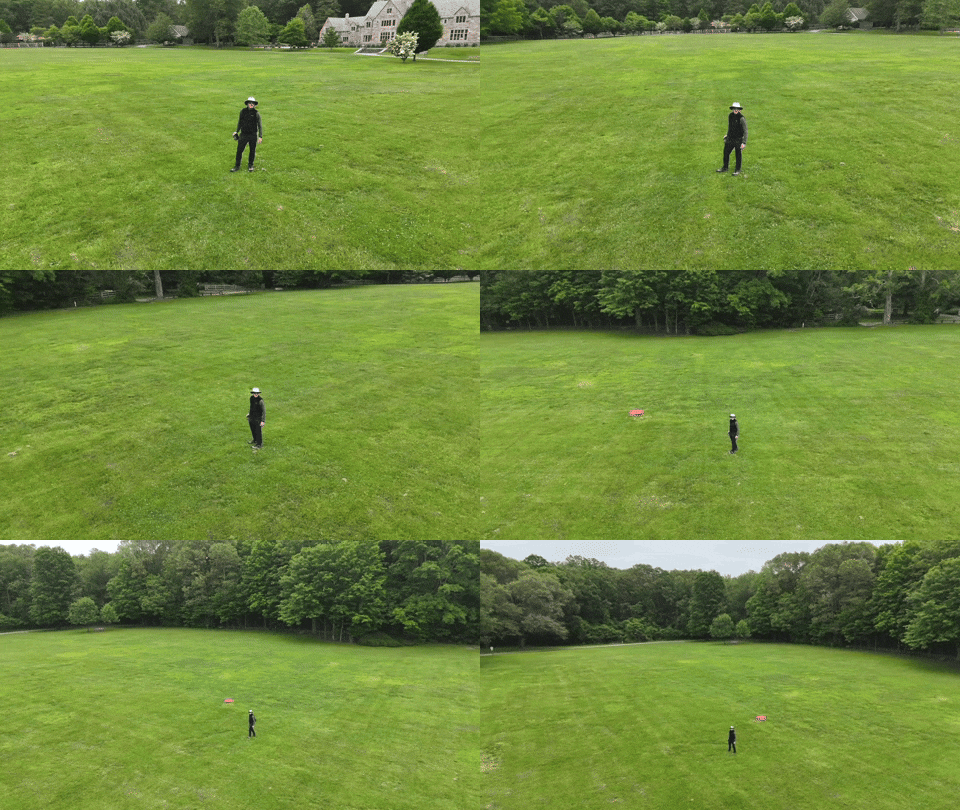
I just need a mountain background to fully realize this “Sound of Music” moment.

Auto Braking System
Happily, my Flip has a front and bottom-facing infrared sensing system, which enables the drone to auto land and prevents it from flying directly into obstacles. But it’s not a 360-degree obstacle avoidance system like other DJI drones have. 

So, crashes are completely possible. (Of course, I’ve purchased the 2-year protection plan.)

Practice Makes Progress
I know that mastering any new hobby or passion takes time. So, I’ll try not to rush it (or crash it).

Just being able to generate some nifty (though preprogrammed) cinematic shots with the DJI Fly app on my iPhone and the remote controller has been enough to instantly make this novice a functioning camera drone operator.

I couldn’t be more pleased.

How to Frame a Live Photo for Hogwarts or your Muggle Home

If you extend the wizardry of an iPhone’s Live Photo mode and add your imagery to a digital photo frame, you can transform your photography. It’s not so futuristic. Here’s how to bring more motion to reframe your photos today.

I’ve always been on the fence regarding the value of Live Photo mode on an iPhone. This feature appears to magically turn a still photo into one with three seconds of motion. Of course, the reality is these ‘magical’ photos are just little movie files (1.5 seconds before and after you snap).

Sure, creating a Live Photo is useful so you can later pick out a better ‘key photo’ frame. That’s especially helpful in a group shot if someone’s eyes are mid blink. But if you really want to capture a micro movie, I recommend just shooting in video mode for a few seconds.

But I think Apple is onto something that isn’t yet mainstream. And it connects with how you would want to display a Live Photo. I would offer that these moving photos are ideal in a digital photo frame.

The Perfect Moment can Take Longer than 3 Seconds
If you think about the Harry Potter films and all those ‘living’ paintings often seen in the background, the paintings are effectively digital photo frames magically displaying live portraits. Of course, the motion in each painting is specially curated to display a longer moment or a complete action from the character in the frame. If you went back and clocked them, they’re probably double the length of an iPhone’s Live Photo.

Often, a ‘moment’ in time that’s visually meaningful takes more than 3 seconds to complete. But as photographers (and aren’t we all?), we’re trained find that singular frame that captures it all.

But you can also just let the ‘live’ unfold. Sometimes, that’s so much easier. And Apple would say that’s exactly what a Live Photo offers.

Extended Live Photos are Better
However, I don’t think a Live Photo is entirely optimized for this task. It’s just too short, and you can’t be sure you’ll capture the complete end of the moment in front of you. Apple’s automation of its Live Photo process creates an imperfect crop of time versus how long the moment requires.

I feel you’ve really got to be running your iPhone in video mode for at least a few more seconds to ensure for that.

And in doing so, you’ll create what I’ll call an ‘extended live photo.’

Yes, it’s simply a seven to ten second video clip. But now your mindset should shift to still see it as one extended moment… with motion. (Do you feel your brain vibrating with this aha moment?)

Photographic Magic
Okay. So now, you’re creating something entirely new. Congratulations. You’re a wizard.

But what are you supposed to do with these extended live photos? Well, as I mentioned up top, they’d look great on a digital photo frame. All of your longer visual moments would still be short, but entirely complete without being abruptly cut off.

So, you’ve just got to bring a new mindset to your photography with the goal of finding and capturing these extended moments and then showing off your short videos on your digital photo frames. Soon your home will start to resemble the hallways at Hogwarts.

If you want to give it a shot, here are some ideas on where to spot perfect visual moments for this.

Opportunities for Extended Live Photos
First off, any moment for a still photo can also make for a great extended live photo.

  • People hugging
  • Blowing out birthday candles
  • Vacations
  • School reunions
  • Outdoor activities
  • Your pet simply staring at the camera

Find the Highlight from a Longer Video
If you’re already planning on taking a longer video, later selecting a five to ten second highlight will probably make for a great extended live photo.

Create a Living Group Portrait
We’ve been trained to think of a group shot as a still moment where everyone is smiling and looking at the camera.

I would offer that’s only part of the picture. The energy and motion that surrounds that one perfect frame is often as interesting, if not more so. In a group, the interpersonal dynamics are usually on full display (people talking and laughing together).

  • I’ve seen the New York Times use this visual strategy online when presenting people features. (It’s quite compelling.)

Enjoy Nature’s Beauty
If you’re a nature photographer, why not simply capture 10 seconds of that beautiful scene?

Adding in the ‘live’ will totally bring the still moment to life.

It’s a similar strategy as creating a live portrait, but much easier as nature is always strutting its stuff.

What About the Audio Track?
Technically, you don’t need the audio if you’re displaying your extended live photo on a digital frame. Sure, some of these frames can play sound, but I don’t expect you’ll use that functionality. (Photo frames are meant to be seen and not heard.)

But your extended live photos should still be optimized for the sound to heard. That’s because the clip may later be used with its audio track for a future use. So be mindful to trim these short video clips accordingly.

Keep it Moving
Digital photo frames are hardly new. I wouldn’t even call the product line that exciting anymore. But if you feed them with your own ‘extended’ live photos, that can be a real game changer.

And sometimes, you might naturally just shoot a video for only 10 seconds. Later, you’ll ask yourself how you might use it. Well, now you know!

I’m just a mere Muggle, but using this photographic trick for your digital photo frames will always look like magic.

Our Computers aren’t Built to Handle so Many Videos and Photos

It’s really simple to create media with our smartphones, and we’ve all become home filmmakers. But it’s becoming increasingly hard to store all the media files. If you’re not worried that you’ll eventually run out of SSD storage space in your Mac, think again. Here’s what you can do about it. (And it won’t take up a lot of desk space.)

A year back, I upgraded from my older 4TB iMac to my new 2TB Mac Studio. My decision to go with only 50% of the internal storage was based on Apple’s more expensive internal SSD drive pricing. (My old iMac had a larger, but slower, spinning hard drive, which is no longer part of the line up.)

I always thought that Apple would forever offer increased internal storage without charging more. (Aren’t we all needing more storage as we document our lives with photos and videos?)

But once Apple moved from HDD spinning drives to next-generation SSD drives, that equation imploded.

  • An Apple Studio with a 4TB SSD costs $1,200 more!
  • You can’t even buy an iMac today with more than 2TB of storage. And that will set you back $600-$800.

Something’s very wrong. We’ve got less to work with and paying more for it.

Still, pricing aside, I successfully deluded myself that didn’t actually need 4TB. (Ha!)

Better Digital Housekeeping?
Sure, I had filled up my old iMac’s 4TB drive, but I told myself that maintaining and transferring all that content from computer to computer was unreasonable. I didn’t need all of it within my internal drive. instead, I would offload much of it to external drives and my G-Technology RAID for long-term storage.

I brainwashed myself that the new 2TB SSD in my Mac Studio should be more than enough once I performed some long-overdue digital housekeeping.

That was just wishful thinking.

Face the Inevitable
Sure, I’ve done some media management, but my goal of a 50% reduction was unobtainable. Within a year, my 2TB internal drive was bursting at the seams. (And we all know that Macs aren’t built to allow you to later upgrade internal storage.)

And Apple hasn’t helped any by continuing to improve its iPhone’s capabilities to generate RAW photos and advanced video codecs (including ProRes files). All this means larger media files.

We’re all filmmakers now with the critical need to house our content libraries somewhere. What did they think was going to happen when we moved these huge files over to our Macs?

iCloud Storage?
Sure, I could export terabytes of my media into Apple’s iCloud ecosystem. But come on… that’s not really a good value proposition.

  • 2TB costs $9.99/month
  • 6TB is $29.99/month

Let’s do the math:
I would have to go with the 6TB plan, which comes out to $360/year. While that is surprisingly competitive with external hard drive pricing, across multiple years… it gets too expensive.

Certainly, $360 x multiple years is more than the one-time cost of buying a companion external drive. I know physical drives won’t last forever, and you’re supposed to upgrade them every few years. So perhaps a future iCloud storage plan could be a reasonable solution… if the pricing comes down.

SSD Drives
But what is today’s answer when your internal drive gets filled up?

Well, that’s simple: You’ve got to buy an external drive and plug it in. (I know I didn’t have to tell you that.)

The real question is what kind of drive?

To match the speed of your internal drive, you’ll want to buy a similar technology. If you’ve got an internal SSD, you should look at getting an external SSD.

So, that’s what I did.

Video Editing
Another question is what you want to do with the drive.

My most demanding task is editing my family videos and personal creative projects, which are all shot in 4K. Many of my video files are generated by my iPhone 15 Pro Max.

Plus, I’ve got:

So, perhaps my video editing needs are more advanced than the average user.

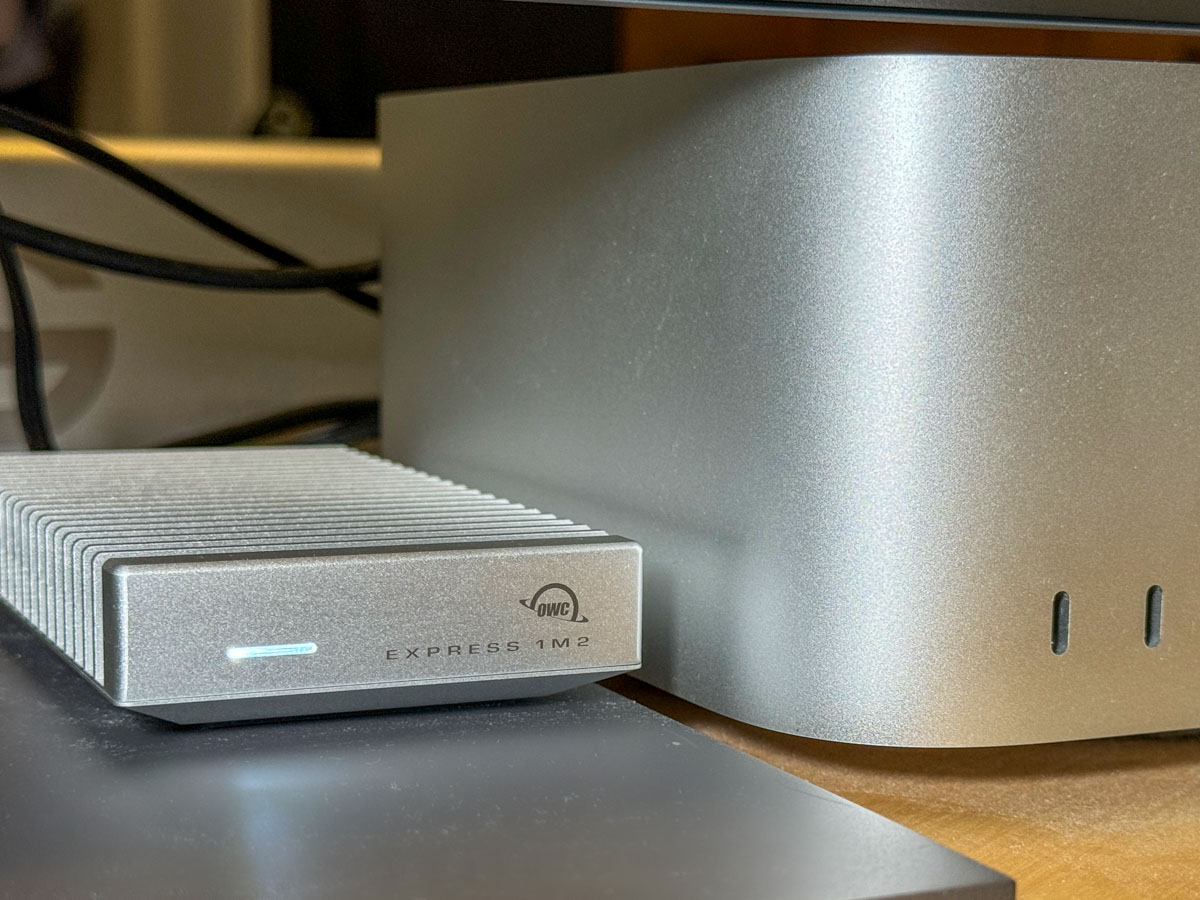
4TB OWC Express 1M2 SSD
All this said, I decided to go with a fast NVMe M.2 SSD. And I wanted to take advantage of the Thunderbolt 4 interface my Mac Studio offers. While there are many Thunderbolt 3 drives on the market, only OWC appears to offer a USB4 drive (same as Thunderbolt 4).

Now, some of you will immediately question my need for such a fast drive, and others will point out that thunderbolt 3 drives are fast enough for my media workflow. I know.

But this is a dizzying choice. So, I figured it’s best to go with a little more oomph than not enough.

So, I landed on the bus-powered 4TB OWC Express 1M2 SSD. (It’s an enclosure with the 4TB NVMe prepopulated.)
This Express 1M2 is blazing-fast, boasting 3200MB/s. It gets positive reviews, it’s compact and so far… it’s working great for me.

The Price for Performance and Peace of Mind
No, it’s not exactly cheap. (Remember, SSD technology is pricy.)

Yes, I could have saved more and bought a less expensive NVMe separately and popped it in an empty OWC 1M2 enclosure. But… I’m a baby.

Really, I just want this thing to work out of the box. Sure, plenty of you may chide me for being so ‘tech-timid.’ But hey… I’m not ‘Mr. At Home with IT.’ I know my limits. I’m not building my drives. I’ll buy them pre-built, thank you very much.

I just want some peace of mind. (Sure, I back up my files, but that’s also a complex equation.)

So, yes, I’m willing to pay a little more.

Build a Big Enough Home for your Files
Let’s review:

  • I bought a new Mac that had 50% of the internal storage of my old Mac
  • I inevitably ran out of space
  • A year later, I spent more money to buy a companion OWC drive for my Mac
  • I plugged it into my Mac Studio via a Thunderbolt 4 port, and I’m back in business

Yes, my story has a happy ending, but I’m not that happy.

Sure, maybe I have more media storage needs than the average bear, but not by that much.

I think today’s new computers simply need more internal storage. The fact that Apple sells its base-level computers with only a 256GB SSD is absolutely silly. (I could choose a stronger word.)

The lesson here is over the years, you’re going to need a bigger hard drive for your computer. And you’re going to pay for it one way or another.

So, plan for the future.