At Home with Tech

Unlock the power of all your technology and learn how to master your photography, computers and smartphone.

How to Use Dropbox on Your iPhone to Listen to Podcasts
If you’re not into iTunes to help transfer a podcast from your computer to your iPhone, then you should think about moving that file up to the cloud where your phone can find it.

If you’re not into iTunes to help transfer a podcast from your computer to your iPhone, then you should think about moving that file up to the cloud where your phone can find it.

My wife recently invited me to listen to an hour-long podcast that she was interested in discussing with me. “An hour?!” I wondered. Where would I fit that into my busy day? The obvious choice eventually percolated to the top of my narrowly focused brain…

Listen on my way to work on my iPhone!

Whether I was driving or commuting on the train, I could consume this content on the go.

Great!
Now the question was how…

Stream It
The podcast lived on a website… so I could simply stream it directly from there. Sure… that’s the easiest way. But when I travelled through dead zones in cell coverage, I’d be stuck.

iTunes is Always There for You…
The podcast creator, having already thought through this limitation, invited its Apple listeners to download the audio file onto their respective Macs. From your computer, you can move the audio file to iTunes and then manually sync your iPhone/iPad with iTunes to move the file over.
(And no… this particular podcast can’t be automatically accessed and downloaded online from iTunes. That, of course, would make it easier…)

The whole ‘transfer in… then transfer out’ process with iTunes on your computer seemed like an unnecessary amount of work, since I was intending to listen to this podcast only once.

Look to the Cloud
Hmmm…
It all felt so yesterday. I immediately thought that a cloud solution should be able to better handle the challenge….

And of course it can!
Here’s how I did it…

Four Steps to Easy Podcast Prep

Dropbox is my personal cloud-sharing solution.
(There are many others out there.)

Step 1
So I downloaded the audio file from the website to my iMac and then simply dragged the file to a new folder I created in Dropbox.

Step 2
Then, I picked up my iPhone and opened up the Dropbox app…
(Can you believe it… the audio file was magically right there!)

I was already at the finish line in two steps, but the file would only stream when I tapped on it. I wanted to listen locally…

Step 3
There’s a ‘Make Available Offline’ option in the Dropbox app.
I tapped that, and Bam!
Now, I was ready to listen, regardless of cell coverage…

Step 4
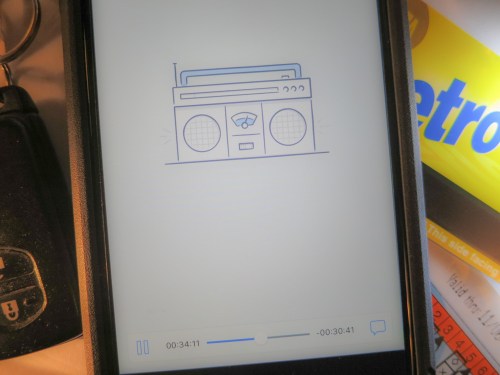
I tapped the ‘downloaded’ file, which I could also access in the ‘Offline’ section, and a Dropbox audio player opened up.

My podcast began to play.

Sweet.

Happy Listening
Again, there’s nothing wrong with moving your podcasts into the iTunes ecosystem. I was just too lazy to take the time to get it there.

Dropping the file into Dropbox was so much quicker.

And that’s more time you can put towards your podcast listening!

See How Technology has Fused into Your Landscape

If you allow yourself a few minutes on the way to work to actually see what’s in front of you, it might surprise you.

I did exactly that and realized that technology has not only consumed some people as they walk the streets of New York City…
(Not entirely unexpected)

But you can find technology fused into the landscape in places where you wouldn’t expect.

Or maybe we’ve just stopped paying attention…

Time to reverse that.

So last week, I documented a little walk with my iPhone from Grand Central Terminal to the office and snapped a few pics.

Here are the images I discovered…

metro-north-travelers
grand-central-platform
old-and-new
grand-central-escalator
citibike-landscape
walking-with-smartphone
another-walking-with-smartphone

How to Take Your Apple TV on the Road

Why would anyone want to take their Apple TV on vacation? Think about it… You’re welcome. Now just don’t forget about one important detail…

Why would anyone want to take their Apple TV on vacation? Think about it… You’re welcome. Now just don’t forget about one important detail…

My family and I stayed at an inn in Massachusetts a couple of months back, and I was surprised to find an Apple TV connected to our room’s television. I stared at it for a moment, and it was as if I were one of those guerillas at the beginning of “2001: A Space Odyssey.”

I reached out to touch it, but instead, I picked up the cute Apple TV remote and logged myself in with my Apple ID.

BAM!
There was all of my media (and my six year old’s favorite shows).

Wow. What a concept…

  • No more having to bring your visual media with you
  • No more having to think about it in advance
  • You have access to everything… right there

I like that.

Of course, the only rub is you’ve got to remember to log out before you check out. Otherwise, you might find a whole bunch of movie rentals on your Apple bill in the coming weeks.

I guess that could bring new meaning to the term, ‘pay it forward.’

The Curse of the Aging HDTV
So… ubiquitous public Apple TVs in every corner of the world may not exactly be coming soon to a life near you.

But it got me thinking…

What if I were to travel about on vacations with my own Apple TV?
It’s certainly small enough.

You’d just have to plug it in and attach its HDMI cable to the ‘guest’ TV. Then simply join the local Wi-Fi, and you’re ready for action.
Easy, right?

Well, not if the guest TV doesn’t have an HDMI input. And if you’re staying in hotel rooms or bed and breakfasts, you never know what you’re going to find. You’re probably not always going to have access to the latest and greatest TVs.

Time to Remember What ‘Component’ Means
I know… it must seem incomprehensible that there are still HDTVs out there without a single HDMI input.

Well, trust me… there are…

I’ve just returned from a family beach vacation to the North Fork of Long Island.
You may recall, I proudly declared it a tech-free week.

Well, truth be told… that’s because I couldn’t plug in my Apple TV to the old HDTV.

That darned TV was a massive HD screen.
(It was a beaut for its time.)

The only problem is it only had component inputs. No HDMI connections.

Do you even remember what ‘component’ plugs are? They were used at the dawn of HDTV, when you had three separate RCA connectors (not just one for a ‘composite’ signal) to handle the video feed…

  • Red
  • Green
  • Blue

‘RGB’
(Technically, I think it’s YPbPr)

And then… two separate audio cables.

In total, that’s five cables, which are typically bundled together to carry the ‘component’ signal. That’s a lot to keep track of!
(Thank goodness, nobody uses them anymore. Except for…)

HDMI to Component Cable Converter
So what I really needed was an HDMI to component cable converter or adapter for my Apple TV to connect to this older HDTV.
They must make those, right?

Sure they do…

When I got home, I decided I would be better prepared next time. To ensure my Apple TV would be able to hook up to an older HDTV, I would need one of these adapters at the ready to be part of my vacation travel kit…

So guess what?
Let’s go shopping!

Have You Heard of the Portta?
First off, a simple cable with an HDMI connector on one end and the five RCA connectors on the other isn’t going to do the trick. You must also convert the signal from digital in the HDMI plug to analog that the five RCA connectors need to carry!

A little 1 x 5 box with the right electronics inside is supposed to get it done…

In my research into ‘HDMI to Component Converters,’ I found that ‘Portta’ is a manufacturer that has a strong presence on Amazon.

I zeroed in on:
The Portta HDMI to Component and R/L Audio Converter, which goes for $27.88.

It has the right specs and receives good reviews on Amazon. (4.4 stars)

For comparison, it’s worth noting that B&H Photo sells a similar-looking model made by company named Kanex…
It’s the KanexPro HDMI to Component Converter with Audio, and it costs $59.00… more than twice as much as the Portta.
(Amazon’s got it for $29.99.)

Honestly, I’m not familiar with either Portta or Kanex.
(For all I know, they could both be alien species in the upcoming
“Star Trek: Discovery” TV series.”)

On the one hand, I’d have more confidence in the manufacturer that B&H sells.
But it’s double the cost!

Hmmm…..
Many others on Amazon seem happy with their Portta converter.
(Plus Prime offers free returns if something goes horribly wrong.)

Okay…

Click.

The Choice is Yours
Bathing suit… Check.
Suntan spray… Roger that.
Waterproof camera… Good thinking.
Apple TV with HDMI to Component Converter…?

Okay… to be clear, I’m not suggesting that you should definitely take your Apple TV with you on vacation.
(That’s clearly a debatable point!)

I’m just saying that if you wanted to, you’ll be really disappointed when you find there’s no compatible TV to connect to. So you simply need to prepared.
Nothing wrong with that. Right?

Or maybe you just convert into a vacation mode on a higher plane that doesn’t allow for silly tech distractions.

Unless you’re MacGyver…

Then, I say, “Go for it!”