At Home with Tech

Unlock the power of all your technology and learn how to master your photography, computers and smartphone.

Wake Up on your Cruise before Sunrise to Snap your Best Photos
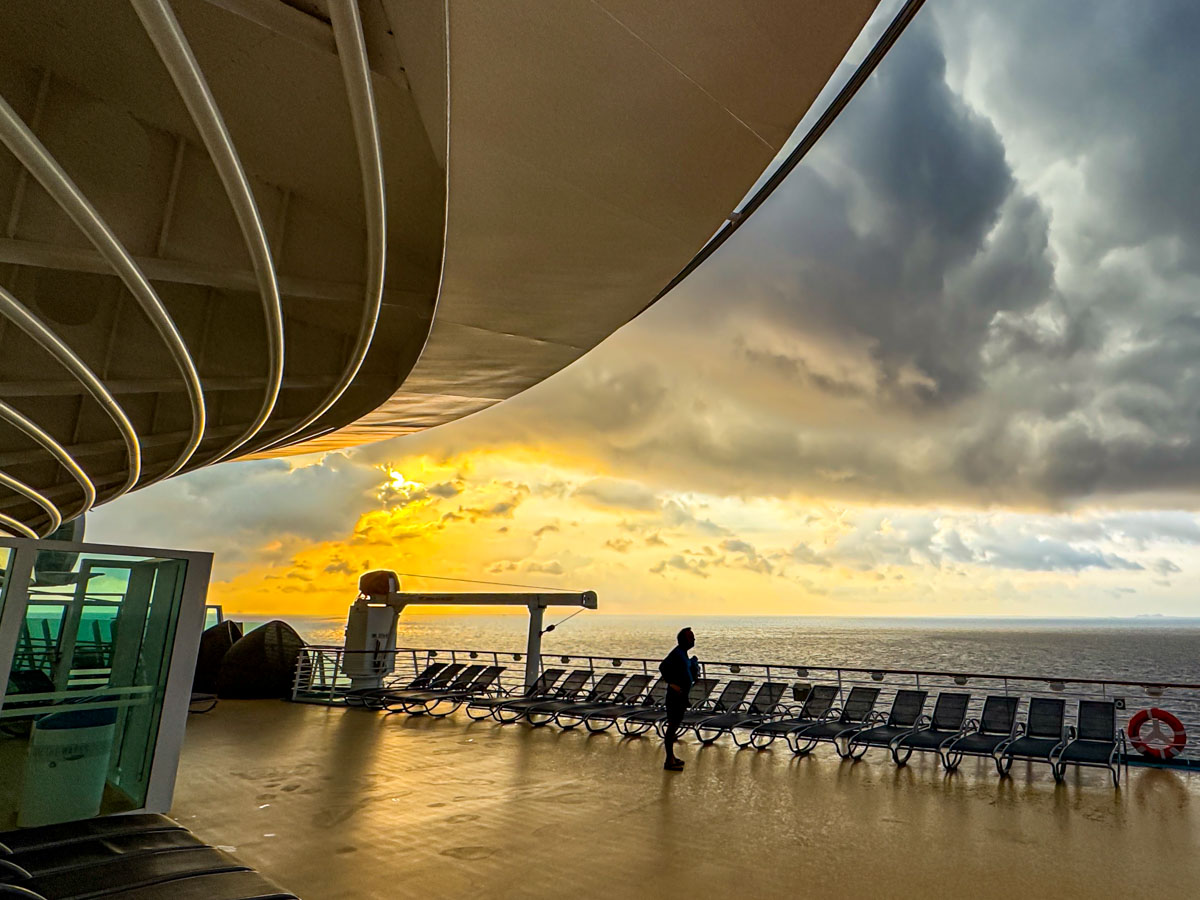
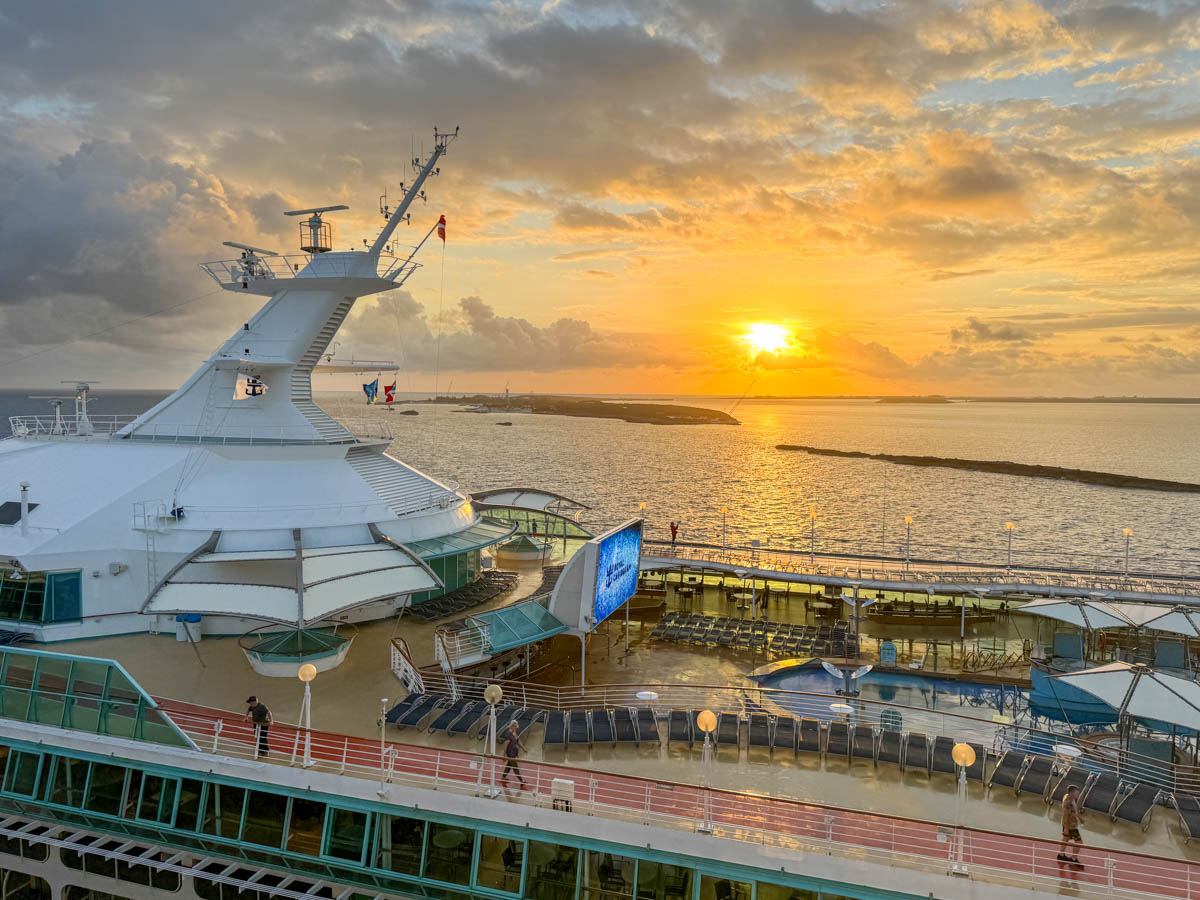
Independence of the Seas deck 12 at sunrise in the Caribbean after the rain

Some of the prime photo opportunities on a cruise happen while everyone else is sleeping. Here are 5 reasons to wake up early.

Why would anyone intentionally get up early on a cruise? It’s dark out, everything is closed, and nothing is seemingly happening onboard. You should probably catch up on your z’s and sleep in along with the other thousands of guests. But you’d be missing the opportunity greet the dawn’s light.

And that’s exactly what I did each morning on our Royal Caribbean cruise to Nassau out of Miami on the Independence of the Seas. It’s totally worth it for five big reasons.

#1
Your Moment of Zen
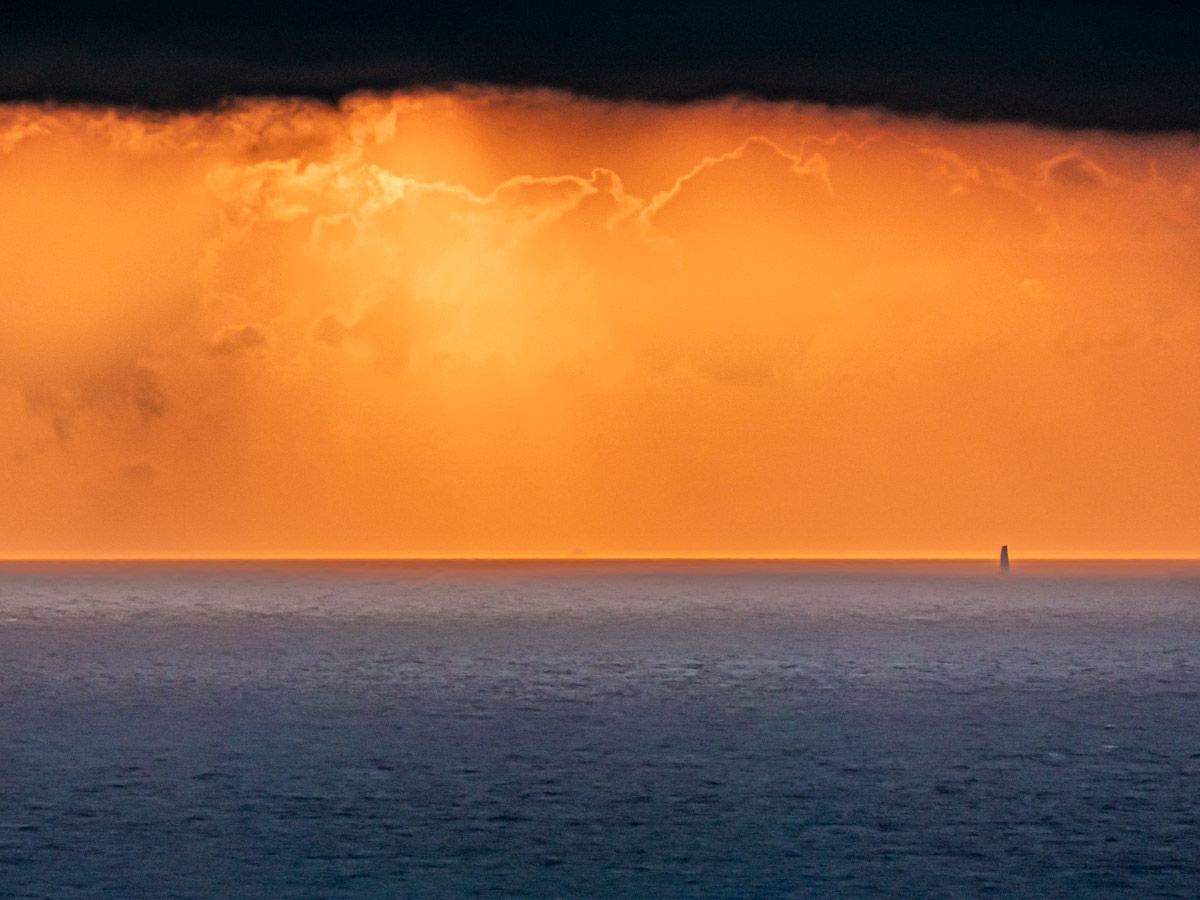
As the sky glows orange and the sun prepares for its entrance shortly after 5:30am, it’s just you and maybe a couple dozen other people on the massive deck. There are no crowds or music. No splashing or lines of people.

It’s just you, the vessel, the vast ocean and the refreshing breeze that centers you in this stunning ‘waterworld.’ It’s such an amazing feeling. You’ve effectively got the entire deck to yourself.

Sure, you can take some great pictures, but it’s much more than that.

#2
Perfect View of the Sunrise
So, the wind blows. If you’re like me, you’ve got your cup of Joe with you. And then the sky comes to life. And if you’ve got some cloud action, you’re really in for a treat. It’s absolutely time to take out your phone or camera and start snapping away!

View of sunrise from the Independence of the SeasGolden Caribbean sunrise from the Independence of the Seas

But capturing a great sunrise is just the beginning.

#3
It’s Also About your Ship
So, you’d be missing half the story if you just snapped a few shots of the sunrise. Your cruise is not only about the sunrise. It’s about where you are in that moment of the sunrise and revealing your larger location.
It’s all about your gigantic ship. That’s really the visual story here. It’s incredible, right? So, include it in your shots and show your vessel!
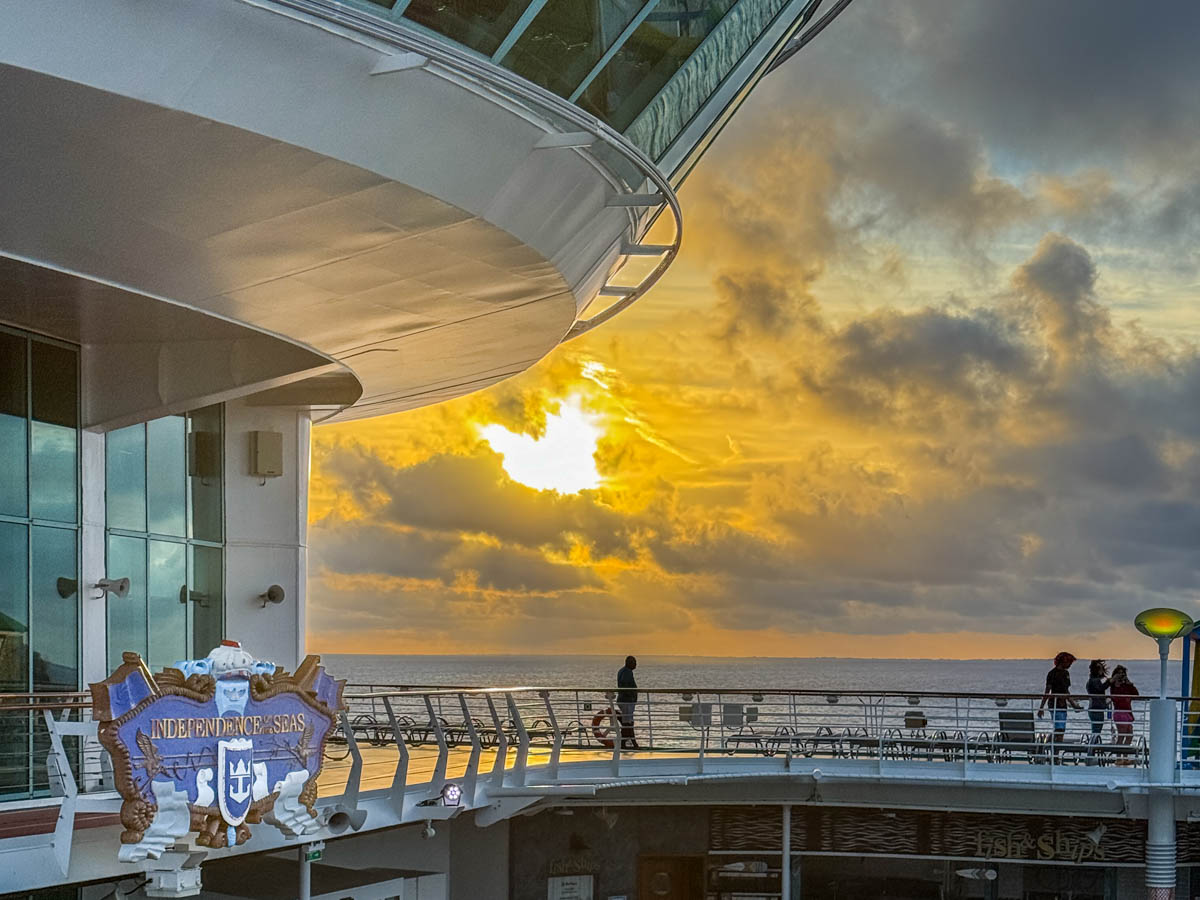
Independence of the Seas deck 12 at sunrise in the Caribbean
#4

Docking at Dawn
On the first two mornings, our ship’s itinerary got us to our Caribbean islands as the morning sun appeared. For me, entering port is its own photo opportunity. Docking as the sun rises makes it especially magical.
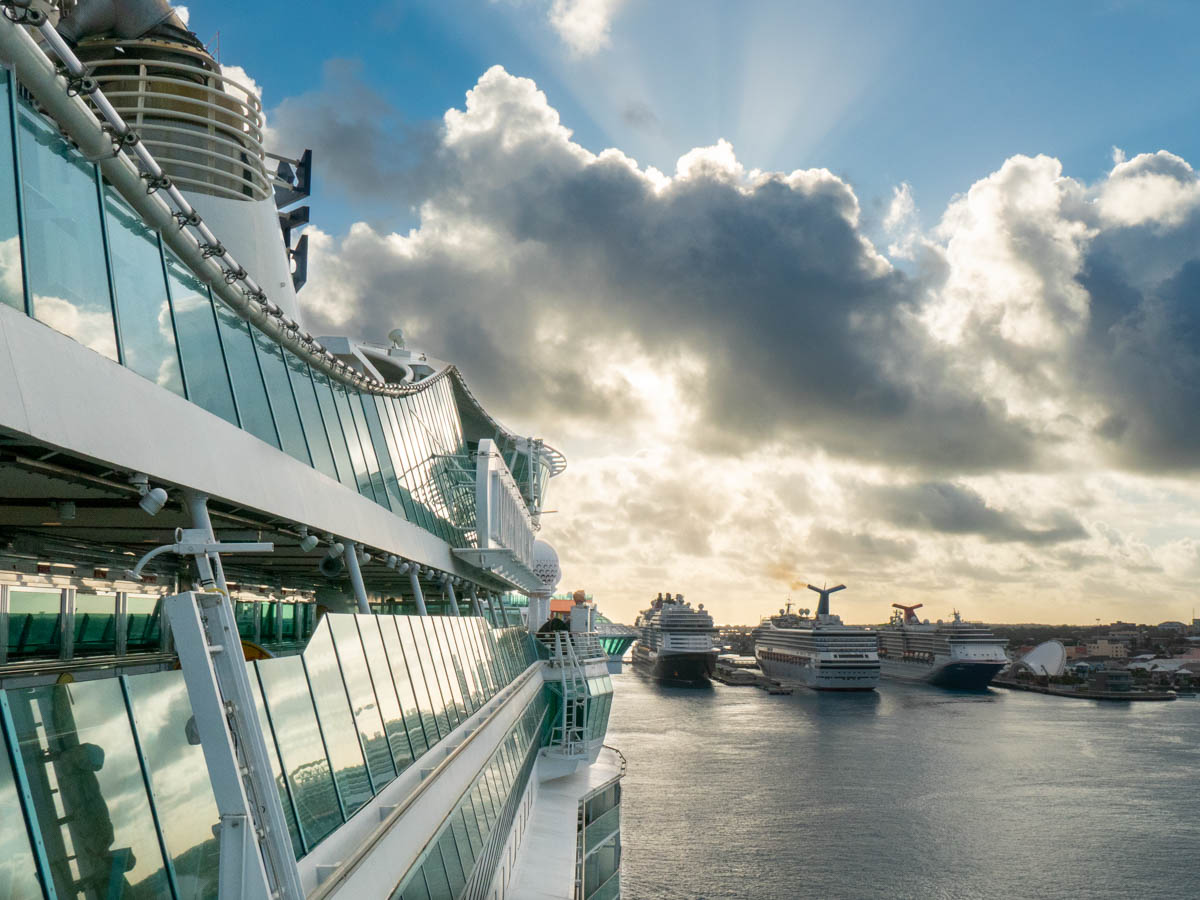
Independence of the Seas docks in NassauHere, we’re docking in Nassau.

Vision of the Seas at sunrise docked at CocoCayAs we docked at CocoCay, I was fortunate that Royal Caribbean’s smaller Vision of the Seas was already there, perfectly positioned for my sunrise photo.

#5
Sunrise Silhouettes
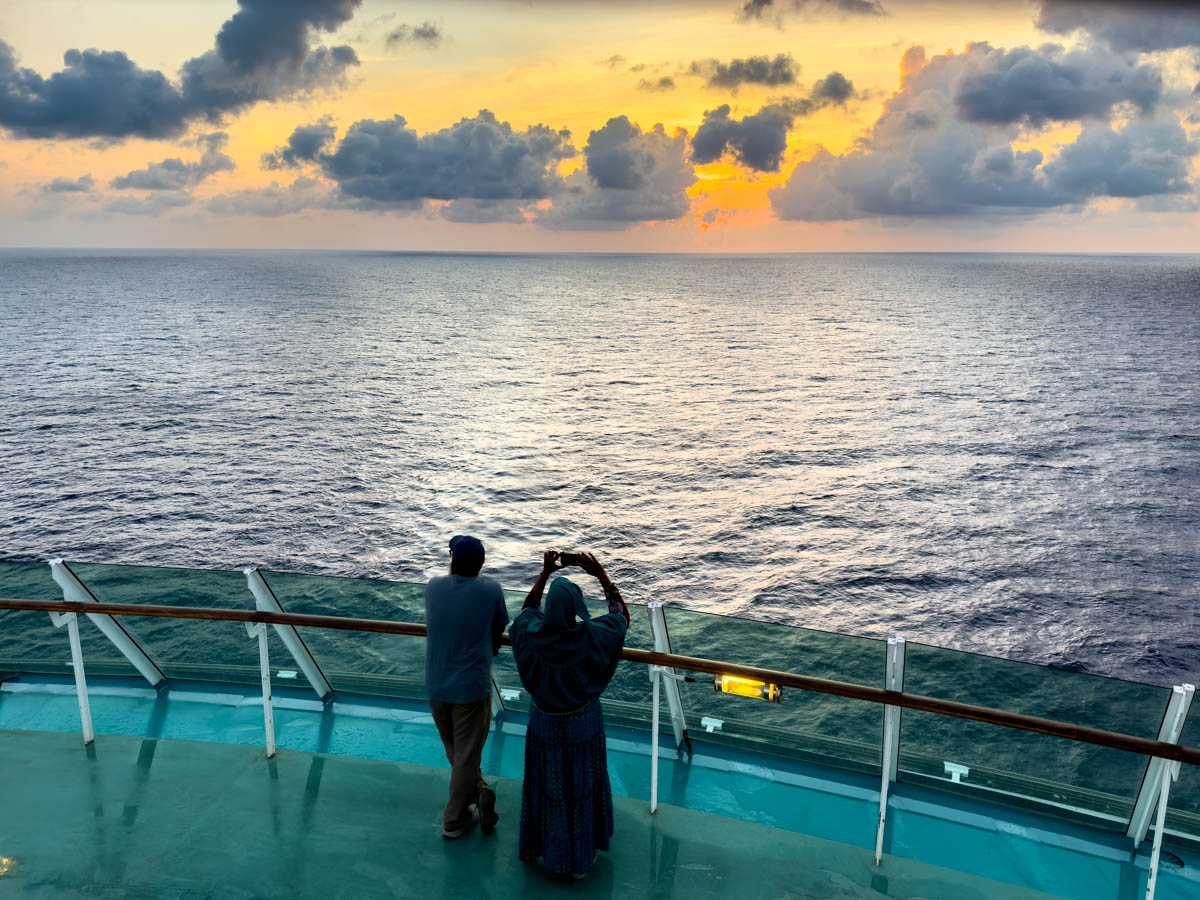
There’s also the opportunity to captures cool silhouettes of the few folks who have also journeyed on deck to greet the sunrise. So, now you’ve got the sunrise, your ship and a little humanity to pull it all together. That composition will make for a great photo.

Woman in silhouette watches sunrise from Independence of the Seas aftMan in silhouette watches sunrise from Independence of the SeasWoman in silhouette on Independence of the SeasWoman in silhouette watches sunrise on Independence of the SeasWoman and man watch sunrise from the Independence of the Seas

Don’t Sleep In
Yes, if you don’t get up early on your cruise, you’ll miss some of your best photo opportunities for the entire day. I also discovered it’s one of the top ways to experience drinking your first cup of coffee in the morning.
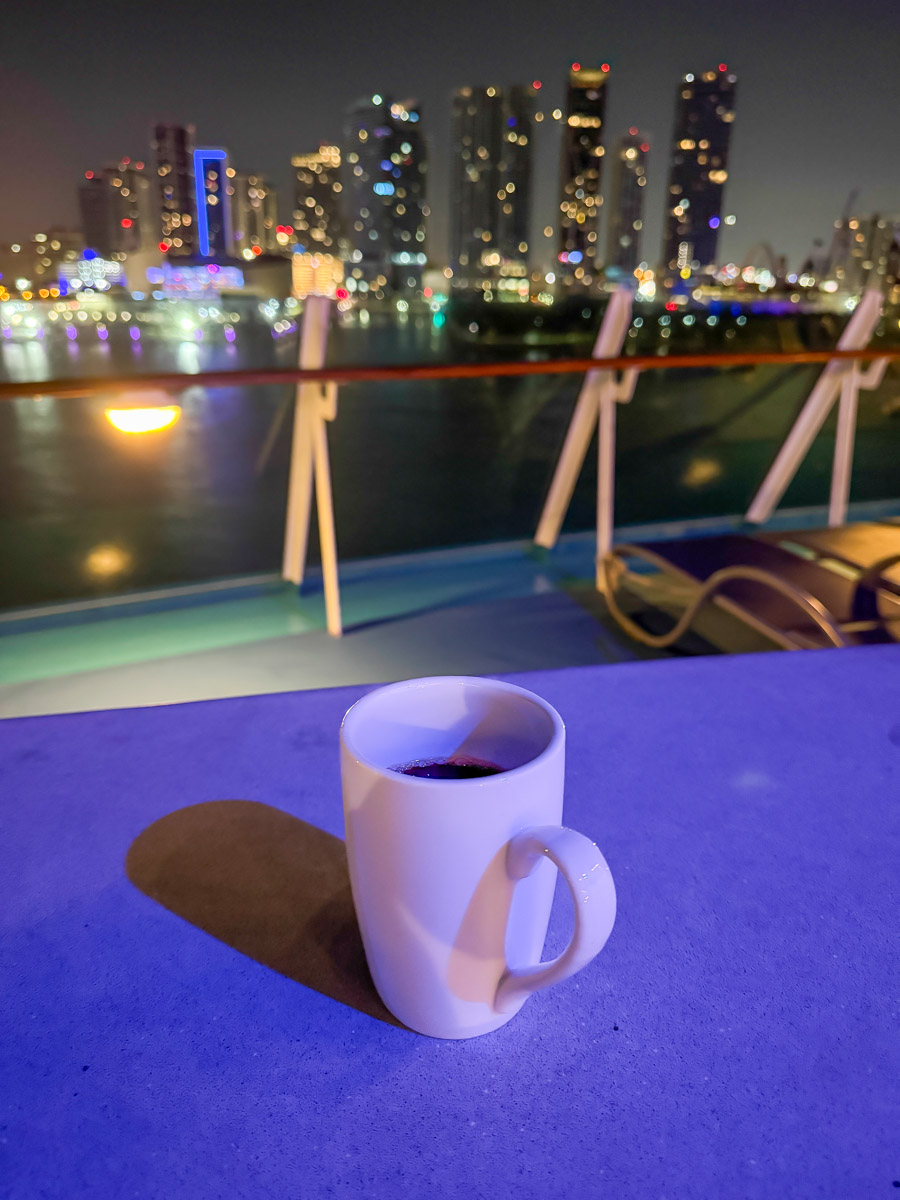
Cup of coffee on Independence of the Seas near MiamiHere, we’ve returned to Miami to (sadly) end our cruise, but my joy continues.

So, don’t forget to set your wake-up alarm early, and I assure you…
You won’t regret it.

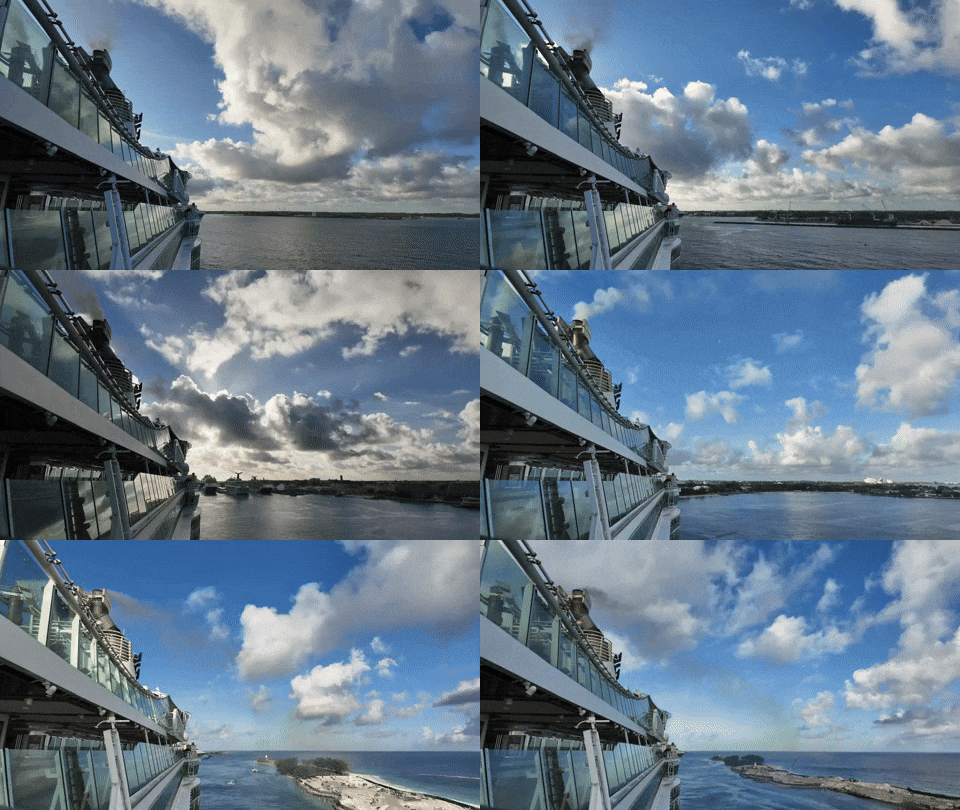
Timelapses from our Royal Caribbean Cruise to CocoCay and Nassau

Independence of the Seas and Vision of the Seas docked at CocoCay

I snapped this moment right before my timelapse that captured the Independence of the Seas’ departure from CocoCay during my family’s Caribbean cruise vacation. Below is the full video along with my other timelapses and the challenges I faced creating them.

My family and I have returned from a fun, four-night cruise on Royal Caribbean’s Independence of the Seas. Our itinerary took us out of Miami, spending the first full day at CocoCay and then another at Nassau. The next day, we were on the water, returning to Florida. And then back in Miami on the final morning.

We had a fabulous time, and I’ll be writing more about it and sharing photos in my posts to come.

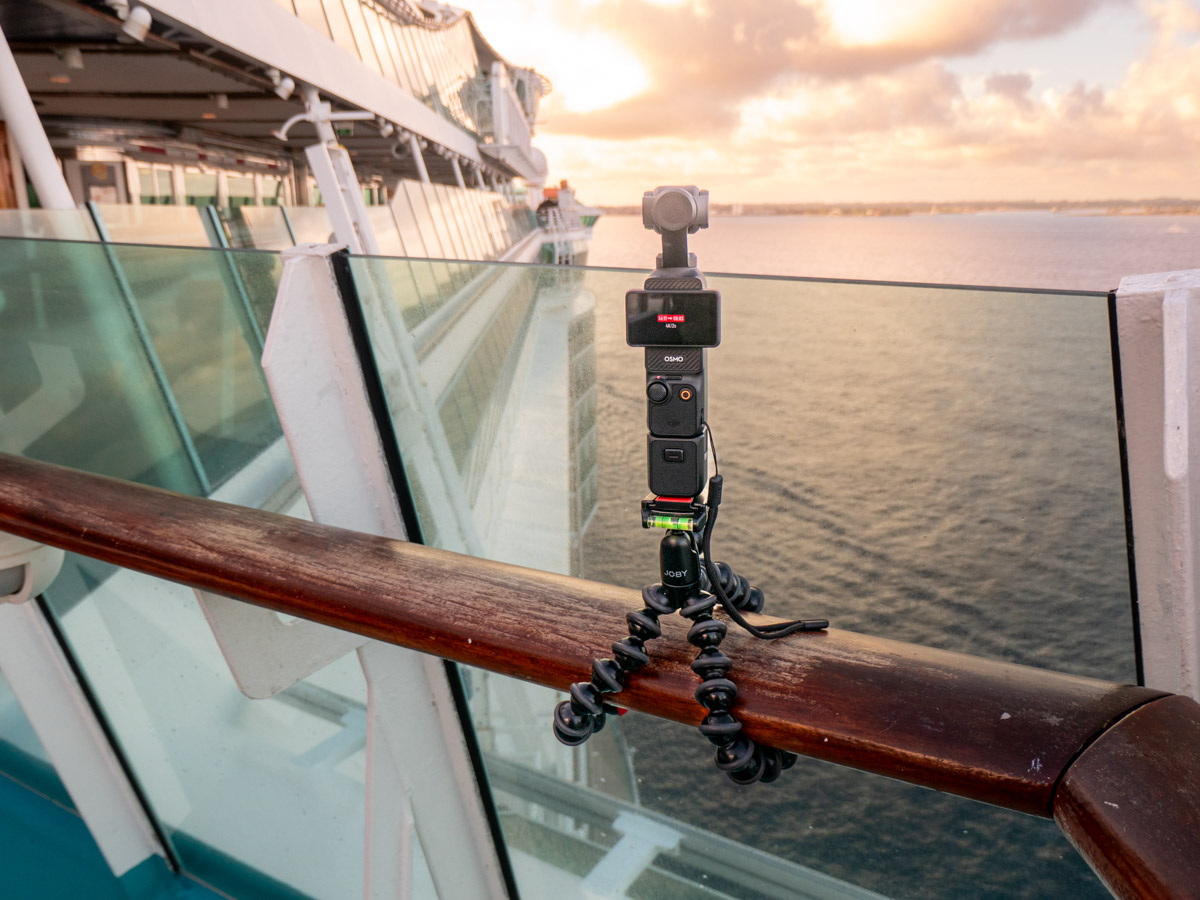
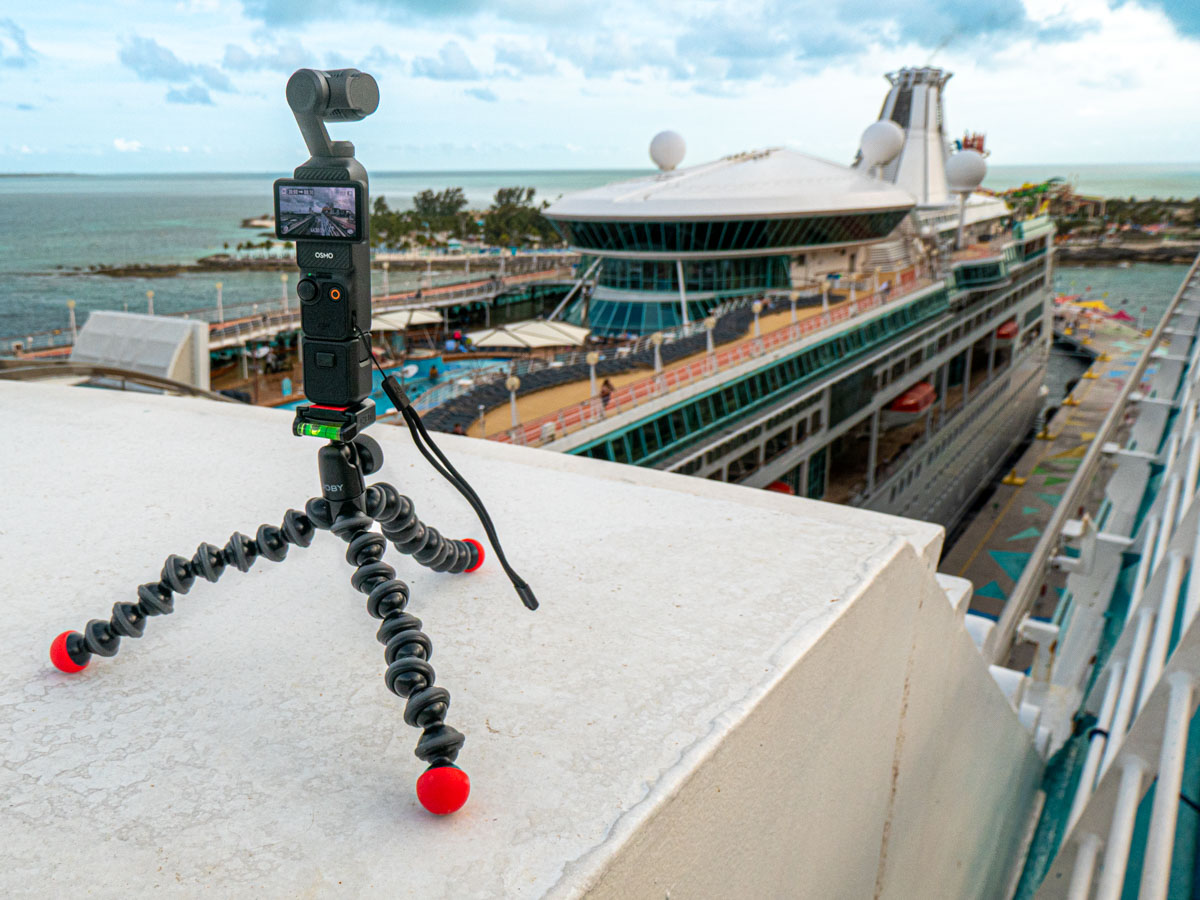
If you’ve watched some of my timelapse photography in previous blogs posts, you might assume I would try capturing a few timelapse videos during our cruise. And you’d be correct. I brought along my DJI Osmo Pocket 3 gimbal camera and a Joby GorillaPod for the job.

I didn’t have a plan going in, but it quickly became clear what I needed to do.

Don’t Forget to Include your Ship in your Timelapse
I decided that cruise ship timelapses are optimized when they show your vessel moving through the water as it arrives at port or departs. Just capturing a timelapse at sea isn’t as visually dynamic (though if there’s good cloud action, that dance can be really interesting).

Ideally you should simultaneously see the hull of the ship, the water and the port in your framing. The boat anchors the whole shot (and the rest of the imagery moves).

But it’s hard to frame it all in, because that means having to somehow position your camera a foot or so beyond the hull of the ship.

Sure, it’s simple to stretch your arm out to capture a quick photo (don’t drop your phone). But it’s a different story when you need to use a tripod to steady an extended timelapse. Where are you supposed to place it?

Grip the Railing in the Right Place
The trick is to first do a walk around and review the top deck’s railing design. If you’re lucky, you’ll find a part that extends out a bit next to a low-enough glass barrier. (Shooting through glass doesn’t work.)

I found the railing around the Independence of the Seas’ main top deck (12) was not a perfectly oblong design. It did, in fact, jut out in a few places. I found a great spot by the aft, starboard side.

Joby GorillaPod and DJI Osmo Pocket 3 on cruise ship Independence of the SeasMy GorillaPod gripped the railing there for one of my timelapses. Then, I attached the vertical Osmo Pocket, which enabled the Osmo to barely peek over the glass barrier.

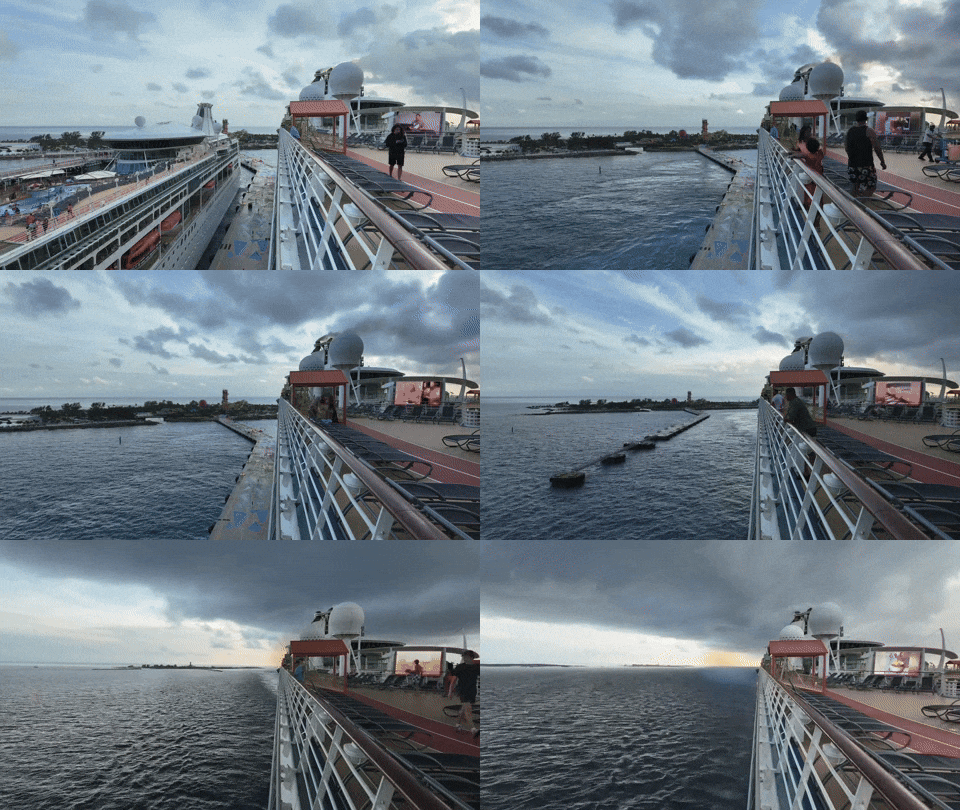
My rig held together as it captured this timelapse which showed our arrival at the Nassau Cruise Port.

Find a Flat Surface for your Tripod
I also discovered that a section of Deck 12’s railing ran by two flat metal surfaces located towards the bow of the ship. These were the foundations for the two circular glass roofs covering the Solarium whirlpools a deck below.

Each provided a perfectly flat surface for my GorillaPod and Osmo Pocket 3.
DJI Osmo Pocket 3 records timelapse from cruise ship Independence of the Seas.So, when I positioned my Joby and gimbal an arm’s length out from the railing, it offered me the ideal perspective (as if my camera was hovering next to the ship).

Here’s my timelapse leaving CocoCay from that vantage point…
It really helped having another ship (Royal Caribbean’s Vision of the Seas) docked there to provide additional visual context.


This next timelapse utilized the gimbal’s pan function, showing the view while we were docked in Nassau. (That’s the Disney Wish cruise ship in the shot.)

And here’s our departure from Nassau.
(I added a ‘Gaussian Blur’ on the left section in post to mask a couple of travelers who unknowingly walked into my shot.)
Safety Concerns
I ran these timelapses for up to 30 minutes Each frame was recorded at two second intervals. (I sped up some of my timelapses in post). That’s plenty of time to allow for Murphy’s Law to come into play. For the record, this little vacation hobby of mine was a great way to destroy or lose my gear.

There was a constant wind blowing throughout these timelapses. Gripping the railing with my GorillaPod was an unproven strategy under these conditions. Plus, standing my little tripod all on its own outside the railing on the Solarium roof offered no anchor solution (other than my hand nervously holding onto one of the legs).

A lot can happen with no net.

Tempting Fate for Creative Pursuit
My Osmo Pocket 3 could have easily blown over. A big gust of wind would have carried it overboard and into the drink. (I’m sure this would not have been the first time a camera or a smartphone fell into the ocean during a cruise.)

Happily, none of this happened, and my gear survived.

I’m not sure what it says about me that I put my camera at risk like this. I could say I took a ‘calculated’ risk. But that doesn’t change the variables. I think I just wanted the shot, and I felt compelled to try. Perhaps it simply comes from the creative fire that stirs in me and many of us.

So, should you also choose to try something like this, good luck and be forewarned.

And you might want to consider bringing along a roll of duct tape with you… that couldn’t hurt.

Don’t Forget the Basics for a Relaxing Vacation
Beyond the creative achievement and risks to create my timelapses, this simple exercise served another important purpose.

I had to slow down a few times to focus on this singular activity during our cruise, which offered a thousand other possible distractions. These half-hour immersions helped to focus me on the real star of the show… our majestic ship and its own journey. Strangely, this headline is easy to miss.

Some people hang at the pool all day to unwind. I apparently like to shoot risky timelapse videos to recharge.

All that matters is you travel your own path to relaxation… and satisfaction.

How to Ensure a UPS will Protect your Computer during the Next Blackout

Do you know how old the support systems are that power your tech? Sometimes your backup plan needs an update. Here’s what happened to me.

Do I protect my home office computer from power surges? Well, of course I do. But I go further than a simple surge protector. I bathe the power flow through a UPS (Uninterruptible Power Supply) to provide a cleaner AC feed than my wall outlet can. Plus, my UPS offers some battery back-up juice to smooth over any brownouts or brief blackouts.

Think of it as ‘conditioning’ your power. Because no computer likes a dirty power feed.

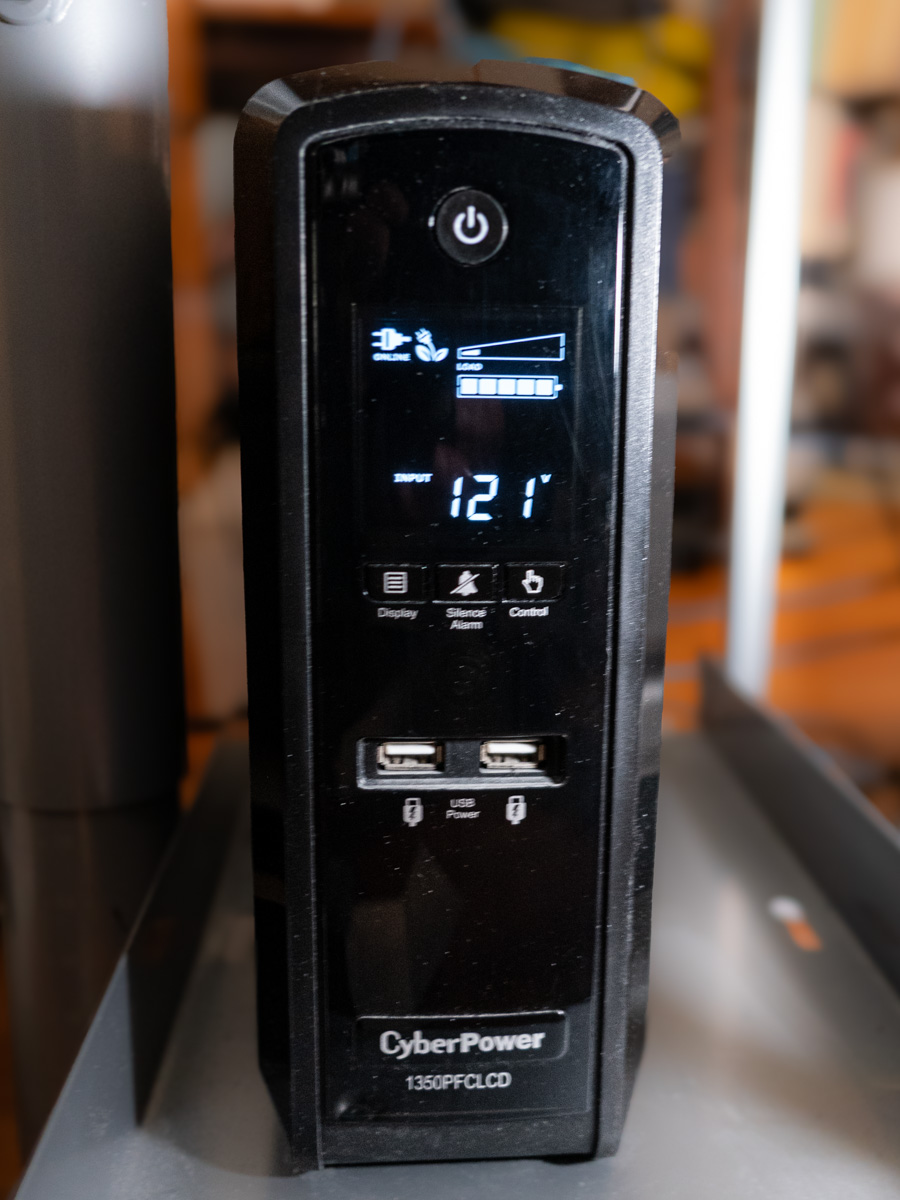
I have a CyberPower UPS.
It’s the CyberPower PFC Sinewave Series CP1350PFCLCD, 1350VA/810W Pure Sine Wave UPS ($229.95).

Previously on At Home with Tech
I set up my CyberPower UPS years ago and then mostly forgot about it. Sure, there are ways to monitor the health of a UPS through a USB cable connection, but I stopped doing it after I upgraded to newer Macs (reasons unclear).

Across the years, my CyberPower UPS would occasionally kick into a self-check mode. So, I figured everything was okay.

But I’ve realized that wasn’t the case. In fact, after two recent ‘incidents,’ my UPS was clearly in trouble. And that meant my Mac Studio was flying with no net.

When your World Goes Dark
The first situation was a power outage on my street that coincidentally happened while my wife and I were out on a Sunday walk in our neighborhood. When we returned a half hour later, my Mac Studio was dark, and all signs of power on my desk had evaporated.

I turned to my UPS. It too was dark, though it projected a sickly clicking sound.

Huh… Well, maybe it just drained out after 15 minutes or so… That’s all it’s really rated for. Still, I had concerns. Fortunately, my Mac was not damaged by the incident.

Then, a week later, for no apparent reason my sleeping Mac Studio suddenly lost all power. (The comforting white dot had just disappeared.)

I was right there at my desk working on something else when I noticed my Mac’s condition. The lights in my office hadn’t flickered. Nothing else suggested a power brownout. And then I heard that eerie clicking sound coming from the UPS again.

Okay… something was definitely wrong.

I rebooted the UPS and then considered the facts. I took a moment to research when I had originally bought my CyberPower UPS.
(That was easy, because I wrote a blog post about it.)

Could my UPS really be a decade old? In fact… it was. Clearly, no battery lasts forever. Ten years is really pushing it.

I’m no engineer, but it seemed clear my UPS had simply reached its end of life.

Time to Replace the Battery
My first thought was to replace the whole unit, but it’s a higher-end model, providing a cleaner ‘pure’ Sine-wave power feed.

Perhaps I could just replace the massive battery for a fraction of the cost. It’s actually constructed that way. And in fact, Amazon sells the CyberPower replacement battery for 81 bucks.

That seemed like the better move, but it was going to take some installation work. I figured… how hard could it be?

So, I went for it… Click.

Mission Possible
The eight-pound package arrived.

Clunk.

I unpacked it and then unplugged the UPS to prep it for surgery. I felt like I was working in a Jefferies Tube on the Starship Enterprise. So, I embodied my inner Scotty and got to work.

With some force, I slid off the front cover of the UPS, revealing a nest of wires covering the battery in the back. As I tried to carefully move all the wires to the side, the main wire connector dislodged and popped away. D’oh! Now, I was in a scene from “Mission Impossible.” (Fortunately, a countdown timer did not activate.)

I pulled out the old battery and slid in the new one. Then I tried to reattach the wire connector. Yes, it felt a bit like a ‘cut-the-red-or-black-cable’ choice. That’s because I didn’t know whether ‘up’ or ‘down’ was the correct orientation. But it all clicked in. (I heard that satisfying ‘snap.’)

Then, I slid on the front cover, screwed it in, and put the UPS back in place. I powered it up and let it charge. I brought my computer and monitor back online, and everything seemed to be… okay.

Tether Your Mac via a USB Cable
I also connected a USB cable from the CyberPower’s USB port to my Mac Studio. (I’d never done it for this particular Mac.)

This important data tether enables your Mac to share the status of a connected UPS. (Brilliant!)

Plus, once a UPS is connected this way, you can then instruct your Mac to safely power down in the early moments of a blackout while your UPS is still capable of feeding backup power. Here’s how to do that:

Go to:

  • Go to System Settings
  • Click on Energy Saver

If your UPS is connected via USB, the ‘UPS Options’ button will suddenly appear. From there, you can select from several choices on when to safely shut down your Mac.

I instructed my Mac to automatically power down when my UPS reached 25% capacity. (There’s also the option for battery-time remaining and UPS-time used.)

For more advanced control, you can also download CyberPower software, but this simplified data feed was enough for me.

Returning to Warp Speed
Now, I can also see a power icon on the right top bar on my Mac’s desktop. It reports that the UPS is connected and I’m at 100%.

Warp power has been restored, and this episode has a happy ending.

It’s also a cautionary reminder that a set-it-and-forget-it mentality is never the best strategy for maintaining your home tech’s health.

Replacing the battery may seem like an obvious solve. You just need to remember where they all live and how old they are.

Do you?