At Home with Tech

Unlock the power of all your technology and learn how to master your photography, computers and smartphone.

Avoid these Tech Glitches Before your Next Backyard Movie Night

The cold weather could be the least of your concerns if your outdoor projector doesn’t function properly at your backyard event. Here are a few problems to look out for and how to fix them.

My family and I have returned from a little adventure across town. It was at a friend’s outdoor birthday party in his backyard for his eleven-year-old son.

My friend asked me if I could bring along my portable projector to help him create an outdoor screening of “Black Panther” via his Disney+ app on his iPad. I was more than happy to oblige. His wife put up a white sheet on the back side of their house overlooking their patio, and we were ready to provide the post-meal entertainment.

How to Set Up your Backyard Movie Night Gear
Over the summer, my new Nebula Mars II Pro projector made by Anker was the backbone of my own backyard movie night series. My iPhone served up movies through the iTunes Store and Disney+.

I connected my iPhone to my Lightning Digital AV Adapter (from Apple) and then used an HDMI cable to tether my iPhone to the Mars II Pro. Though you can connect via Bluetooth, a direct connection avoids certain content transfer restrictions.

Though my portable projection system worked great, there were two technical glitches that I needed to work through:

How to Fix Audio Sync Problems with an External Speaker
The Mars II Pro’s two onboard speakers are relatively powerful, but the outdoors can be a noisy place, especially with crickets at dusk. When I tried augmenting the audio oomph with my portable AOMAIS Go Bluetooth speaker I discovered an annoying quirk using Bluetooth.

When streaming content via the Mars II Pro’s onboard apps, the video synced up just fine to the external Bluetooth speaker. The Mars II Pro works perfectly in its own operating universe.

But once I tried extending that equation and connecting the Mars II Pro via HDMI to my iPhone, that was a step too far! It created a small but infuriating audio delay from my AOMAIS Go speaker.

The fix is to avoid the Bluetooth connection altogether and hard wire the external speaker using an audio cable with 3.5mm mini connectors. After that, my external speaker’s audio synced to the Mars II Pro’s video perfectly.

Don’t Miss this Setting when Downloading Movies from the Apple TV App
File compatibility can be a problem when using a digital AV adapter.

I found that when downloading movies onto my iPhone from the iTunes Store, the flicks wouldn’t play when I used my Lightning Digital AV Adapter. Instead, I received this message.

BUT…

When I opened my iOS 14’s settings and navigated to the Apple TV app, I spotted this critical setting under Digital AV Adapter Options:

  • Downloads for AV Adapter

And here’s the fix:

  • Slide Downloads for AV Adapter to – Green

This setting allows “Apple TV app to download titles specially-formatted to play through an AV adapter…”

Wow. Yes, it was that simple.

The Fall Challenge
Armed with my summer outdoor movie night learnings, I felt emboldened to confront any technical problem that fall outdoor movie night might throw at me. I brought my gear over to my friend’s house, eager to boot it all up.

My friend had already download the movie on his iPad’s Disney+ app to avoid the occasional but maddening video artifacts that can pop up when streaming gets bumpy. (smart)

I unpacked my Lightning digital AV Adapter and HDMI cable combo and connected his iPad to my Mars II Pro.

Docking was complete, and we were ready to go.

Great Scott!
My friend tapped the play icon, and the movie began.

Suddenly, I felt an uncontrollable impulse. I screamed, “It worked!” And I proceeded to take a victory lap around the patio. Everyone stared at me with confusion. They must have wondered if I was channeling my inner Doc Brown from “Back to the Future.” (I was.)

That’s because over the summer, I tried to project downloaded Disney+ movies using this same set up using my iPhone XS Max… and failed.

I’ve always receive this message:

So, I’ve been forced to stream my Disney+ content instead. And yes, that worked. But the Disney+ download method has continued to elude me.

Living Happily with Cold and Mystery
Of course I’ve tried to figure out why my friend’s iPad succeeded where my iPhone has stumbled. Let me simply say that the investigation… continues.

For now, the fact that my Nebula Mars II Pro was able to contribute to another successful outdoor movie night during this chilly time of year is plenty to celebrate.

Sure, it was cold out, but these are extraordinary times. If there’s a way to avoid cancelling yet another event while also being able to social distance outdoors, I think it’s worth considering.

So, break out the long underwear. Wear layers. Stir up some hot chocolate for the kids. And maintaining some glow in a fire pit doesn’t hurt either.

With that in place, it’s worth it!

How to Decide which Lifetouch School Picture Package is Best for You

Buying School Picture Day photos doesn’t have to feel complicated. Here’s how I determined what to order…

Our son is in fifth grade, and I’ve been faithfully ordering Lifetouch School Picture Day photos for years. Each time, I pledge to only buy what I really need. Invariably, I realize there are compromises to be made that have necessarily increased the price point. This year is no different. But this time, I think I got it right.

At the end of the day, all I really want is a digital file of my boy’s school portrait. I can then print additional photos at home. I don’t need Lifetouch’s more expensive prints. (Although I do understand that’s the foundation of its business model.)

Also, the photo’s background needs to reflect that this is a school photo and display my son’s elementary school grade. Otherwise, it’s really just another generic posed photo which holds little value for me. The photo has to clearly be his school photo. (I’ve got plenty others.)

If you have a similar perspective, here are my suggestions on how to get the best deal when ordering your Lifetouch photos (assuming there’s still a school picture day scheduled in your neck of the woods during this year so affected by COVID-19).

Order the Basic Package
I really don’t want all of the extra prints that are part of the more expensive packages. (A few prints are just fine.)

I’m looking for the one digital file with the correct background. (And my son’s class photo would be nice too.)

The good news is the Basic Package gives you:

  • 1 8×10
  • 2 5×7
  • the class picture (size unknown)
  • and the digital file! (available as a download via Shutterfly)

All that costs $14.99.
(That’s a much better price point than the forty bucks I’ve been spending in previous years.)

BUT…

You only get access to the generic background with the Basic Package.

Then, Add to the Basic Package
There is a workaround, but it’s an analog solution…
(shudder)

You can add on an extra printed photo to your package and then choose the background you really want for that additional print.

The next step is to simply digitize this physical photo when it shows up. (Scan it or take a picture of the picture.)

Then, you’ve finally got what you wanted in the first place. No, your digital copy won’t look as perfect as the original photo file, but if you order an 8×10, your scanned version should be fine for most uses.

And the price for that extra 8×10?

  • $14.99

So add that to the original $14.99 Basic Package for a new new total of $29.98 (plus tax).

Consider the Plus Package
If you don’t want to go through the trouble of MacGyvering your purchase to save money, your next choice is to go with the Plus Package for $44.99. That officially unlocks the option to choose your own background(s), and it also provides a whole lot more prints that you may or may not want. (In this smartphone age, does anyone even use 2×3 wallet photos anymore?)
Here’s what you get:

  • 1 -8×10
  • 4 -5×7
  • 2- 3×5
  • 8 -2×3 Wallets
  • the class picture
  • and the digital images via Shutterfly

Plus, you get the name and grade on all prints and basic retouching.
(I’d already have the grade as part of the background. As for the photo-retouching… I think that’s unnecessary for kids.)

Barrett’s 2020 Lifetouch School Picture Day Purchase
There are a couple of other packages that offer additional combinations of physical prints, but that didn’t move the needle for me.

I kept my focus on Basic vs. Plus. And it boiled down to this:

  • Spend $15 more for the Plus Package to easily choose your photo backgrounds (and get more prints)
  • Or keep it ‘Basic’ and order the extra 8×10 print with the right background. And then scan that print.

I took a look at my past purchases, and I’ve always gone Plus.

But I have a confession to make. I have a cabinet at home filled with photos that have yet to find a final destination (album or frame). In it, there’s a folder containing years of Lifetouch prints I’ve never used. There were just too many. It’s a painful reminder that I never needed all of those photos in the Plus plans.

Sure, spending a little more for the Plus Package provides all of the ordering flexibility you’ll want. But if you don’t use what you buy, that’s not good value.

So, I decided to keep it basic this year:

  • The Basic Plan for $14.99
  • Plus the extra 8×10 print for another $14.99 with the background that says 5th Grade

Click.

Buy What You Need
Future Barrett might laugh at me for going through all of this effort to save $15. But Future Barrett might also nod approvingly at my ability to finally get the equation right for my actual needs.

I think that’s called progress.

How I Listen to SiriusXM at Home

The sounds of your SiriusXM Satellite Radio subscription don’t have to be silenced, because you’re stuck at home. Here’s how I moved my SiriusXM stations from my car to my Sonos speakers…

I’m not driving nearly as much these days, because I’m fortunate to be able to work at home during these challenging times. While I don’t miss all of that traffic on I-95, I must admit that I actually do miss the visceral experience of driving.

  • That sensation of movement
  • Acceleration
  • Controlling the machine

I also miss listening to my SiriusXM Satellite Radio stations while driving
my Toyota RAV4.

I always considered my satellite radio subscription a luxury. But I rationalized its relatively expensive cost through daily use. When my car began hanging out next to my garage as a new norm, my SiriusXM value equation disintegrated.

Bringing SiriusXM Home
But of course, SiriusXM does offer the opportunity to stream its channels in your home. So, I decided it was time to do exactly that. But I didn’t want to spend more money on additional hardware.

The good news is there are a variety of ways to bring your SiriusXM subscription to your existing devices. The most direct approach is to listen on your computer, or through SiriusXM’s smartphone app.

Instead, my preference was to connect via my Wi-Fi speakers. (You may recall that I’ve been enjoying my Sonos devices.)

So here’s how I connected my SiriusXM stations to my Sonos wireless speakers at home.

SiriusXM on Sonos Play:1
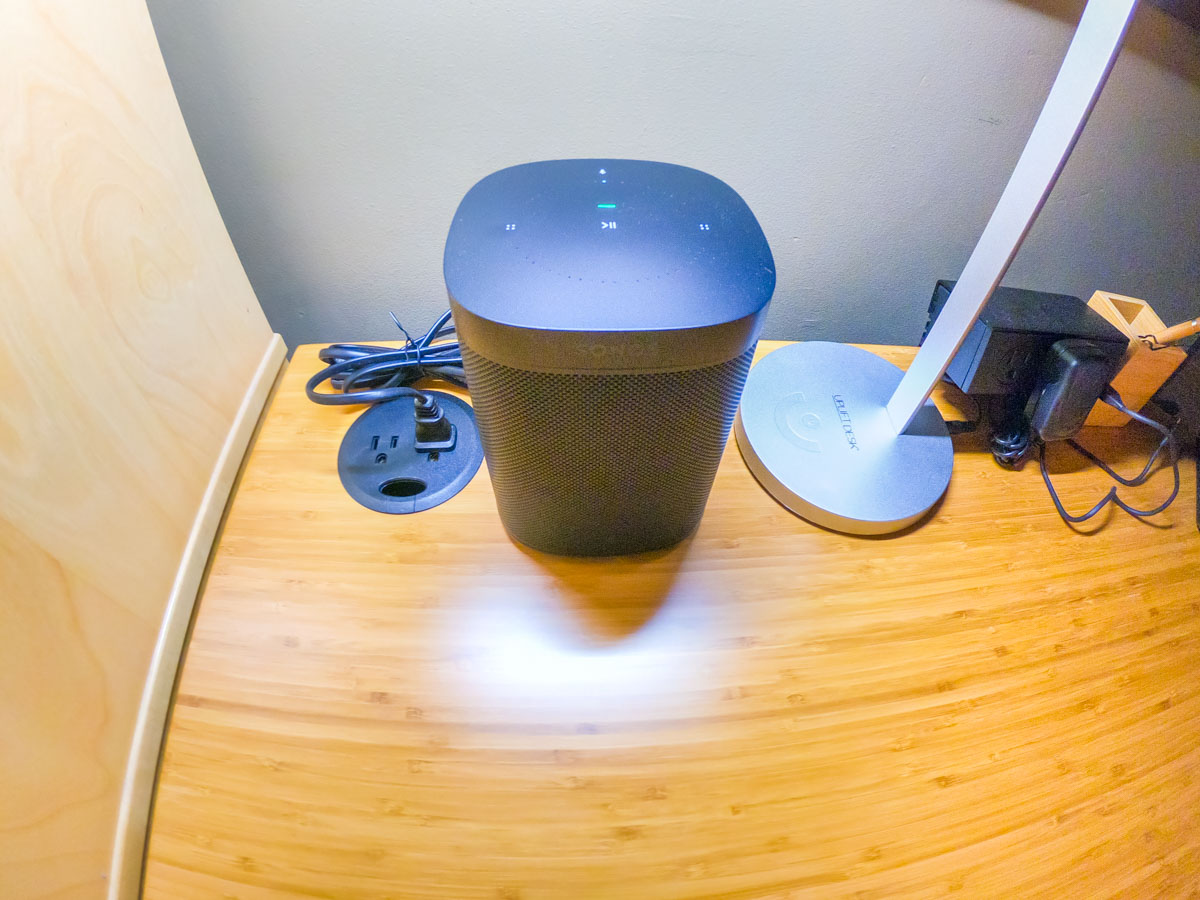
First, I brought my SiriusXM world into my iPhone’s Sonos app, which controls my older Play:1 Sonos speakers. (They’re not voice-enabled.)

Here’s how to do that:

  • Open your Sonos app
  • Tap ‘Settings’ on the bottom right
  • Under ‘Music & Content’ tap ‘Add a Service’
  • Search and choose ‘SiriusXM’
  • Log in

You’re done!

SiriusXM on Sonos One Using Alexa
Next, I focused on connecting my Alexa-enabled Sonos One smart speaker.

To empower Alexa to play SiriusXM via voice command, you have to ‘enable the skill’ and link to your SiriusXM account.

Alexa sent me easy instructions via my Alexa iOS app.
(She’s so helpful.)

Keeping Up with the Times
While researching this little audio project, I realized there are actually numerous ways to bring SiriusXM into other devices in your home, including Apple TV, Google Nest speakers and Roku.

The SiriusXM value equation can easily be restored. It’s just about adjusting your mindset that SiriusXM is not only for car use.

That said, do I actually need satellite radio at home? There are already plenty of ways to stream other radio and music sources.

(pause)

Well, I hope that one day in the not too distant future, I’ll be spending at least a little more time in my car. Until then, I feel so much better knowing that I’m not burning money by entirely ignoring my SiriusXM subscription.

Control Restored
As I write this, I’ve got the sounds of SiriusXM gently playing in the background on my Sonos One speaker. Alexa awaits my next voice request for a station change.

I’m at home. And now, so is my SiriusXM subscription.

One more component in my life I’ve got back under control.

I’ll take it.