
Why I Bought Apple’s Weakest Mac Studio over the Most Powerful Mac Mini
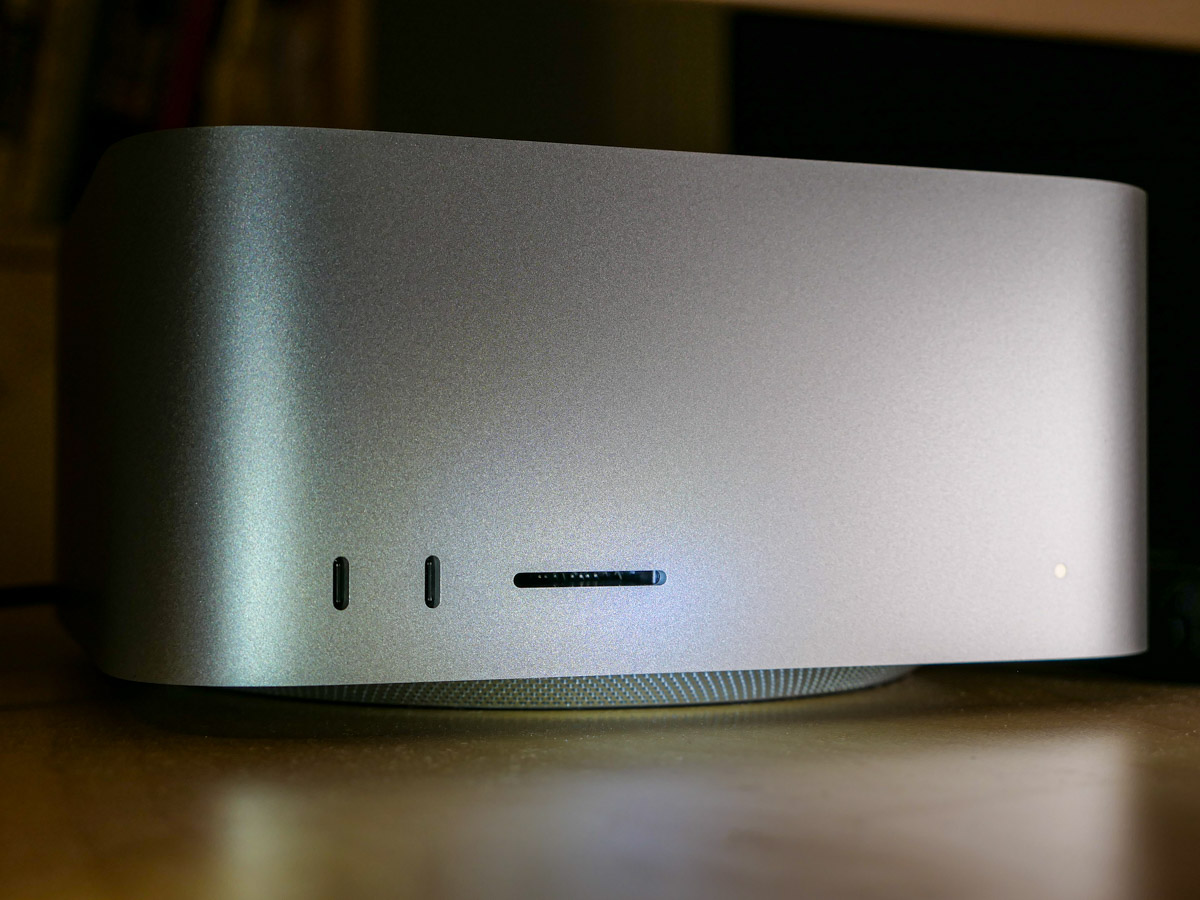
A beefed-up Mac mini costs the same as the entry-level Mac Studio. Here’s why I think Apple’s Mac Studio is still the better choice.
I just purchased a gleaming new M2 Mac Studio to replace my old 2017 27” iMac at home. And am I pleased with my choice? Well, before I can really answer that, I must reveal that I am still in a bit of shock over the complexities I encountered.
What was once-upon-a-time a seemingly straightforward purchasing process for Apple computers has now evolved into a mind numbing and wallet-crushing evolution of tech-spec choices.
I think part of my problem (and yes, I must consider the possibility) is that I wanted to re-up on a desktop solution. While it feels like many of us long ago moved on to laptops, I’m still stuck in my desktop workflow at home. What can I say… I’ve really liked my all-in-one iMac!
But Apple hasn’t upgraded the iMac line since 2021. Plus, that version only offers a 24” screen. (These eyes need something bigger!)
Why Not a Mac Mini?
What’s that, you say? I should have bought a Mac mini?
Sure, they’re wicked powerful now with the M2 chip. Plus, they’re relatively inexpensive, starting at $599.00.
Yes, that’s what I thought I would do too. But when I reviewed the specs, I knew I would need immediate upgrades to handle the editing of my family videos (many of my clips are 4K).
The Real Price Tag for a Mac Mini
I would certainly have to buy the upgraded M2 Pro version with 16GB of RAM.
That model costs $1,299.00.
But editing 4K video is much easier with 32GB of RAM.
Okay… That’s another $400.00.
512GB of internal storage is a joke. (My old iMac has 3TB!)
Bumping the Mac mini up to a 2TB SSD drive adds $600.00.
So now… that $599 Mac mini has suddenly grown to a price tag of $2,300.00!
Time to Consider the Mac Studio
I was actually about to pull the trigger and buy this super-sized Mac mini, when I realized that I should instead consider Apple’s ‘pro’ Mac Studio computer line.
Many reviewers out there say that the expensive Mac Studio is more than most people need and only for creative professional power users. These reviews then point the reader back to the very capable M2 Mac mini with some not-so-optional upgrades.
But the base-level Mac Studio costs almost the same as a maxed-out Mac mini and offers a bigger bang for the buck…
Price Comparison
For the $1,999 base Mac Studio model:
- You get the better M2 Max chip.
- The Mac Studio has the more powerful 12-core CPU and 30-Core GPU vs the Mac mini’s 10-core CPU and 16-core GPU.
- 32GB of RAM is already included in the Mac Studio.
Of course, I would also have to bump up the silly 512GB of Mac Studio storage to 2TB for another $600.00.
Now we’re at $2,599.00 for my Mac Studio.
And had I totally maxed out the Mac Mini’s chip to the 12-core CPU and 19-core GPU for another $300…
That would make the cost of both machines exactly the same!
$2,599.00.
So, for the same price tag, you can get a maxed-out Mac mini or an entry-level Mac Studio with the same internal storage.
The Mac Studio is better. Period. It’s got more ports and an SDXC card slot. It’s got better specs.
Same price.
When you run the numbers, it’s clear that the weakest Mac Studio beats the most powerful Mac mini.
Same price.
So I Bought the Mac Studio
Sure, I know that a beefed-up Mac mini could handle my relatively simple 4K video editing into the future.
But I also thought about future-proofing my Apple purchases. So, for the exact same amount of money, why wouldn’t anyone not go with the Mac Studio choice…?
Well, that’s what I did.
Click.
Finding Clarity from Confusing Choice
This decision was not straightforward for me. It took time, research and some consensus building.
I learned that sometimes in the Apple ecosystem… less can offer more… for the same price. If this sentence is confusing, now you know how I felt along the way in my purchasing journey.
Happily, I had some help from an Apple Genius during a visit to The Apple Store as well as from a sales rep on the phone from B&H Photo. (Thank you!)
Apple purchases used to be simpler. (Maybe even ‘simple’)
But not anymore.
The good news is I believe I finally came to the right decision for me.
Yes, I am pleased with my choice.
You’ve just got to do your homework.


 At Home with Tech