At Home with Tech

Unlock the power of all your technology and learn how to master your photography, computers and smartphone.

Tag: apple

Here’s Why Attaching a Bumper to Protect your Apple Watch is a Smart Idea
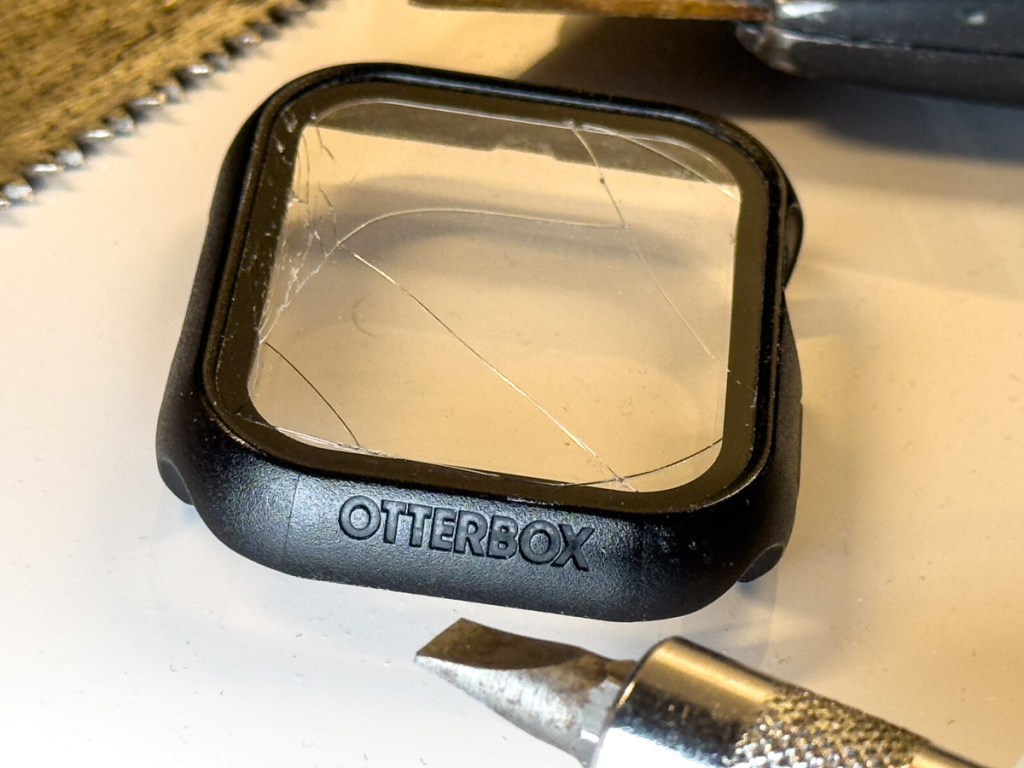
A long, diagonal crack mysteriously appeared on my Apple Watch screen. No, there wasn’t an ‘incident’ or moment of impact that I could recall. Yes, it was shielded by its OtterBox integrated bumper and screen protector. 

I could feel that the crack went deep. But I didn’t know how far down it went and whether it reached the surface of my Apple Watch Series 9.

Yes, I was concerned.

Apple Store ER Visit
So, I visited my neighborhood Apple Store and booked an ‘instant’ appointment with an Apple Genius. (Do they call them that anymore?)

My Genius walked over to me like a doctor entering an examination room. He asked me to take off my OtterBox’s bumper. I quickly realized I couldn’t. It was stuck on. Really stuck (like an alien face-hugging Xenomorph). I asked if he could help. He had trouble too.

It took the Apple Genius a couple minutes, and he needed to use a special Genius ‘tool.’ But eventually, he pried the bumper off. The integrated screen cracked further along the way, but it eventually revealed my Apple Watch’s screen… in perfect condition.

Phew!

But a fair amount of ‘particulate matter’ had accumulated in all the nooks and crannies. My Apple Genius happily polished it up for me and then handed over my Apple Watch. 

Time for Another Bumper?
My naked Apple Watch rested in my palm, gleaming. So now what?

No, Apple doesn’t sell bumpers or screen protectors for Apple Watch.

However, my Apple Genius mentioned how much he liked the OtterBox brand and that I could probably buy a replacement bumper online.

I strapped on my Apple Watch as it was meant to be worn… without any third-party protection. But I must admit… I do occasionally hit my wrist against doors and walls. So, my experience may fall outside of Apple’s definition of ‘normal.’

I walked out of the Apple Store with my next mission: Buy a replacement bumper. 

In Search of a Better Bumper/Screen Protector
I jumped back online and searched OtterBox’s website. I didn’t want to buy the exact same OtterBox ‘Eclipse’ bumper/screen combo. Not because it only lasted for barely more than a year. I didn’t appreciate how difficult it was to remove.

OtterBox didn’t offer another choice. So, I expanded my search.

There aren’t many manufactures in this market, and even fewer from brands I recognized. The options on Amazon mostly fell in the sub $10 price point. Sometimes, you’d get two bumpers for ten bucks… even with the built-in screen protector.

How good could any of these really be? 

And I couldn’t find consensus with reviews… the few that I could find. It’s like this was a forgotten/abandoned product category.

Perhaps Apple is right… Apple Watch doesn’t need protection.

Still, I knew that mine did. 

OtterBox EXO EDGE
After my exhaustive search through uncertainly, I eventually ended up back where I started with the one brand I knew.

OtterBox also makes the EXO EDGE bumper without a screen protector. I figured the simple bumper by itself would be more structurally flexible without a rigid screen protector on its top.

So, I gave it a shot… Click.

And in fact, the EXO EDGE bumper does have a bit more give and take. It popped easily onto my Apple Watch. More importantly, I expect it will be simpler to remove when the time comes.

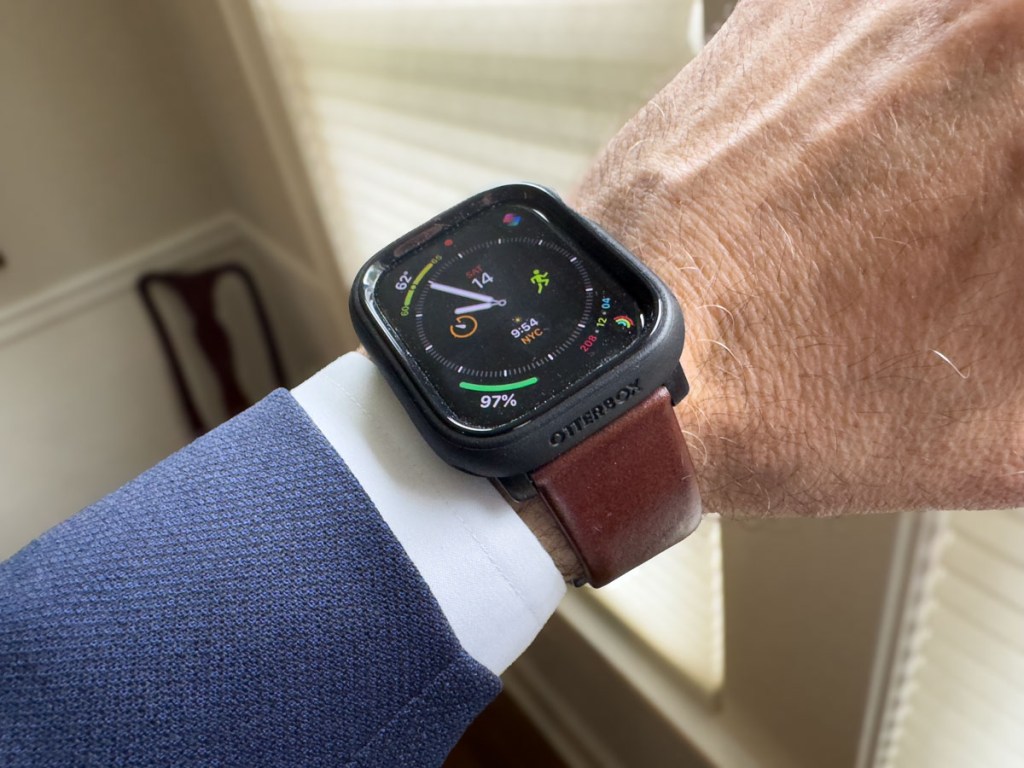
And here’s my Apple Watch with its new EXO EDGE bumper
(and Nomad leather band).
No More Screen Protection?
Case closed, right?

Well, what about the screen? It’s now exposed to any number of dangers with no net. 

Yes, I’d prefer to also have a screen protector on my Apple Watch, but I don’t want to use an integrated solution that can cause damage when removed.

My EXO EDGE bumper should offer sufficient protection from most scenarios. But no, it won’t protect against a sharp object at 90 degrees moving directly towards the screen.

You Can’t Protect Against Every Situation
I could seal my Apple Watch in bubble wrap and duct tape. Or perhaps I should just keep my Apple Watch in my pocket all the time. But, of course, that’s all absurd.

I’ve taken reasonable precaution to protect my Apple Watch’s body and screen with a simple OtterBox bumper. We’ll see how far this sensible approach takes me this time.

This topic falls under a larger question I sometimes have regarding the practicality of manufacturing expensive, shiny surfaces that require constant protection. (Wouldn’t it be great to drive a car with a tough, rubberized exterior?)

Alas, I know you’ve just got to travel your life’s path without worrying about every possible stumble.

But it’s okay to be smart and apply certain protections.

And just try not to trip.
How to Update Account Settings on Apple Watch Using your iPhone

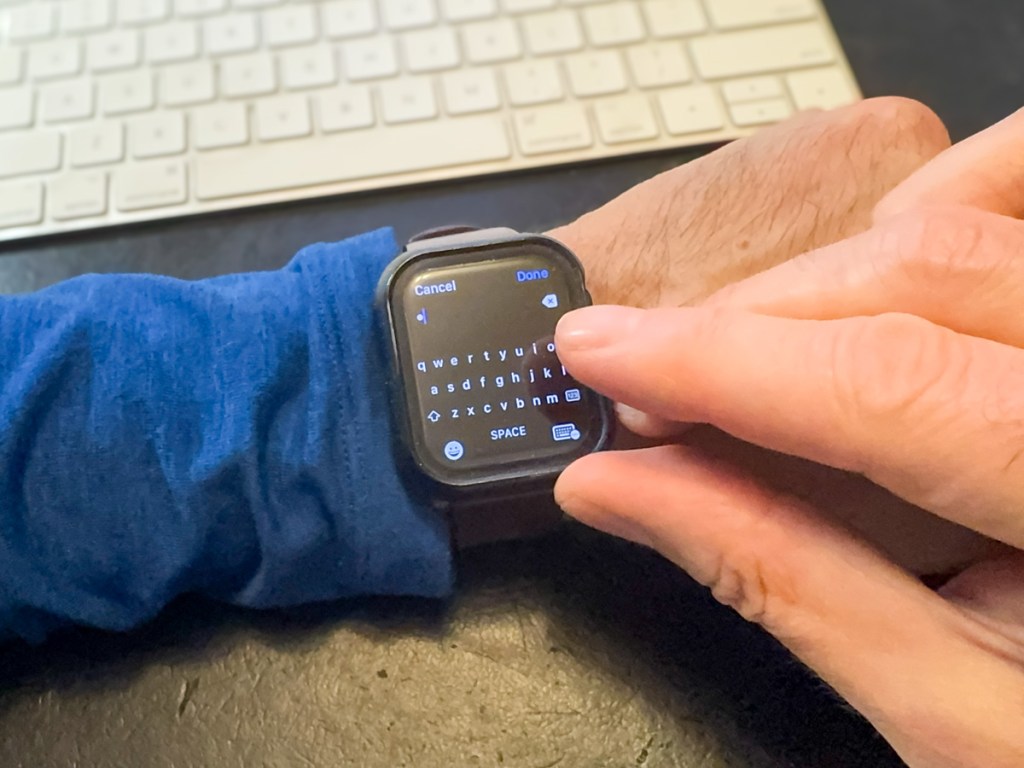
Trying to type into Apple Watch keyboard
Stop trying to sign into your Apple ID using your Apple Watch’s micro keyboard. Your finger is probably way too big for this. Here’s the better way to get the job done.

I don’t like messing with my Apple Watch. I’ve set it up to do what I want, and I usually don’t dig in to change the settings. The screen is so tiny. Yes, its interface is clever, but it’s not much bigger than a postage stamp. 

And that’s fine. It’s a watch… not an iPhone. 

Sure, it’s similar to iPhone in certain ways and is best tethered to one. And I can easily interact with it using the Digital Crown and side button.

But please don’t ask me to type anything into my current Apple Watch Series 9. That’s absurd. Yes, you can call up a cute micro keyboard to use. But come on… My index finger takes up 30% of the entire surface of my Apple Watch. 

Update Apple ID Account Settings on your Apple Watch
But that exactly what my Apple Watch sometimes asks me to do after a software update. I’m supposed to log back into my Apple ID account. And then my Apple Watch presents me with its tiny keyboard. Are you kidding?!  

My finger’s surface area can press onto 3 keys easily… so tapping away gives me about a 30% chance of keystroke success. (And the tiny scribble pad? That’s no better.) 

So recently, after failing to sign into my Apple account after multiple miss-tapping sequences, I looked for another way in…

Use your iPhone Instead
If you think your iPhone can help, you’d be correct. Strangely, I couldn’t quickly solve this tech challenge by Googling it, but eventually I found the clue. Here’s how it works:

  • You simply need to activate your sleeping iPhone right after your Apple Watch prompts you to micro-tap your password. 
  • Immediately, your iPhone will come to the rescue and open a thin text-prompt window on its own screen for you type into. 
  • And as you do that, your password will magically mirror onto your Apple Watch’s screen. Done.

So obvious, right? (The solution is already baked into the Apple Watch/iPhone relationship.)

No More Micro Tapping
Perhaps the whole world already knows this trick. And if it’s just you and me who’ve finally caught on, so be it. (I won’t tell anyone.)

But now, my finger will never again attempt the absurd micro-tap dance on my Apple Watch. 

It’s a micro win… but a win, nevertheless.

How to Catch Urgent Calls when your iPhone is on Mute

Occasionally, you’ll simply miss a call, because you’ve misplaced your iPhone. Otherwise, here’s how I silence calls I don’t want while also allowing the important calls in my life to get through.

I sometimes feel like the Grinch. “All the noise, noise, noise… noise!” With all the unwanted phone calls and emails, I want to scream, “Stop! Go away!” It’s disruptive, increasingly overwhelming, and I want none of it. (Sound familiar?)

The biggest source of disruption was my trusty iPhone which interrupted me throughout the day with calls from unknown numbers and people (or robocalls) I instinctively knew I didn’t want to speak with. (Sure, my iPhone is forever in vibrate-only mode, but too much of that silent-but-buzzy haptic sensation can make you twitchy.)

Contacts Only
So, I shut it down. No, not the phone. But I restricted the list of numbers that could get through to just my contacts. (If you are anyone else, you’re welcome to leave a message.)

Yes, it a was draconian step, but necessary.
Here how to set up this communication limit on your iPhone:

  • Go to ‘Settings.’
  • Tap ‘Screen Time.’
  • Tap ‘Communication Limits.’
  • Tap ‘During Screen Time.’
  • Tap ‘Contacts Only.’
  • Then ‘During Downtime’ can be restricted further if you want.

The result created more serenity in my life, and I was grateful. But there was still another problem waiting for me at the other end of the equation…

You Can Still Miss a Haptics Call
I realized that it was sometimes difficult for my family members to reach me on my iPhone. Of course, their calls and texts got through via haptics mode, but it was still easy for me to miss those important moments.

The fix would be if I could set up a ringtone bypass that would allow my wife and son’s calls/texts to gain back their audio oomph.

Well, as it turns out, Apple gives your iPhone that exact capability!

Ring and Text Tone Emergency Bypass
In your Contacts app, you can set up individual contacts to be able to reach you with the power of full audio ringing or pinging, regardless of how your iPhone is otherwise muted.

Here’s how to do that:

  • Tap ‘Edit’ for a specific contact.
  • Tap on ‘Ringtone,’ which is set to ‘Default.’
  • Then on the next page, tap on ‘Emergency Bypass’ to turn it on.
  • Repeat these steps for ‘Text Tone.’

That’s it.

Your Updated Communications Plan
When you’ve finished tweaking these iPhone settings, you will have more effectively tuned out what you don’t want while enabling the important people in your life to better connect with you.

Sanity restored.