At Home with Tech

Unlock the power of all your technology and learn how to master your photography, computers and smartphone.

Tag: apple

The Best UPS for Your iMac

"Uninterruptable Power Supply Interrupted." My APC UPS failed its own self-diagnostic… and my iMac began operating without a net. A power net, that is… Time to buy a replacement!

“Uninterruptable Power Supply Interrupted.” My APC UPS failed its own self-diagnostic… and my iMac began operating without a net. A power net, that is… Time to buy a replacement!

A moment of Tech Zen is often a fleeting one… Last week, my Home Zen was shattered by a piercing series of beeps coming from under my desk.

It was my lowly UPS unit… I mean to say my uninterruptable power supply… You know… that big, heavy battery backup box that my iMac plugs into for protection against a power outage.

Computers hate unstable power or the sudden loss of power mid sente

(…just kidding)

Time to Replace My Uninterruptable Power Supply
But seriously, unless you have complete faith in both your electrical grid and Mother Nature, you should expect the occasional brown out or total black out. Providing stable, emergency power for a few minutes, a UPS battery system can really save your computer heartache.

But any battery only lasts for so long, even if you’re not using it. My five-year-old APC UPS (XS 1200) decided it was no longer fit for duty while I was enjoying my morning cup of Joe.

It performed a self-diagnostic and apparently failed the test. That activated a red light in the front and the irritating 30 seconds of its beeping red alert.

Yes, the APC had my attention…

#33
So I jumped onto Amazon to see how much the replacement battery would be.
I tracked down the right model, which was named ‘Battery Cartridge #33.’

#33 was selling for over eighty bucks!

That’s already half the cost of a band new UPS, but many of you would probably still say, “Click” and be done with it.

Not me…
I decided I didn’t want to mess around with tech that’s already a few generations old.
(You know how I get when it comes to reliable power.)

So I began my search for a new UPS.

APC Vs. CyberPower
APC appears to still be the dominant manufacturer of consumer UPS units today, but after a little online research, I found lots of folks talking about how much they liked their CyberPower UPS systems.

So for no rock-solid reason, I decided to go with ‘the other guy.’
(And now all the APC marketing folks are throwing their hands up in disgust with my fickle positioning.)

True Sine Wave Vs. Modified Square Wave
If you’re still reading this paragraph, I congratulate you for your insatiable search for knowledge… or you have my condolences for being such a massive geek…

Either way, you should know, the ‘Sine Wave’ conversation is apparently a controversy in certain tech circles. And it could point to a huge risk in the health of your computer when running off the ‘wrong UPS unit.’

It would be best if you found an electrical engineer to explain,
(Because I barely understand it)
…But here are the basics…

It has to do with the quality of electricity a UPS generates.

Most consumer UPS systems don’t give you a ‘true’ or ‘pure’ sine wave electrical current. They give you something called a simulated sine wave… or a modified square wave… or a stepped-approximation sine wave.
(My body is starting to shudder uncontrollably just trying to type all these words.)

And yes, simulated sine wave UPS systems cost less than the ‘pure’ ones.
(Think of it like organic juice vs. a GMO liquid.)

And that’s fine for lots of computers. Apparently, they can handle the cheaper juice.

However, certain computers use ‘Active Power Factor Correction’ power supplies (Active PFC). And those units are designed to work with true sine wave current.

Active PFC power supplies don’t like the cheap stuff.

Some say those computers audibly buzz as they struggle with the wrong kind of power.
(And that can’t be good.)

Others insist an Active PFC computer won’t run off of a simulated sine wave at all.

But there’s another camp that says not to worry…
Unless you’re planning on running your computer for extended periods on a simulated sine wave UPS, (like with a home media server) there’s no problem. For those few minutes it takes to power down your computer, you’ll be just fine.

So which side should you believe?

Looking for a Sign for the Right Sine
Well, the next question I had was whether my iMac has an Active PFC power supply…

It does.
(gulp)

So I decided to head down to my local Apple Store and speak to the Apple Geniuses. Surely they would have a point of view…

First off, there were no UPS units on sale anywhere in the Apple Store.
(That would have been an easy clue.)

Then, I found an available Apple Genius and posed the question…
A perplexed look slowly spread across his face as if I had asked him about Windows 10.

Can the Apple Genius Save my Sanity?
He did not respond to the words, ‘Active PFC.’ He didn’t chuckle when I mentioned ‘sine wave.’ However, he did act like I might have just teleported over from a different timeline.

Finally, he acknowledged that he didn’t know what I was talking about, but he warned me that some UPS manufacturers have been known to use bad batteries that can expand. So I should be careful…

I looked around for someone to recognize the irony of that comment.
(By the way, my old MacBook Pro’s replacement battery is still behaving and hasn’t grossly expanded like my first one did.)

Am I the only nerd in the universe who wants to buy the proper battery back-up solution for his computer?!
(This shouldn’t be so difficult…)

Pure Sine Wave Creation isn’t Actually that Costly
My original web research suggested that pure sine wave UPS systems cost ‘significantly’ more. But when I came home and sat back down to check out the CyberPower models, the Pure Sinewave Series wasn’t that expensive. Only about $35 more…

Really?

I’d say throwing away thirty-five bucks is worth the peace of mind that I’m feeding my iMac ‘quality’ backup power!

From there, this annoying tech rabbit hole began to quickly disappear…

Choosing my CyberPower
I zeroed in on-

  • CyberPower PFC Sinewave Series CP1350PFCLCD
    1350VA/810W Pure Sine Wave UPS
    $189.95 on Amazon

It’s slightly beefier than my old APC UPS, and it sports 5 battery back-up plugs and 5 surge protection plugs without the back-up power.
(Yes, UPS units are great for surge protection too.)

Depending on how much power you need, there are less expensive choices-

And there are also a couple more models in between these two.

But remember… Reduced power is going to give you less time to maintain and shut down your computer equipment during a blackout…

How Much Power Do You Need?
Of course, the next question is how much juice do you really need…?

I admit that even with a few extra external hard drives and my iMac, I’m supersizing it with the 1350VA/810W model, but you never know what kind of hungry tech might come home in the next five years…
(Plus UPS batteries do lose capacity over time.)

Click.
(I actually did the deal with B&H with the free ‘expedited’ shipping…which is usually next day for me!)

A Smart UPS
I unboxed the UPS, slid it under by desk, plugged it in, and tethered my iMac to it. All done?

Not quite…

When you plug in the included USB cable to your iMac, the CyberPower’s status is automatically recognized by the computer. You can find it in your Energy Saver’s settings in the System Preferences icon on your bottom menu bar.

Without installing any extra software whatsoever, you can schedule when your Mac should sleep or power down while running off of the CyberPower unit.

And if you want, you can choose to show the UPS’s battery status in your top menu bar.

Sweet!

Suddenly this UPS had become more than a soon-to-be forgotten troglodyte battery gathering dust by my feet. Now, it had become an integrated member of my desk’s tech team.

Drum Roll Please
So it was time to do a test. I unplugged my new UPS… and as soon as I di

.

.

(…kidding again)

iMac UPS Alerrt


Everything was fine.

  • My iMac warned me that it was running on battery back up.
  • The remaining battery time popped up on the UPS’s front LED panel.
  • And the battery percentage indicator on my iMac’s top menu gave me oodles of confidence that my digital companion was in good hands with its new CyberPower friend.

CyberPower in Action


The Sound of Silence
I plugged my CyberPower UPS back in, sat in my chair, and took a deep breath…

  • I looked around
  • Listened for any unusual sounds
  • I cleared my mind…

Tech Zen restored.

…And then my printer ran out of ink.

D’oh!
How to Feed Video to any HDTV with Your iPhone or iPad

If you want the ability to take over any HDTV in the universe sporting an HDMI connection, your iPhone or iPad can actually do the trick directly without AirPlay mirroring through an Apple TV. Your portable Apple devices just need a little help….

If you want the ability to take over any HDTV in the universe sporting an HDMI connection, your iPhone or iPad can actually do the trick directly without AirPlay mirroring through an Apple TV. Your portable Apple devices just need a little help….

Once upon a time I would go on vacation with a small army of tech gear to create an on-demand multimedia viewing experience for my entire family.
(The irony here is there has never been any demand for this capability. But of course, that hasn’t stopped me.)

First I brought my Panasonic portable DVD player along with 8,012 Lester-documented cable combinations to handle any possible TV configuration in the wild.
(Only slight exaggeration)

When iPads showed up, that made my packing so much easier. Who can argue with bringing a portable TV the size of a book? You just have to make sure it’s preloaded with all the videos you’d need.
(Assuming there’s no local Wi-Fi to stream with)

Problem solved.
(Well, not quite…)

How Many People can Sit in Front of an iPad?
The remaining issue is only one person can comfortably sit in front of an iPad. Maybe two…
(Of course I’d bring an audio splitter for two sets of ear buds, so my wife and I could watch an episode of “Downton Abbey” while our toddler dozed. But in those days, our little guy didn’t really doze, and by the time he got to sleep in a new hotel room, it was time for us to get some Z’s too!)

But recently I was introduced to a more advanced solution by some friends using their own iPad. This family is very much at home with their tech….
(I swear they come from an alternate universe where consumer technology always works.)

Vacationing with the Jetsons
Earlier this summer our two families took a short vacation together at a little beach house in Rhode Island. On the second morning, the adults were busily preparing breakfast.

The kids? Well, they were experiencing some early morning energy ‘bursts.’ They needed some focusing in this new and somewhat compact space. I’m not proud to admit this, but I suggested powering up thirty minutes of Disney Junior programming on my iPad Air 2.

I looked around for the 9.7” screen, knowing it wouldn’t be an ideal solution for our three young viewers.
(two five-year-old boys and a three-year-old girl)

Simultaneously, the other dad reached for a compact case of cables that was conveniently positioned by the large, flat screen TV set in the living room. For a second, I had a flashback to my own monster pile of travelling cables I had long ago abandoned. But it was immediately evident that this moment was about to reveal something entirely different.

A solution that made real sense…

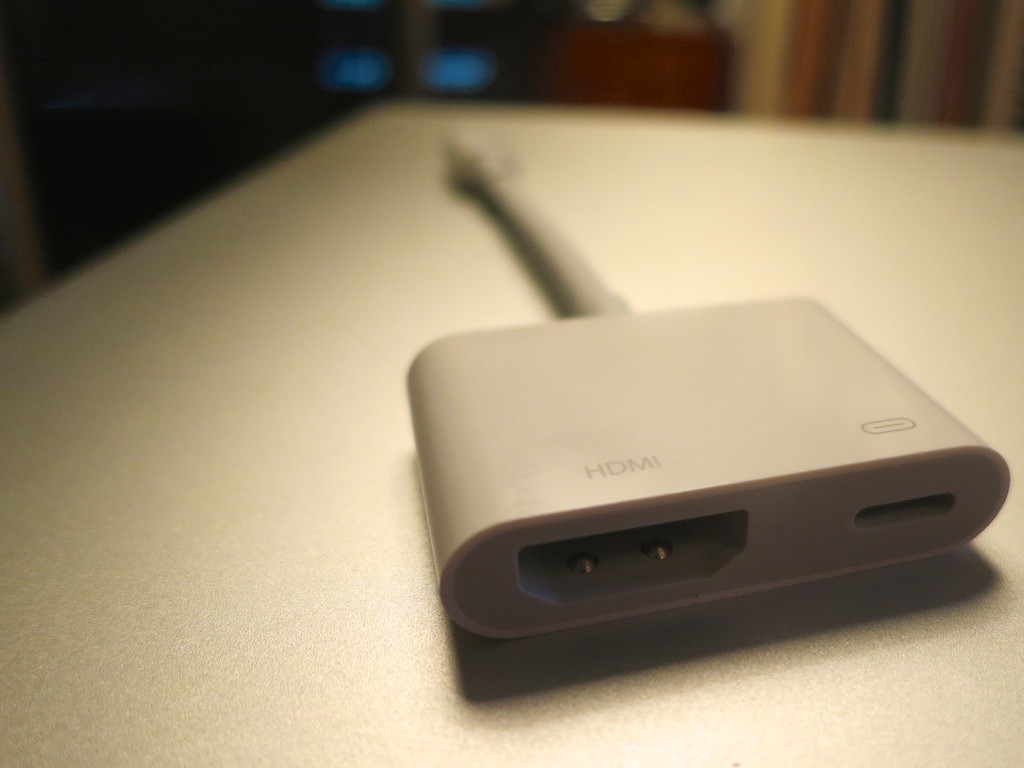
The dad carefully revealed a sleek, white adapter cable. It was barely 4.5”” long. More of a mini adapter box with a short Apple lightning cable attached to it.
(What was this?!)

Apple Lightning Digital AV Adapter

It was Apple’s Lightning Digital AV Adapter that allows you to mirror the display and audio from your iPad or iPhone to an HDMI-fed TV or screen.

It looked so simple….
(of course)

It was constructed with a lightning connector on one end for your source Apple device, and a little white rectangle on the other with a hole for a HDMI cable and a hole for a second lighting connector to run power from a plug.
(Keeping your Apple device flush with energy)

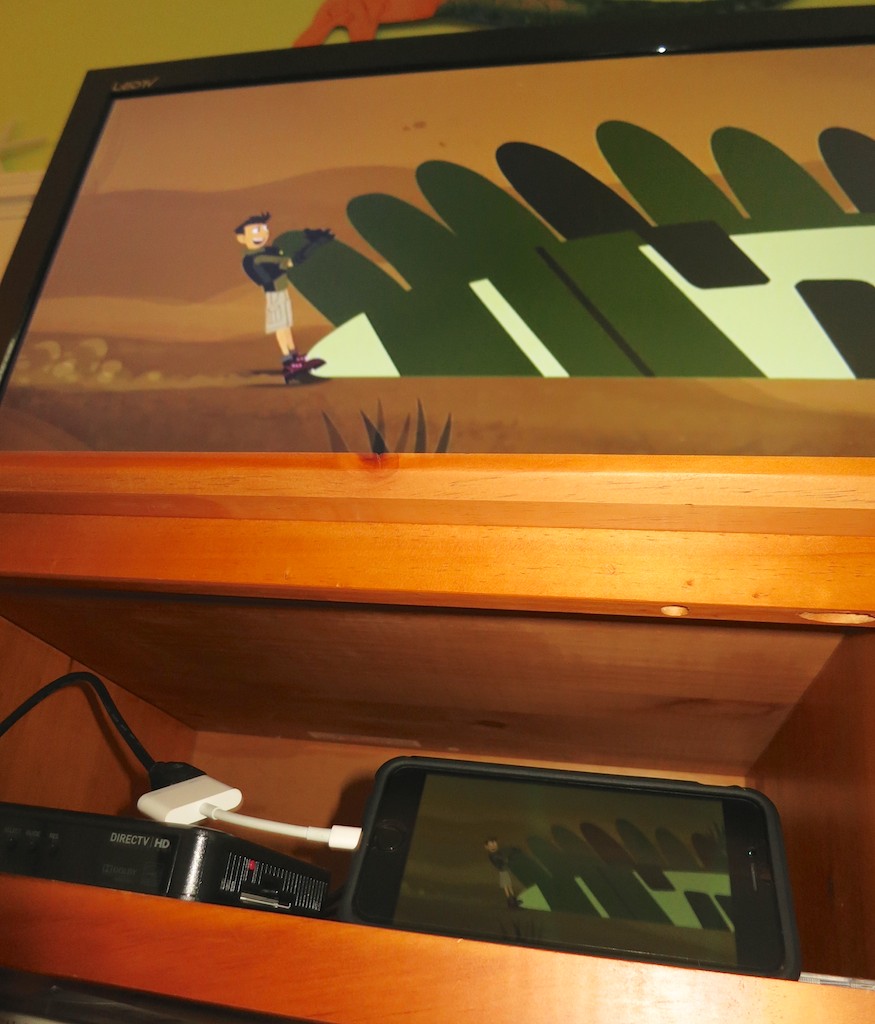
I watched as my friend effortlessly performed a little tech surgery, slipping the HDMI cable out of the back of the DIRECTV box and connecting it to his iPad. And then, as if by magic, the iPad took control of the TV.

I think I heard the three children coo simultaneously. They immediately settled in on the couch to watch their favorite Disney show in this newly created movie theater, powered by the iPad… streaming off of the house’s Wi-Fi.

I started to drool….

Late to the Party
Look, this Lightning Digital AV Adapter isn’t especially new.
Deep down, I think I knew it’s been available for the past couple years. I just hadn’t entirely understood how it could help me.

But to see it in action during a live field test…
Brilliant!

In many ways you can think of it as your own portable Apple TV.
(Without the need for AirPlay Mirroring)

Sticker Shock
But this magical convenience comes at a price.

Apple sells it for $49.
(Really? For just a cable…?)

Yup.

Of course, I Googled about, hoping to find another manufacturer with a knock-off at a lower price point.

Nope.
(Not even AmazonBasics)

I did some additional research and came upon the reason…

Apparently, this adapter is doing some really heavy lifting converting the signal from Apple’s native H264 video format to an HDMI signal for your HDTV. Apparently, if you took a buzz saw to the white adapter box, you’d find something that approximates a mini computer inside.

The exact process of the video conversation is something of a mystery, and whether the video quality is entirely maintained is a bit of a debate online.

All I care about is that it works.
And it’s 49 bucks.

To ease the painful price point a bit, B&H Photo has it for less- $44.99.

Click.

Ready for the Next Vacation
So I now own the ability to take over any TV I come across in the universe with my iPhone 6 Plus or iPad.
(An iPod touch with a Lightning connector works too.)

Will I ever actually do that?
Just knowing I can is worth the two Jacksons.

Call me crazy…

Repetitive Key Strokes Can Be Dangerous to Your Mental Health

If you hear your Mac laughing at you, it’s probably a clue you’re doing something wrong. For example, the ‘Option’ key on your keyboard can really ruin your day if used accidentally...

If you hear your Mac laughing at you, it’s probably a clue you’re doing something wrong. For example, the ‘Option’ key on your keyboard can really ruin your day if used accidentally…

How many times have you tried to erase a word or two while typing away on your Mac and repetitively hit your ‘Delete’ key? All the time, right? It’s almost like an autonomic gesture… where you barely think about it.

But have you ever tapped the wrong key and somehow disabled your keyboard?

I have.

In fact, it happens to me every six months or so.
That’s just long enough to forget the fix.

And it’s impossible to Google the ‘problem,’ because you’re keyboard is frozen!
D’OH!
(And then it’s time for your iPhone or iPad to come to the rescue…)

Disable Mouse Keys
So for quick reference, here’s the solution:

  • Tap your ‘Option’ key five times

That’s it.
Your keyboard should come back to life.

It all has to do with an accessibility feature called ‘Mouse Keys’ which turns your keyboard off and morphs it into a pointer controller.

Every time you hit your Option key five times, it toggles this feature ‘on’ or ‘off.’

‘X’ Marks the Spot?
I often tap the ‘X’ key a few times as a placeholder for something I intend to write later.

If you look down at your keyboard, you’ll see that the Option key is rather close to the ‘X’… perfectly positioned to receive your slightly misaligned finger.

So chances are you’re eventually going to fall into the same trap…

Listen for It
A big clue you’ve made this infuriating mistake is an audio effect that announces Mouse Keys has just been enabled.
(It sounds like an amused robotic mouse scampering across your desk.)

Option to Resume
So the next time you hear the chuckle of a computerized rodent, you shouldn’t be confused why your Mac has suddenly stopped working.

No, it isn’t frozen with fear.
You just need to provide a gentle reminder five times with the ‘Option’ key to keep on going…