
How to Quickly Turn a Scanned Negative into a Positive Image on a Mac

If you think a 90-year-old negative is a lost cause, think again. Here’s how to bring it back to life.
Sure, photo negatives aren’t cool anymore. They represent 19th century technology. Most of us aren’t housing a roll of Kodachrome in our camera bags these days. I get it.
But there’s well over a century of family history locked away in millions of shoe boxes in the back of closets… all in those negative strips. There should be a way to rescue them.
Correction:
There should be an easy way to rescue them and quickly bring the negative images back to life into positive form.
I’ve been traveling that complex journey for the past months since I’ve taken ownership of all of my family’s photo archives (shoe boxes) after my father passed away.
Digital Conversion
So, I bought a slide and negative converter to handle the bulk of the work.
- It’s the Wolverine Data F2D Titan Film to Digital Converter.
(on Amazon for $149)
It’s fast. It’s a one-click solution. The results are mostly solid.
But the Wolverine couldn’t capture the full real estate of the larger negatives dating back to the 1930s (2 ½” x 3 ¾”).
I turned to my old flatbed scanner to handle the large negatives. But then I needed a way (an easy way!) to transform each negative into its positive doppelganger.
Adobe Solutions
There are any number of tutorials on YouTube that demonstrate how to do that in Adobe Lightroom or Photoshop, and they all promote the concept of how easy and fun it is.
‘Fun’ is code for it’s not really that quick. Sure, it may be relatively easy, but it still requires about five minutes of fiddling to bring the image to life in the positive universe.
A few minutes may not seem like a lot of time, but fiddling is not a precise exercise, and five minutes can easily turn into fifteen.
Apple Photos (OS X):
As a Mac user, I wanted to see if I could find a native solution without having to rely on the muscle of Adobe. The good news is I found a couple good options.
If you already use the Apple Photos app on your Mac, you can do the conversion right there. It’s not quite one click. But it’s straight forward. Let’s give it a shot using a negative of my grandmother Rae from 1935 with my father and uncle. (My dad is the tiny one!)
- Upload your negative into Apple Photos.
- Select it.
- Click on ‘Edit.’
Select the ‘Curves’ drop down.
 You’ll see a histogram of the photo with a straight white line positioned diagonally from bottom left to top right.
To invert the negative image to its positive version:
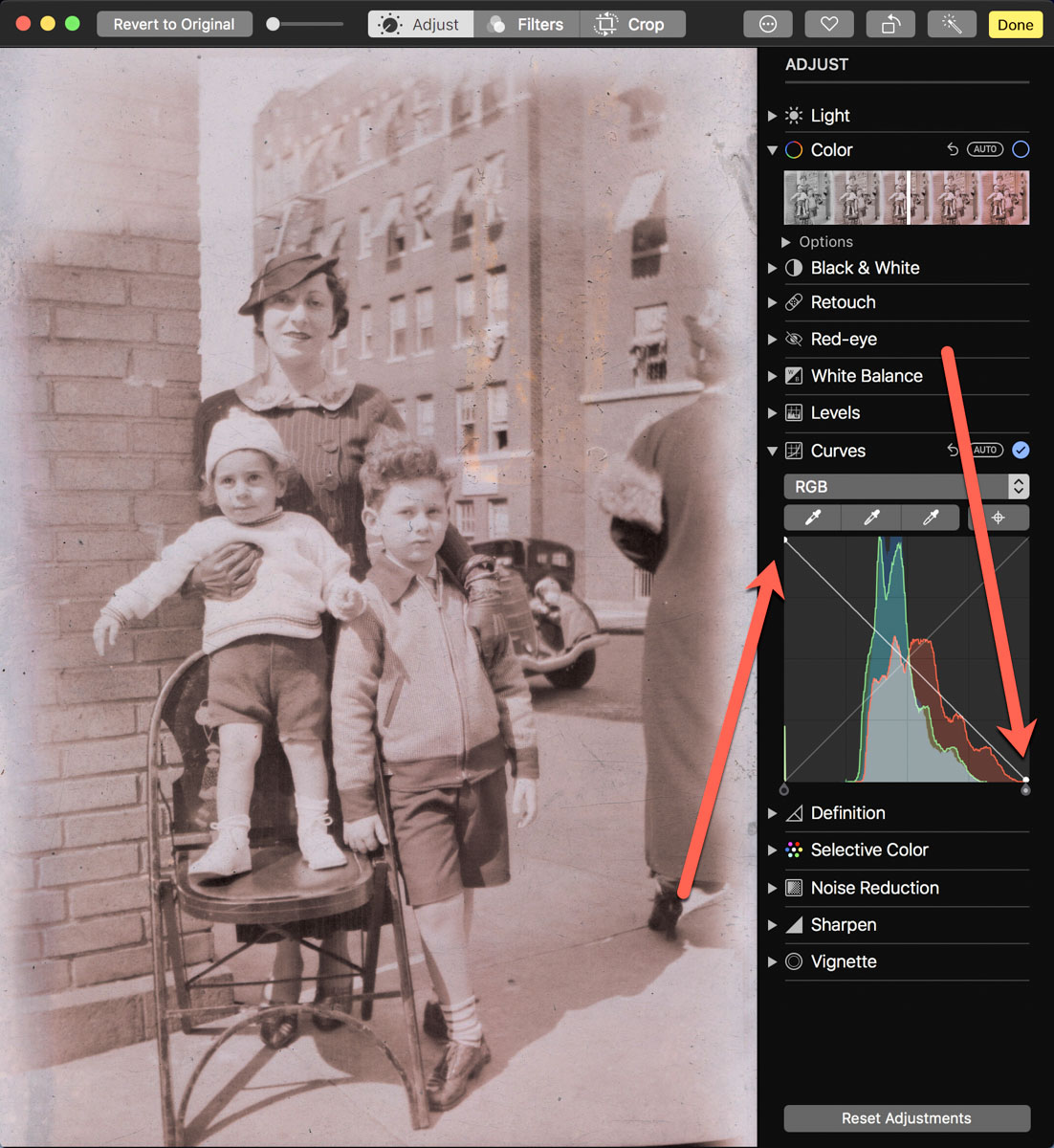 Click on the bottom left of the line and drag it all the way to the top left. Then click on the top right of the line and drag it to the bottom right.
Voilà! Your negative image is now inverted and displays in positive form.
Then, you can continue to tweak the image from there as you choose. (And that’s where you can go down the rabbit hole of tweaking.)
Using Apple Photos to perform this trick is actually quite similar to Adobe Lightroom’s interface.
Preview App
You can also use Apple’s ‘Preview’ app to bring your negatives back to the positive universe.
It’s a near-identical exercise:
- Select ‘Tools.’
- Then ‘Adjust Color.’
Can You Invert a Negative Image in One Click?
Okay. None of these options are one-click solutions. So, Is there one? I figured any number of online photo management websites must have a negative-reversal filter built in.
I checked out Shutterfly, Google Photos, Amazon Photos and Canva.
Nope.
Yes, there are apps out there that promote the ability to reverse a negative in one click. But after giving it some more thought, I just didn’t want to add yet another piece of software into my workflow.
So, I canceled my adventure down this particular rabbit hole. Enduring a few clicks to turn a negative into a positive image will suffice.
Diagonal-Line Maneuver
The truth is I already do most of my photo management work in Adobe Lightroom. The diagonal-line maneuver in the Tone Curve section works just fine (just like with Apple’s ‘Photos’ and ‘Preview’ apps).
The good news is there’s a choice on the software to use if you don’t want to take the Adobe path.
And now I need to get back to work on my time machine. There’s still almost a century of negatives to go through.
I’m bringing the past back to life, one image at a time.
I’d say maybe that’s worth the five minutes.
 At Home with Tech