At Home with Tech

Unlock the power of all your technology and learn how to master your photography, computers and smartphone.

Tag: Halloween

9 Tricks to Eject Unwelcome Ghosts in the Machine

Do you sometimes get spooked by your tech’s unexpected glitches? Here are a few of the ways I chase away the unwanted ghosts in my gear.

A good day is when all of your tech behaves and operates properly. While it’s sometimes fun to get a little scared during the Halloween season, that feeling should never kick in, simply because your gear starts glitching out on you.

Here are my 9 tricks to help your tech treat you right.

#1
Remove the Pocket Lint from your Smartphone’s Port
Is your smartphone misbehaving and not charging when you plug it in? Or do you have to wiggle the connection until the juice starts flowing? The culprit is likely a fuzzy pocket-lint mass that’s collected inside the phone’s port. Here’s the fix.

#2
Adjust your Camera’s Internal Clock
If maintaining the chronological sequence of your vacation photos is important, and you’re using a second camera on top of your smartphone’s camera, both clocks had better be synced. Otherwise your vacation photos will end up being displayed out of order.

#3
Turn off Portrait Orientation Lock on your iPhone
If you’re trying to watch a video, and your iPhone won’t play it full screen when you rotate it horizontally, the problem is likely the Portrait Orientation Lock. Here’s how to turn it off.

#4
Delete Downloaded Podcasts You’ve Already Listened to
Is your smartphone almost out of storage? Of course it is. Here’s one big way I like to free up badly-needed memory on my iPhone.

#5
Back Up All of your iPad’s Data
Last year, I lost a lot of my son’s photos and videos on our family iPad when we took it to an Apple Store for maintenance. I was devastated by my rookie mistake of not setting up the iPad’s iCloud backup properly.

My son was annoyed, but he quickly moved on and simply took more photos. (And I’m still writing about it.)

#6
Stop your Email Program from Suggesting Old Addresses
Wouldn’t it be nice if everybody had one email address assigned at birth, and that was it for life? How simple would that be? Then, you could easily keep track of all your contacts. No more old email addresses that don’t work.

Until that happens, here’s an easy way to clear out old email addresses from ‘Auto-Complete.’

#7
Do your Software Updates
Keeping all of your digital gear current with software updates is an endless process that requires a fair amount of effort and organization. And following an auto-update strategy can sometimes lead to updates that aren’t ready for prime time. I think it’s best to have your tech remind you about the updates, and then you can manually install them.

#8
Reorganize the Apps on your Smartphone
If you’ve been having difficulty finding certain apps on your smartphone or they’re not where you thought you left them, it’s time to take a few minutes and do a little reorganizing. That can include placing some of your apps into topic folders and perhaps pruning others you haven’t used for a while. (You can always reload them!)

Losing a few long-forgotten apps will also free up memory on your device.

#9
Make Sure You have Enough Wi-Fi Bandwidth at Home
When you’re presenting during a Zoom meeting from your home office, the last thing you want is for someone to interrupt and report that you’ve frozen up. While there’s no bulletproof way to prevent that, you can certainly upgrade your internet plan to improve your odds.

Going old-school and hardwiring your computer to your router may also result in faster streaming speeds.

Boo!
Hopefully these tricks will help prevent your tech from acting naughty and spooking you out!


Slowing Down in New York City on a Sunday

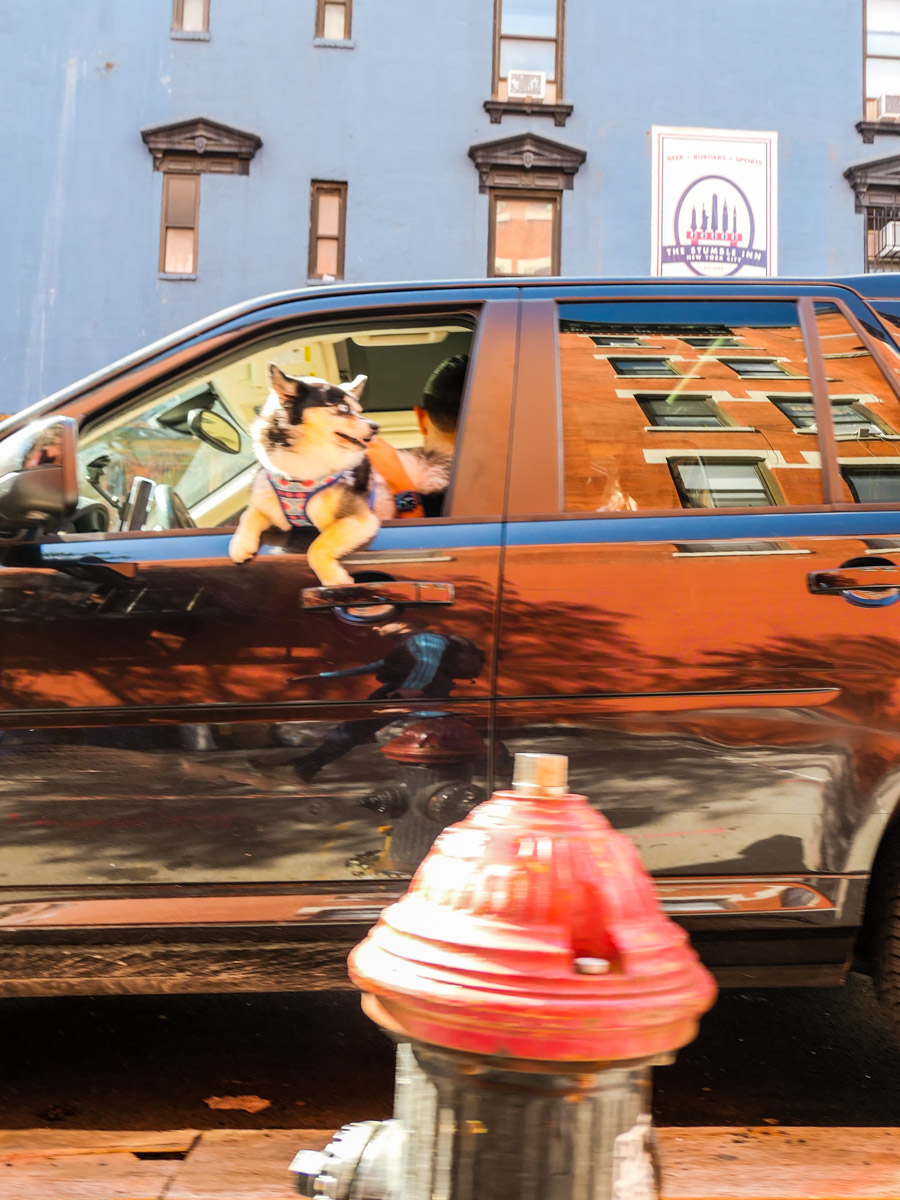
Moving through Manhattan doesn’t always have to be a huge rush. If you take a moment to slow down while you walk the streets, you can actually take in some relaxed weekend energies. Here are a few New York moments I spotted.

When I visit my father on a Sunday afternoon for lunch, I’ve gotten used to walking from Grand Central Terminal to the Upper East Side. Of course, taking the Lexington Avenue subway is faster, but during the pandemic I’ve preferred outdoor spaces. I usually do a power walk to minimize the extra time required for my two-mile trek. But more recently, I’ve tried something new…

I just don’t walk so fast, and I pay more attention to my immediate surroundings. And I keep my Panasonic Lumix LX-10 camera in my right hand as I go.

Don’t Look Away
I know it’s not a revolutionary idea, but having grown up in Manhattan and spent many adult years walking its streets as part of my commute, I’ve learned to tune out much of the dynamic and sometimes chaotic environment.

But on a Sunday, life on the streets of New York is a bit less intense. And there’s more of an opportunity to enjoy the moment. Everyone seems to have slowed down, if just a bit.

So, I recently traded in my speed-walking strategy for the opportunity to stroll to the Upper East Side and look around for moments that might be interesting to photograph.

Here are a few that I spotted.

Sunday Joy
Beyond my little photographic exercise, I think some might say that I was also being more ‘present’ in my surroundings. It felt good.

Plus, add in a nice lunch with my 88-year-old father, and I’d call that a really good Sunday in New York City!

How to Remove an Undead Zombie Eye from a Photo

halloween-eye

Sometimes a perfectly good-looking eye won’t reflect its twin in a camera’s flash. That can really ruin a picture. Bring it back to life in seven easy steps with some photo-editing voodoo from Adobe Lightroom!

I call it ‘Dead-Eye Syndrome.’ And it’s a killer. It can unexpectedly strike at the heart of your favorite photos.

We all know how ‘red eye’ is a common problem with flash photography.
And how that devilish defect tends to occur in low-light situations when someone’s pupils are wide open.
(Blue-eyed people have a greater problem with this than brown-eyed folks.)

But barring this complication, eyes tend to normally reflect the flash in the form of a glint or sparkle.
Totally expected…

In certain circumstances though, one eye may unfortunately reflect the flash less directly than the other eye. Or sometimes not at all….
Now that can look really weird!

And the otherwise best photo you’ve taken in years can make somebody look like an undead zombie.

This Dead-Eye Syndrome is definitely going to ruin that pic…

Time for an Eye Job
Red eye is so easy to fix these days. Cameras and computer software have simple tools to magically turn all that red to black.

But what are you supposed to do with a dead eye?!
Well, to bring it back to life, you’ve got to give it the similar glint of its partner.

And that’s going to take a little tech voodoo…

Dead Eye Surgery in Seven Steps
The basic task is to clone the glint from one eye and place it on top of the sickly-looking pupil in the other eye.

Here’s how you do it using Adobe Lightroom 6:

  1. Click on the ‘Spot Removal’ tool.
  2. Click on ‘Clone.’
  3. Adjust the Brush Size to exactly cover the reflection of the good eye.
  4. Move the tiny circular brush to the dead eye and click where the reflection should be.
  5. Lightroom will choose a section from the photo to clone and highlight it with a second circle.
  6. Drag that second circle to hover back over the flash reflection in the good eye.
  7. Click again on Spot Removal to repair the dead eye and lock in the change.

It’s a little counterintuitive, but what you’re essentially doing with ‘Spot Removal’ is removing the ‘dead spot’ that should have the glint in it, and then replacing it with the appropriate flash reflection from the other eye.
(As opposed to copying the glint from the good eye and then pasting it to the dead eye)

Voila! Both of your eyes now have matching reflections.
Normality has been restored in your picture.
You are no longer an undead zombie.

Take a look at this example:

daddy-zombie

This is cropped in from the original photo. I think part of the frame from my glasses is also a contributing culprit that’s blocking the flash’s reflection. But it’s still a good example to use.


no-more-daddy-zombie

After surgery – No more Daddy Zombie…


Illuminating the Darkness
I know there’s lots of debate about the appropriateness of touching up a face in a photo.

I don’t think this falls under the same category of concern.
You don’t really have a non-reflective dead eye.
(Right?)
There is no darkness to your soul.
(I hope.)

It’s more of an aberration created by technology.
(Unless your evil eye always photographs that way… if so, immediately run to your ophthalmologist…!)

We’re simply reversing a little error and letting your true beauty shine through…

You’re welcome.