
How to Create a Holiday Card with a Photo Collage at the Last Minute

If stores are closed, and you need to buy a holiday card before the party, why not print out one of your own? And if you add in a few of your own pictures, you’ve got the makings of a great card. Here are three ways I do it.
When I was a kid, my mother would spend hours shopping in different stores for the perfect holiday or birthday card for me. I think she equated all that effort to demonstrating her love (or she just enjoyed shopping for cards). For a time, I followed in my mom’s footsteps, but that eventually changed.
I stopped shopping for ‘greeting cards’ at pharmacies years ago. It’s so analog. Those generic cards are expensive, and the professionally written sentiments are hardly delightful. Sure, they’re adequate and serve a purpose, but there’s a better way…
Make your Cards Yourself
I’ve been generating my own holiday and birthday cards on my computer. Plus, I typically do it using my family pictures.
It just takes:
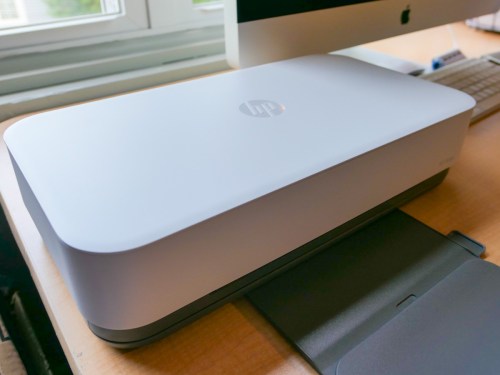
- a home printer
- some photo paper
- and access to a card-design program
What Design Program Should You Use?
The key for me is to use a card-design program or app that allows you to quickly pop in your pictures and type your message into a photo template. Speed is everything, because I’m often creating the cards (cough) at the last minute. (And if you realize you need a card after the stores are closed, a digital DIY solution is really all you’ve got.)
I usually prefer to use a photo-collage template. The multiple pictures help to represent a body of time that I’m celebrating.
The bespoke nature of these cards makes them more personal, and I find them more impactful than choosing the generic-card-from-a-store route.
My recipients really like them! But believe it or not, there aren’t that many online options out there that will do the card-creation trick for you quickly and free.
That said, here are three options I’ve tried that are relatively easy to use.
Shutterfly
Like many websites, Shutterfly wants to sell you physical cards. The design piece is there to help complete your purchase. But before I click to ‘buy’ the designed card, I simply capture a screenshot of the card and use that file for my printer. Yes, it’s a MacGyver move, but it works. (You don’t need a high-res file for a 5″ x 7″ card housing a photo collage.)
The templates are easy to use, and yes, I do occasionally buy something from them.
Adobe Express
This Adobe software has a free version you can use, though many templates are unavailable. Still, it’s a good choice to consider. Even though this is a simplified ‘express’ solution, it requires a little more Adobe design/interface knowledge.
Its ‘Collage Maker’ has a 9-photo limit. Once you import your pictures, you then click through some preset layout options, which often don’t fit the photos. So, you’ve got some work to do. But then I found its photo-resizing function was surprisingly glitchy. Happily, with a little more effort, the interface eventually behaved.
And with practice, I’m sure Adobe Express would be easier to work with. (You’re using an Adobe product. So, I’d say that’s a good investment of your time.)
Canva
I’ve been using Canva for years. Its interface is easy to navigate, and its photo-grid templates are quite flexible and intuitive to move around.
Just like Adobe, the free Canva version shuts you out from many designs, but there are still plenty of options.
I must repeat that Canva is super simple to use, and it gives you solid results.
One more time… Easy.
It’s Never too Late
No, printing out a photo-collage card onto photo stock is nothing new. But it’s always a good reminder to occasionally flex the skills needed to spit one of these out.
Yes, there are any number of other solutions online to do this kind of creative work, but I prefer going with a brand or website I know and already have a relationship with.
Just set aside a little time (especially to compose a few heartfelt words), and I bet you’ll quickly create a beautiful card that will totally impress your recipient.
 At Home with Tech